 10
UPERFECT UGame K118 Review
Picture Quality, Uniformity & Calibration »Controls and OSD

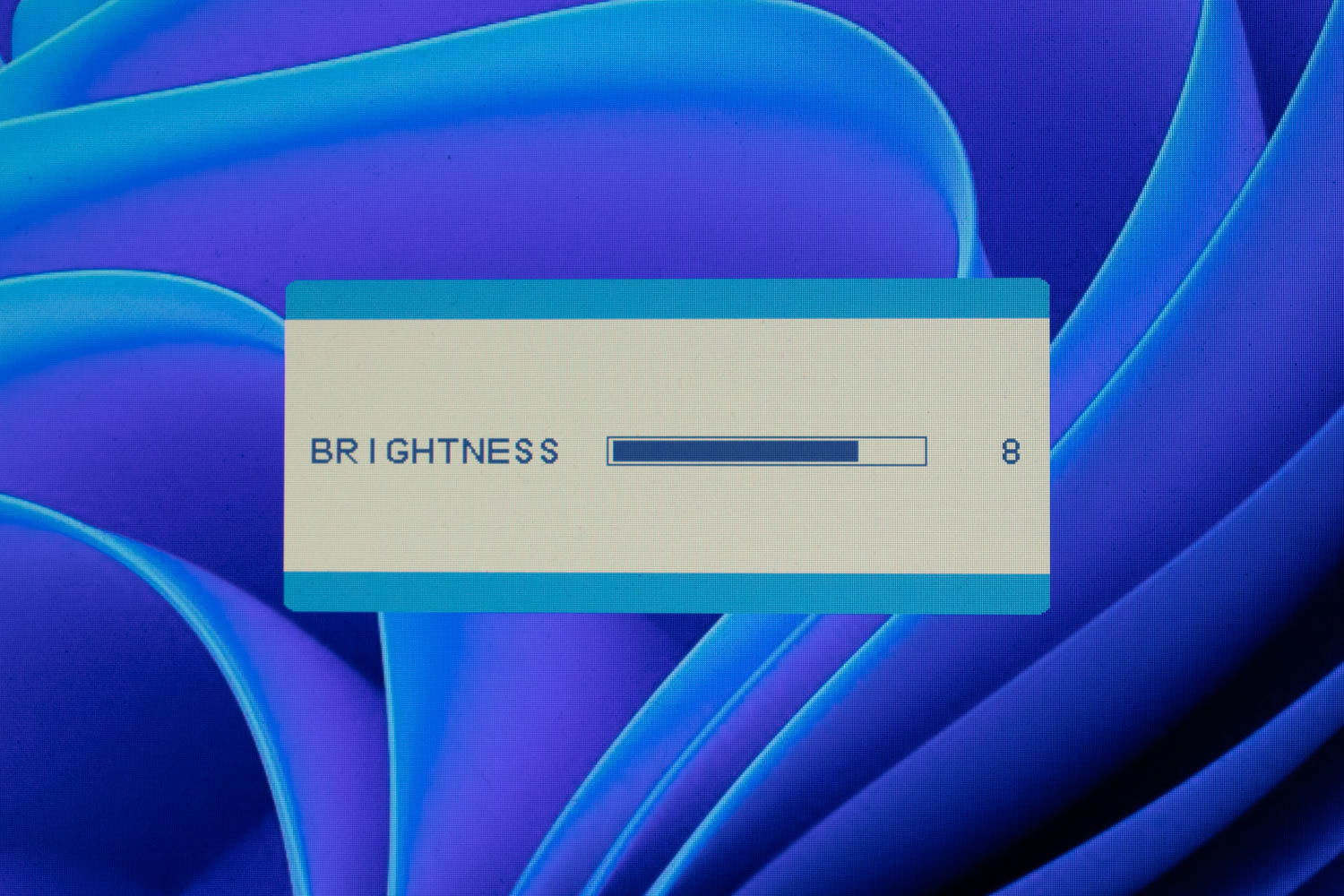
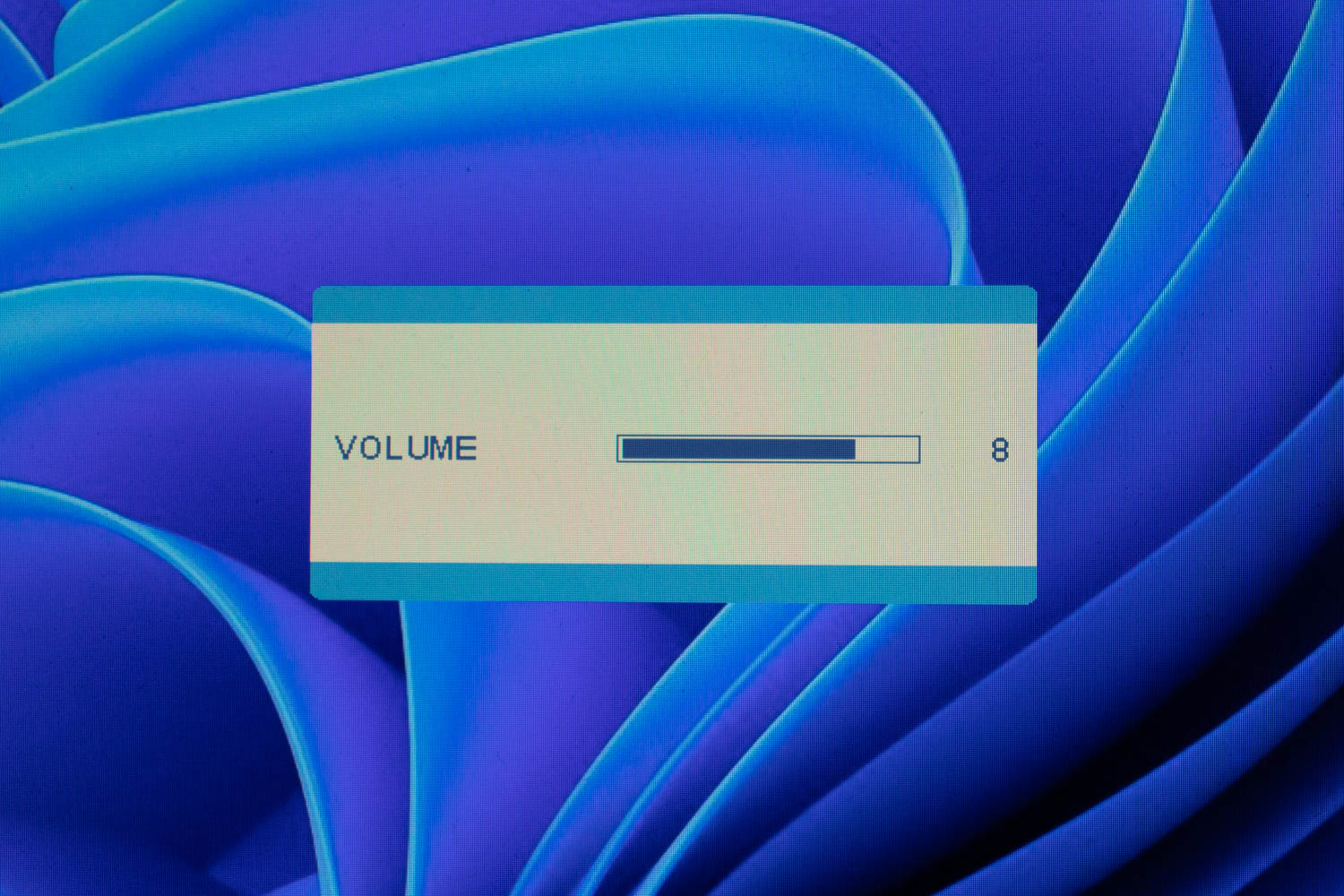
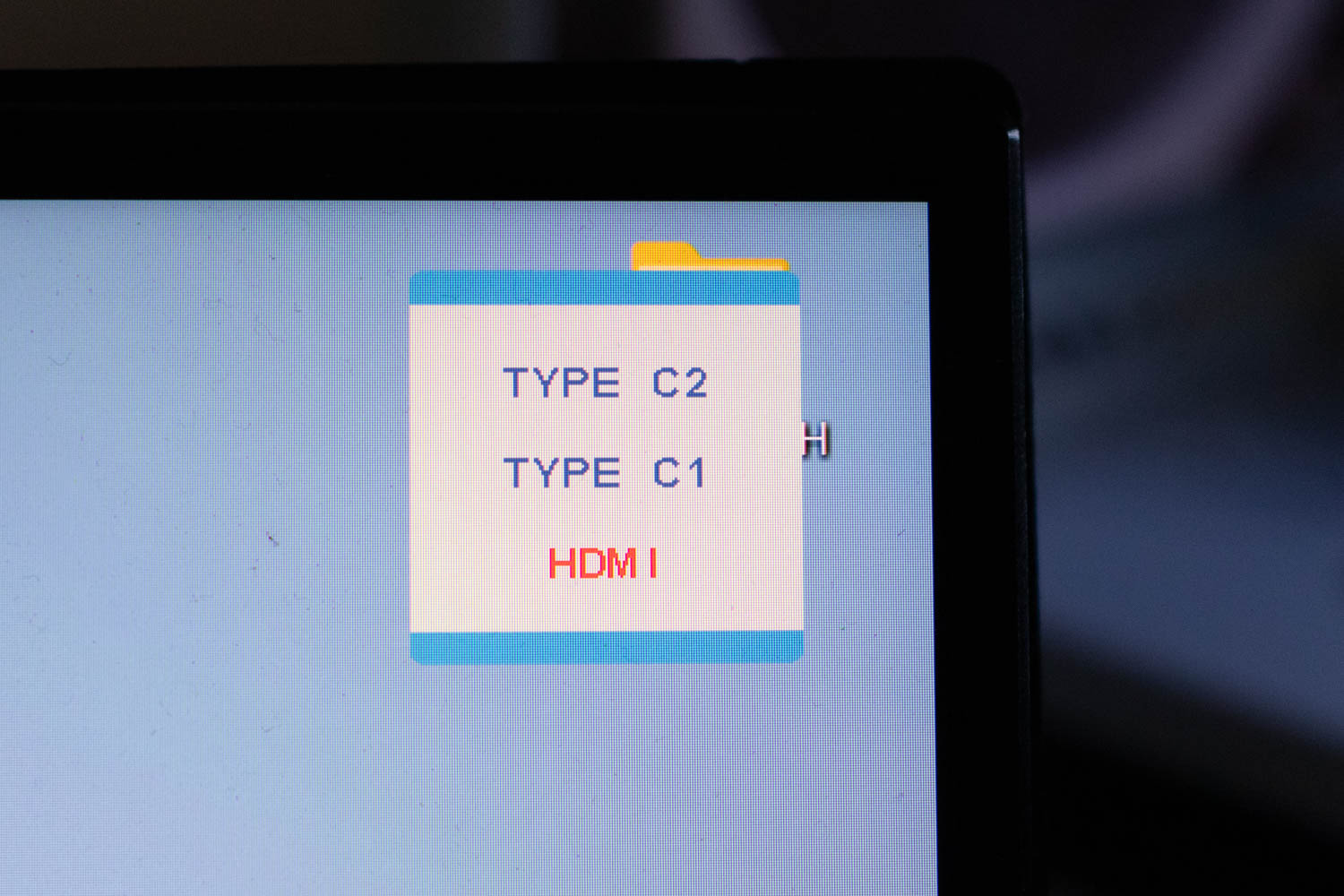
The OSD is accessed through a wheel on the left side of the screen. The wheel can be tilted to the left and right and pressed as a button. Below the wheel is a power button, that works as a back button during OSD navigation. Tilting the wheel up and down quickly accesses the volume and brightness menus respectively; the main menu is accessed by pressing the wheel. The entire control scheme isn't particularly intuitive, primarily because it's very easy to unintentionally tilt the wheel when pressing it. The wheel itself also has a protruding element, which is there to make it easier to tilt, but at the same time, it's what makes it uncomfortable to press. An additional "OK" button would be a happier choice than the wheel doubling as a button.
The main part of the OSD is split into a total of six sections: Brightness, Image, Color Temp., OSD Setting, Reset, and Misc.
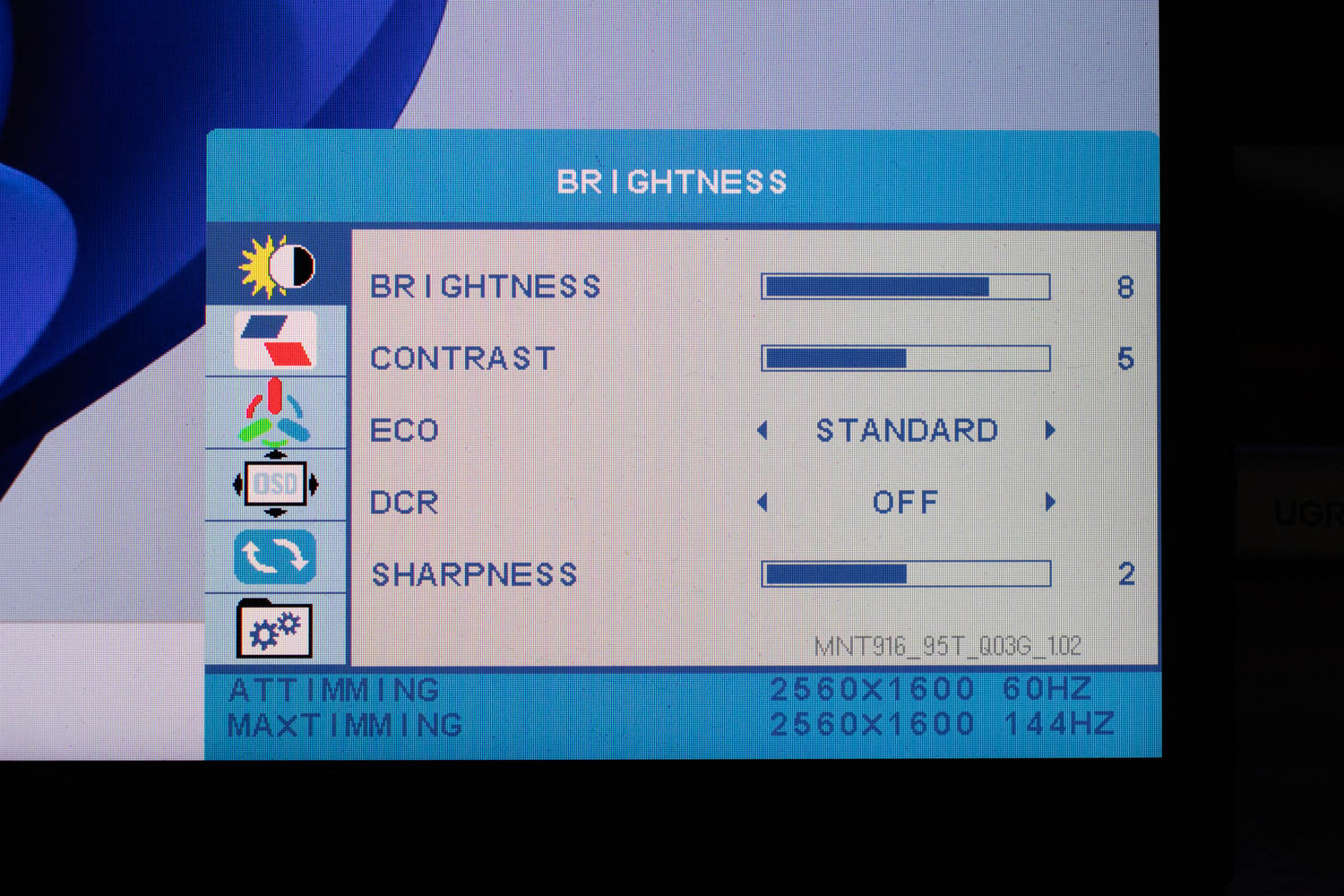
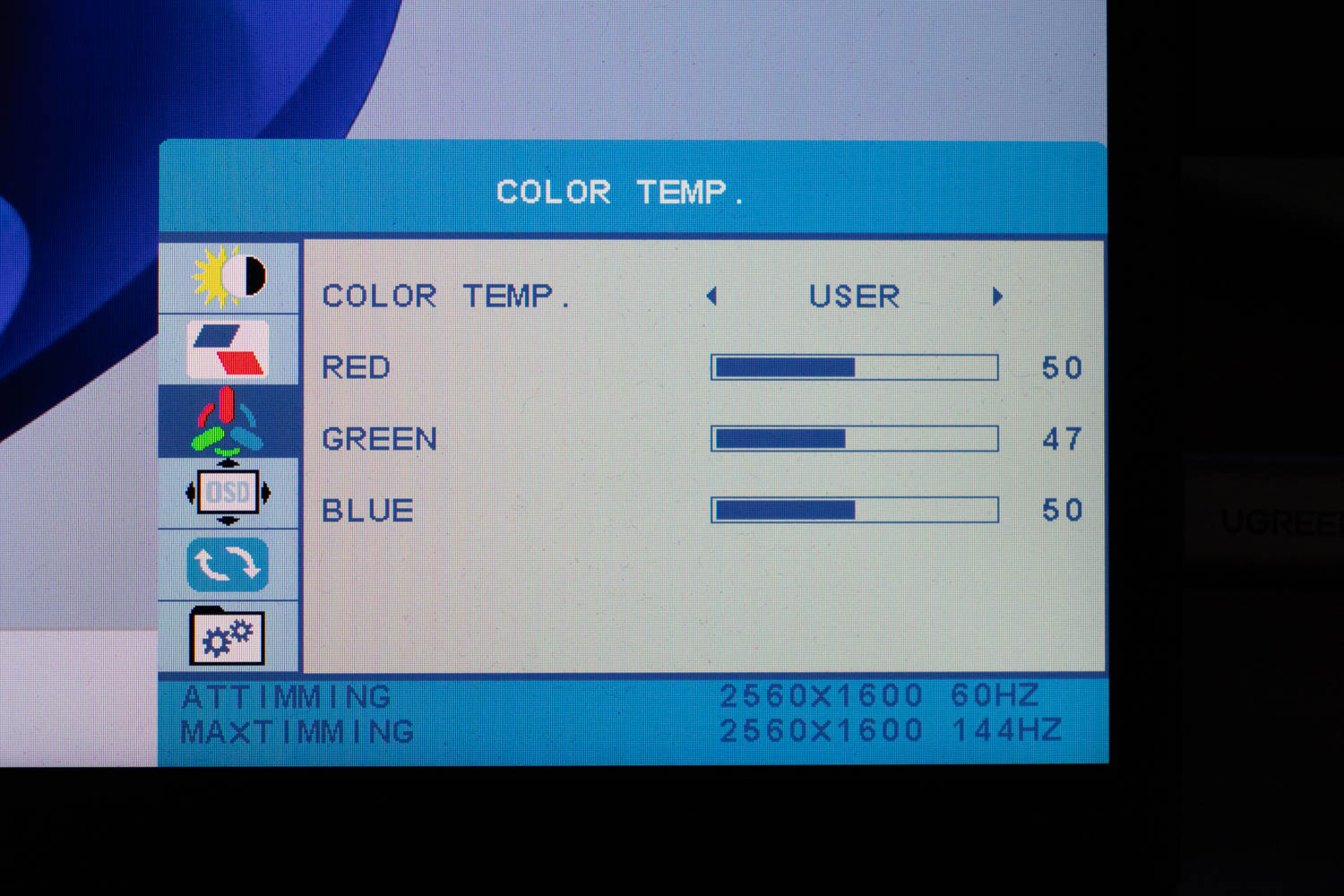
You'll spend most of your time in the Brightness and Color Temp. menus, as that's where you can adjust the brightness and color temperature and influence the panel performance to a certain extent.
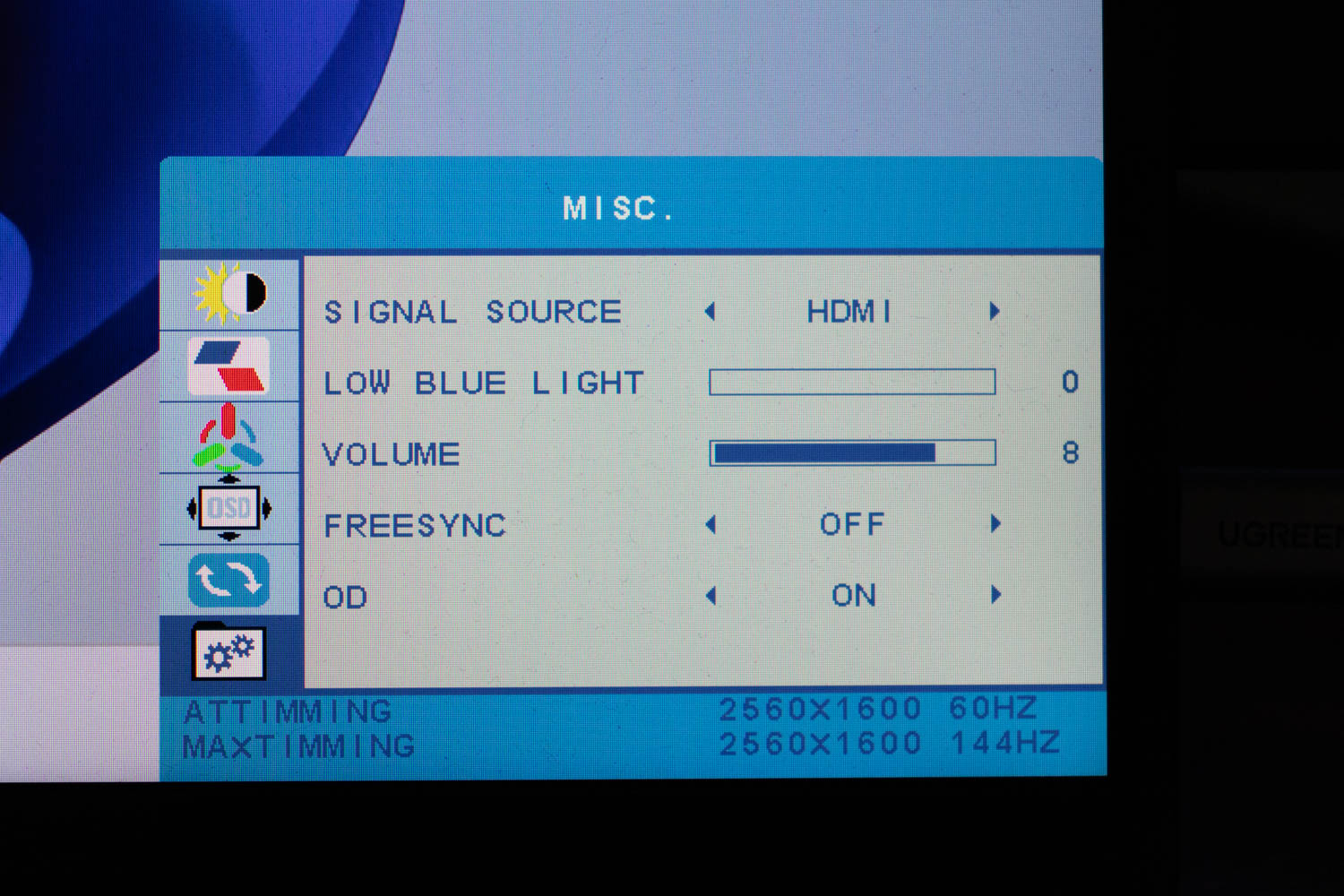
The only other interesting menu is Misc., as this is where UPERFECT placed the Overdrive and FreeSync toggles. This is also where you'll find the input selection submenu, although there's a quicker way to change inputs: shortly press the power button, as that will open the appropriate quick menu.
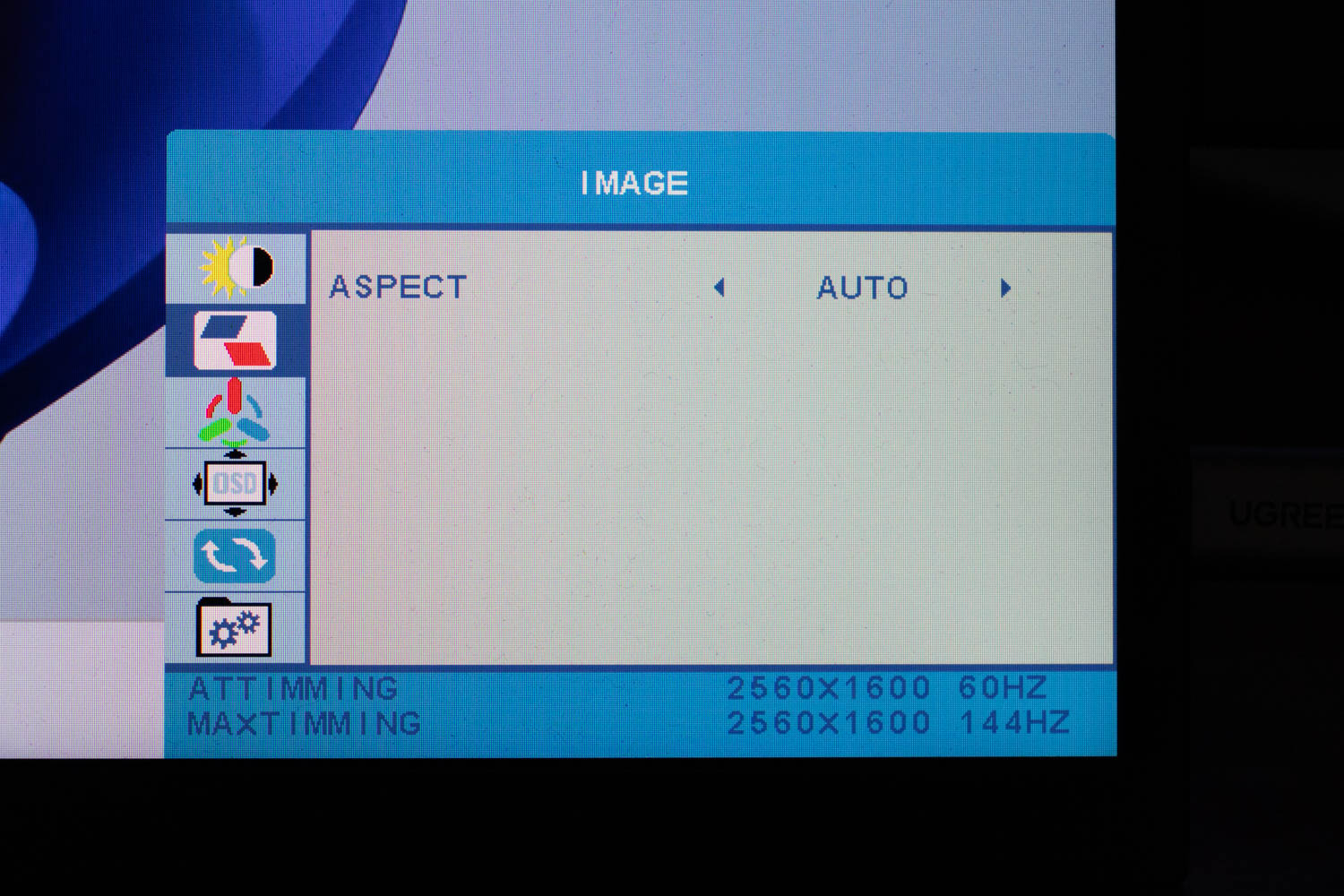
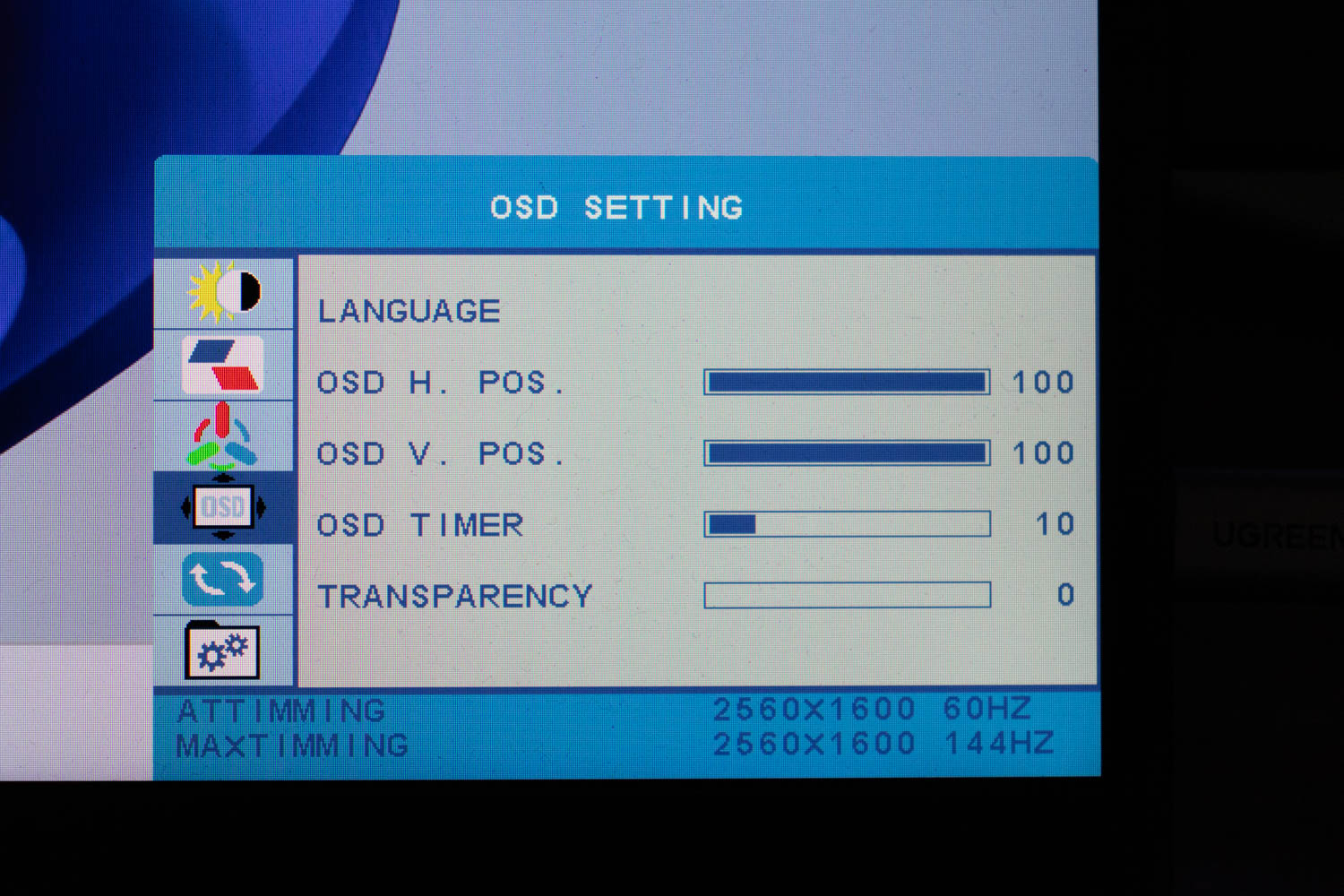
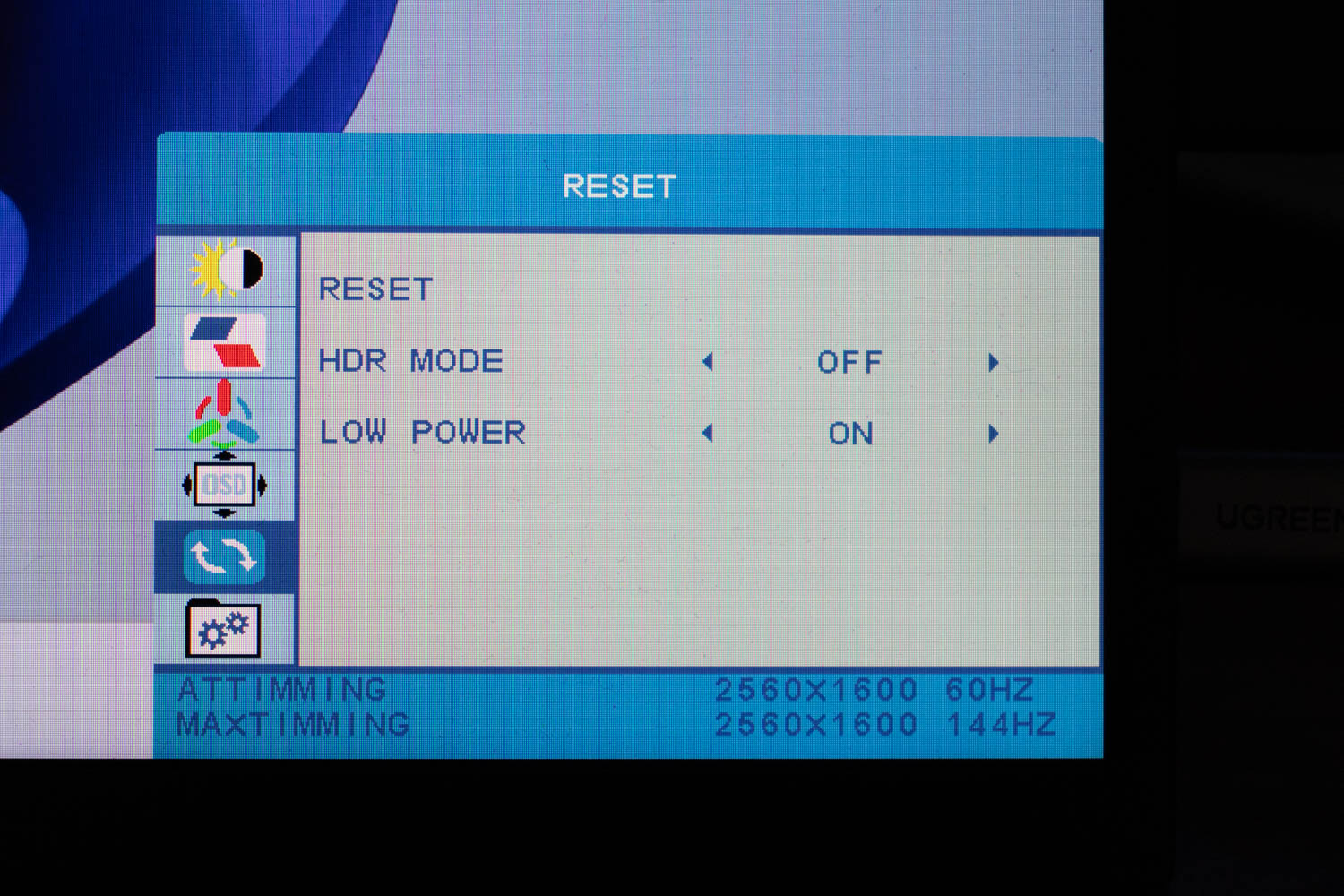
Other OSD submenus don't contain anything of particular interest.
Nov 20th, 2026 09:44 PST
change timezone
Latest GPU Drivers
New Forum Posts
- How to prevent OLED burn damage due to PC freezes or power outtages? (42)
- RX 7600 + Ryzen 5 5600GT getting the same FPS as my old RX 6500 XT – What am I missing? (19)
- Anthrophics IPO (12)
- RX 9000 series GPU Owners Club (2244)
- [Poll] 12V-2x6 Connector Protection: What Are You Using? (WireView / Ampinel / Equalizer / Other / Nothing) (49)
- Very unusual two gaming-pc scenarios. (28)
- GTA VI (18)
- Free Games Thread (5384)
- Making a game in Godot engine (13)
- Intel Core Ultra 5 processor 250K Plus (10)
Popular Reviews
- AMD Zen 6 Technical Deep Dive
- Ugreen NASync DXP4800 GT Review
- Corsair RM1200e (Second Generation) Review
- Acemagic Retro X3 Review
- Upcoming Hardware Launches 2027 (Updated Nov 2026)
- Pulsar Office Tour & First Look at P1 Dual-Sensor Mouse
- Biwin Black Opal NV7400 2 TB Review
- Microsoft Surface Laptop Ultra Review - The Next-gen Arm Laptop
- AMD Ryzen 7 9800X3D Memory Performance Scaling
- AMD Ryzen 7 9800X3D Review - The Best Gaming Processor
TPU on YouTube
Controversial News Posts
- NVIDIA Co-Founder and CEO Jensen Huang Officially Resigns (490)
- Report: Jensen Huang Eyes NVIDIA Comeback (243)
- Open Letter Asking NVIDIA to Reinstate Jensen Huang Passes 115,000 Signatures (184)
- OpenAI CEO Argues Home PCs Waste the World's Limited DRAM Supply (152)
- NVIDIA Launches Investigation Into Jensen Huang's Relationship With Suspected Chinese Spy (136)
- Intel "Raptor Lake Next" 16-Core and 20-Core CPUs Surface (130)
- Legendary Game Studio BioWare Shuts Down Following EA Layoffs (104)
- Dell CEO Says the Memory Shortage Will Get Worse in 2027 (95)