 6
UPERFECT UStation Delta Max Review - Two Screens In One
Picture Quality, Uniformity & Viewing Angles »Controls and OSD
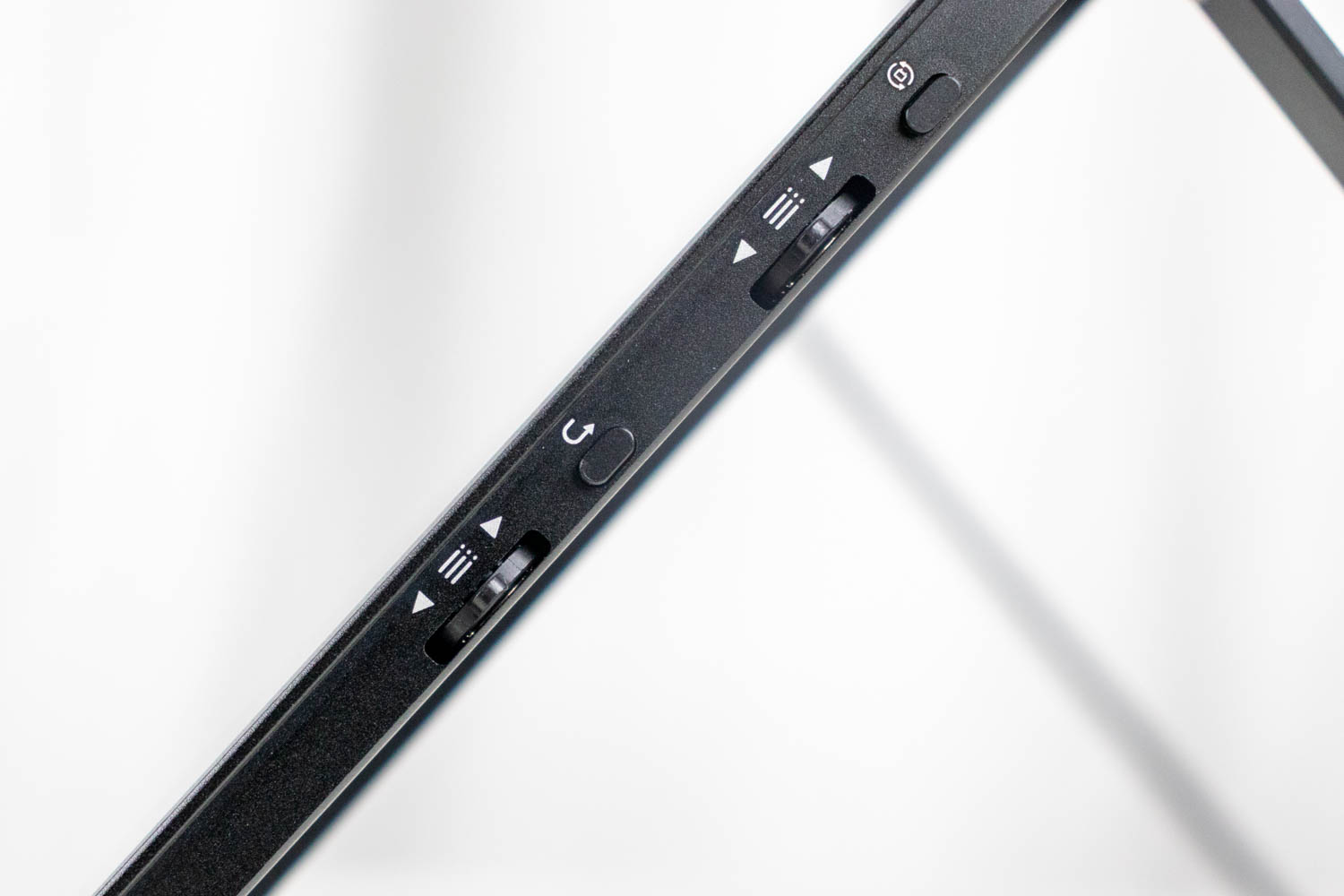
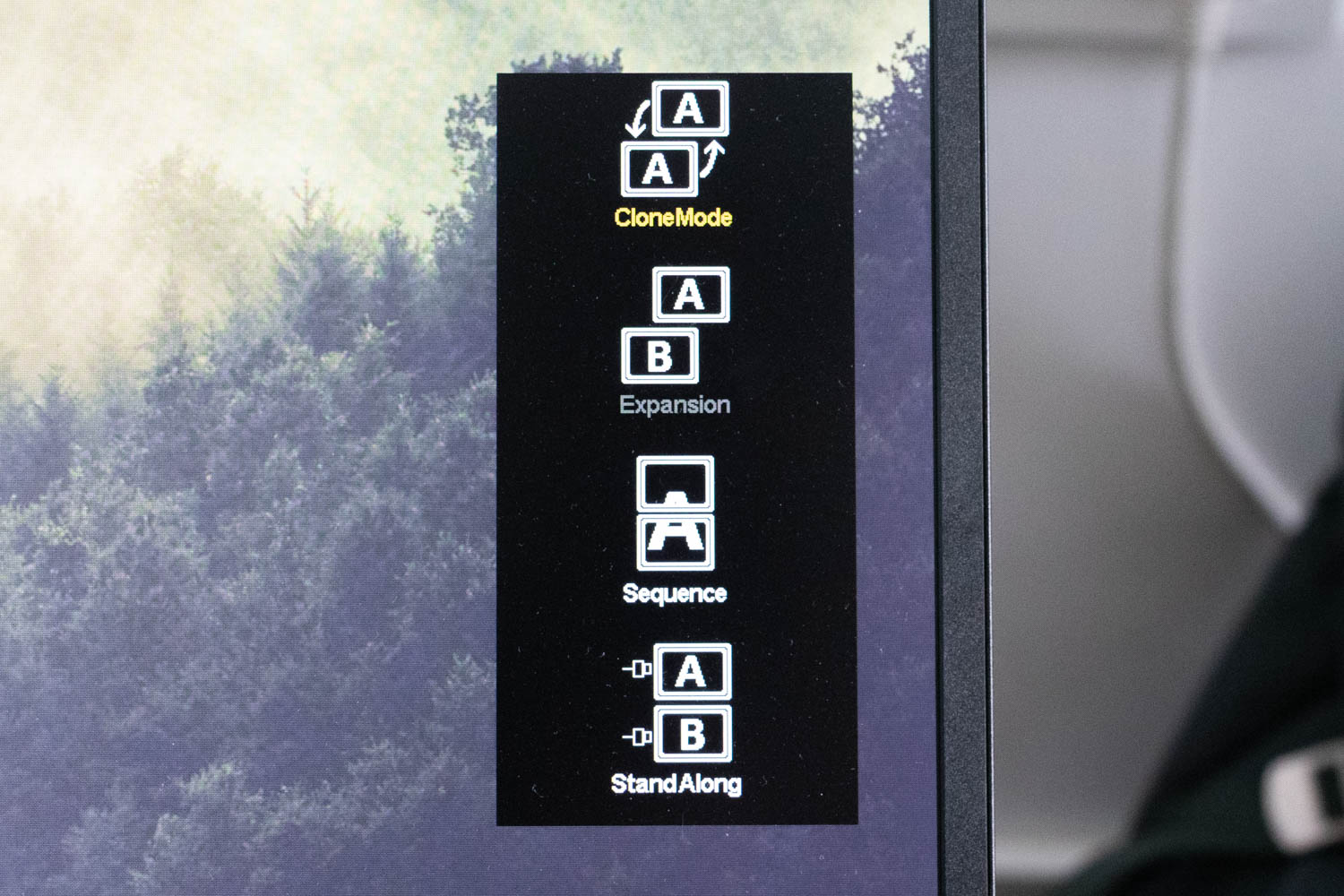
As I've already mentioned, UPERFECT has placed two pairs of buttons and jog dials on the right side of the bottom screen. These are used to access the OSD for each monitor and quickly switch between inputs. The bottom screen's button also allows you to toggle between four modes - Clone Mode (both screens show the same image), Expansion (screens receive video input from a single USB-C source but function as two separate monitors), Sequence (screens behave as a single 1920x2160 panel), and Stand Along (likely a misspelling of "Alone" – each screen is connected to a different source, works with any combination of USB-C and HDMI inputs). Holding the top button rotates the image on the top monitor, while holding the bottom button turns both monitors off.
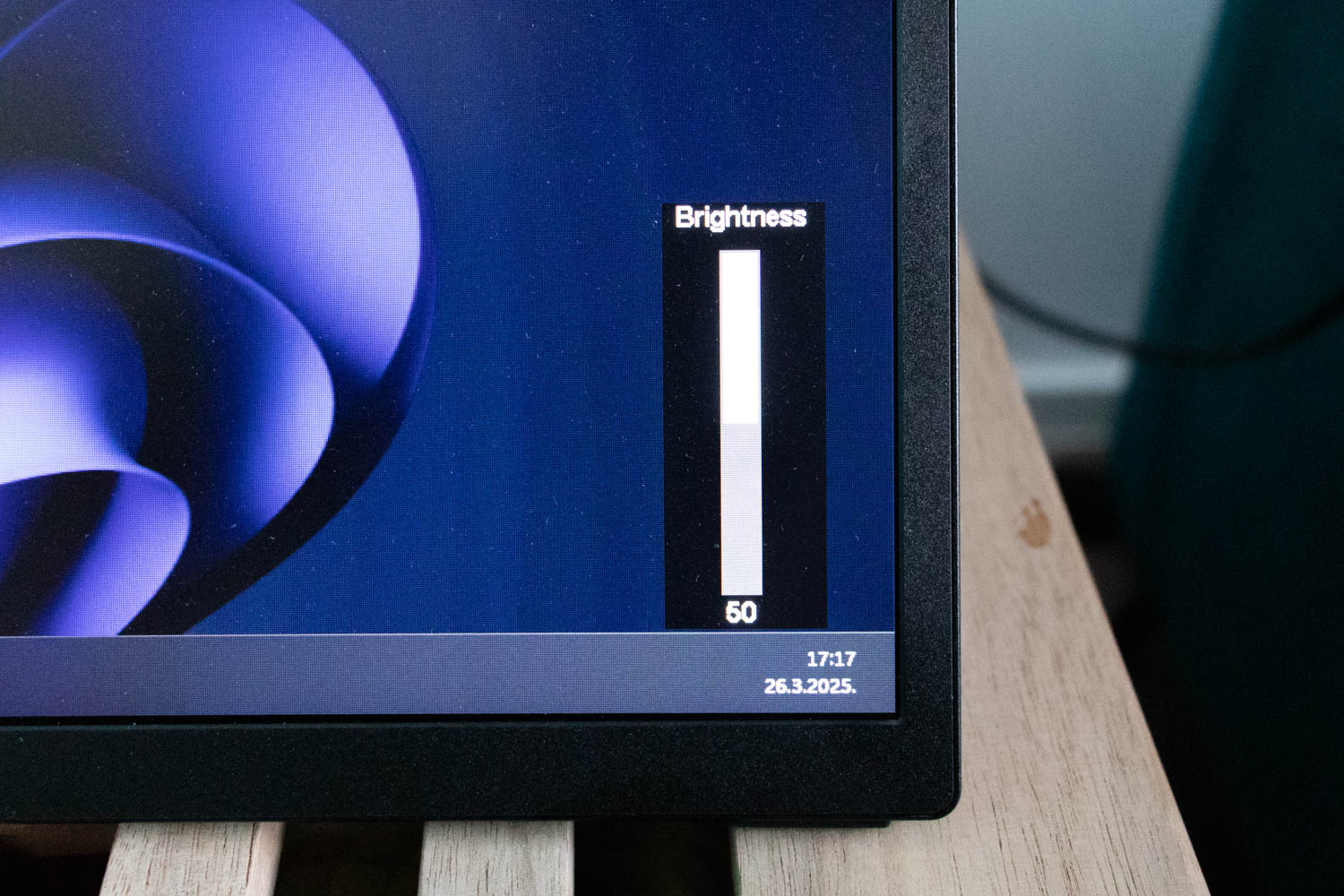
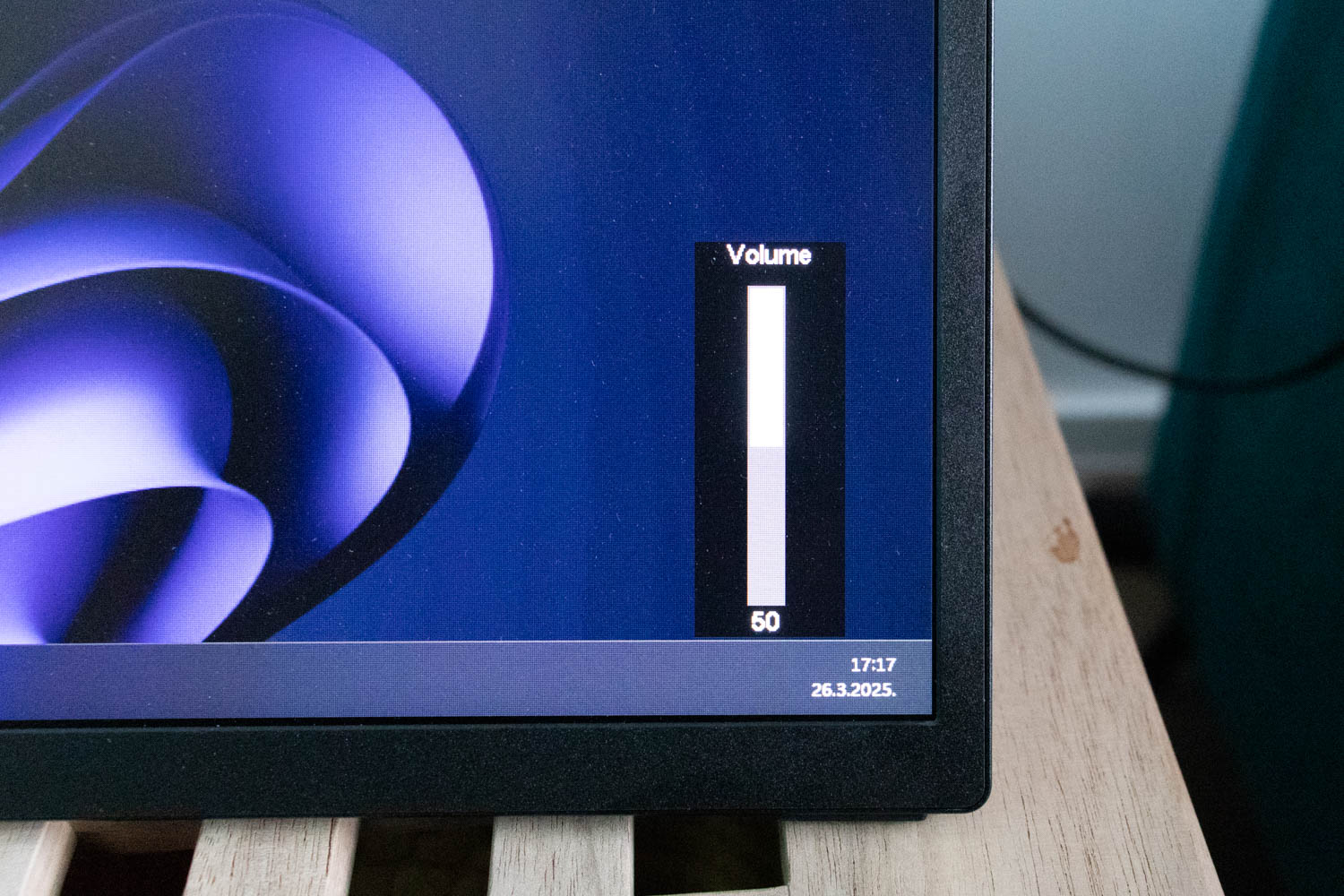
Both jog dials have the volume and brightness quick menus assigned to them. To activate them, the jog dials simply have to be pulled up or down.
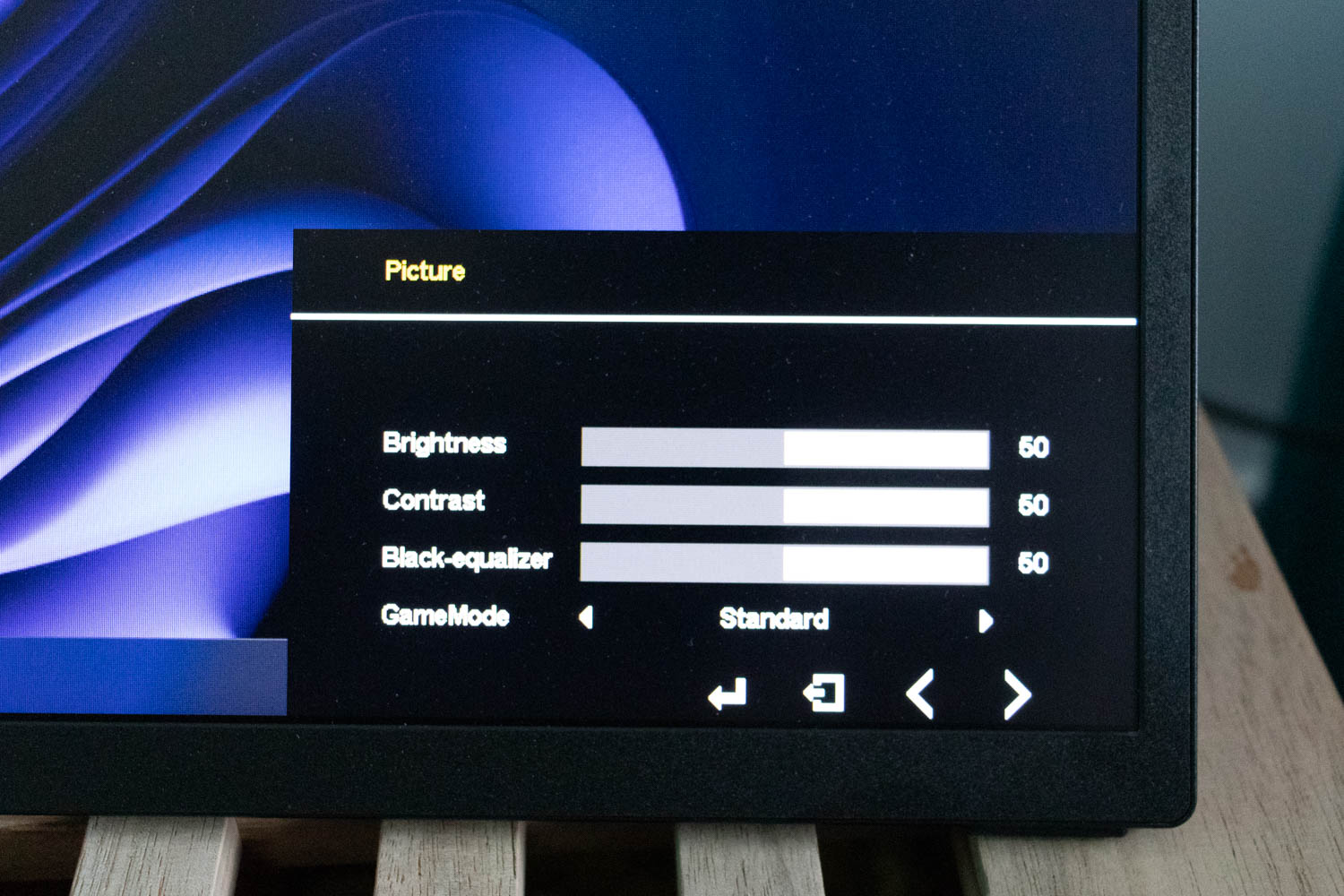
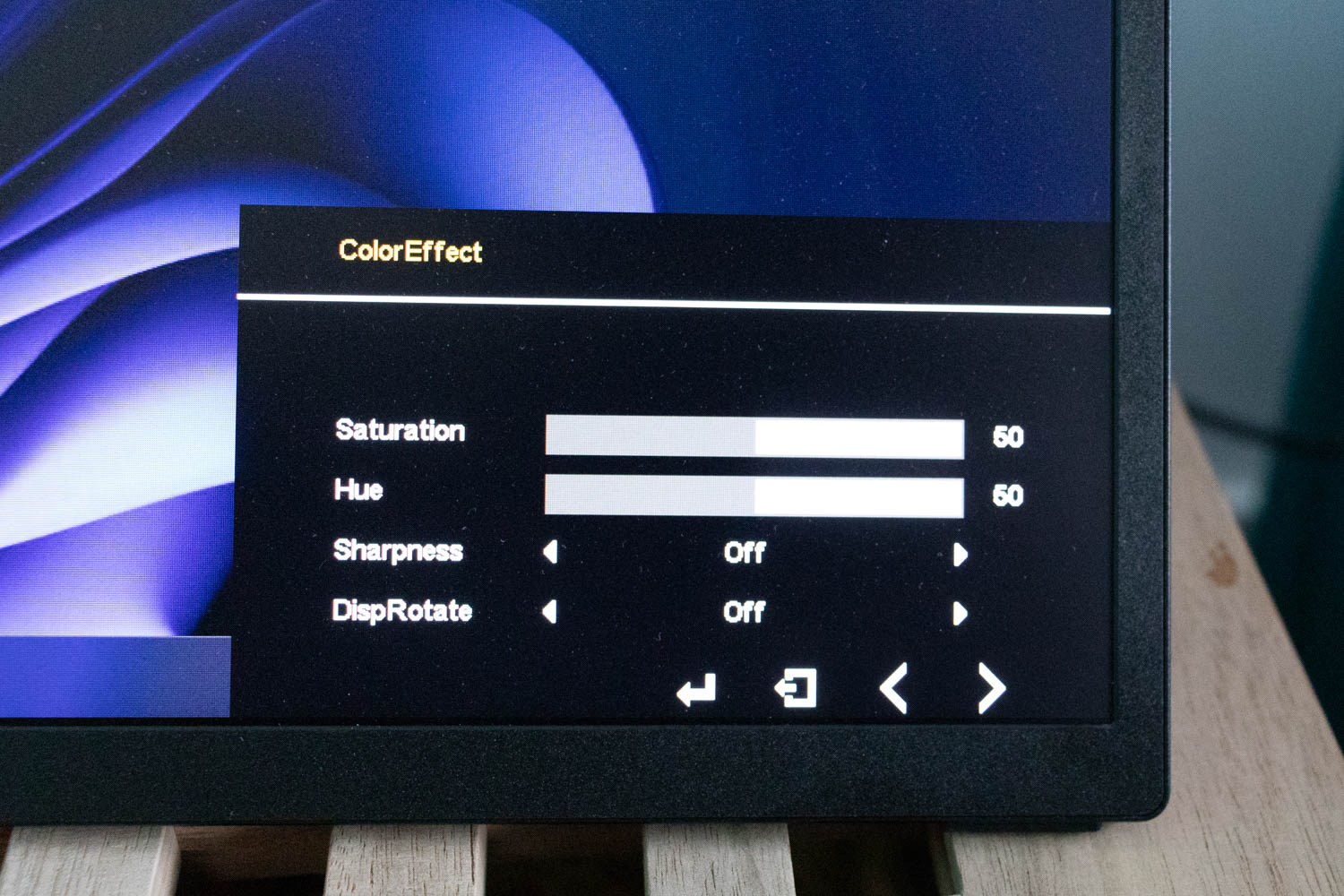
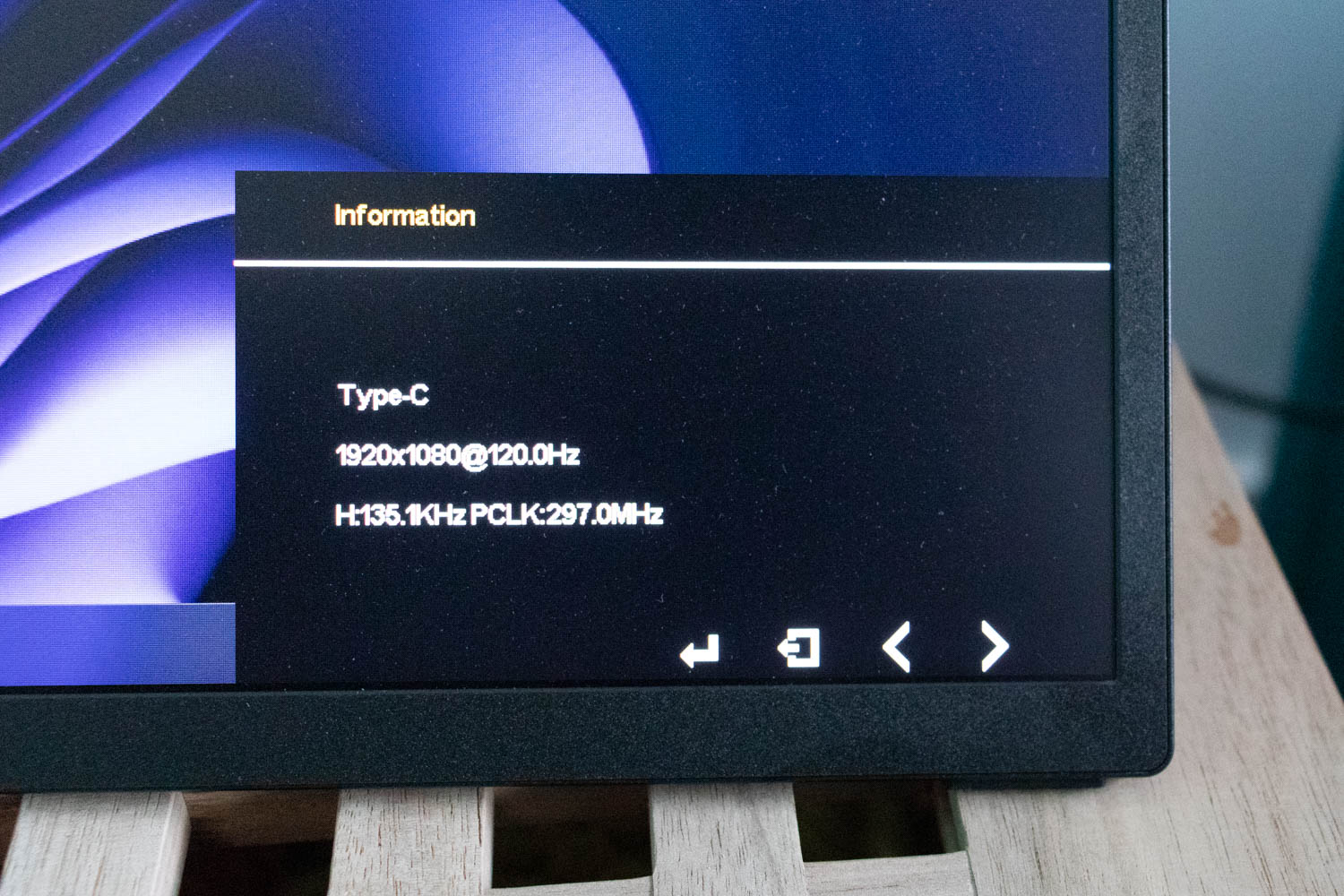
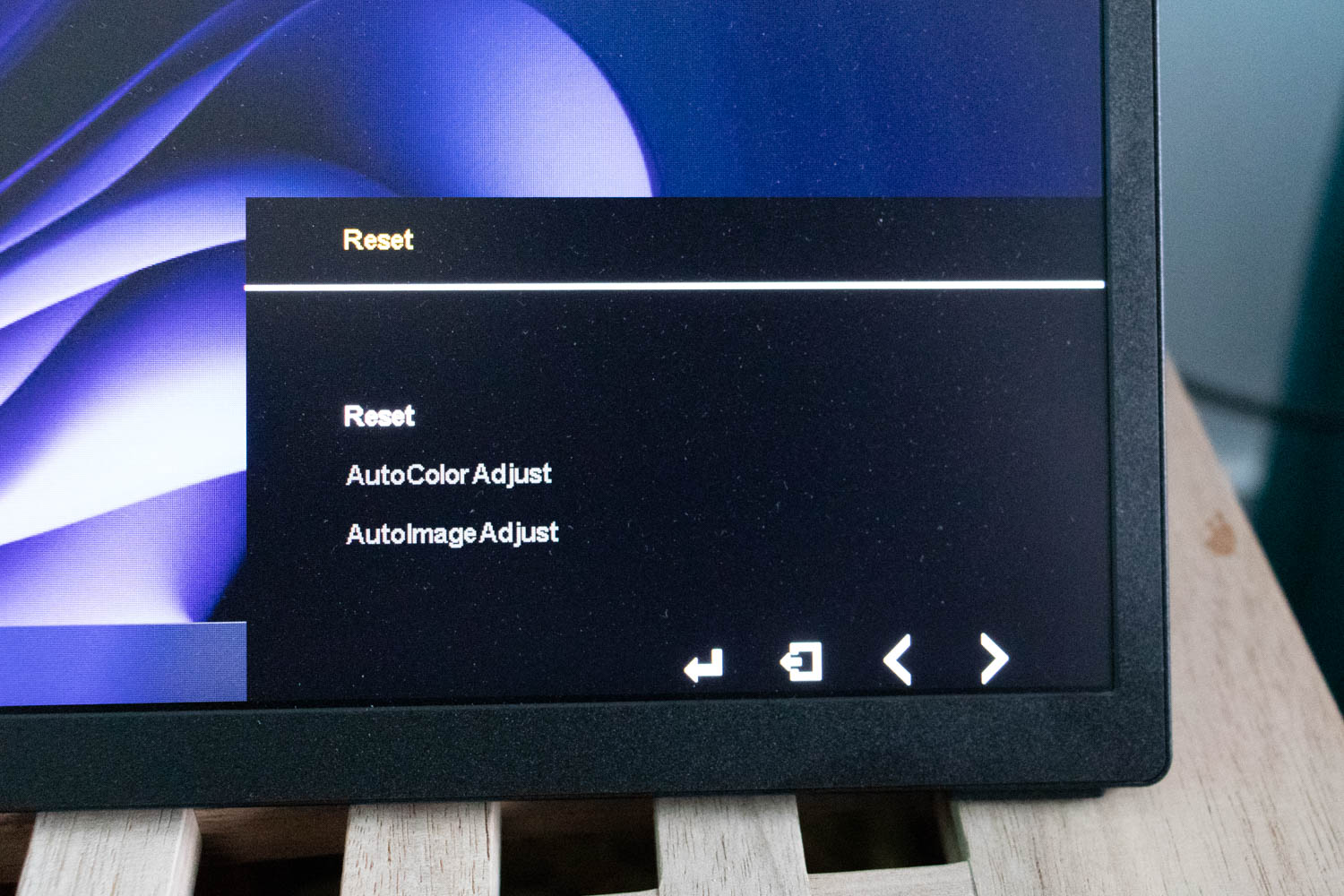
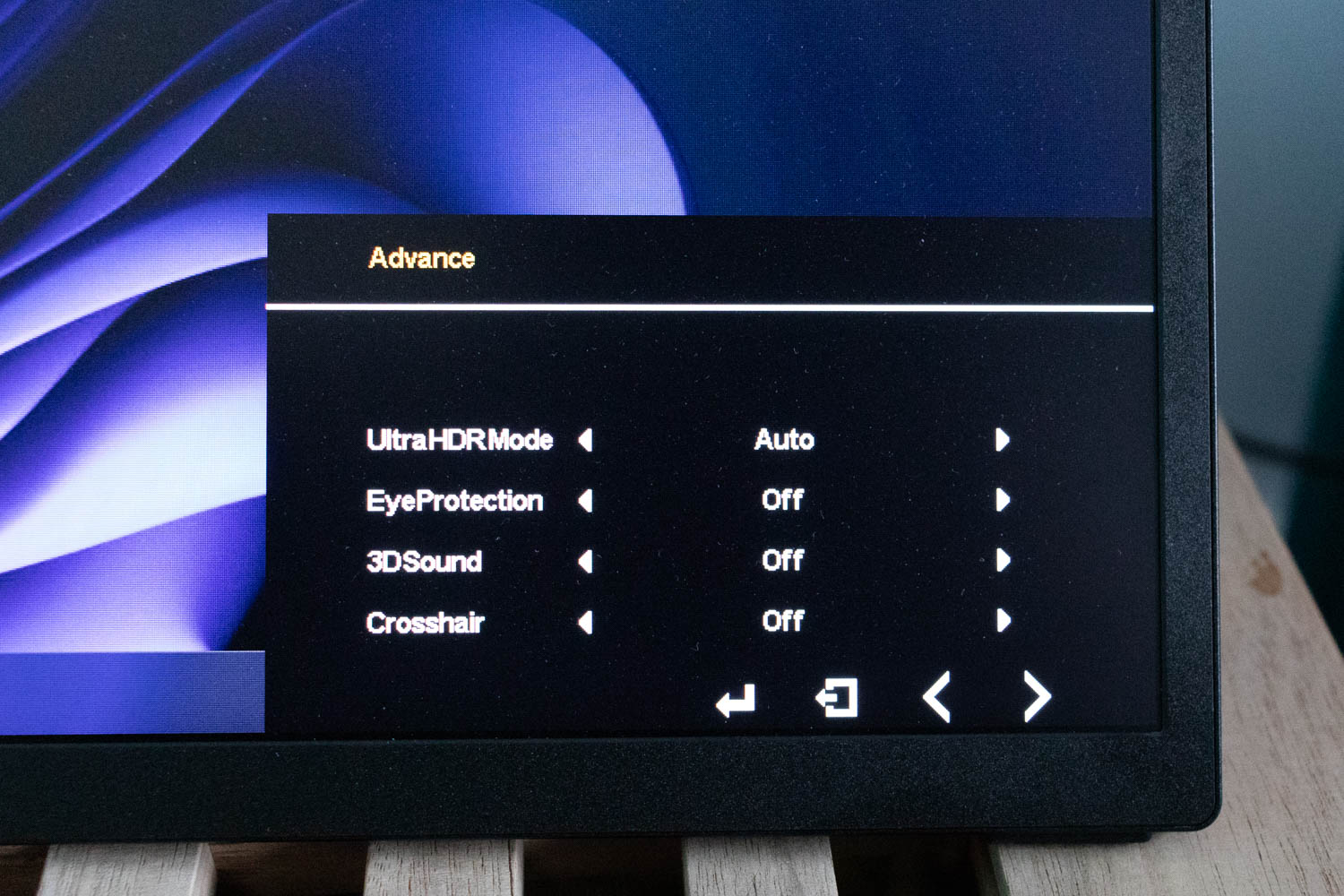
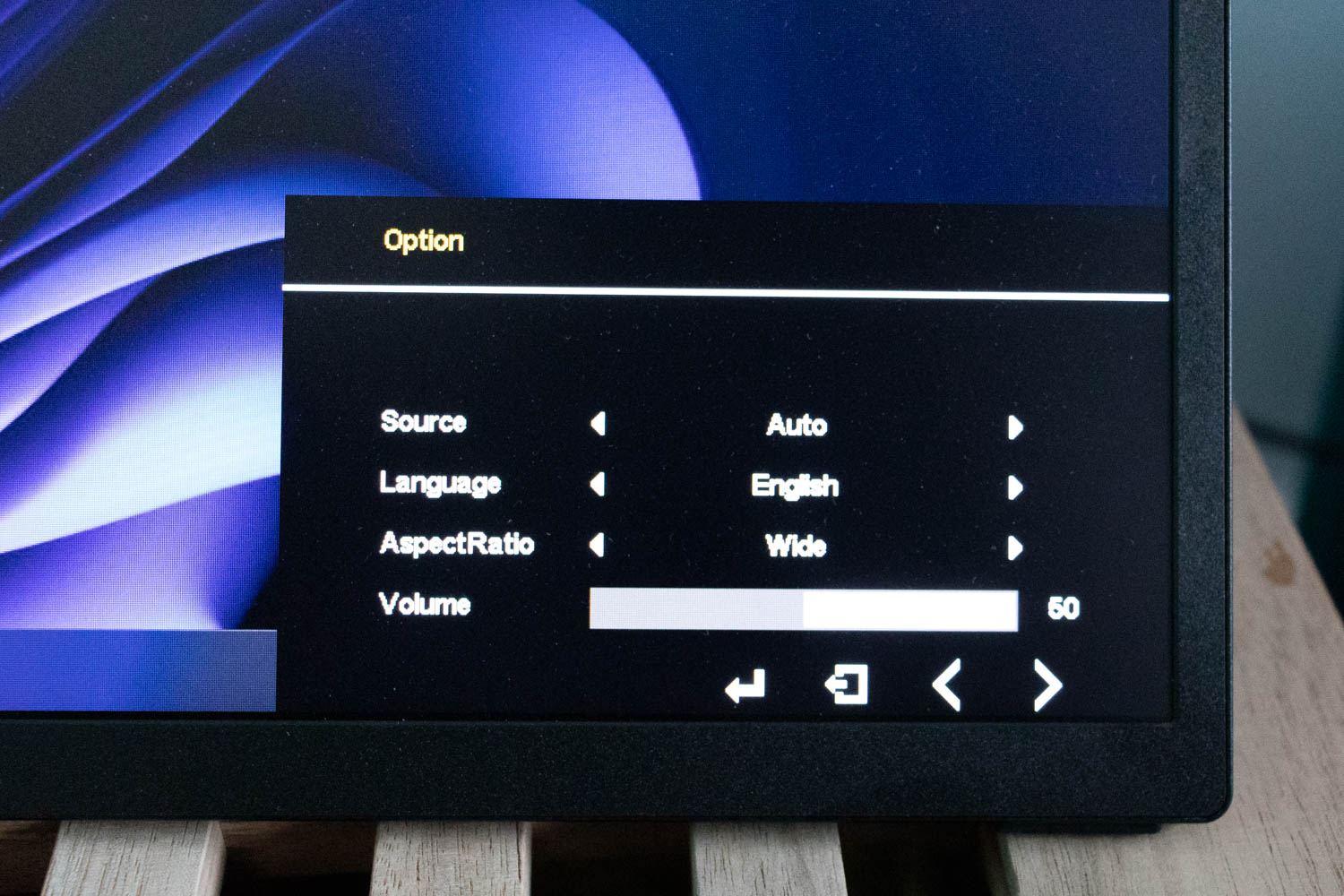
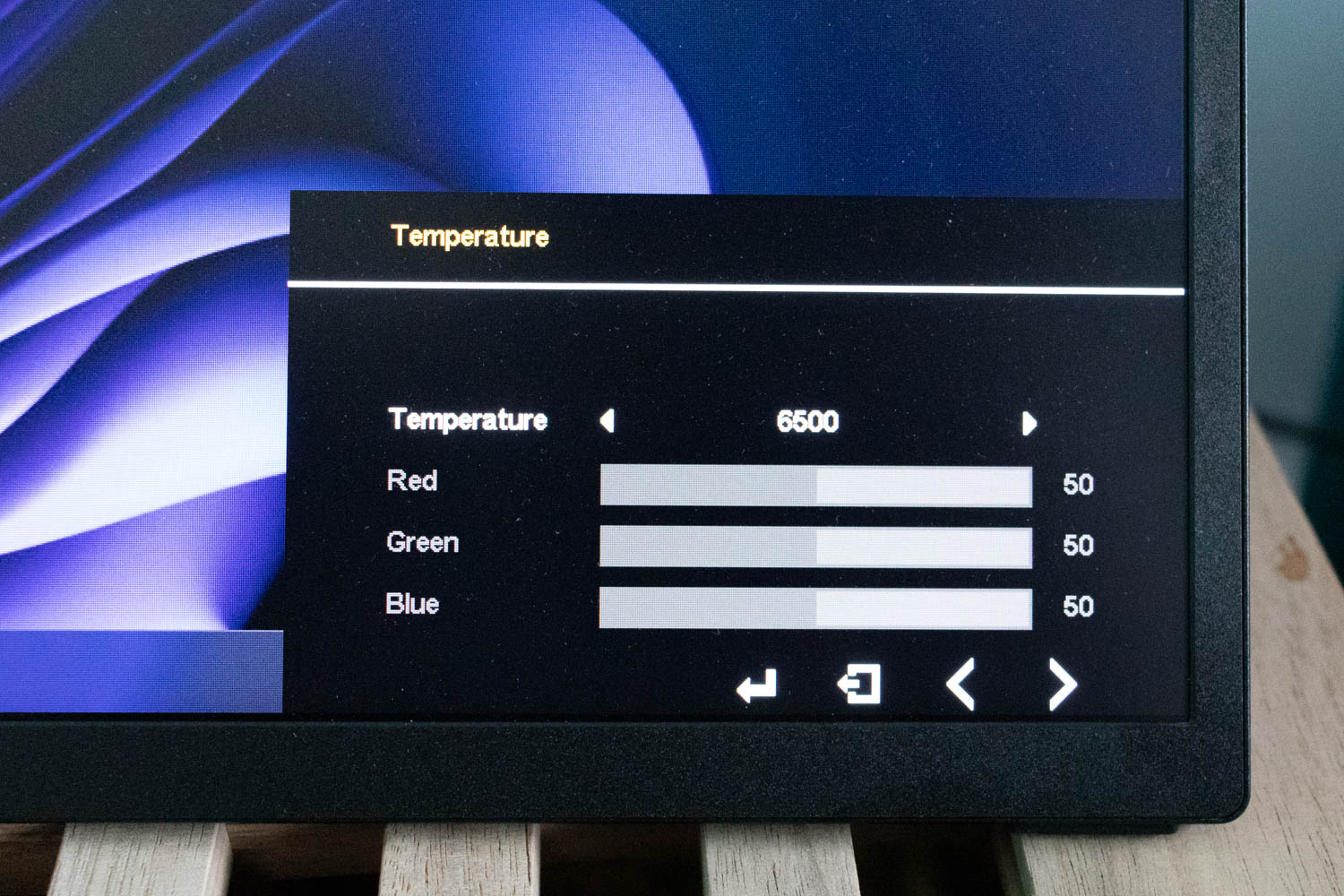
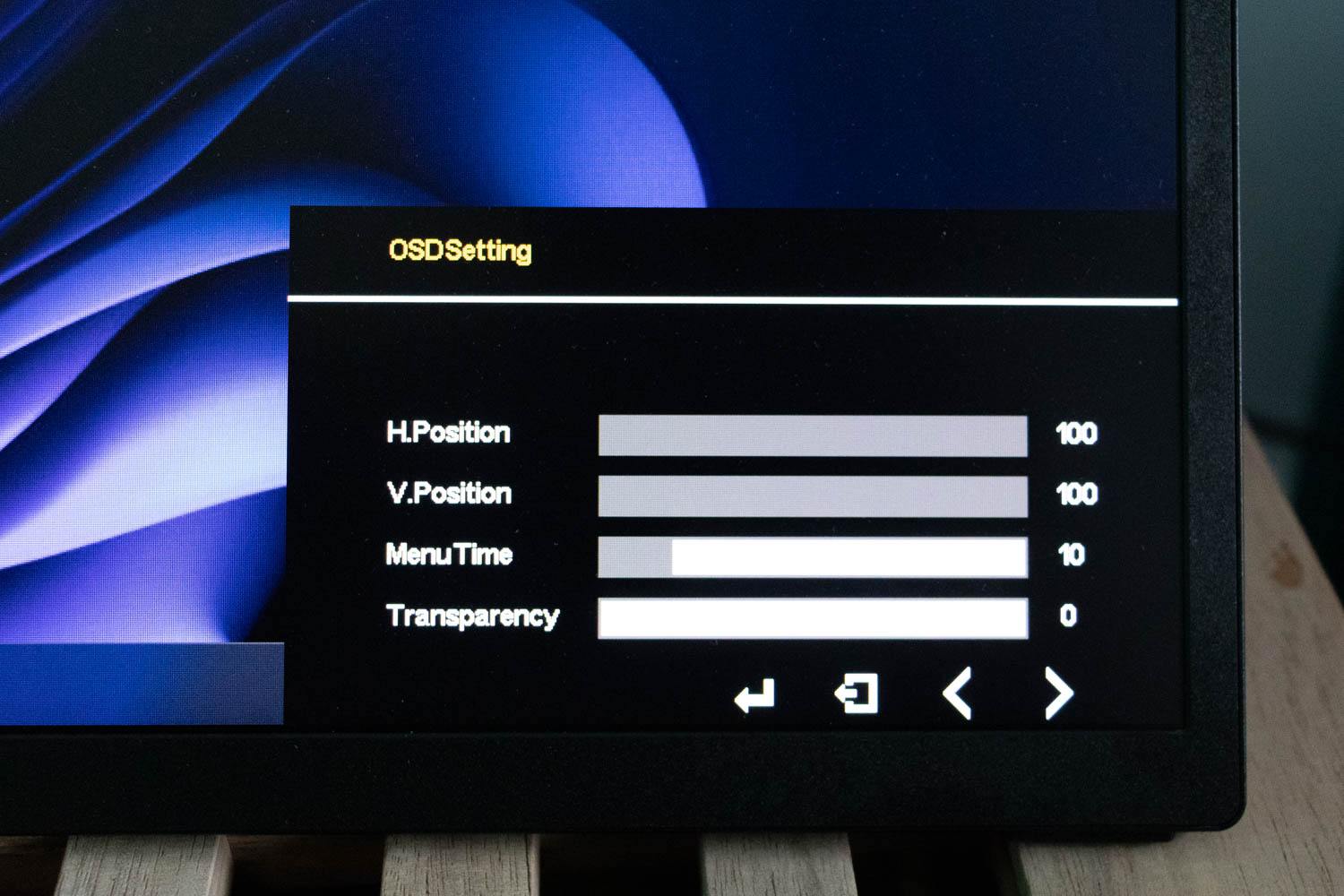
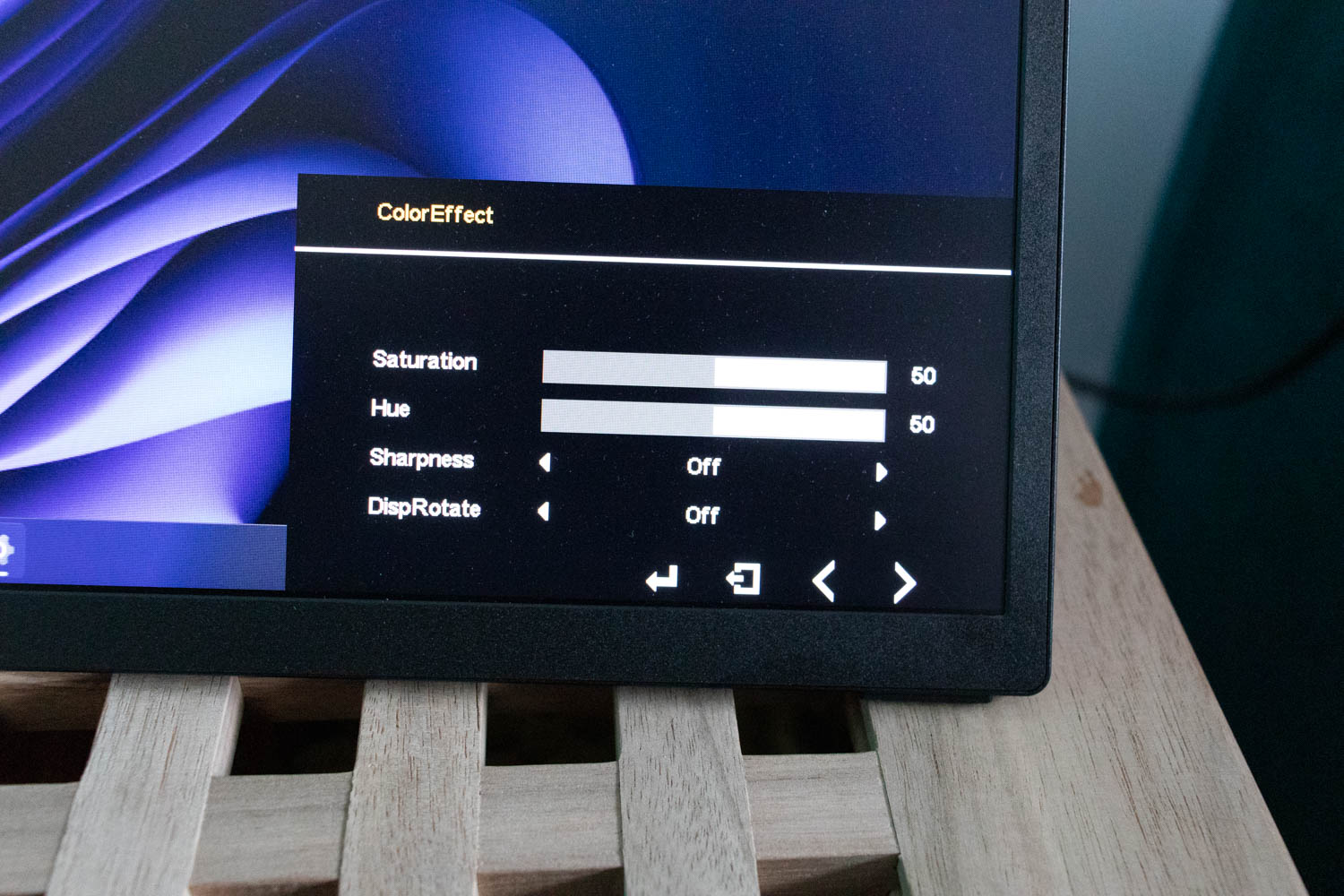
To access the OSD, press the jog dial as a button, depending on which monitor you want to adjust. The OSD menus provide access to brightness and color temperature controls, several picture profiles (Standard, FPS, RTS), black level adjustment, manual image rotation, and even a virtual crosshair—a large green "+."
Nov 21st, 2026 07:26 PST
change timezone
Latest GPU Drivers
New Forum Posts
- Anthrophics IPO (33)
- Bought MAX-P495 - Which model? (33)
- RX 9000 series GPU Owners Club (2250)
- Honestly, do you care about GTA VI? (221)
- Cpu waterblock water shows some tinting = Bad? (18)
- GeekMagic Ultra Smart WiFi Weather Station (9)
- What's your latest tech Freebie? (87)
- UPS what one to get? (3)
- Differences i might've missed between these ultrawides to decide which to buy during BF. (0)
- Without Jensen, PC gaming will be (53)
Popular Reviews
- Microsoft Surface Laptop Ultra Review - The Next-gen Arm Laptop
- Ugreen NASync DXP4800 GT Review
- Corsair RM1200e (Second Generation) Review
- Pulsar Office Tour & First Look at P1 Dual-Sensor Mouse
- Upcoming Hardware Launches 2027 (Updated Nov 2026)
- Acemagic Retro X3 Review
- Biwin Black Opal NV7400 2 TB Review
- AMD Ryzen 7 9800X3D Review - The Best Gaming Processor
- AMD Zen 6 Technical Deep Dive
- Chieftec Iceberg PRO 360 DARK Review
TPU on YouTube
Controversial News Posts
- NVIDIA Co-Founder and CEO Jensen Huang Officially Resigns (492)
- Report: Jensen Huang Eyes NVIDIA Comeback (259)
- Open Letter Asking NVIDIA to Reinstate Jensen Huang Passes 115,000 Signatures (184)
- OpenAI CEO Argues Home PCs Waste the World's Limited DRAM Supply (152)
- NVIDIA Launches Investigation Into Jensen Huang's Relationship With Suspected Chinese Spy (136)
- Intel "Raptor Lake Next" 16-Core and 20-Core CPUs Surface (130)
- Legendary Game Studio BioWare Shuts Down Following EA Layoffs (104)
- NVIDIA GeForce RTX 50-Series Scheduled for up to $500 Price Hike This Week (89)