 5
XMG Pro 16 (M25) Review - The Mini LED Rocketship
Measured Temperatures & Clocks »Battery Life Test Methodology
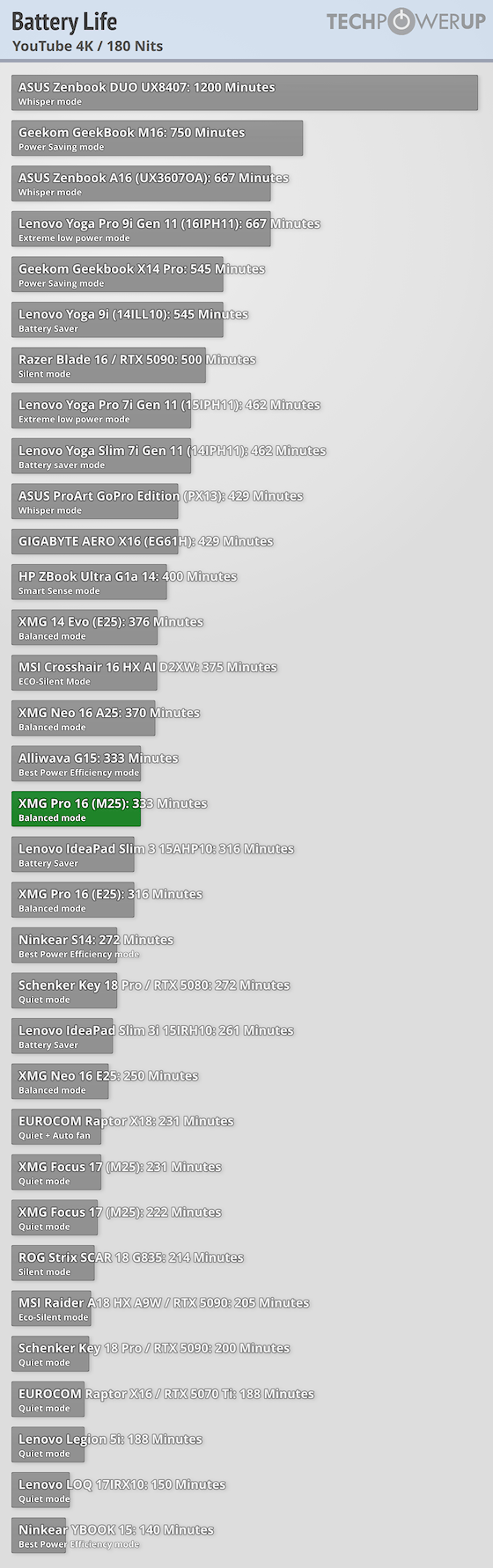
How we test battery life:- The screen is set to 180 nits of brightness.
- If the device has an iGPU-only mode, this is activated.
- If not, the test will be executed with the standard NVIDIA Optimus/Advanced Optimus/Auto mode settings.
- All battery-saving features that don't decrease visual quality are applied.
- This includes:
- Best Power Efficiency mode and Energy Saver mode in the Windows Power & Battery Menu.
- Variable Refresh Rate (if present, that's a display/laptop dependent extra).
- Panel Self Refresh (if present, that's a display/laptop dependent extra).
- The most energy-efficient mode is selected by the manufacturer's own software that controls the notebook's power.
Settings Used
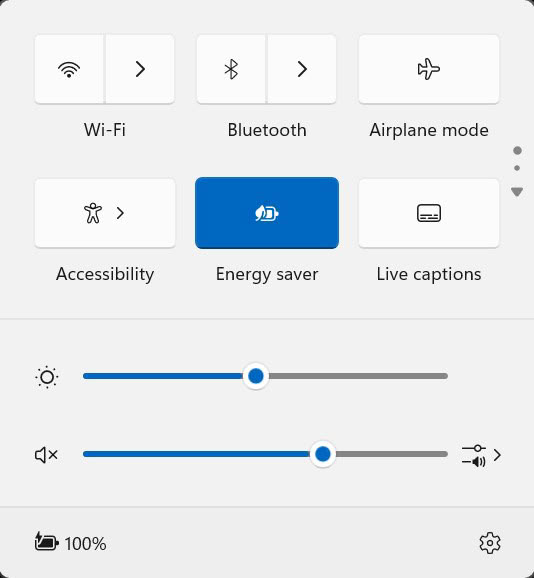
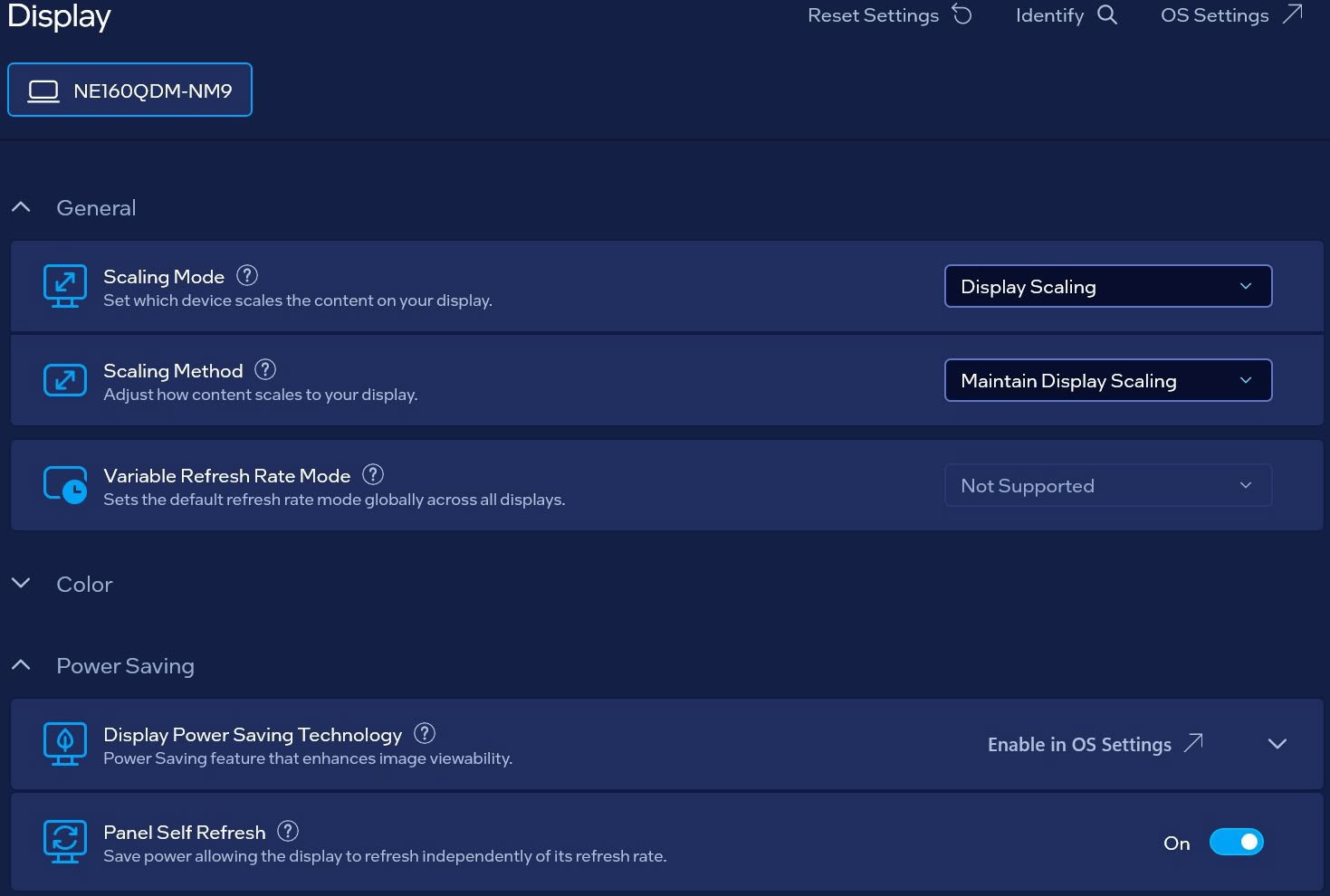
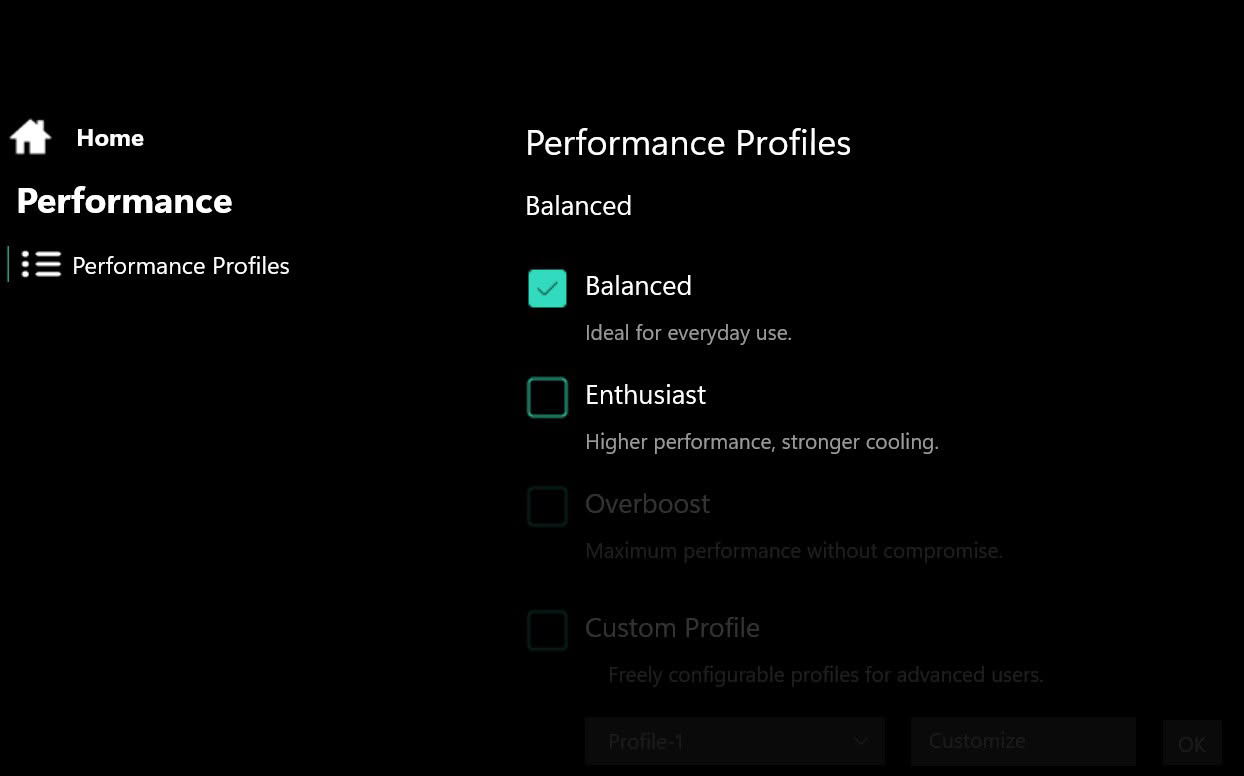
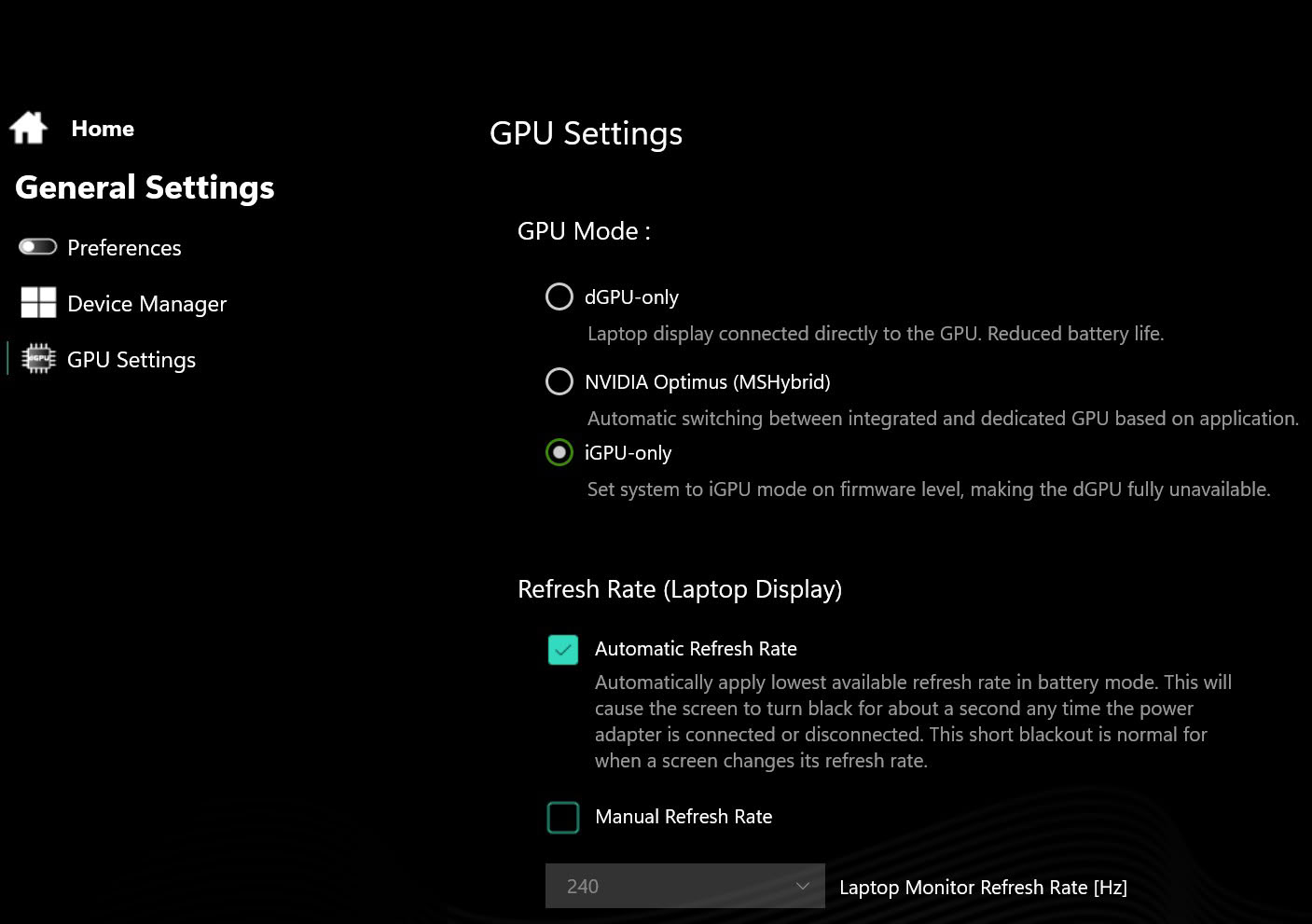
To maximize the battery life of this gaming beast, you could use the following settings:
- Open the Control Center app:
- Apply the Balanced power profile and the Integrated Graphics Mode.
- Enable Panel Self refresh in the Intel Graphics Software Panel.
- Apply Best power efficiency + Energy Saver Mode in the Windows Battery menu.
- The screen is set to 180 nits, and it automatically switches to 60 Hz when the adapter is unplugged.
Nov 17th, 2026 21:26 CST
change timezone
Latest GPU Drivers
New Forum Posts
- Without Jensen, PC gaming will be (36)
- Will zen 6 mobos have anything extra vs current ones? (52)
- Hi, just to say thanks and who I am (3)
- 9070 GRE 3.9ghz validation reached. (19)
- [testers wanted] Qsurfer My own QNAP Nas explorer/Search tool (8)
- Lenovo Legion Pro 5 Audio Nightmare: Fan Noise, Harsh Voice & Massive DPC Latency (Help!) (2)
- Help with fixing Overclock (8)
- WarpCoreBench scores! (56)
- Slow SSD read speeds - help! (15)
- Ryzen 7 8700G OC (9)
Popular Reviews
- Acemagic Retro X3 Review
- Upcoming Hardware Launches 2027 (Updated Nov 2026)
- AMD Zen 6 Technical Deep Dive
- ASUS ROG Strix B850-I Gaming Wi-Fi7 W Review
- Corsair HX1000i Shift Crystal Review
- Chieftec Iceberg PRO 360 DARK Review
- AMD Ryzen 7 9800X3D Review - The Best Gaming Processor
- Phantom Blade Zero Performance Benchmark Review - 35 GPUs Tested
- Montech King 95 3D PRO Review
- Biwin Black Opal NV7400 2 TB Review
TPU on YouTube
Controversial News Posts
- NVIDIA Co-Founder and CEO Jensen Huang Officially Resigns (464)
- Open Letter Asking NVIDIA to Reinstate Jensen Huang Passes 115,000 Signatures (184)
- OpenAI CEO Argues Home PCs Waste the World's Limited DRAM Supply (152)
- Report: Jensen Huang Eyes NVIDIA Comeback (137)
- NVIDIA Launches Investigation Into Jensen Huang's Relationship With Suspected Chinese Spy (136)
- Intel "Raptor Lake Next" 16-Core and 20-Core CPUs Surface (130)
- Legendary Game Studio BioWare Shuts Down Following EA Layoffs (104)
- Dell CEO Says the Memory Shortage Will Get Worse in 2027 (95)