 33
Dying Light: The Beast Performance Benchmark Review - 30+ GPUs Tested
(33 Comments) »Introduction
Dying Light: The Beast is an open-world action survival horror game developed by Techland. Building on the parkour-driven gameplay of its predecessors, this new installment pushes players into a darker, more brutal world overrun by the infected. With an expanded skill system, advanced melee combat, and new traversal mechanics, survivors must fight, scavenge, and adapt to endure the evolving threat of the horde. The game supports both solo play and up-to-four-player co-op, blending intense storytelling with emergent, player-driven encounters.
Released three years after Dying Light 2 Stay Human (2022), The Beast is still powered by Techland's C-Engine, the studio's proprietary in-house technology. This engine is designed for large, detailed open world environments, with support for physics-based interactions, and a dynamic ecosystem. You also get support for advanced lighting with global illumination, a weather system and screen space reflections. While pre-launch this was hailed as a ray tracing title, and NVIDIA even praised it for its RT effects yesterday, the actual game released without ray tracing support, and there's also no "ultra" profile, which enables RT.
Upscalers are well-supported on the other hand, you can use NVIDIA DLSS, AMD FSR, and Intel XeSS, alongside multi-vendor Frame Generation to ensure smooth performance across a wide range of hardware.
This review will evaluate the performance of Dying Light: The Beast across a wide range of contemporary graphics cards, compare image quality settings, and analyze the game's VRAM usage to provide insight into the hardware requirements needed for an optimal experience.
Screenshots
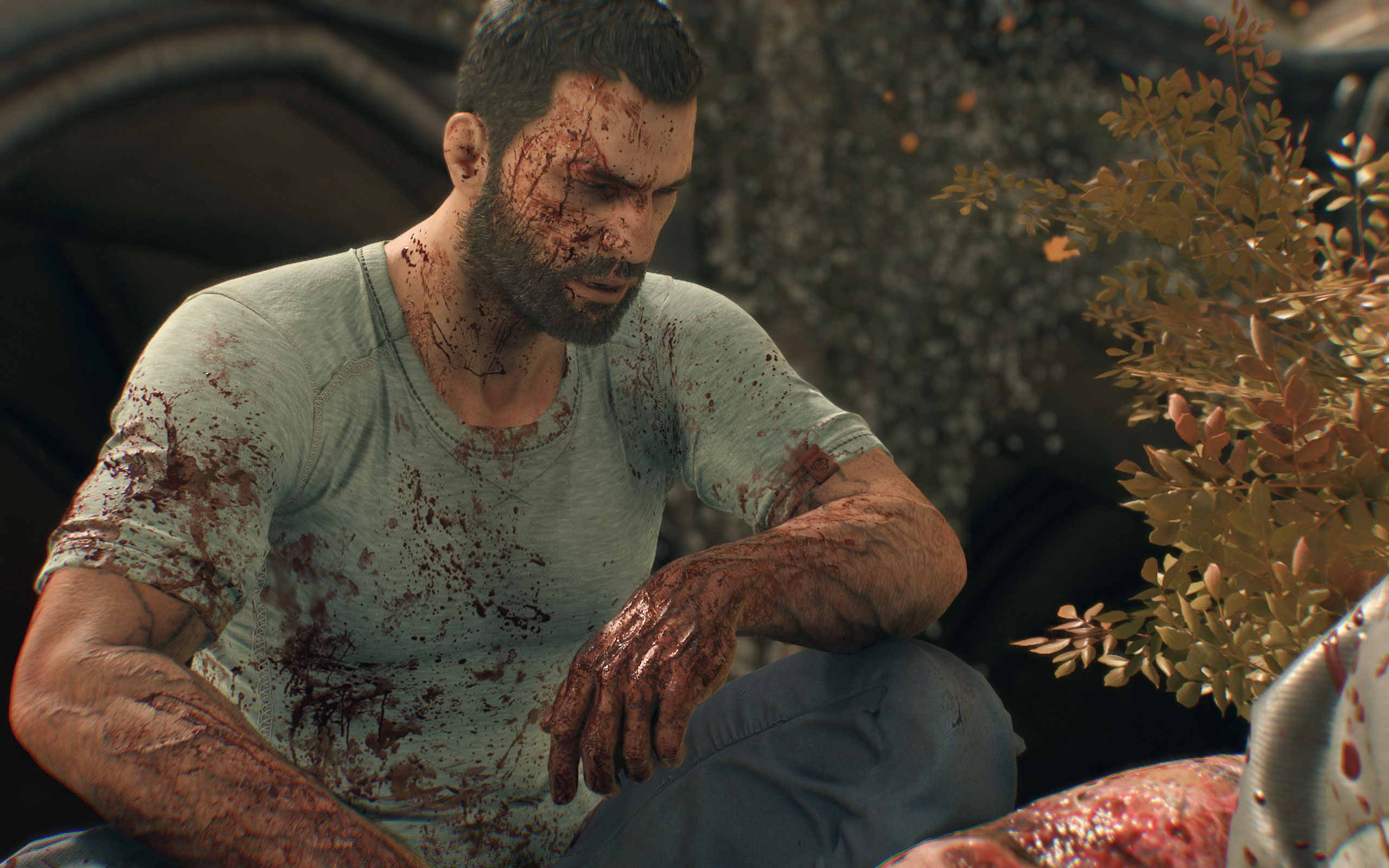
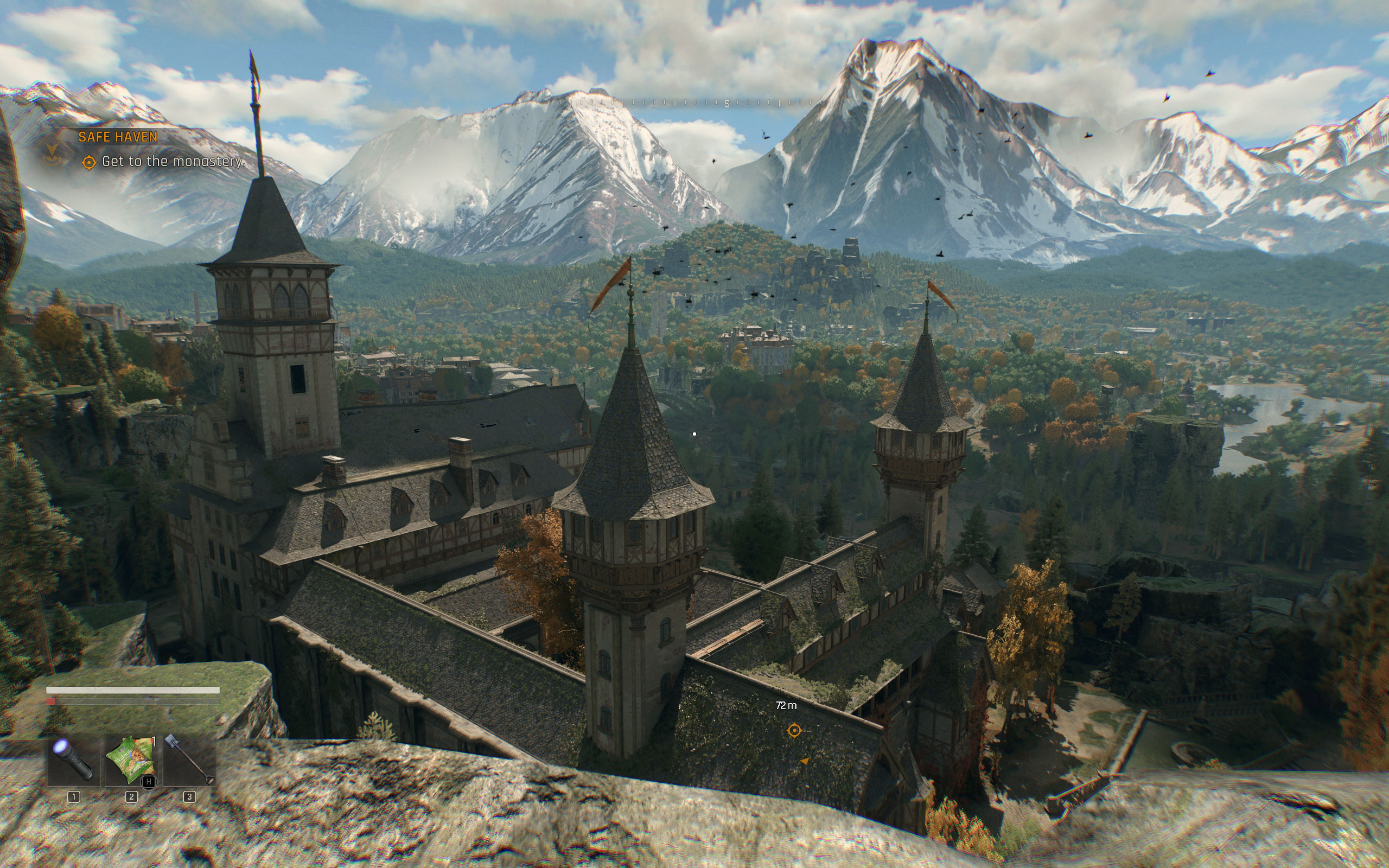
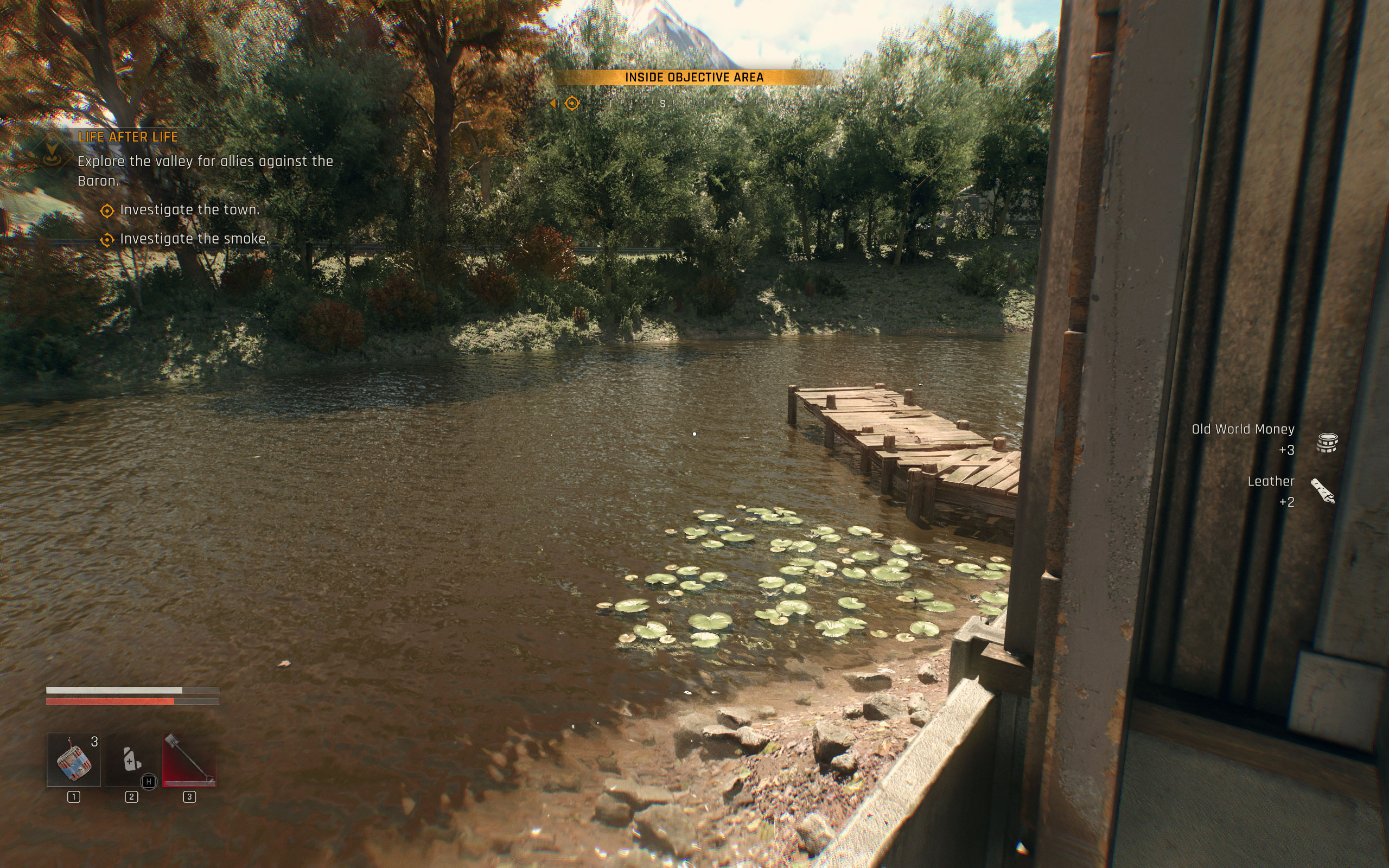
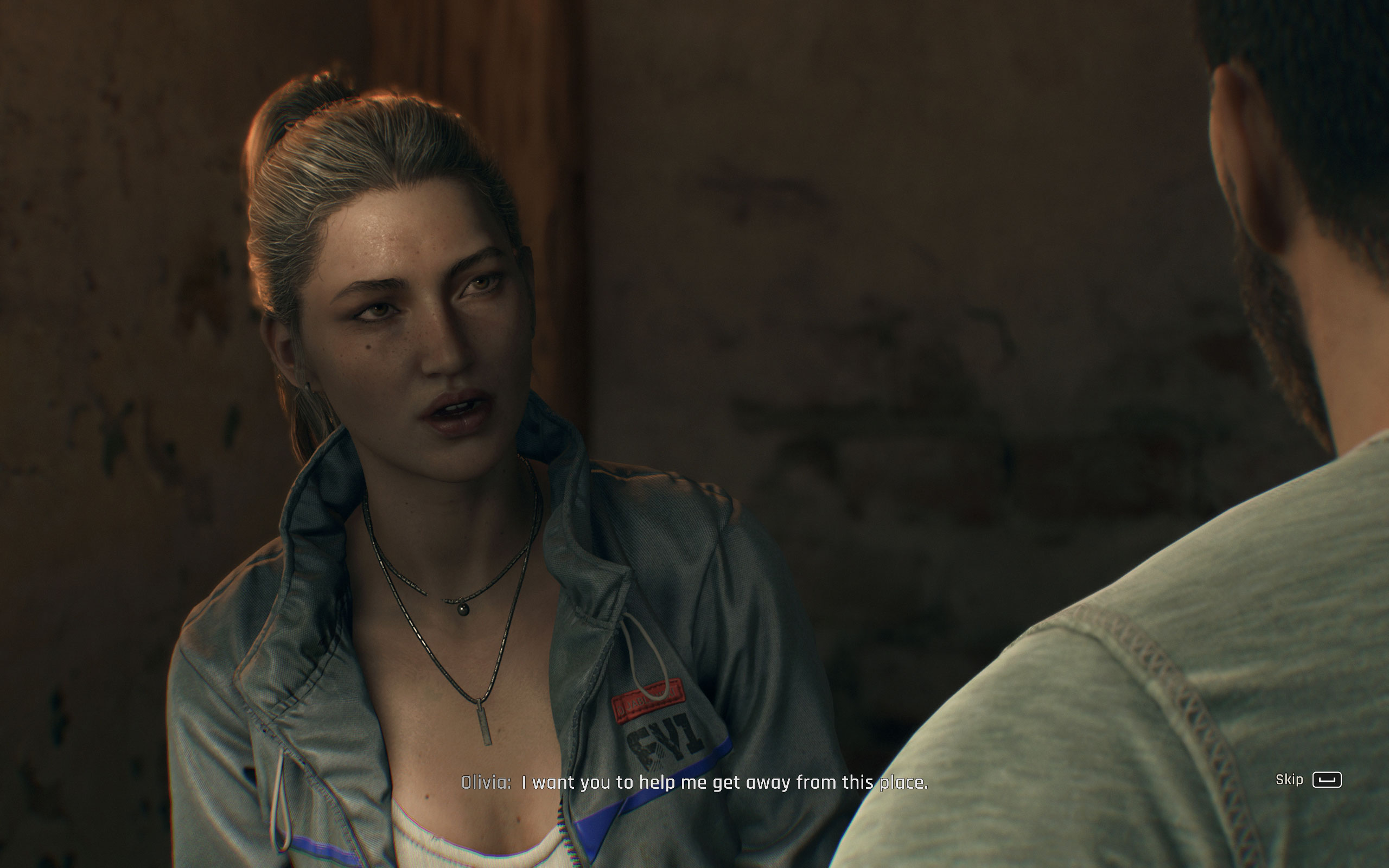
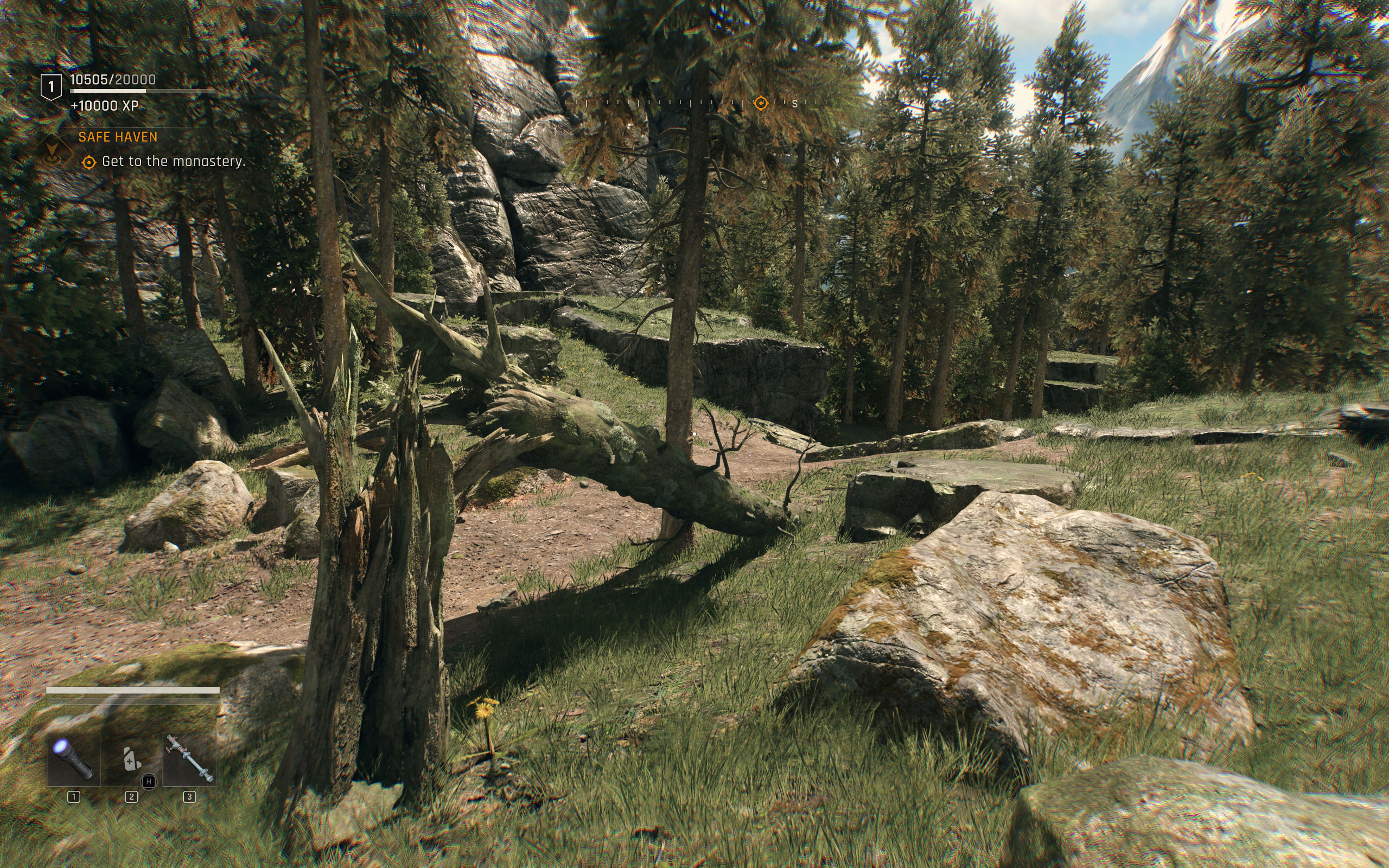
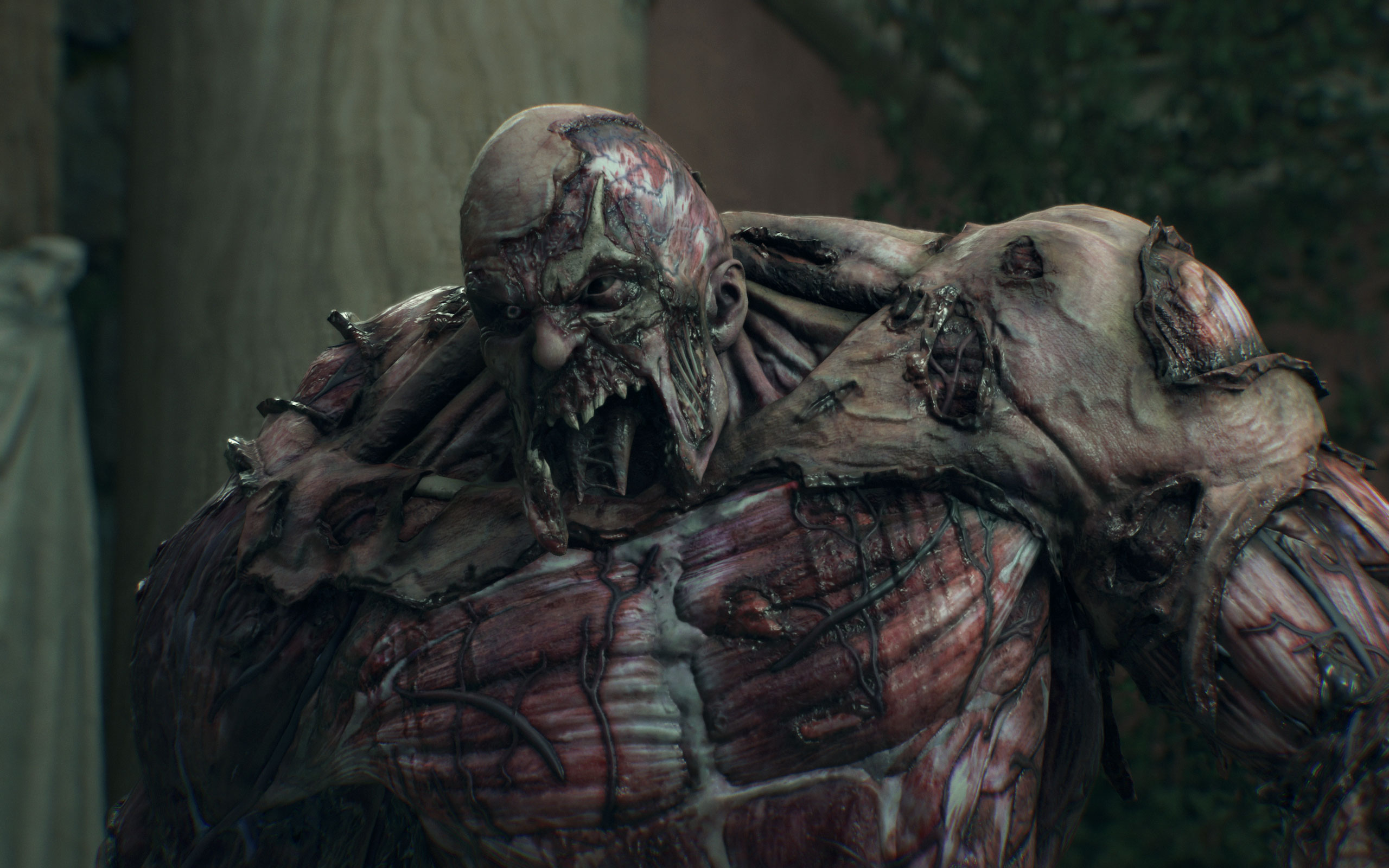
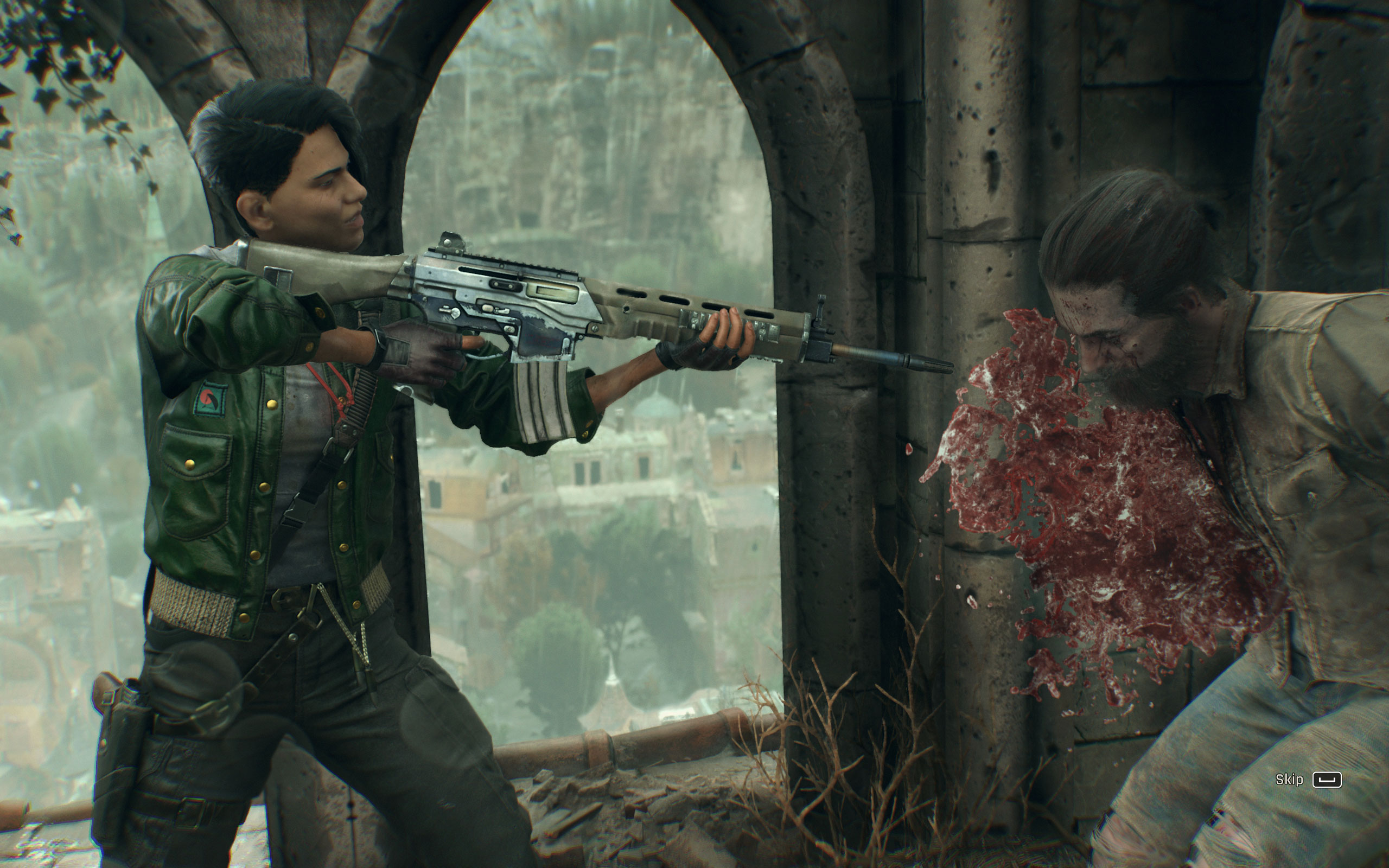
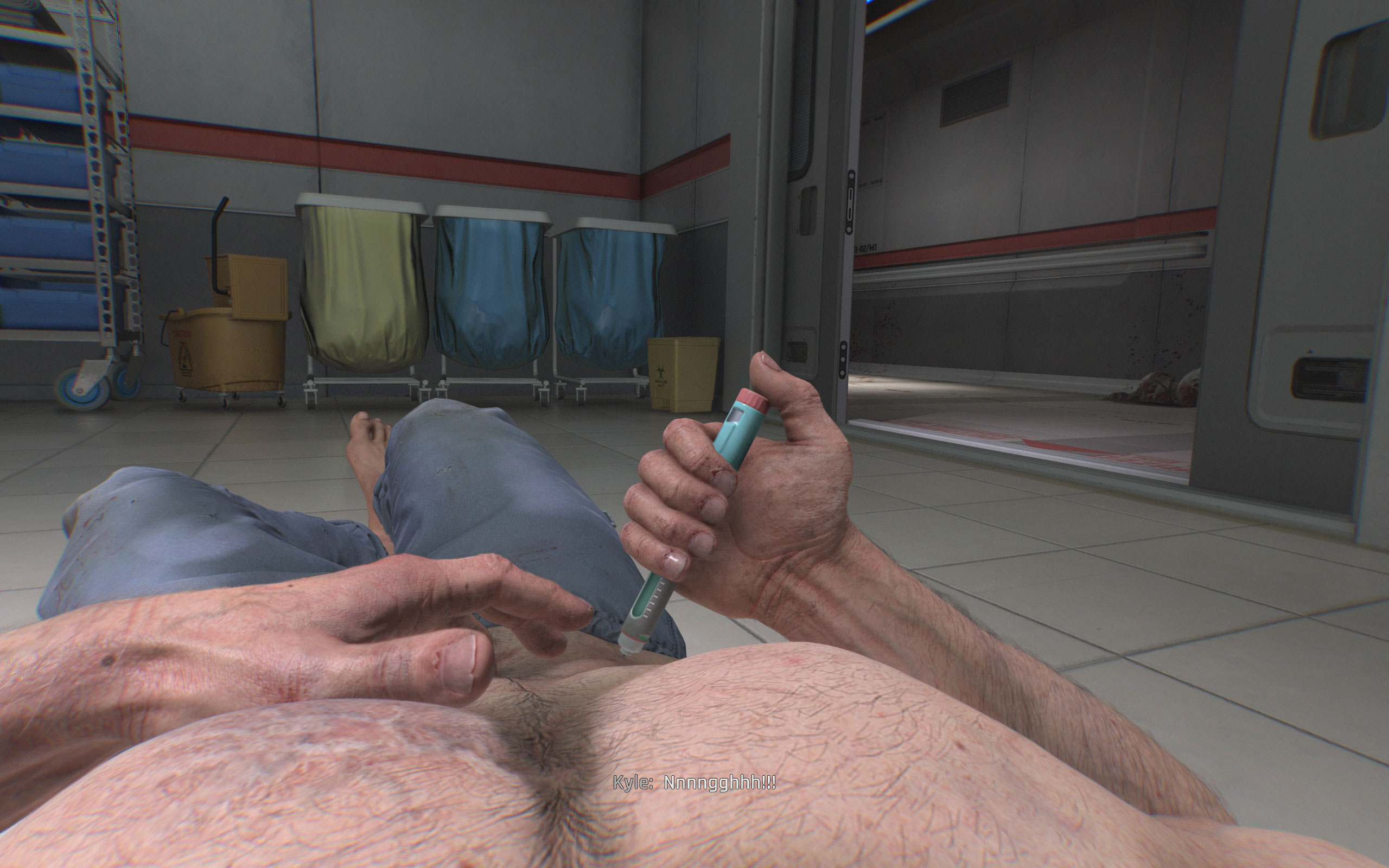
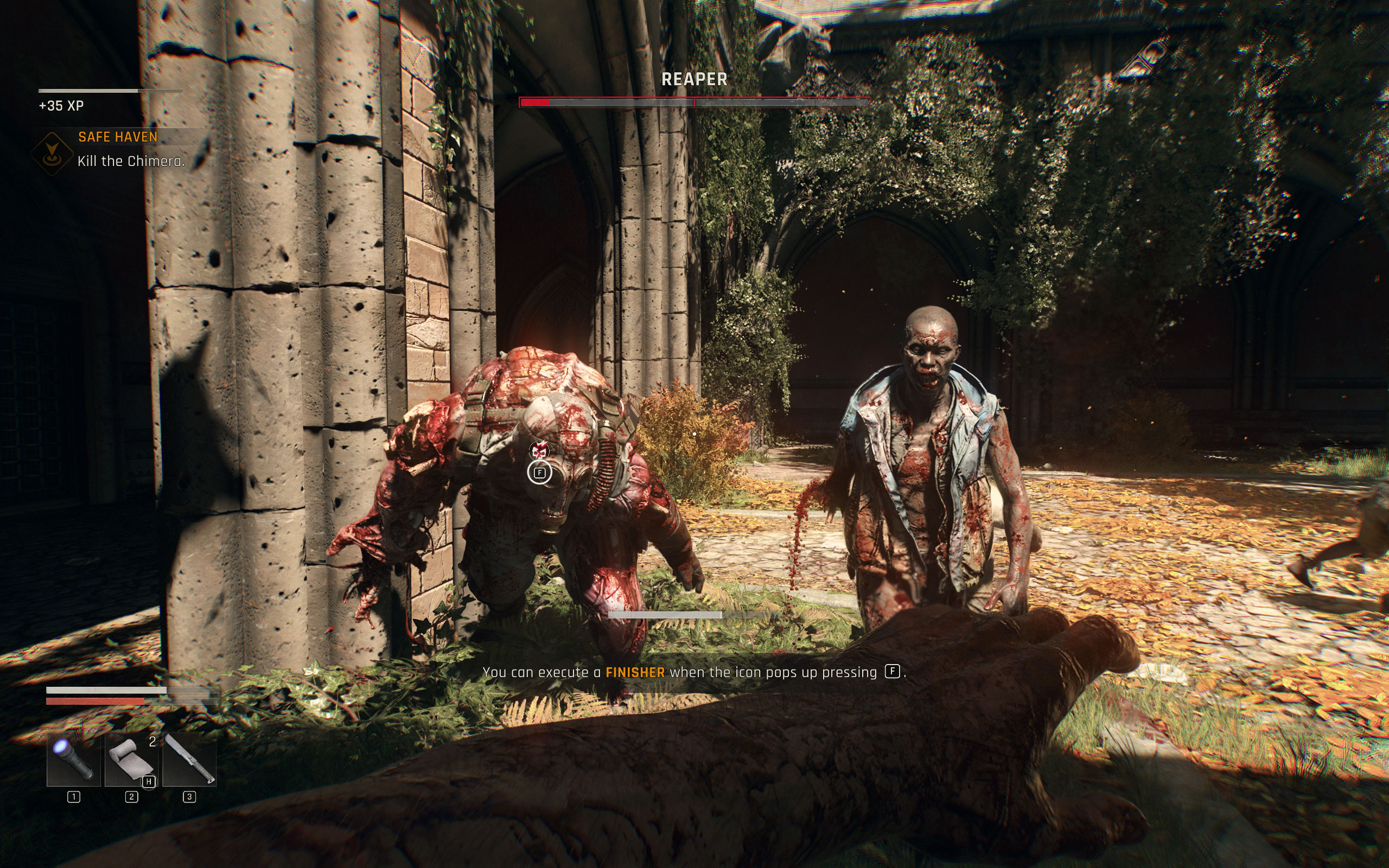
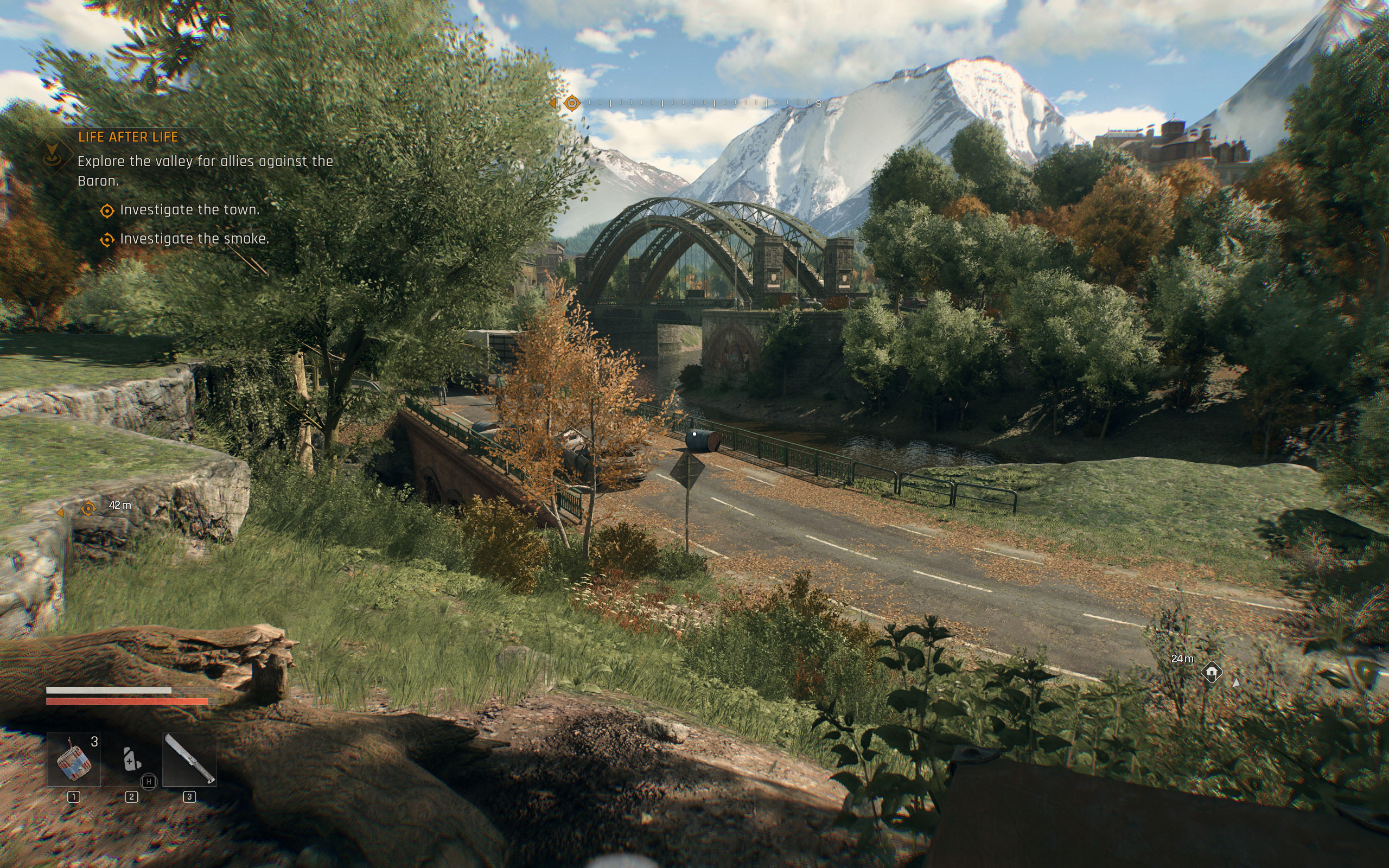
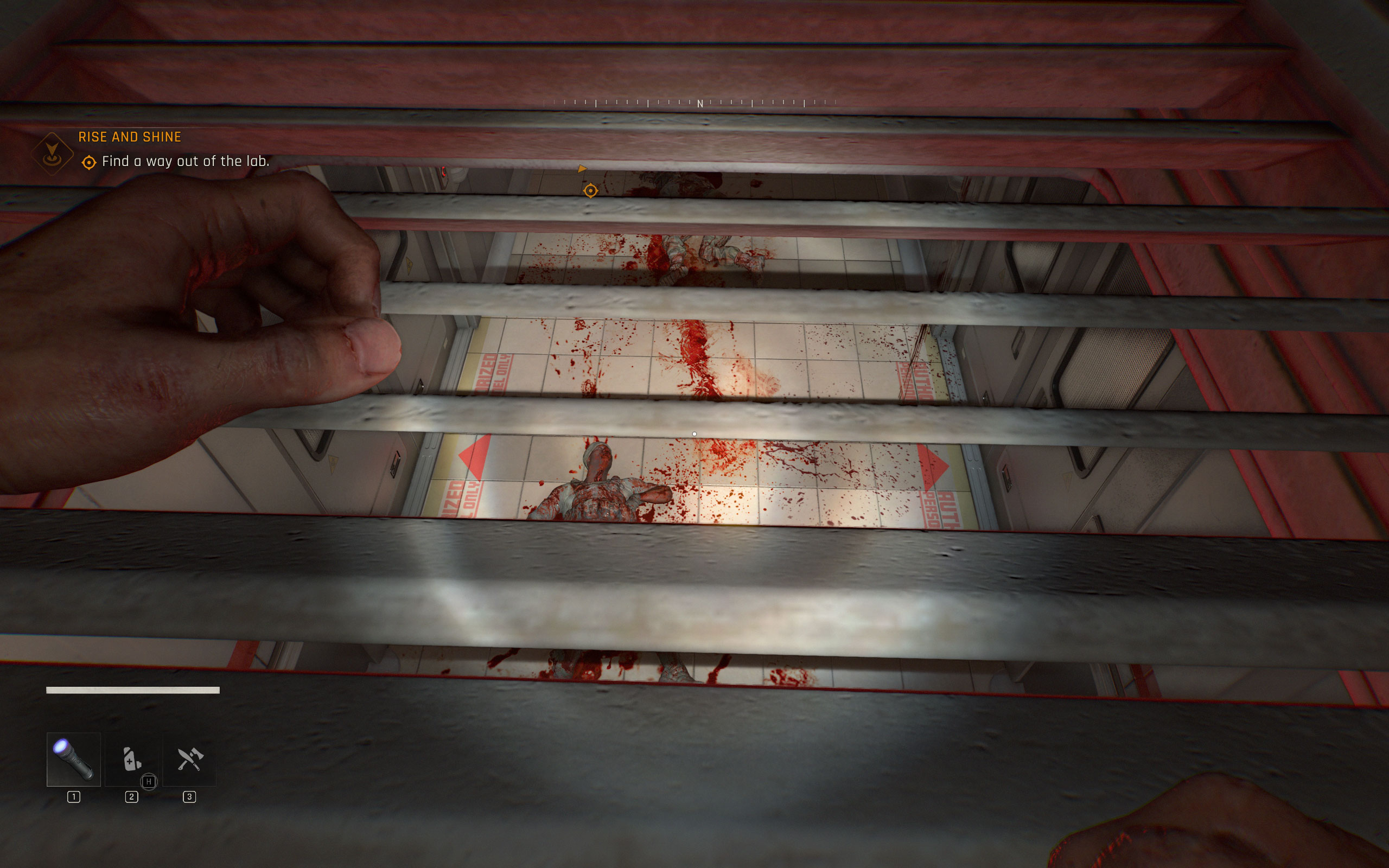
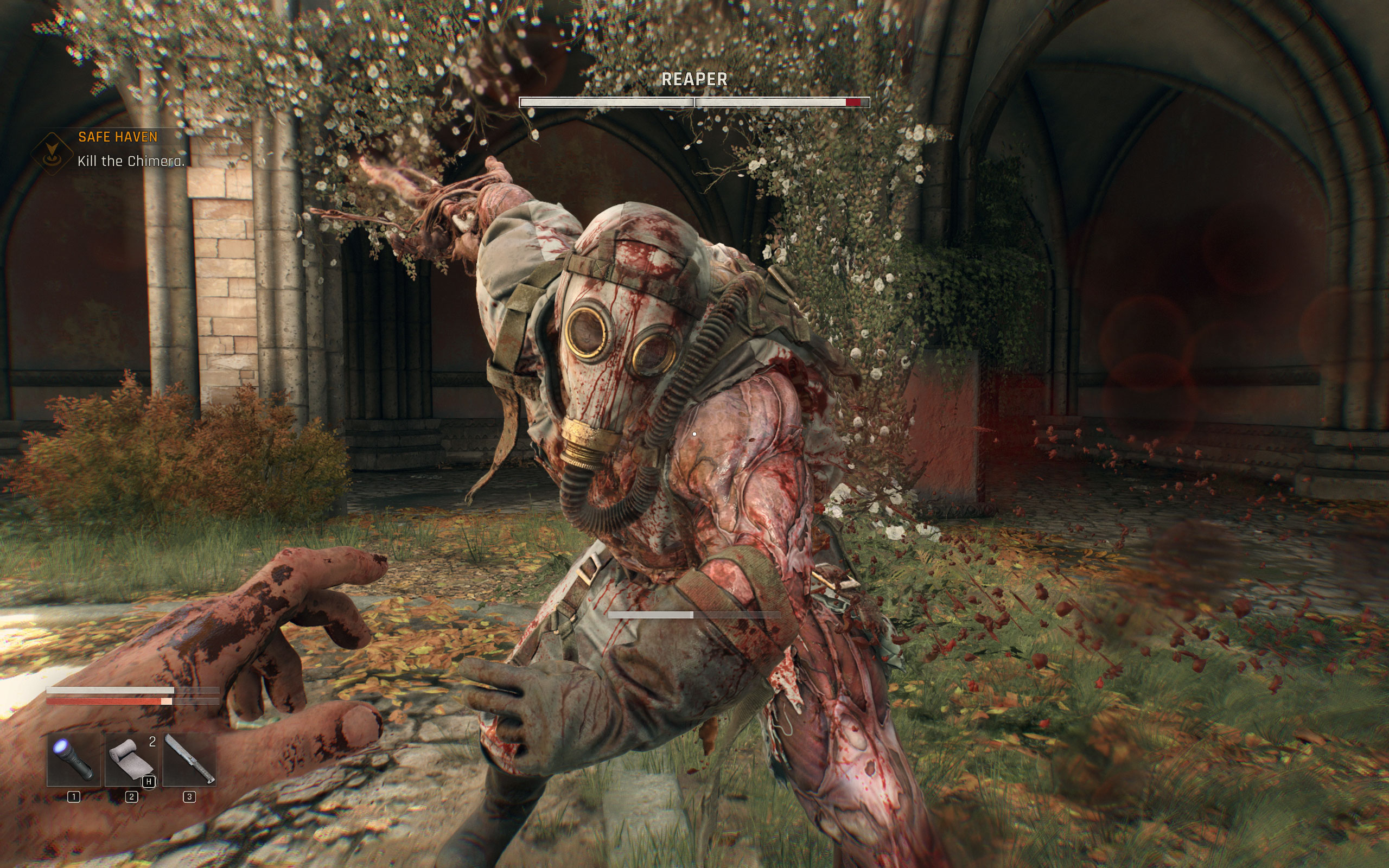
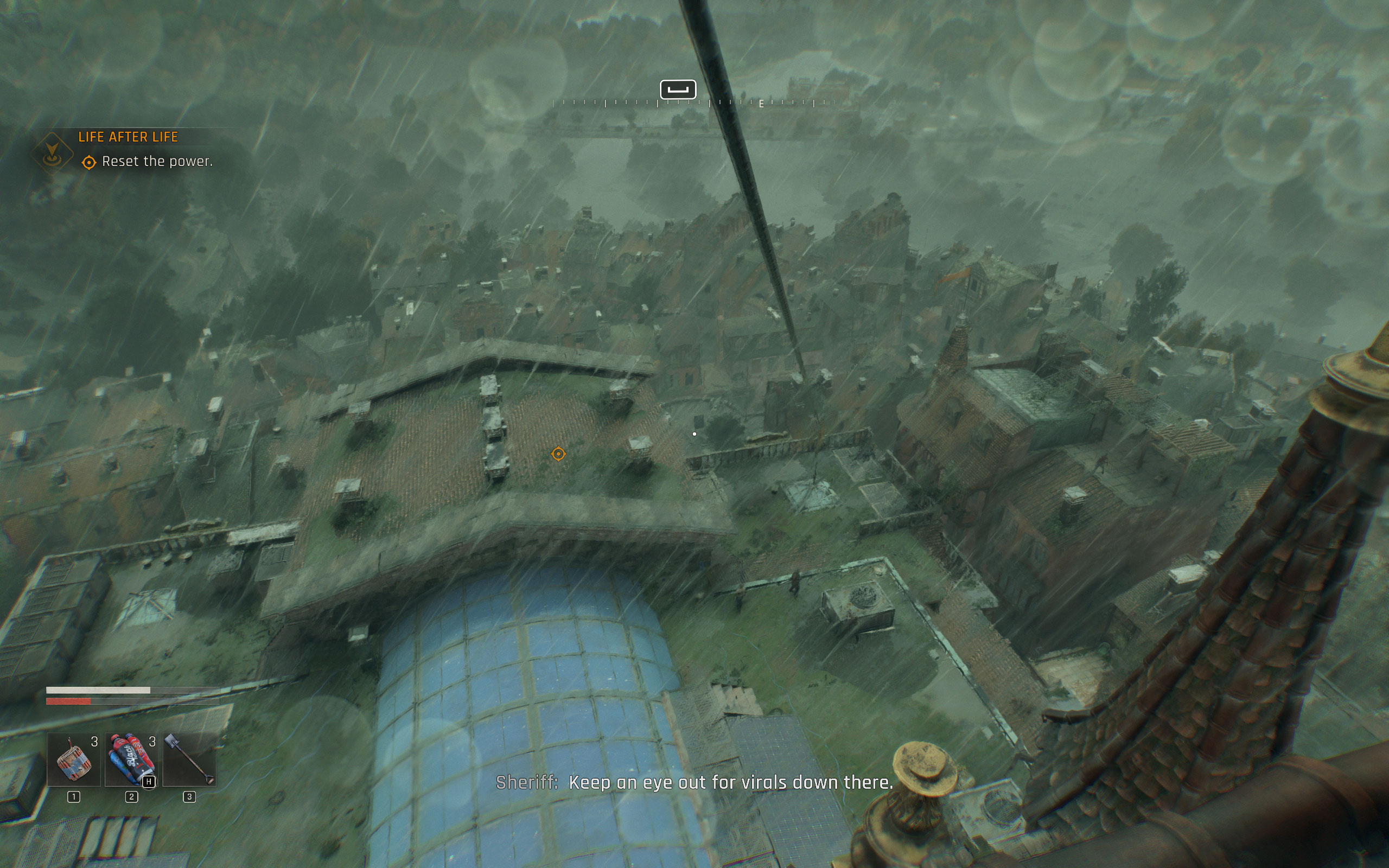
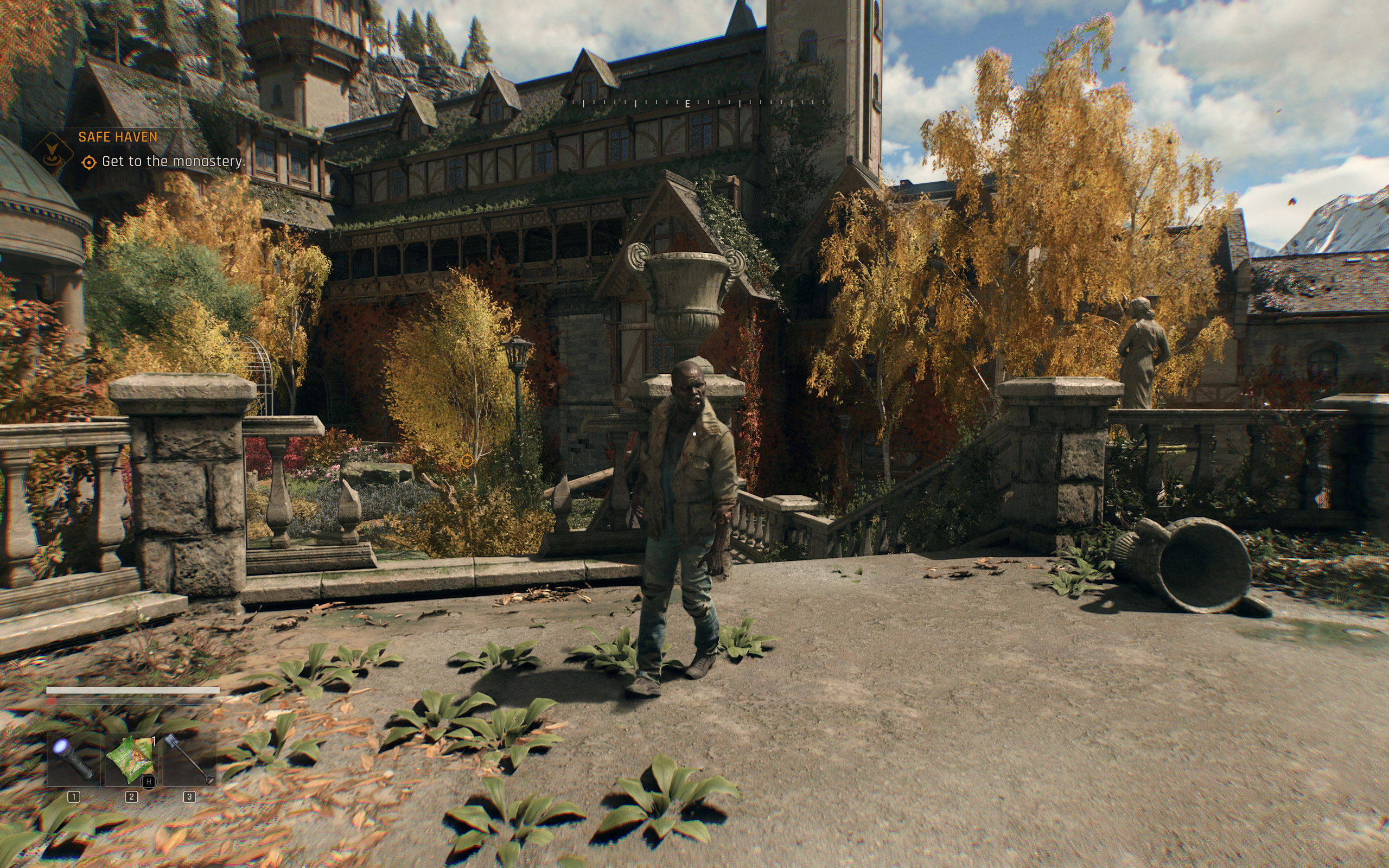
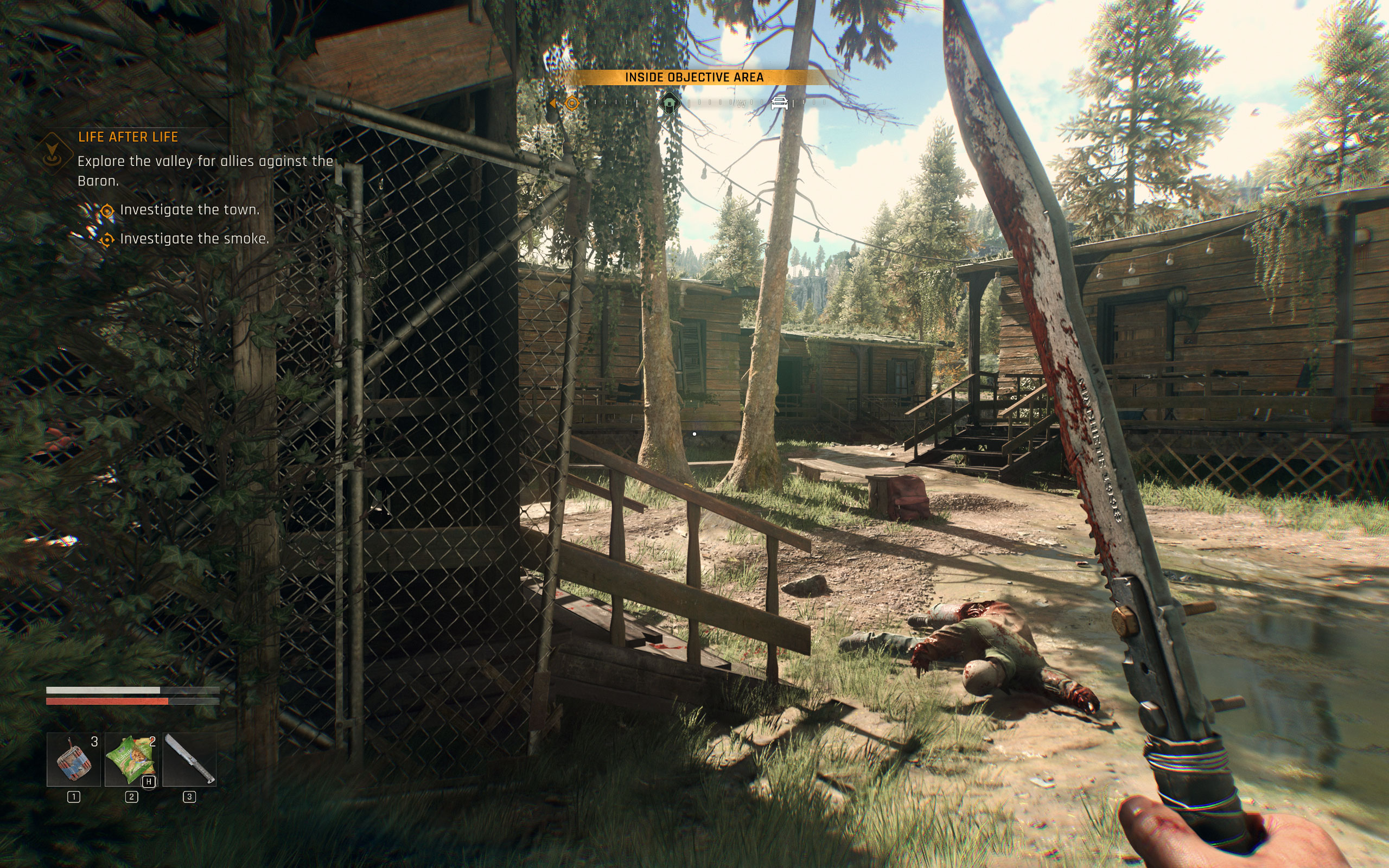
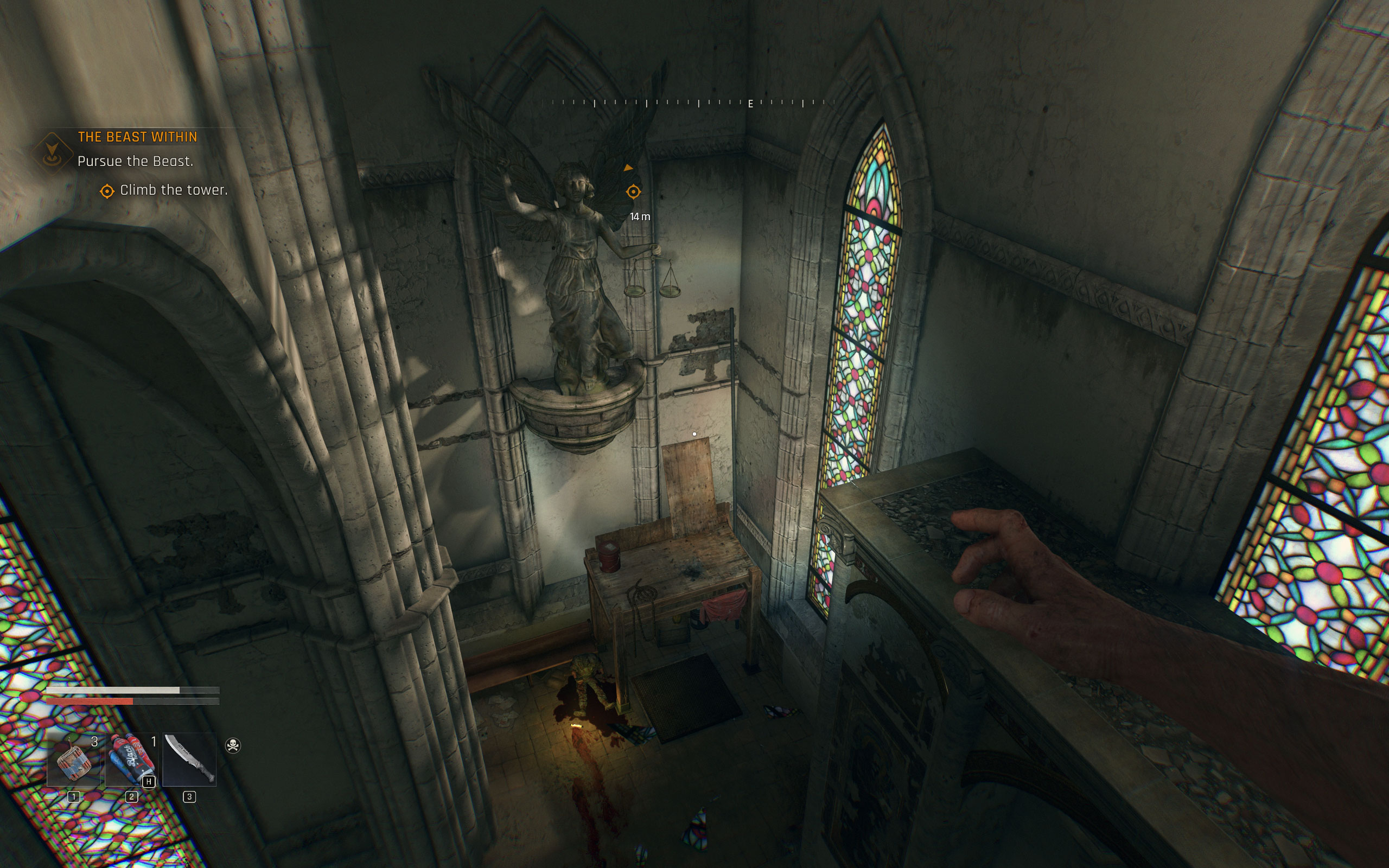
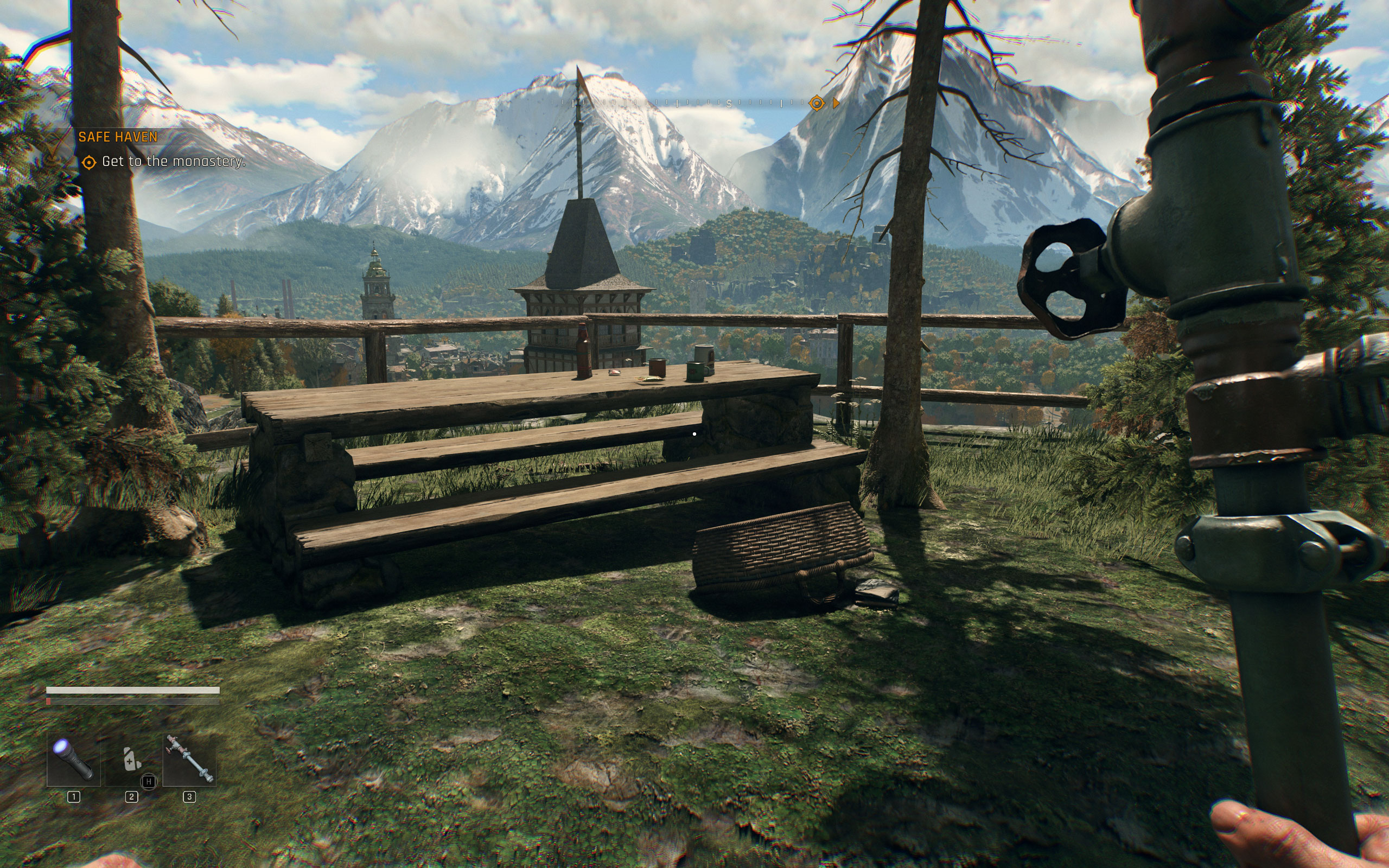
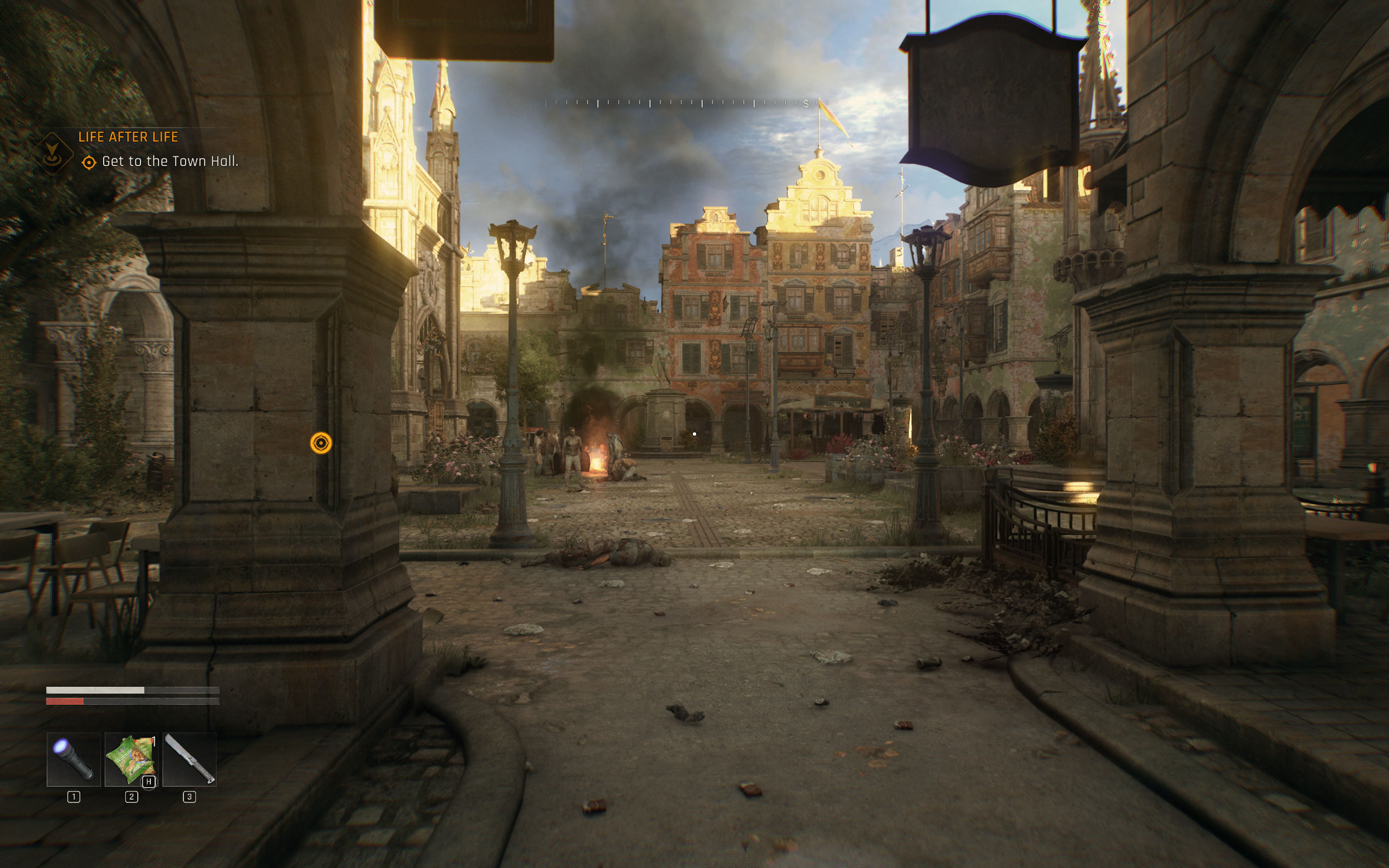
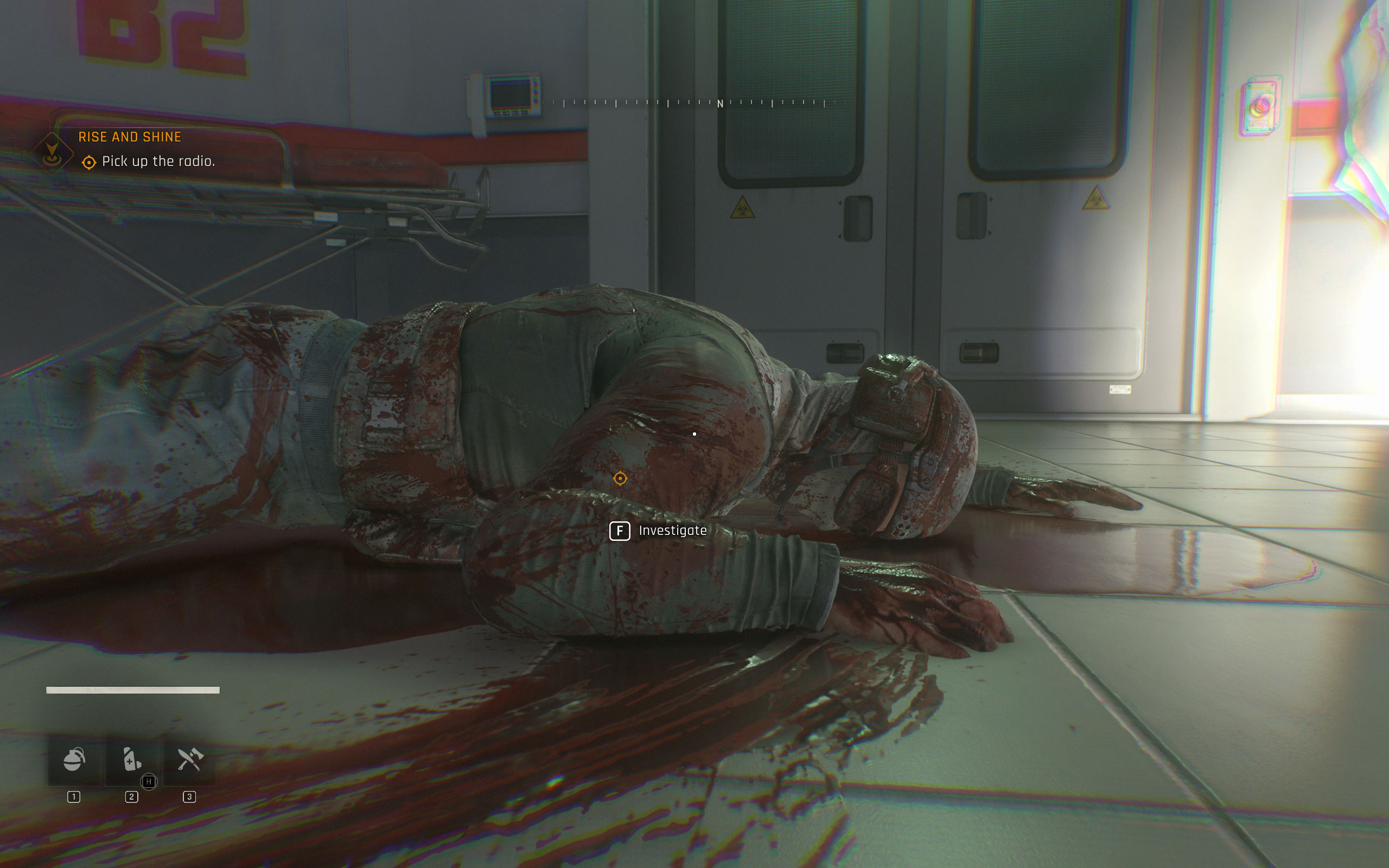
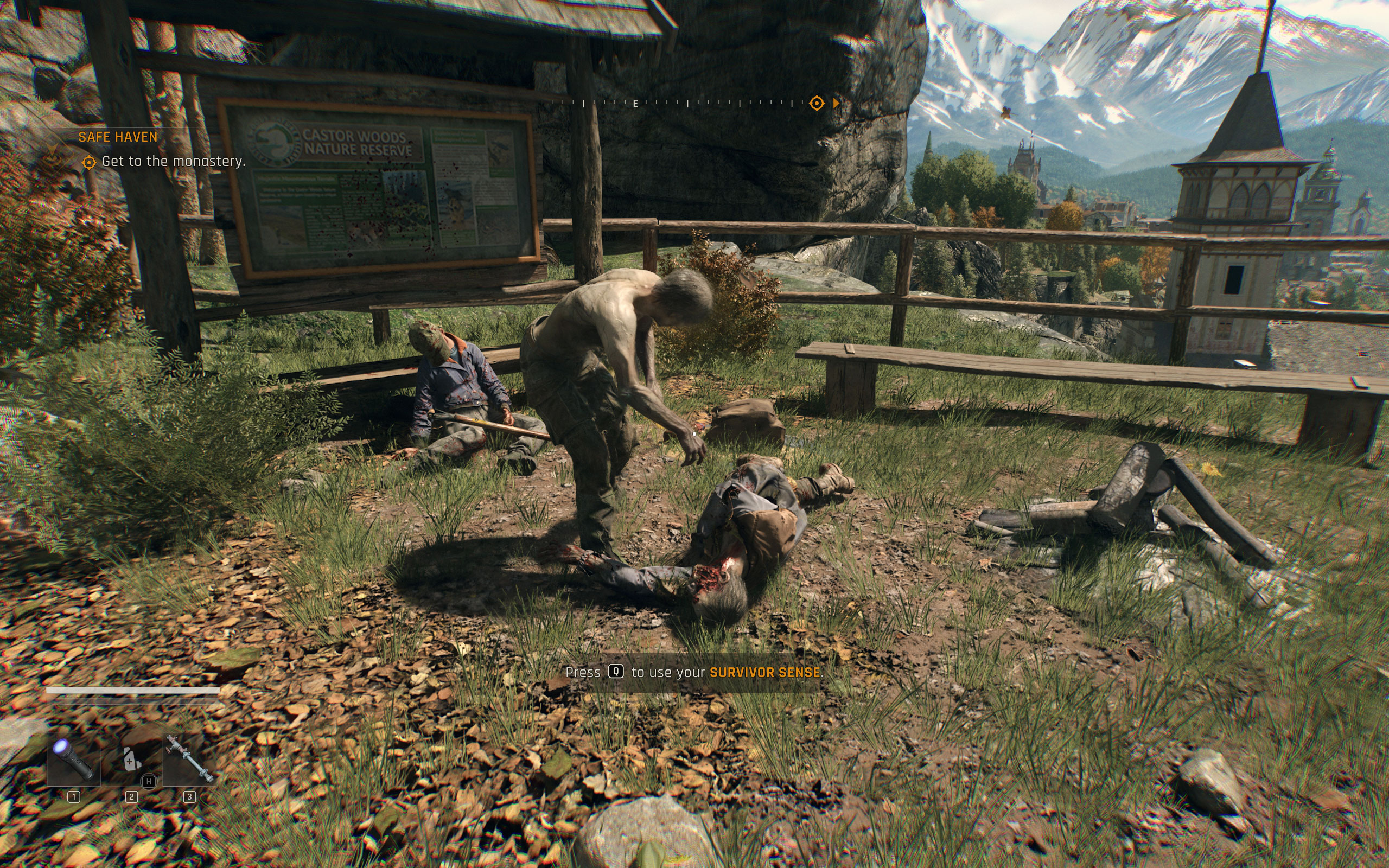
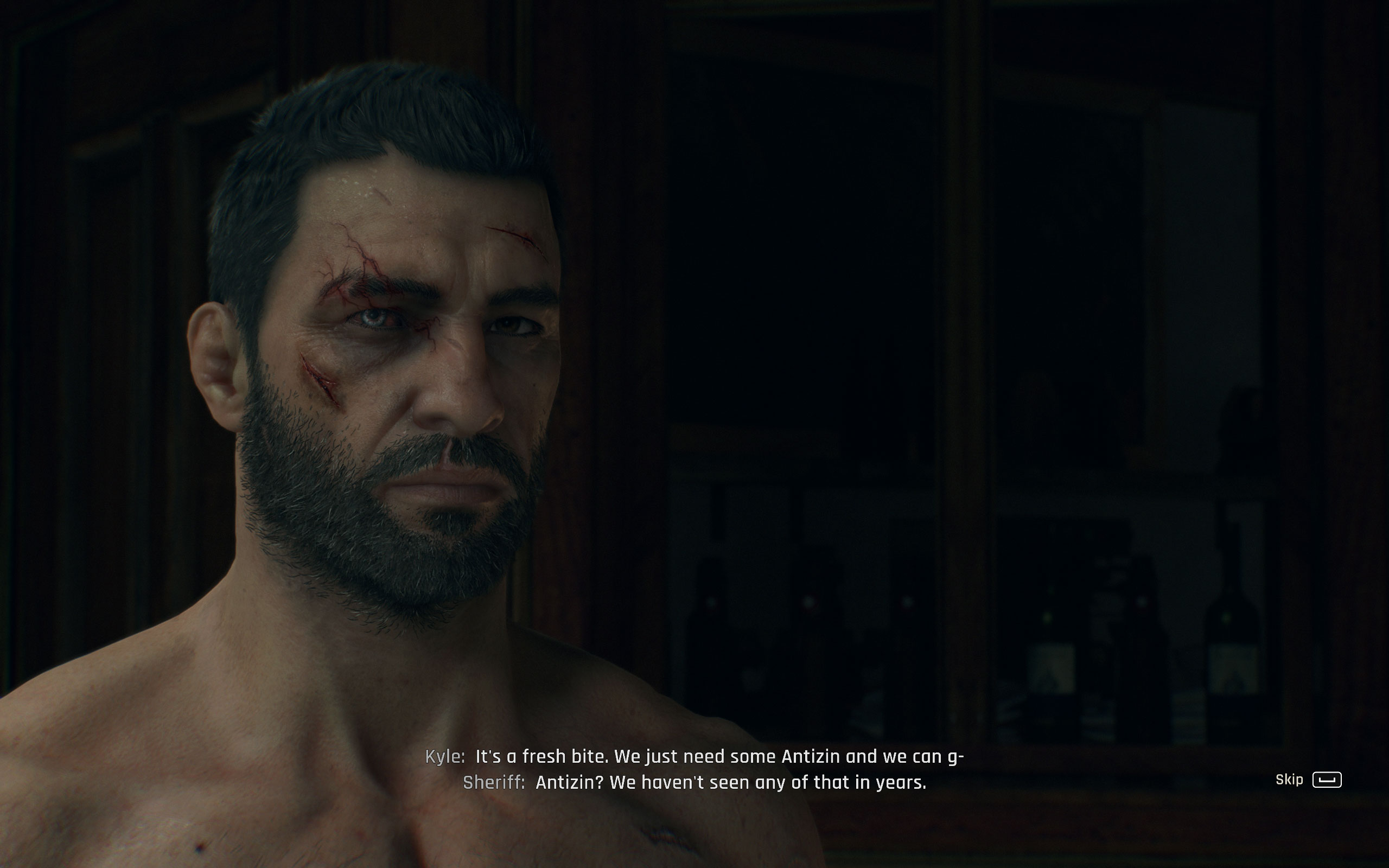
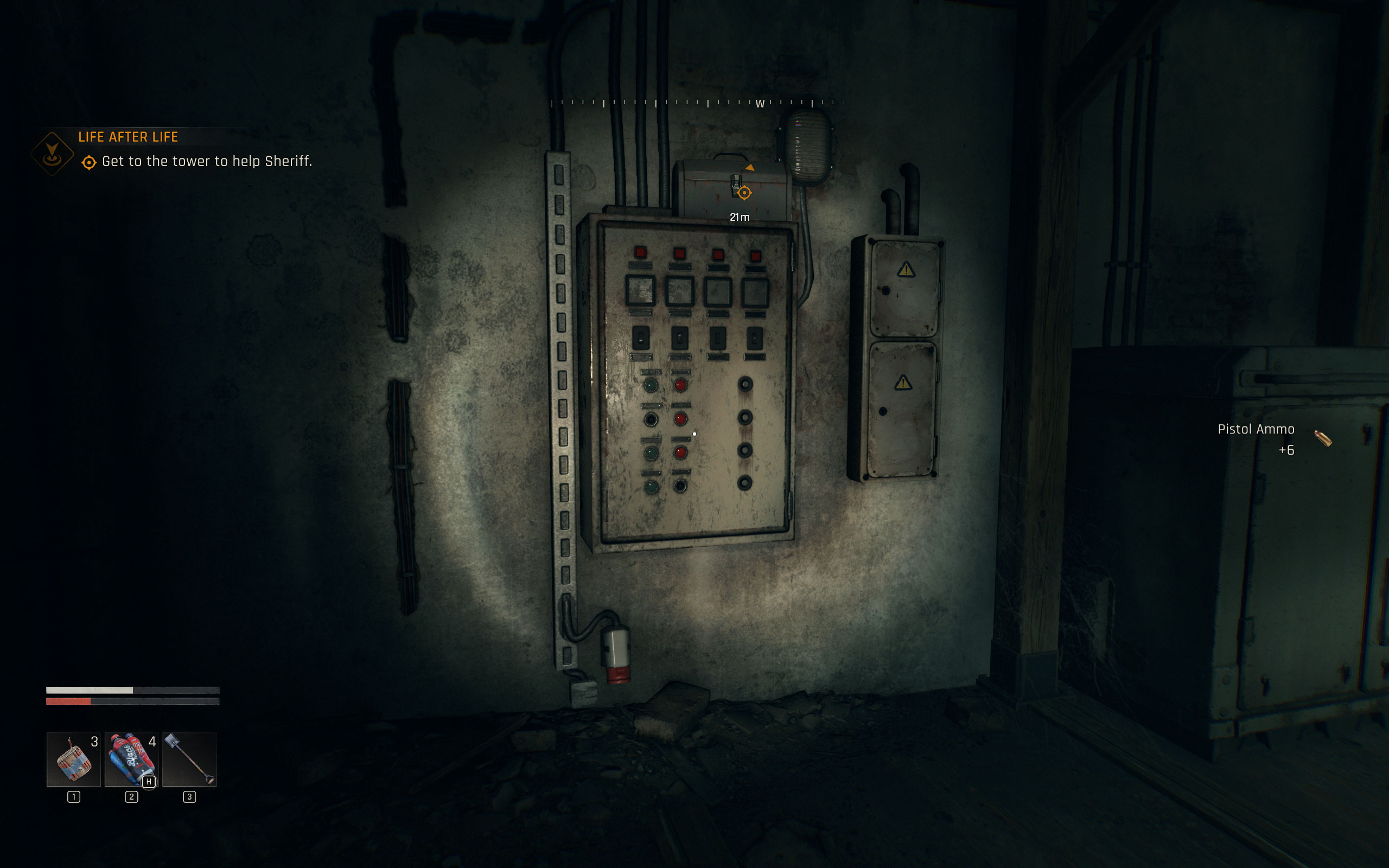
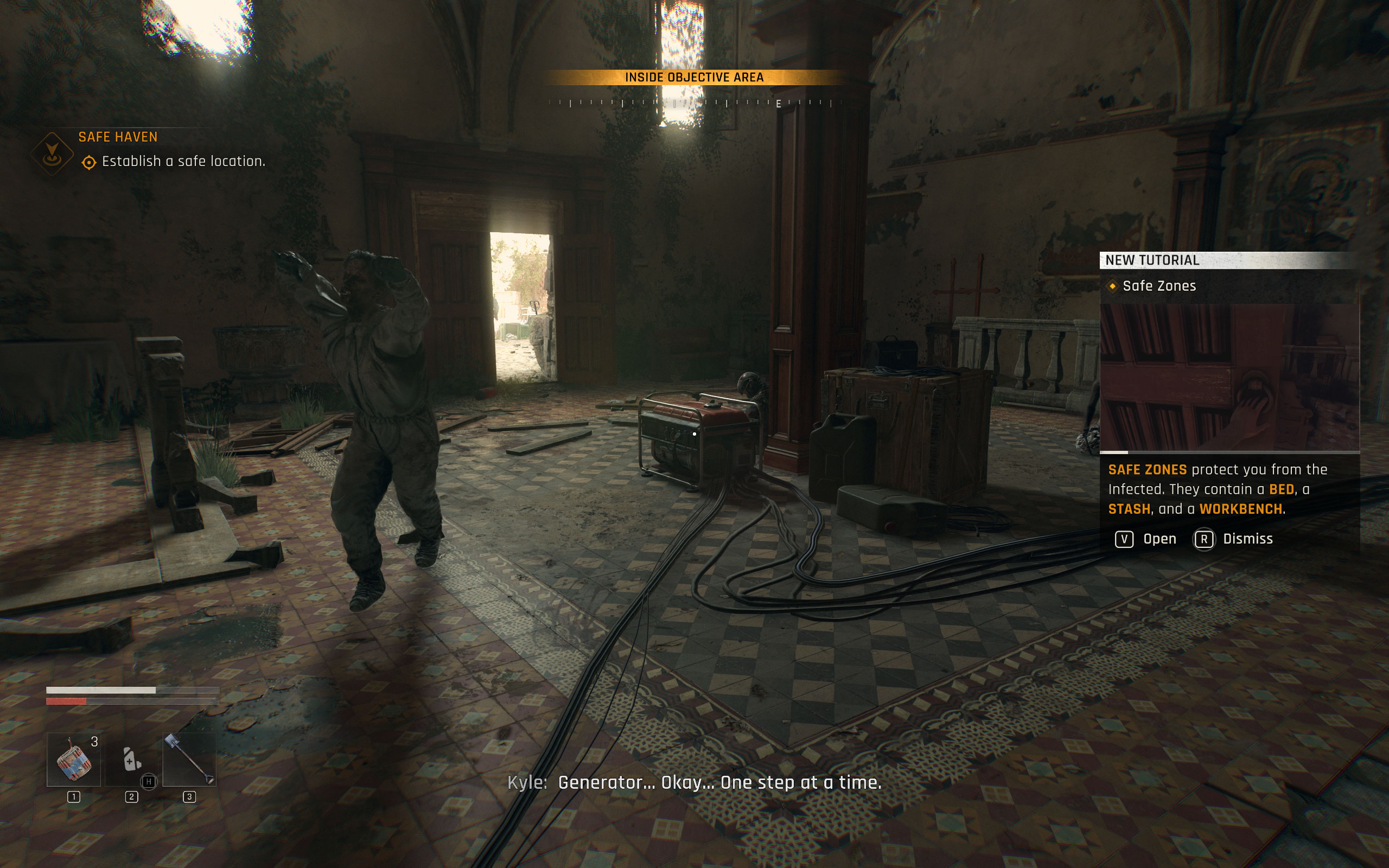
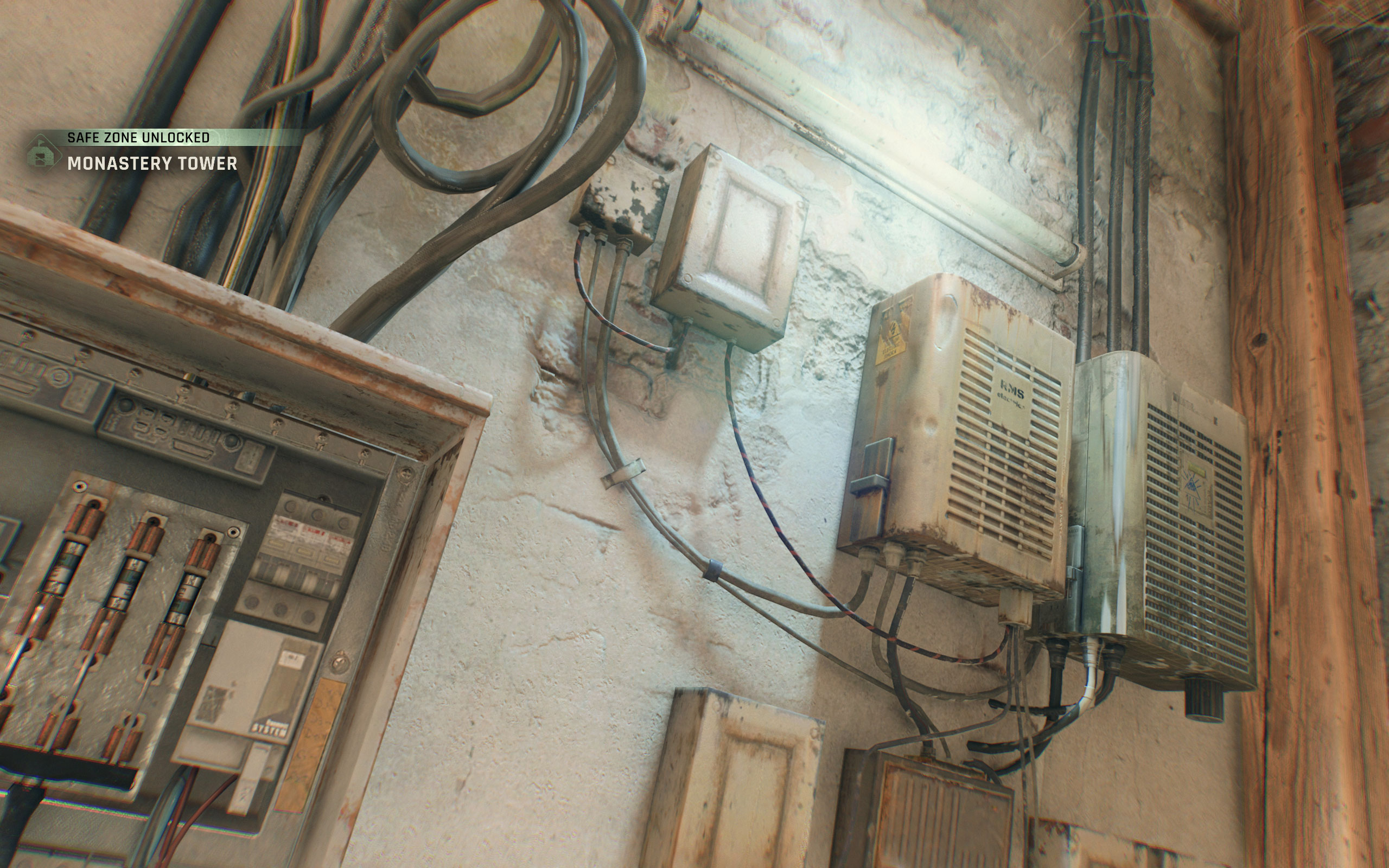
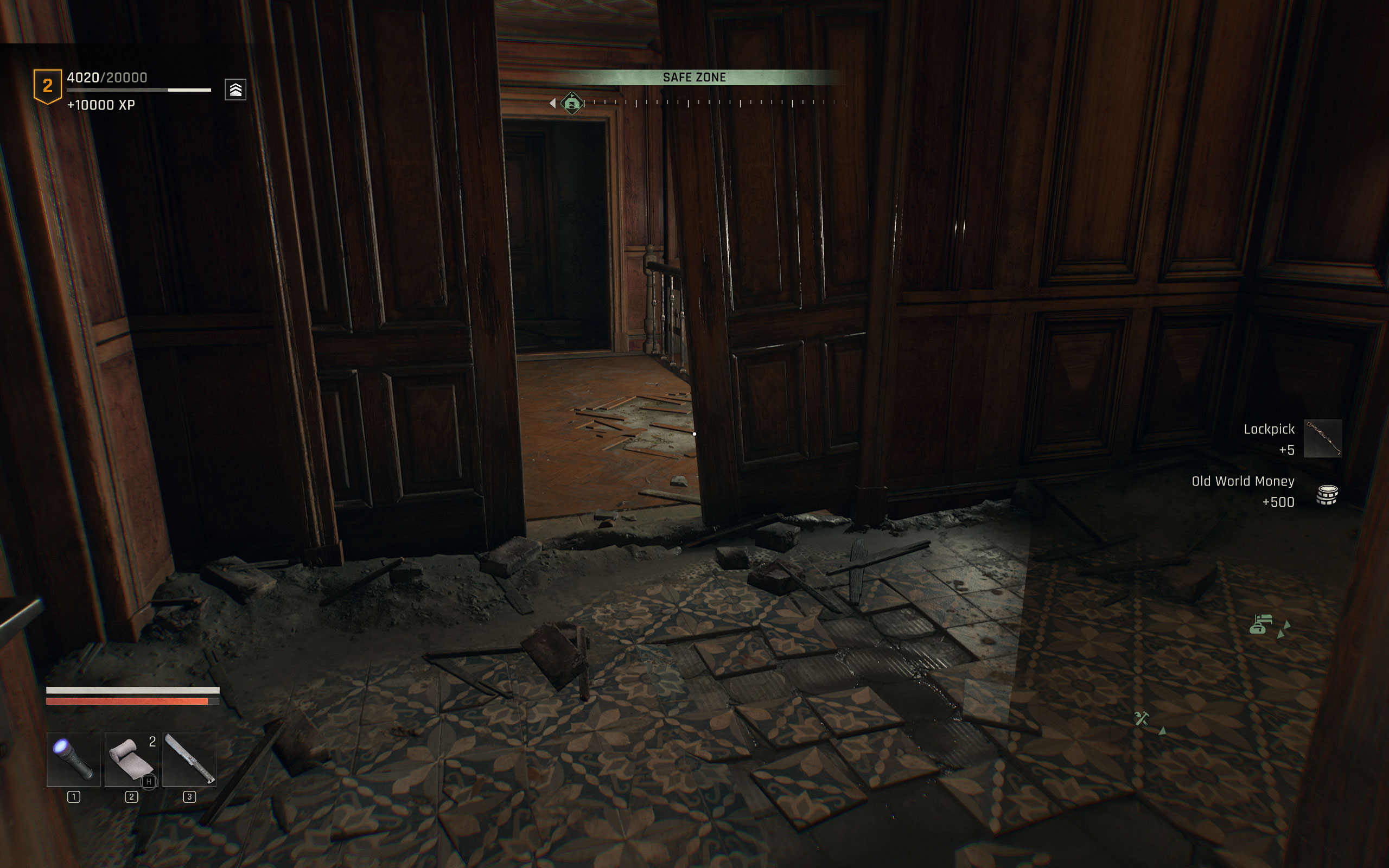
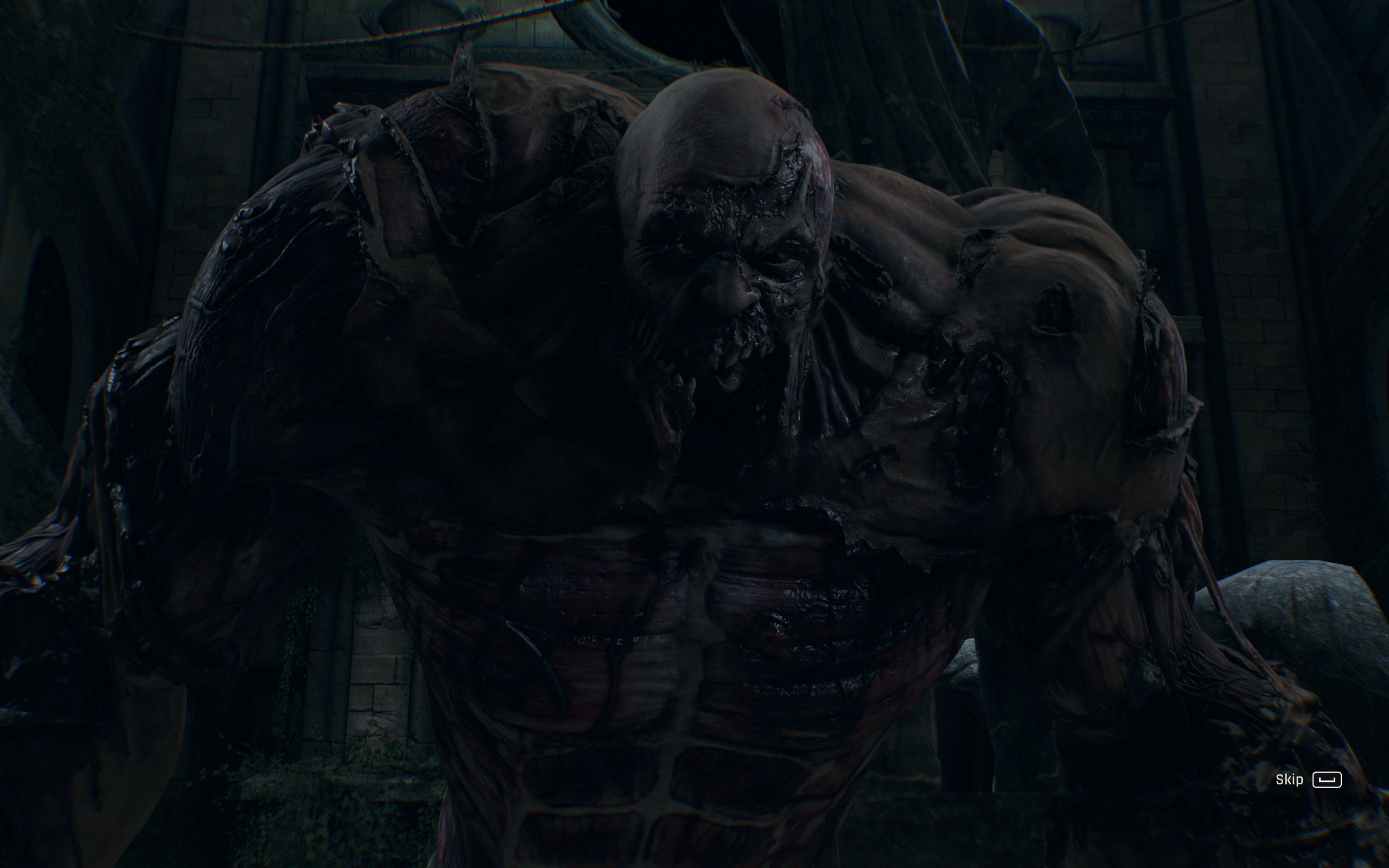
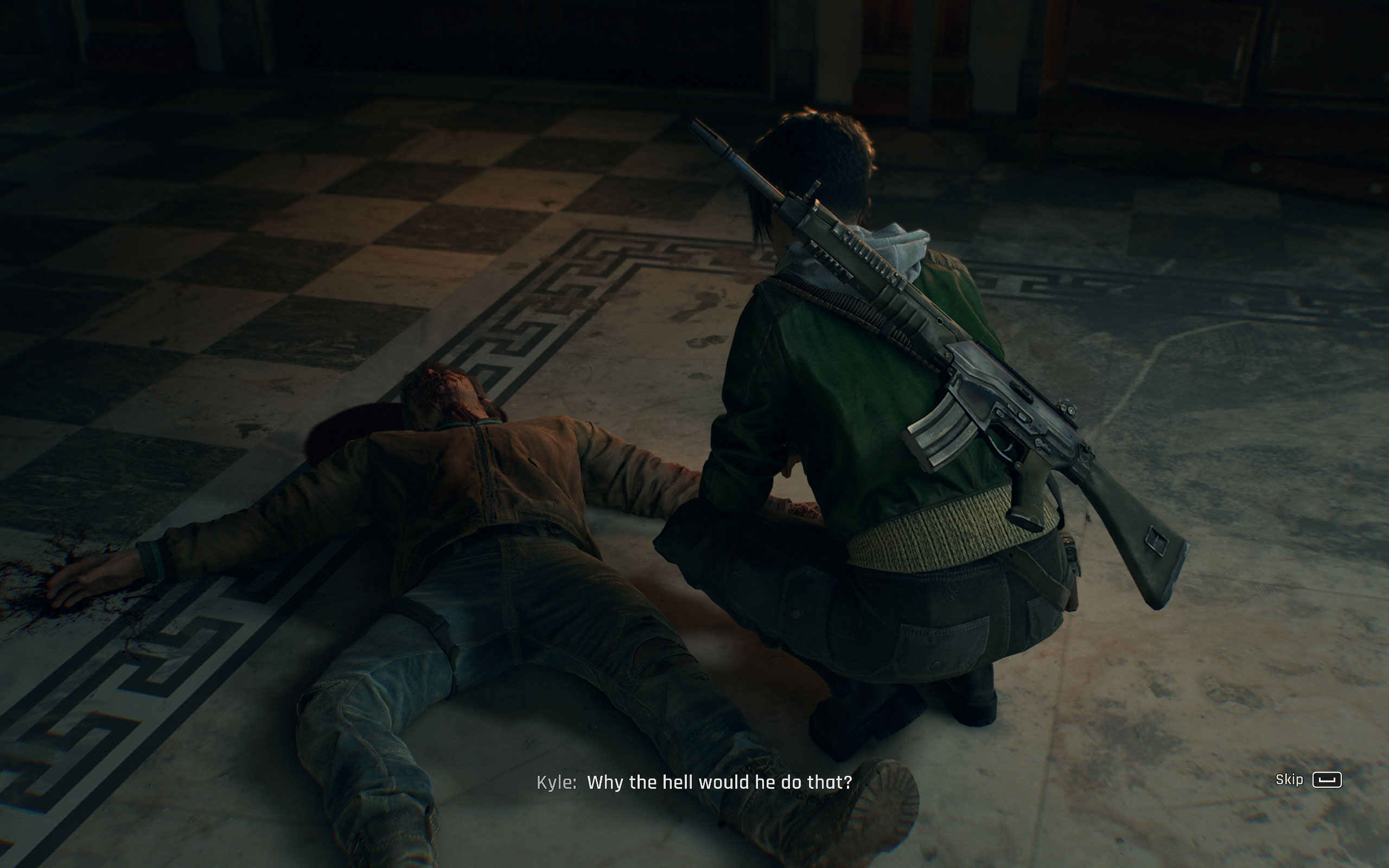
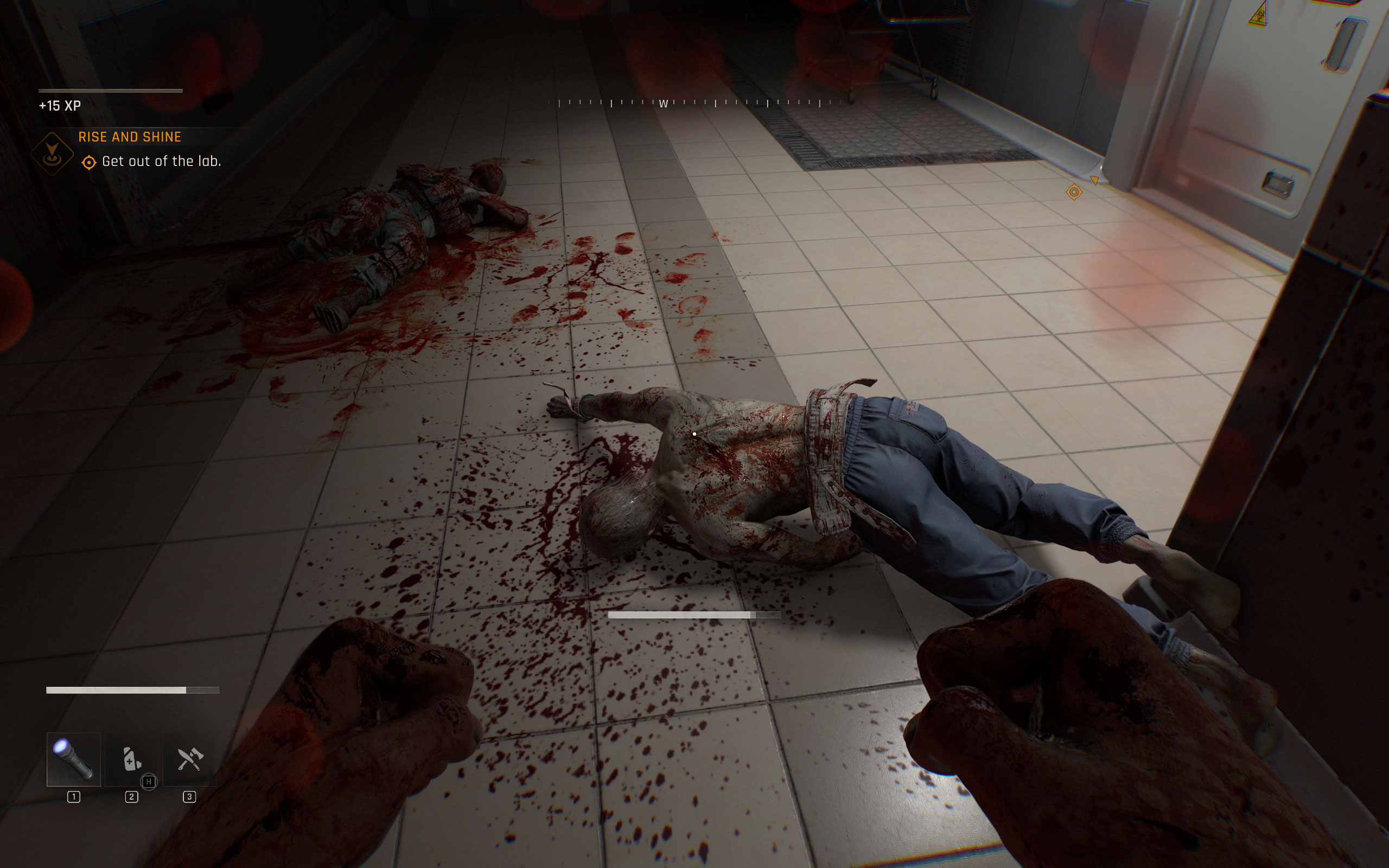
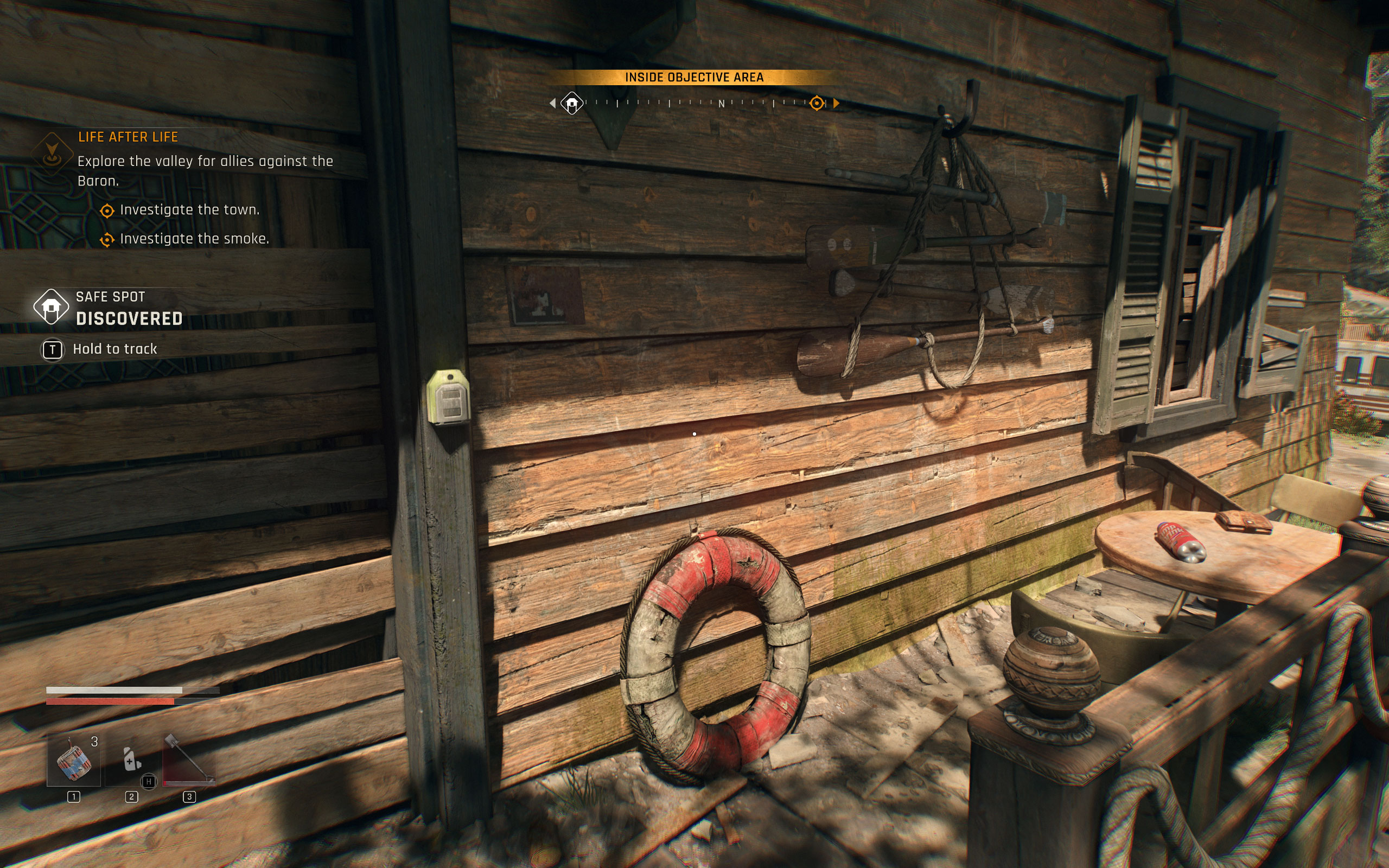
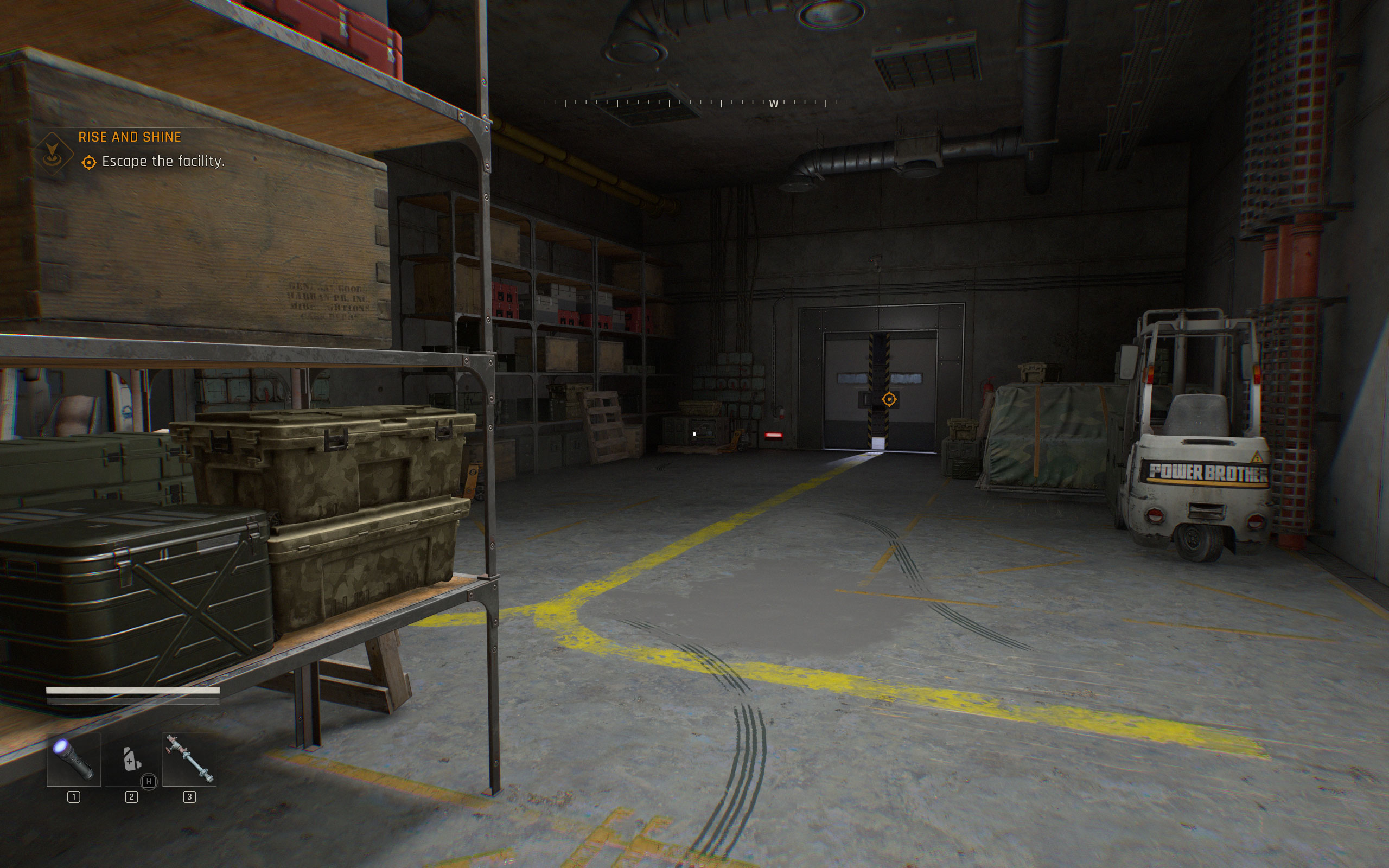
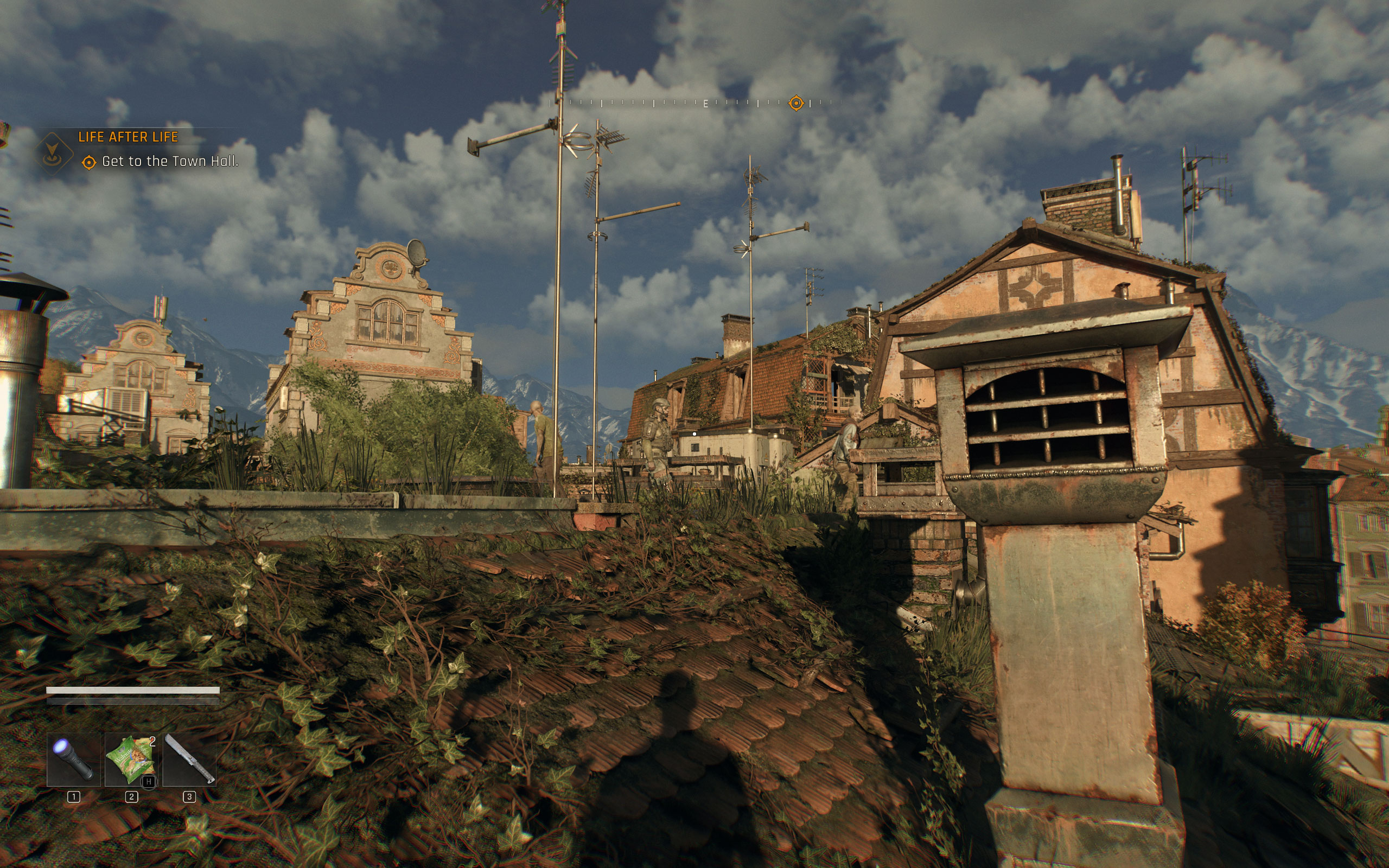
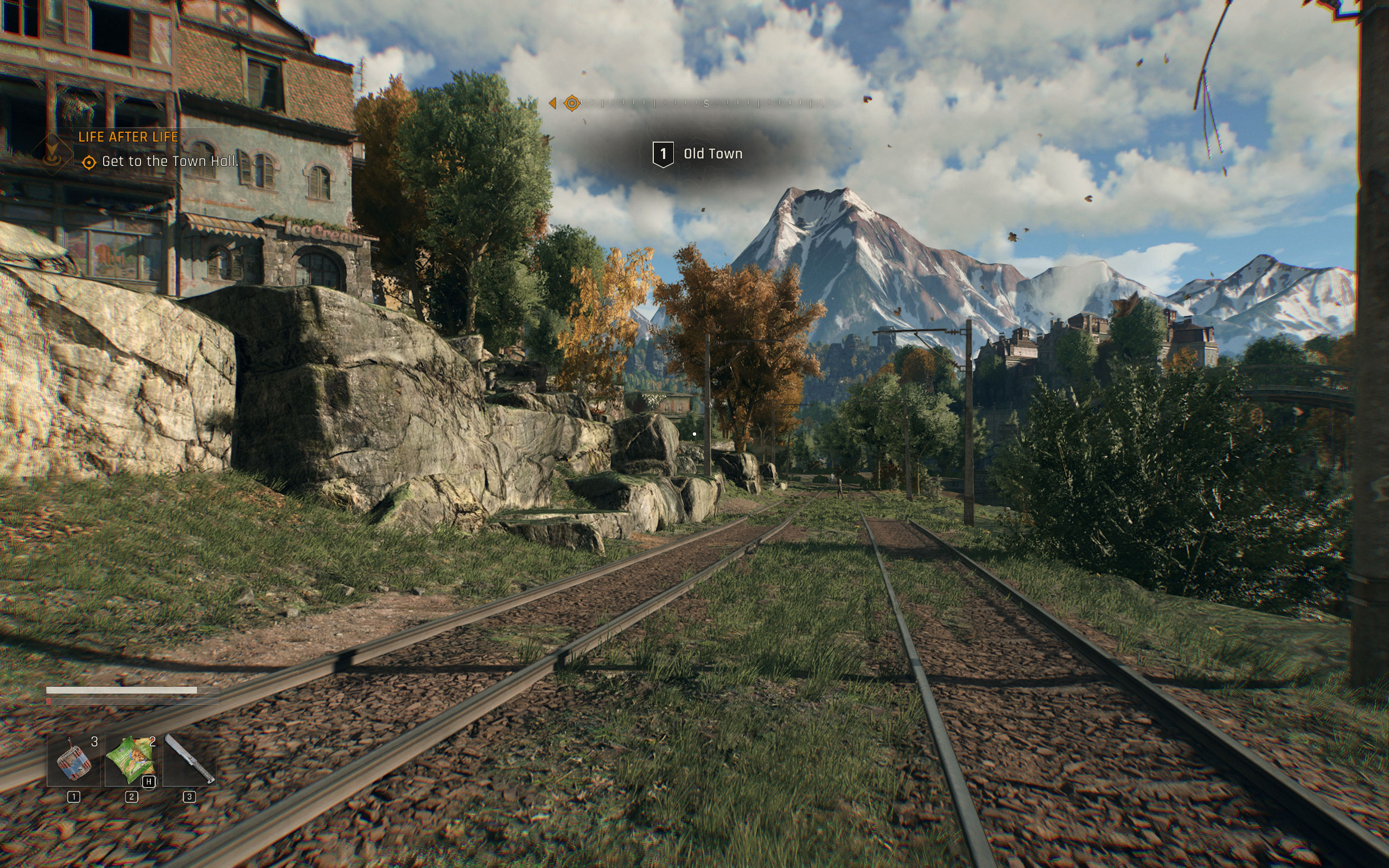
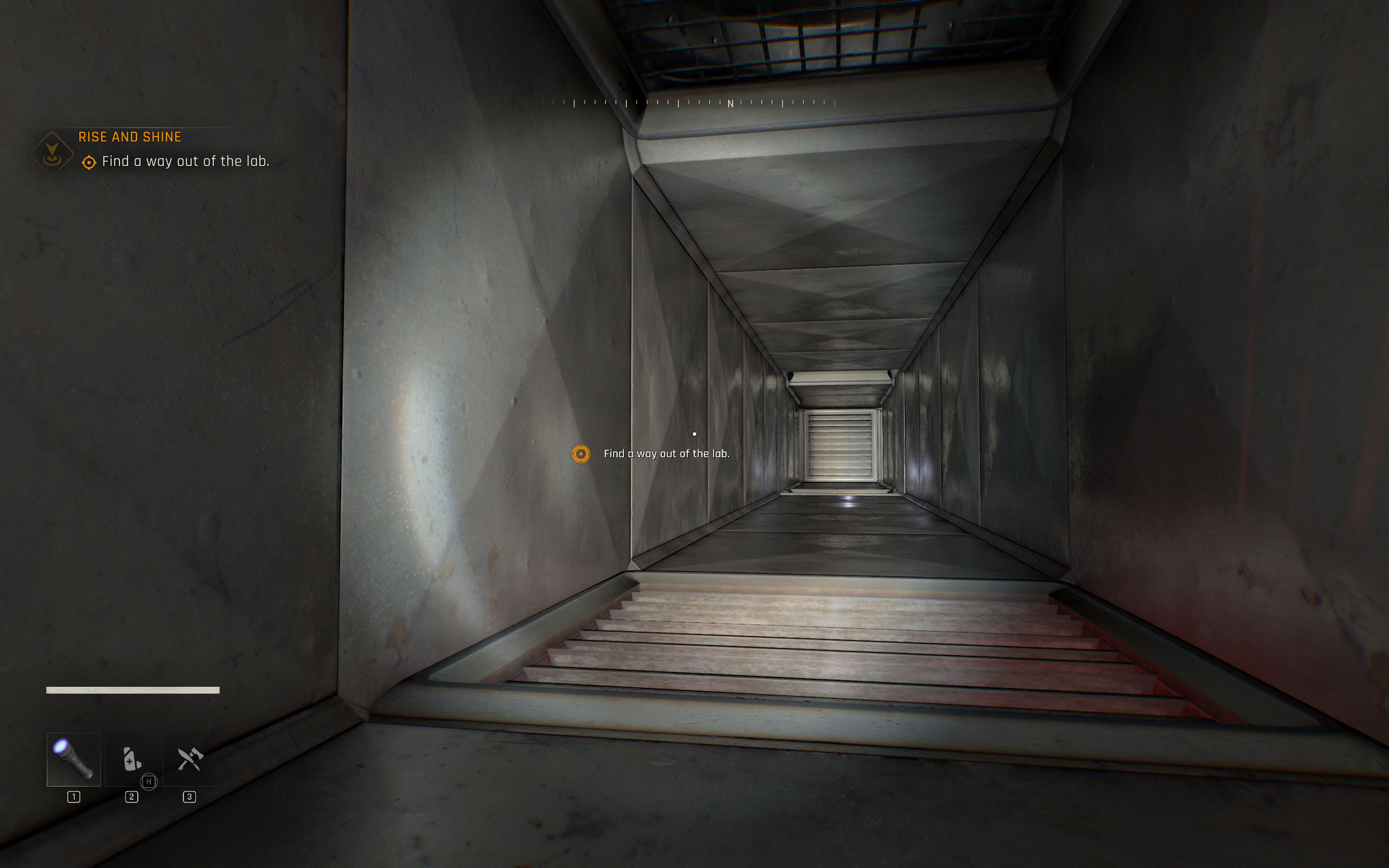
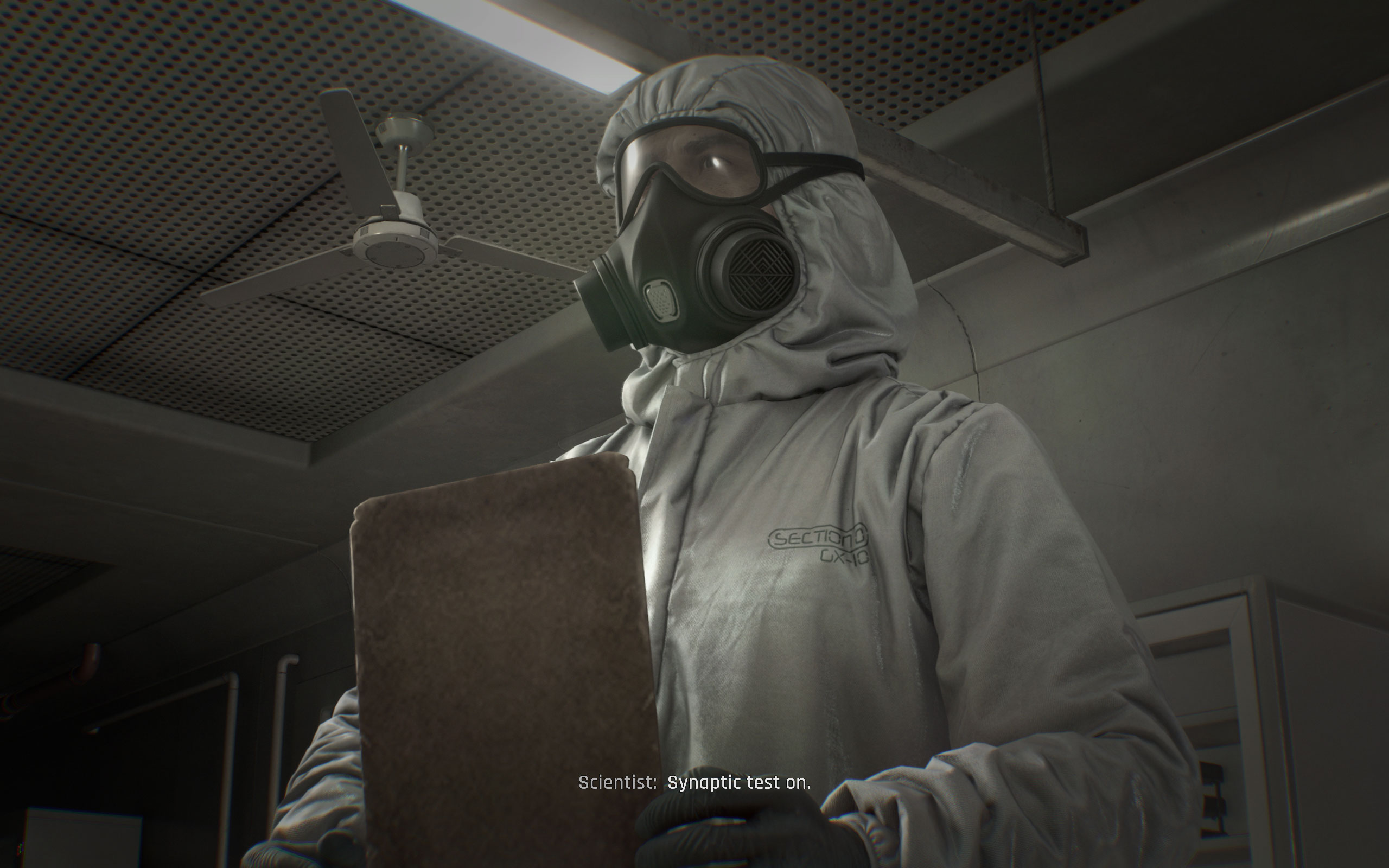
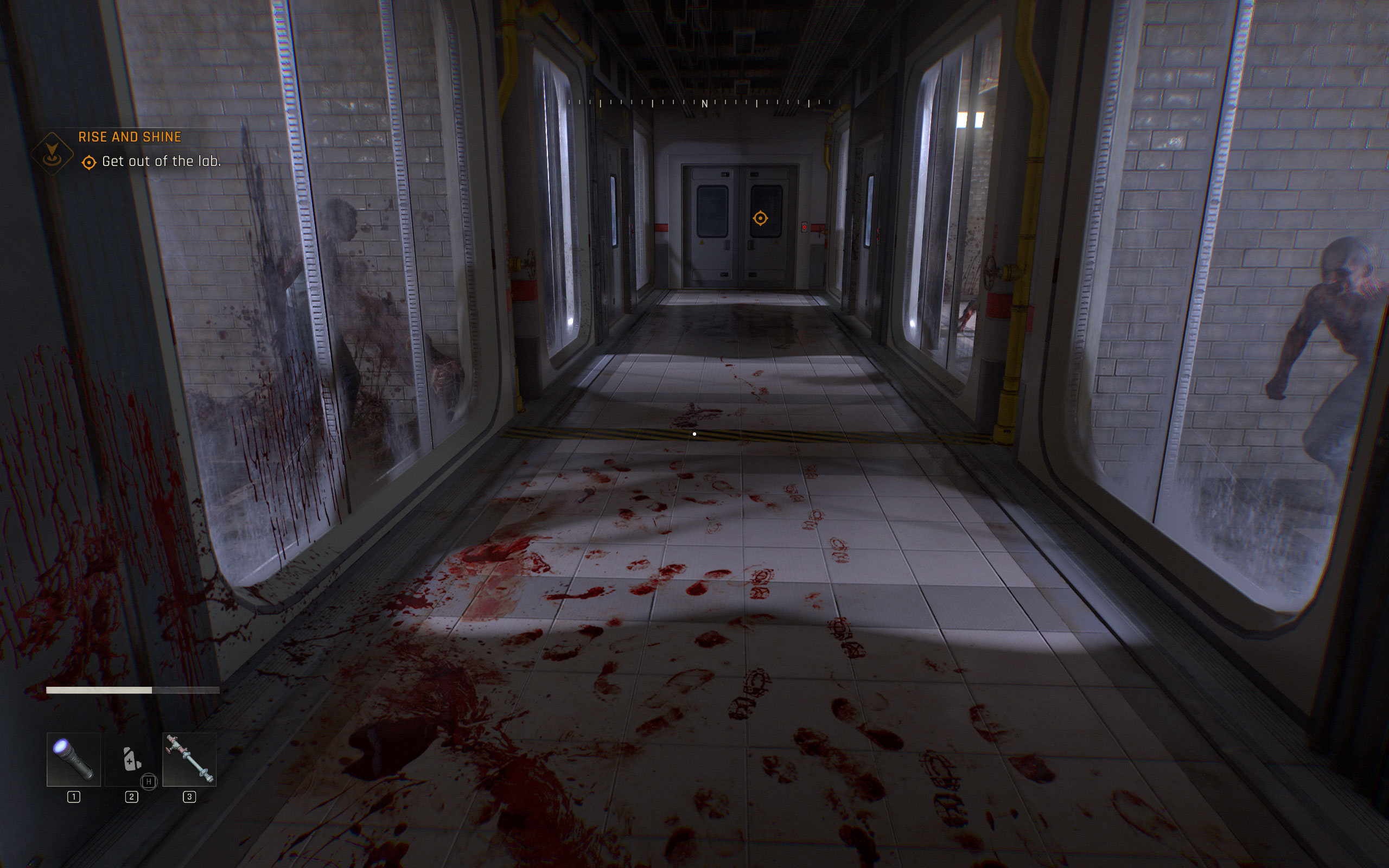
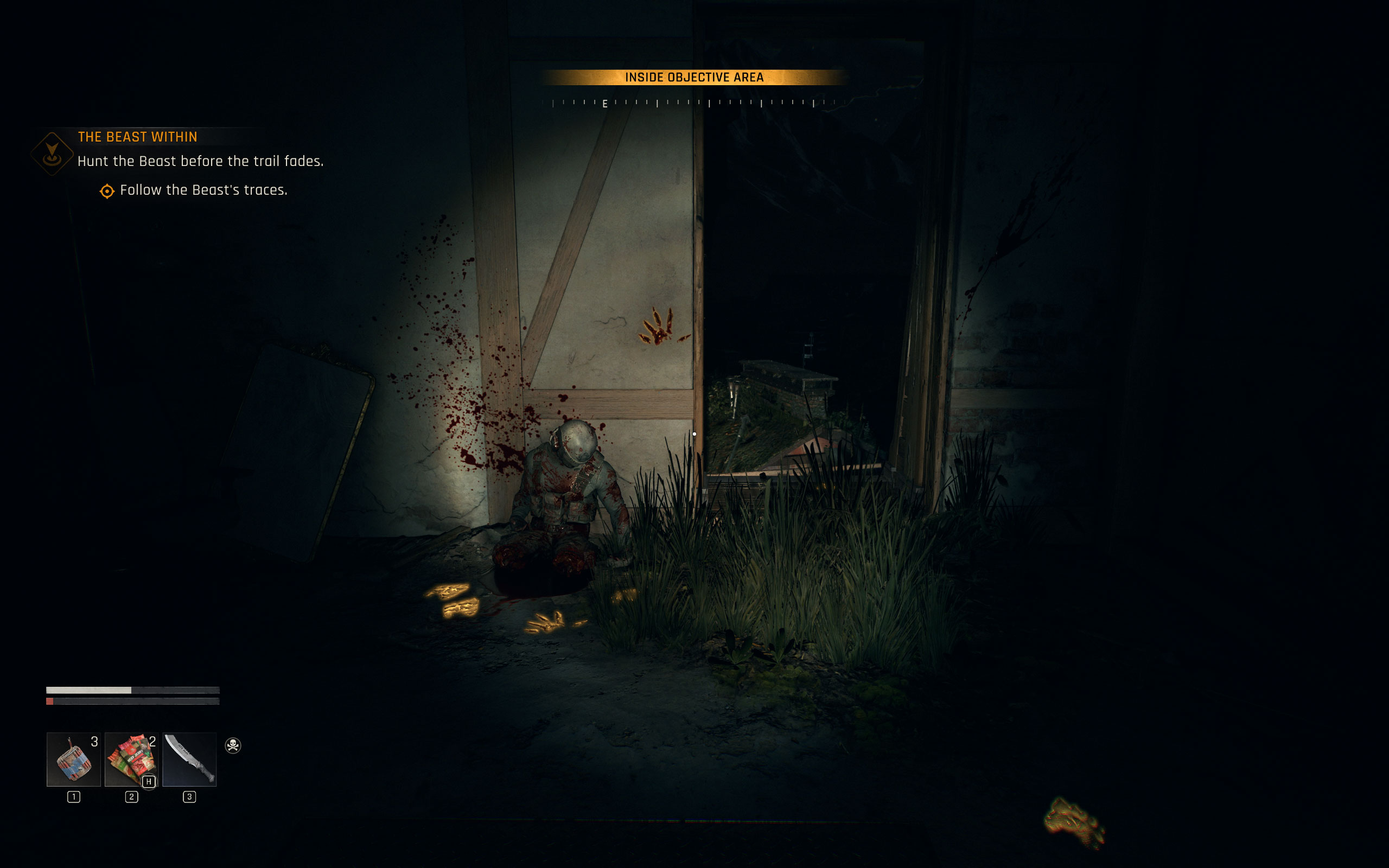
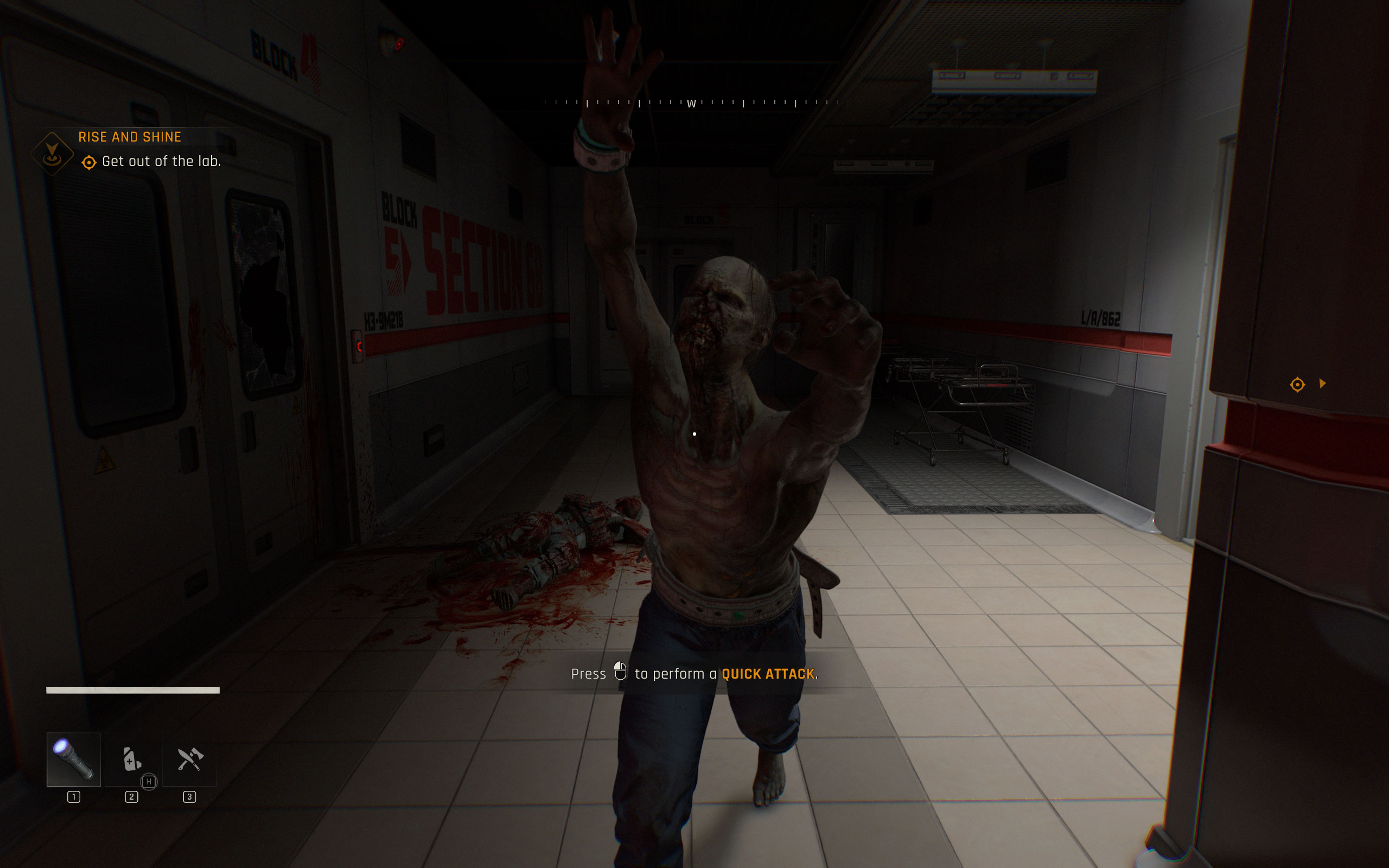
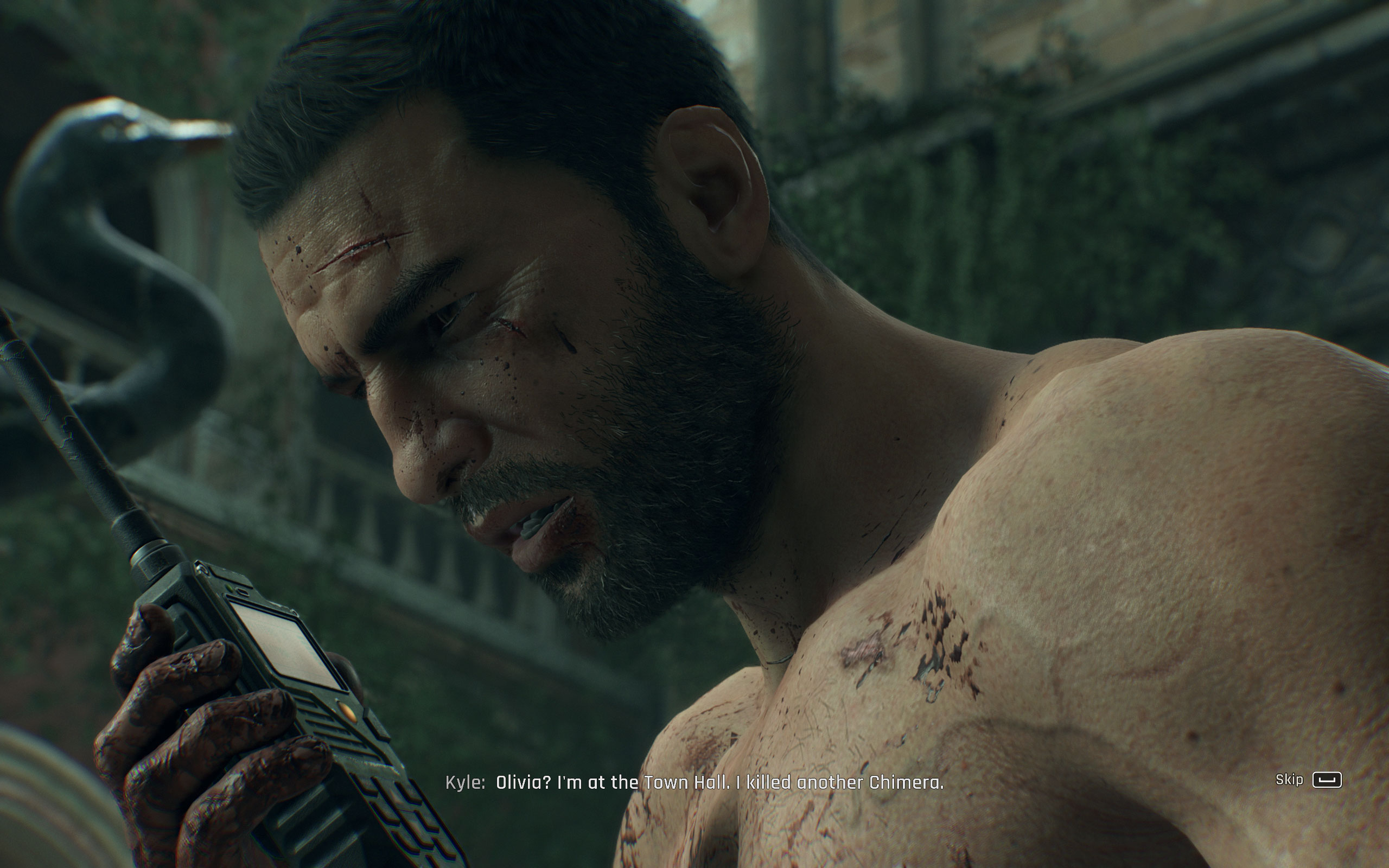
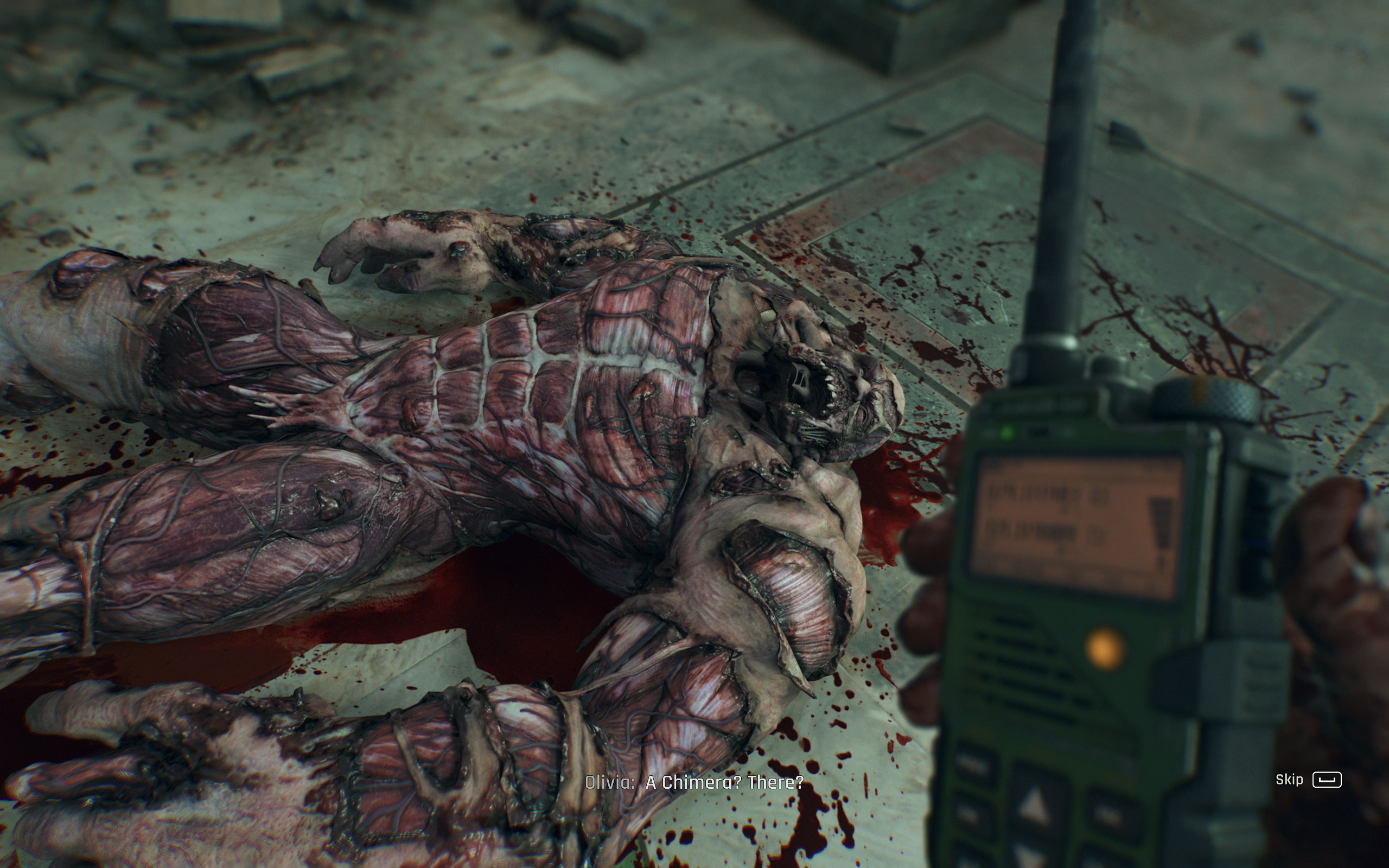
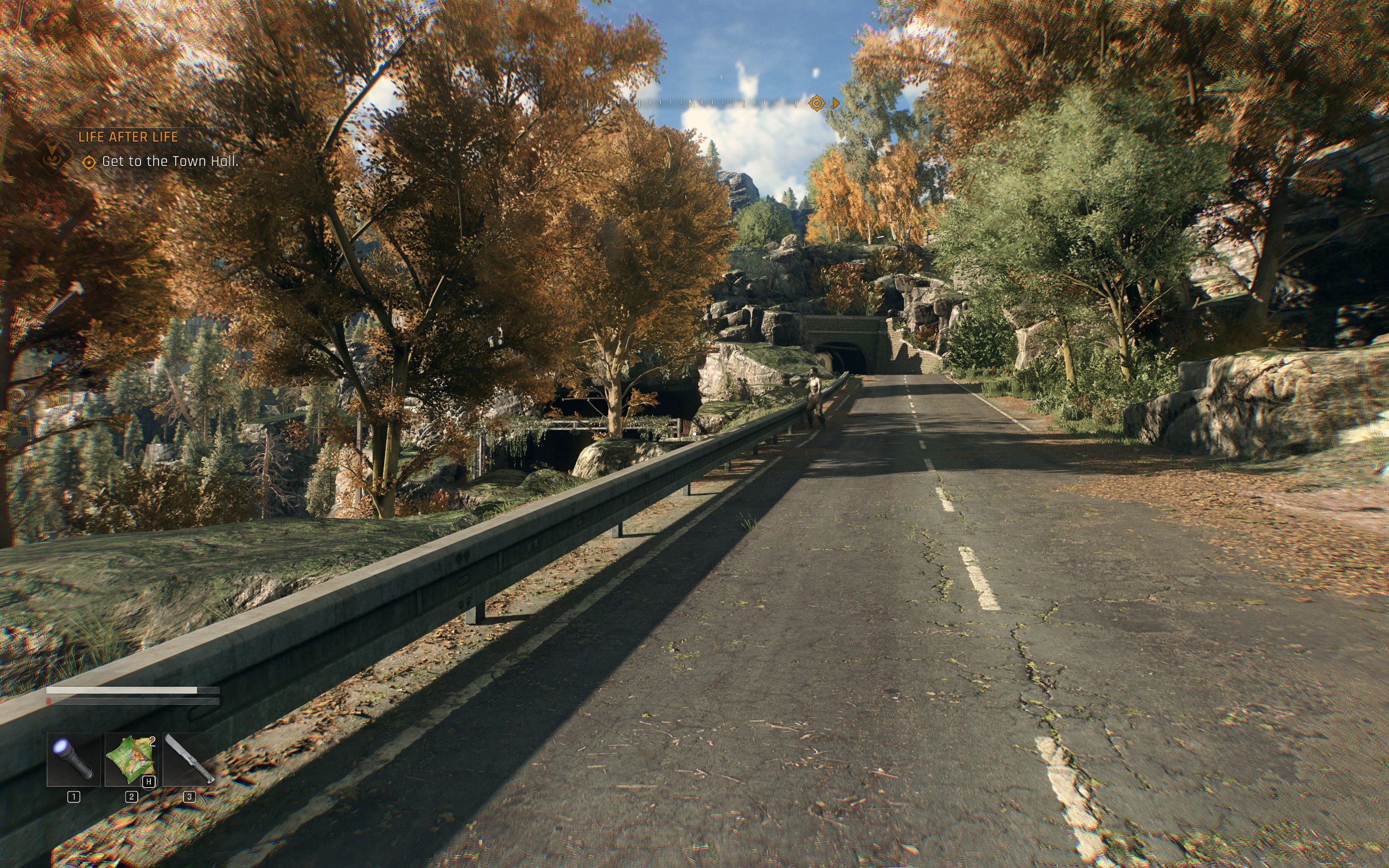
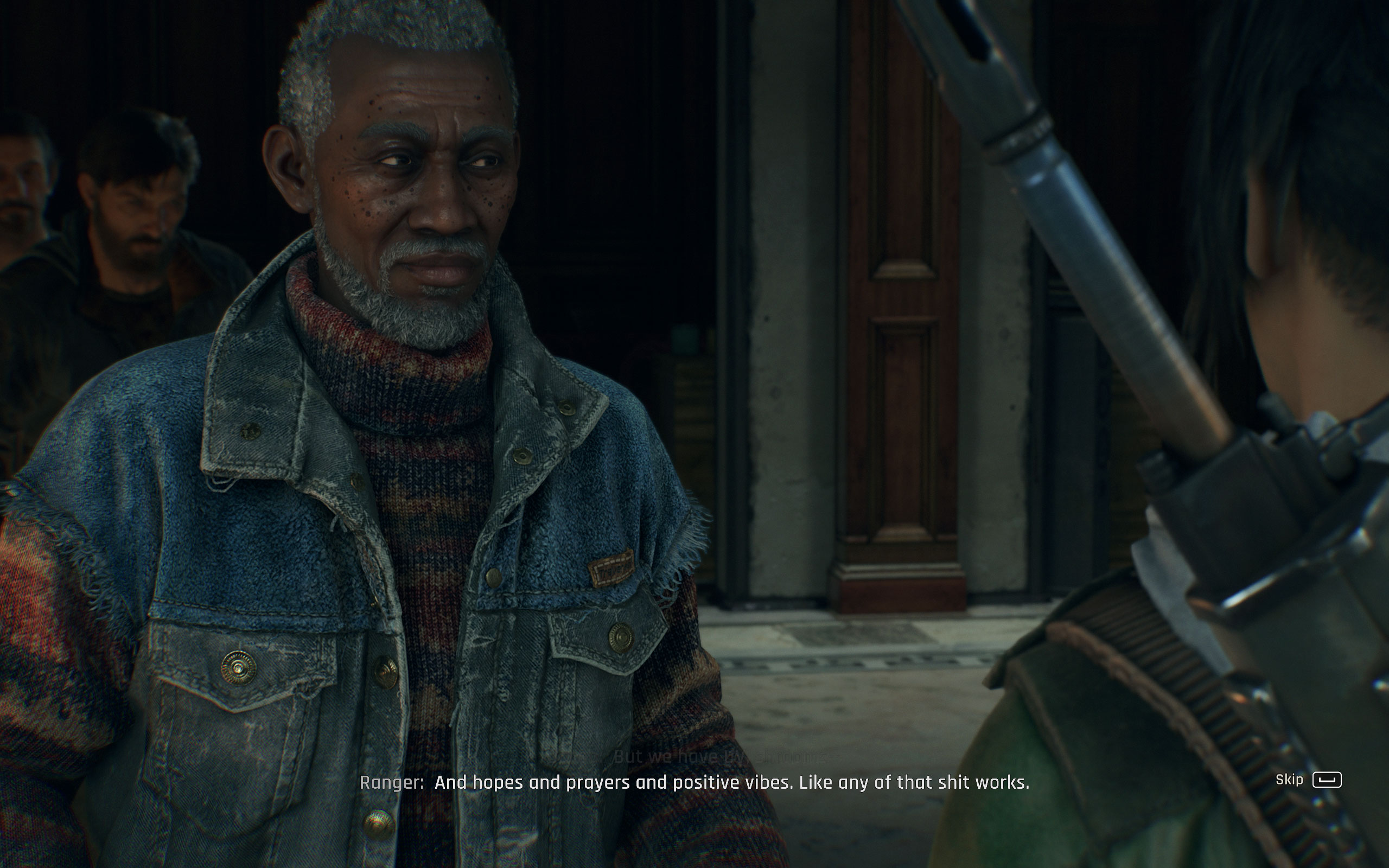
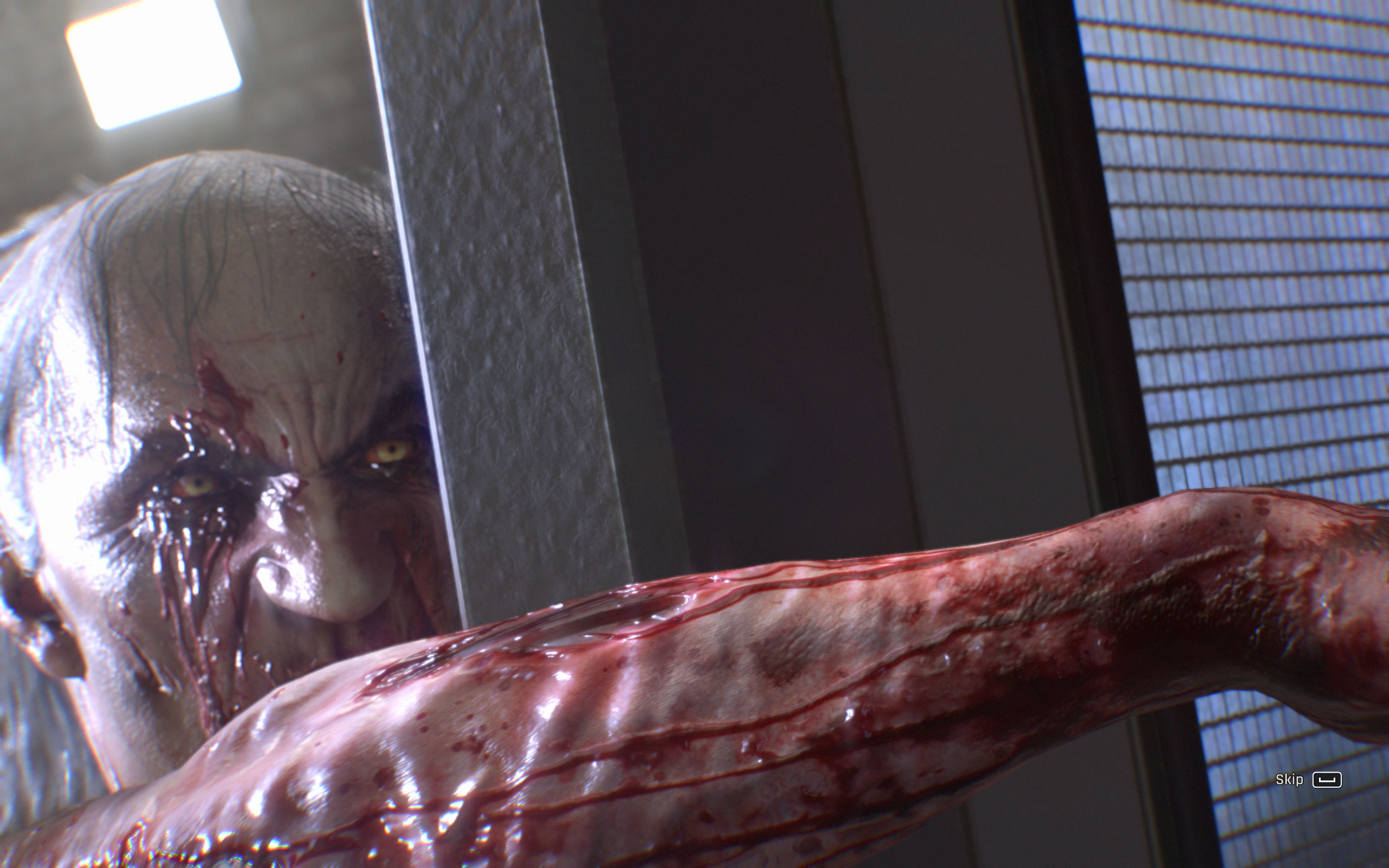
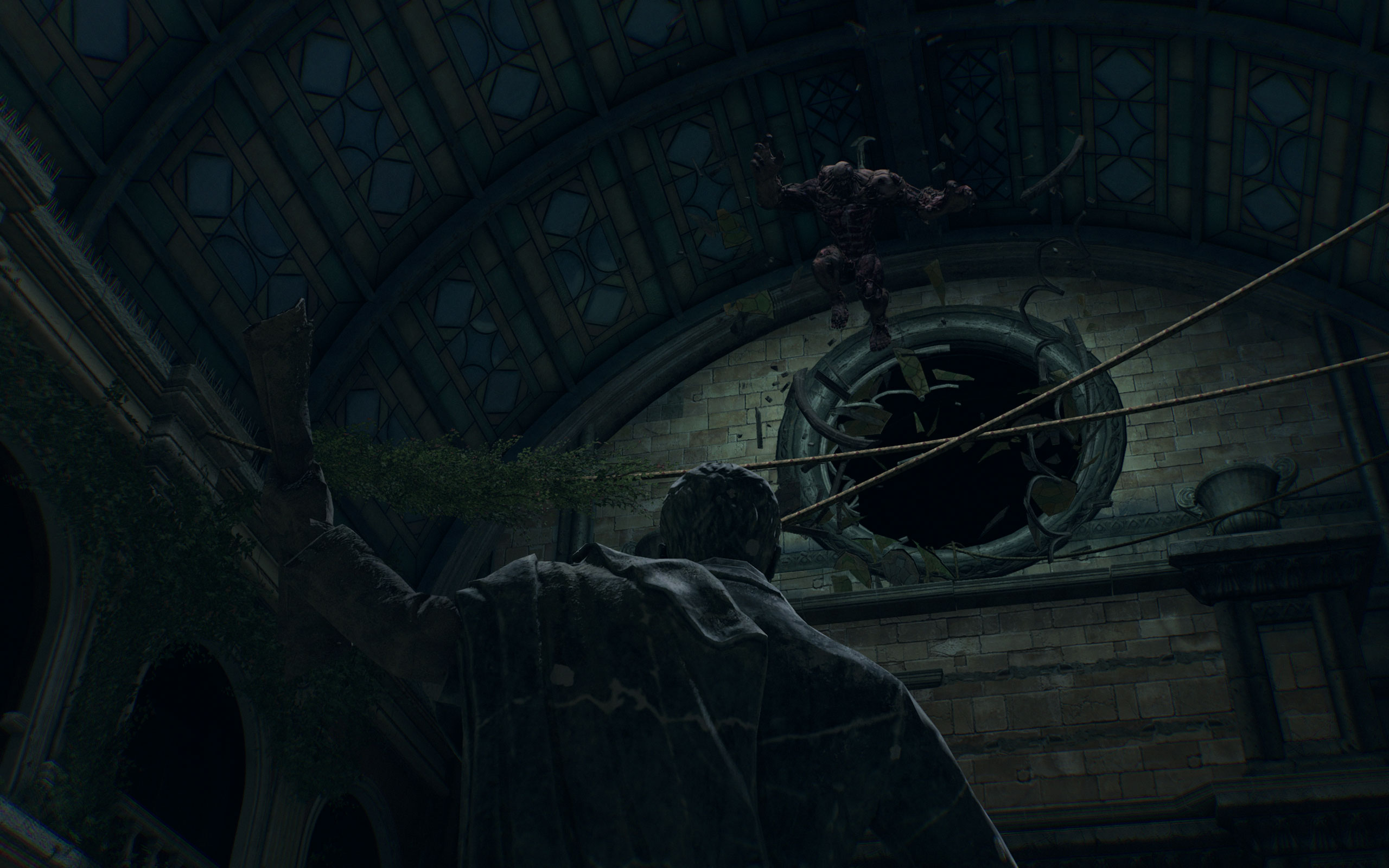
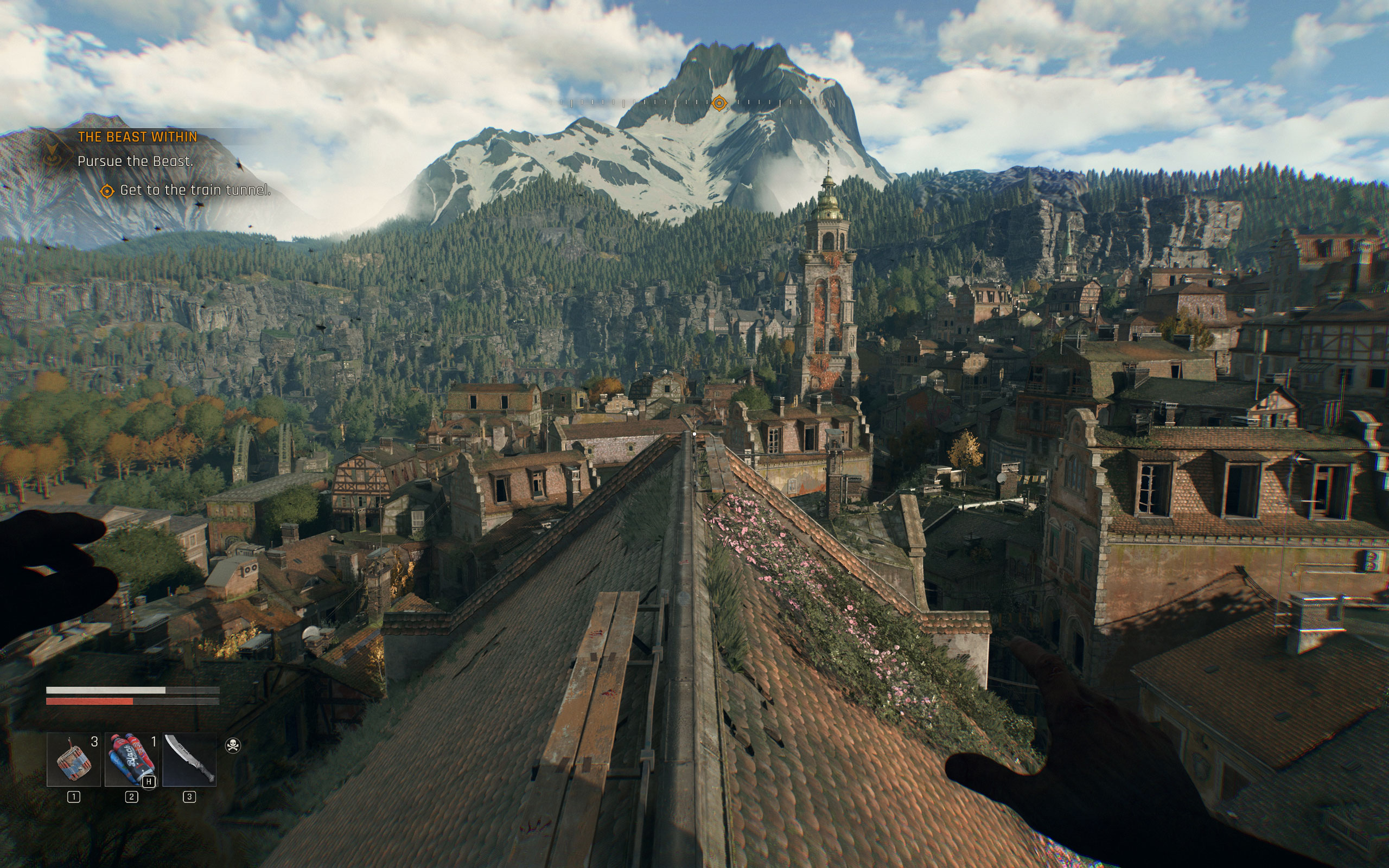
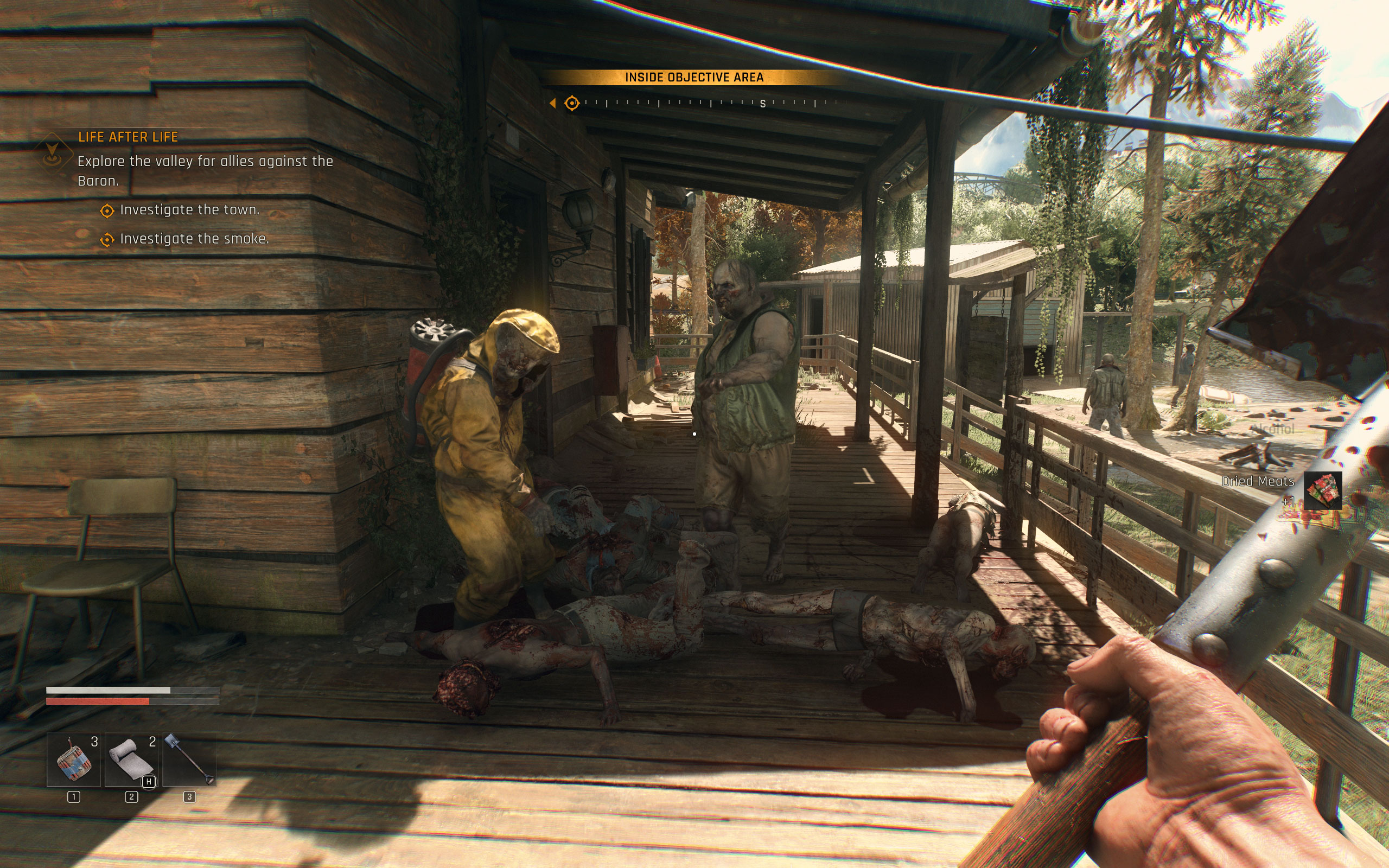
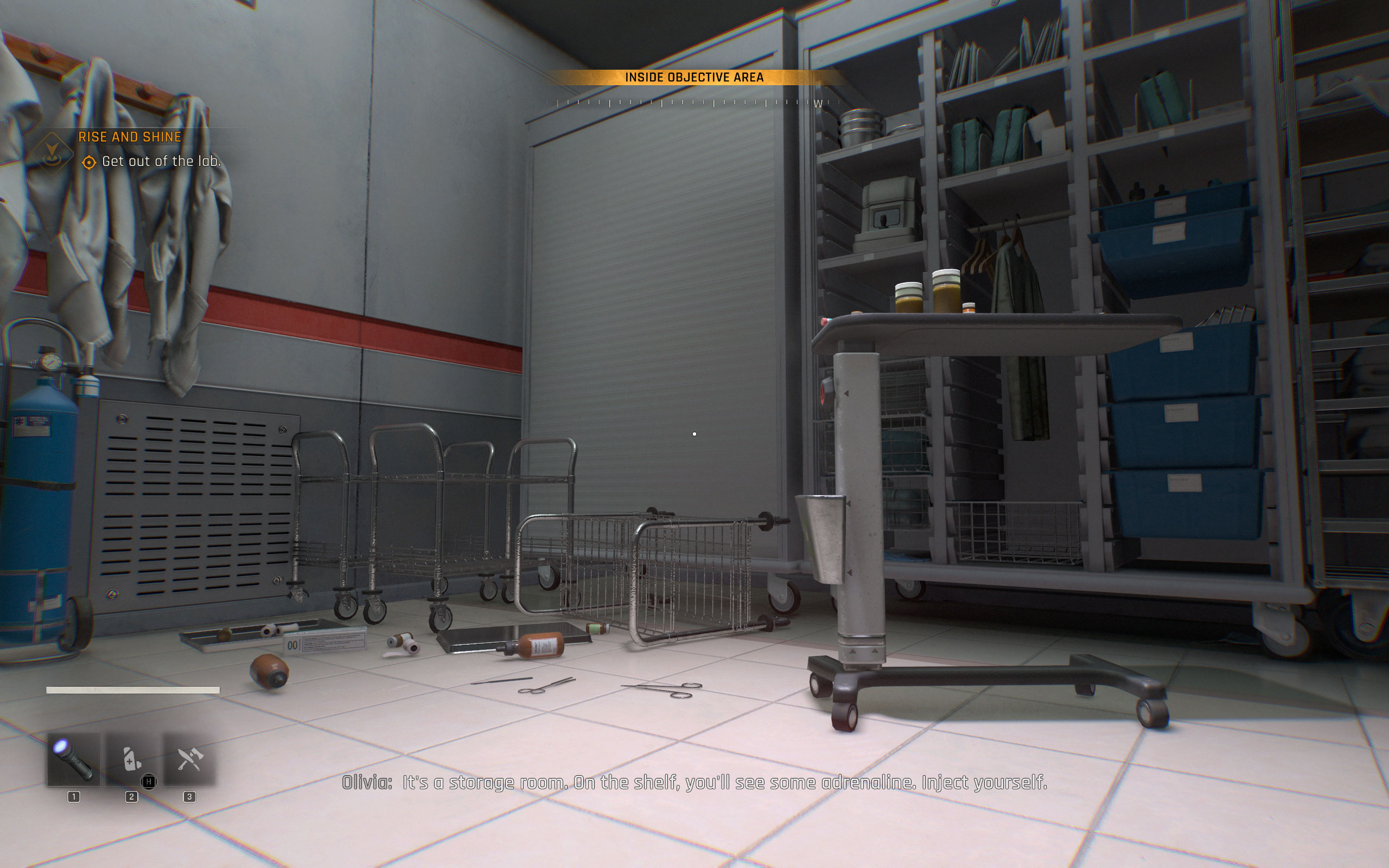
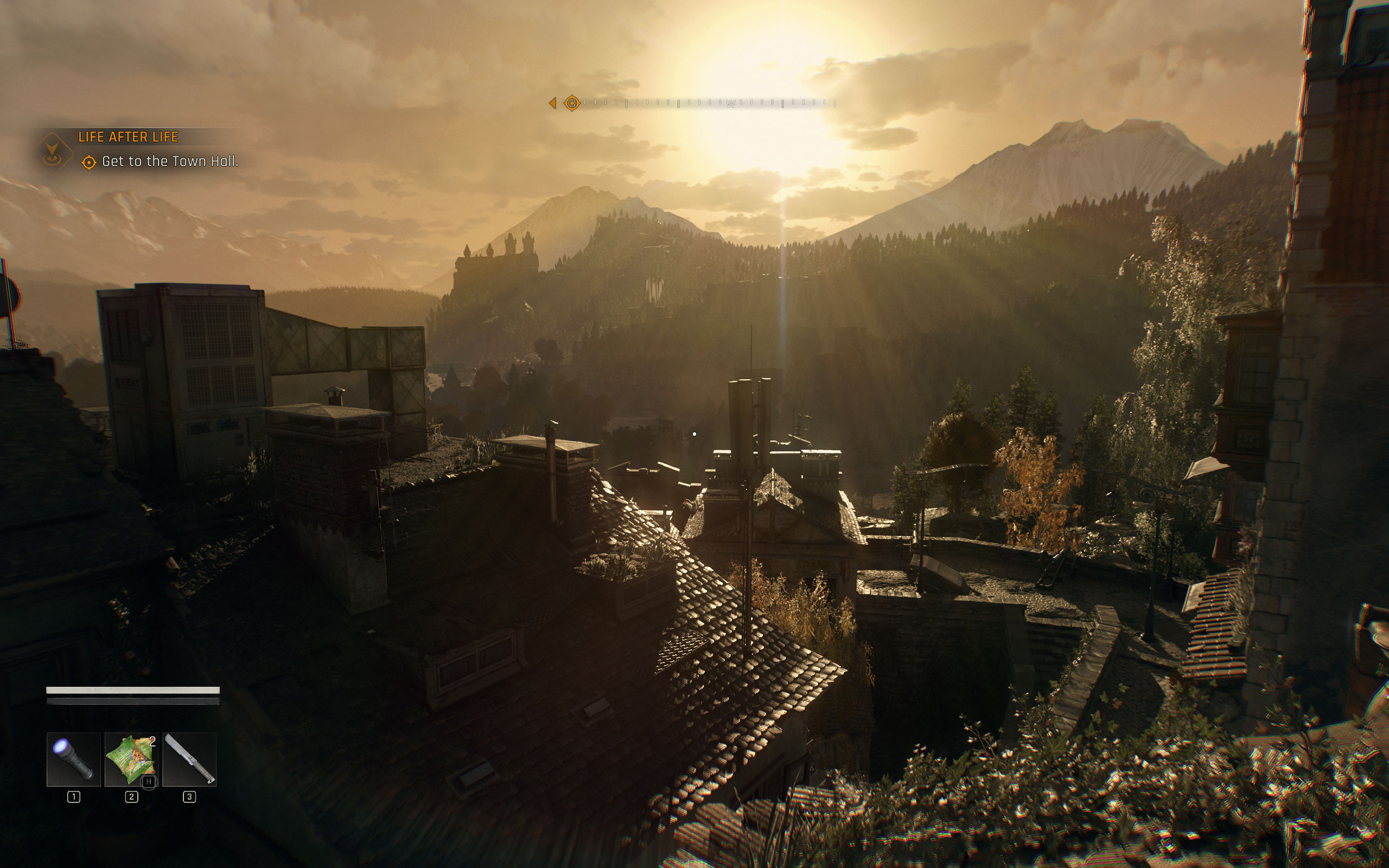
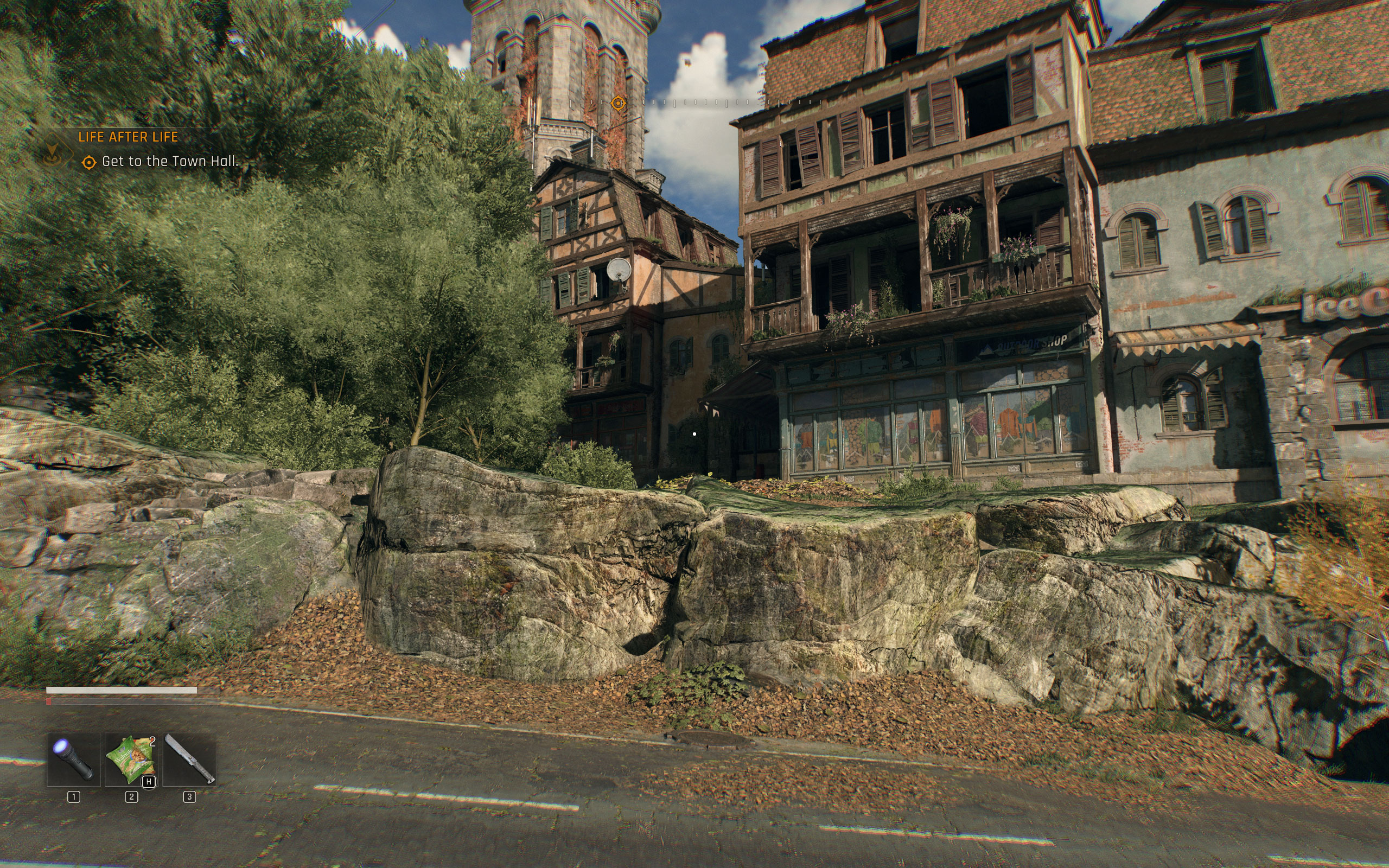
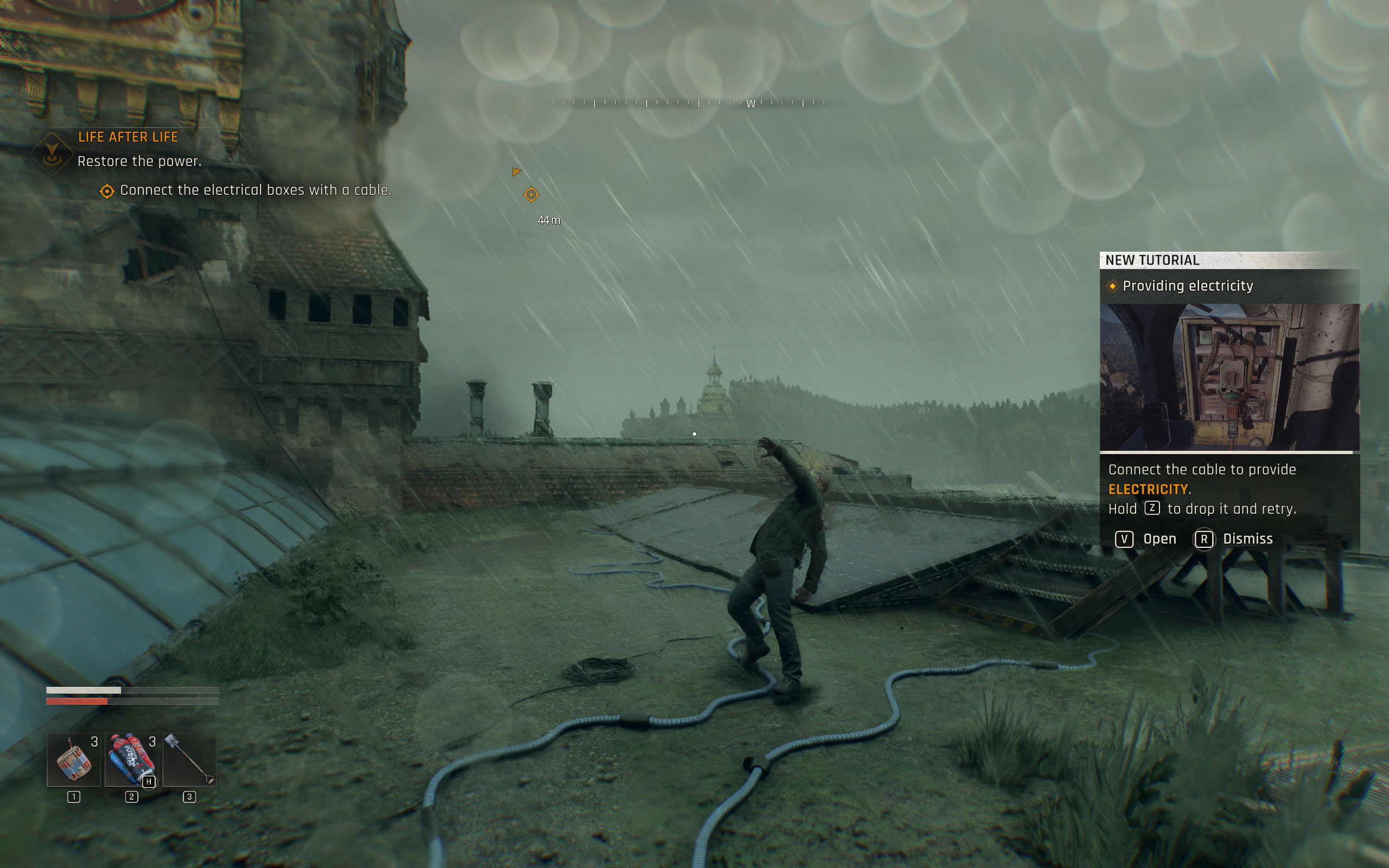
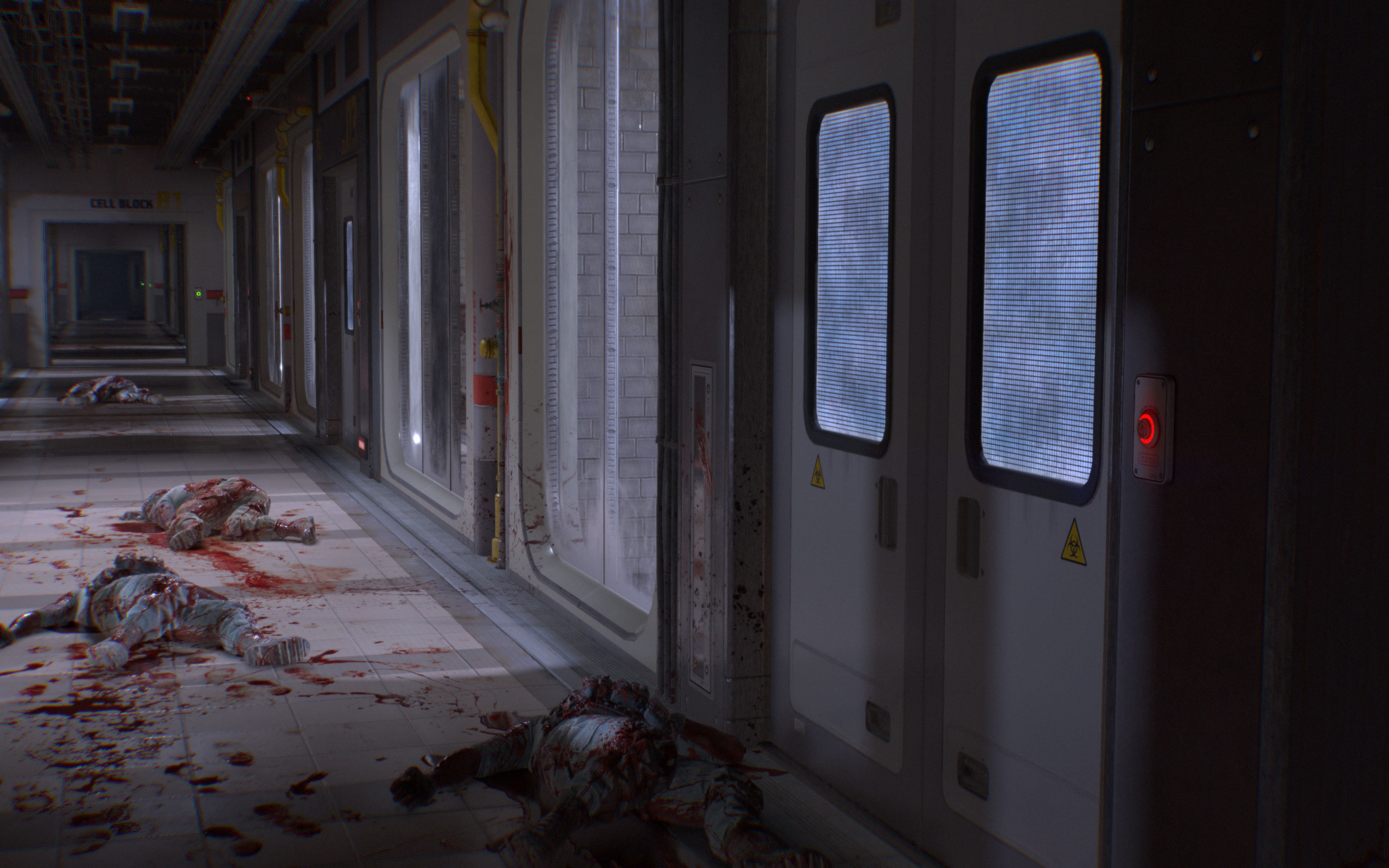
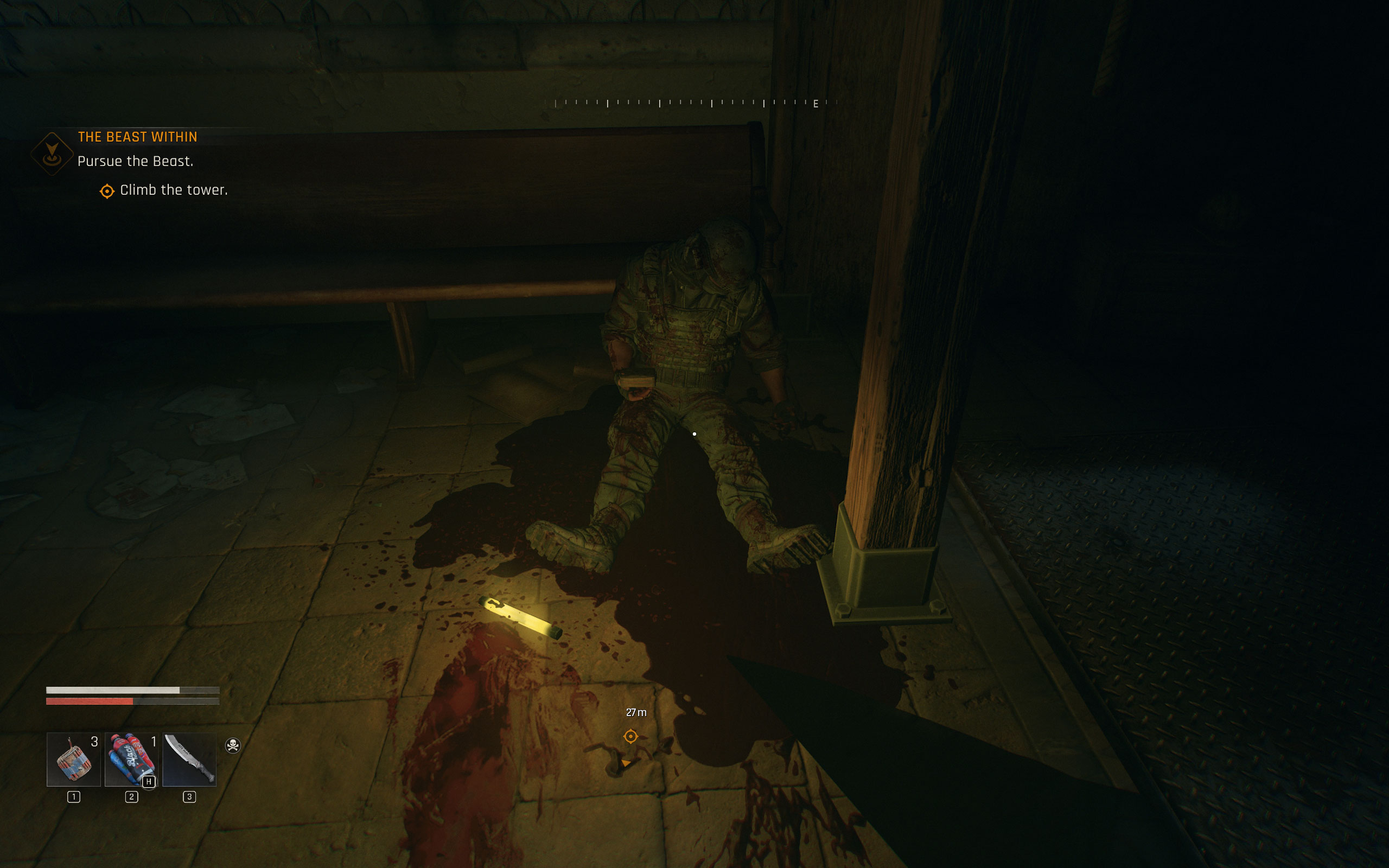
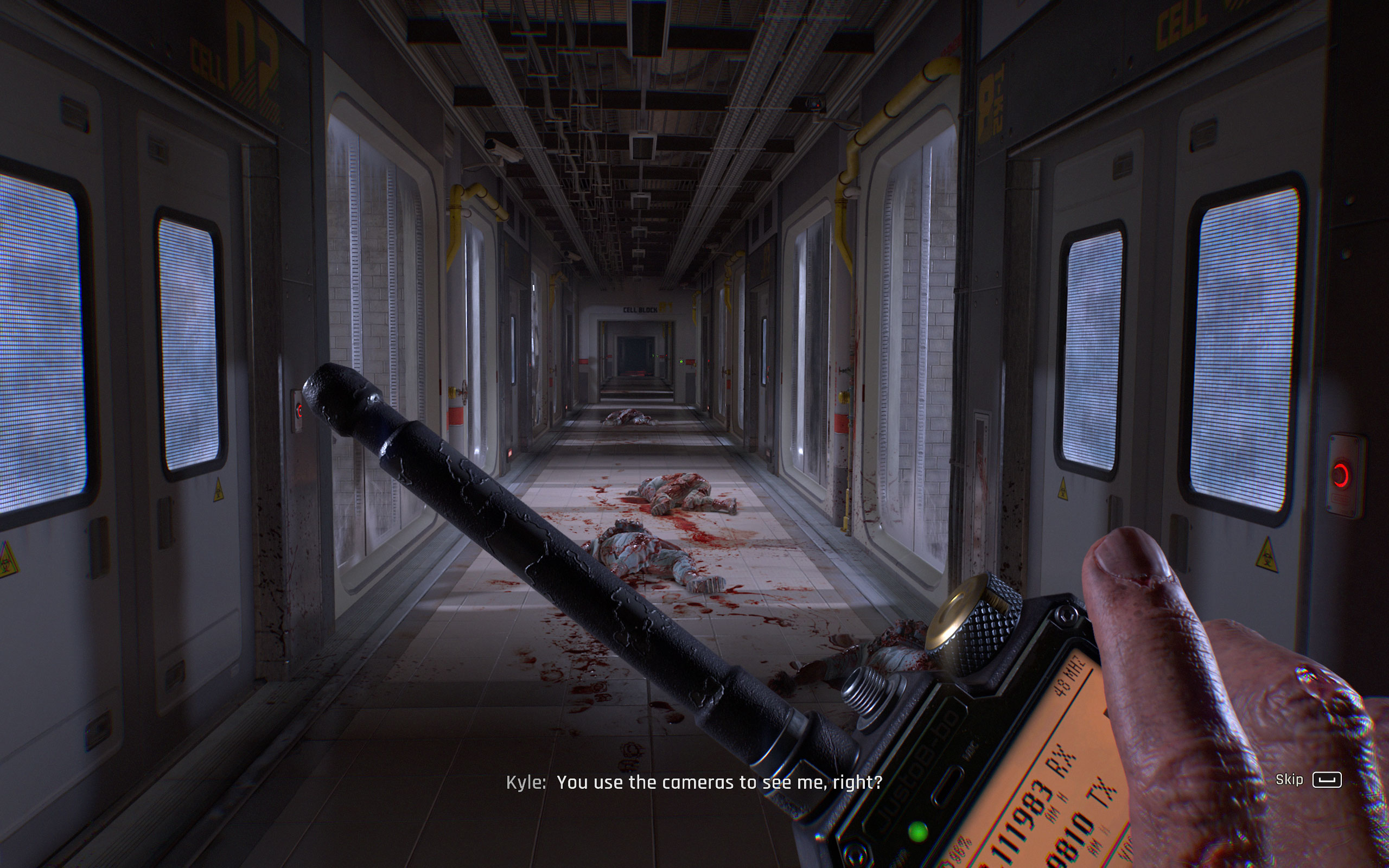
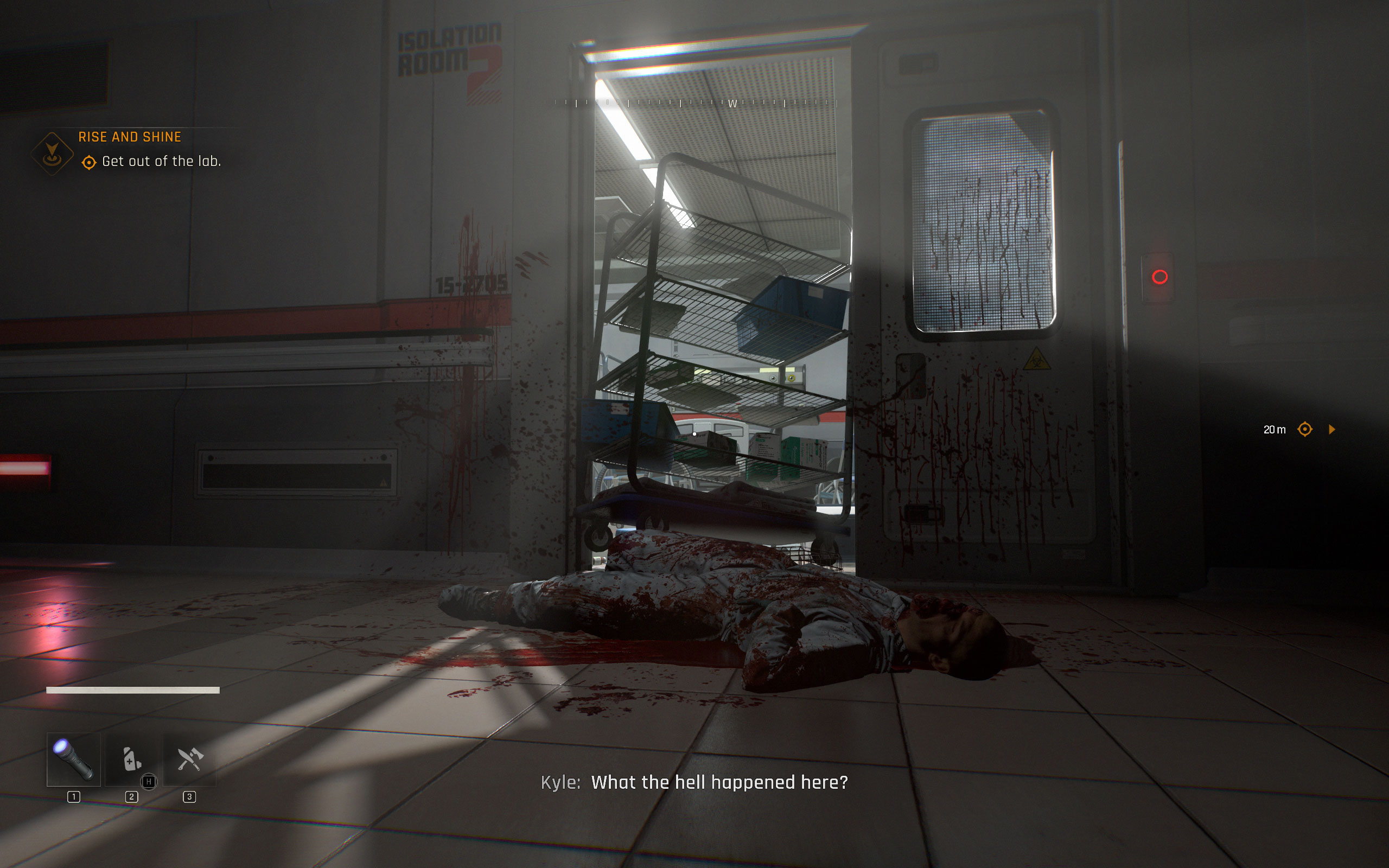
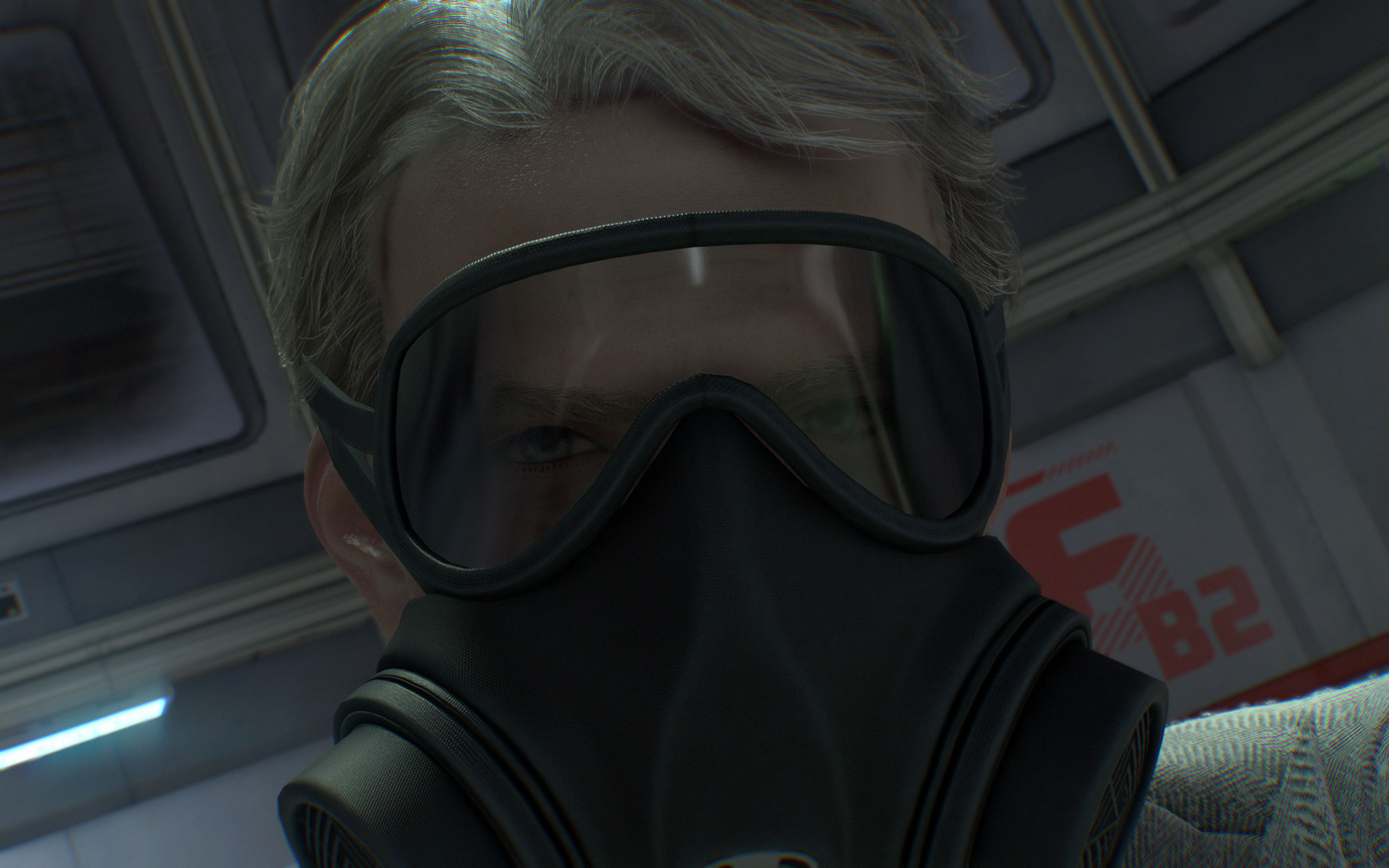
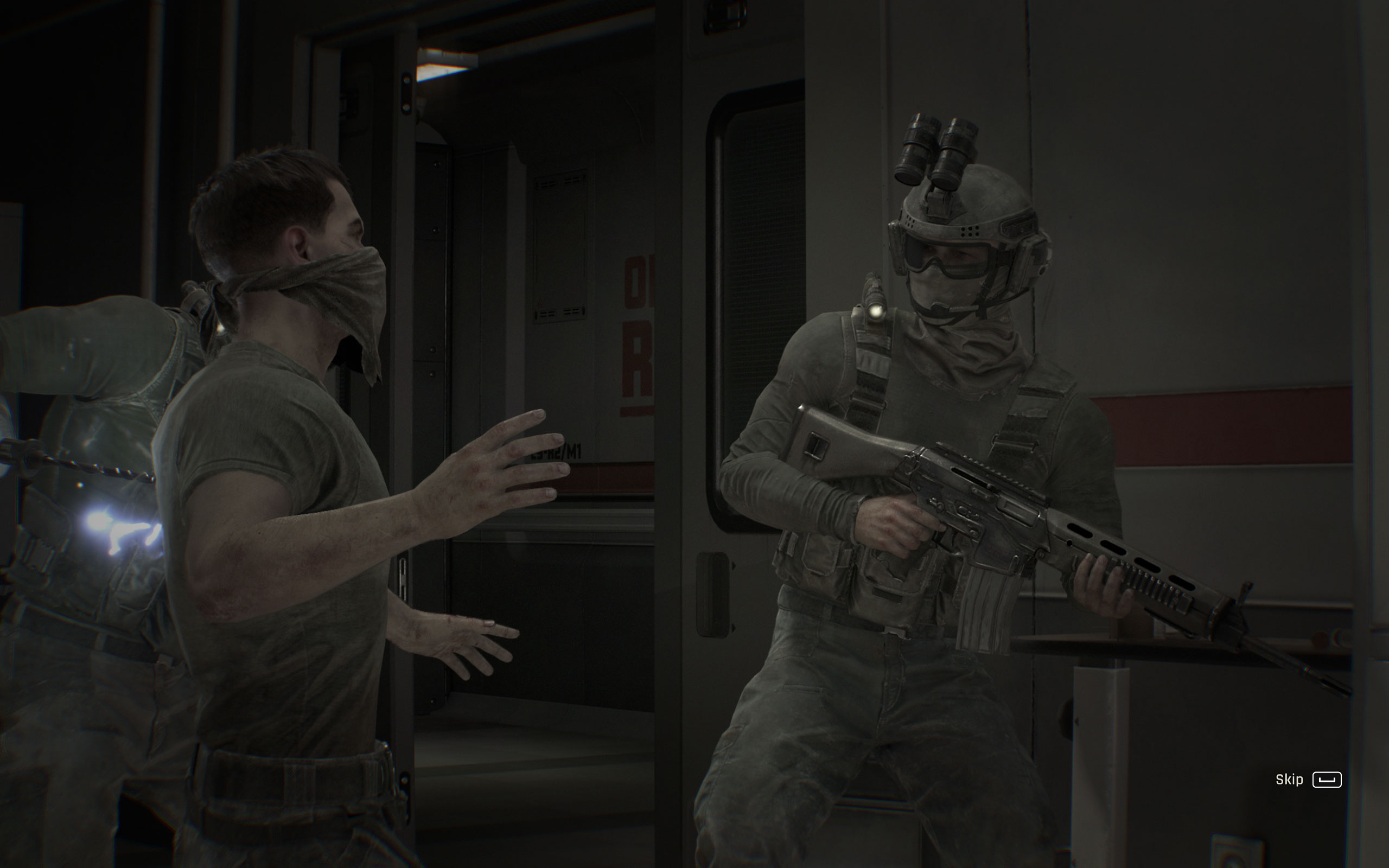
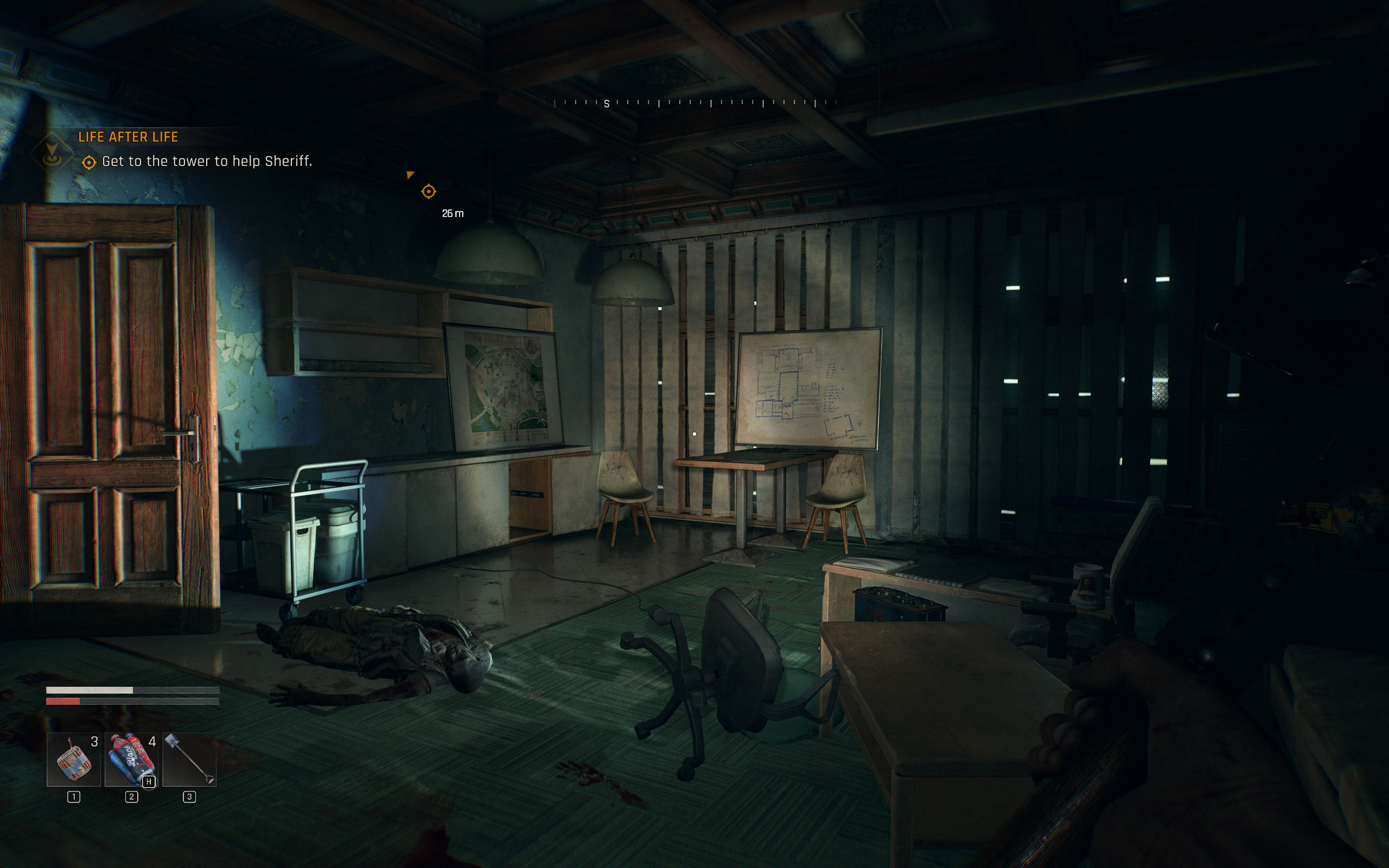
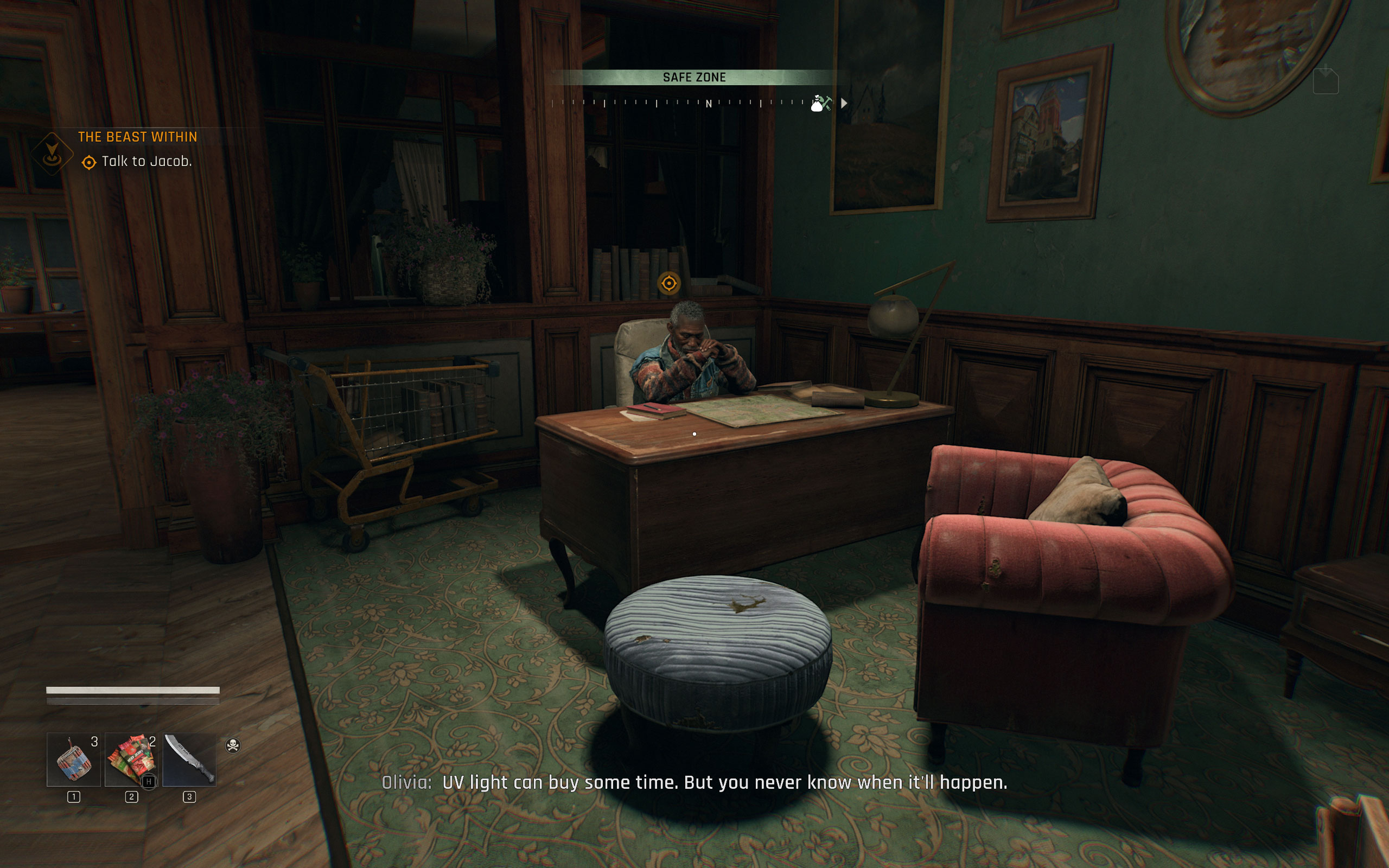
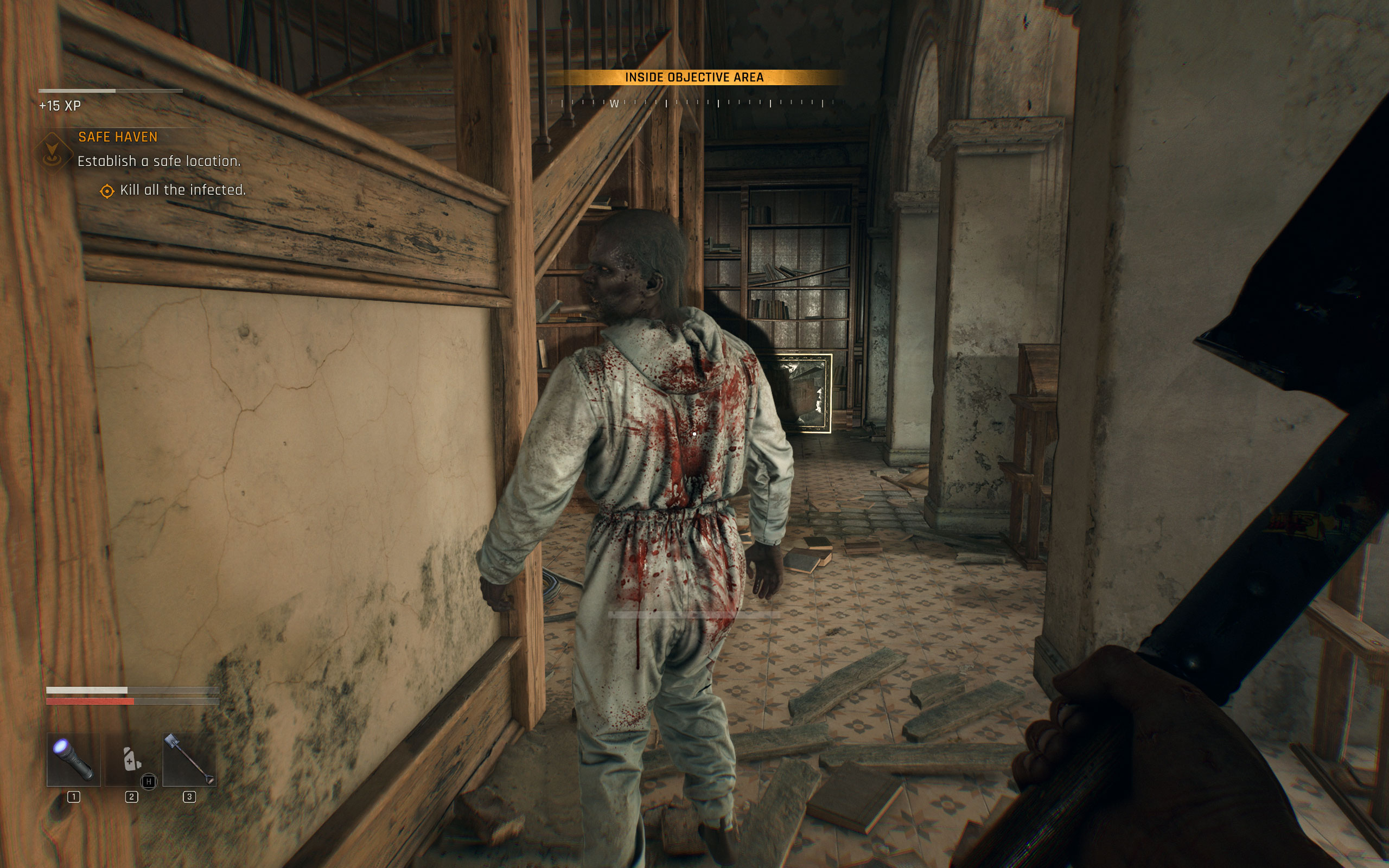
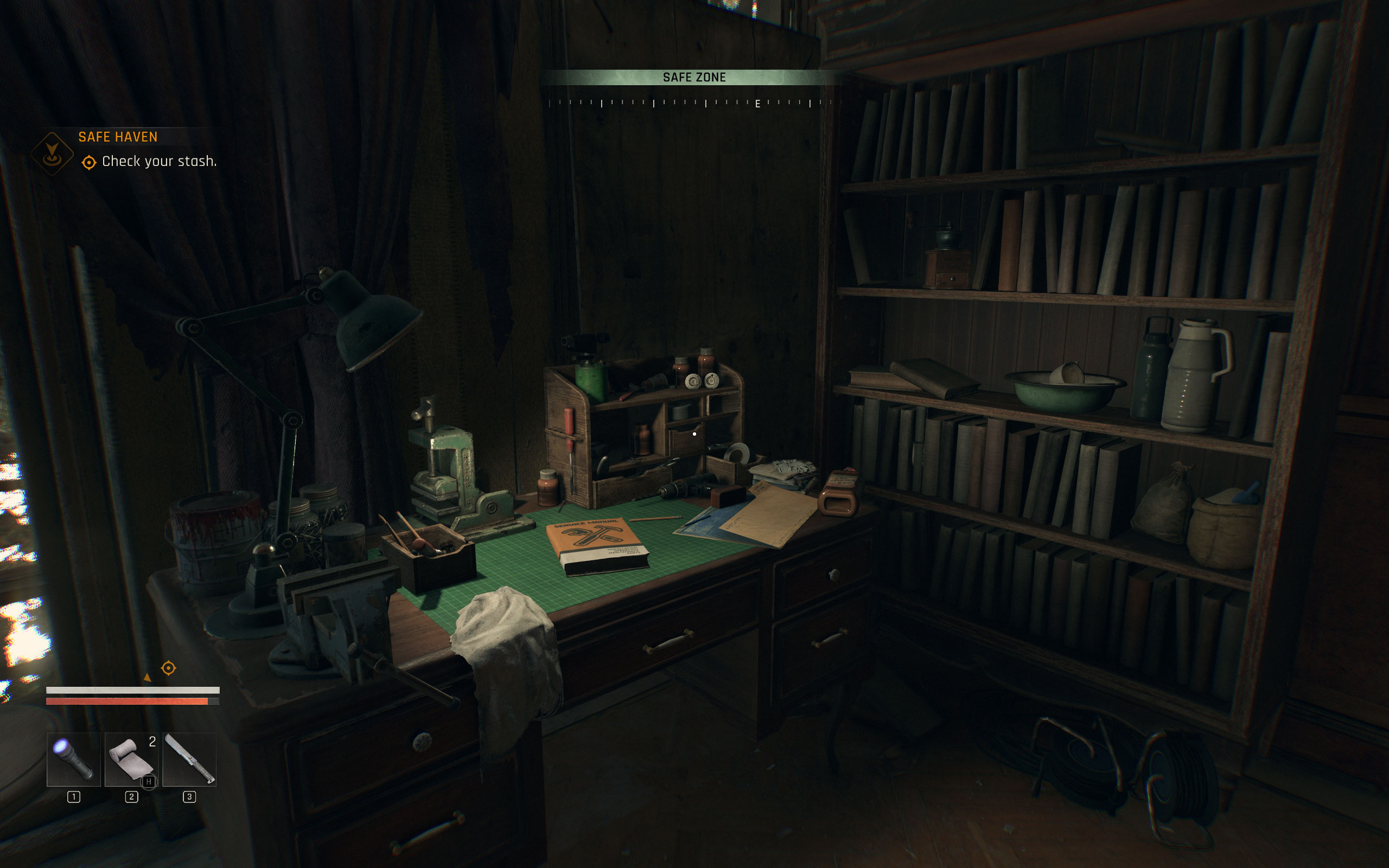
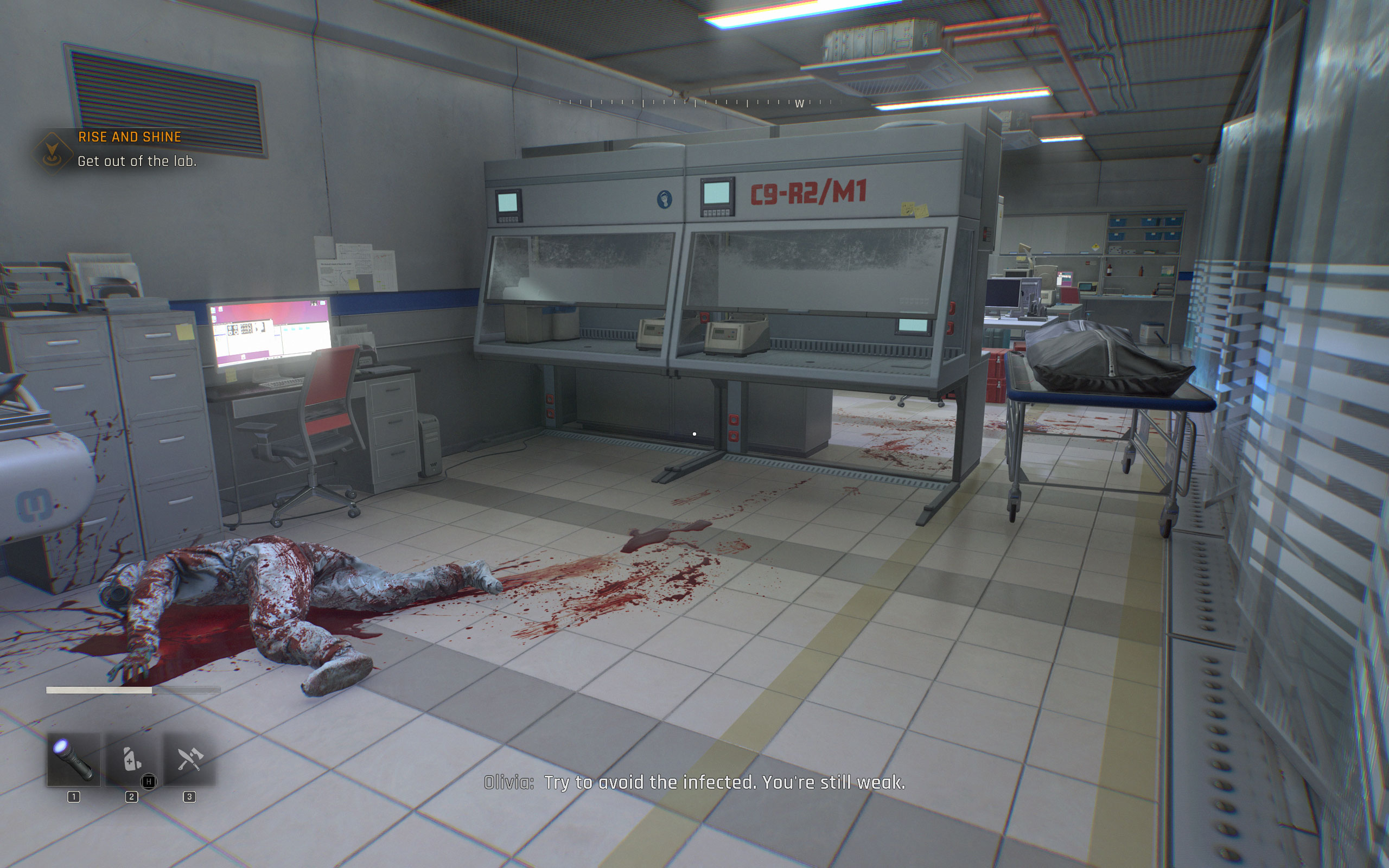
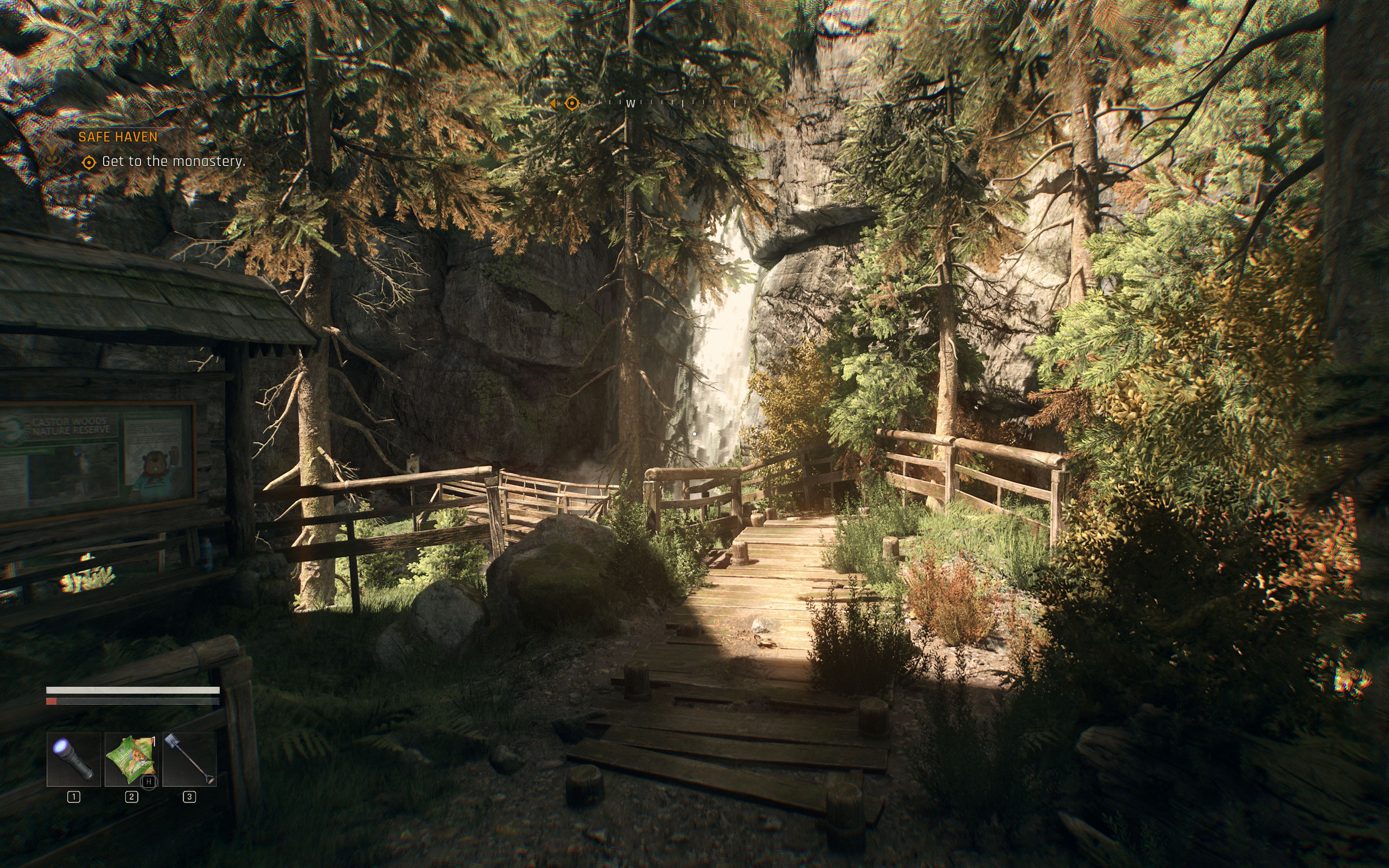
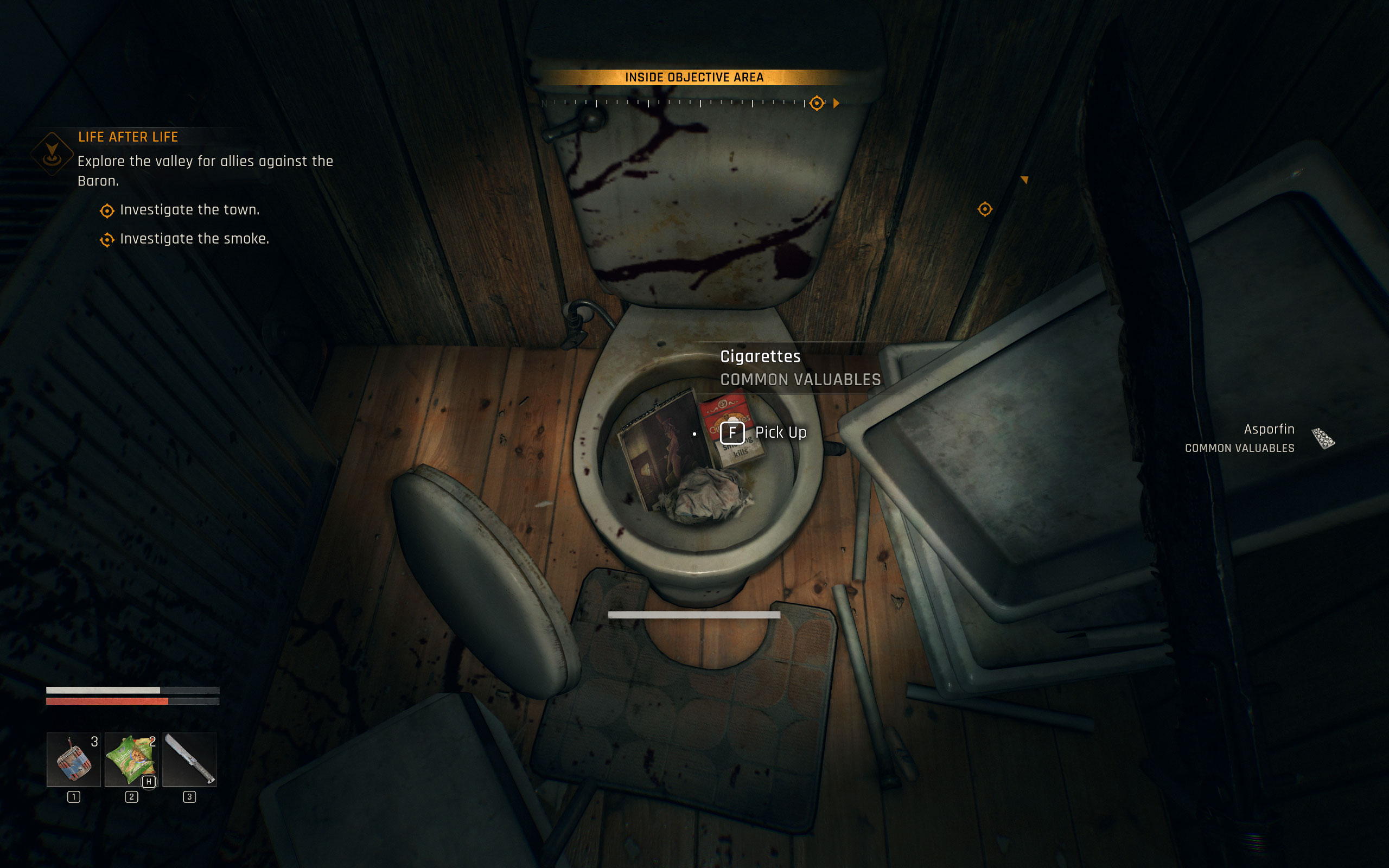
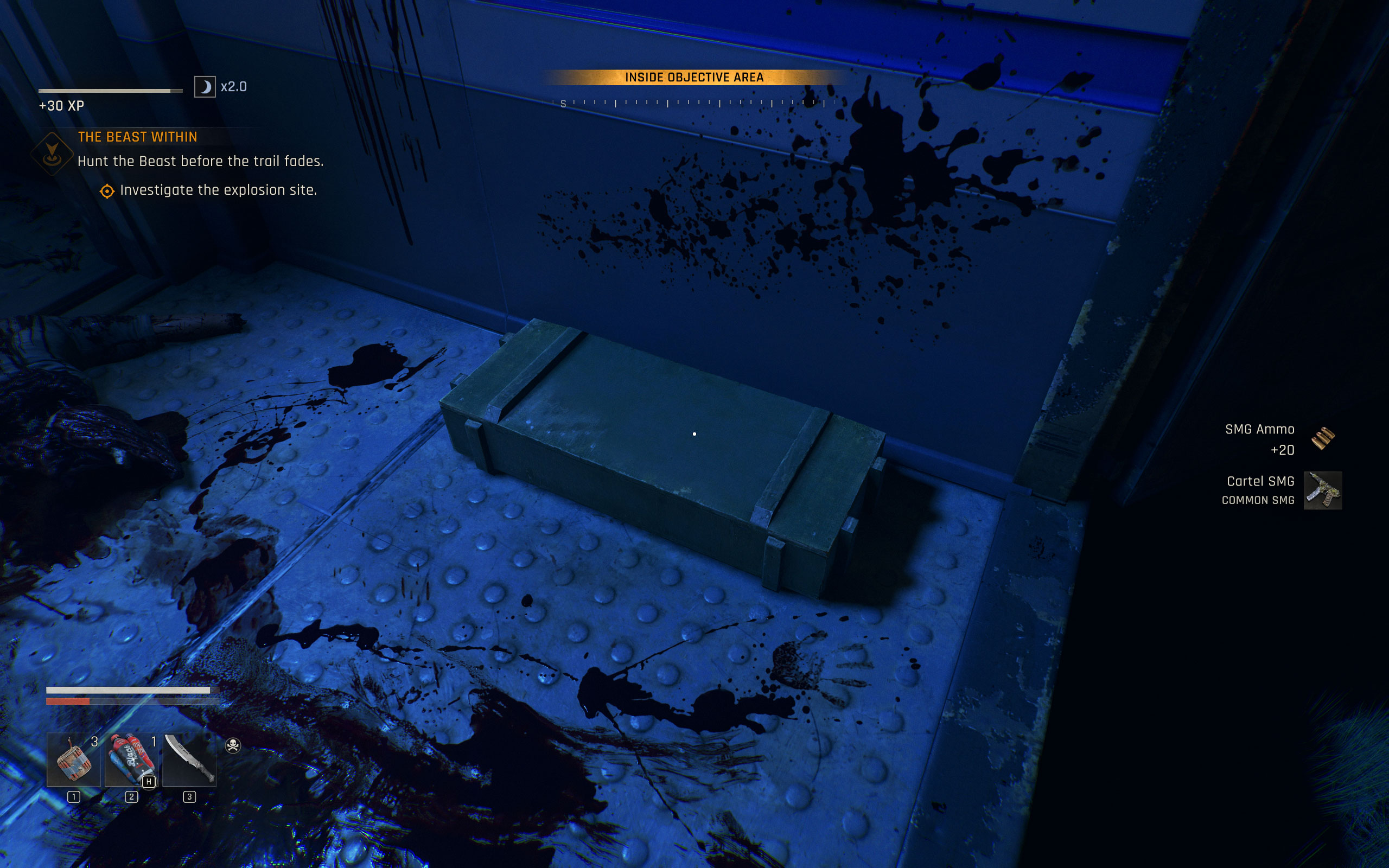
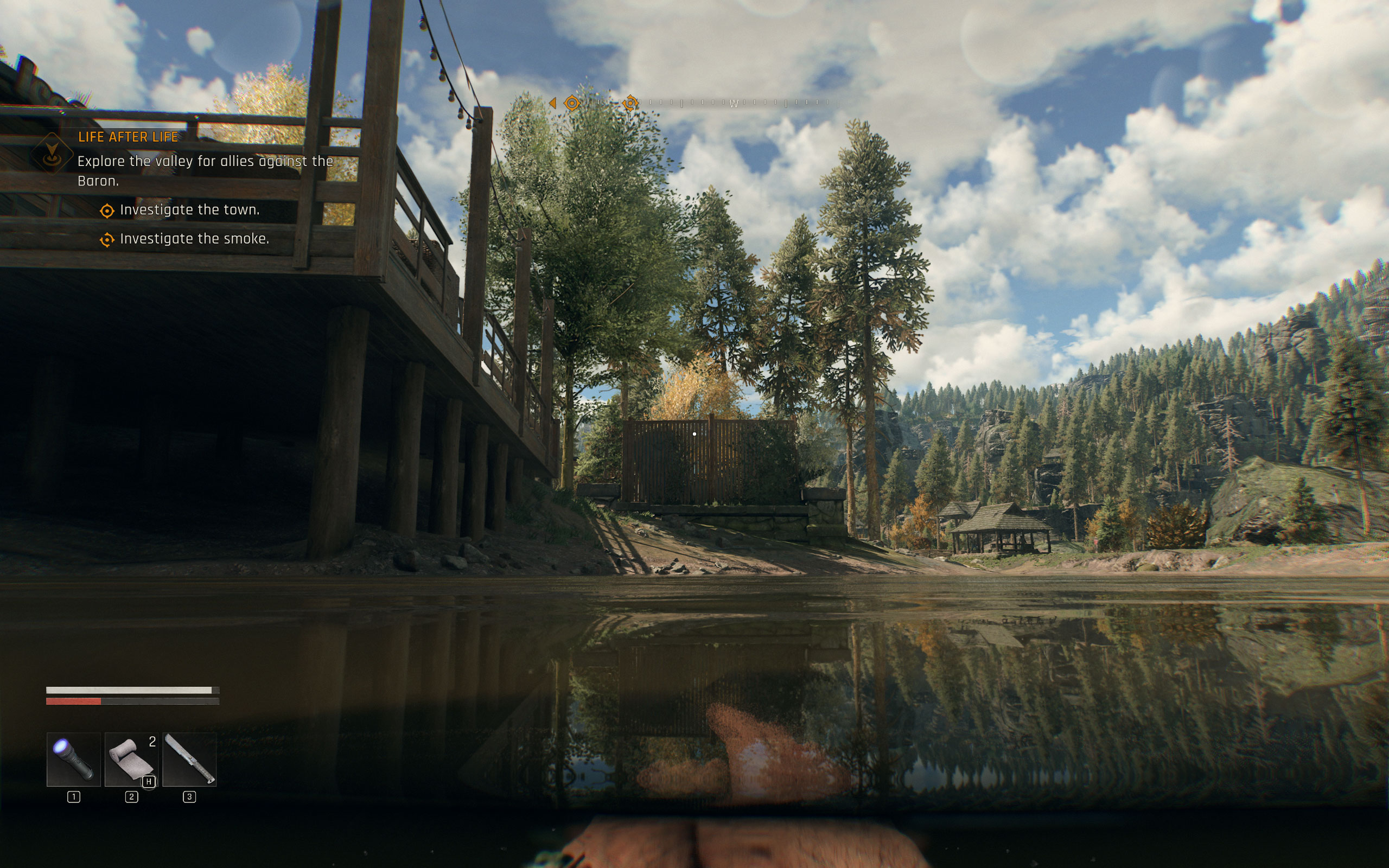
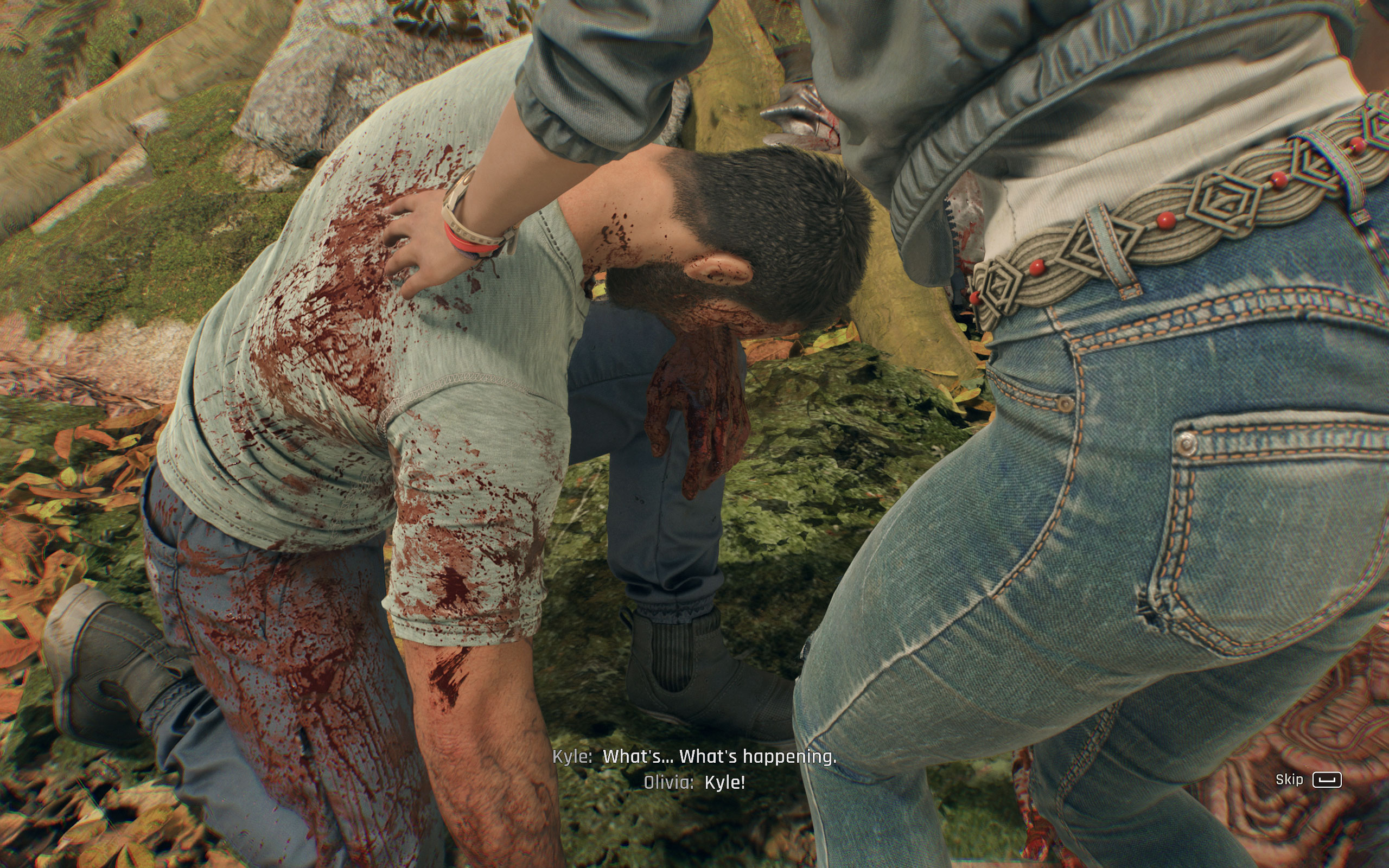
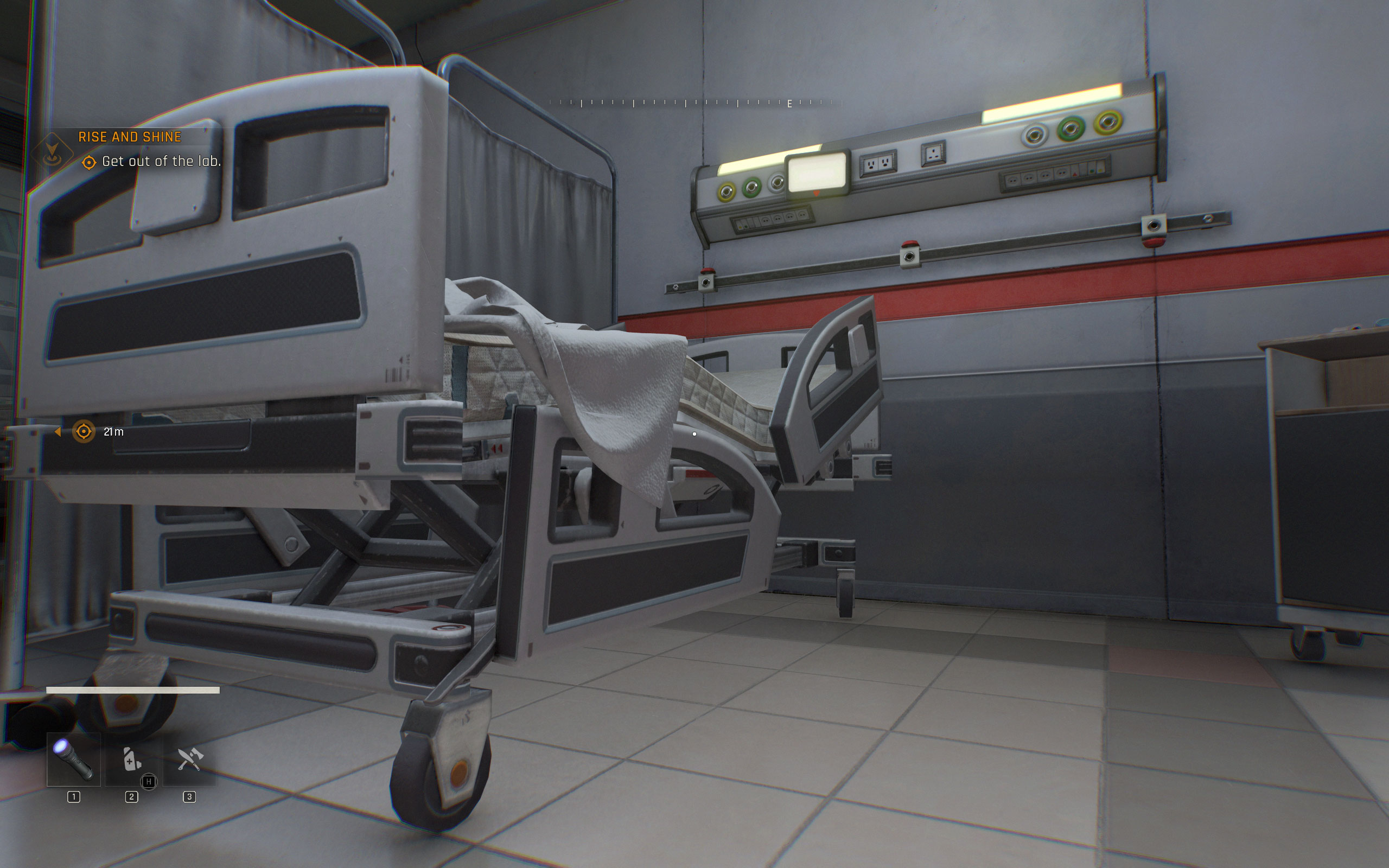
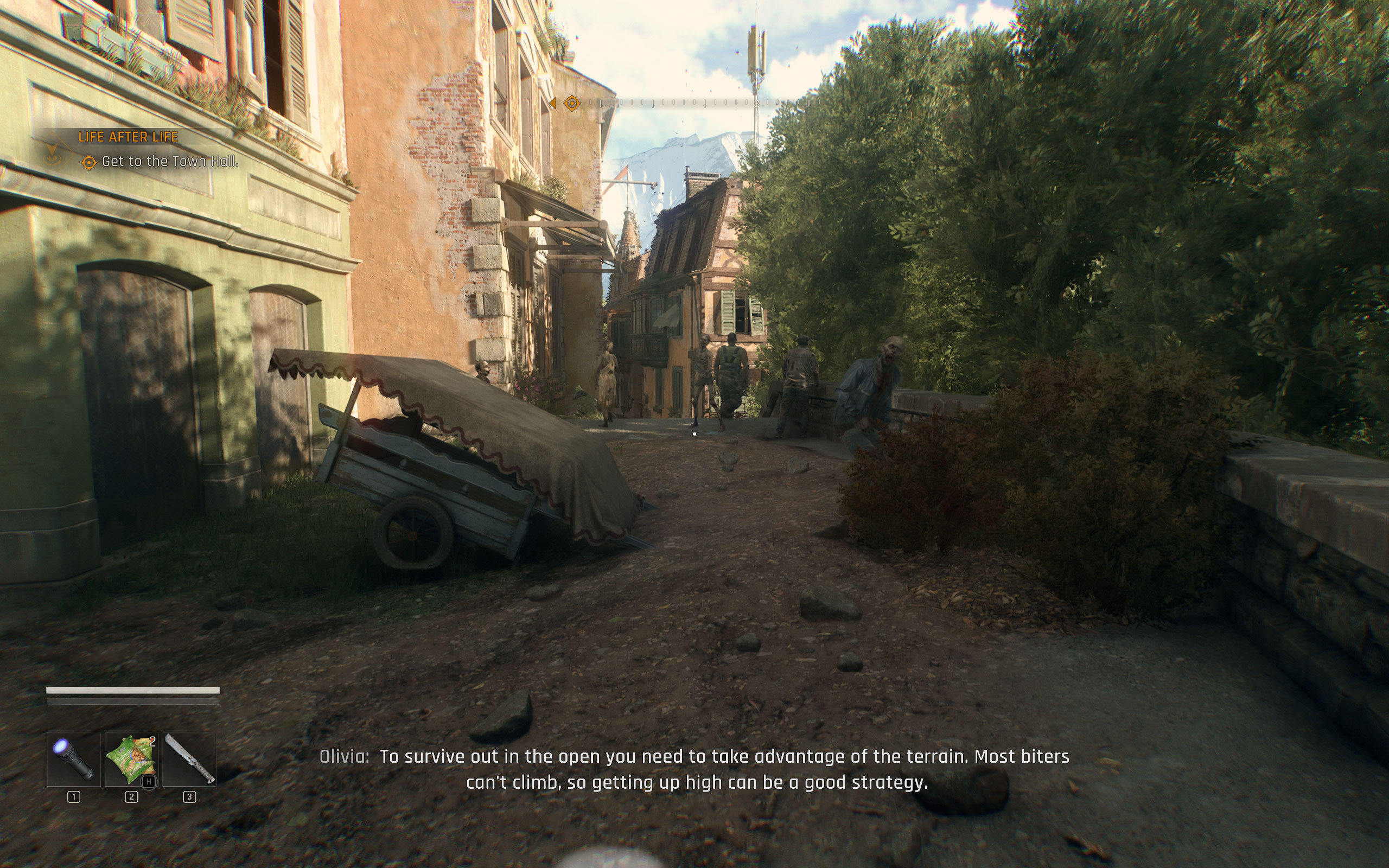
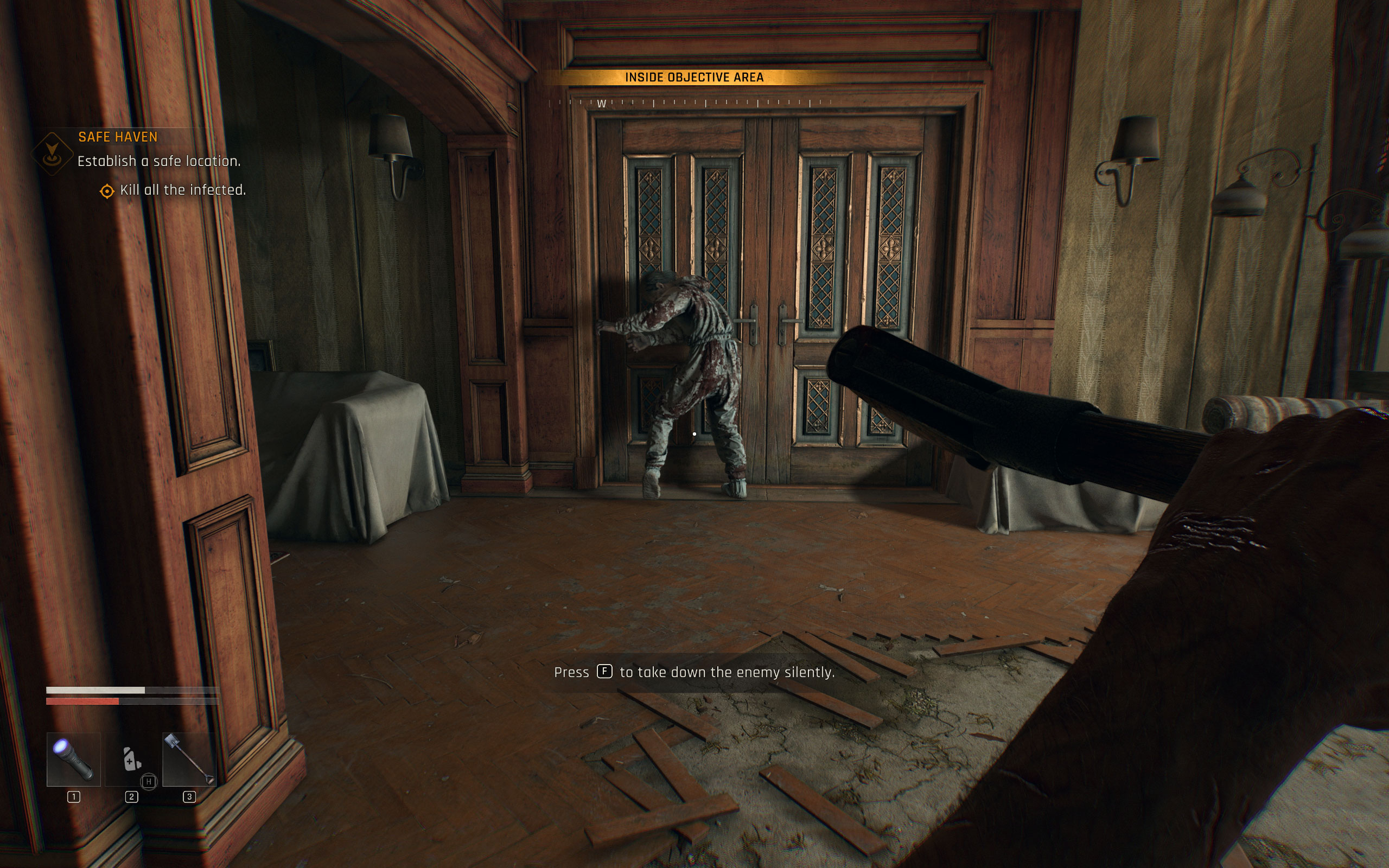
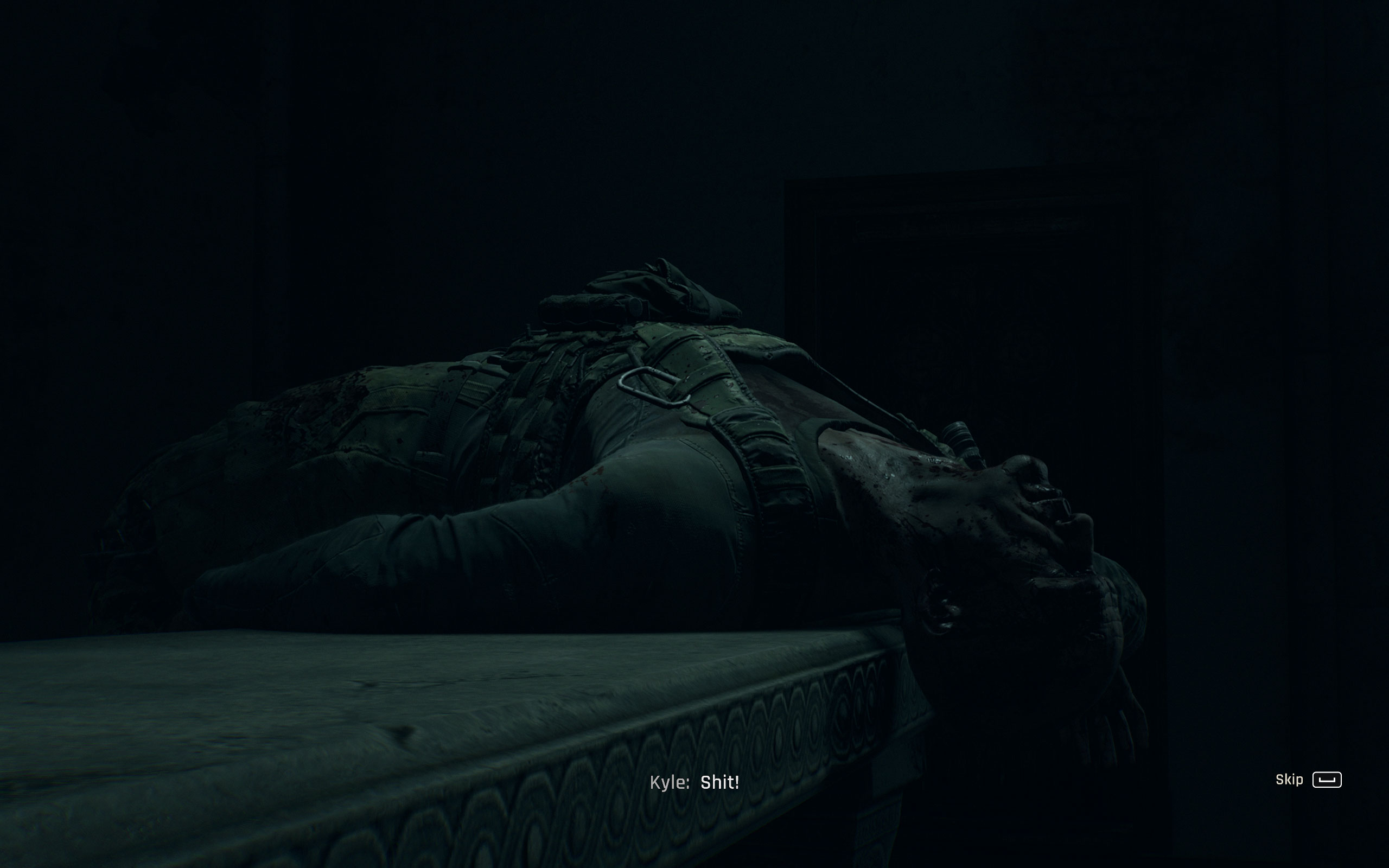
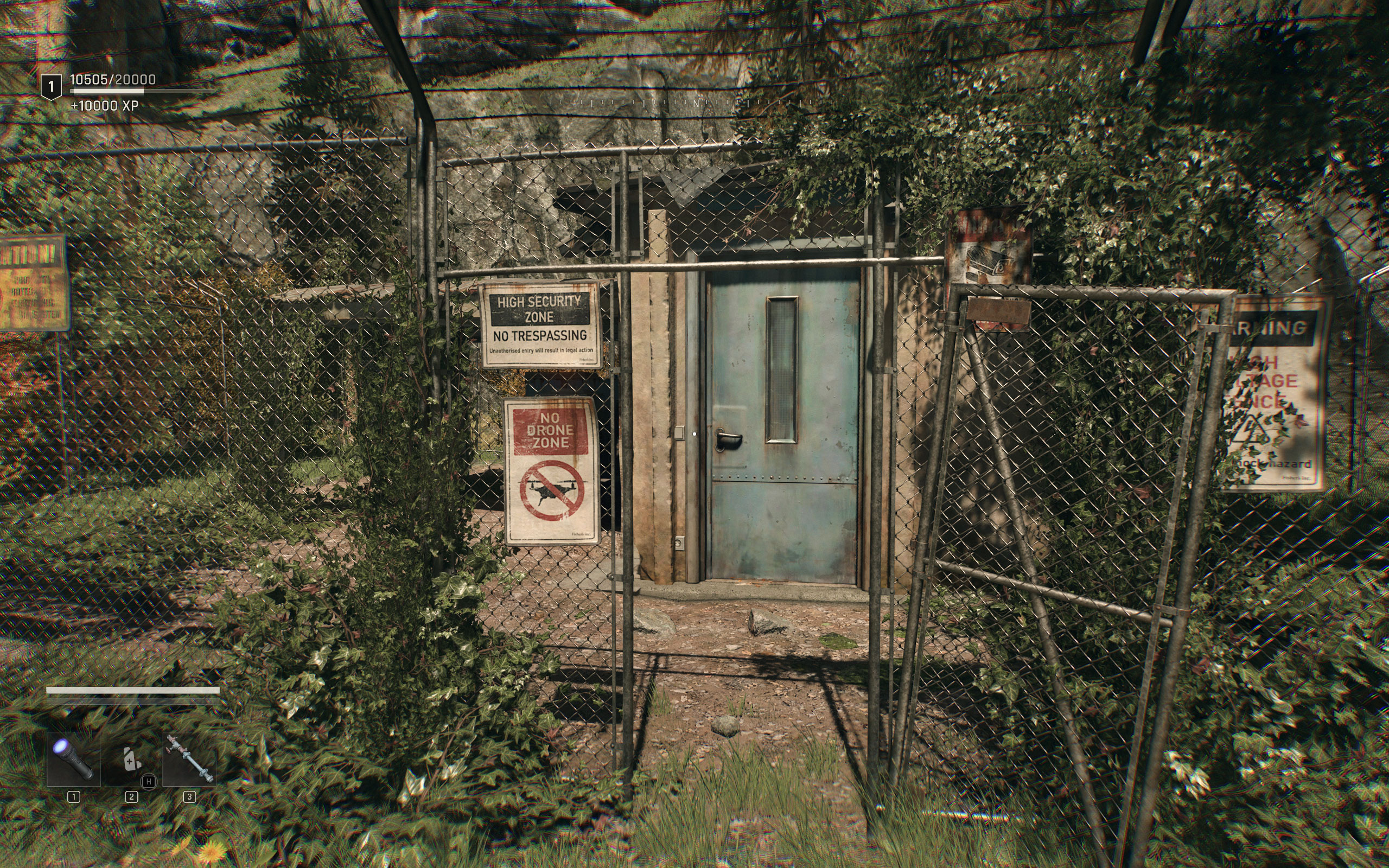
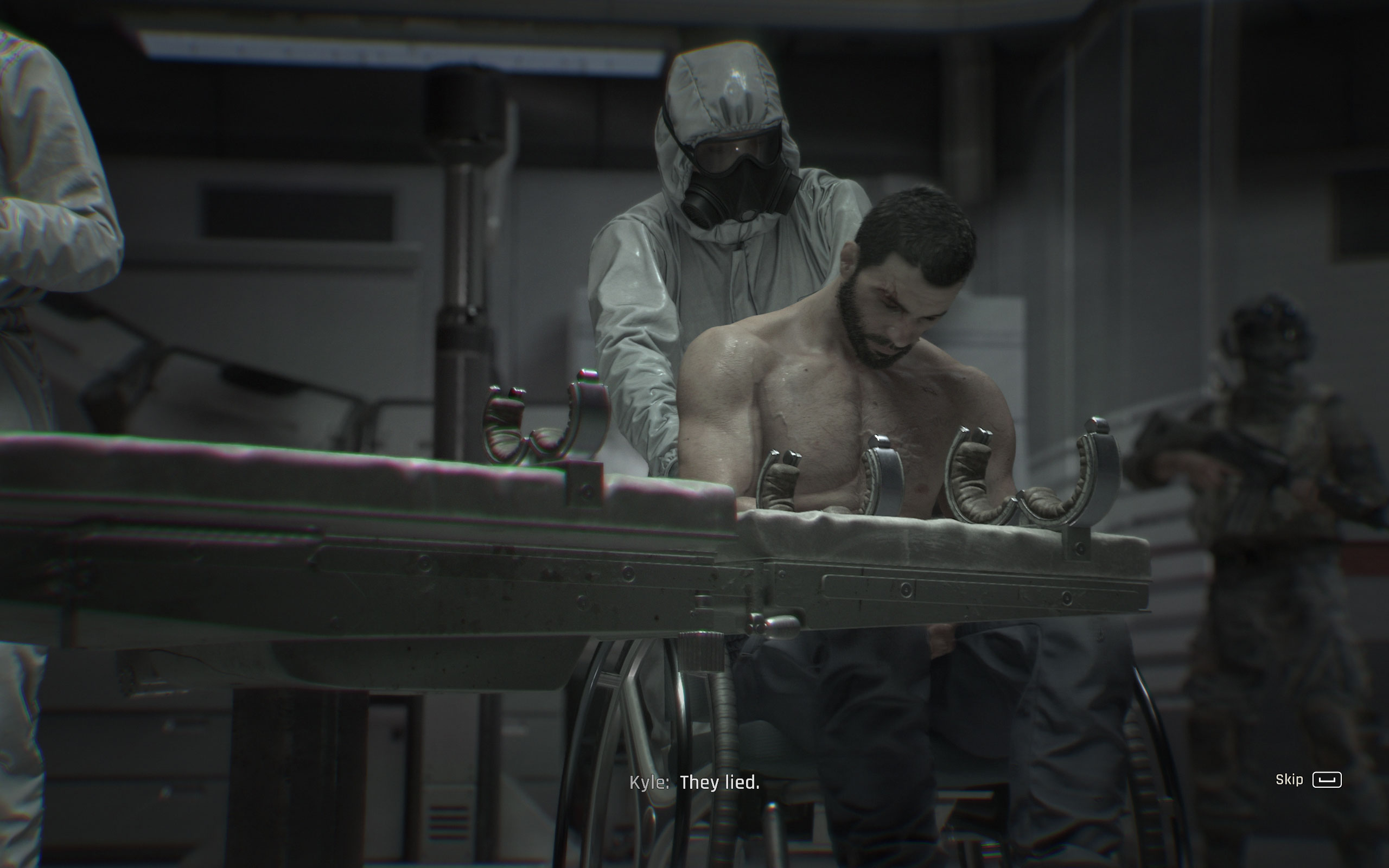
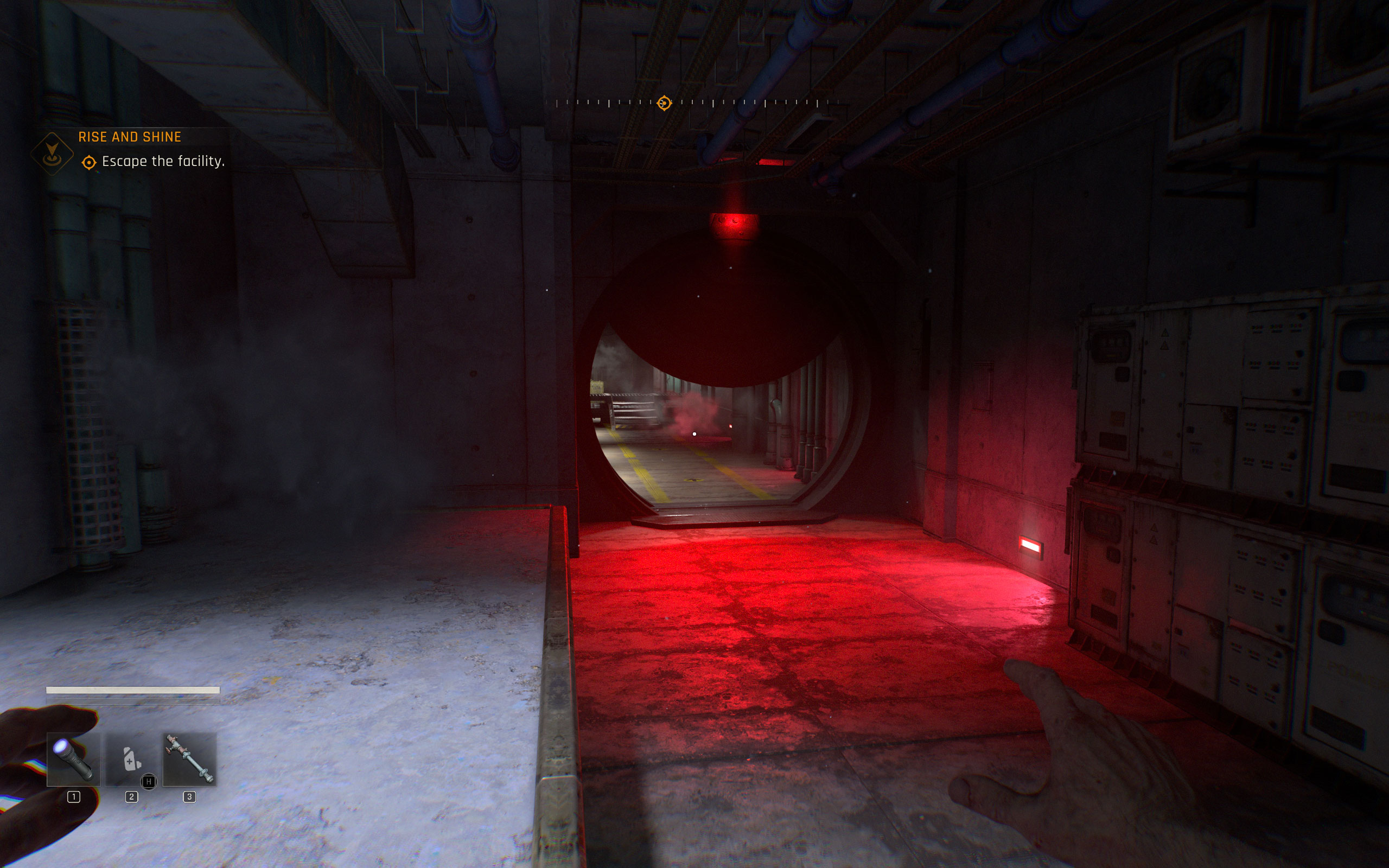
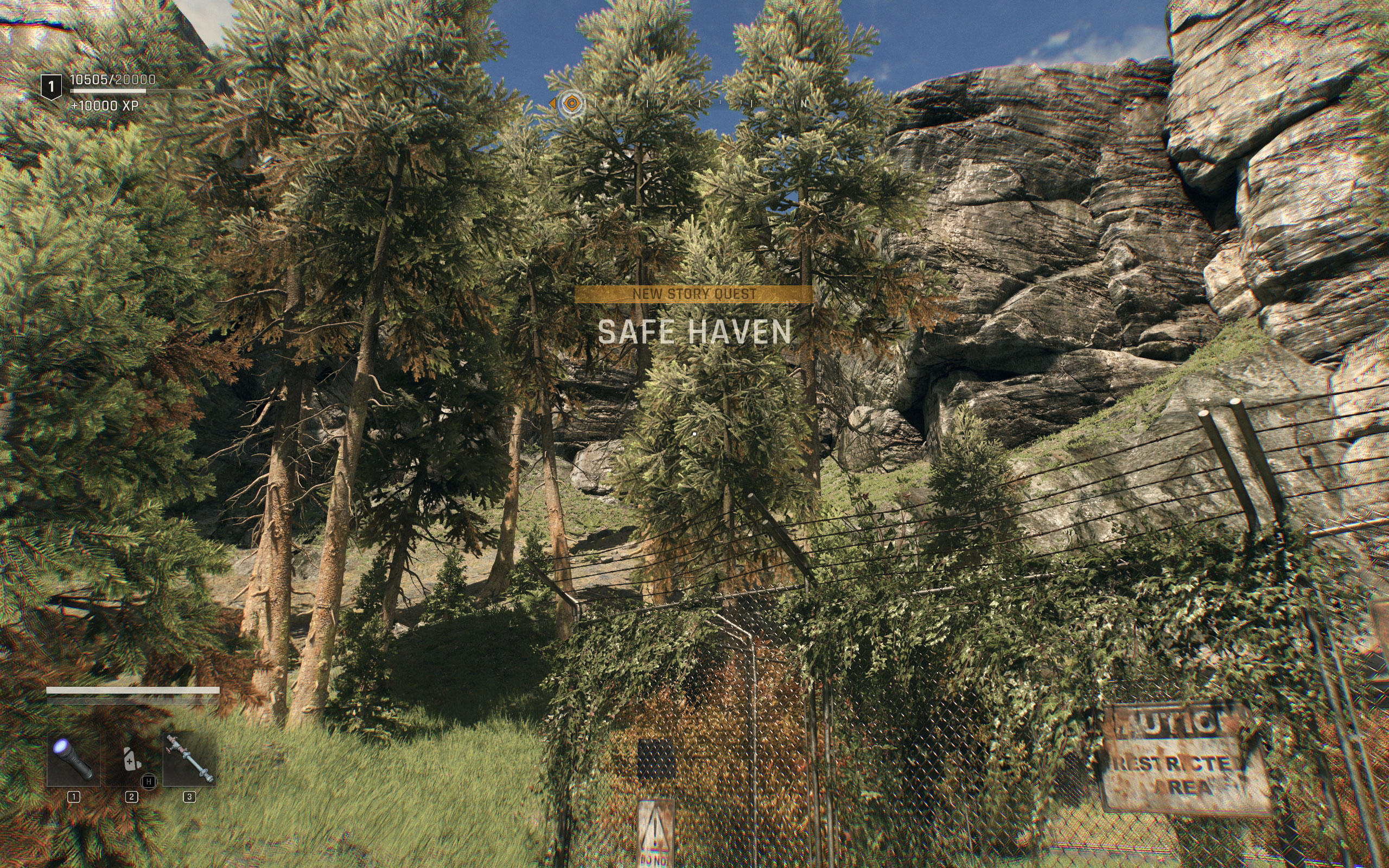
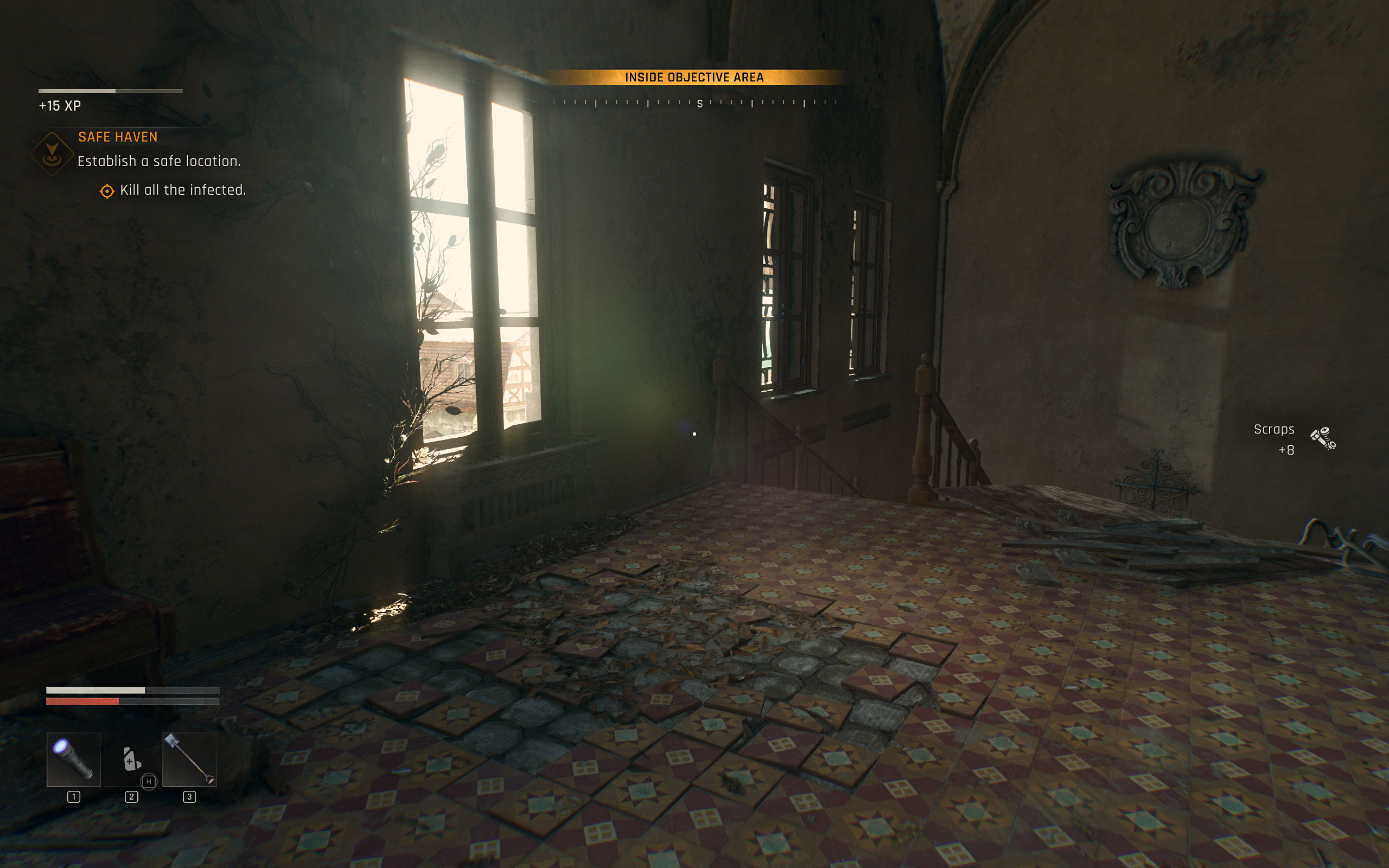
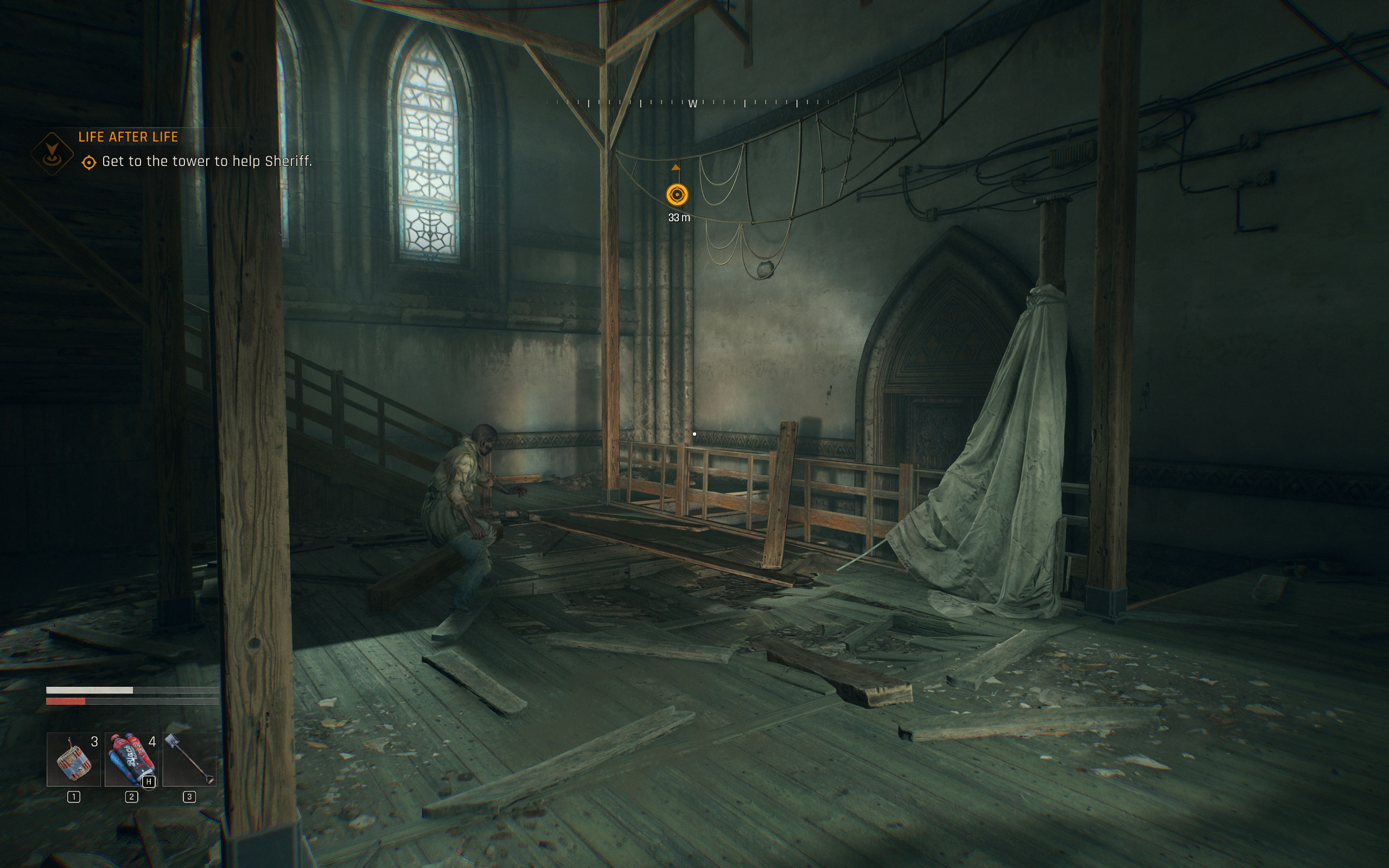
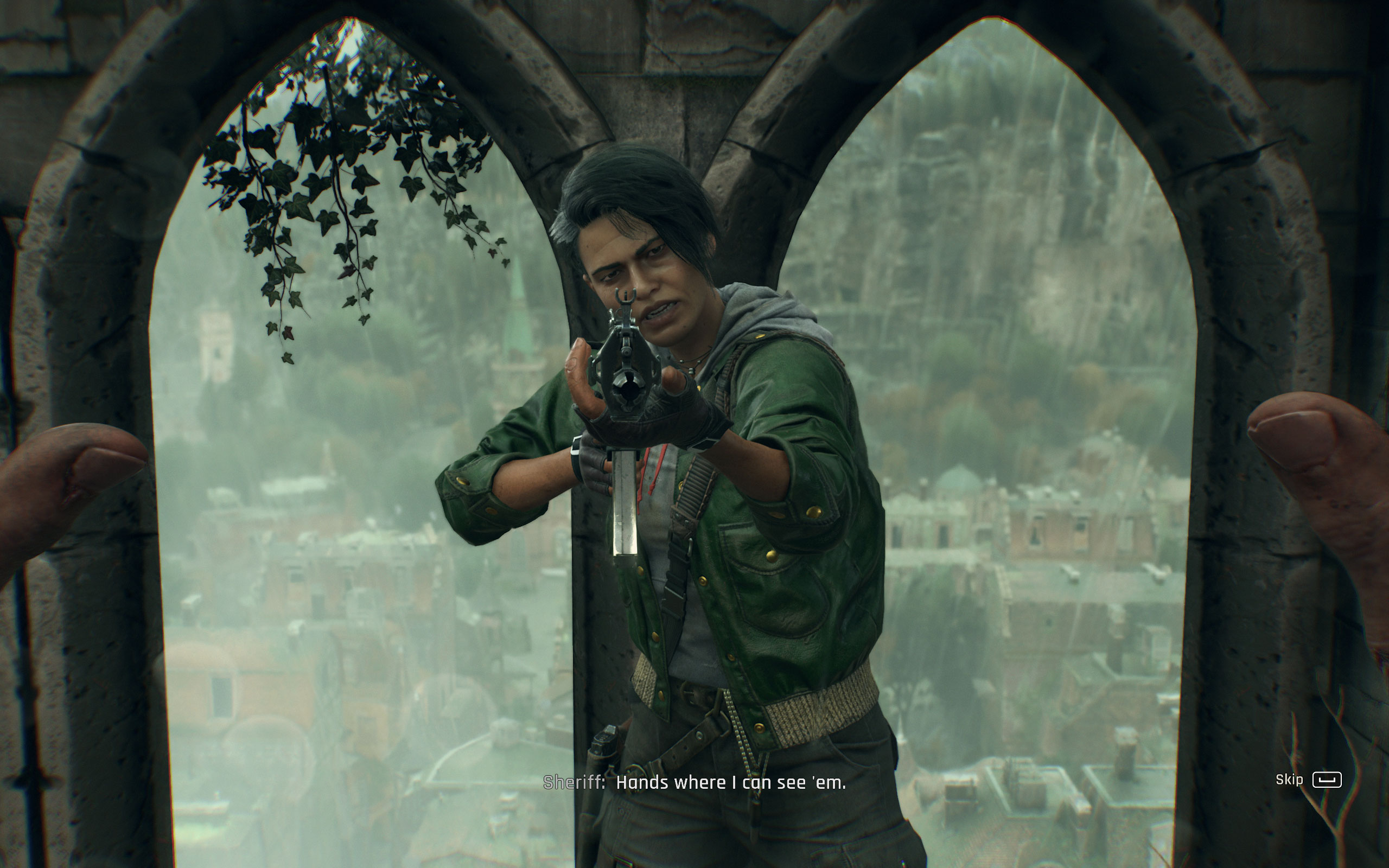
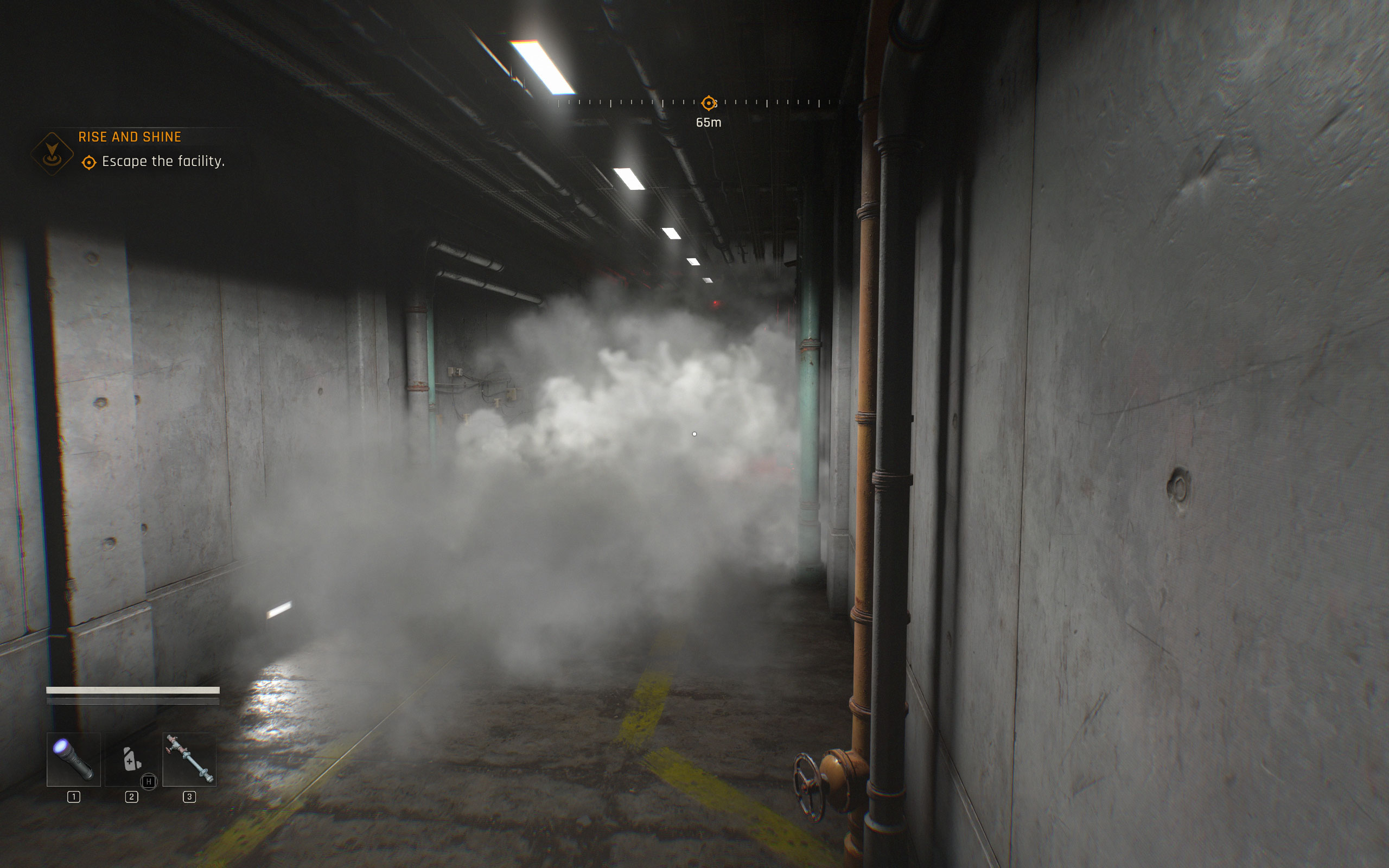
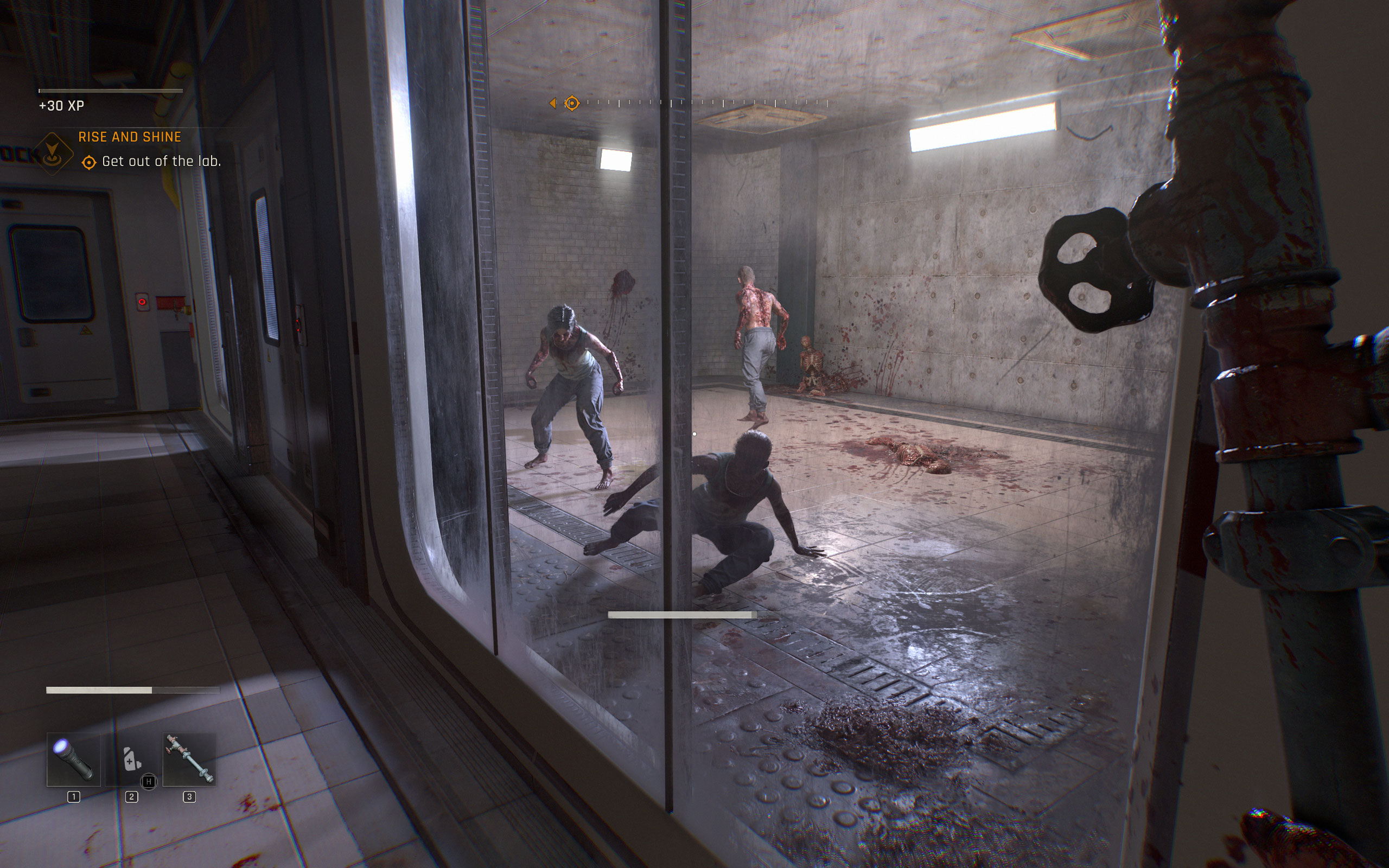
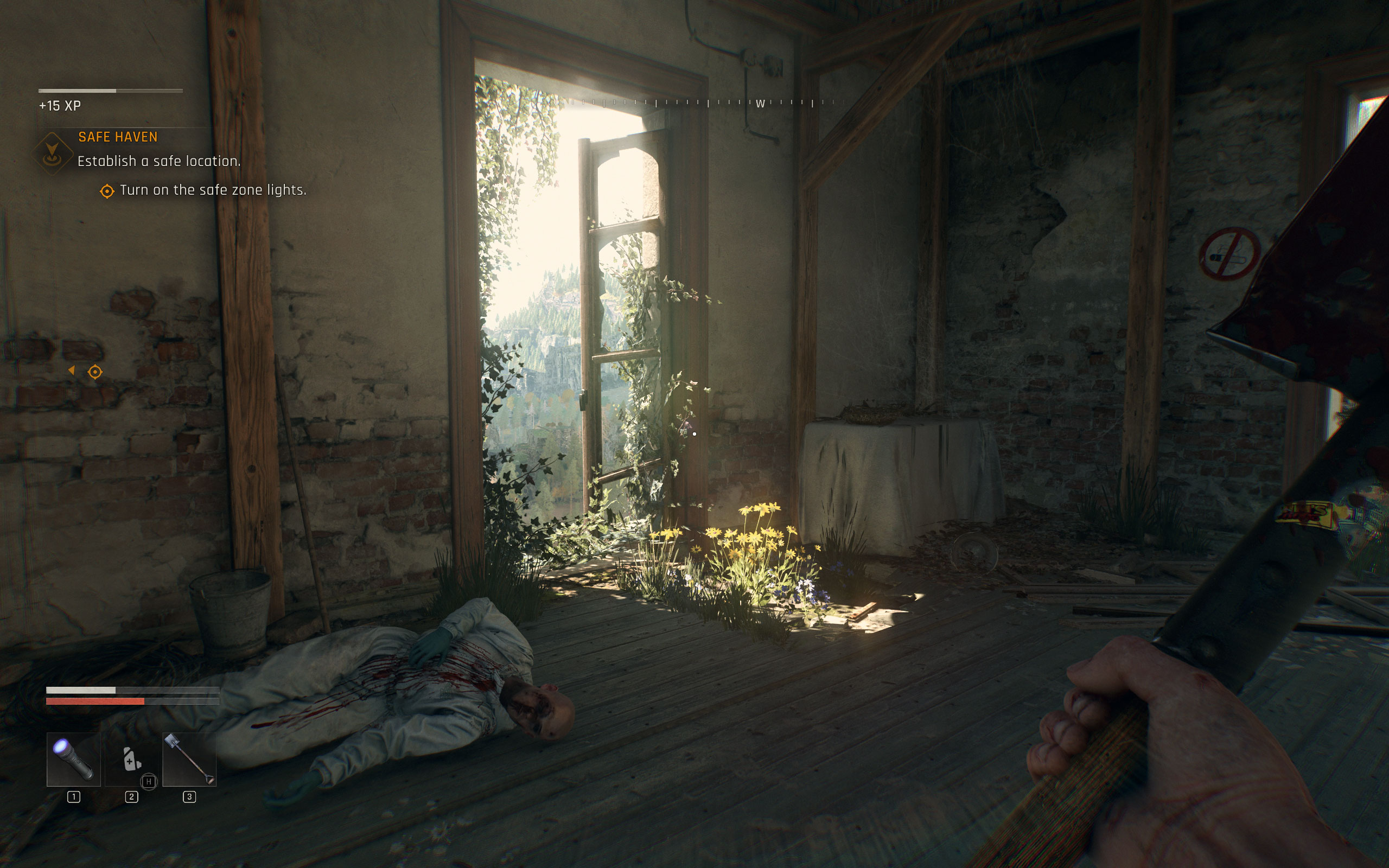
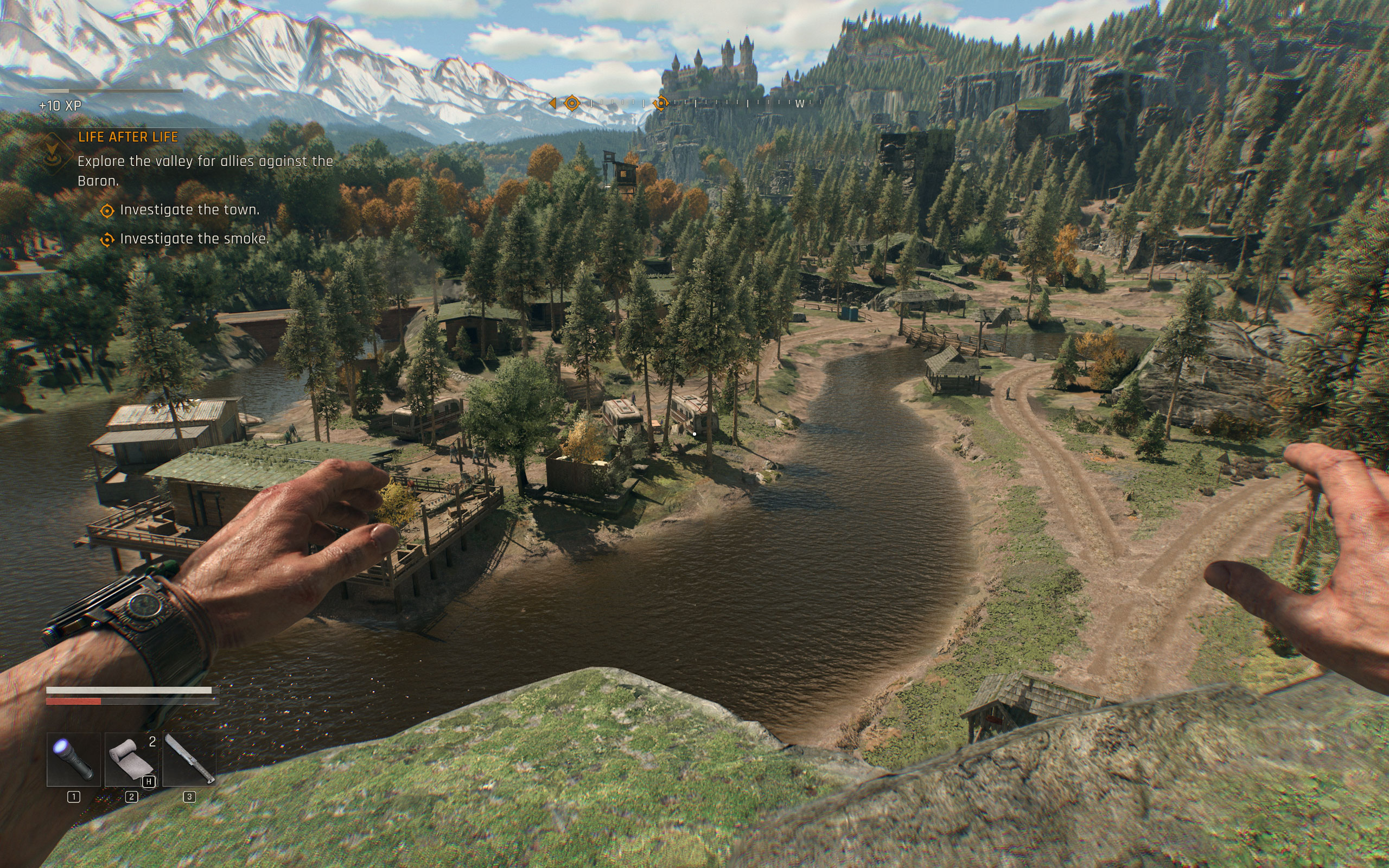
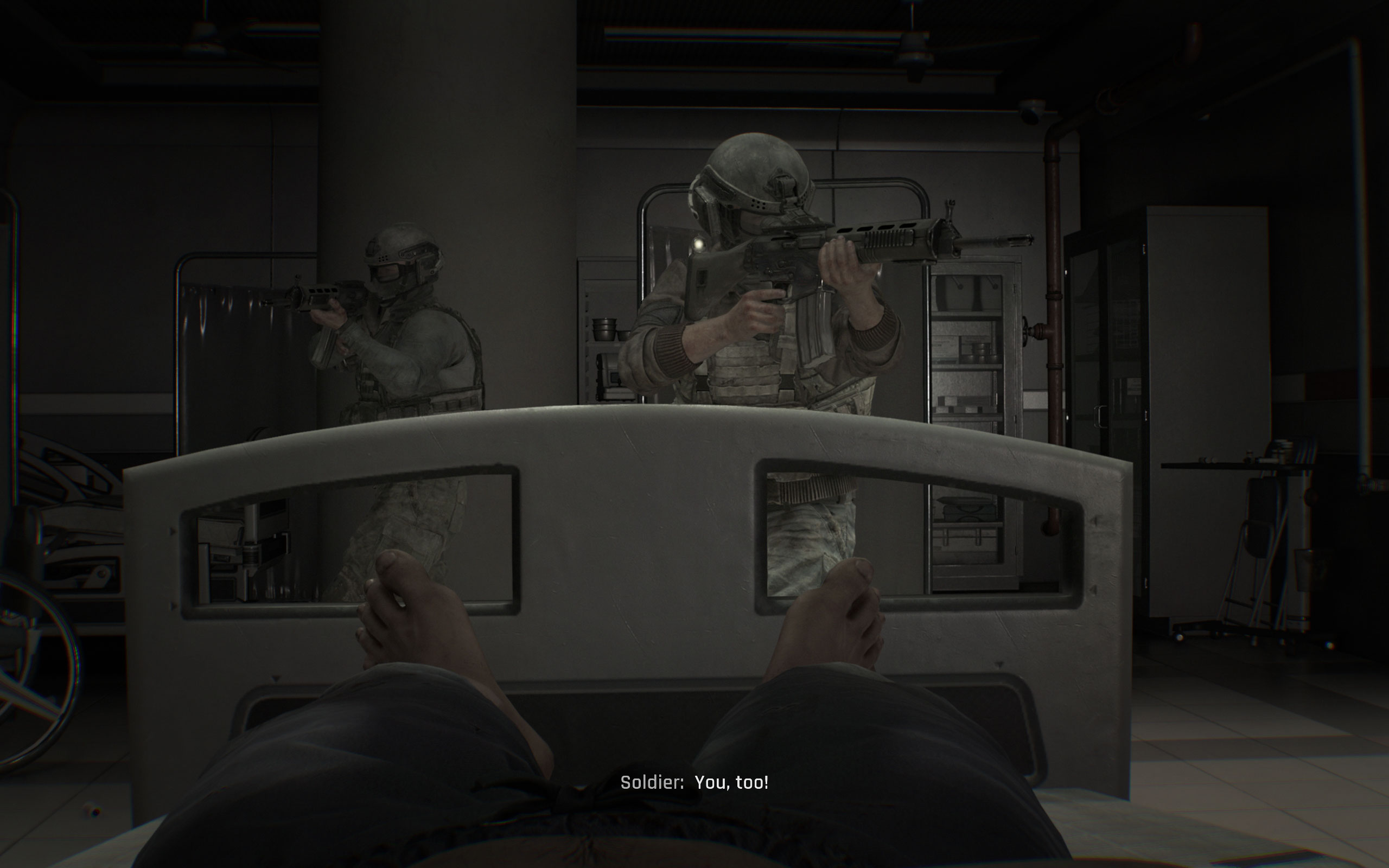
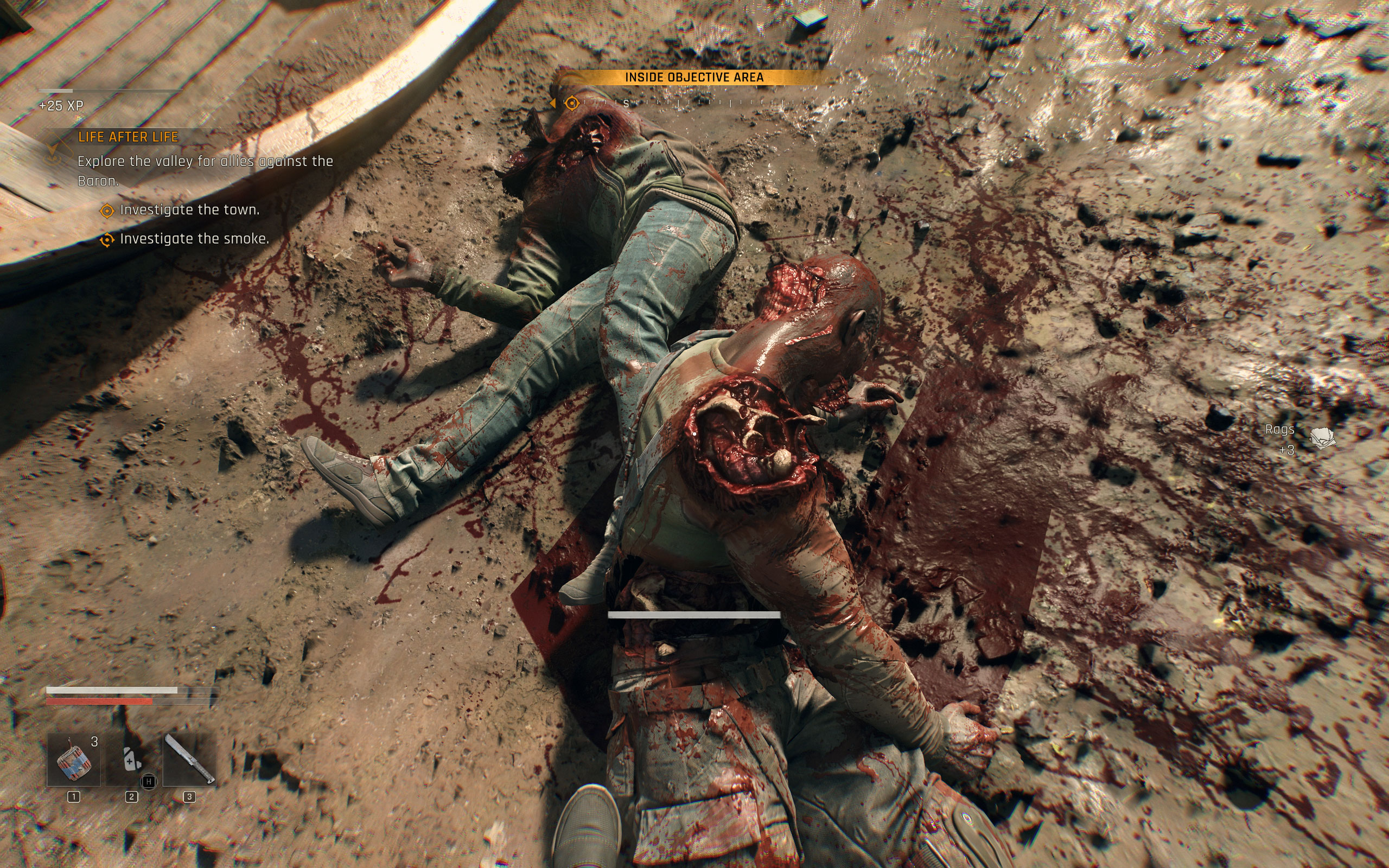
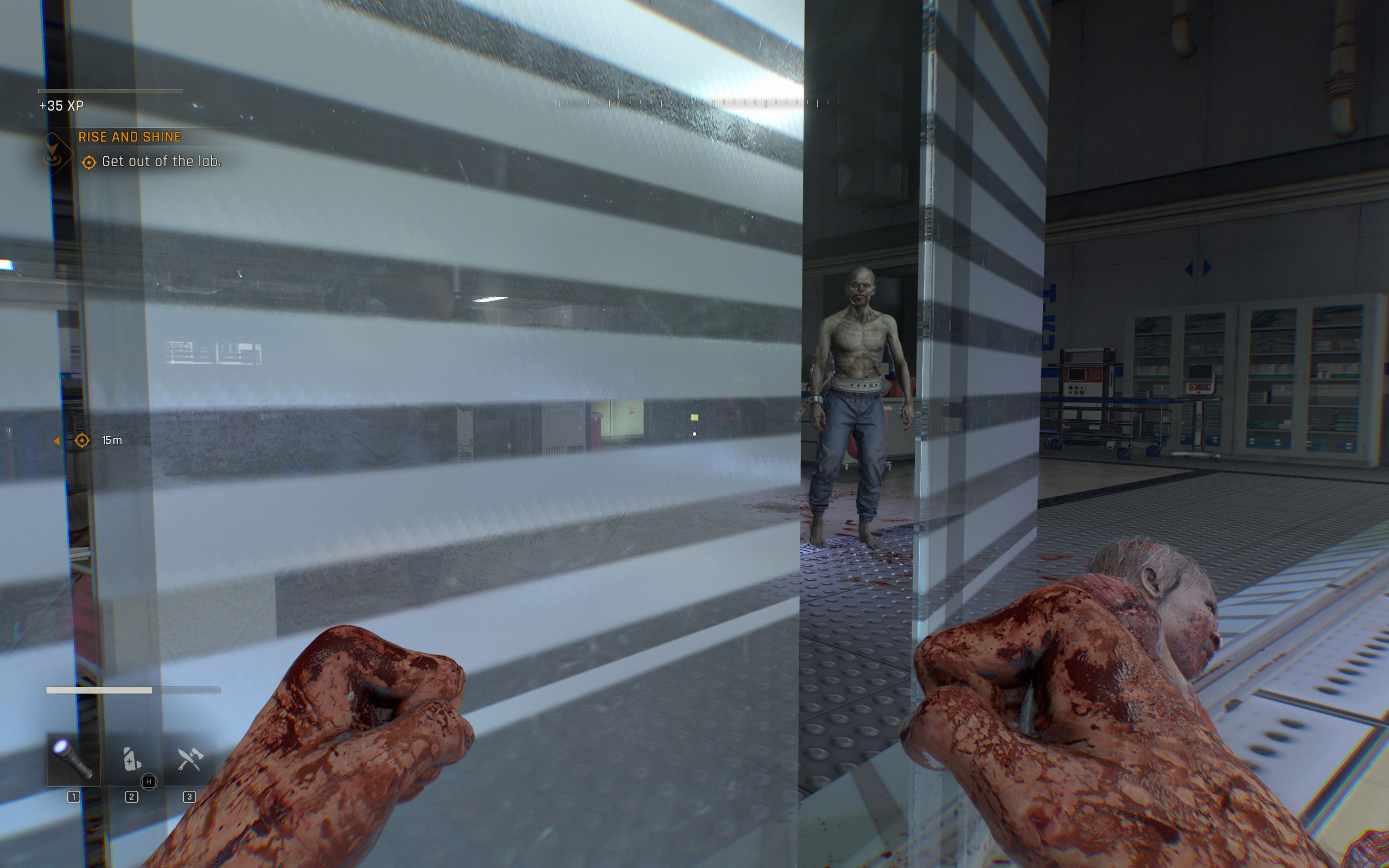
All screenshots were taken at the "High" settings profile, the upscaling was set to TAAU at native resolution. The gallery can be navigated with the cursor keys.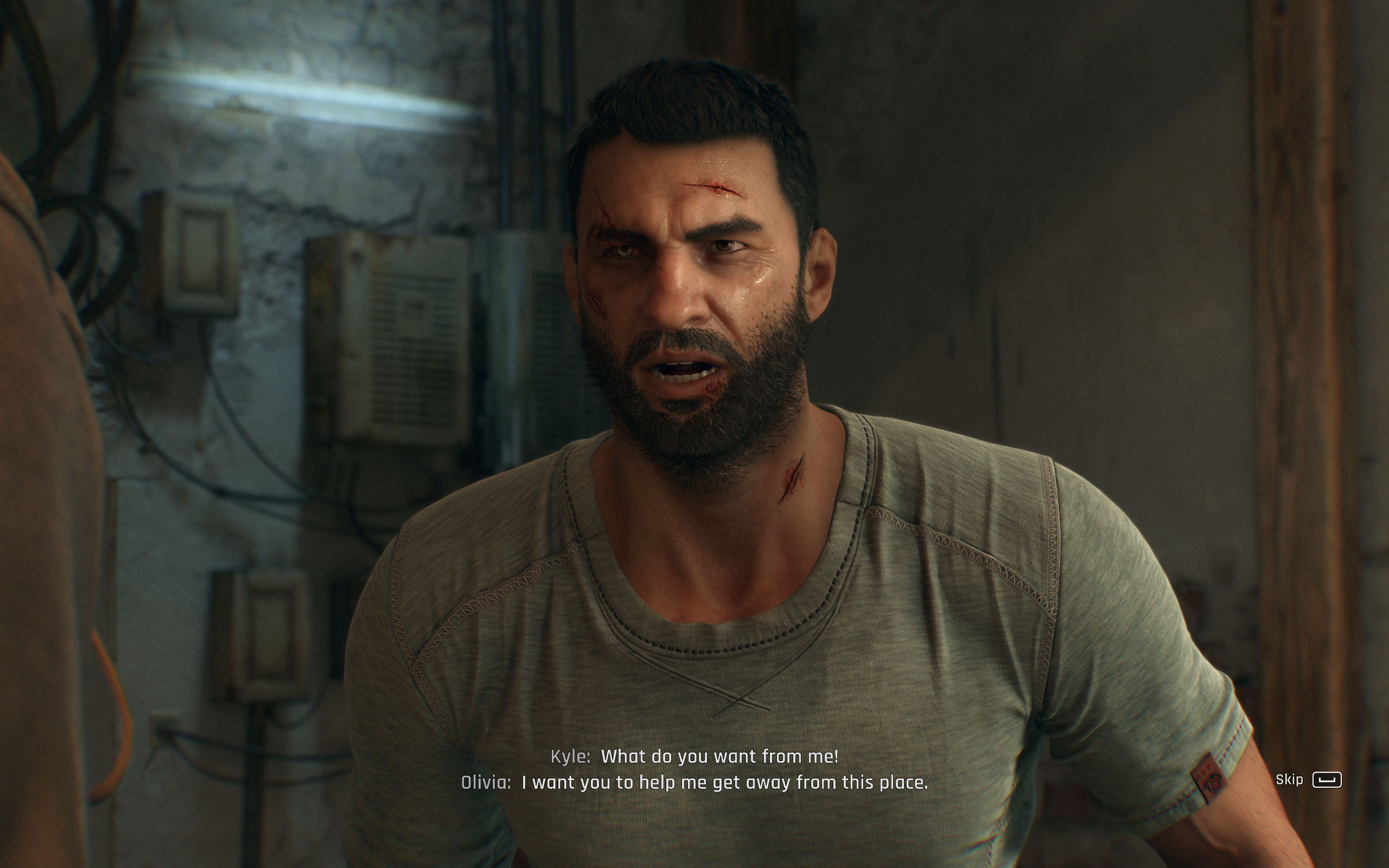

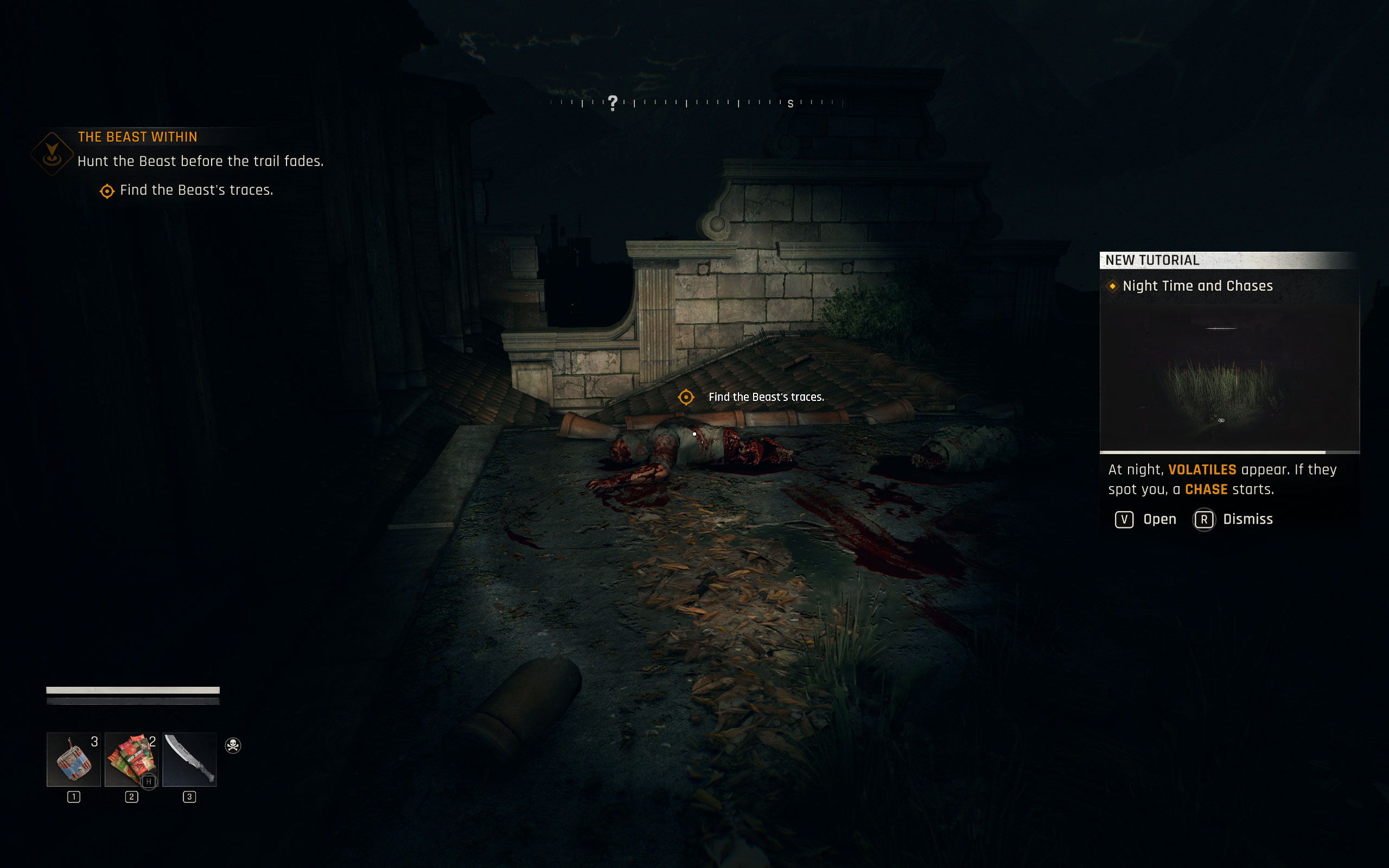
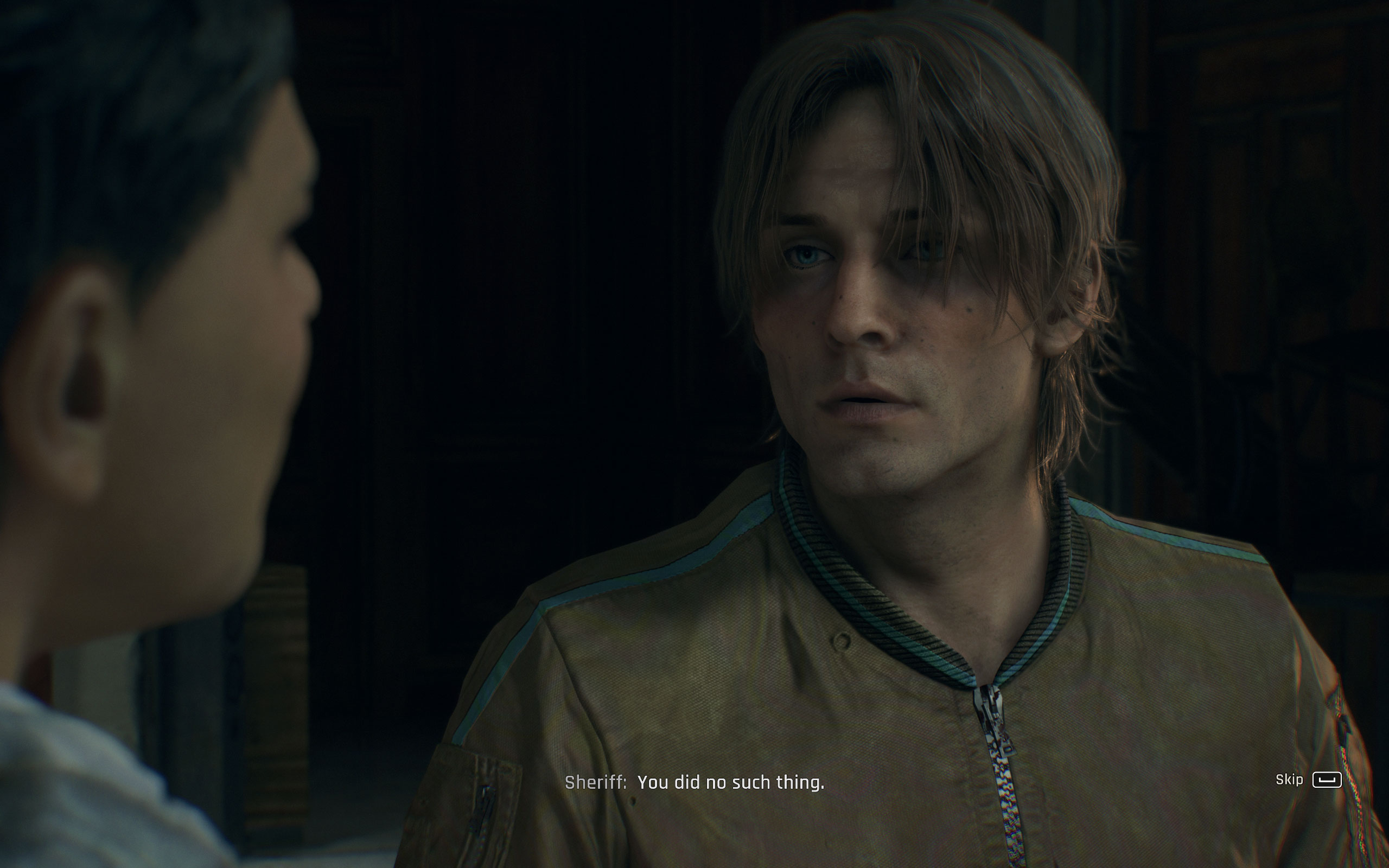
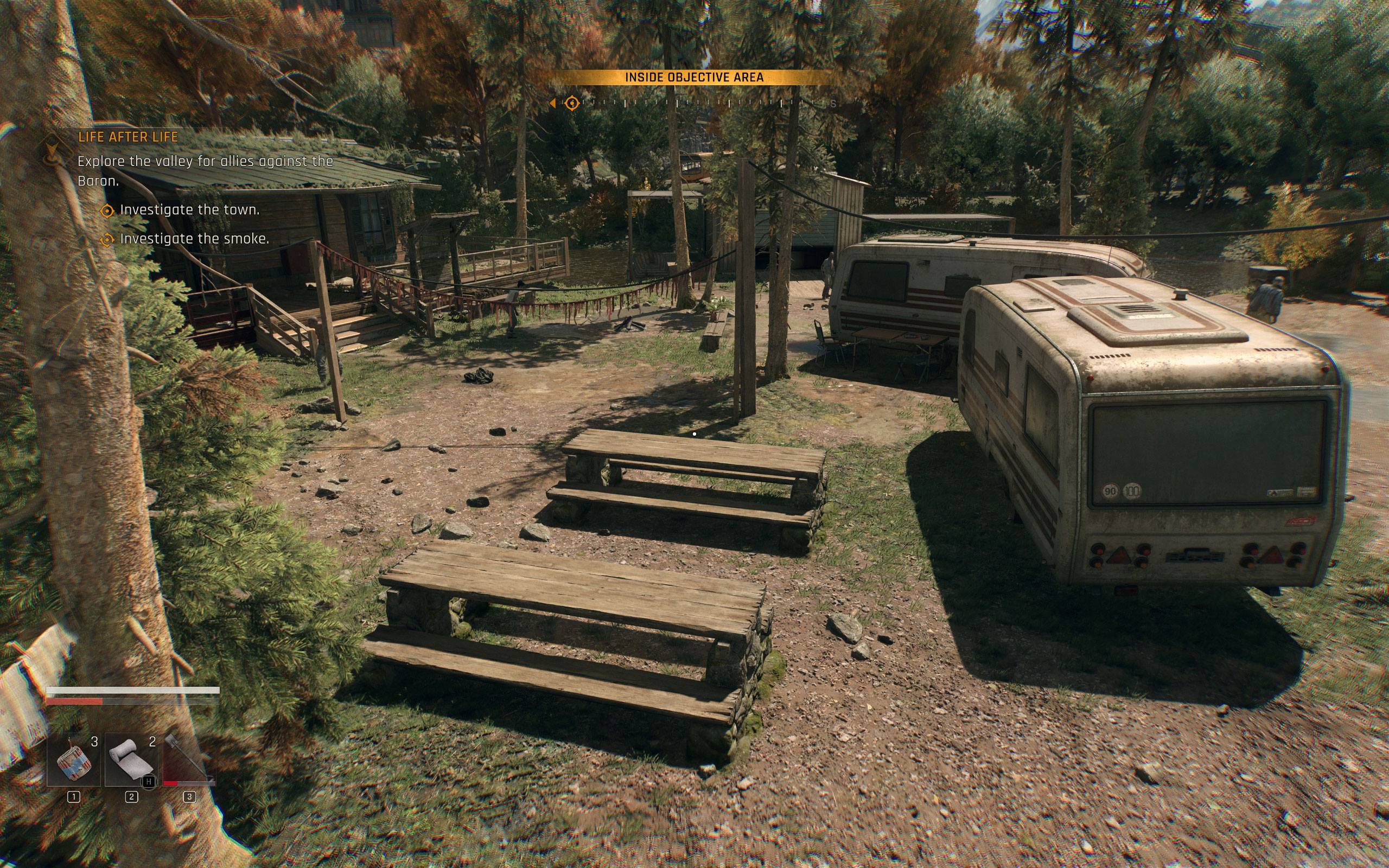
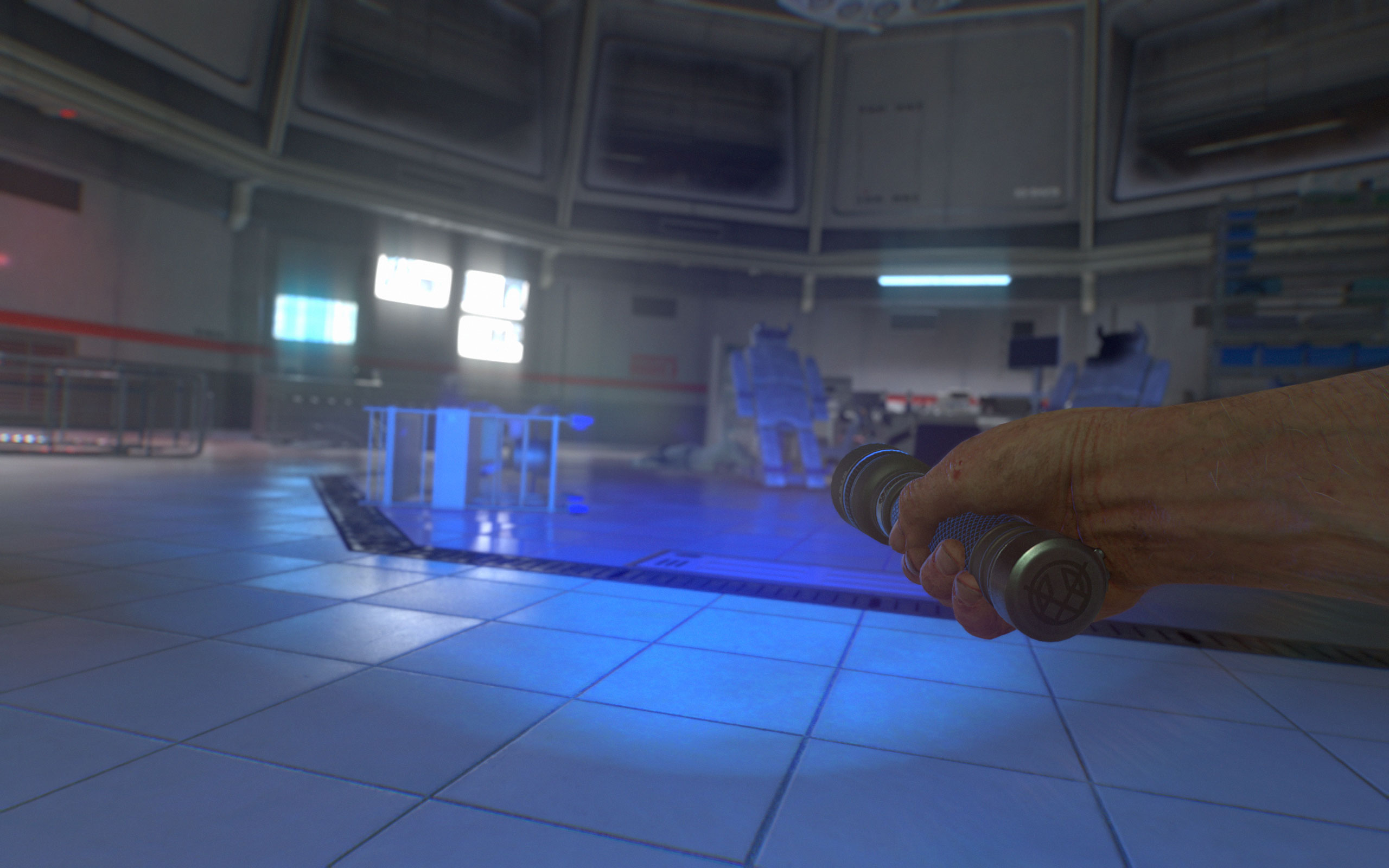

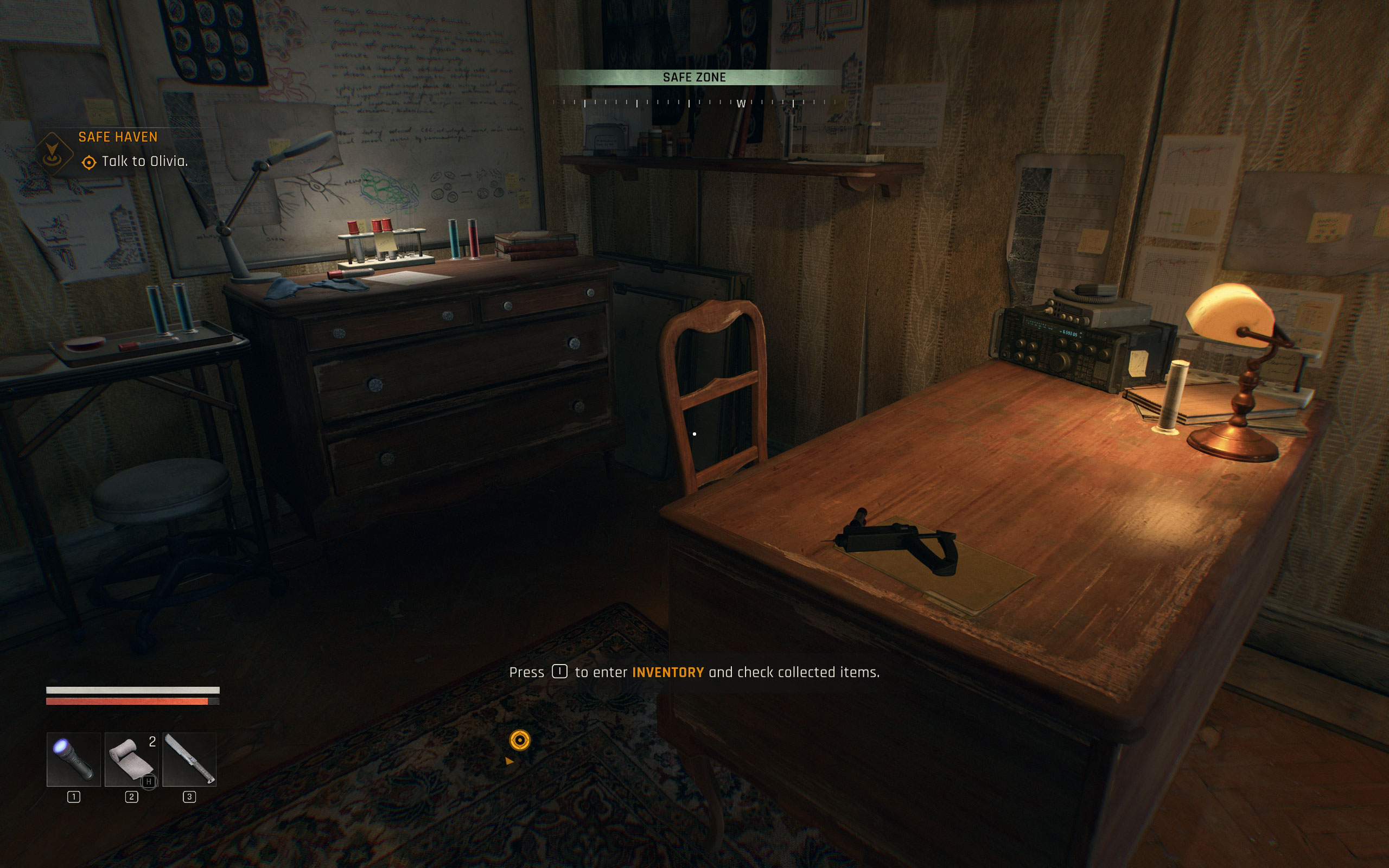
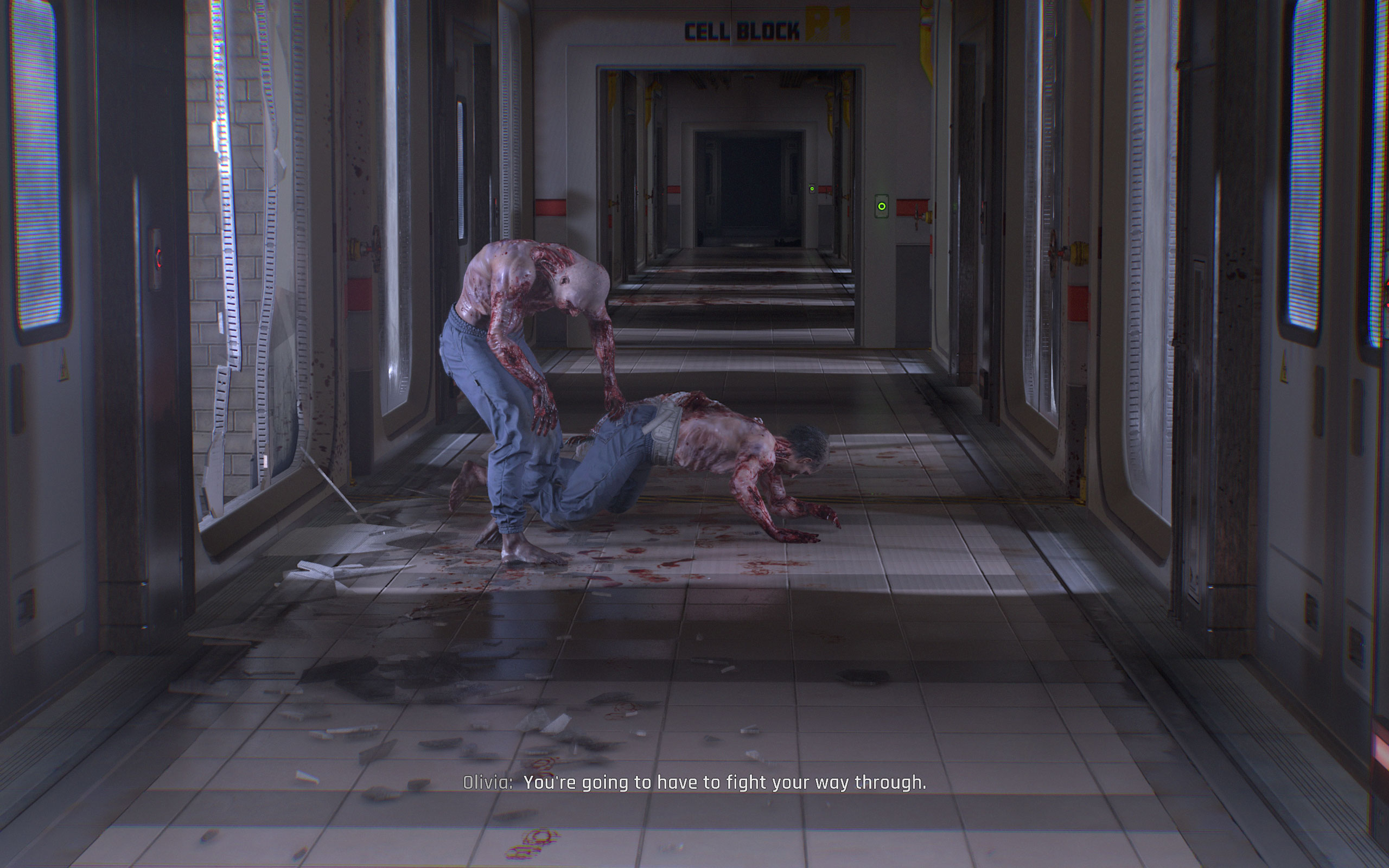
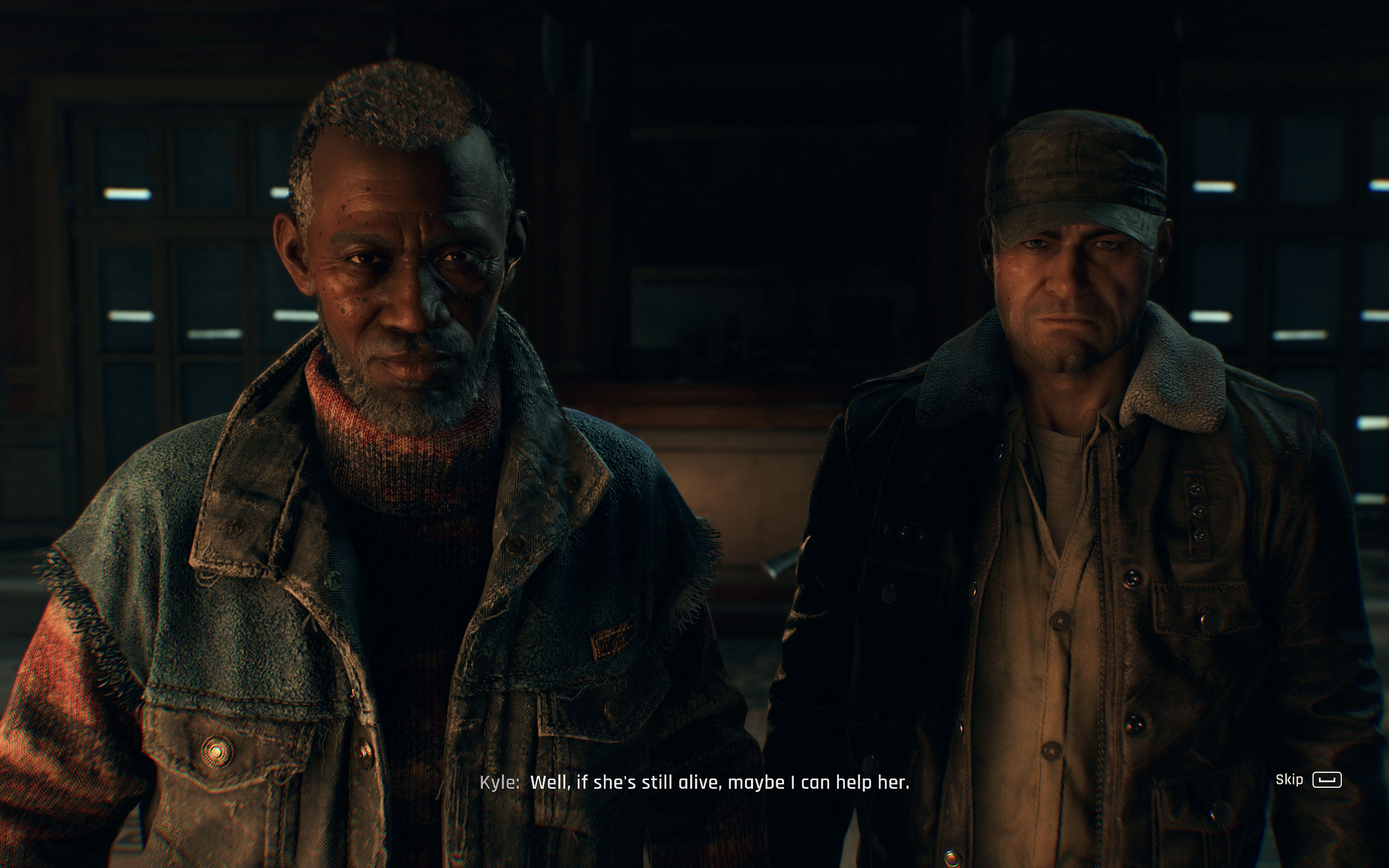
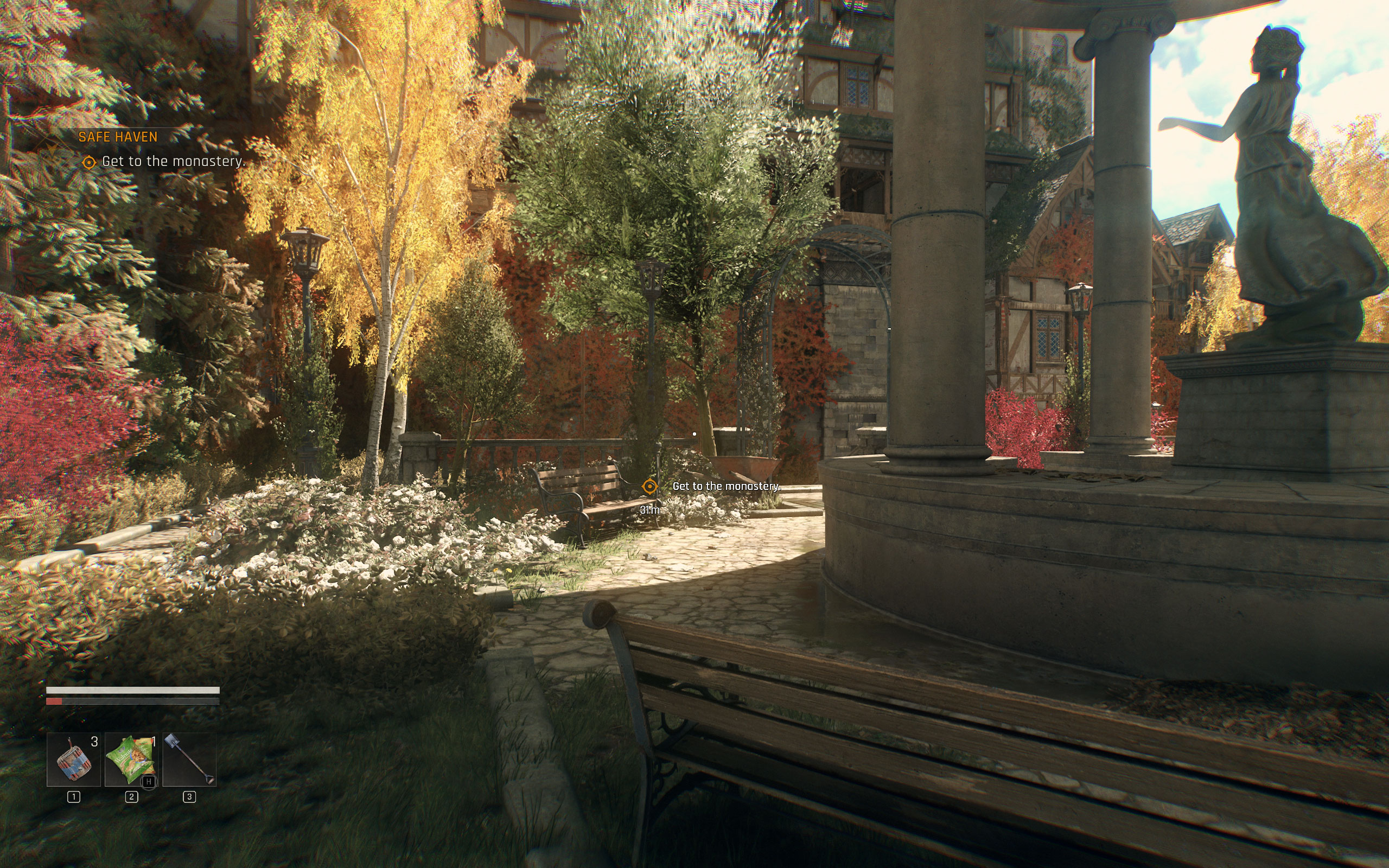
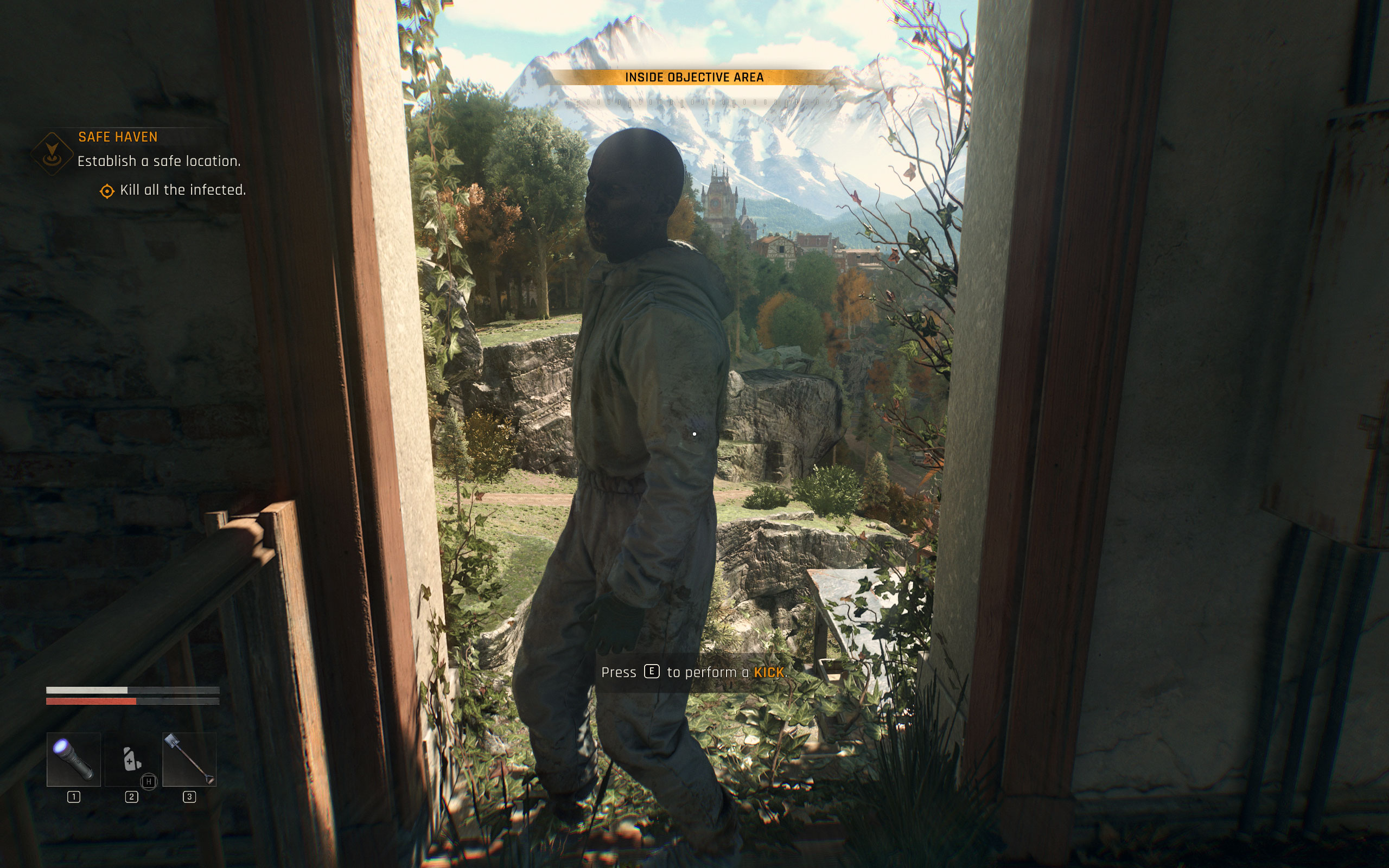
Graphics Settings

- The graphics presets are located all the way at the top of the window/screenshot, slightly hard to find, because they don't use arrows like the other options. Available choices are "Very Low," "Low," "Medium" and "High"—no "Ultra", this is probably reserved for RT, which isn't available at launch
- Window mode options are "windowed," "fullscreen" and "borderless".
- There's some weirdness around using a non-desktop resolution when frame generation is enabled. For some reason the game forces desktop resolution as soon as you enable framegen.
- V-Sync can be disabled completely, there is no hidden FPS cap
- Dynamic resolution scaling lets you automatically adjust the render resolution depending on the FPS target, which can be set between 30 and 360 FPS
- The FPS limiter can be set to 30 to 360 FPS, too
- Upscaling options available are "TAAU," "DLSS," "FSR" and "XeSS". With FSR you can even select the FSR version 2, 3 and 4 (where supported). DLSS doesn't offer that, but you can swap the DLSS of course.
- Frame generation can be selected from DLSS and FSR. You may mix and match upscaling and frame generation technologies, so DLSS upscaling and FSR frame generation is an option—great for GeForce 20 owners.
- The field of view range goes from 47 to 77 degrees, with the default at 57. I found 57 a bit too narrow and prefer 70
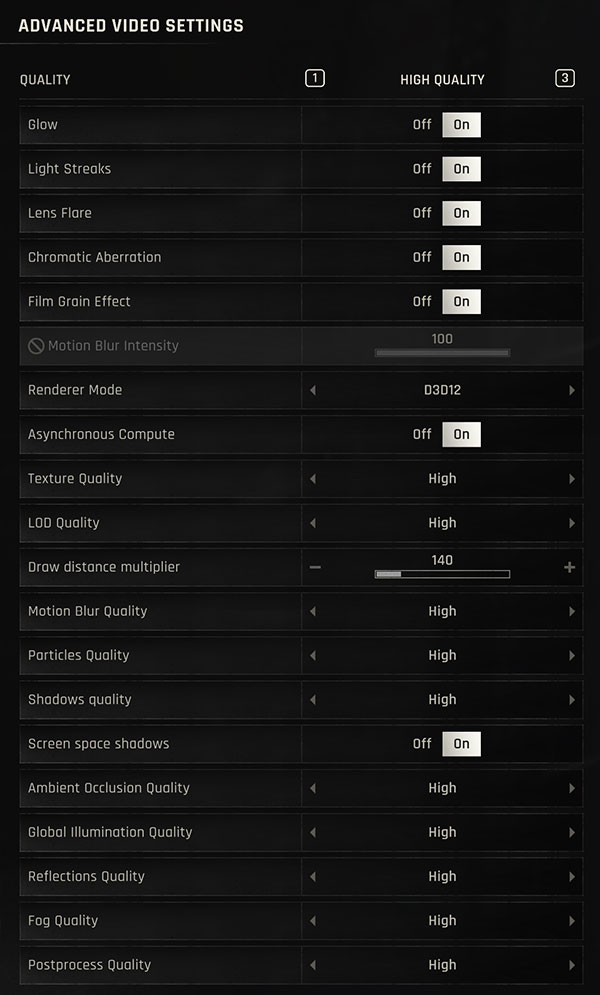
- The second screen called "Advanced" deals with more hardware related settings
- You may disable effects that might be distracting
- Motion blur intensity can be controlled here as well. On my screenshot the slider is disabled, that's because I enabled motion reduction in accessibility settings, which disables motion blur automatically—good thinking.
- The renderer can be switched between DX12 and DX11, no Vulkan in case you're wondering.
- Draw distance can be increased beyond the default of 140, up to 300
- In addition to that, there's an excellent amount of additional options to fine-tune the performance
Our Patreon Silver Supporters can read articles in single-page format.
Nov 11th, 2026 06:55 CST
change timezone
New Forum Posts
- budget home NAS – X79, X99 or another platform? (134)
- Meeting point of those who broke their GPUs. Please share what GPUs you've burned, shattered, ionized or melted accidentally. (35)
- DO NOT RMA YOUR MSI CARDS (58)
- When you could finally run Crysis maxed out? (25)
- Samsung 870 EVO - Beware, certain batches prone to failure! (1484)
- High performance power plan is worse than balanced on 12 th CPUs? (85)
- My dell g15 5510 is stuck at 210 mhz while pulling impossible wattage (21)
- Planning for Prolonged High Prices and Maintaining What You Already Have (62)
- Excessively high prices for RAM (90)
- I cannot download games that are larger than 30–40 GB. (82)
Popular Reviews
- AMD Zen 6 Technical Deep Dive
- Upcoming Hardware Launches 2027 (Updated Nov 2026)
- Gigabyte Z890I Aorus Ultra Review
- INNOCN 45C1R Review - Two QHD Screens, Zero Bezels
- XPG NIMBUS PLUS Review - Mid-range Chair With Strong Competitors
- Phantom Blade Zero Performance Benchmark Review - 35 GPUs Tested
- NZXT H7 RGB+ Review
- Gears of War: E-Day Performance Benchmark Review - 35 GPUs Tested
- NZXT H5 Review
- be quiet! Light Mount TKL Keyboard Review
TPU on YouTube
Controversial News Posts
- OpenAI CEO Argues Home PCs Waste the World's Limited DRAM Supply (152)
- NVIDIA Launches Investigation Into Jensen Huang's Relationship With Suspected Chinese Spy (136)
- Intel "Raptor Lake Next" 16-Core and 20-Core CPUs Surface (130)
- Legendary Game Studio BioWare Shuts Down Following EA Layoffs (104)
- Dell CEO Says the Memory Shortage Will Get Worse in 2027 (95)
- NVIDIA GeForce RTX 50-Series Scheduled for up to $500 Price Hike This Week (88)
- Modder Fits RTX 5090 With Four 8-Pin Connectors, Halving Current per Wire (80)
- AMD Radeon Owners Can Now Run Nearly Every DLSS Feature Through Fan-Made Mod (80)