 13
INNOCN 45C1R Review - Two QHD Screens, Zero Bezels
Controls & OSD »Connectivity
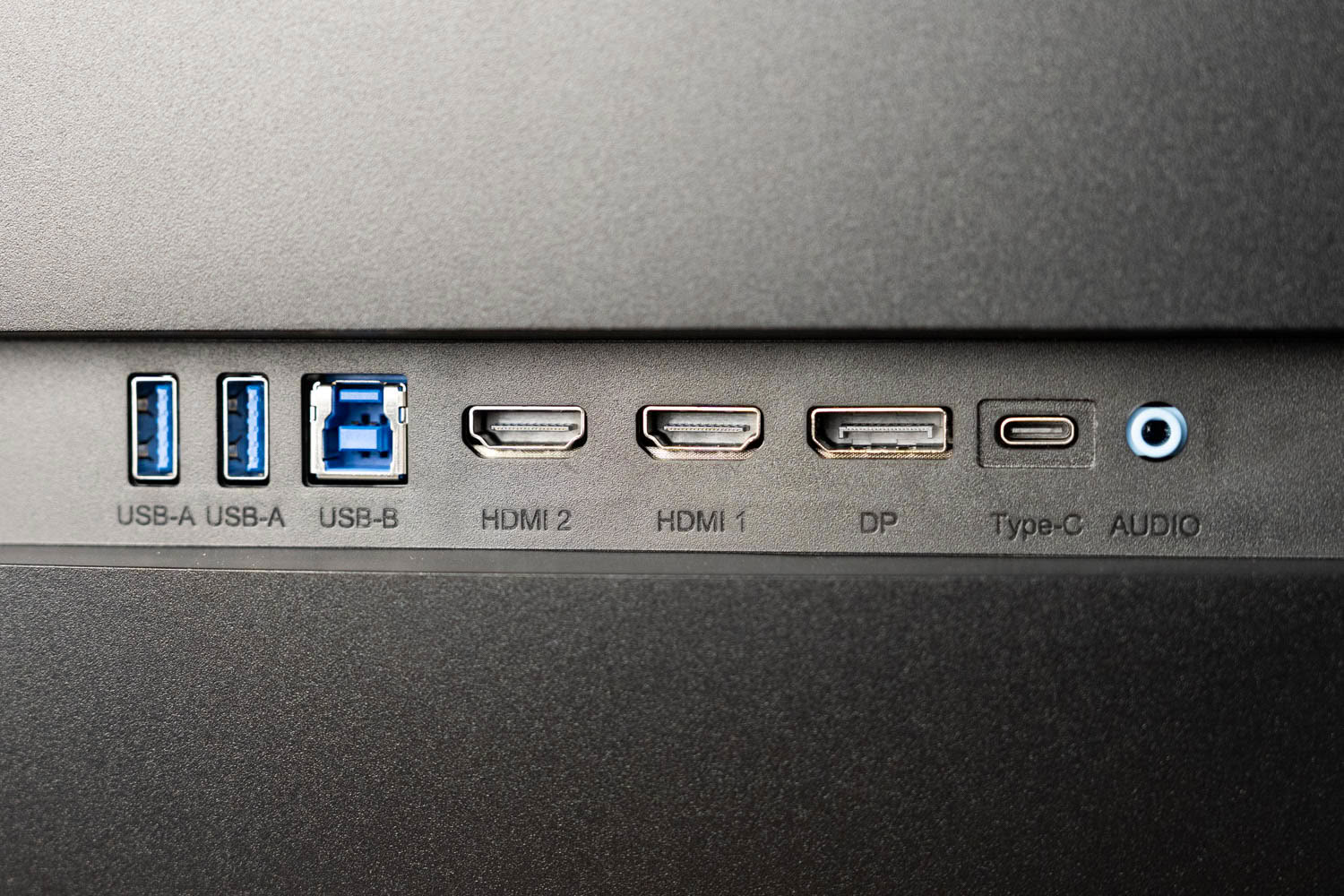
The INNOCN 45C1R has two HDMI 2.1 ports and one DisplayPort 1.4 input. Despite the HDMI 2.1 label, INNOCN limits the HDMI ports to 60 Hz at the native 5120×1440 resolution, so if you want 120 Hz from a PC, DisplayPort or USB-C are the only options. DisplayPort 1.4 with HBR3 bandwidth handles 5120×1440 at 120 Hz with 8-bit color without any compression, which is all this 8-bit panel needs anyway. The USB-C port supports DisplayPort Alt Mode, and it also runs at the full 120 Hz, which is great news for laptop users.
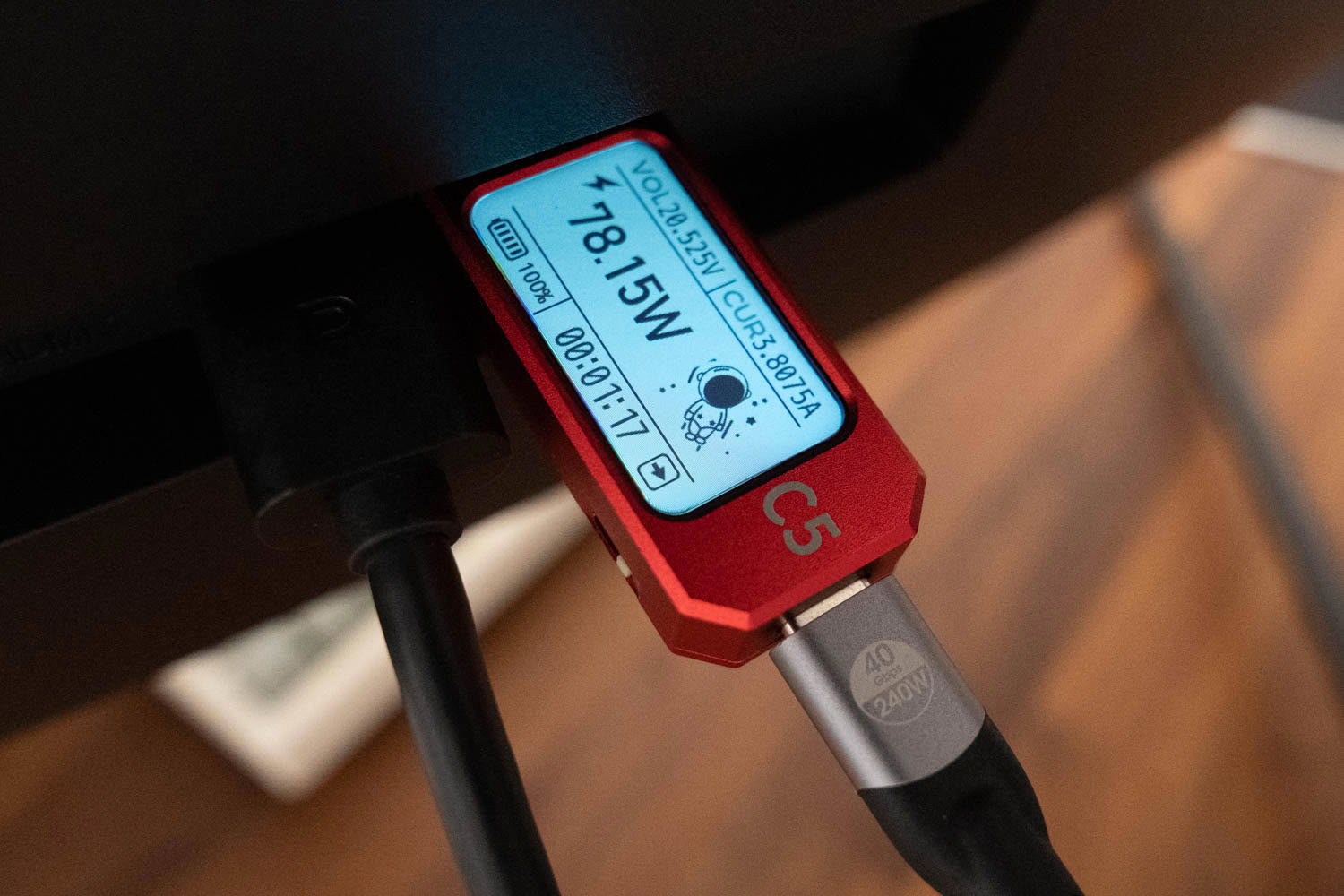
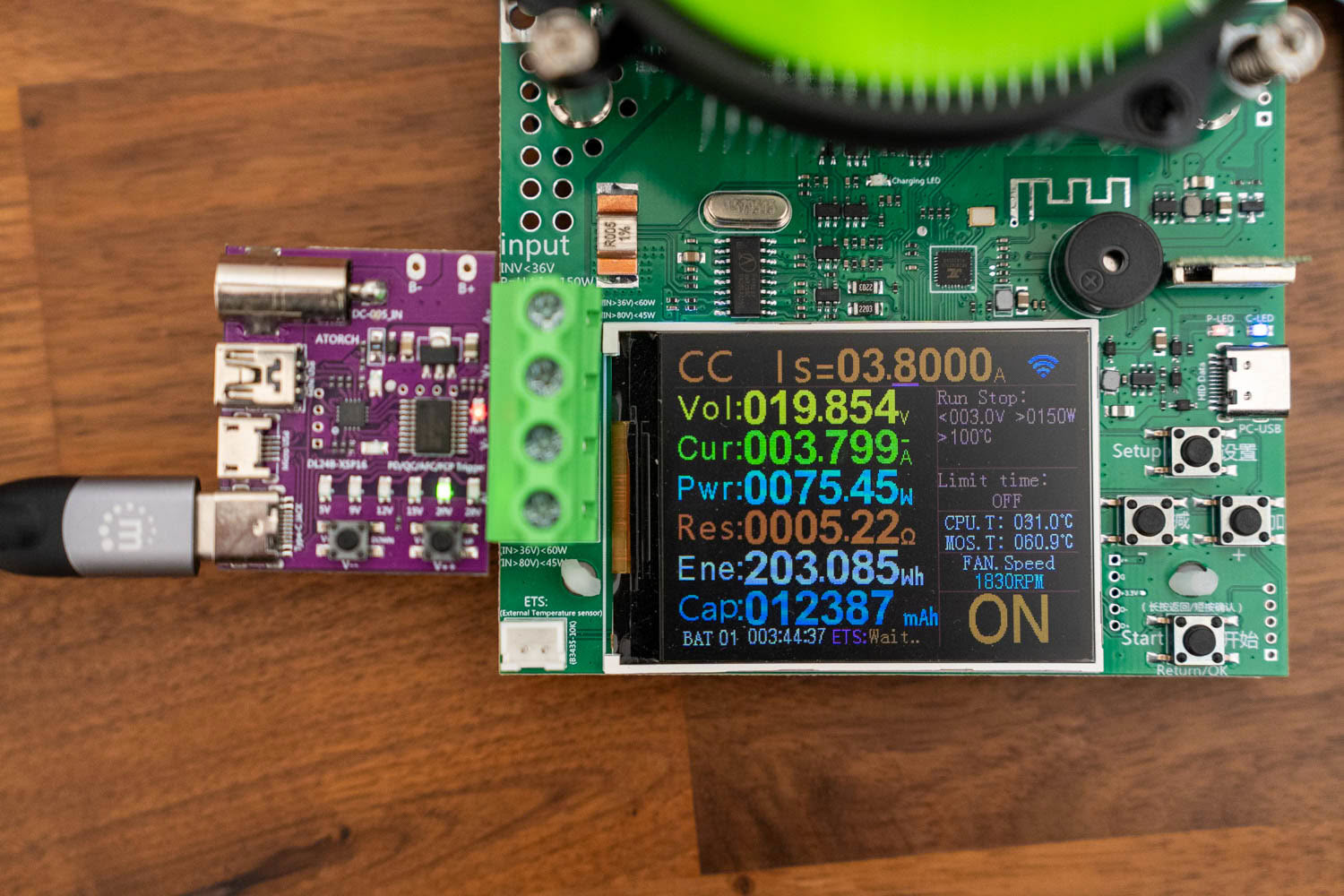
INNOCN officially rates the USB-C port for 65 W Power Delivery. To see what it could actually deliver under a controlled load, I used a combination of the WITRN C5 USB voltage/current meter, connected directly to the monitor's USB-C port, and the ATORCH BW150 electronic load with a PD 3.1 trigger module. The two devices were linked using a high-quality Thunderbolt 4 (40 Gbps, 240 W) cable. The 45C1R was able to sustain a 20 V/3.8 A load, at which point the WITRN C5 registered 77.94 W at the monitor's USB-C port, while the ATORCH BW150 measured 75.46 W on the receiving end, the difference being mostly due to cable losses. In this controlled load test, the port exceeded its official 65 W rating. However, 65 W remains the manufacturer's specified Power Delivery output and is the figure laptop users should rely on. That should be sufficient for many ultrabooks and mainstream laptops, while more power-hungry gaming or workstation models may still require their own chargers.
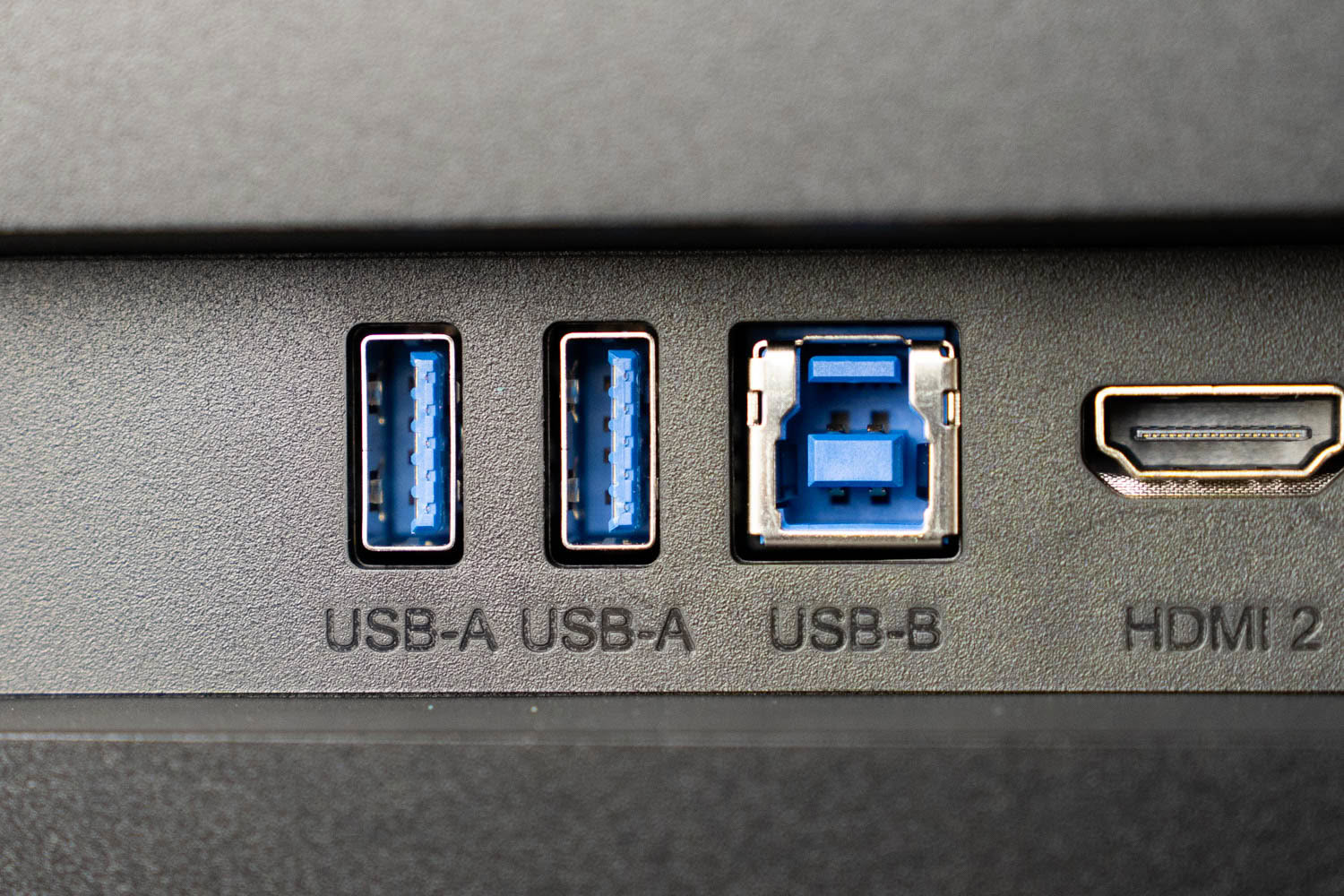
The USB hub consists of two downstream USB Type-A ports and one upstream USB Type-B port, all of them color-coded blue, which points to a 5 Gbps (USB 3.1 Gen 1) interface. The hub has two possible upstream connections, the USB Type-B port for a desktop PC and the USB-C port for a laptop, and everything plugged into the Type-A ports, as well as the wired network connection, works through whichever of the two is currently active. Over the USB Type-B upstream, the hub delivers proper USB 3 speeds. Copying a large file to an external SSD connected to one of the Type-A ports ran at 370 MB/s, which is about what you can expect from a 5 Gbps interface in practice. The USB-C upstream is a different story. With my laptop connected over USB-C, a wireless keyboard plugged into the hub worked without any issues, but the same SSD didn't show up at all. Basic peripherals are fine, then, but external storage simply doesn't work over this connection. If you plan to use external storage through the monitor's hub, connect it to a computer via the Type-B upstream, or plug the drive directly into the laptop.
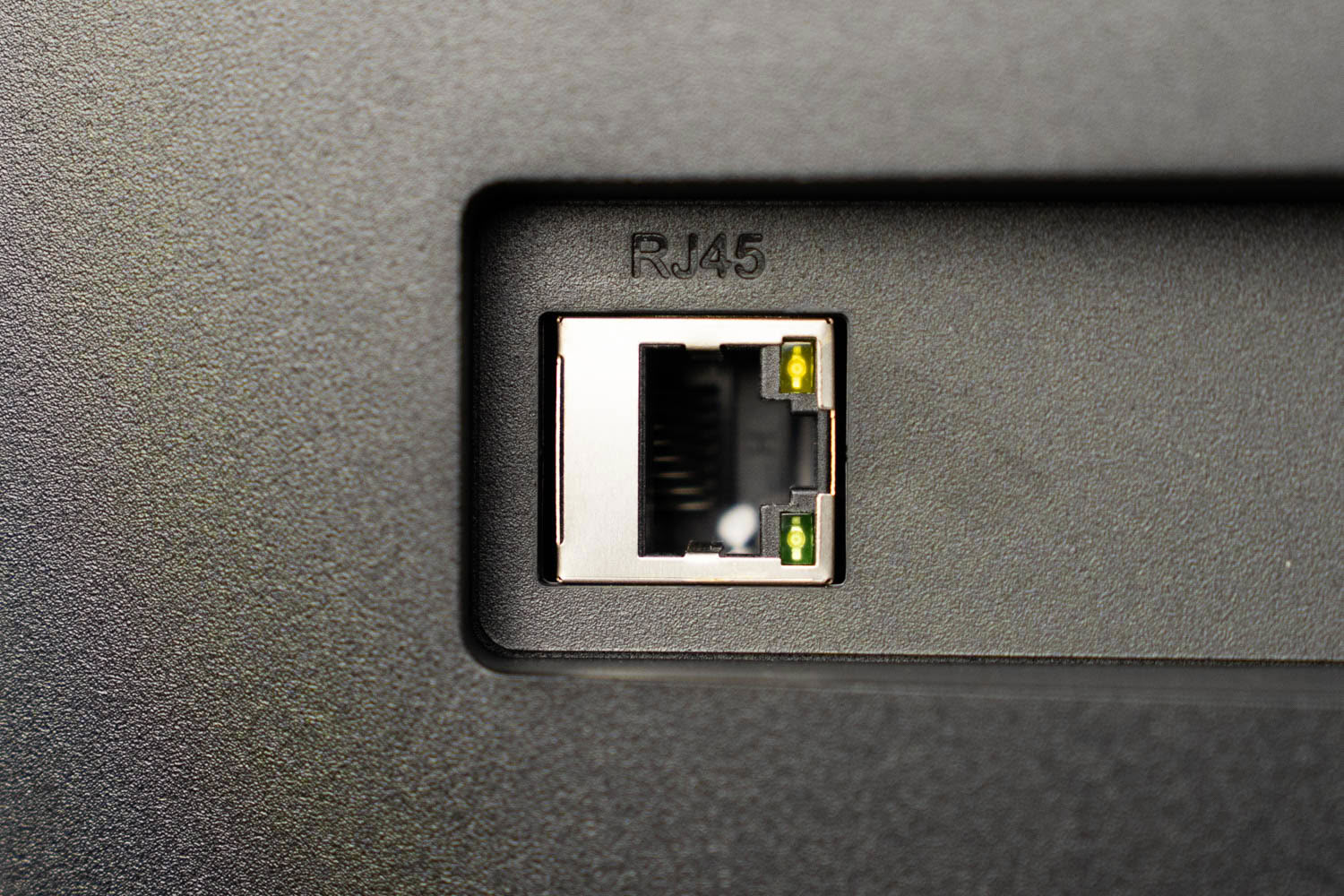
A rather rare addition is the RJ45 Ethernet port, which is also routed through the active upstream connection. For a thin laptop without its own Ethernet port, this completes the one-cable docking experience: video, charging, peripherals, and wired networking all run through a single USB-C cable. Unfortunately, the port is limited to 100 Mbps, and that's a real shame. It's enough for video calls and general browsing, but anyone with a faster internet connection or a habit of moving large files over the local network will quickly run into its limits. A gigabit controller or even 2.5 GbE costs next to nothing these days, and it would have made the RJ45 port a genuinely useful feature instead of a convenient fallback. I find it extremely bizarre INNOCN opted for a 100 Mbps port here.
The monitor also has a working KVM switch. To use it, connect one computer via USB-C, and the other via the USB Type-B upstream port for data, along with a HDMI or DisplayPort cable for video. The switching is automatic. As soon as you select a video input, the peripherals connected to the monitor's USB Type-A ports, as well as the wired network connection, move over to the computer whose input you picked, with no manual toggling required. If you ever need to override that behavior, the upstream port can also be selected manually in the OSD, under Other Settings > USB Switch. For a desk shared between a desktop PC and a laptop, which is exactly the scenario a USB-C monitor with a built-in Ethernet port is made for, this works just as it should, and you can switch between the two machines with a single press on the input selection.
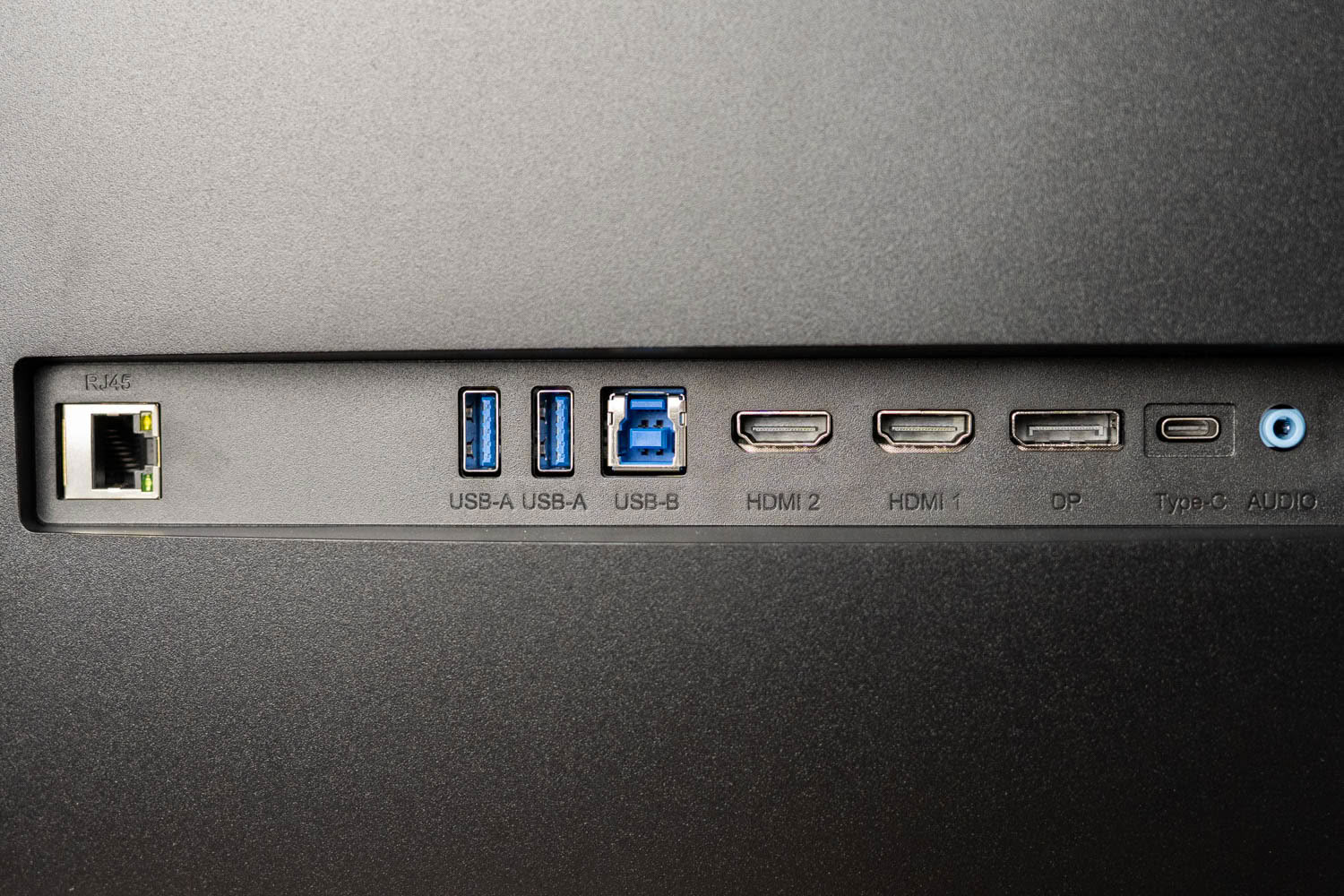
The 3.5 mm audio output is located on the I/O panel, next to the USB-C port.
Power Consumption
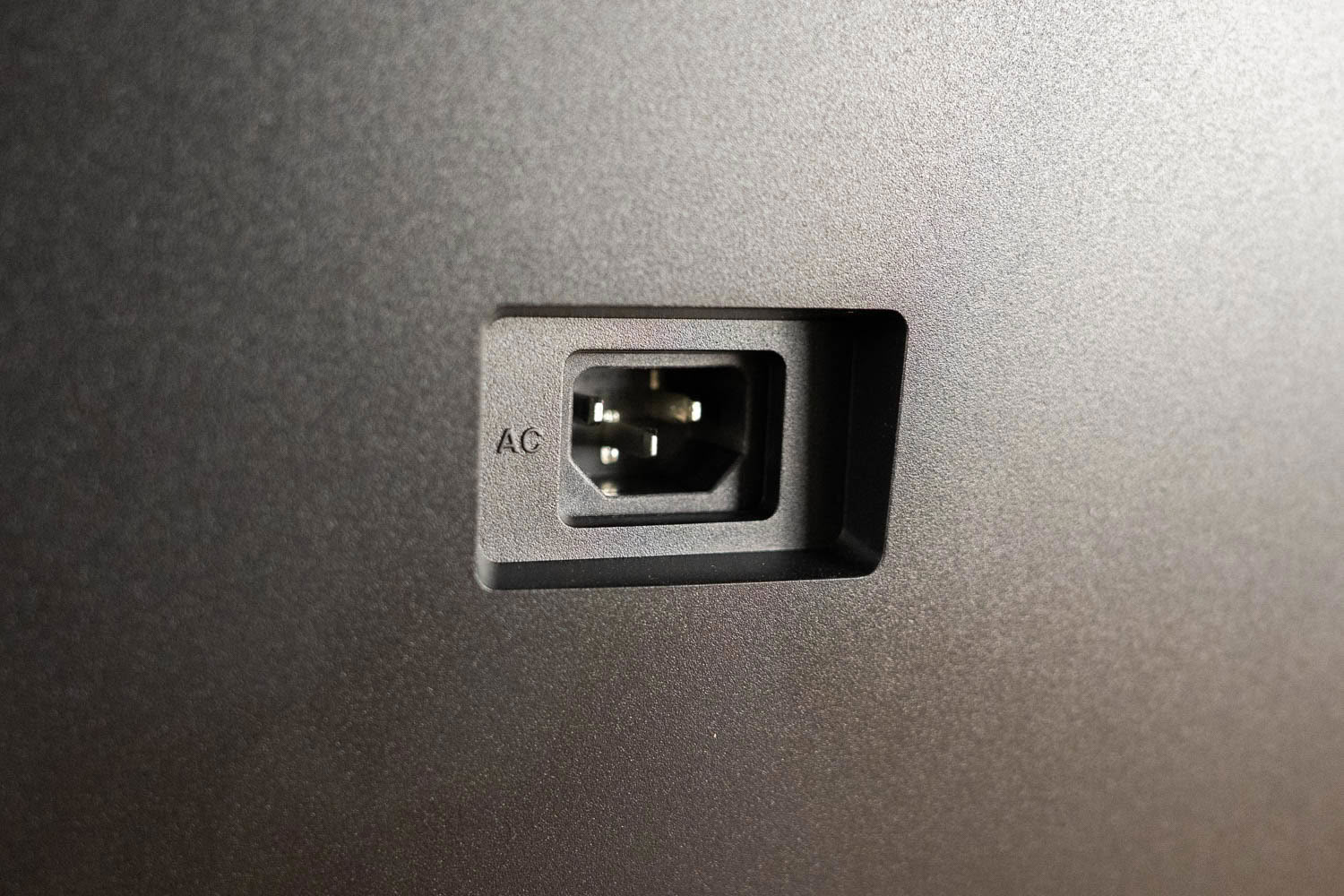
The INNOCN 45C1R uses an integrated power supply, so there's no external power brick taking up space on the floor or under the desk. INNOCN rates the monitor's typical consumption at 70 W, while the maximum rating of 240 W includes the USB-C power delivery and other peripherals.
To test power consumption, I used the Meross MSS315 Matter Smart Wi-Fi Plug and its companion app to measure draw at different brightness levels. All measurements were taken after resetting the monitor to factory defaults.
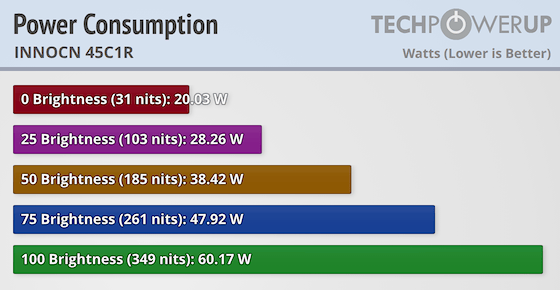
Power consumption scales linearly with brightness. At the lowest brightness setting, the panel produces 31 cd/m² and the monitor draws 20.03 W. At the maximum setting, it reaches 349 cd/m² at 60.17 W. At the 75 brightness setting, which results in 261 cd/m² and is closest to the level most people will use for everyday work, the monitor draws 47.92 W. These numbers are in line with what you'd expect from a 44.5-inch LCD panel and stay below INNOCN's 70 W typical rating across the board.
Nov 27th, 2026 15:26 CST
change timezone
Latest GPU Drivers
New Forum Posts
- The TPU UK Clubhouse (27307)
- Wireless Internet sharing between PC and router both-ways, is it possible? (34)
- Mouse Pad advice - Shidenkai out of production? (21)
- -18C on GPU by moving it to the front of the case. (13)
- What's your main Black Friday / Cyber Monday purchase? (39)
- Anthrophics IPO (47)
- Exit Adobe - PDF reader, and PDF editor recommendations (9)
- Samsung TV screen care: check the finish before choosing a cleaning method (3)
- Unigine Superposition on Linux (20)
- Making a game in Godot engine (23)
Popular Reviews
- VZMORE AX9 Max Review
- Upcoming Hardware Launches 2027 (Updated Nov 2026)
- ASRock X870E Challenger Wi-Fi White Review
- AMD Ryzen 7 9800X3D Review - The Best Gaming Processor
- Microsoft Surface Laptop Ultra Review - The Next-gen Arm Laptop
- AMD Zen 6 Technical Deep Dive
- Montech CyberFlow ARGB 360 Review
- Phantom Blade Zero Performance Benchmark Review - 35 GPUs Tested
- ORICO Obook15 AI Review
- Corsair RM1200e (Second Generation) Review
TPU on YouTube
Controversial News Posts
- Jensen Huang Reinstated as CEO of NVIDIA (622)
- NVIDIA Co-Founder and CEO Jensen Huang Officially Resigns (492)
- Report: Jensen Huang Eyes NVIDIA Comeback (281)
- Open Letter Asking NVIDIA to Reinstate Jensen Huang Passes 115,000 Signatures (184)
- OpenAI CEO Argues Home PCs Waste the World's Limited DRAM Supply (152)
- NVIDIA Launches Investigation Into Jensen Huang's Relationship With Suspected Chinese Spy (136)
- Intel Razor Lake Gets a 12 P-Core bLLC Chip With No E-Cores, Per Leak (94)
- NVIDIA GeForce RTX 50-Series Scheduled for up to $500 Price Hike This Week (89)