 13
INNOCN 45C1R Review - Two QHD Screens, Zero Bezels
Productivity & Everyday Use »Controls and OSD
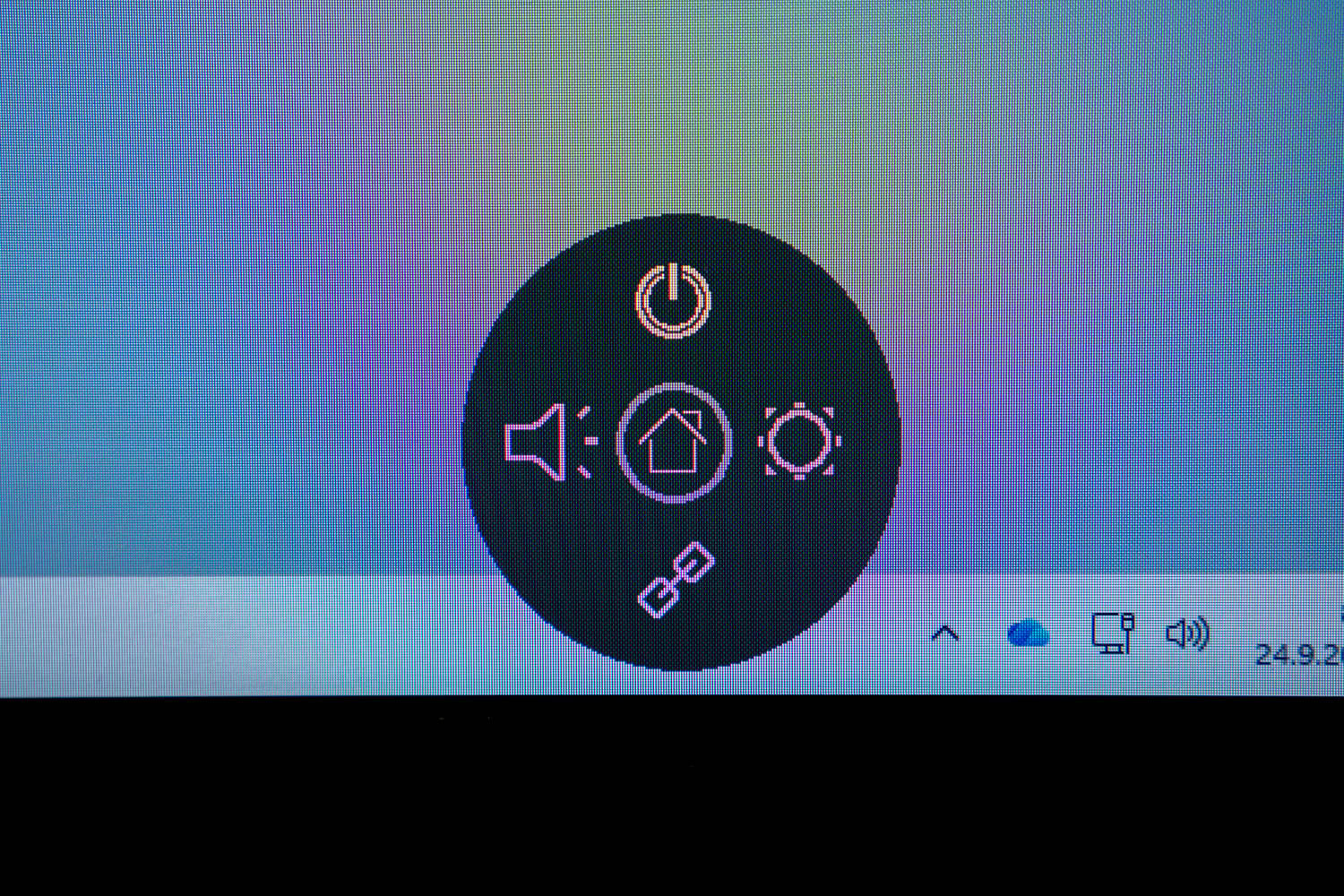
The INNOCN 45C1R is controlled with a 4-way joystick located below the bottom edge on the right side of the frame. The quick menu appears as a circular overlay and gives direct access to the most common functions. Power is at the top, volume on the left, brightness on the right, and input selection at the bottom, while the center icon opens the full OSD. Volume and brightness are actually assignable hotkeys, so you can swap them for other functions in the OSD settings.
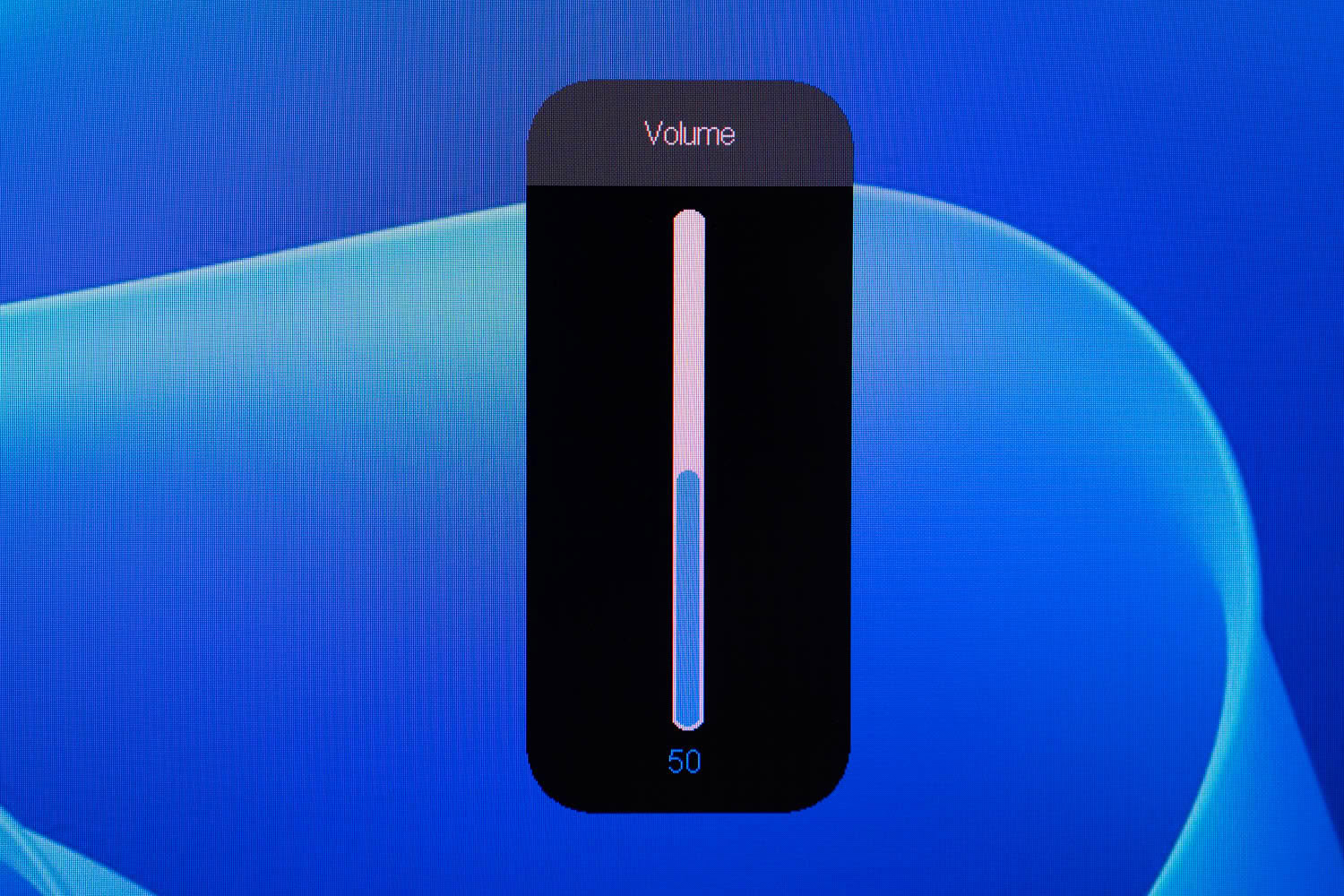
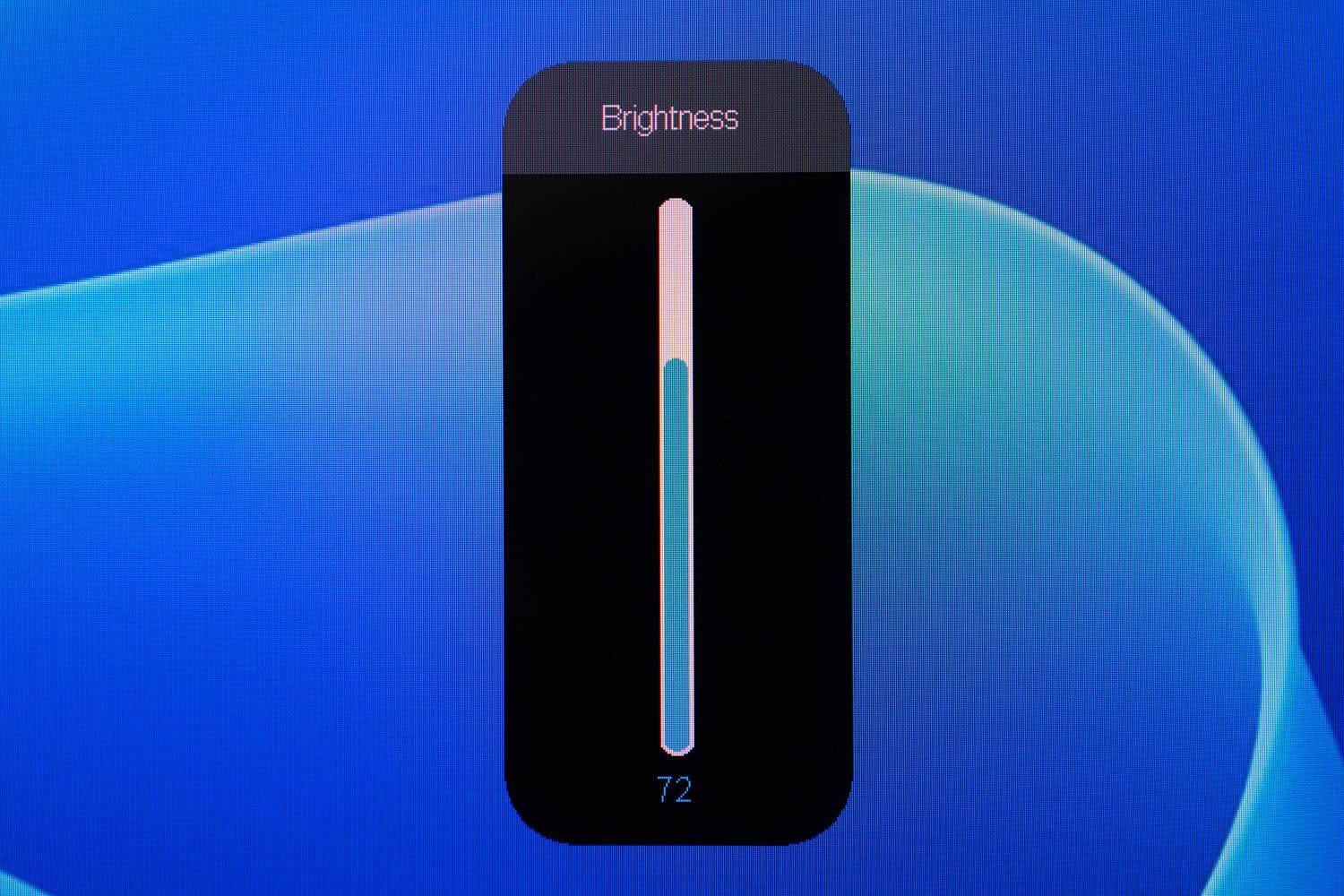
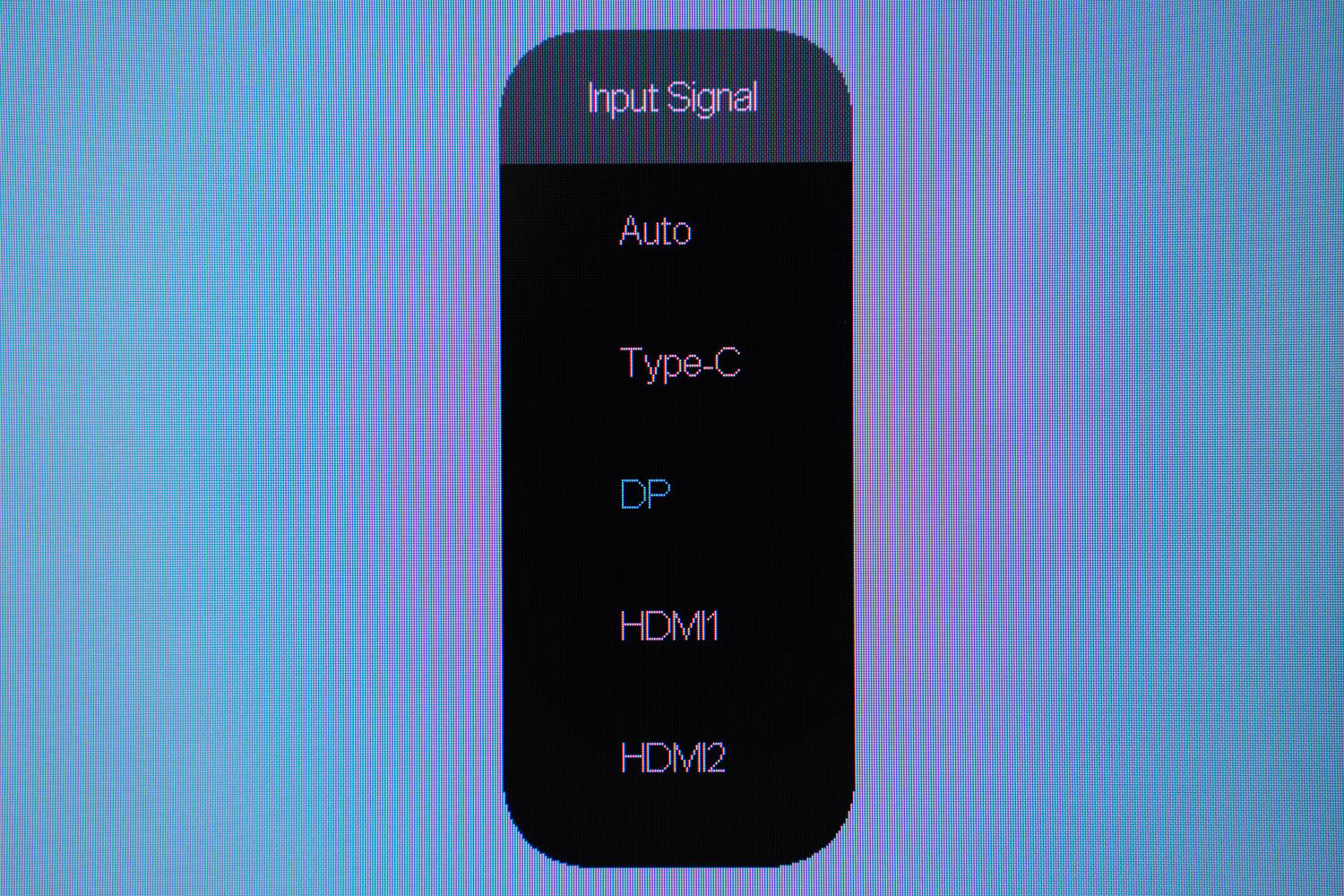
The volume and brightness sliders and the input selection menu are simple and easy to read. The input menu lists Auto, Type-C, DP, HDMI1, and HDMI2, and switching inputs also moves the USB hub to the corresponding computer, as described in the connectivity section.
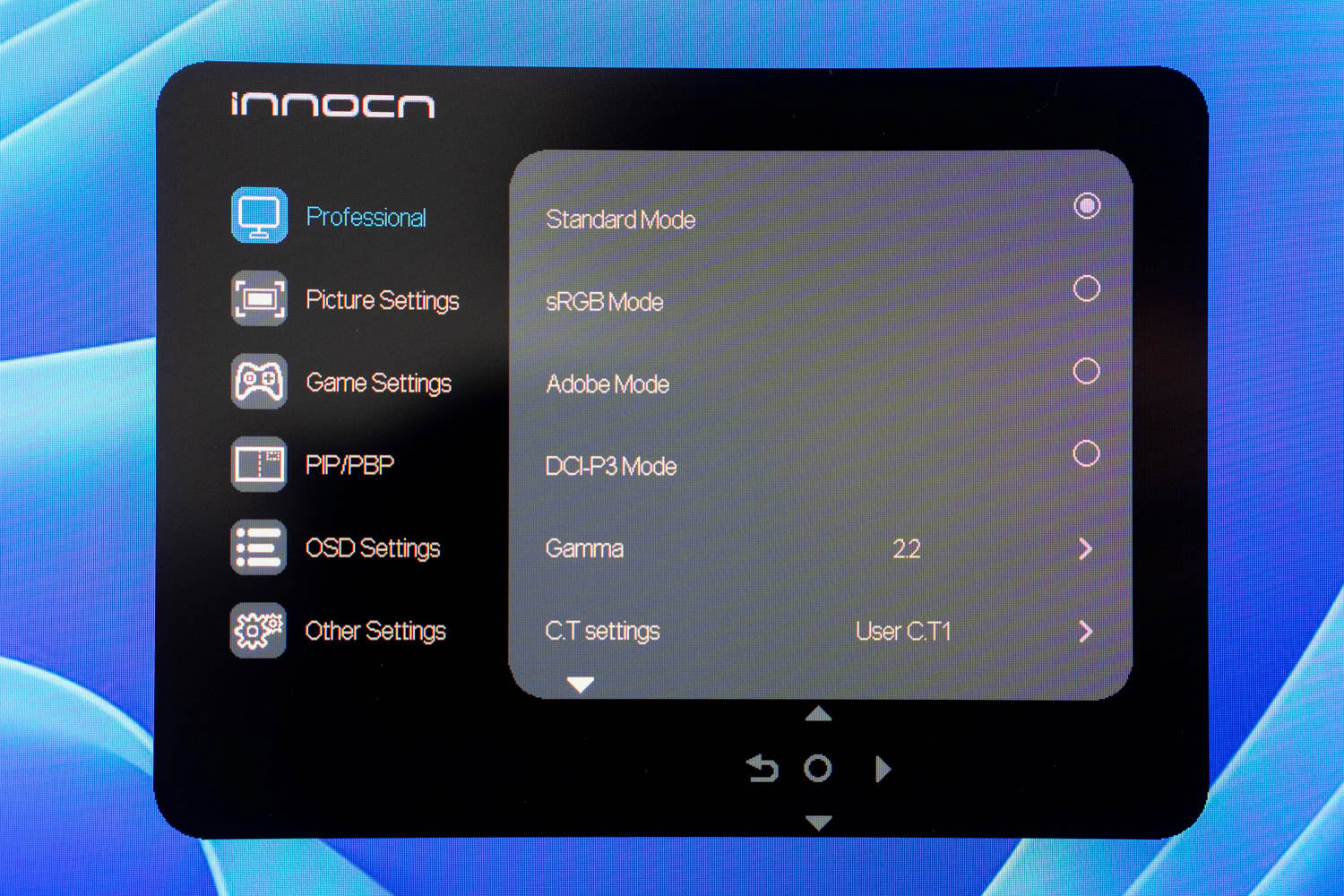
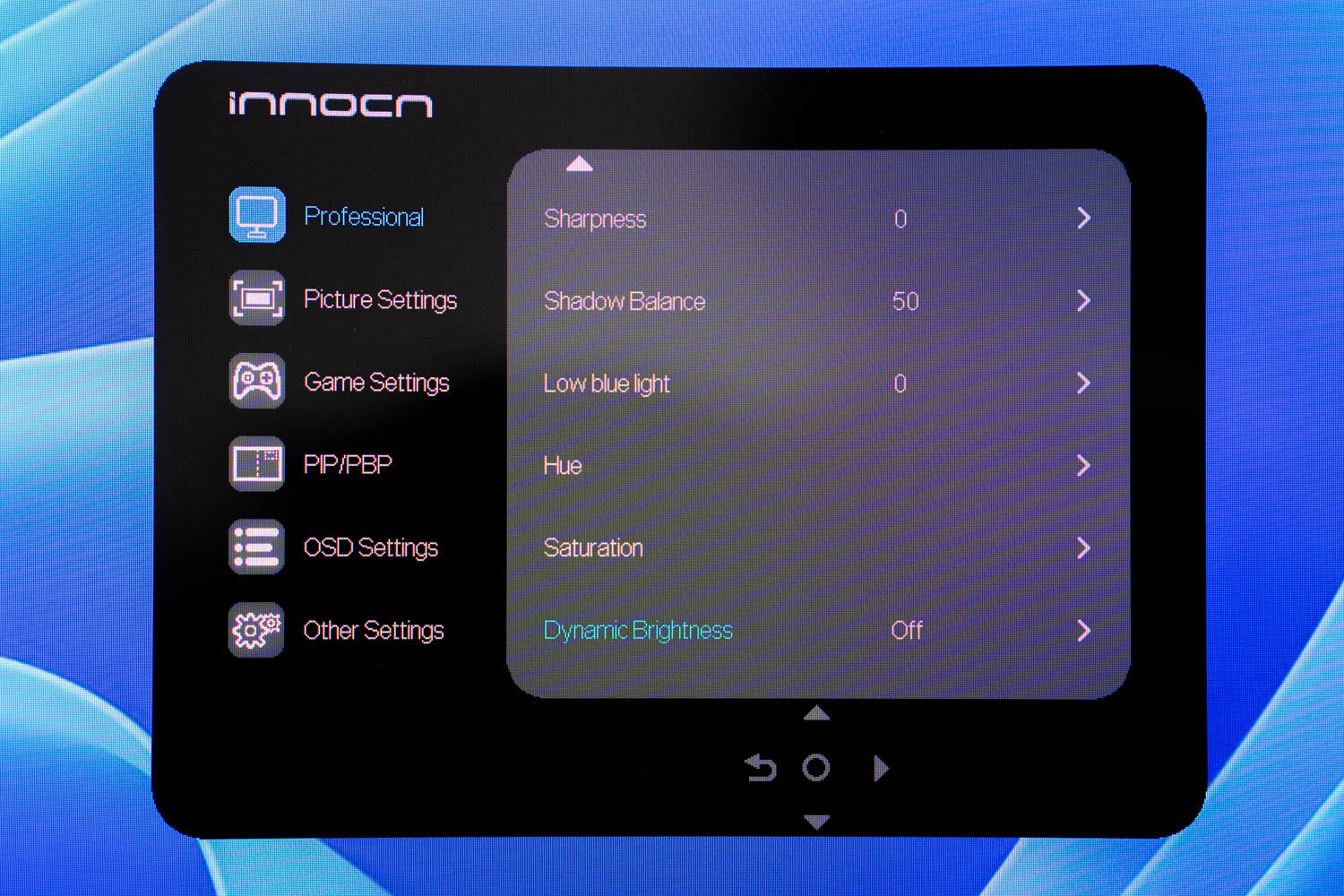
The main OSD is compact and organized into six sections. The Professional section is where the picture presets live: Standard, sRGB, Adobe, and DCI-P3. It also holds the Gamma and color temperature settings, including the user-adjustable C.T1 profile with RGB gain controls that I used for my modified settings. Scrolling further down reveals Sharpness, Shadow Balance (which lifts or lowers detail in dark areas), a Low Blue Light filter, Hue and Saturation adjustments, and Dynamic Brightness.
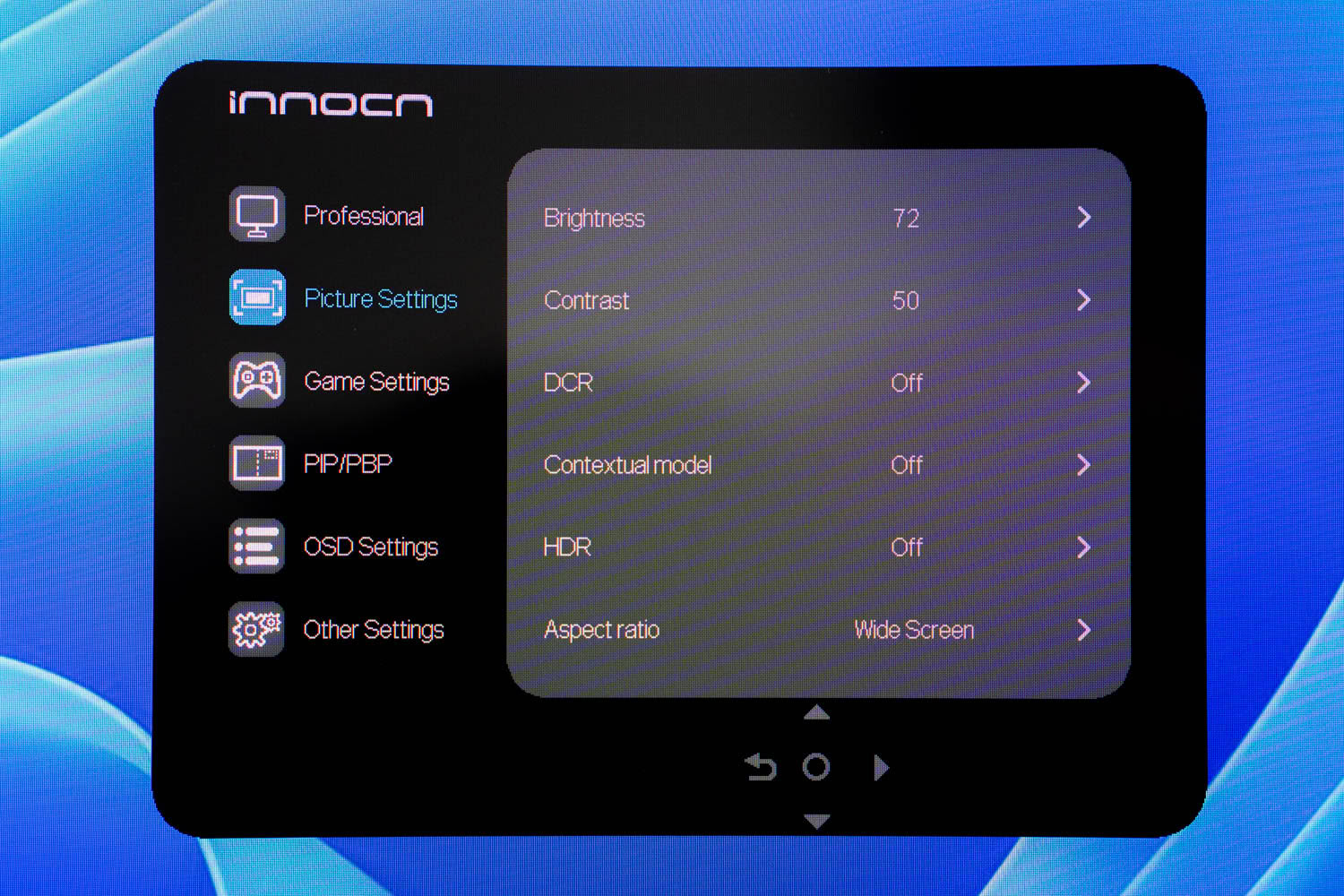
Picture Settings contains the basic controls, Brightness and Contrast, along with DCR (dynamic contrast), Contextual Model, the HDR toggle, and aspect ratio control. DCR and Dynamic Brightness change the backlight level based on content, so both should stay off if you care about consistent image quality. They were disabled during all of my testing.
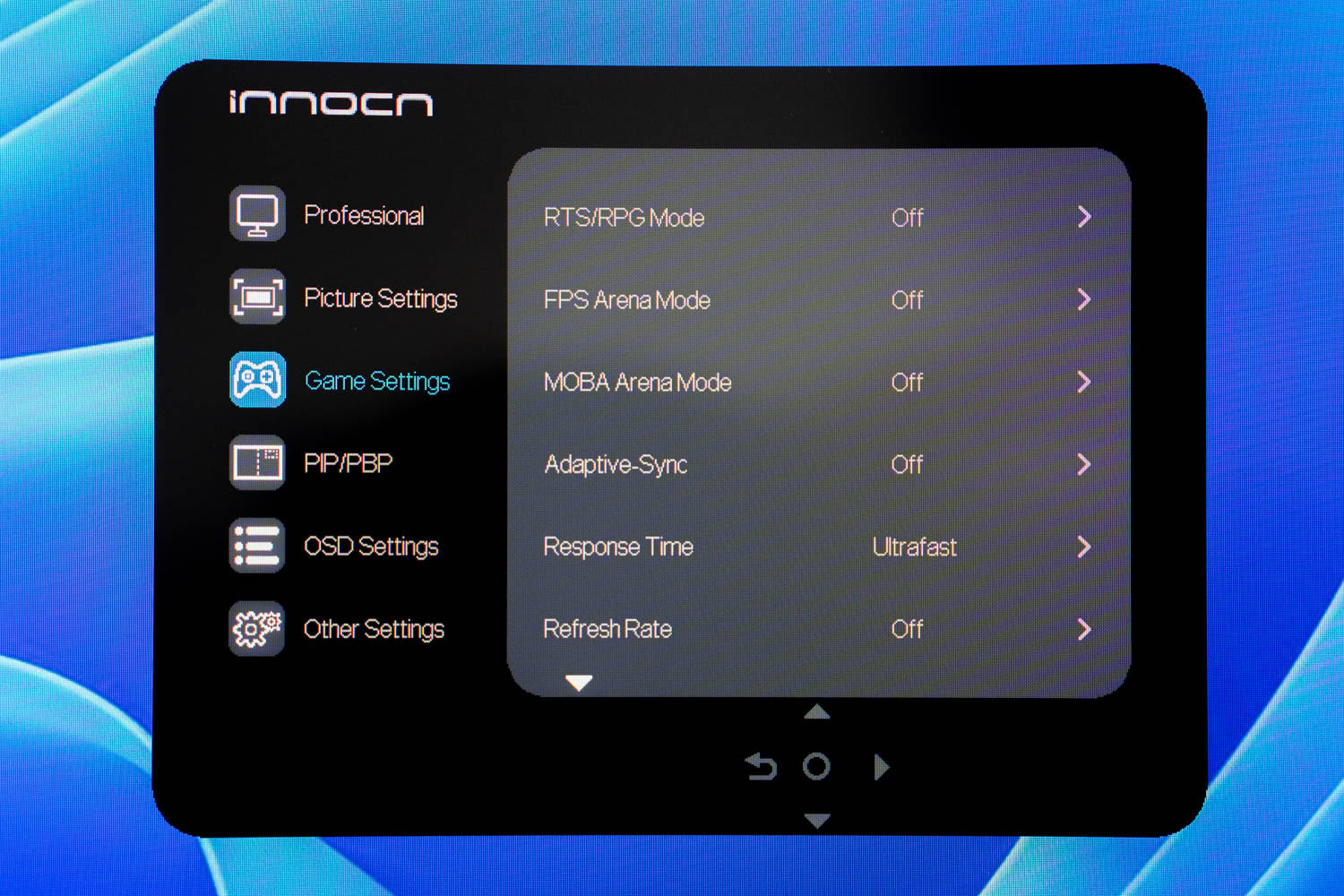
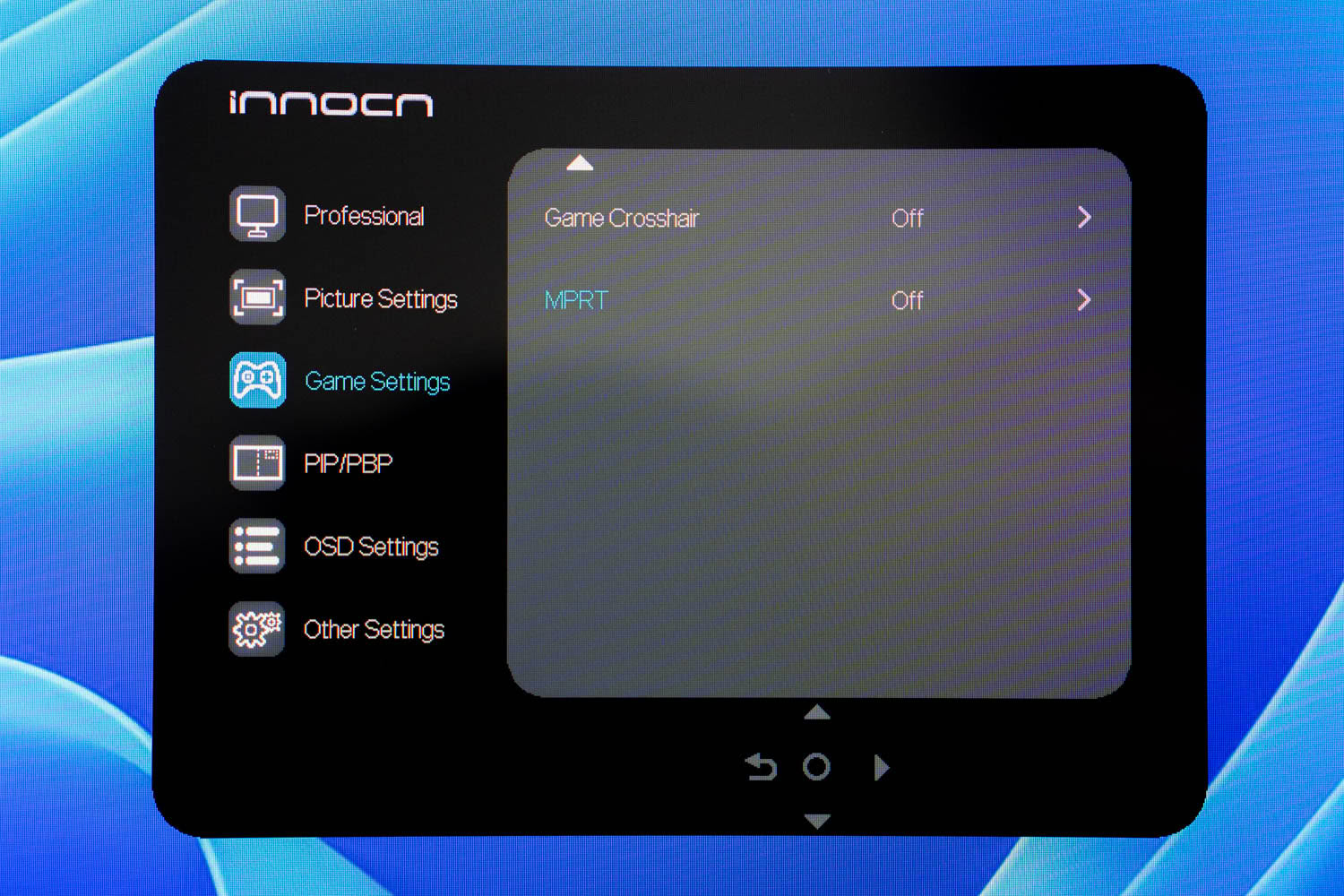
Game Settings starts with three picture presets for gaming, RTS/RPG, FPS Arena, and MOBA Arena, followed by the Adaptive-Sync toggle and the Response Time setting, which is INNOCN's name for overdrive, with the Off, Normal, Fast, and Ultrafast options I tested. There's also an on-screen refresh rate counter, a Game Crosshair overlay, and MPRT, INNOCN's backlight strobing mode.
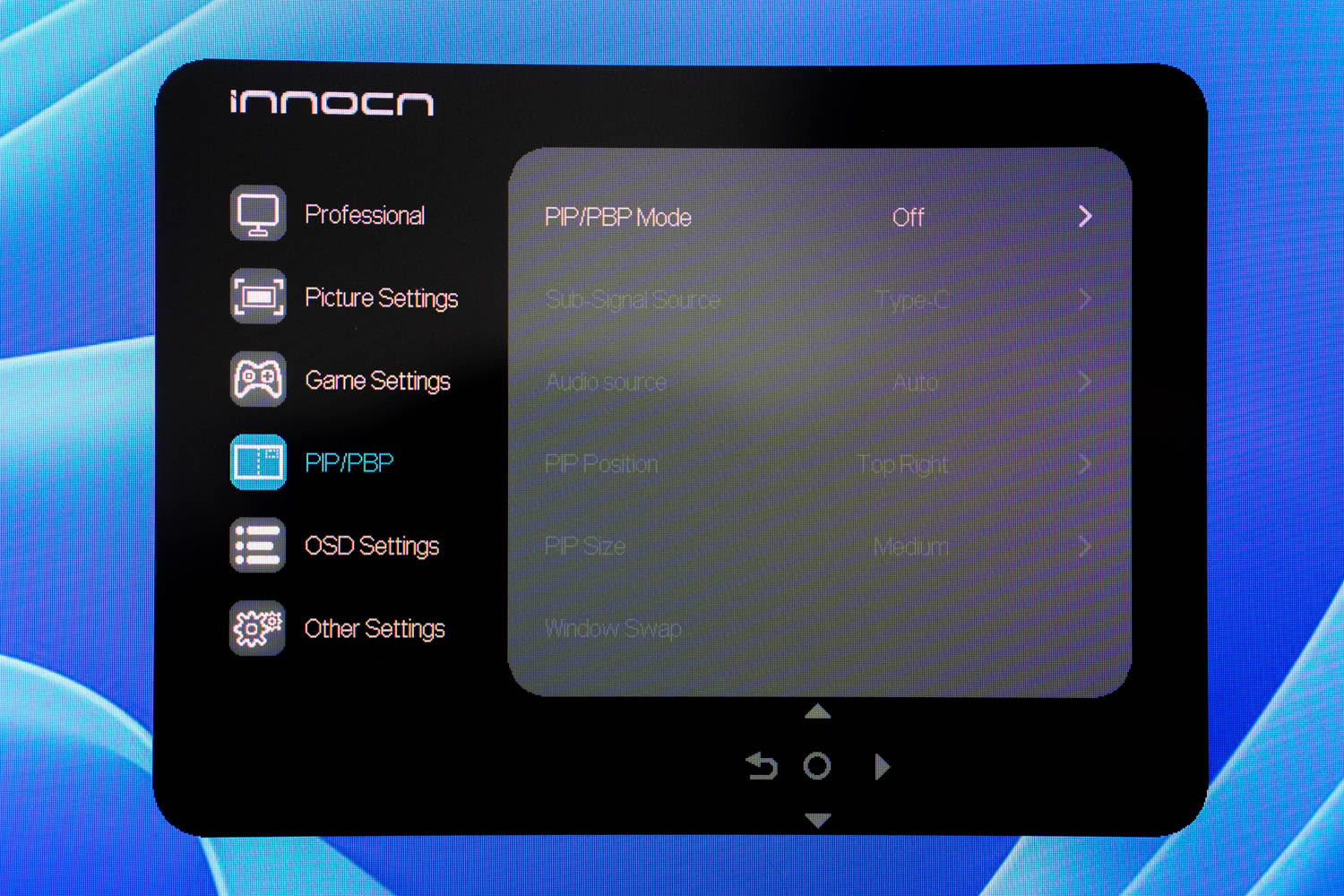
The PIP/PBP section lets you display two sources at once, either as a smaller window over the main image or as two images side by side. You can choose the secondary signal source, the audio source, the position and size of the PiP window, and swap the two windows. Given the 32:9 format, PbP is the more interesting mode, since it splits the screen into two 2560×1440 halves, effectively turning the 45C1R into two separate QHD monitors for two computers.
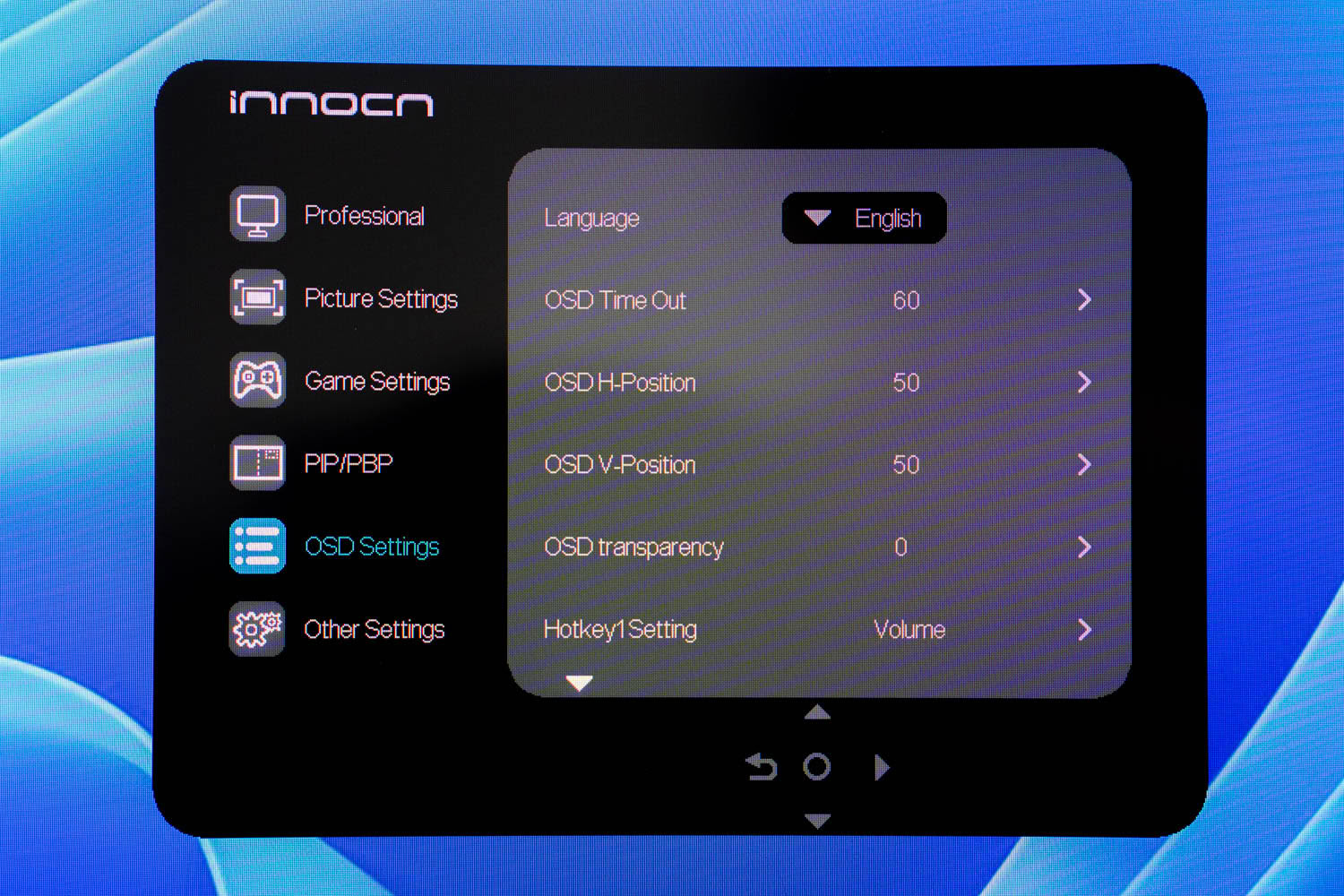
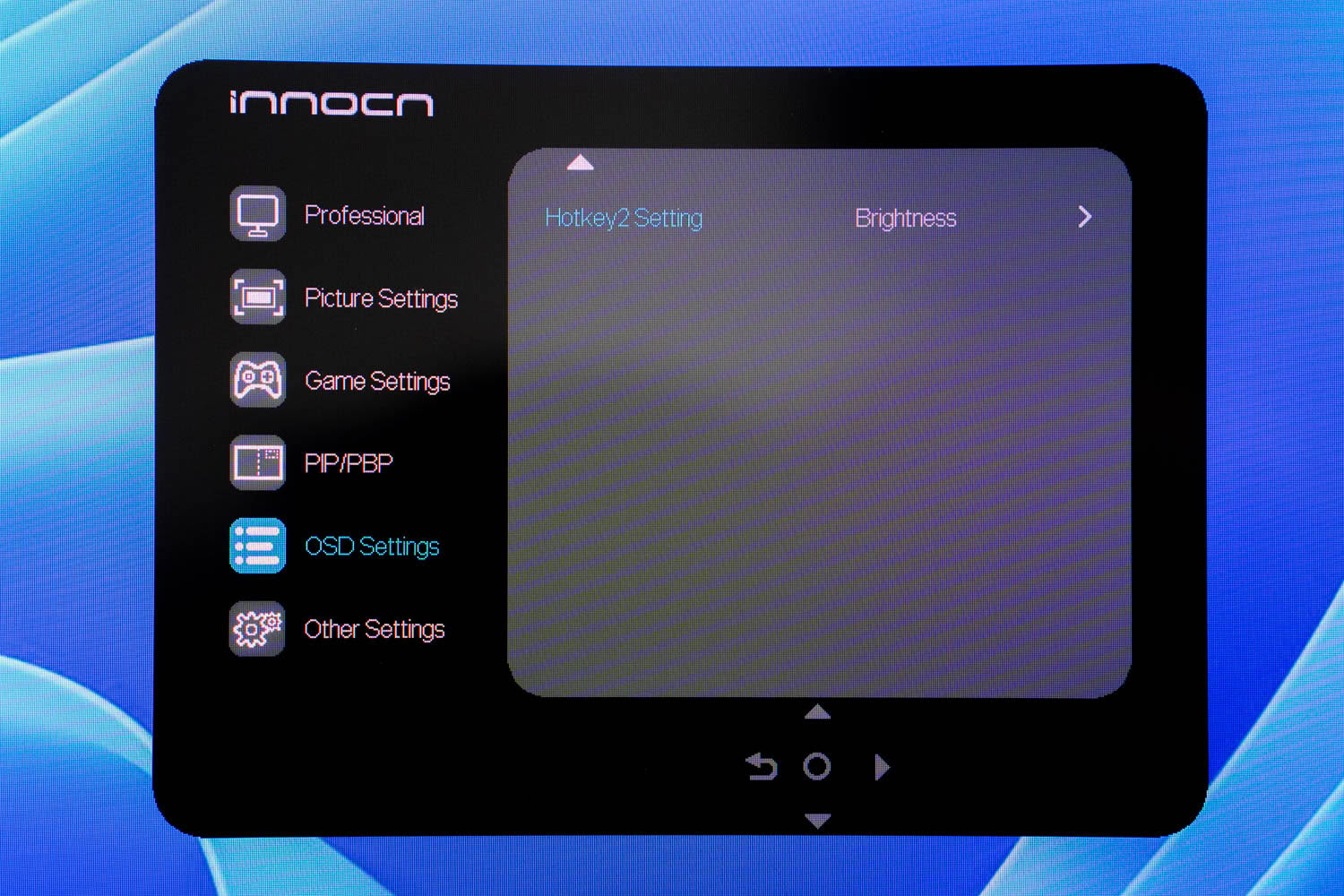
OSD Settings covers the menu language, timeout, position, and transparency, along with the assignment of the two hotkeys available in the quick menu.
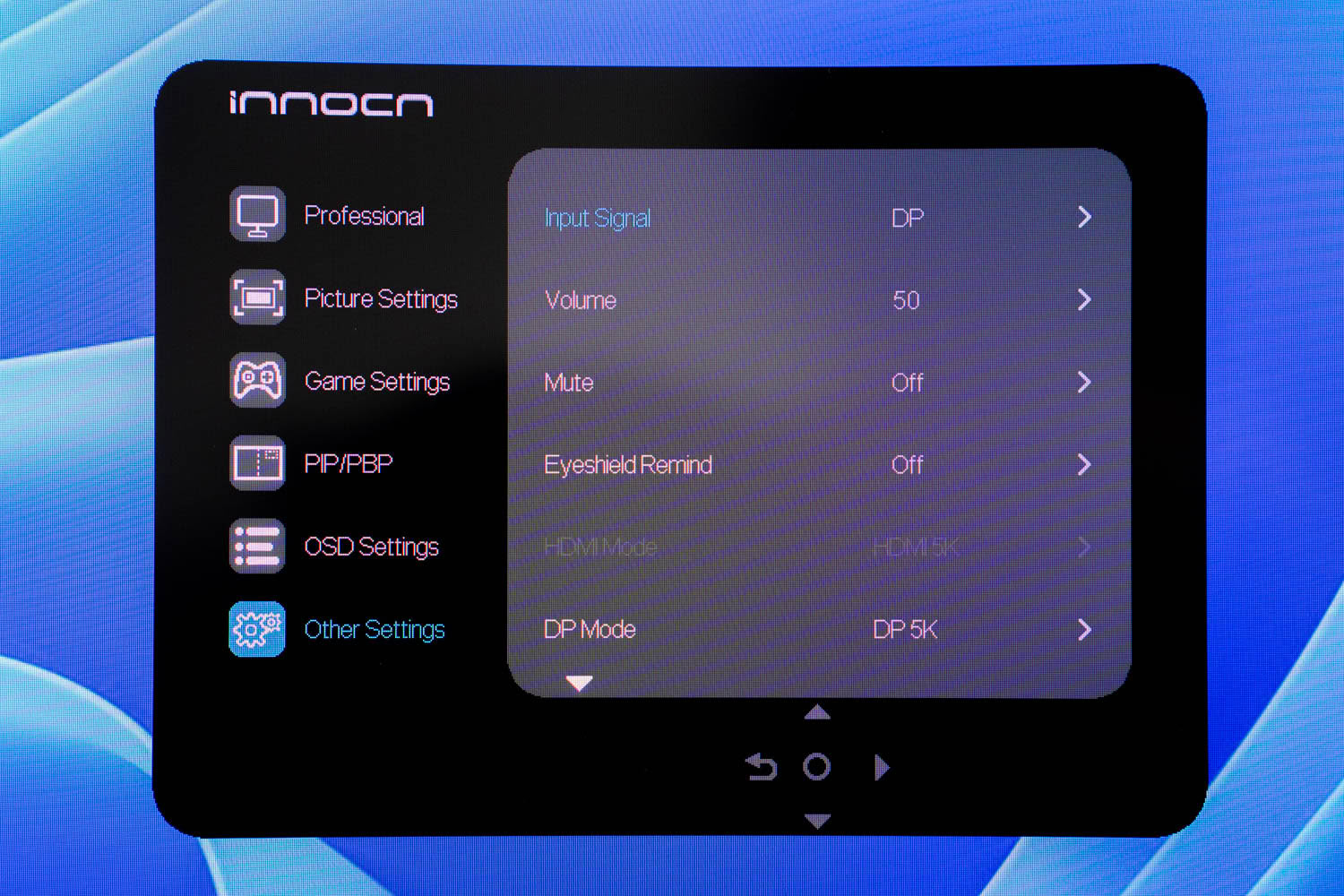
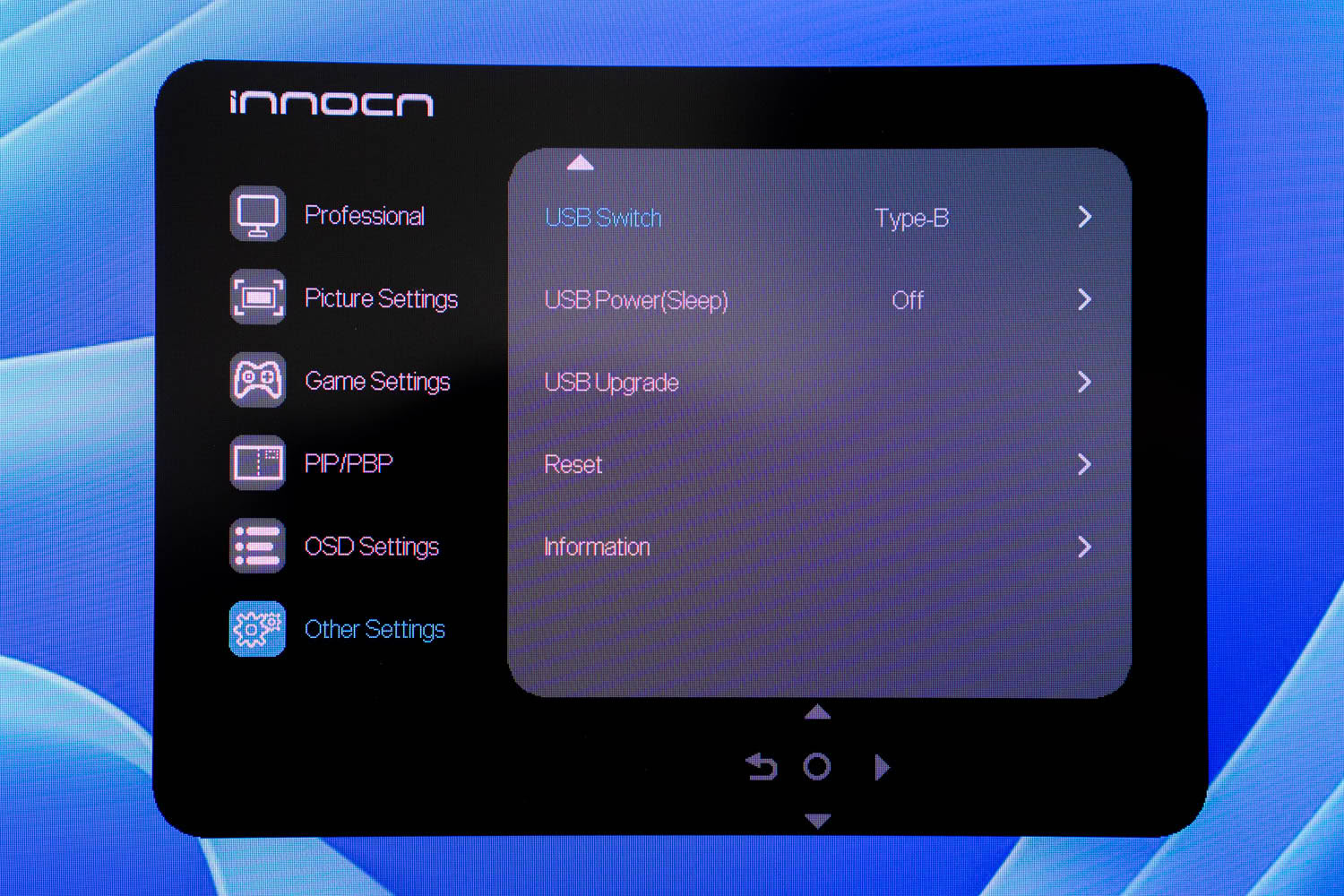
Other Settings holds input selection, volume and mute controls, an Eyeshield Remind option that reminds you to take breaks, and the HDMI Mode and DP Mode settings, which were set to 5K on my unit. Scroll further down and you'll find the USB Switch option for manually selecting the upstream port, USB Power (Sleep), which keeps the USB ports powered while the monitor sleeps, USB Upgrade for firmware updates, Reset, and Information.
Nov 27th, 2026 15:37 CST
change timezone
Latest GPU Drivers
New Forum Posts
- -18C on GPU by moving it to the front of the case. (14)
- Samsung TV screen care: check the finish before choosing a cleaning method (4)
- The TPU UK Clubhouse (27307)
- Wireless Internet sharing between PC and router both-ways, is it possible? (34)
- Mouse Pad advice - Shidenkai out of production? (21)
- What's your main Black Friday / Cyber Monday purchase? (39)
- Anthrophics IPO (47)
- Exit Adobe - PDF reader, and PDF editor recommendations (9)
- Unigine Superposition on Linux (20)
- Making a game in Godot engine (23)
Popular Reviews
- VZMORE AX9 Max Review
- Upcoming Hardware Launches 2027 (Updated Nov 2026)
- ASRock X870E Challenger Wi-Fi White Review
- AMD Ryzen 7 9800X3D Review - The Best Gaming Processor
- Microsoft Surface Laptop Ultra Review - The Next-gen Arm Laptop
- AMD Zen 6 Technical Deep Dive
- Montech CyberFlow ARGB 360 Review
- Phantom Blade Zero Performance Benchmark Review - 35 GPUs Tested
- ORICO Obook15 AI Review
- Corsair RM1200e (Second Generation) Review
TPU on YouTube
Controversial News Posts
- Jensen Huang Reinstated as CEO of NVIDIA (622)
- NVIDIA Co-Founder and CEO Jensen Huang Officially Resigns (492)
- Report: Jensen Huang Eyes NVIDIA Comeback (281)
- Open Letter Asking NVIDIA to Reinstate Jensen Huang Passes 115,000 Signatures (184)
- OpenAI CEO Argues Home PCs Waste the World's Limited DRAM Supply (152)
- NVIDIA Launches Investigation Into Jensen Huang's Relationship With Suspected Chinese Spy (136)
- Intel Razor Lake Gets a 12 P-Core bLLC Chip With No E-Cores, Per Leak (94)
- NVIDIA GeForce RTX 50-Series Scheduled for up to $500 Price Hike This Week (89)