 13
INNOCN 45C1R Review - Two QHD Screens, Zero Bezels
Picture Quality, Uniformity & Viewing Angles »Everyday Performance
The Everyday Performance section isn't something you'll usually find in my monitor reviews. However, the INNOCN 45C1R is the first 32:9 monitor I'm reviewing for TechPowerUp, and a format this unusual deserves more than a spec sheet and a set of measurements, so I decided to dedicate a separate part of the review to what it's like to actually use one, and who it's really for.After spending time with the INNOCN 45C1R on my desk, I have no doubts about who should be considering this monitor. It's a work monitor that can also play games, not the other way around. Everything about it points in that direction, from the panel shape and resolution to the connectivity and the built-in speakers.
The first thing I'd suggest after connecting the 45C1R to a Windows PC is to ignore Windows' recommendation. Windows suggests 125% scaling, which is completely unnecessary. At 100%, text and interface elements are perfectly legible from a normal viewing distance, since the pixel density is roughly the same as on a 24.5-inch QHD monitor, and you get the entire 5120×1440 desktop to work with. At 125%, the effective workspace shrinks to 4096×1152, which means you lose over a third of the usable screen area. On a monitor whose whole point is space, that's a bad deal.

The benefits of the format are easiest to see when you start arranging windows. With three windows side by side, each one gets roughly 1700×1440 pixels, which is more than enough for a browser, a text editor, or a messaging app to be fully usable without any horizontal scrolling or awkward layouts. With four windows, each one gets 1280×1440 pixels, which is still wide enough for most websites to use their full desktop layout, and more than enough for chat apps, email clients, file managers, or reference documents. A browser with research material on the left, the document you're writing in the middle, and a messaging app with email on the right, all visible at the same time and at full height, is a setup that quickly becomes second nature. The practical difference compared to a single 27-inch or even 34-inch ultrawide monitor is significant. You stop juggling windows and Alt+Tabbing, and start glancing to the side instead. It's the same benefit you'd get from a dual-monitor setup, but without the bezels in the middle, without two stands on the desk, and without the cursor jumping between screens with different sizes or scaling settings. Windows 11 Snap Layouts handle the basic arrangements, but if you want full control over the layout, I recommend Microsoft's free PowerToys suite, specifically its FancyZones module, which lets you define custom zones and snap windows into them with a single drag.
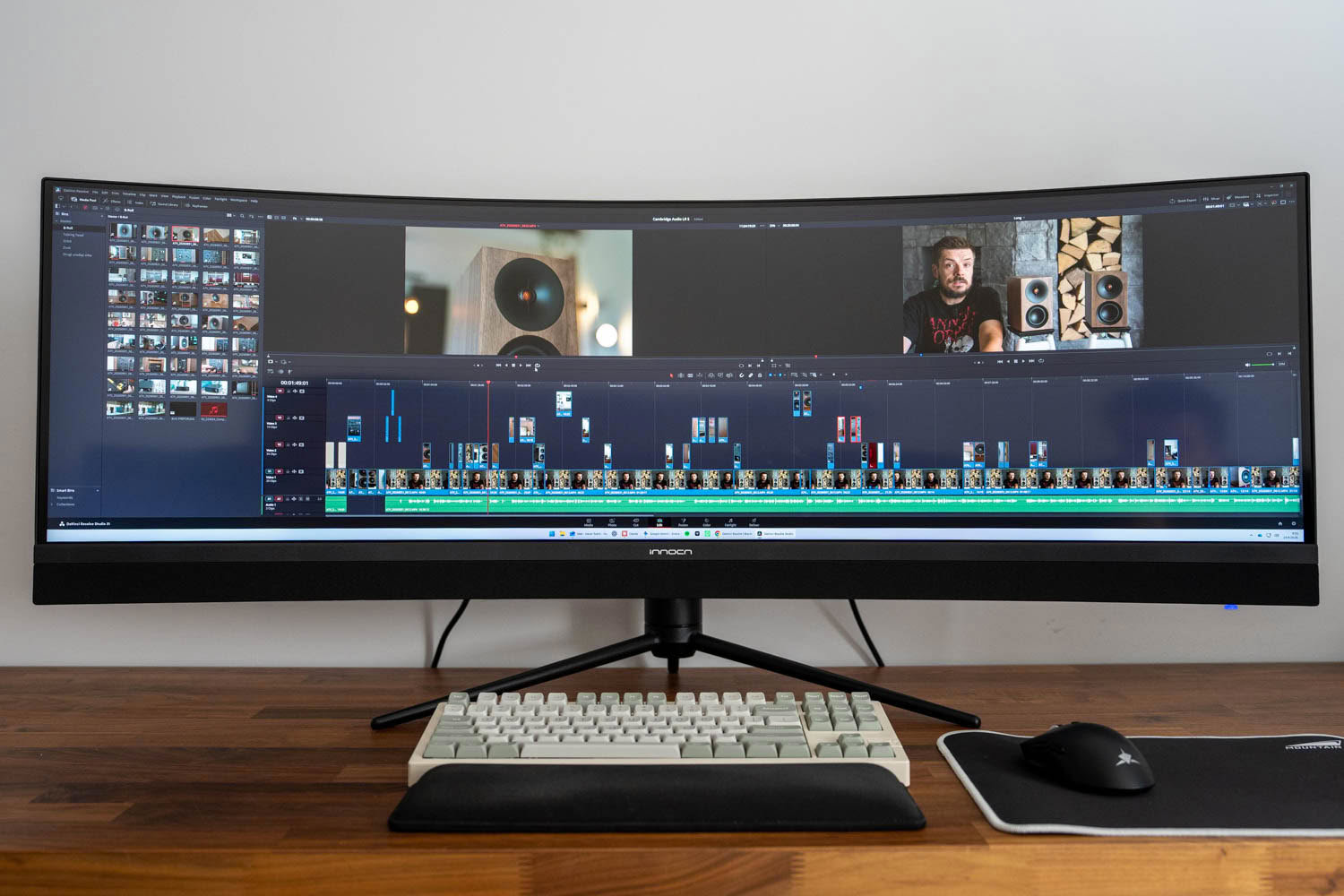
The other workload where the 45C1R shines is any application built around a timeline. In video editing software such as DaVinci Resolve, the extra width translates directly into a longer visible stretch of the timeline, so you can see a larger portion of your edit without zooming out to the point where individual clips become unreadable slivers. At the same time, there's room to keep the media pool, source and timeline viewers, and the inspector open side by side, without any of them being squeezed. The same applies to audio work in a DAW, where you can see more of the arrangement at once, and to any other application with a horizontally oriented workflow. Having more of the project in front of you means less scrolling and zooming, and that adds up to a noticeably faster and less tiring workflow over a full day. The one limitation to keep in mind is vertical space. With 1440 pixels of height, you won't see more tracks stacked on top of each other than you would on a regular QHD monitor, so projects with many video or audio layers will still require vertical scrolling.
The 120 Hz refresh rate is also something I'd put in the productivity column, not just the gaming one. It's a modest number for a gaming monitor in 2026, but it's still a huge step up from the 60 Hz found on many productivity-oriented super ultrawides. The mouse cursor glides across the screen far more smoothly, which matters more than you'd think when that cursor has to travel across more than a meter of screen width. Scrolling through documents and web pages is smoother and easier to follow, and window movement feels more responsive. It's one of those things you stop noticing after a day, but immediately miss when you go back to 60 Hz.
The built-in speaker bar is another feature that points toward the office rather than the gaming den. The two 5 W speakers are above average by monitor standards, which admittedly isn't a high bar, and they're perfectly adequate for video calls, background music, and the occasional YouTube video, while keeping the desk free of extra devices. That said, they're still monitor speakers. For anything more demanding, such as proper music listening, movies, or gaming, you'll want a pair of real speakers or headphones.
Nov 27th, 2026 15:46 CST
change timezone
Latest GPU Drivers
New Forum Posts
- -18C on GPU by moving it to the front of the case. (15)
- What's your main Black Friday / Cyber Monday purchase? (40)
- Samsung TV screen care: check the finish before choosing a cleaning method (4)
- The TPU UK Clubhouse (27307)
- Wireless Internet sharing between PC and router both-ways, is it possible? (34)
- Gigabyte RX 6800 XT Gaming OC and I would like to test the BIOS version 020.001.000.071.000000. (18)
- Mouse Pad advice - Shidenkai out of production? (21)
- Anthrophics IPO (47)
- Exit Adobe - PDF reader, and PDF editor recommendations (9)
- Unigine Superposition on Linux (20)
Popular Reviews
- VZMORE AX9 Max Review
- Upcoming Hardware Launches 2027 (Updated Nov 2026)
- ASRock X870E Challenger Wi-Fi White Review
- AMD Ryzen 7 9800X3D Review - The Best Gaming Processor
- Microsoft Surface Laptop Ultra Review - The Next-gen Arm Laptop
- AMD Zen 6 Technical Deep Dive
- Montech CyberFlow ARGB 360 Review
- Phantom Blade Zero Performance Benchmark Review - 35 GPUs Tested
- ORICO Obook15 AI Review
- Corsair RM1200e (Second Generation) Review
TPU on YouTube
Controversial News Posts
- Jensen Huang Reinstated as CEO of NVIDIA (622)
- NVIDIA Co-Founder and CEO Jensen Huang Officially Resigns (492)
- Report: Jensen Huang Eyes NVIDIA Comeback (281)
- Open Letter Asking NVIDIA to Reinstate Jensen Huang Passes 115,000 Signatures (184)
- OpenAI CEO Argues Home PCs Waste the World's Limited DRAM Supply (152)
- NVIDIA Launches Investigation Into Jensen Huang's Relationship With Suspected Chinese Spy (136)
- Intel Razor Lake Gets a 12 P-Core bLLC Chip With No E-Cores, Per Leak (94)
- NVIDIA GeForce RTX 50-Series Scheduled for up to $500 Price Hike This Week (89)