 13
INNOCN 45C1R Review - Two QHD Screens, Zero Bezels
Value & Conclusion »Gaming Performance
The INNOCN 45C1R features a 120 Hz VA panel with Adaptive-Sync support. Keep in mind that 5120×1440 is a very demanding resolution. At roughly 7.4 megapixels, it's close to 90% of the pixel count of 4K, so reaching 120 FPS in modern games requires a powerful graphics card. In that sense, the 120 Hz ceiling is less of a limitation than it may seem at first glance. Game support for the 32:9 aspect ratio is a separate question, as some titles support it natively and look spectacular, while others add black bars on the sides or stretch the image.Response Time and Overdrive
I tested the response time with the Open Source Response Time Tool Pro (OSRTT Pro), developed by Andrew McDonald of TechTeamGB. It's a nifty tool that, combined with the OSRTT Launcher app, measures panel response times and presents them through detailed graphs and easy-to-read heatmaps. You can find everything you might want to know about the OSRTT in its technical documentation and on the official website, where you can order your unit, too. The OSRTT Launcher gives us three interesting heatmaps to observe.Perceived Response Time tells us how much time the panel took to transition from one color to another. This measurement is expressed in milliseconds and includes overshoot. In other words, if the panel exceeded the target value, the perceived response time also includes the time it took for the transition to recover from overshoot and stabilize on the target value. I'm running my tests with recommended settings, so with a fixed RGB 10 tolerance level and with gamma-corrected RGB values.
RGB Overshoot tells us how much a specific transition missed the target value. For example, if the panel was transitioning from RGB 51 to RGB 204, and it initially landed on RGB 212, the overshoot RGB value is 8. Overshoot can be both positive and negative, and it commonly occurs at extreme overdrive settings when pixels are driven by high voltage. In practice, an overshoot manifests as an afterimage or a halo around a moving object. It can be easily spotted even when doing something as basic as scrolling through a webpage.
Visual Response Rating is the most abstract heatmap generated by the OSRTT Launcher; in essence, it's an ever-evolving scoring system. To quote OSRTT's technical documentation, it is a finite score rather than a direct measurement. The calculation is pretty simple; it's: "100 - (Initial Response Time + Perceived Response Time)". Since both metrics use the same tolerance level, if a display doesn't overshoot, both times will be identical. This essentially rewards displays that are fast with a small amount of overshoot over displays that aren't as fast even if they don't overshoot at all - while still overall preferring ultra-fast, accurate monitors.
The INNOCN 45C1R offers four overdrive settings: Off, Normal, Fast, and Ultrafast. Here's how the INNOCN 45C1R fares in the pixel response time test with each of them.
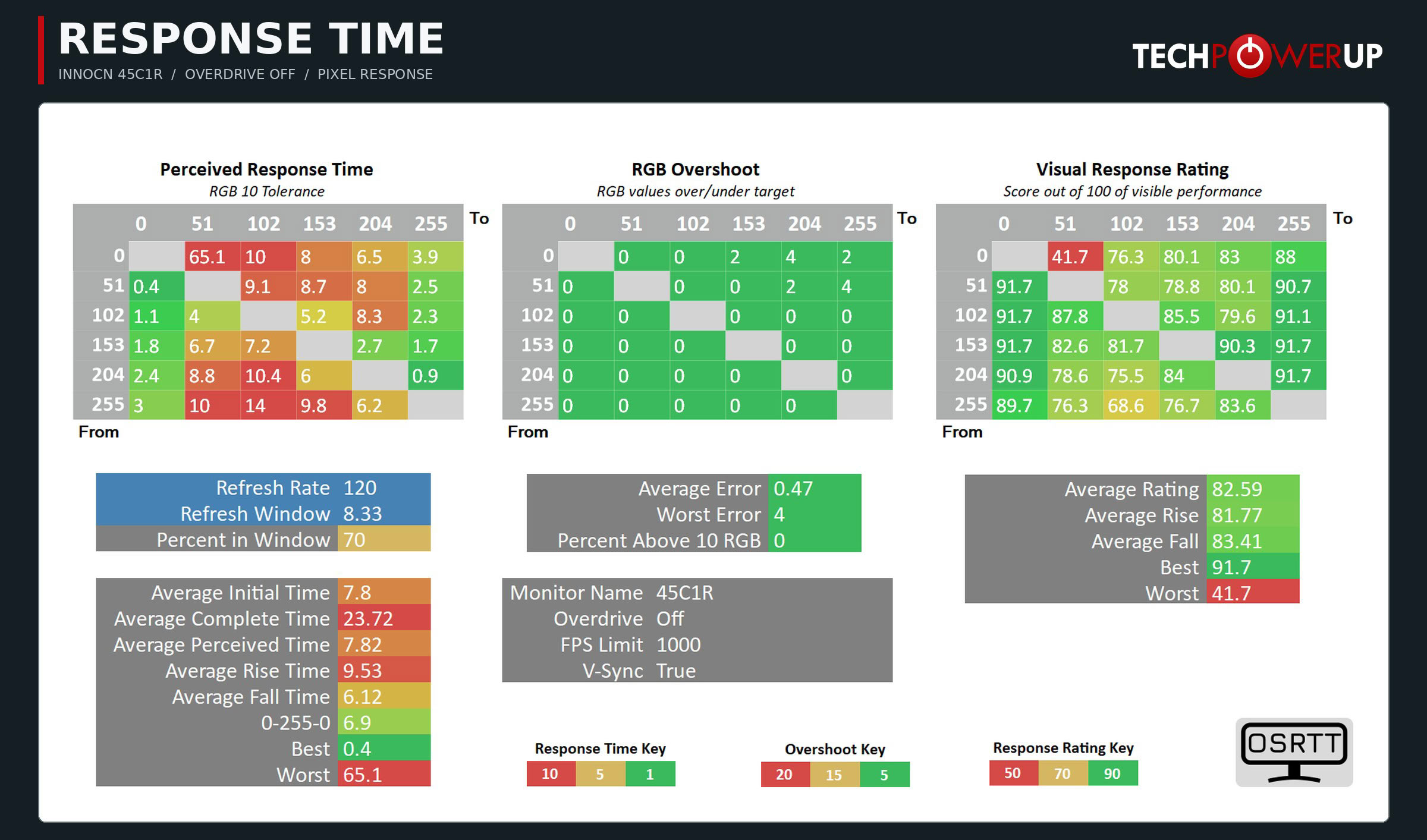
With overdrive disabled, the average perceived response time is 7.82 ms, with an average complete time of 23.72 ms. Rise transitions average 9.53 ms, falling transitions 6.12 ms, and the 0-255-0 swing takes 6.9 ms. Only 70% of transitions complete within the 8.33 ms refresh window at 120 Hz. There's no meaningful overshoot.
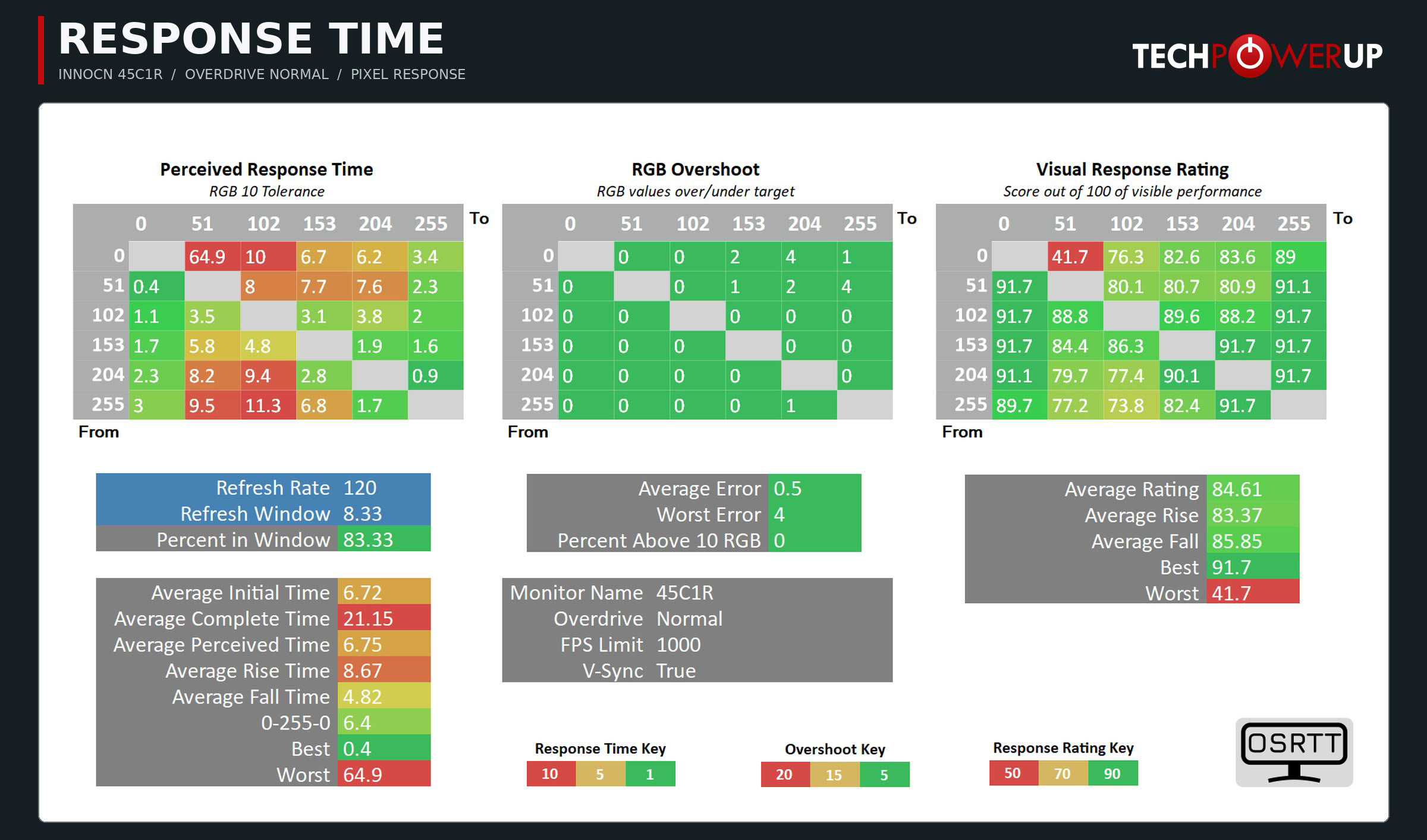
The Normal setting brings the average perceived response time down to 6.75 ms, with average rise and fall times of 8.67 ms and 4.82 ms. The share of transitions completed within the refresh window rises to 83.33%, and overshoot remains negligible.
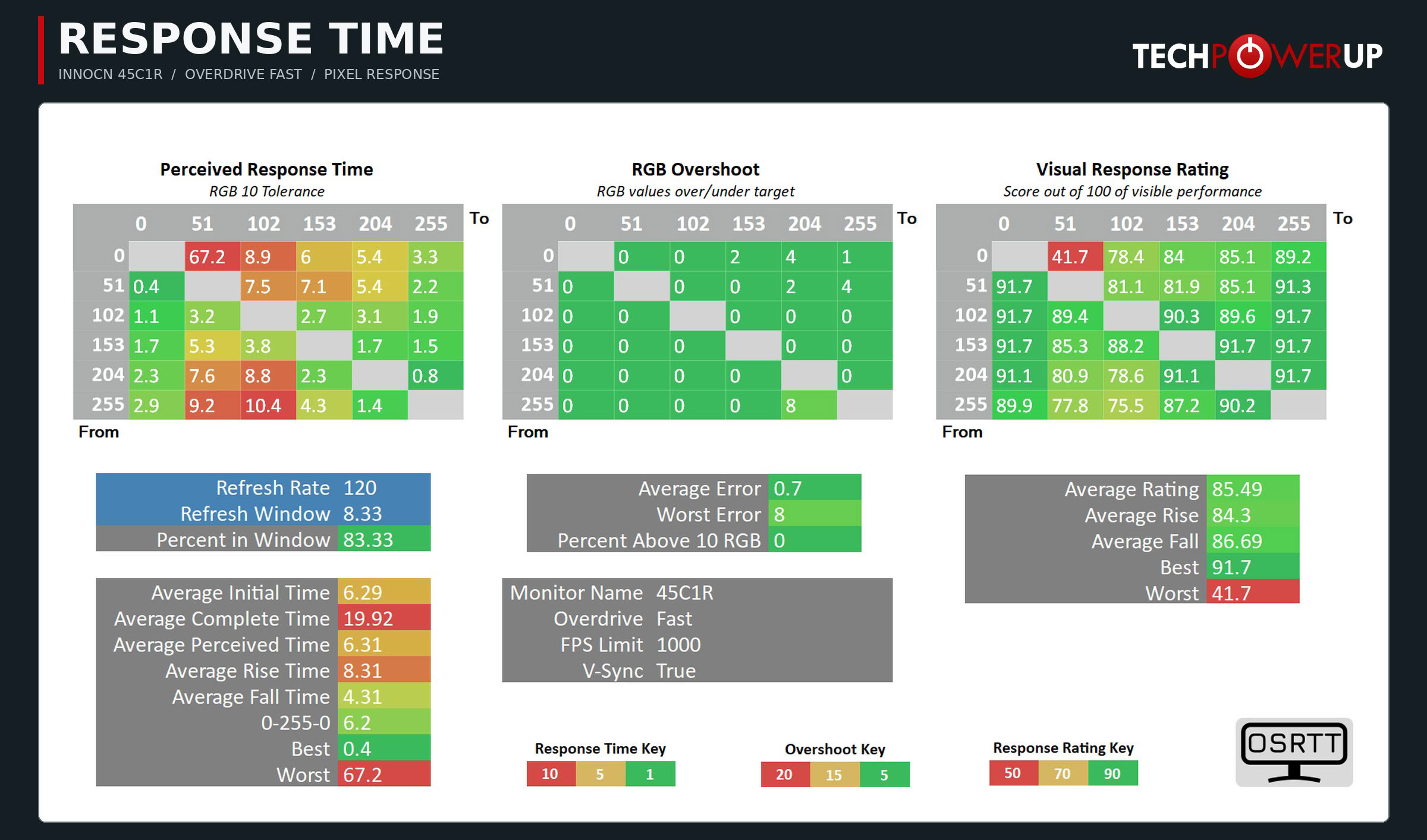
The Fast setting gives the best overall results. The average perceived response time is 6.31 ms, average complete time 19.92 ms, and rise and fall transitions average 8.31 ms and 4.31 ms, respectively. The 0-255-0 swing takes 6.2 ms, and 83.33% of transitions complete within the refresh window. Overshoot is still practically absent.
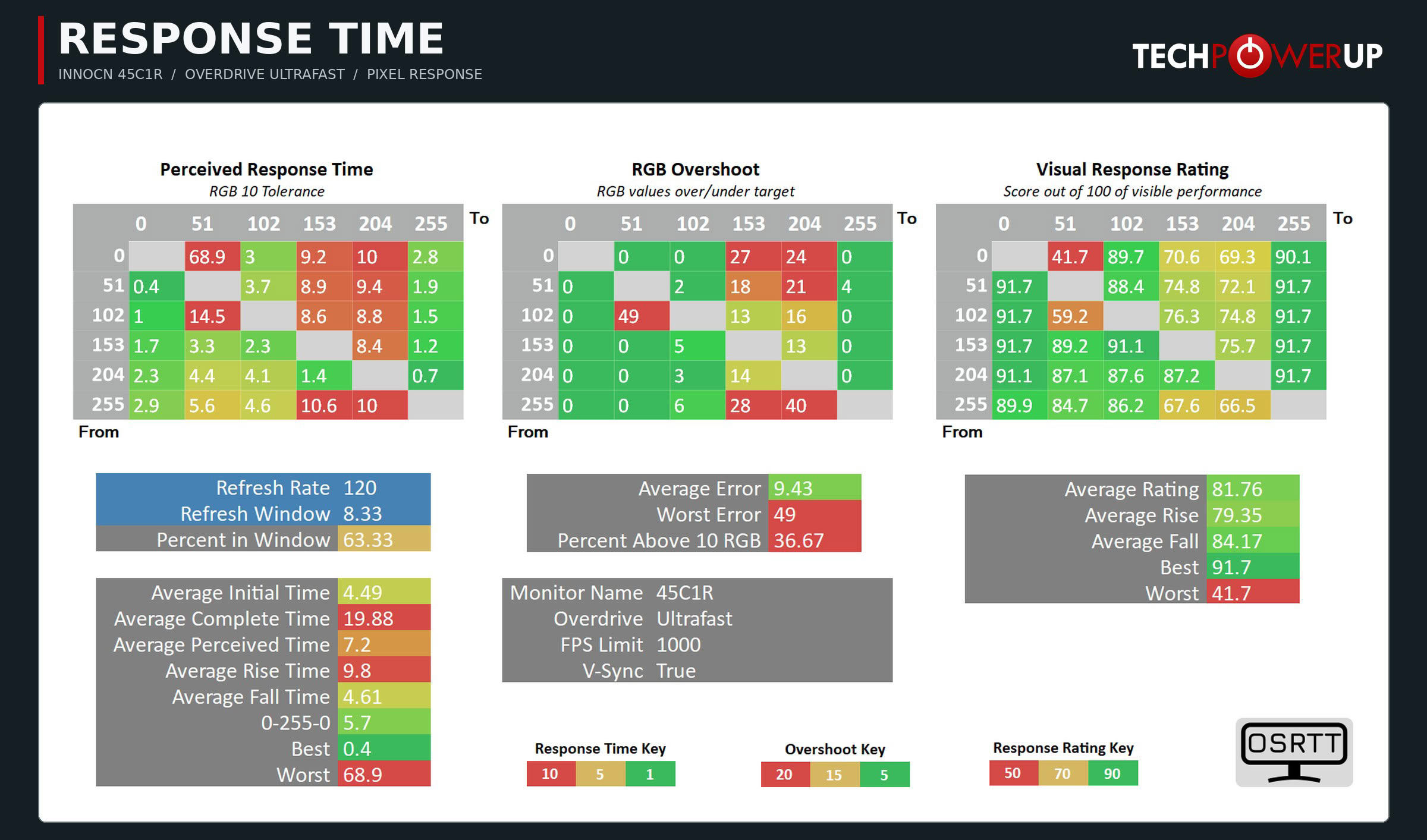
Ultrafast is where things go wrong. The average initial response time drops to 4.49 ms, so the pixels do start moving faster, but the panel is now being driven too hard and overshoot starts to kick in. Because the perceived response time includes recovery from overshoot, it actually gets worse, rising to 7.2 ms, and only 63.33% of transitions complete within the refresh window. Overshoot of this magnitude shows up as inverse ghosting and bright halos trailing behind moving objects, so there's no reason to use this mode.
The heatmaps also reveal the typical VA weakness of slow transitions from black into dark shades, but the numbers for the darkest transitions need some context. OSRTT reports the RGB 0 to 51 transition at 65 to 69 ms in all four overdrive modes, and that figure is a measurement artifact. During its gamma calibration pass, the OSRTT sensor recorded higher light levels for RGB 17 and 34 than for RGB 51. I couldn't see anything like that with the naked eye, and a repeated test at maximum brightness produced the same result. Because of this, the gamma-corrected tolerance calculation breaks down for transitions ending at or near black and RGB 51. The raw sensor data tells the real story. The 0 to 51 transition reaches 90% of its target in about 21 ms, which matches OSRTT's complete response time of 22.1 ms. That's still the slowest transition in the matrix and well outside the 8.33 ms refresh window, so some dark smearing is to be expected in dark scenes. It's nowhere near as severe as the heatmap suggests, though. The same issue makes transitions into black look faster than they really are, so those cells should be taken with a grain of salt as well. Outside the darkest shades, the results are reliable, and transitions from brighter shades into dark ones, such as 255 to 102 at 10.4 ms, still regularly exceed the refresh window. My recommendation is to set overdrive to Fast and leave it there.
INNOCN also offers an MPRT mode (Game Settings > MPRT), which strobes the backlight to reduce sample-and-hold blur, a technique often called backlight strobing. On a VA panel running at 120 Hz, this can make moving objects look sharper, since each frame is only lit for a short time instead of being held on screen for the full refresh cycle. The cost is steep, though. Enabling MPRT drops the brightness to 140 cd/m² and locks it there, so you can't compensate by raising it in the OSD. That's dim for anything but a dark room, and it's well below the roughly 350 cd/m² the panel delivers otherwise. Backlight strobing also can't fix the slow dark transitions described above, so dark smearing remains visible regardless. Given the brightness penalty and the limited benefit, I wouldn't recommend using MPRT on this monitor. Enabling MPRT also disables Adaptive-Sync.
Input Lag
To measure the input lag of a monitor, I switched from using the LDAT V2 (Latency Display Analysis Tool), which I've covered extensively in my NVIDIA Reflex review, to the OSRTT Pro Tool. The OSRTT Pro Tool and the accompanying software include a DirectX code developed by Andrew McDonald of TechTeamGB, which allows the OSRTT Launcher to track the events and capture the frame time, making it possible to isolate the monitor latency from other factors that come into play when using the click-to-photon testing methodology, namely the USB polling rate and game render time. For a deeper insight, I suggest you watch an excellent overview video made by Andy himself.Here's how the INNOCN 45C1R holds up in terms of input lag after doing 100 iterations of the input lag test.
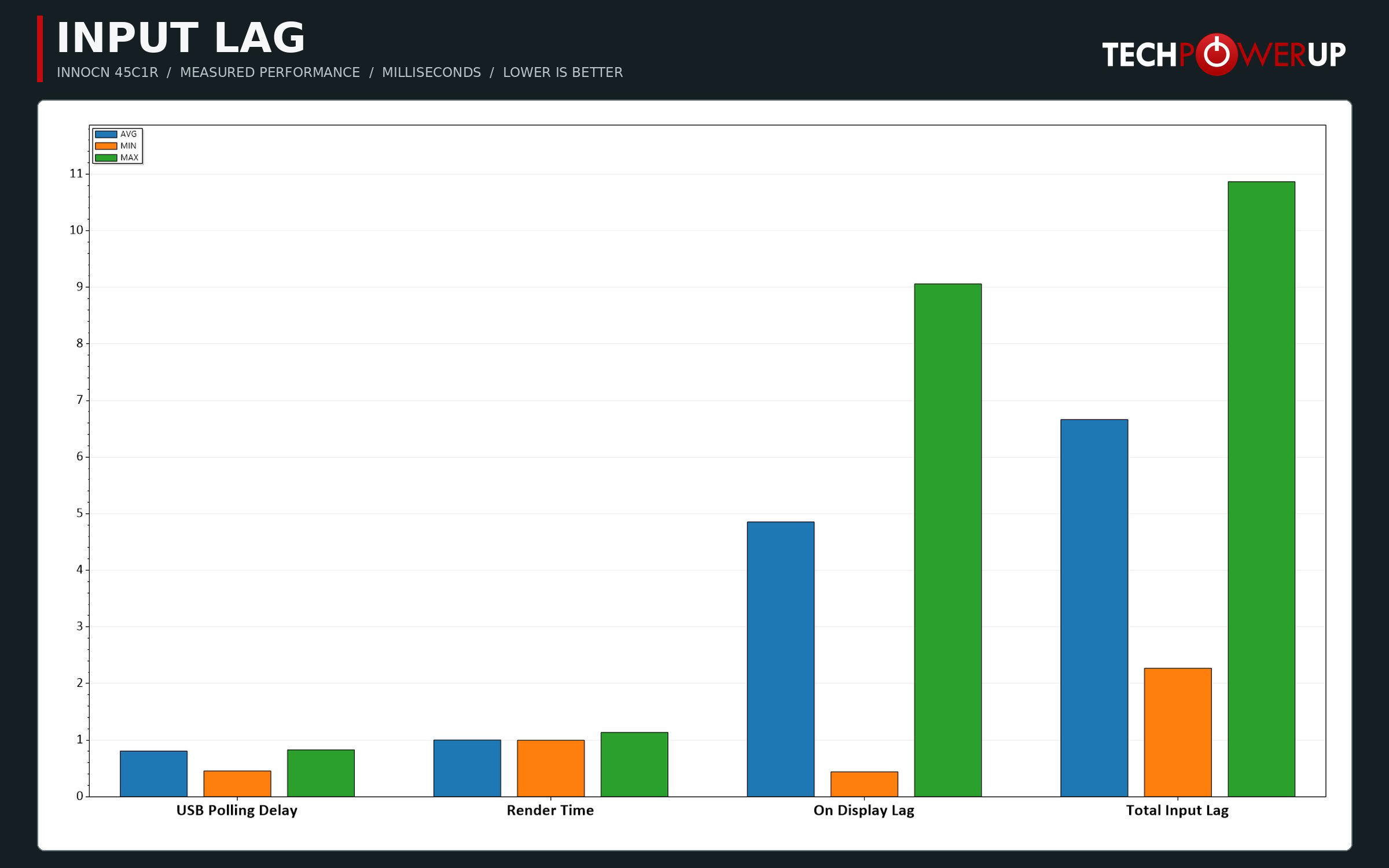
The input lag is low. On-display lag averages about 4.85 ms, with the fastest sample measuring around 0.4 ms and the slowest around 9 ms. At 120 Hz, one frame lasts 8.33 ms, so the average delay the monitor adds after receiving a fully rendered frame amounts to a little over half a frame. That's a very good result, and the INNOCN 45C1R won't hold you back in any type of game, including fast-paced shooters, even if its response times and refresh rate aren't aimed at competitive players.
Nov 27th, 2026 15:58 CST
change timezone
Latest GPU Drivers
New Forum Posts
- The TPU UK Clubhouse (27308)
- Samsung TV screen care: check the finish before choosing a cleaning method (5)
- -18C on GPU by moving it to the front of the case. (15)
- What's your main Black Friday / Cyber Monday purchase? (40)
- Wireless Internet sharing between PC and router both-ways, is it possible? (34)
- Gigabyte RX 6800 XT Gaming OC and I would like to test the BIOS version 020.001.000.071.000000. (18)
- Mouse Pad advice - Shidenkai out of production? (21)
- Anthrophics IPO (47)
- Exit Adobe - PDF reader, and PDF editor recommendations (9)
- Which Xfinity modem/router setup supports network printing/scanning between a wired PC and a Wi-Fi Brother MFC-L8900CDW printer? (0)
Popular Reviews
- VZMORE AX9 Max Review
- Upcoming Hardware Launches 2027 (Updated Nov 2026)
- AMD Ryzen 7 9800X3D Review - The Best Gaming Processor
- ASRock X870E Challenger Wi-Fi White Review
- Microsoft Surface Laptop Ultra Review - The Next-gen Arm Laptop
- AMD Zen 6 Technical Deep Dive
- Montech CyberFlow ARGB 360 Review
- Phantom Blade Zero Performance Benchmark Review - 35 GPUs Tested
- Moaiplay Ora Pro G1 850 Review
- ORICO Obook15 AI Review
TPU on YouTube
Controversial News Posts
- Jensen Huang Reinstated as CEO of NVIDIA (622)
- NVIDIA Co-Founder and CEO Jensen Huang Officially Resigns (492)
- Report: Jensen Huang Eyes NVIDIA Comeback (281)
- Open Letter Asking NVIDIA to Reinstate Jensen Huang Passes 115,000 Signatures (184)
- OpenAI CEO Argues Home PCs Waste the World's Limited DRAM Supply (152)
- NVIDIA Launches Investigation Into Jensen Huang's Relationship With Suspected Chinese Spy (136)
- Intel Razor Lake Gets a 12 P-Core bLLC Chip With No E-Cores, Per Leak (94)
- NVIDIA GeForce RTX 50-Series Scheduled for up to $500 Price Hike This Week (89)