 32
MSI Claw 8 EX AI+ CG3EM Review - Panther Lake FTW
Storage Performance »Software
Like every other MSI handheld, the Claw 8 EX ships with MSI Center M. In general, the software's serviceable, and it has gained a few useful features compared to the last time we tested an MSI handheld.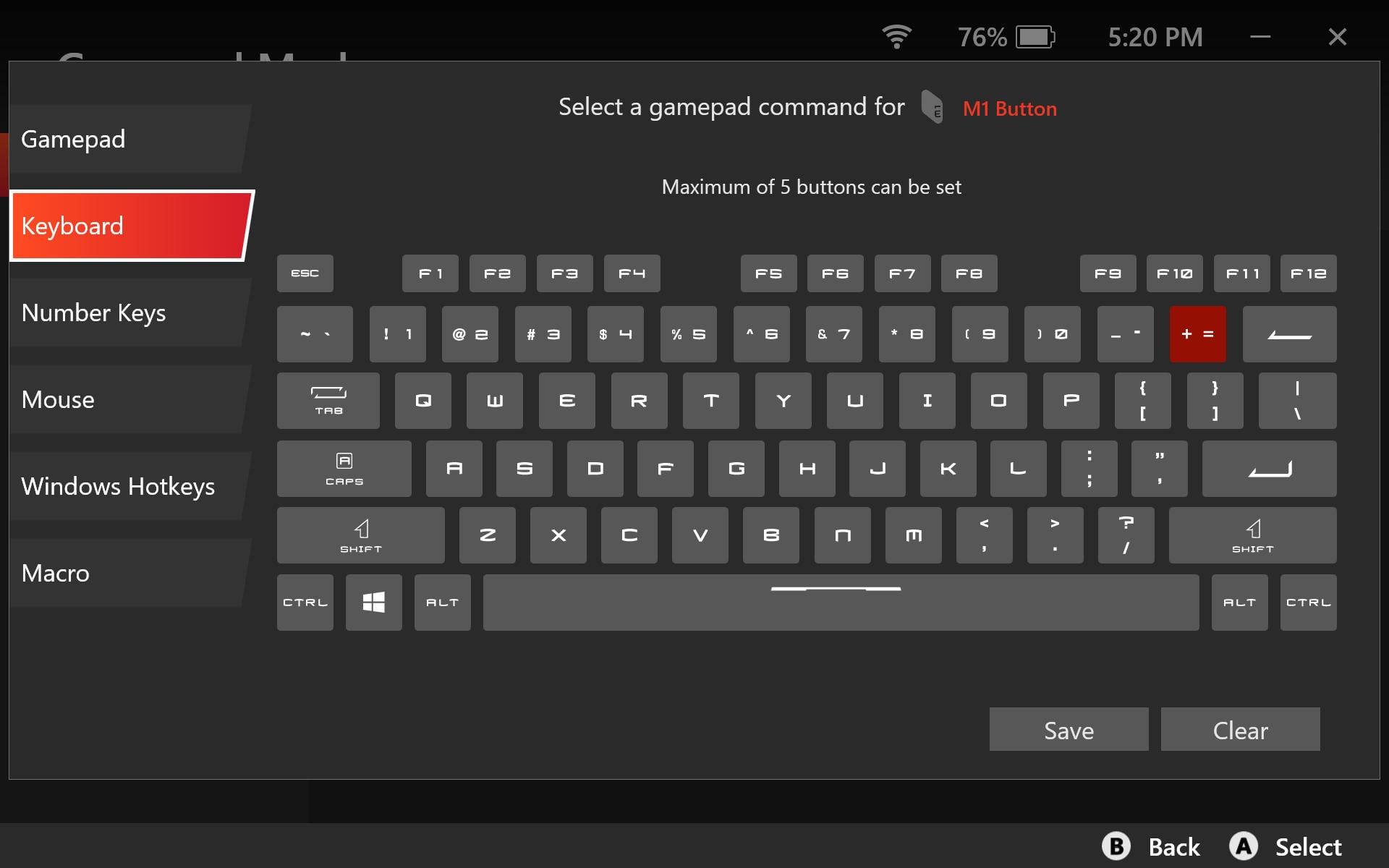
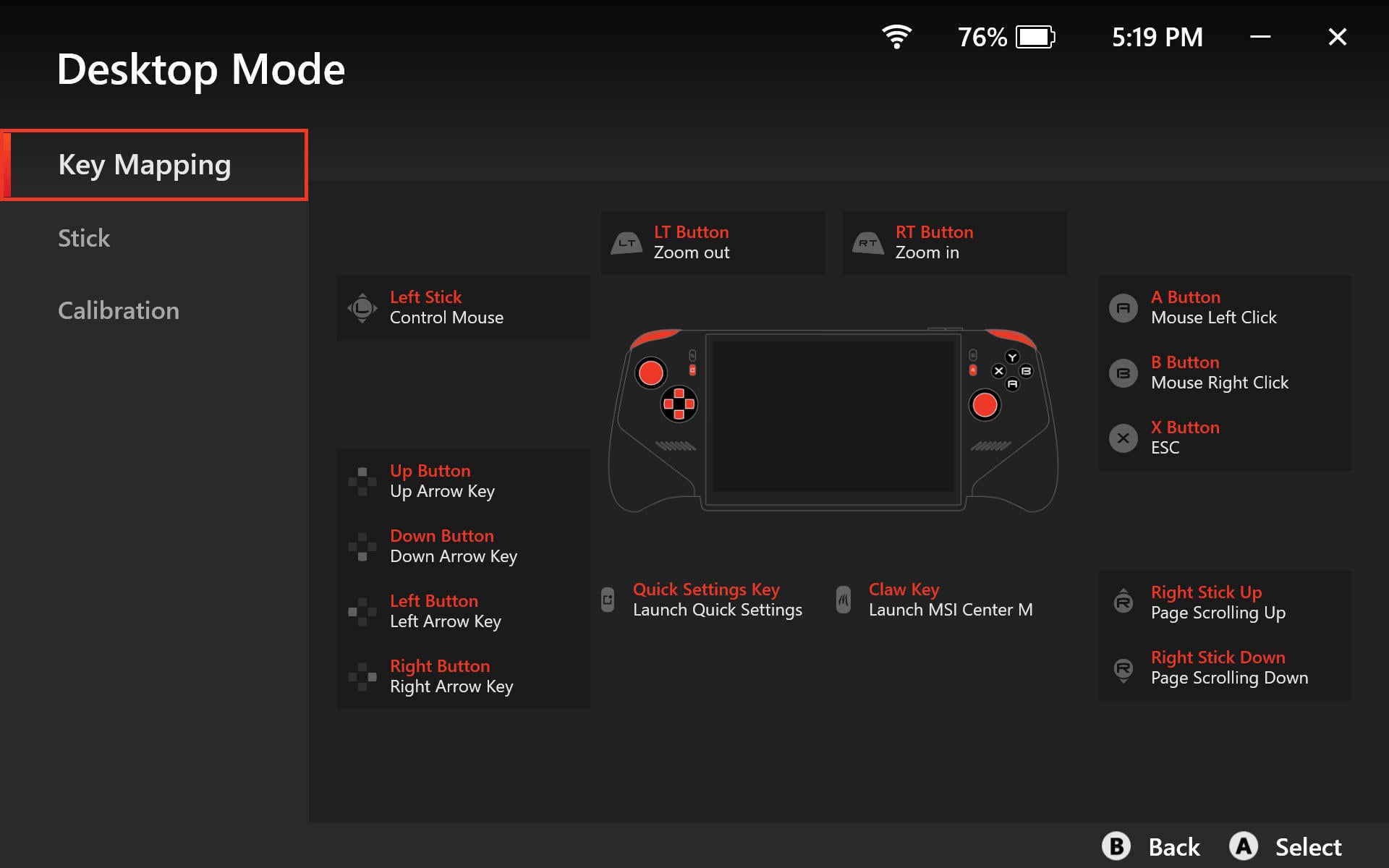
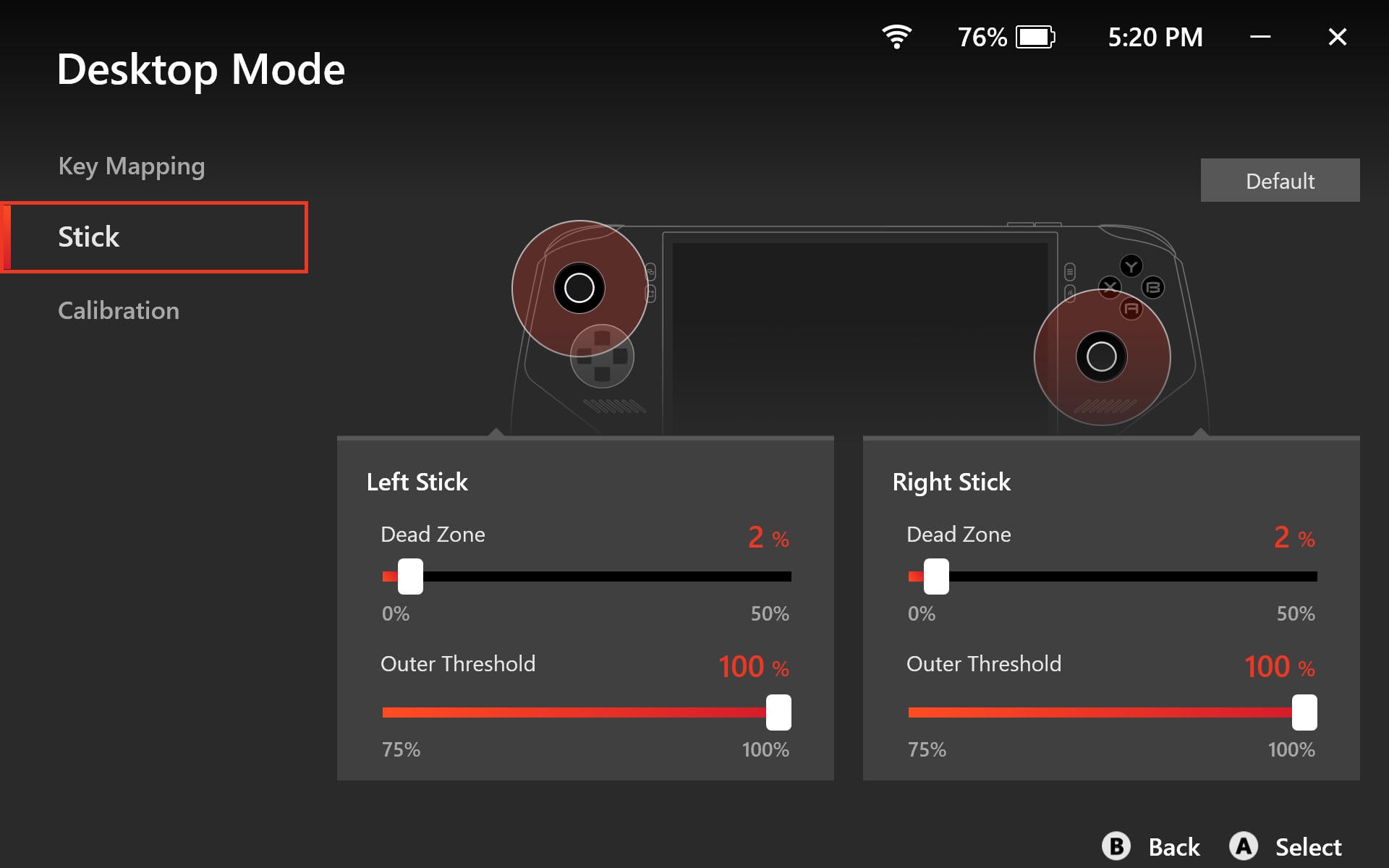
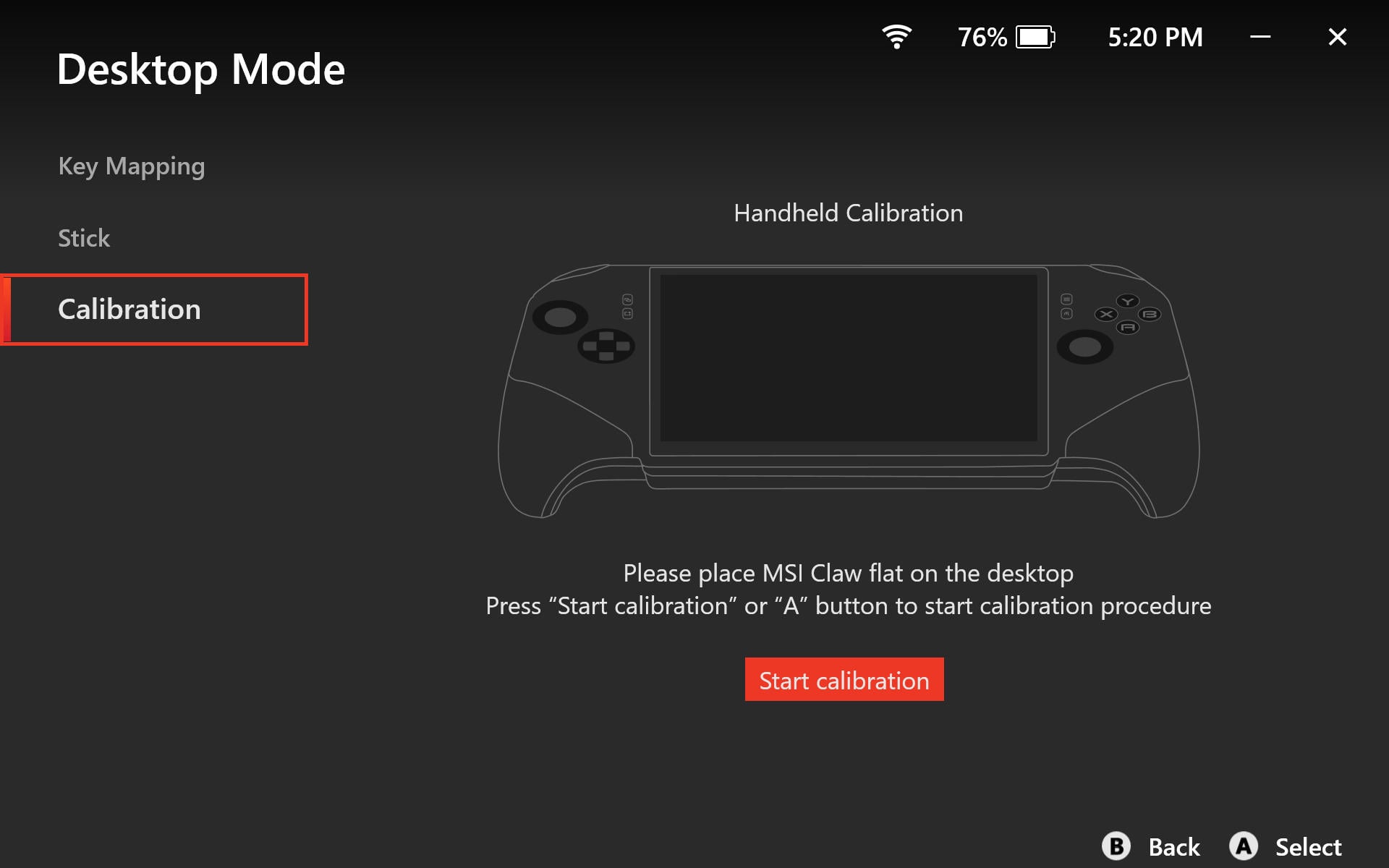
For starters, you can now assign a ton of different functions to the two programmable rear buttons, as well as record macros if you plug in a keyboard. MSI Center M also allows users to customize the fan curve, adjust thumbstick dead zones, update apps and drivers, tweak thumbstick RGB, check system info, and more, but the app's still not on par with what ASUS offers with Armoury Crate.
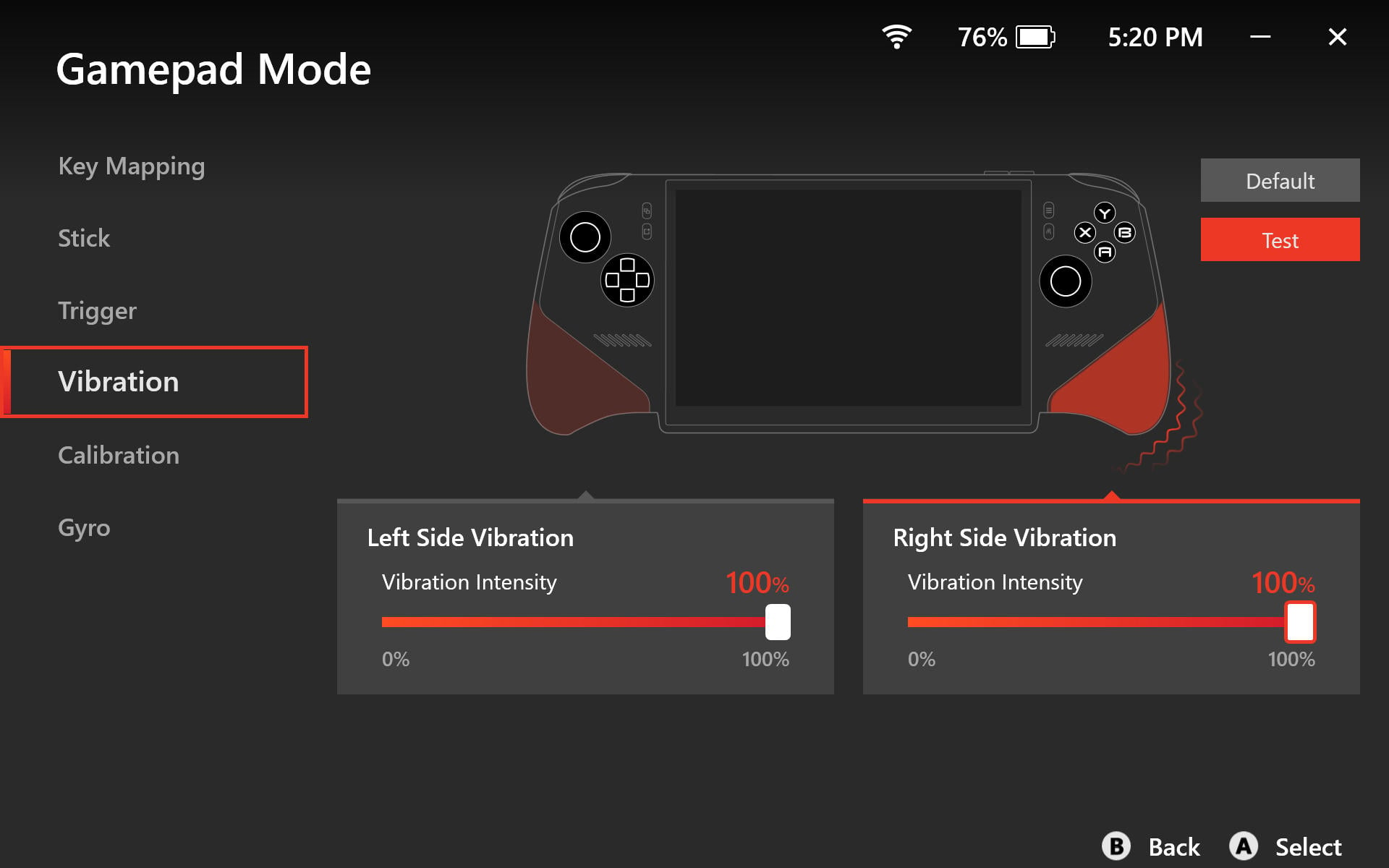
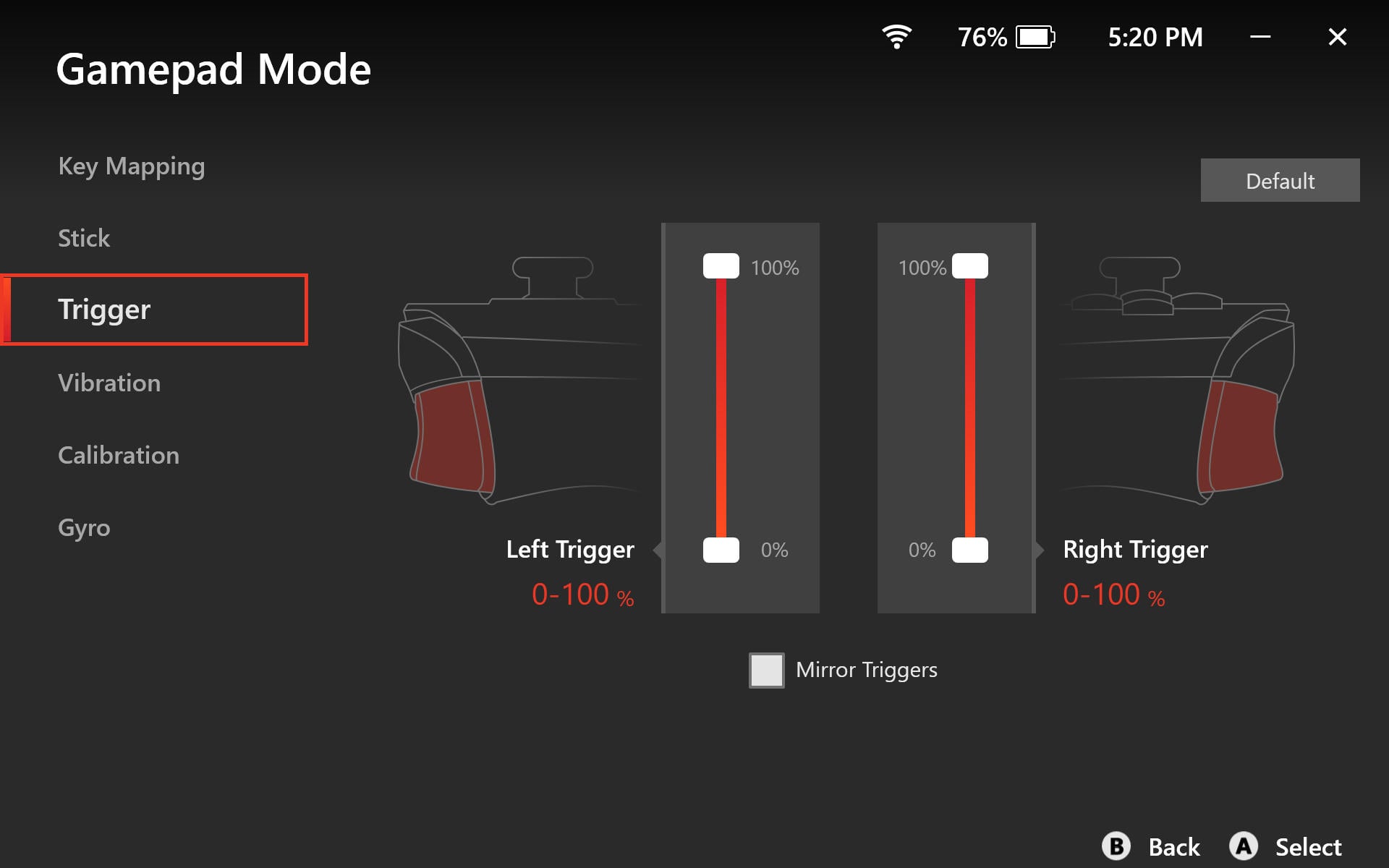
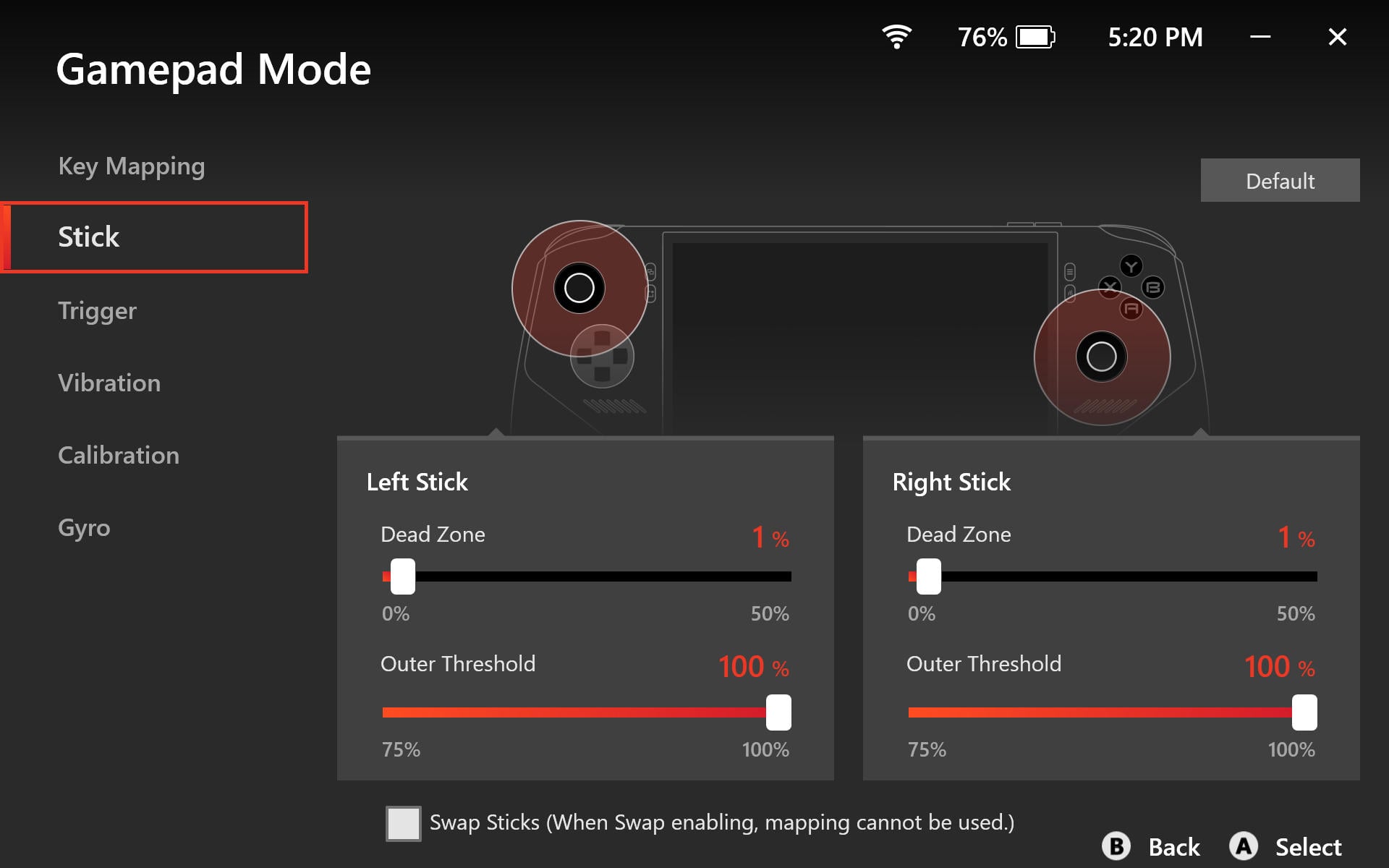
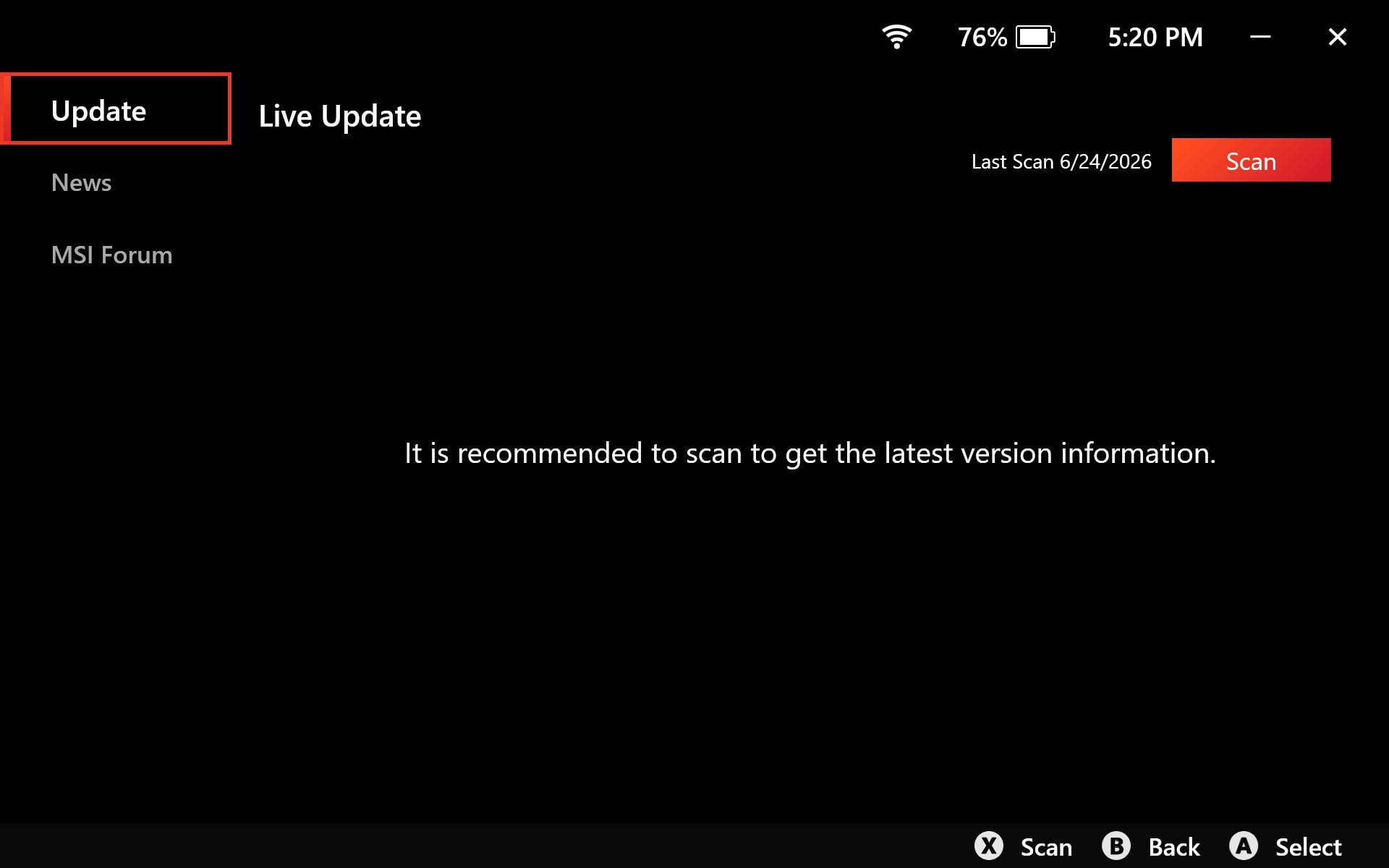
For instance, you still cannot remap buttons in Desktop mode, use the programmable rear buttons as modifiers, or assign secondary functions to buttons in Gamepad mode, and per-game profiles are still nowhere in sight. This is a huge disappointment because MSI Center M has barely moved an inch since we last visited it almost a year ago, while community projects such as ClawTweaks surpassed what Center M offers a while ago.
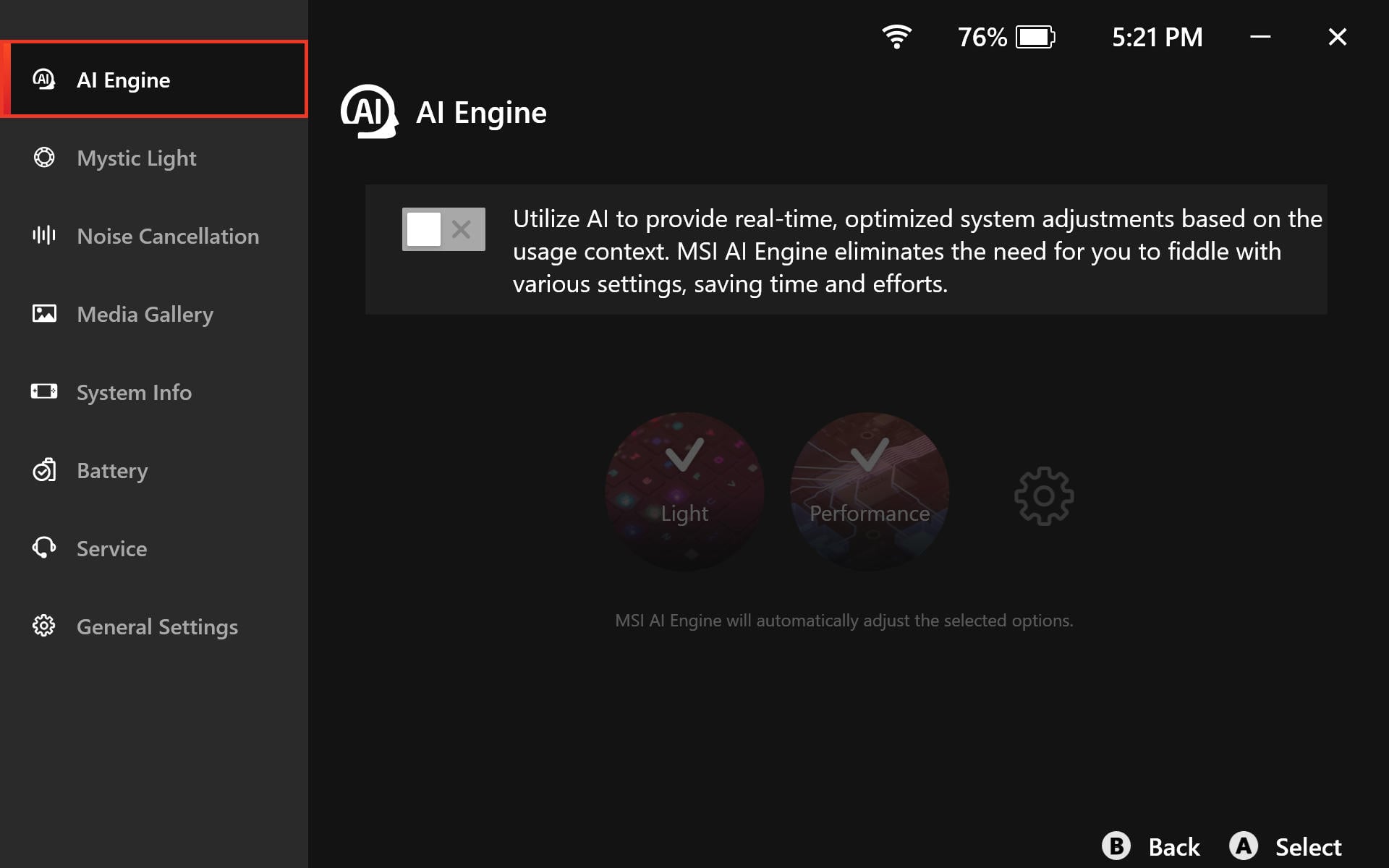
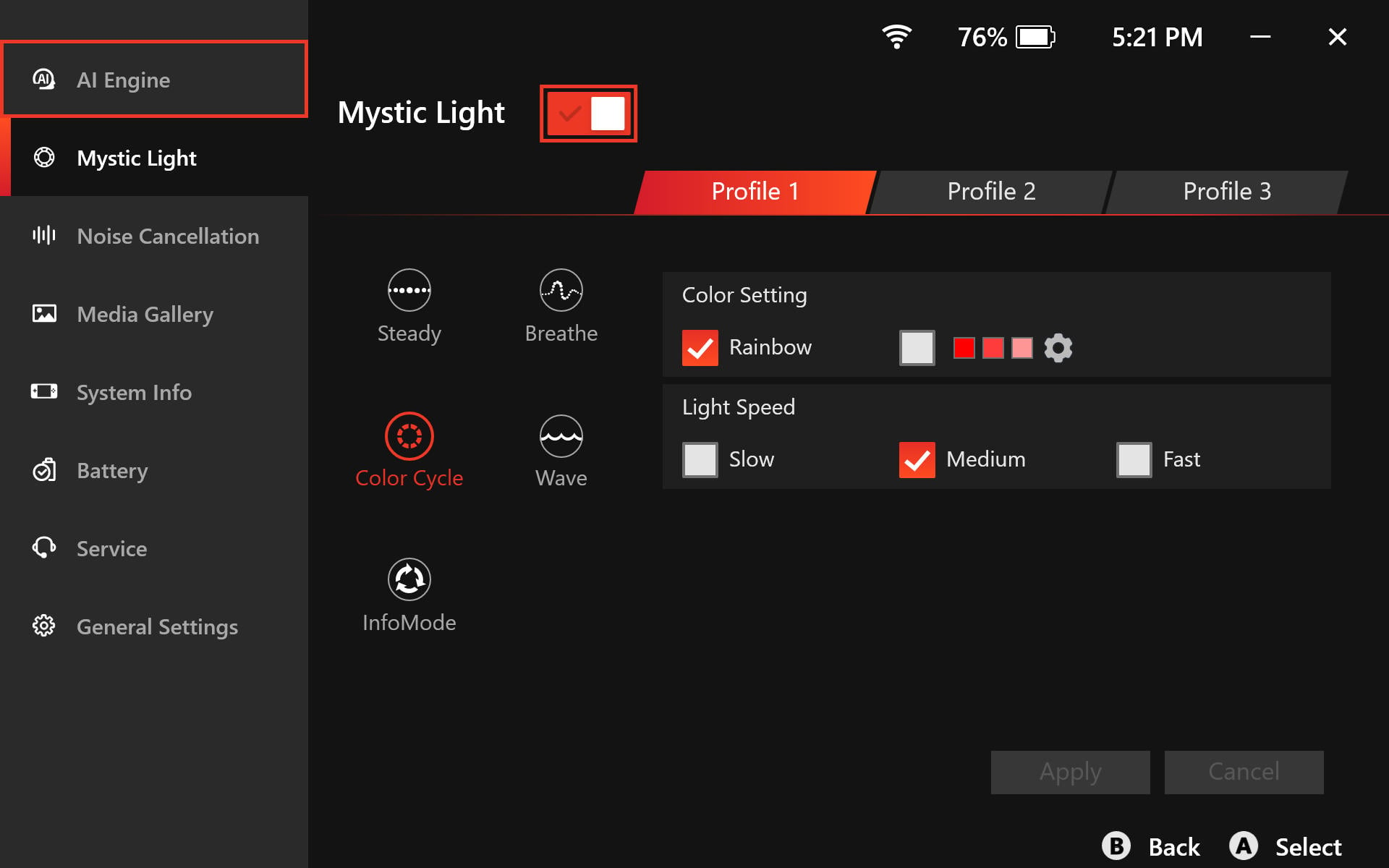
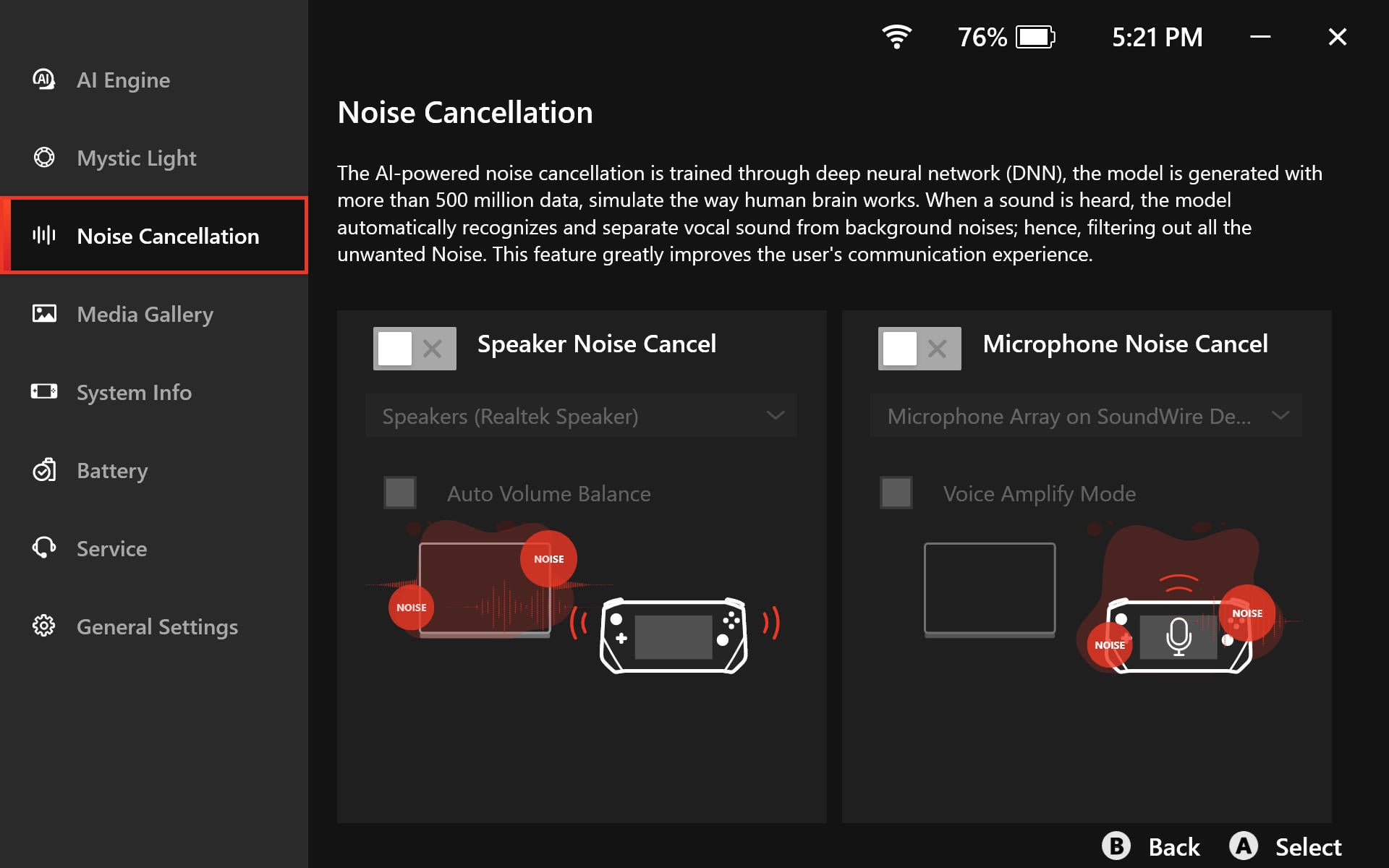
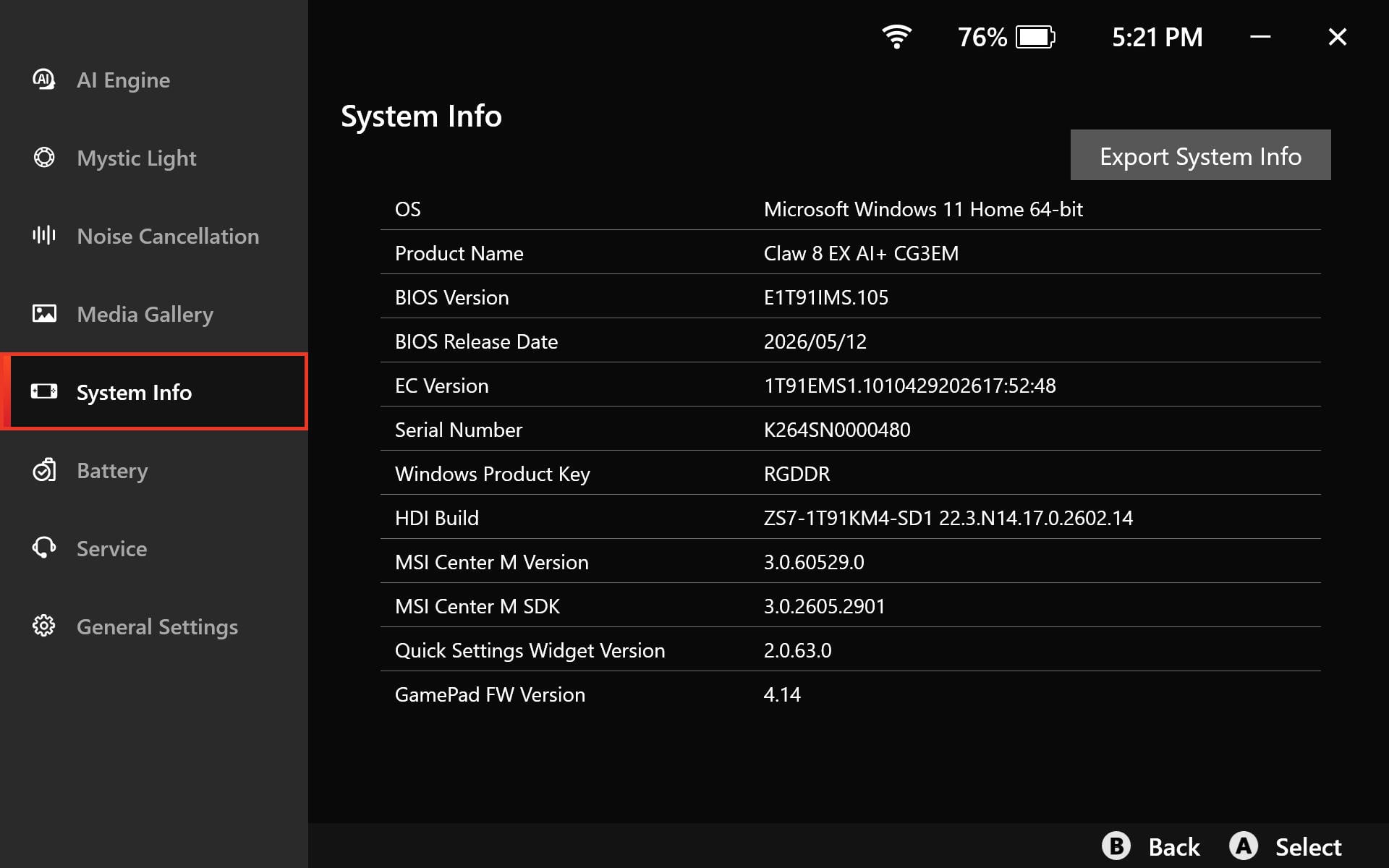
MSI Center M and the Quick Settings panel allow users to manually adjust power via two sliders—PL1 and PL2, with the second always being 2 W higher than the first—or pick one of two preconfigured modes: Endurance and AI Engine. The former locks FPS to 30 and serves as a way to maximize battery life, while the latter hovers around 25 W and presents a quick way to get optimal performance in most games.
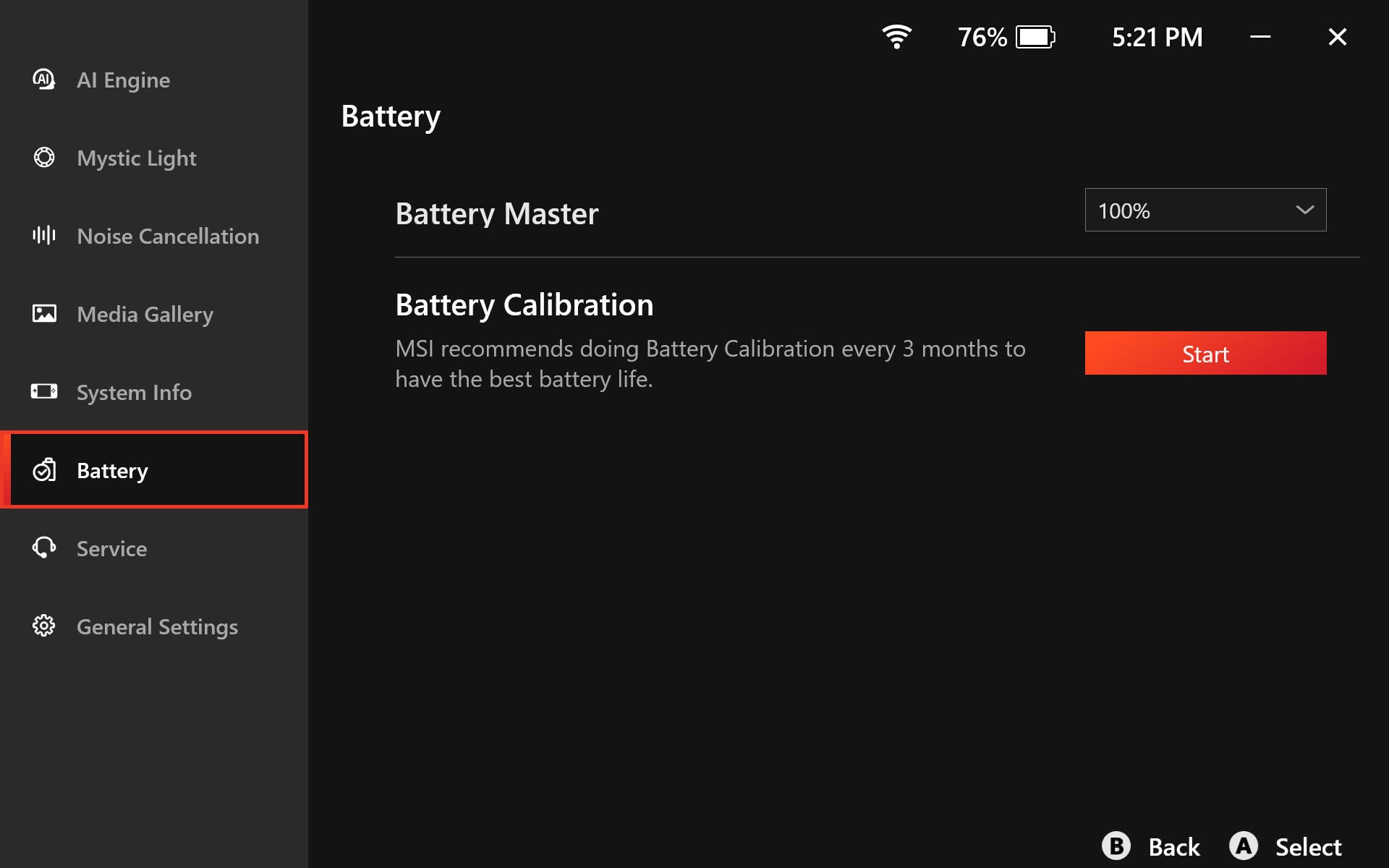
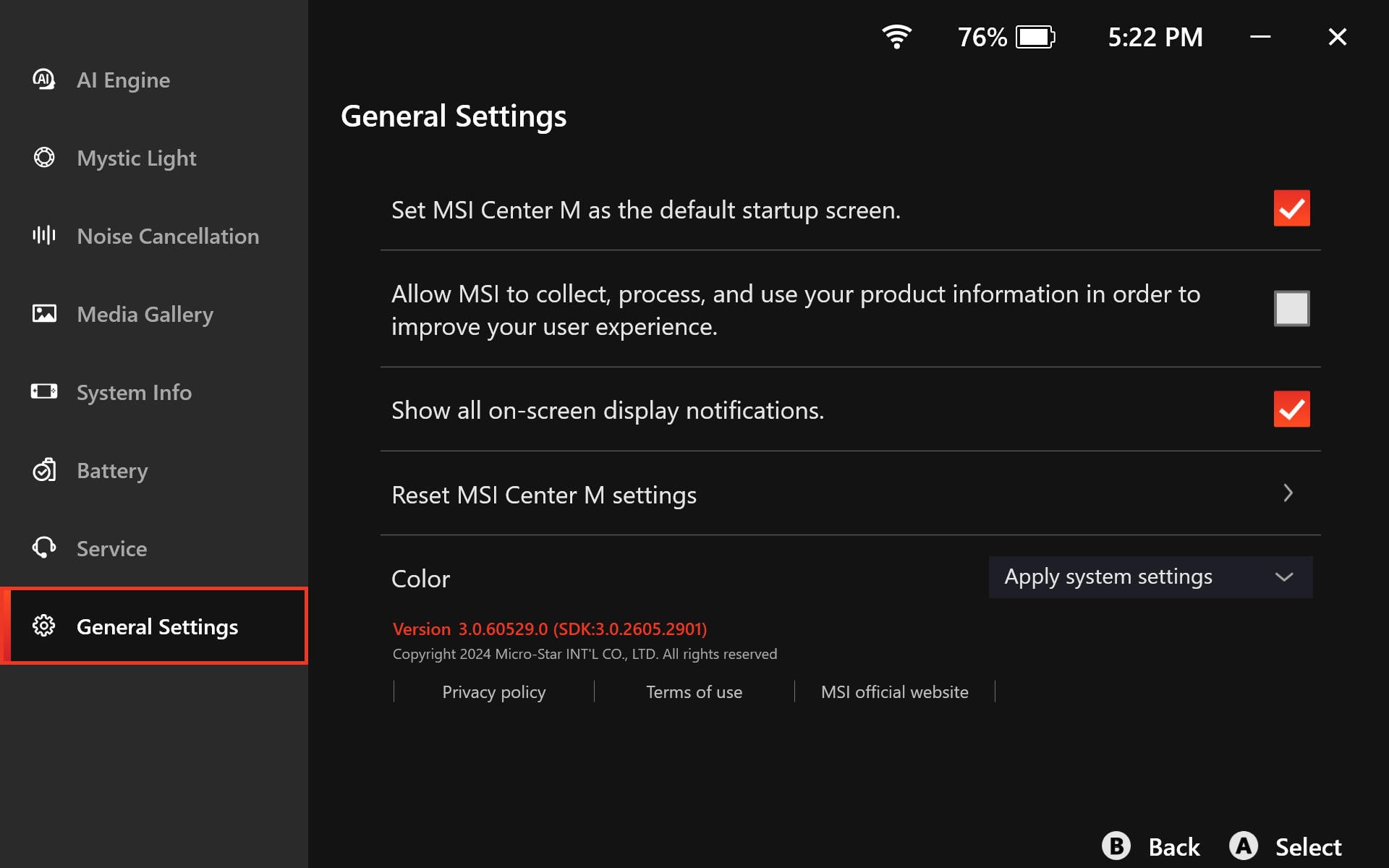
While we're talking about the Quick Settings panel, it's worth mentioning that it has also received some updates. You now have PL1 and PL2 sliders, so you can freely tweak TDP on the fly, and the Quick Settings panel is much more responsive than before, but it still lags behind its counterpart on ASUS handhelds. Sometimes, it will simply hang and refuse to open, so you have to press the Quick Settings button again to summon it. MSI Center M is similarly buggy, and we sometimes had to kill its process in Task Manager because it would simply stop accepting inputs.
Another issue is that Quick Settings still lacks some basic options. For example, you cannot change the resolution from Quick Settings, but at least you can do so in Game Bar. We also don't understand why pressing the Quick Settings button first opens the Game Bar Home tab and only then switches to the Quick Settings widget instead of immediately opening Quick Settings.
In general, both MSI Center M and Quick Settings are serviceable but nothing to write home about, which is a shame because it feels like MSI doesn't really care about the software experience, one of the most important aspects of any handheld PC. If you want to see what's possible with only a Game Bar widget, check out ClawTweaks; we just hope it will support the Claw 8 EX soon.
Intel GPU Software
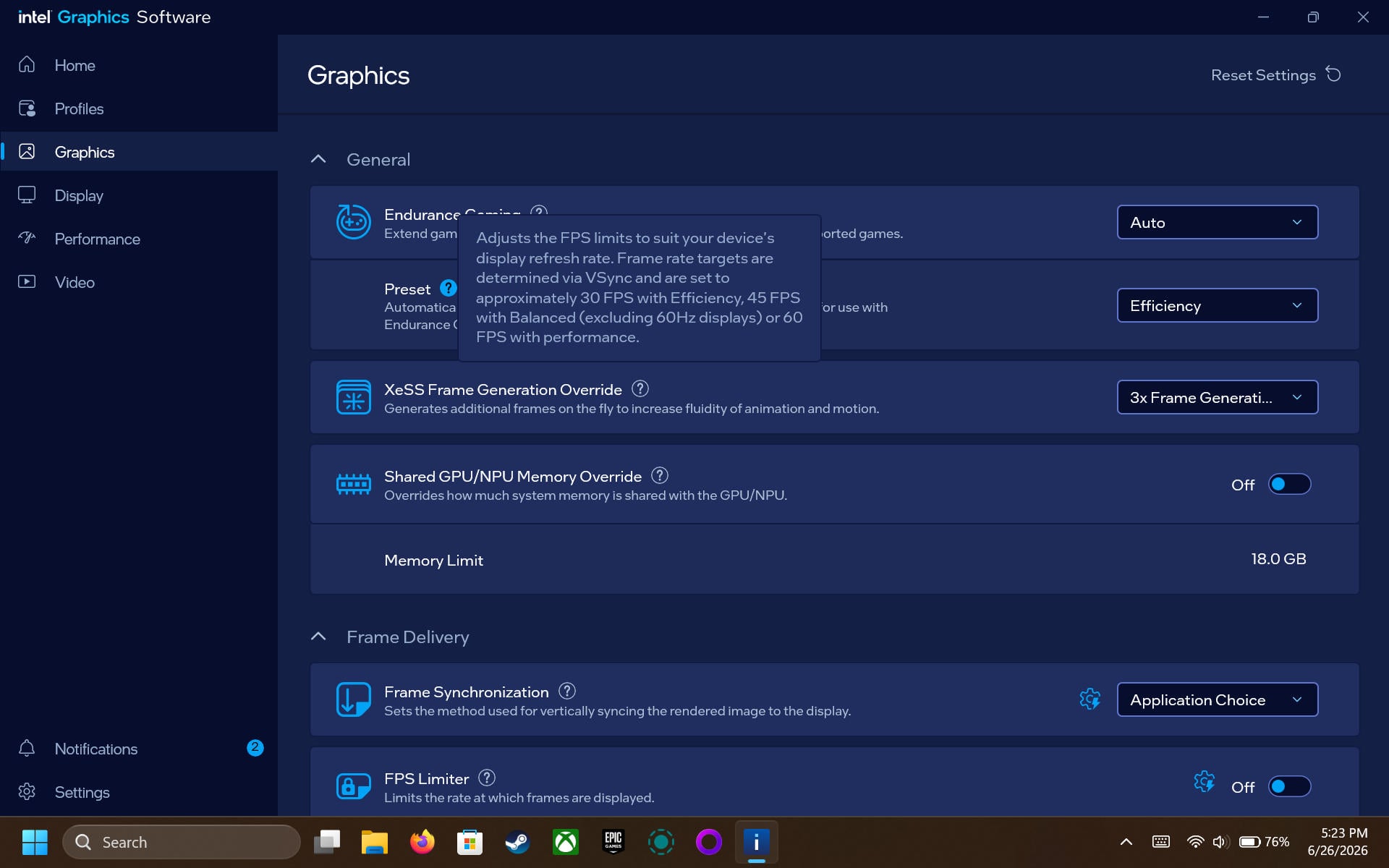
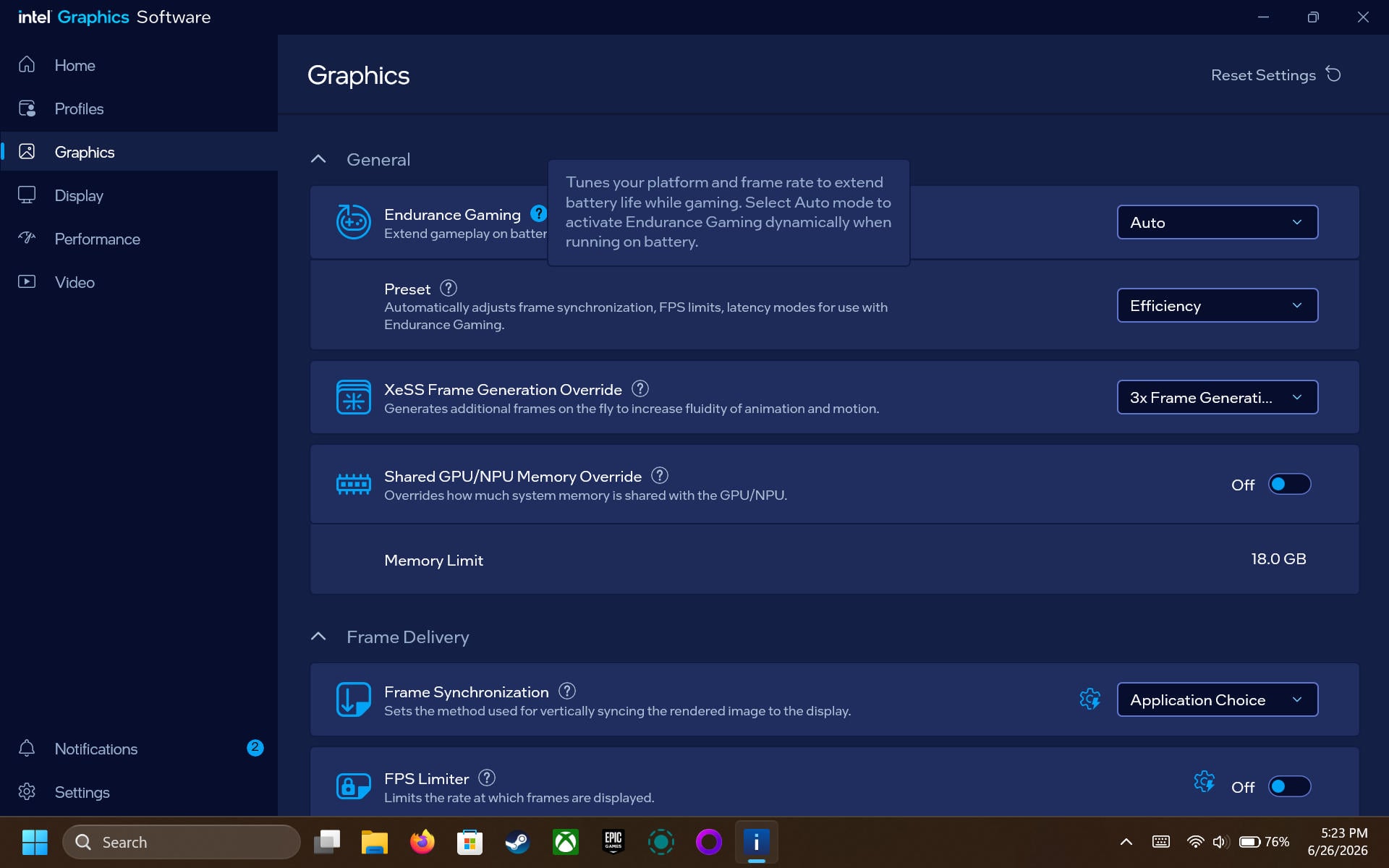
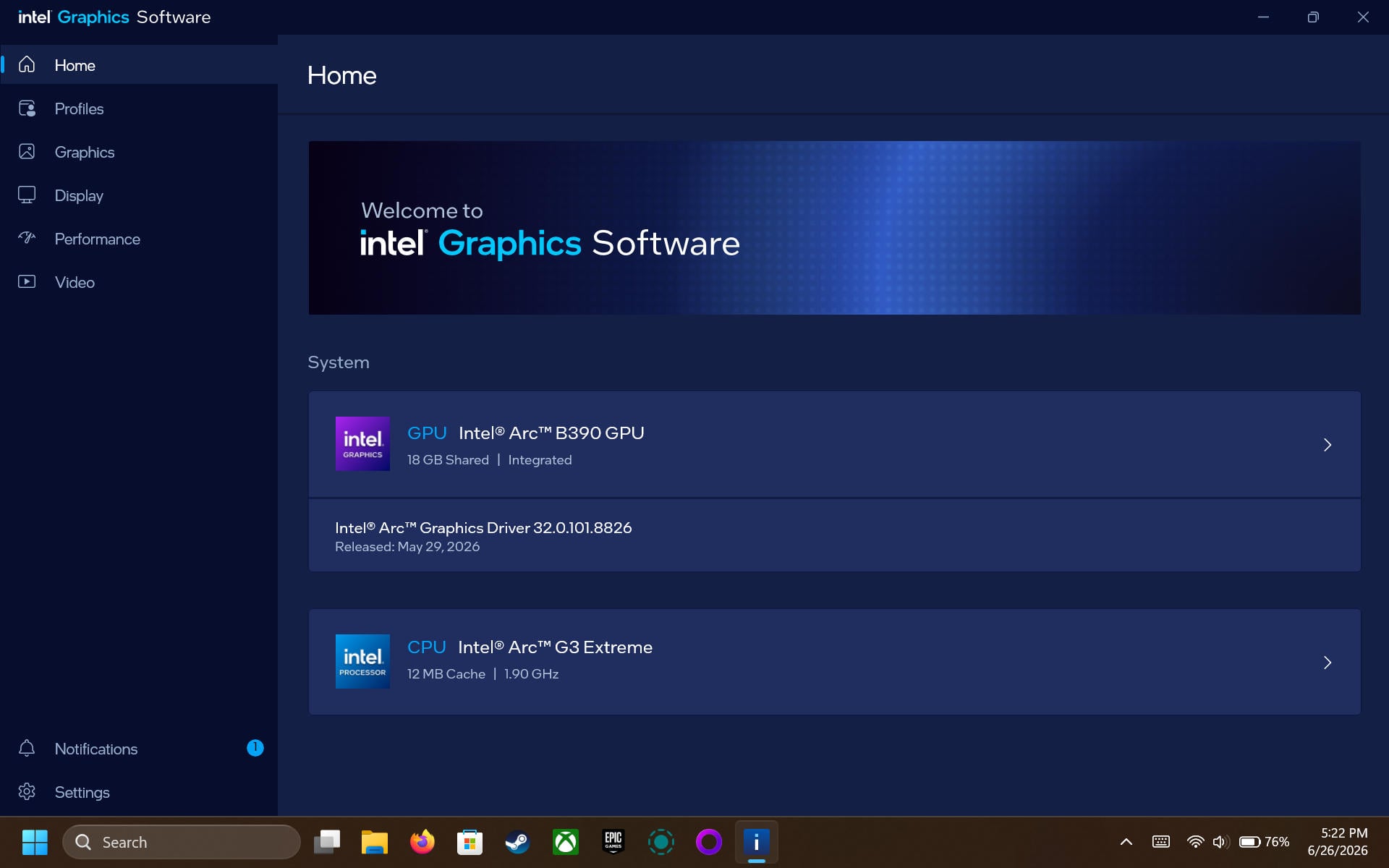
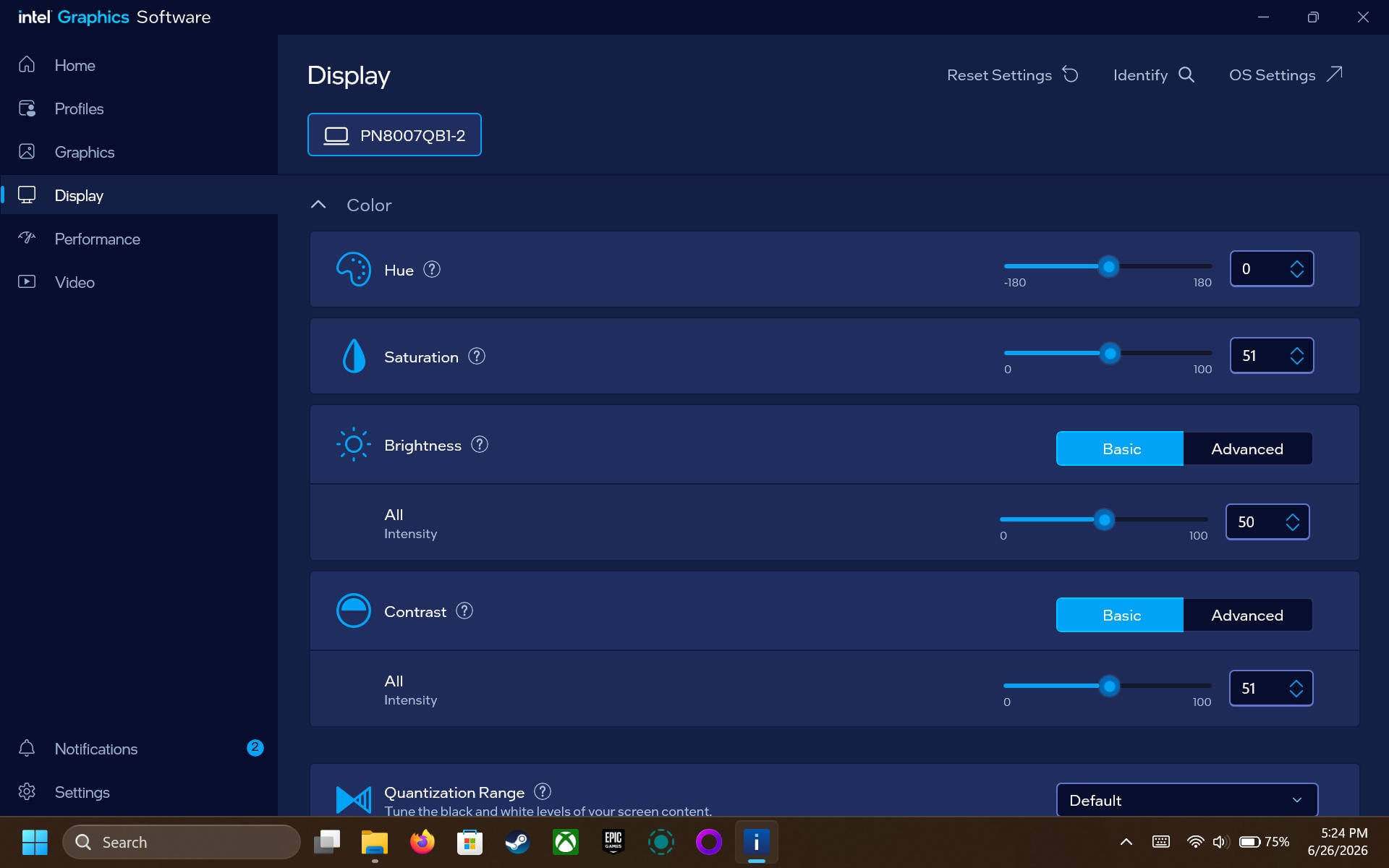
While we're talking about software, it's worth saying a thing or two about Intel GPU Software because it offers a few useful features. First, you have the Endurance Gaming feature that maximizes battery life while locking the frame rate to one of three values: 30 FPS, 45 FPS, and 60 FPS. It's very handy, but you have to open Intel GPU Software to access it, which is less than ideal while in Xbox Mode. That said, Intel has stated that it's working with MSI to bring the Endurance Gaming and Multi Frame Generation toggles to MSI Center M's Quick Settings.
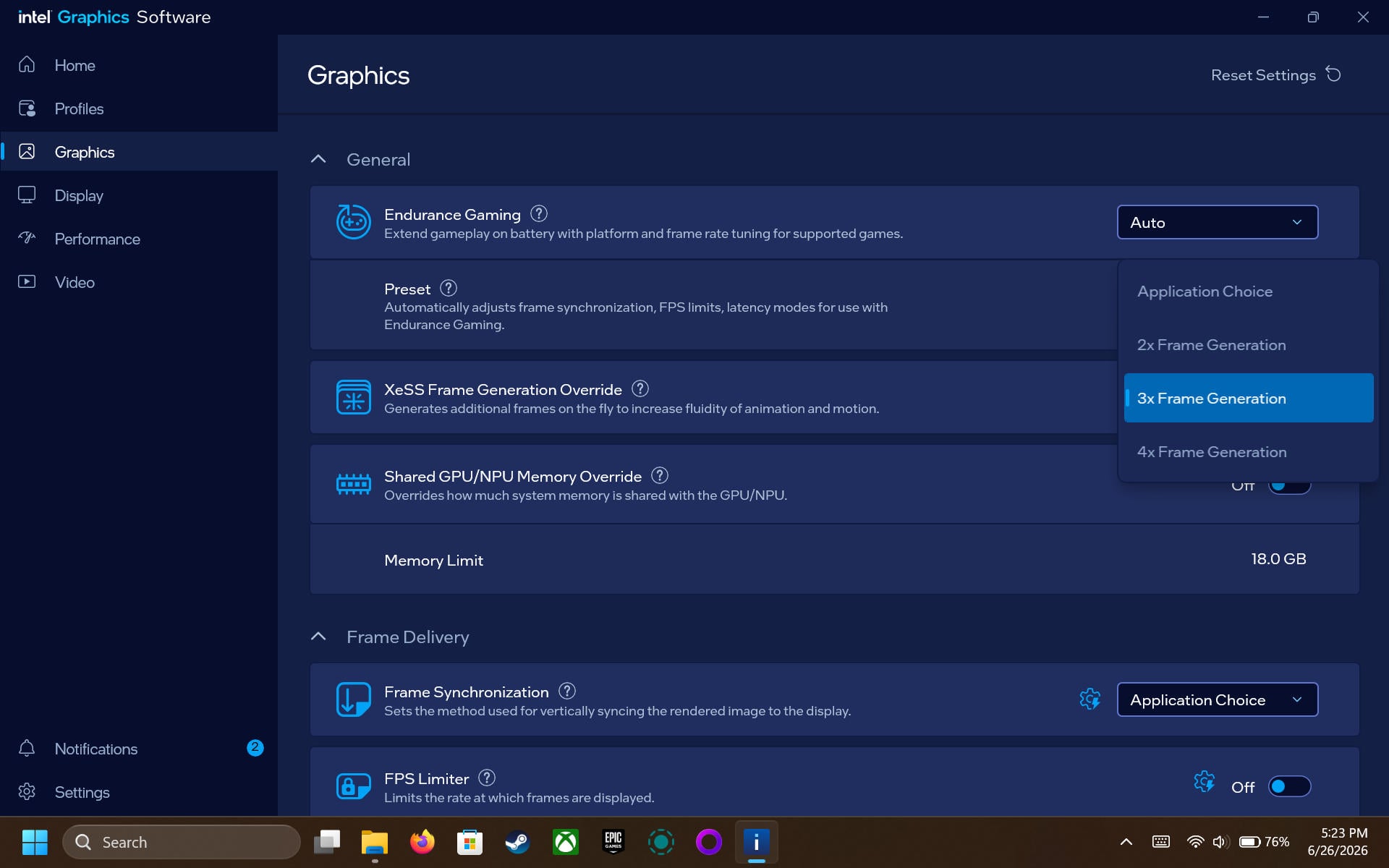
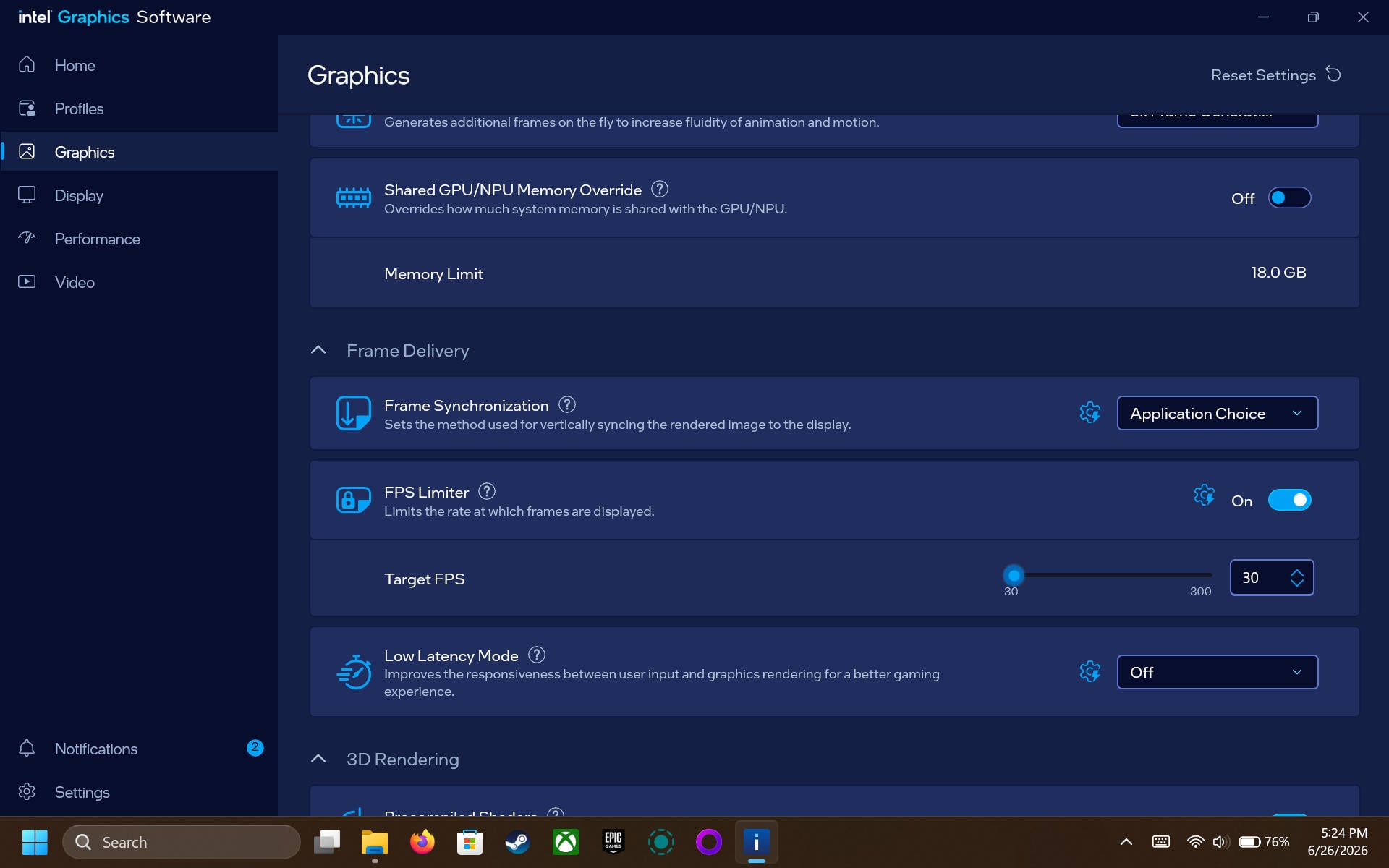
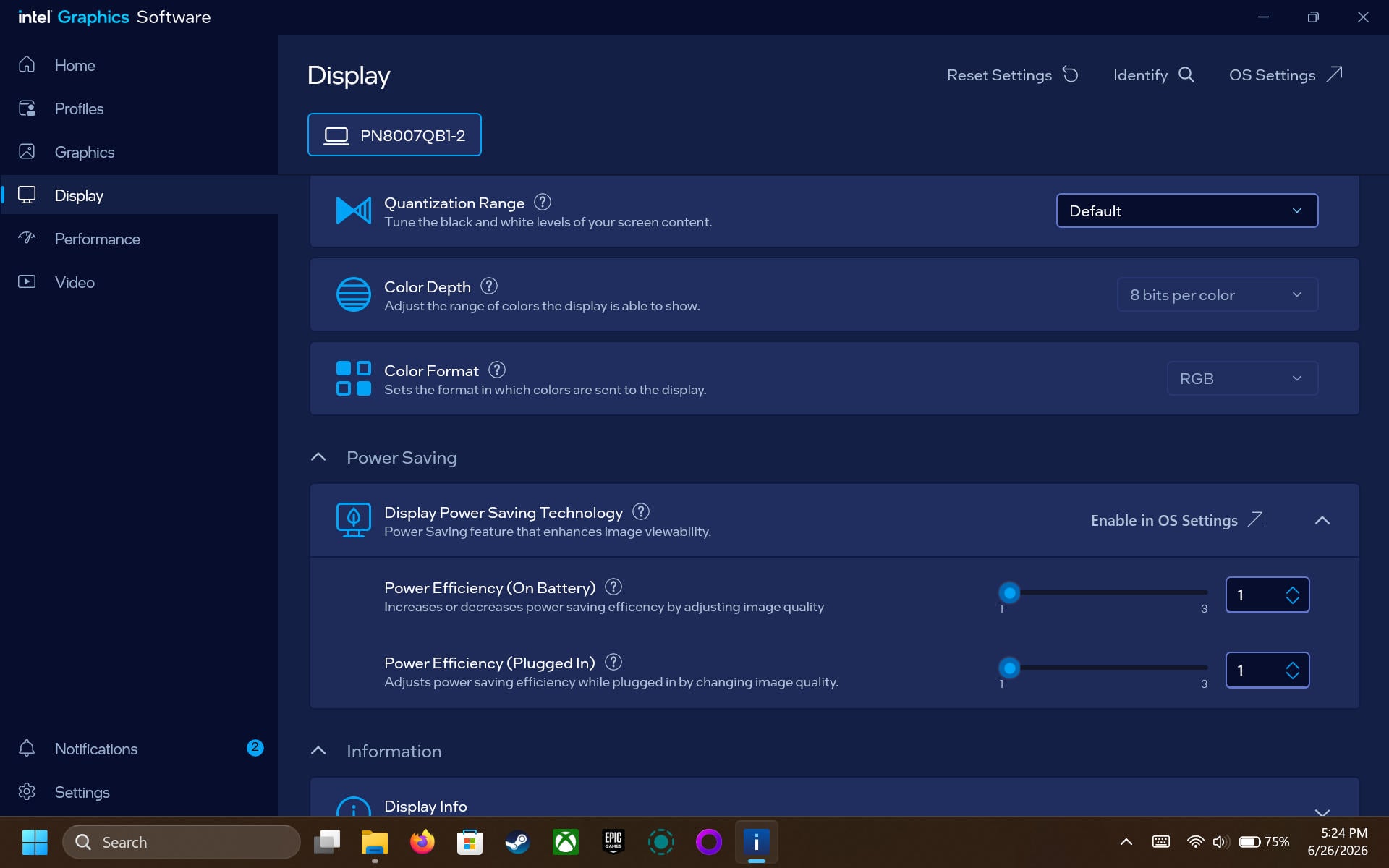
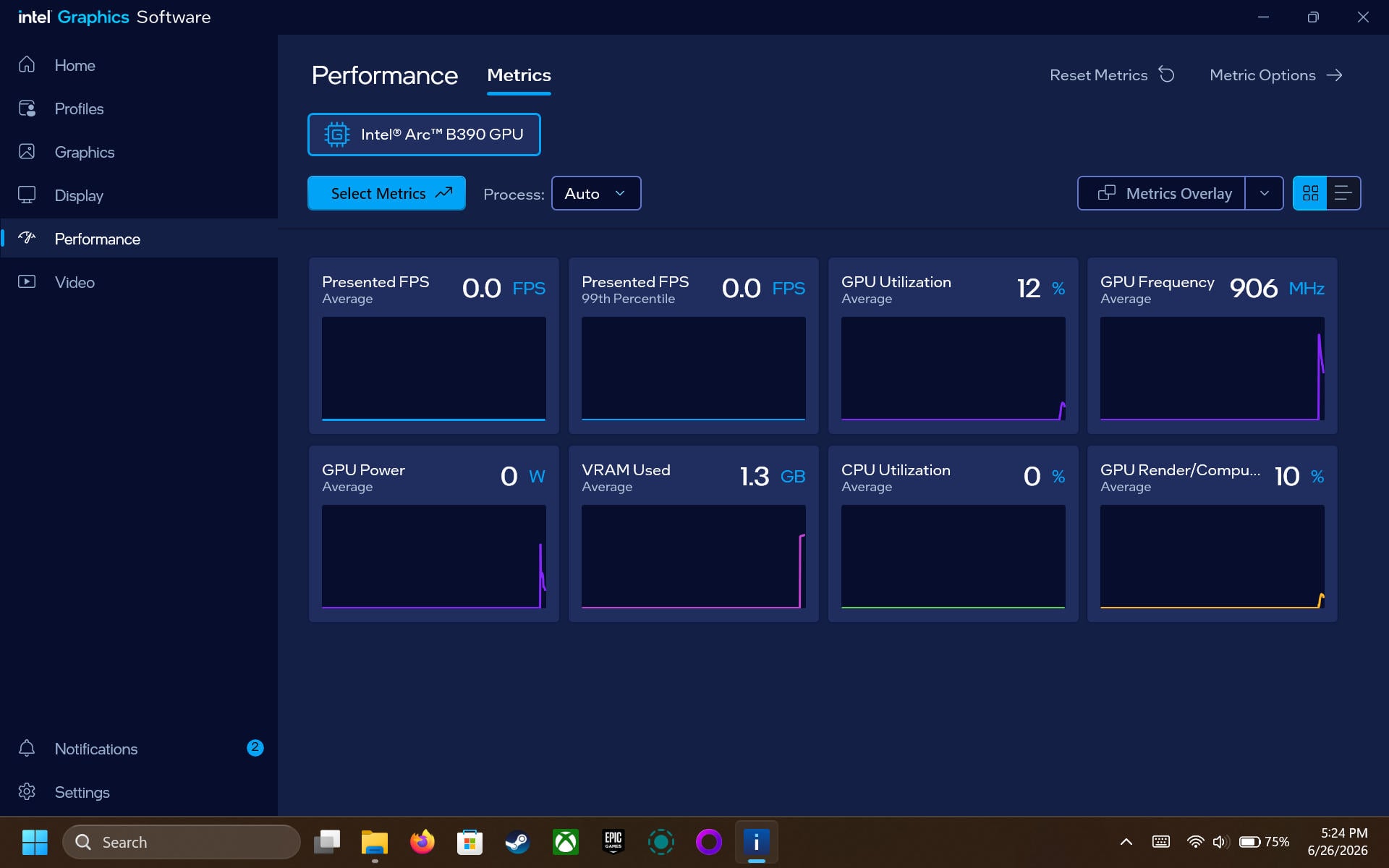
And yes, you also have an XeSS Frame Generation Override option that allows you to use XeSS Multi Frame Generation in every game with support for XeSS Frame Generation, which is very useful because we've found that multi-frame generation works rather well on both the Claw 8 and Claw 8 EX as long as the base frame rate is high enough (about 40 FPS). Lastly, Intel GPU Software also comes with an FPS limiter, which we hope will also find its way to MSI's Quick Settings.
Xbox Mode
Before we move on, we also want to talk a bit about Xbox Mode (formerly known as Xbox Full Screen Experience; thank goodness they changed that name). Compared to the last time we wrote about it, Xbox Mode has received a slew of updates that have greatly improved it.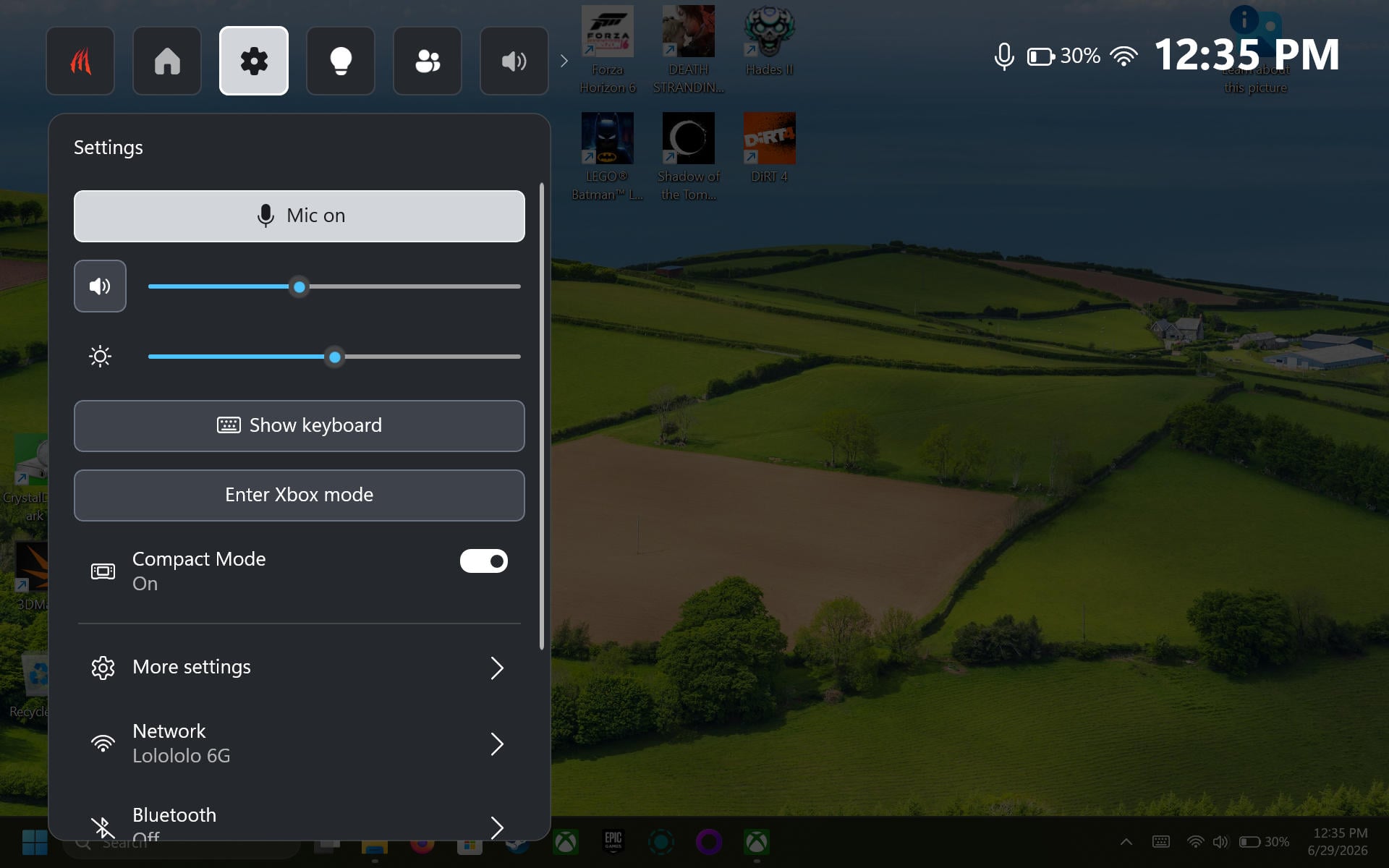
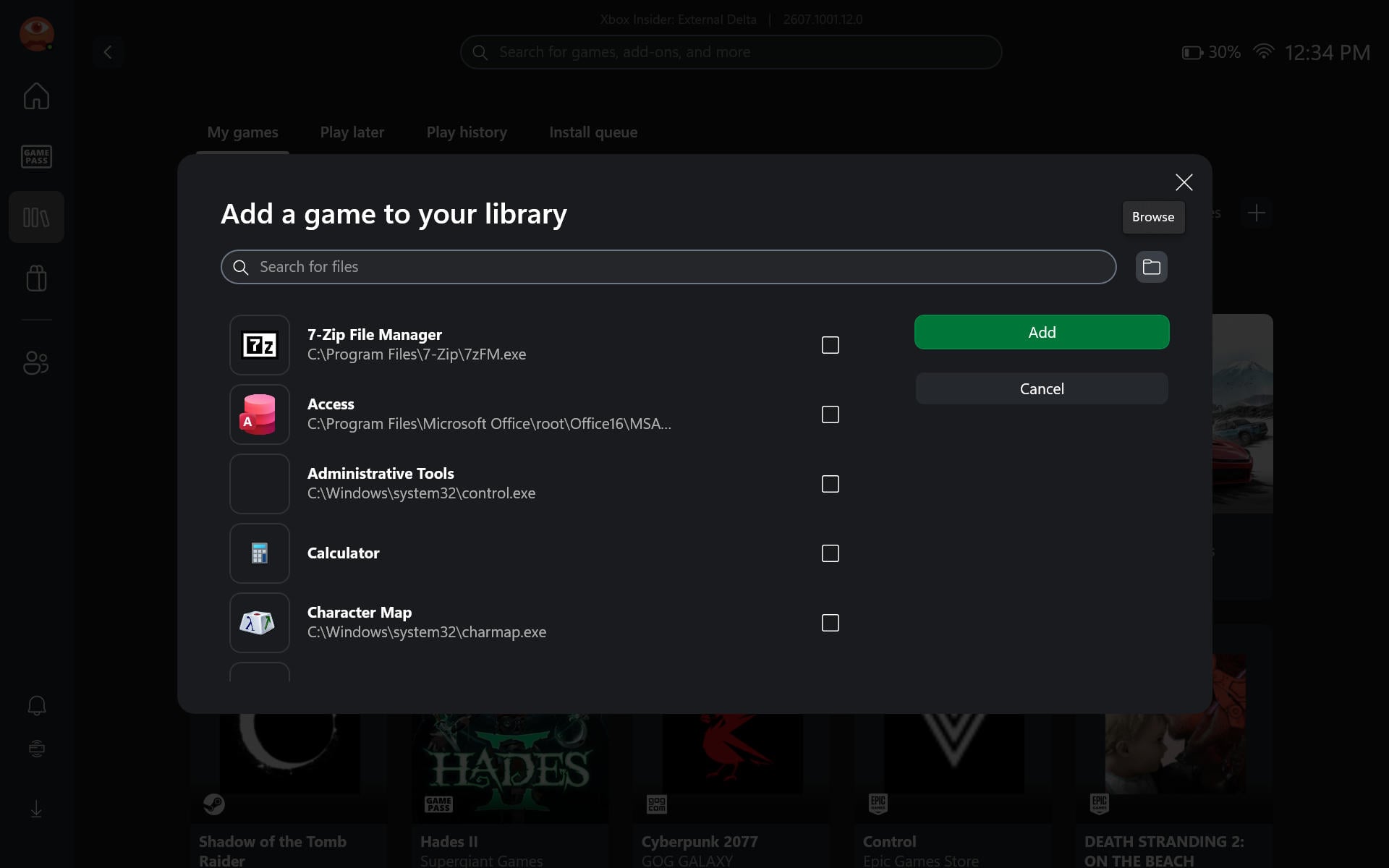
The Library page now has a grid view, and you can add any executable on your PC to the Xbox app library, which is excellent because there's now really no reason to switch to Desktop Mode after setting up the device. Game Bar has also received a number of useful updates, allowing gamers to switch to Xbox Mode right from Game Bar, change the resolution, and more.
Personally, we rarely use Desktop Mode on the ROG Xbox Ally X these days. Aside from benchmarking games for TPU's handheld performance tests, we spend all our time in Xbox Mode. While it's not as feature-rich or versatile as SteamOS's Game Mode, it's far closer to that experience than many people give it credit for and makes for a surprisingly capable controller-friendly Windows interface.
Nov 11th, 2026 18:43 CST
change timezone
New Forum Posts
- Samsung 870 EVO - Beware, certain batches prone to failure! (1487)
- Request - revert LFC behaviour to old patch. (0)
- GeekMagic Ultra Smart WiFi Weather Station (4)
- When you could finally run Crysis maxed out? (44)
- WarpCoreBench scores! (14)
- Warning for Windows 10 and 11 users running newer AMD GPU drivers (49)
- Bought MAX-P495 - Which model? (29)
- DTS DCH Driver for Realtek HDA [DTS:X APO4 + DTS Interactive] (2809)
- Rare GPUs / Unreleased GPUs (2271)
- Windows new update 26H2 - Throttlestop (10)
Popular Reviews
- AMD Zen 6 Technical Deep Dive
- Upcoming Hardware Launches 2027 (Updated Nov 2026)
- XPG NIMBUS PLUS Review - Mid-range Chair With Strong Competitors
- NZXT H7 RGB+ Review
- NZXT H5 Review
- NZXT C1200 Platinum Review
- Phantom Blade Zero Performance Benchmark Review - 35 GPUs Tested
- Montech King 95 3D PRO Review
- Gigabyte Z890I Aorus Ultra Review
- INNOCN 45C1R Review - Two QHD Screens, Zero Bezels
TPU on YouTube
Controversial News Posts
- OpenAI CEO Argues Home PCs Waste the World's Limited DRAM Supply (152)
- NVIDIA Launches Investigation Into Jensen Huang's Relationship With Suspected Chinese Spy (136)
- Intel "Raptor Lake Next" 16-Core and 20-Core CPUs Surface (130)
- Legendary Game Studio BioWare Shuts Down Following EA Layoffs (104)
- Dell CEO Says the Memory Shortage Will Get Worse in 2027 (95)
- NVIDIA GeForce RTX 50-Series Scheduled for up to $500 Price Hike This Week (89)
- AMD Radeon Owners Can Now Run Nearly Every DLSS Feature Through Fan-Made Mod (80)
- Modder Fits RTX 5090 With Four 8-Pin Connectors, Halving Current per Wire (80)