 97
MSI GeForce RTX 5090 Lightning Z Review - Up to 1000 W
Circuit Board Analysis »Packaging

The Lightning Z comes in a huge package—I've put a RTX 5090 Founders Edition next to it to give you a feel for the size.
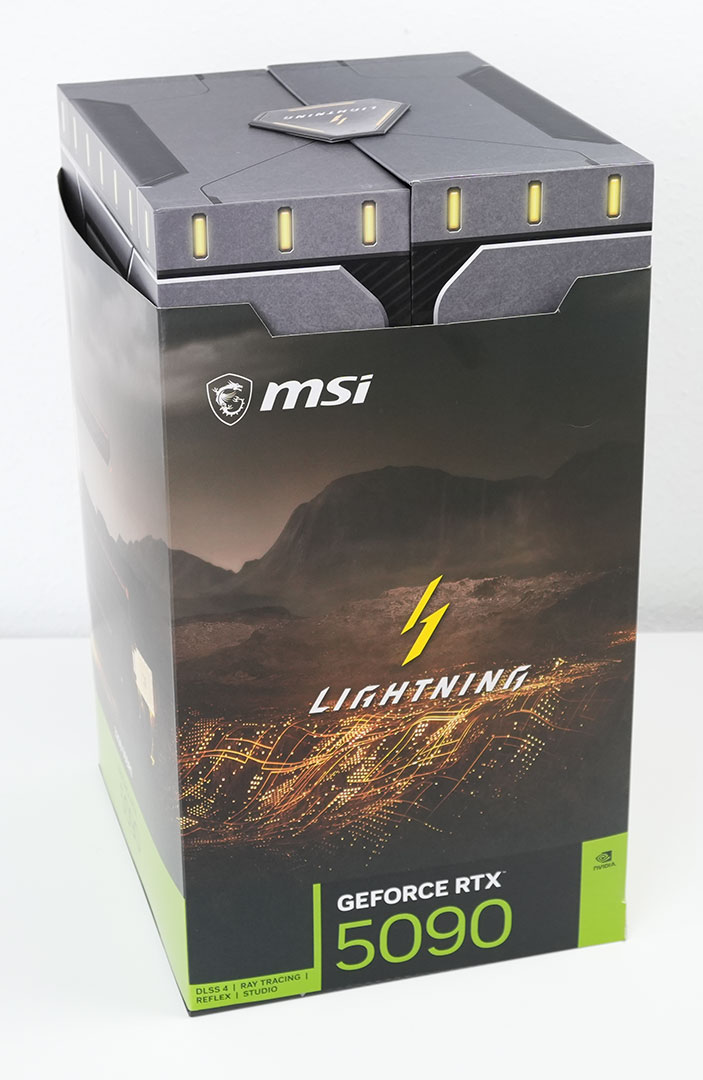

Inside you find another big box and two small ones with accessories.

The big box opens spectacularly to reveal the Lightning Z in all its glory.
The Card

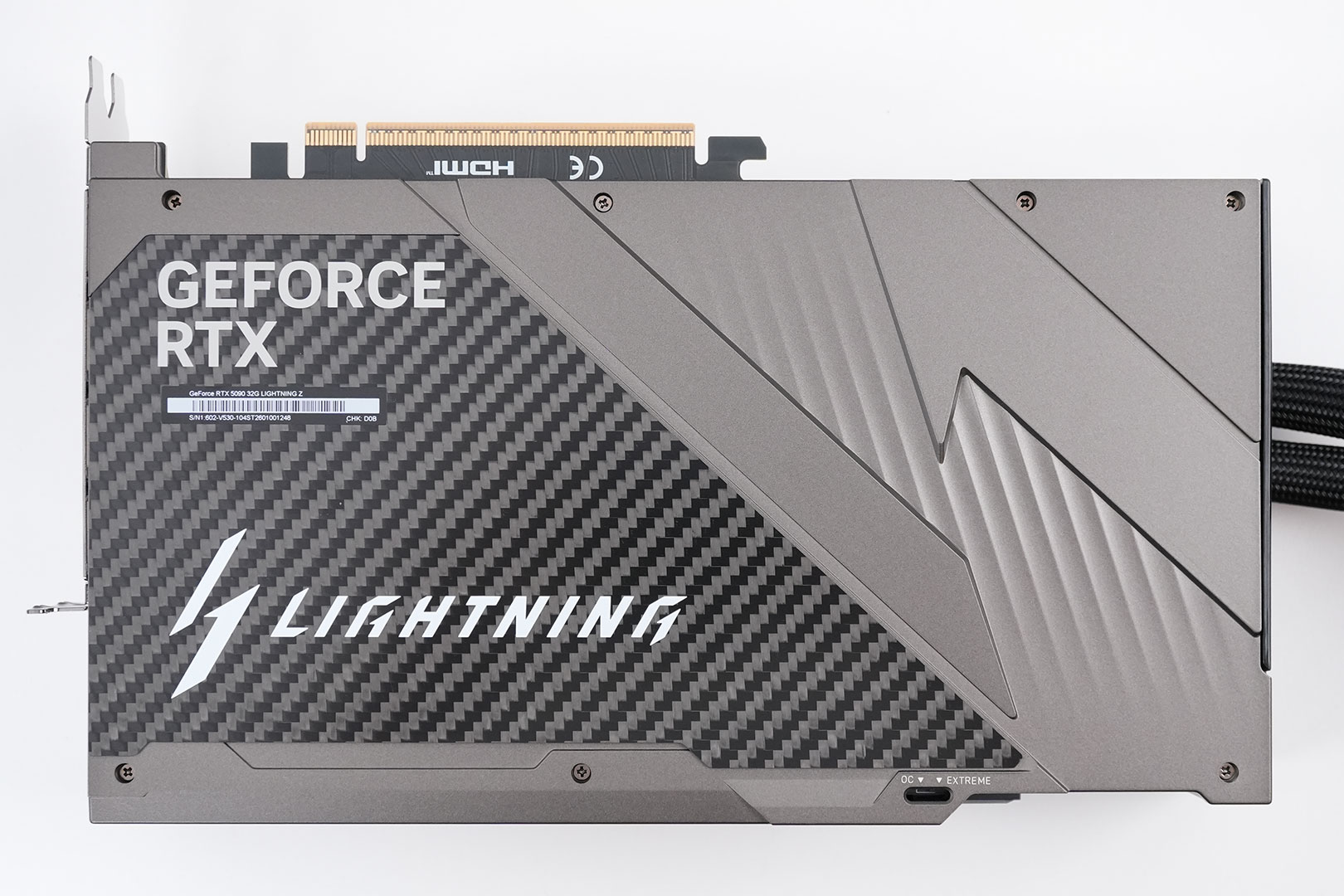

MSI's Lightning Z design is unlike any other. The front side is dominated by a large 8" LCD screen that can be used to play back videos, sensor info, or anything you can put on a second screen in your OS. On the back you get a metal backplate with a carbon fiber plate—very nice.
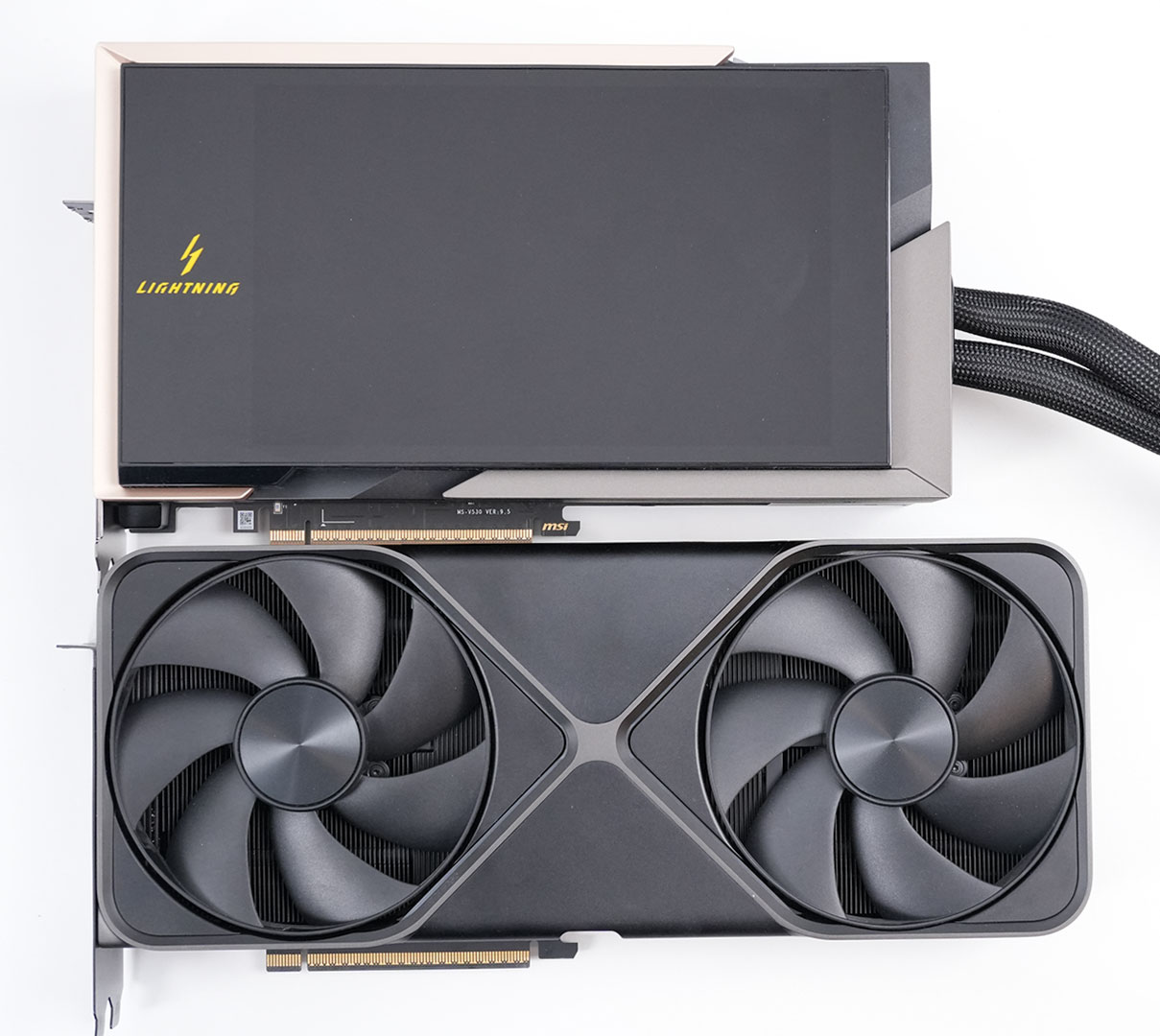
Here's the Lightning Z next to the RTX 5090 Founders Edition. MSI's card is a little bit shorter, but is slightly taller.
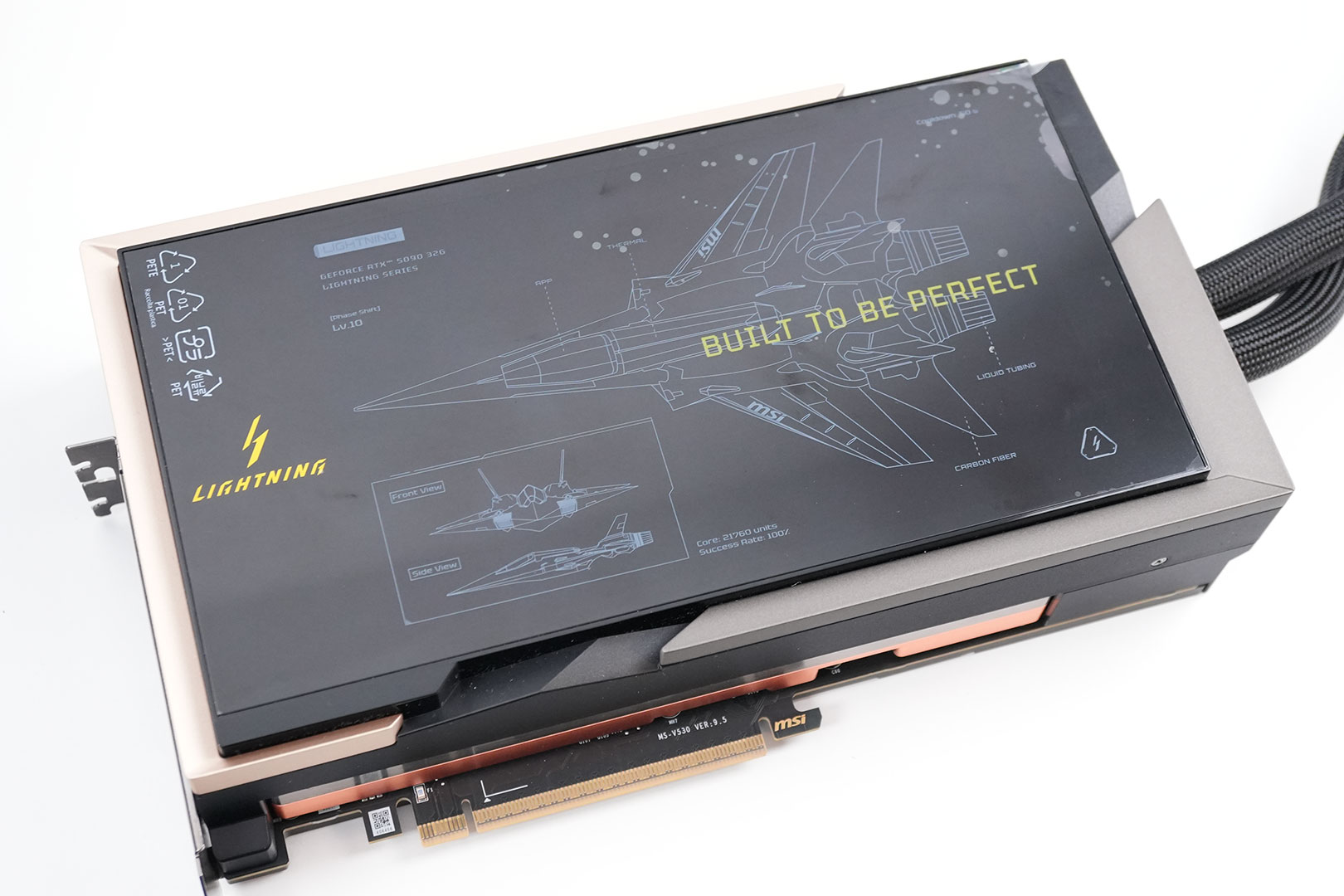
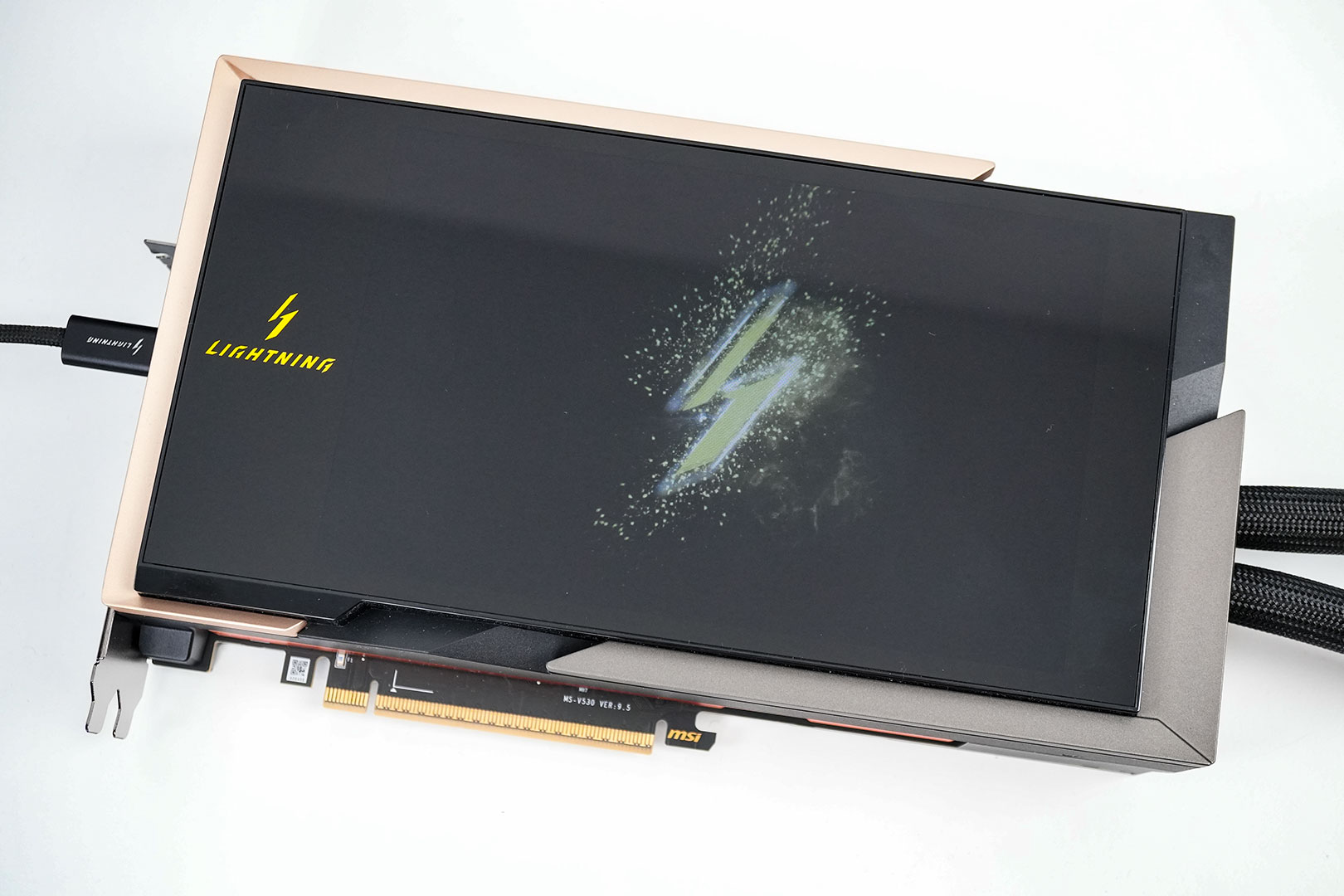
The integrated LCD screen is covered by a plastic foil that you'll want to peel off before usage. Once powered via the USB connection, it will display a default startup animation, which can be replaced with another video using MSI's software.
The display is of good quality with a solid resolution, although I found the glare somewhat distracting.
Here's the default animation of the Lightning Z.
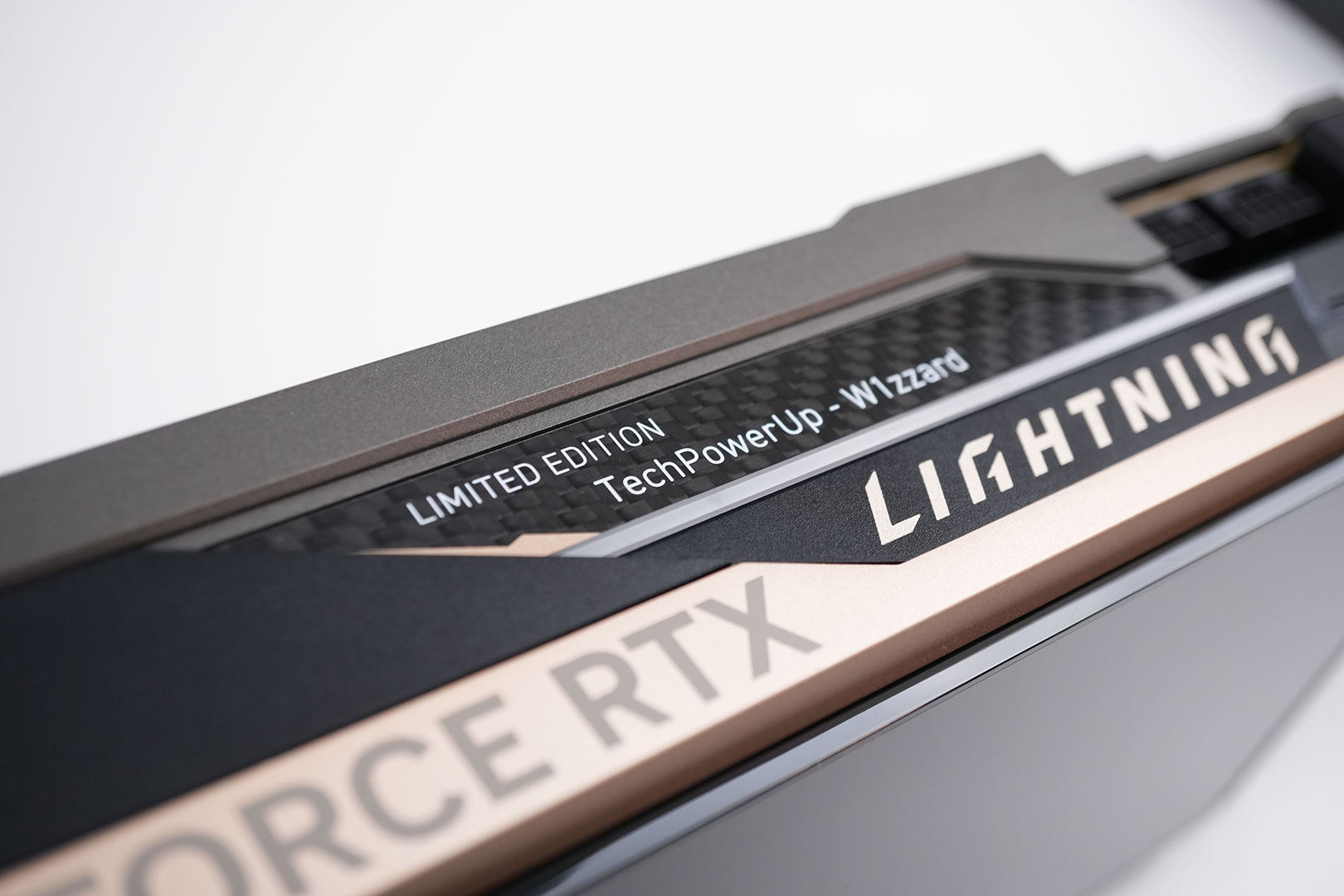
The MSI Lightning Z is a limited edition production run with 1300 units made—here you can see how they labeled my sample. Normally you'd see a number here "xxx/1300."
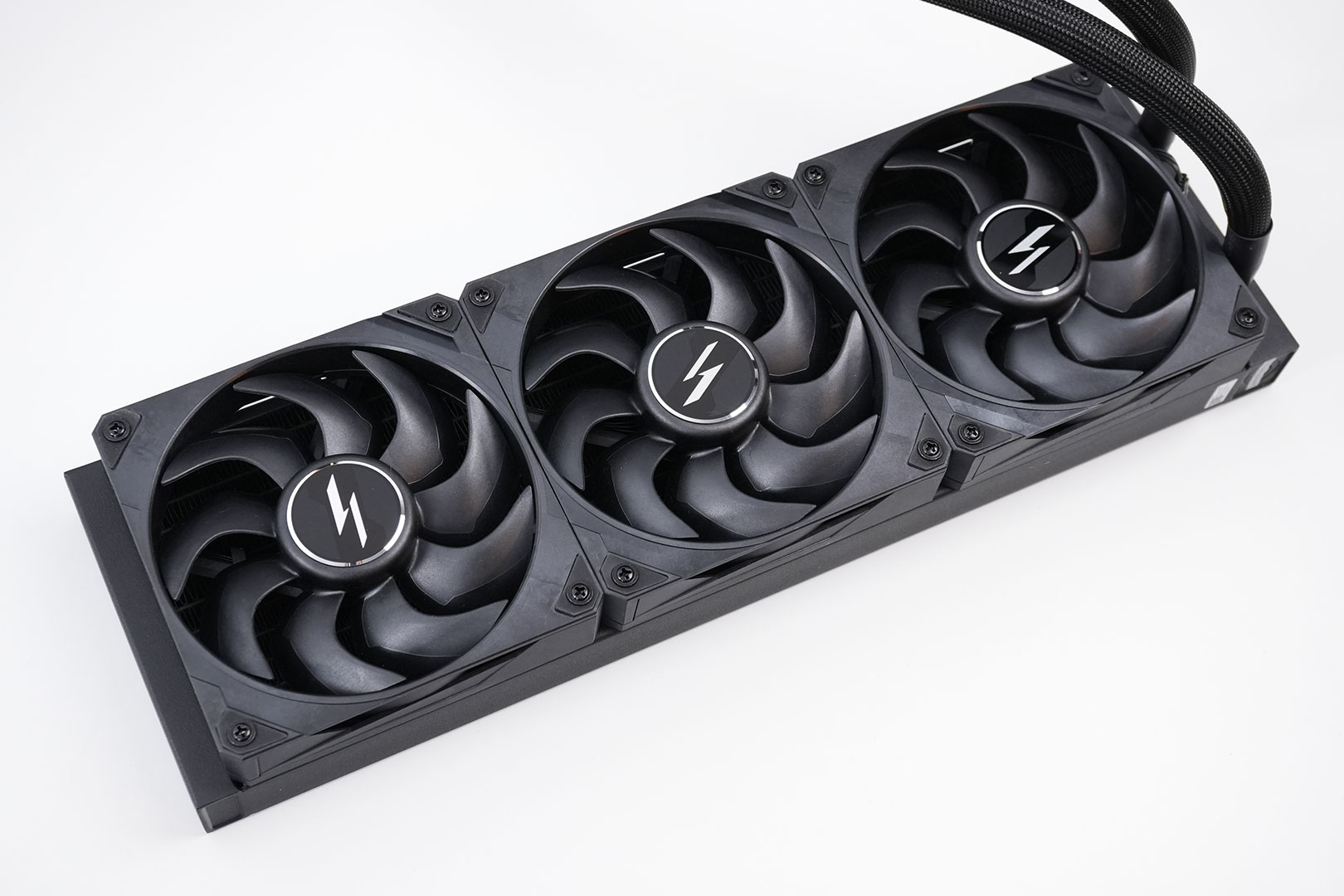
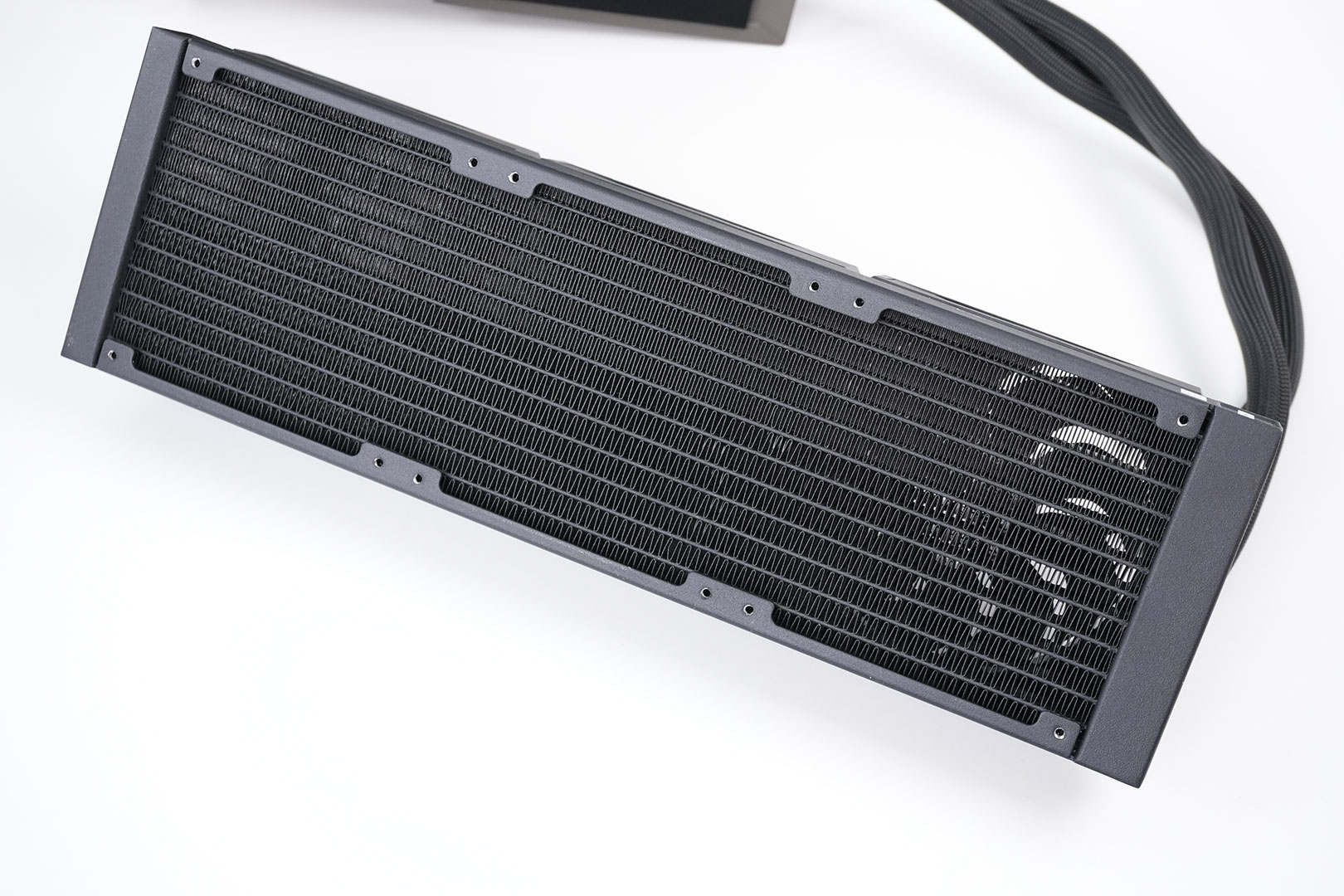
The watercooling radiator is a standard triple fan cooling solution.
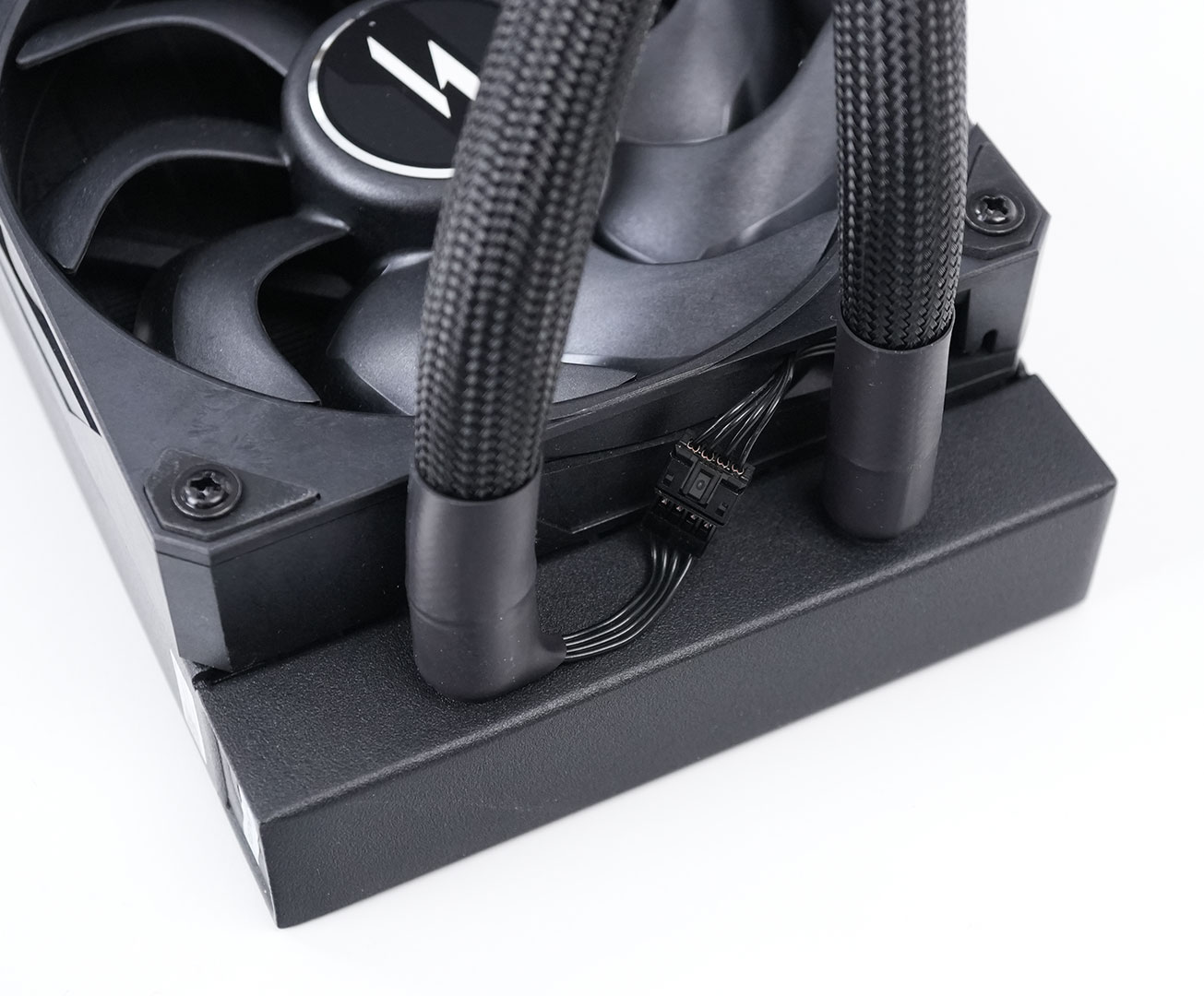
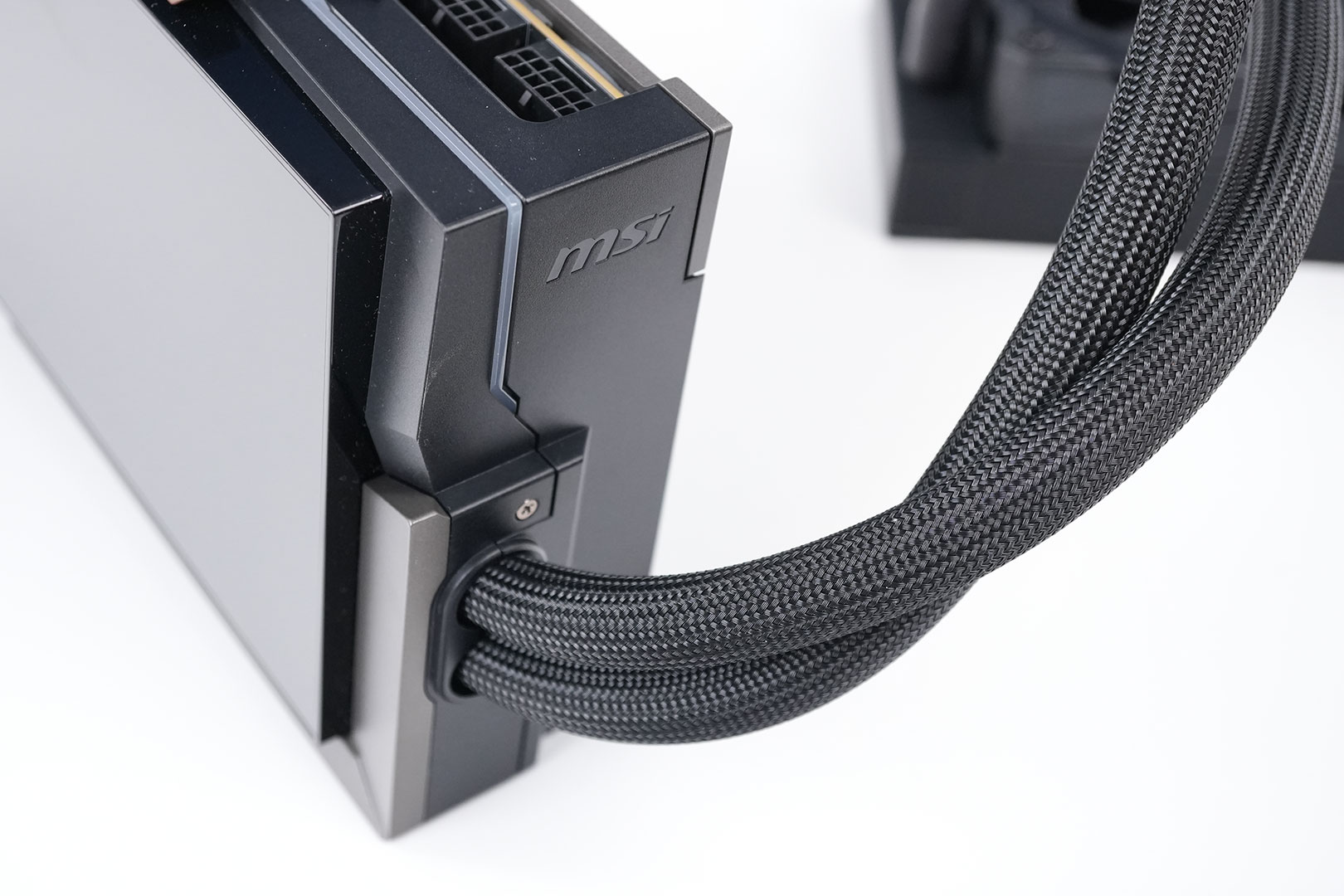
Everything is neatly integrated and there are no messy cables around. The fans are powered and controlled by the graphics card—no additional cables to connect.
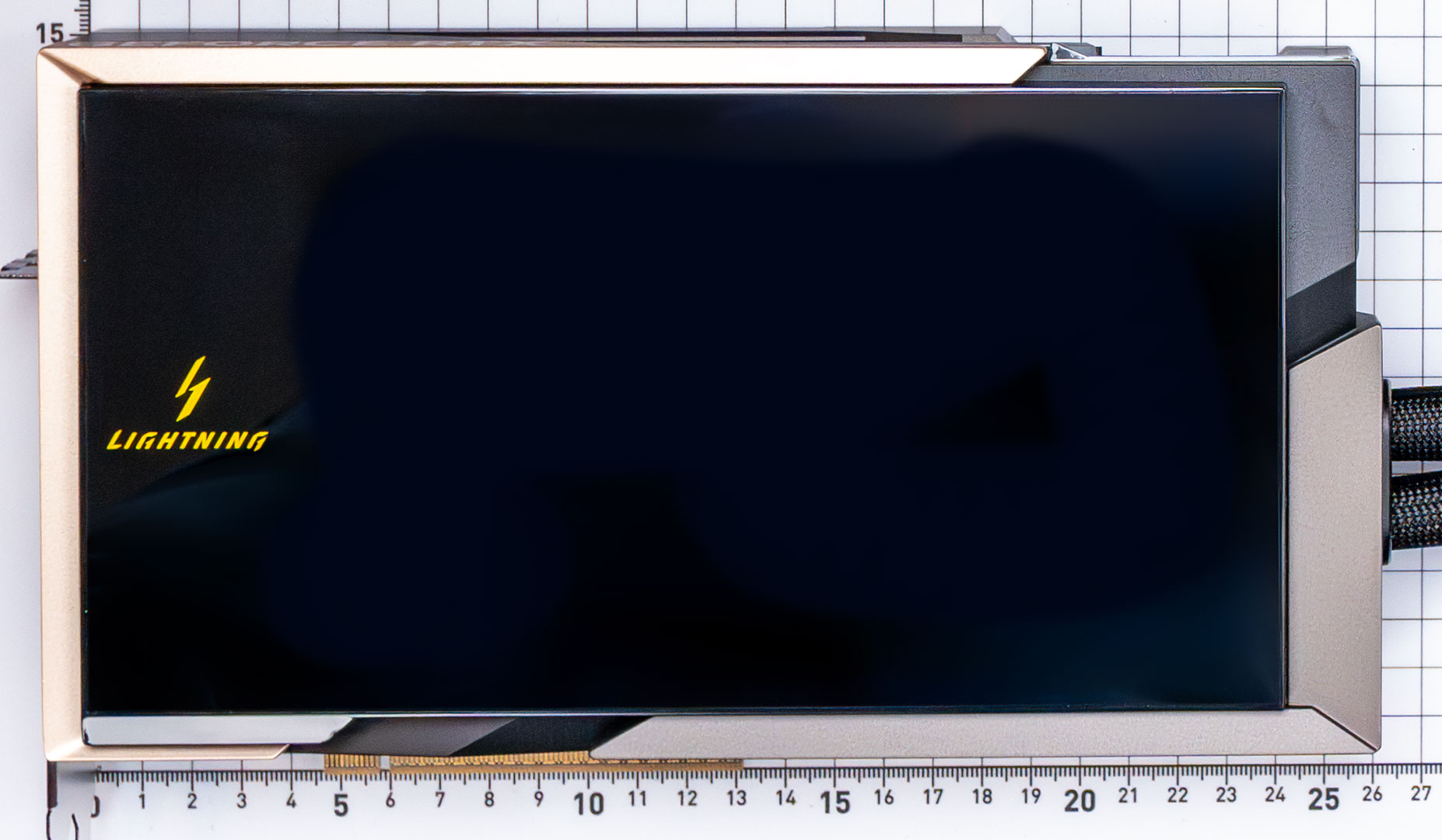
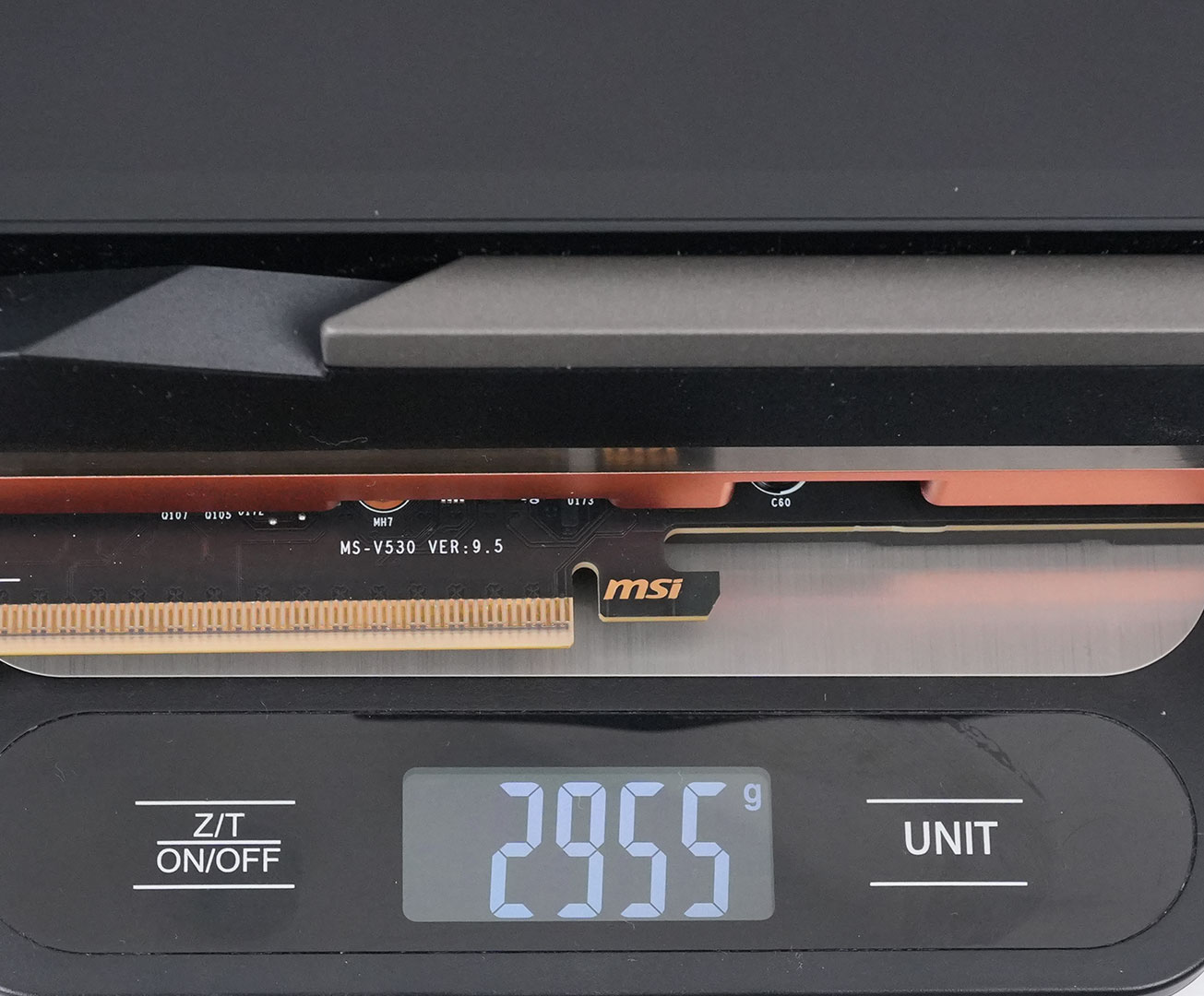
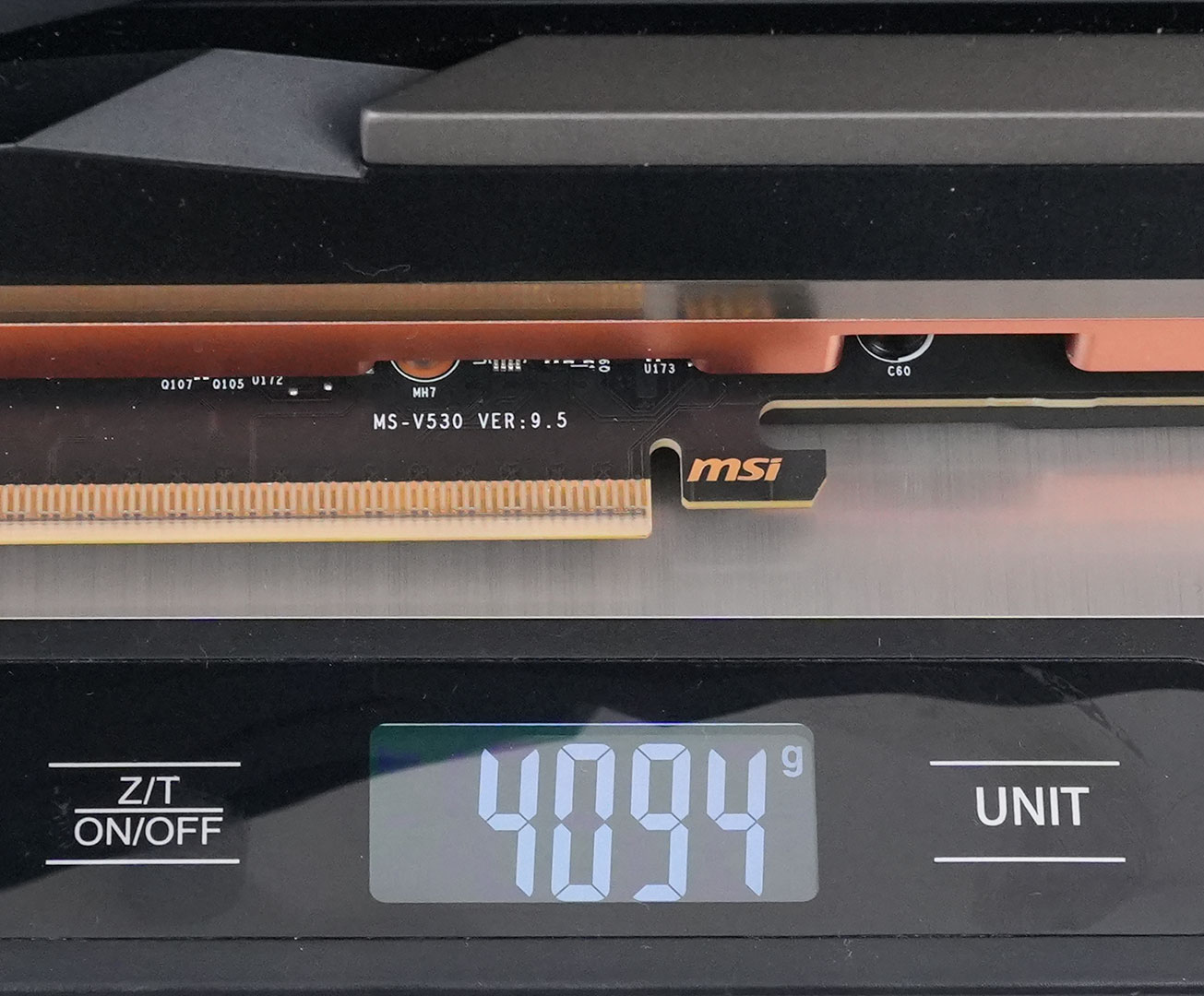
Dimensions of the card are 26.0 x 15.0 cm, and it weighs 2955 g (card only)/4094 g (including radiator).
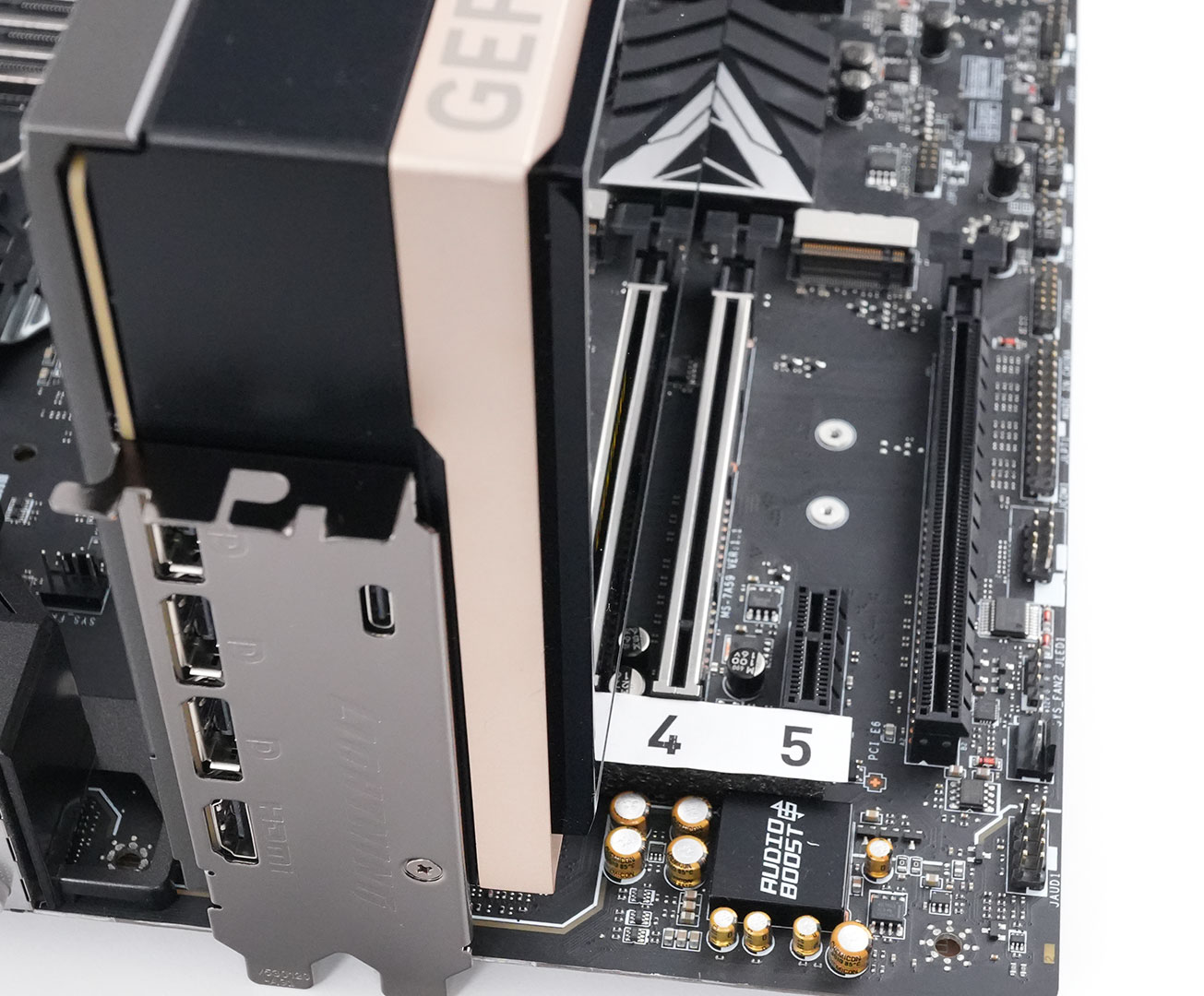
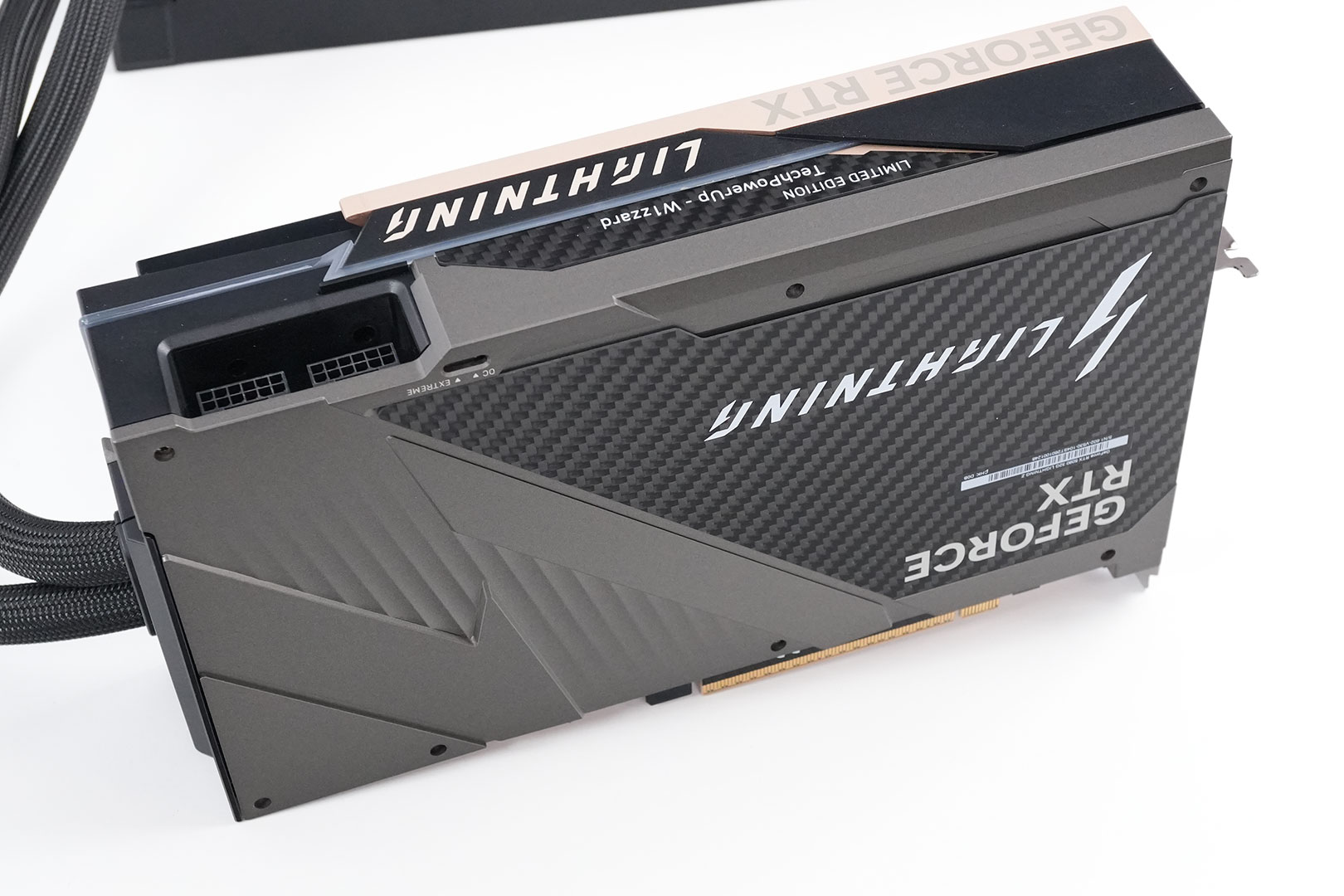
Installation requires three slots in your system. We measured the card's width to be 60 mm.
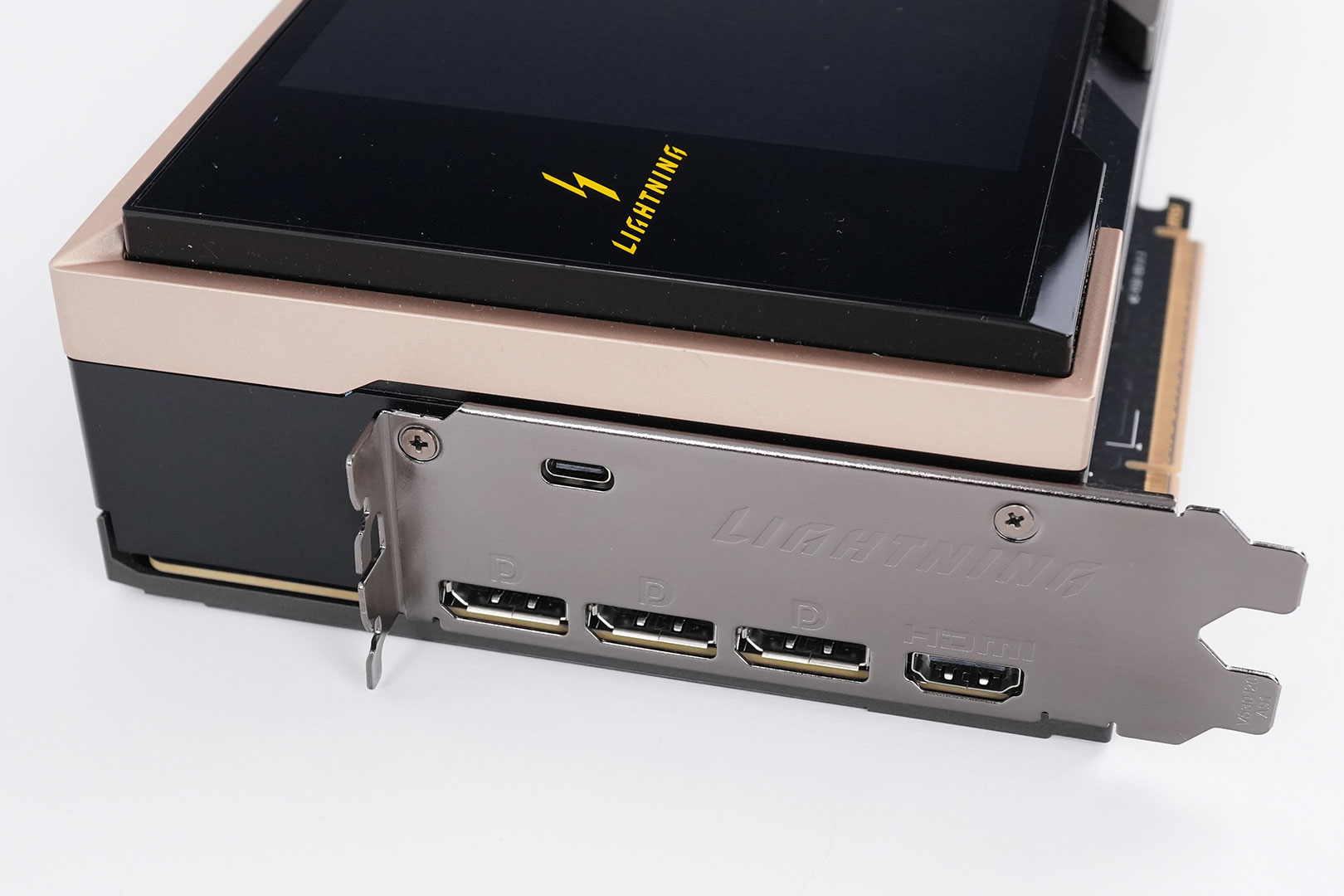
Display connectivity includes three standard DisplayPort 2.1b and two HDMI 2.1b. Also note the small USB-C connector here, which is used to connect the integrated display to your motherboard using an included USB-C to USB-A cable. Just to clarify, this is the "receiving" end, you cannot connect any other devices to this port.
All GeForce RTX 50-series Blackwell cards feature a new display engine supporting DisplayPort 2.1b with UHBR20, as well as HDMI 2.1a. Both interfaces support DSC (display stream compression). With DSC enabled, a single DisplayPort on this card can drive 4K 12-bit HDR at 480 Hz; or 8K 12-bit HDR at up to 165 Hz. The RTX 5090 features an updated media acceleration engine with support for 4:2:2 video formats, AV1 UHQ, and MV-HEVC. There are three independent NVENC units, and two NVDEC.

The card uses two 16-pin connectors, the board power limit is set to 800 W in default mode and 1000 W in extreme mode. There's also a 2500 W BIOS available, to effectively remove the power limit, but using that BIOS does void the warranty. Running the card with a single 16-pin cable is not supported. This has the advantage that MSI is able to share the load, which means you'll only hit 400 W on each connector (500 W each with the 1000 W BIOS).
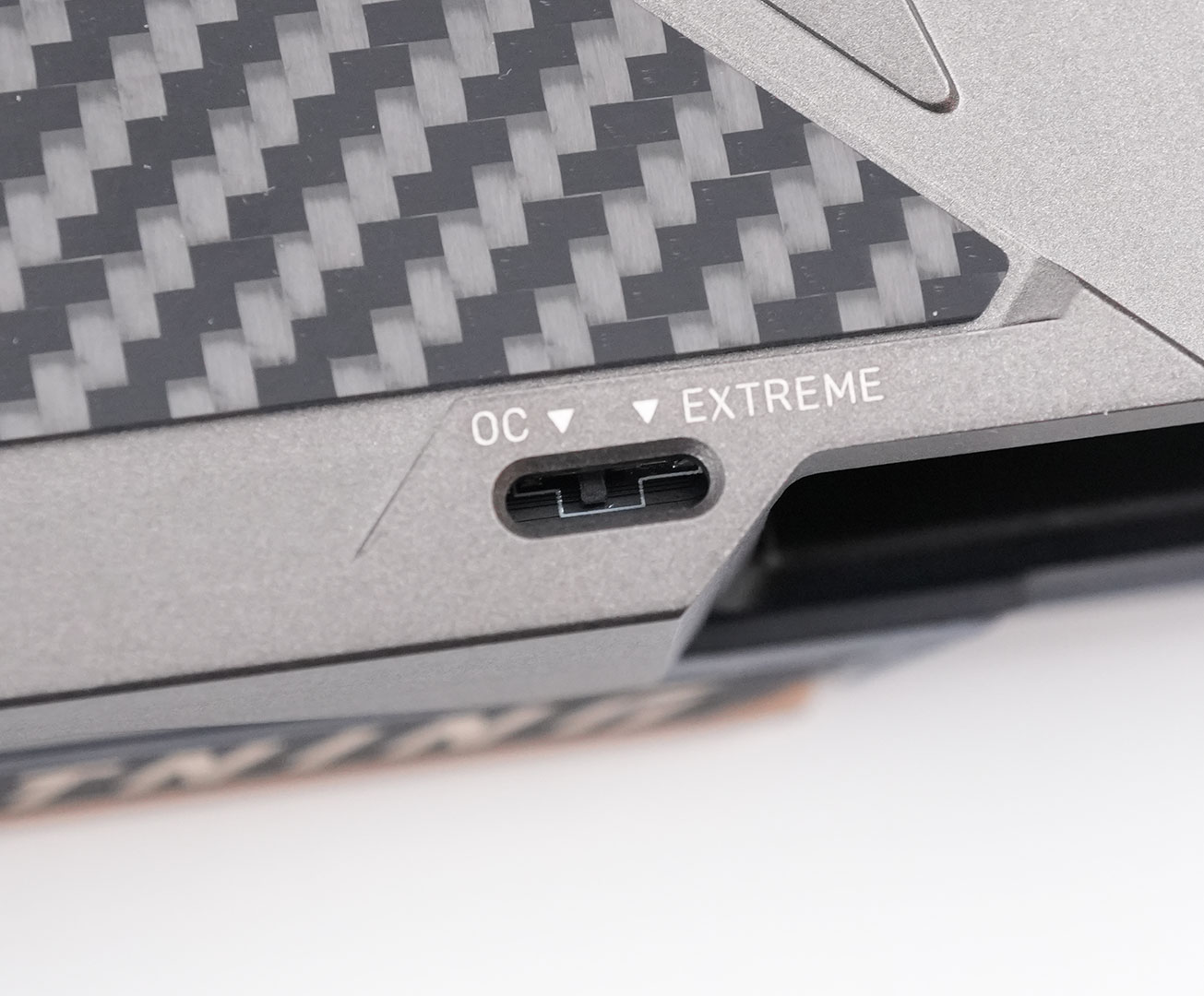
Here's the BIOS switch that lets you toggle between the default "OC" 800 W BIOS and the "Extreme" 1000 W BIOS. Reaching the switch is more complicated than I had hoped. Although a tool is included, ideally it should be designed to be easily accessible without any tools.
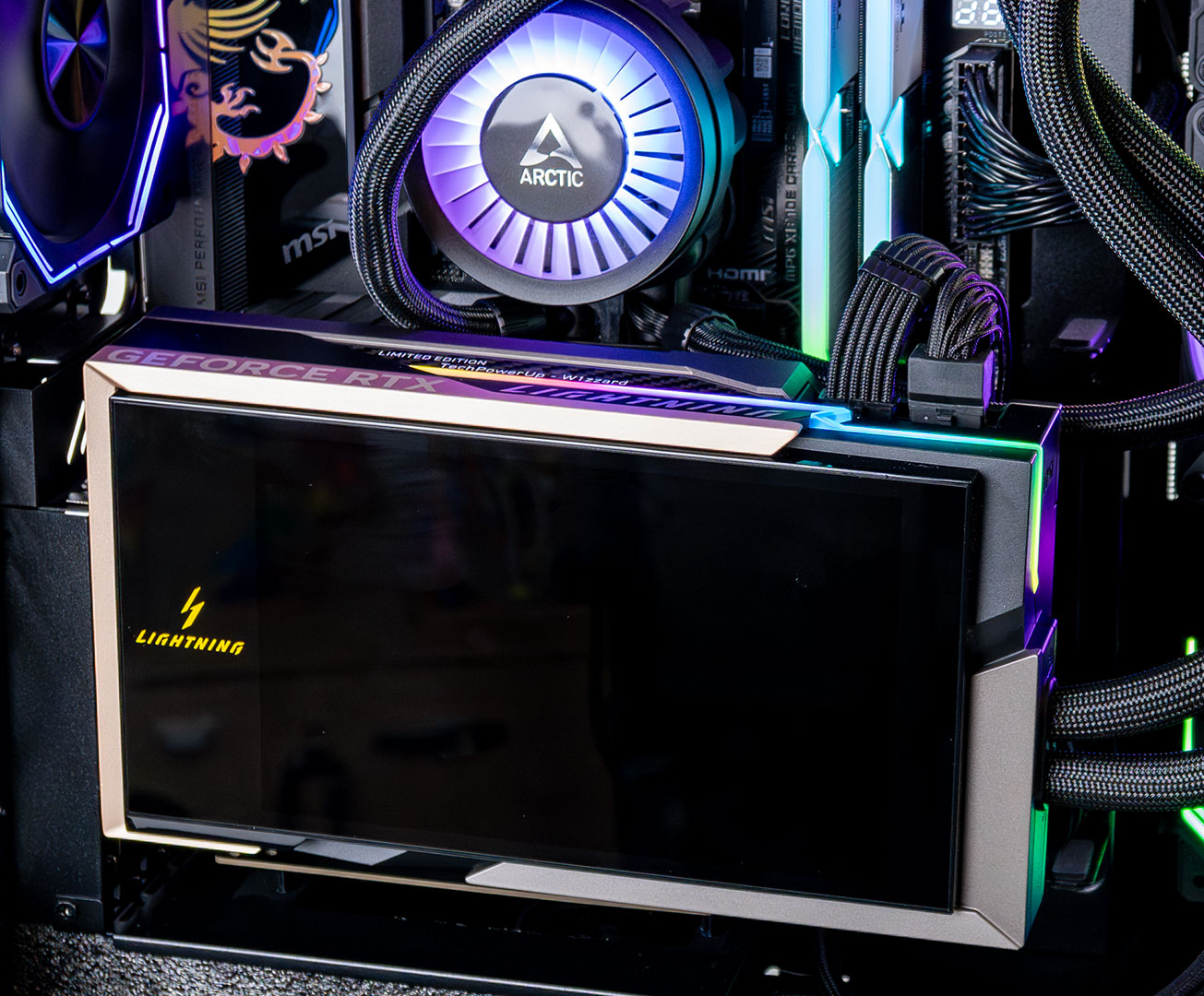
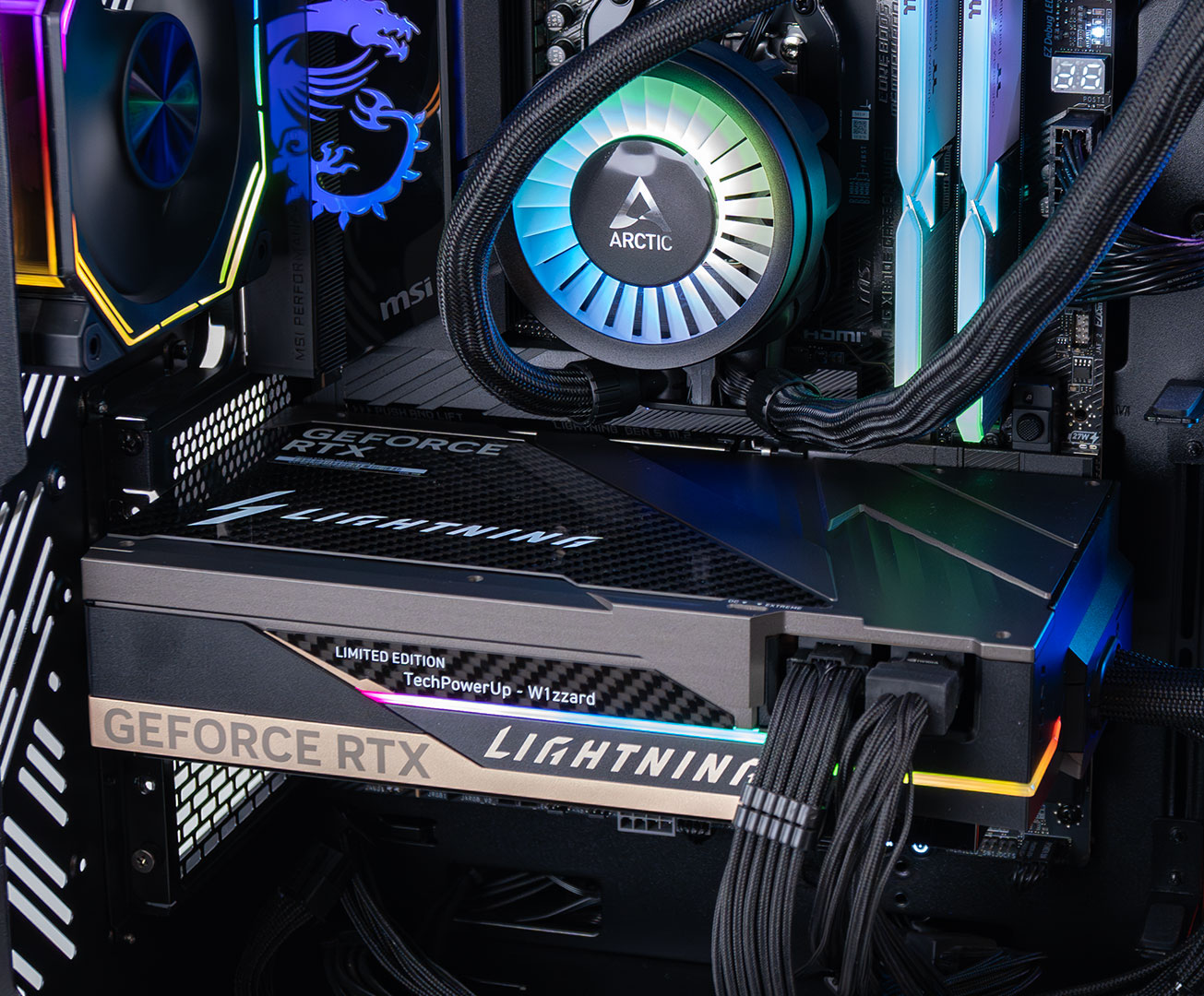
An LED strip runs along the top edge of the card and curves around to the back.
Teardown
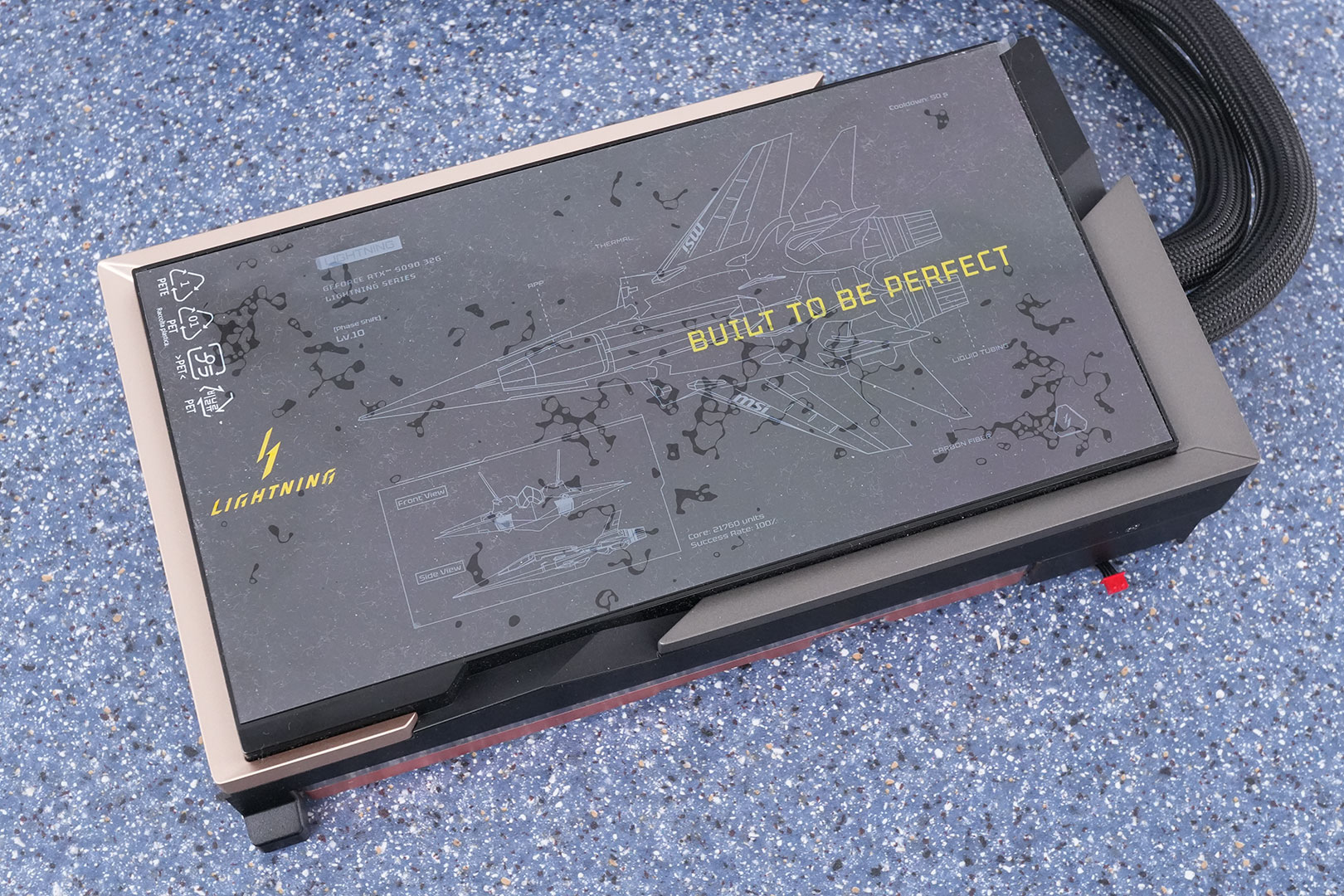
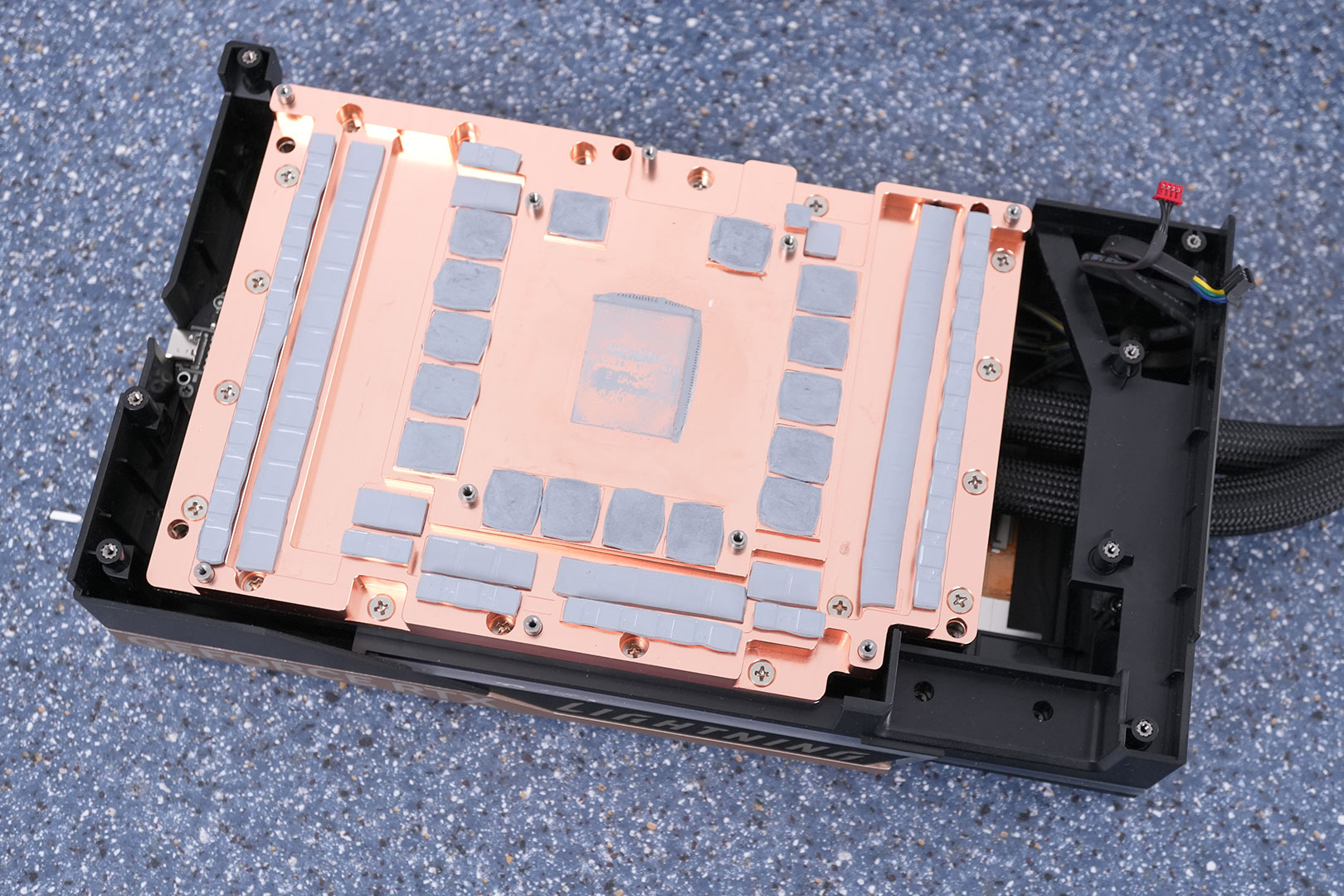
MSI's cooler is surprisingly easy to disassemble, just remove a bunch of screws and you're done. The heatsink waterblock doesn't cover just the GPU chip, it also makes direct contact with the memory and the VRM circuitry, providing excellent cooling for all of them.
Keep the LCD protection foil so you can put it back when handling the card. This will help prevent accidentally scratching the display, as I did.
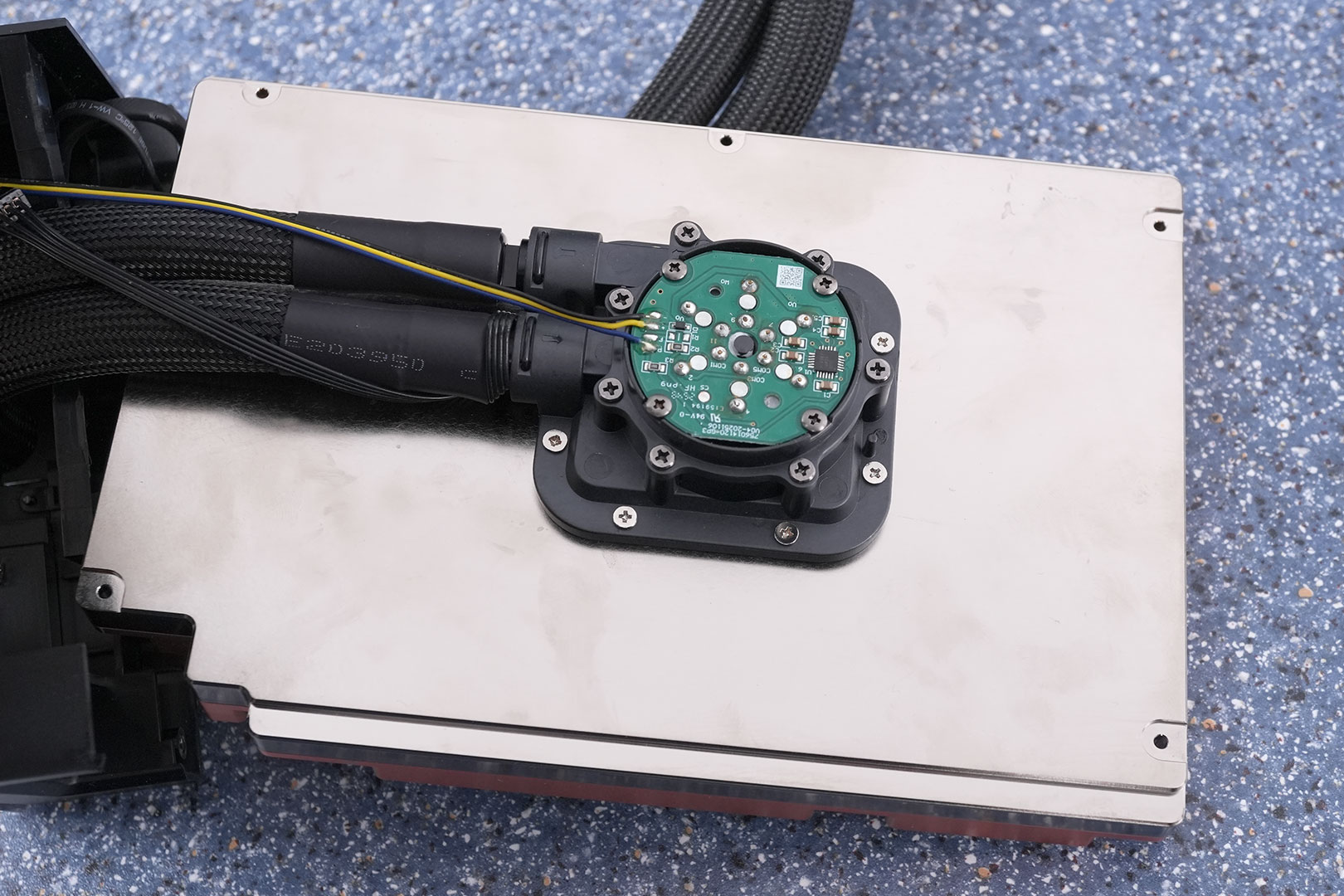
The other side of the waterblock has the integrated pump. There is no pump stop. I asked MSI about this, and they explained that if the pump was stopped, overheating could occur when a 1000 W load turns on in less than a second, because there's a short delay due to sensors and motor start time. Makes sense. When the card is idle, the pump runs at low speed, and switches to a higher speed mode when the GPU fans exceed 1000 RPM, providing more liquid flow to help with cooling.
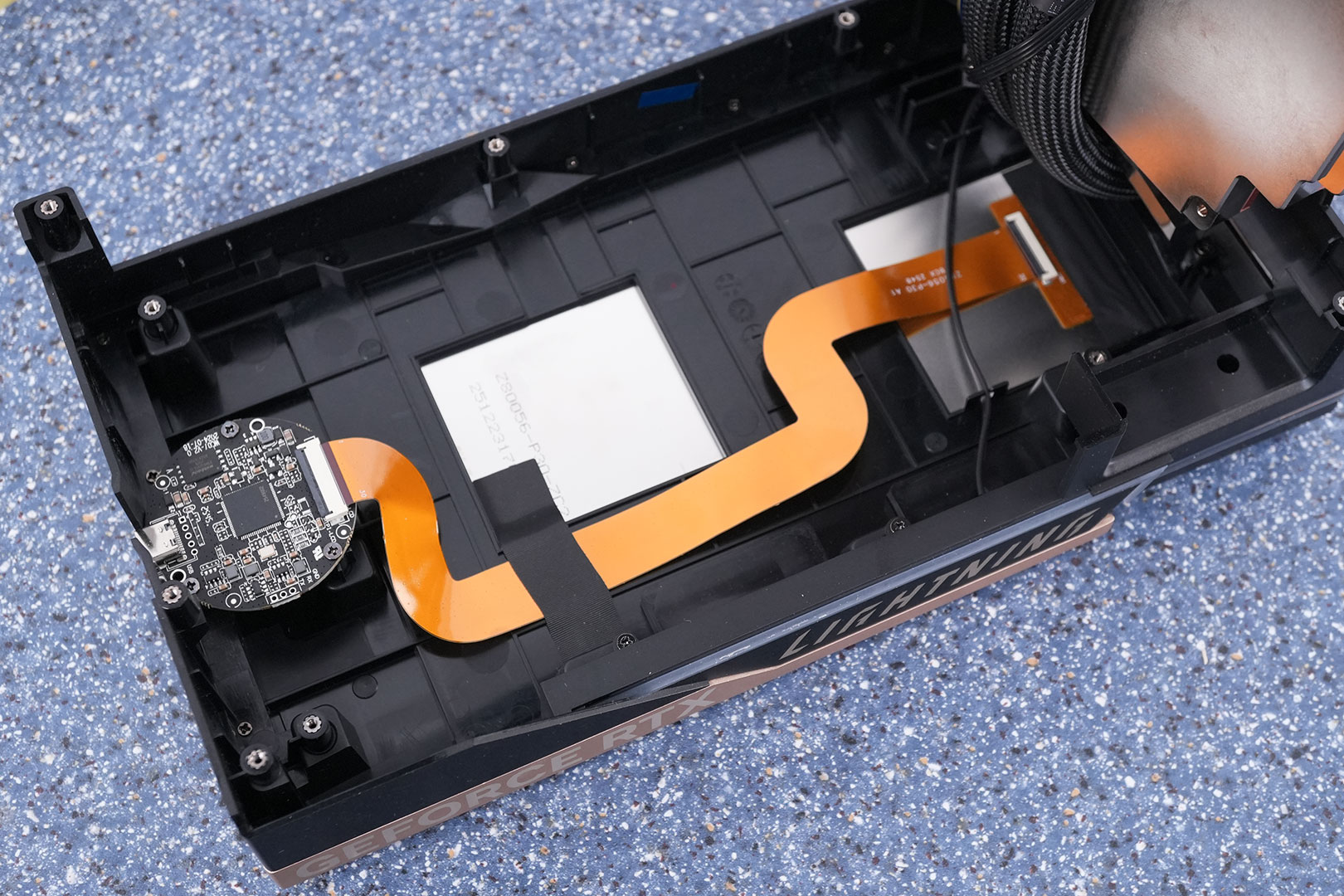
Here's the inside of the cooler shroud. You can see the small PCB for the LCD, which is completely independent of the rest of the card.
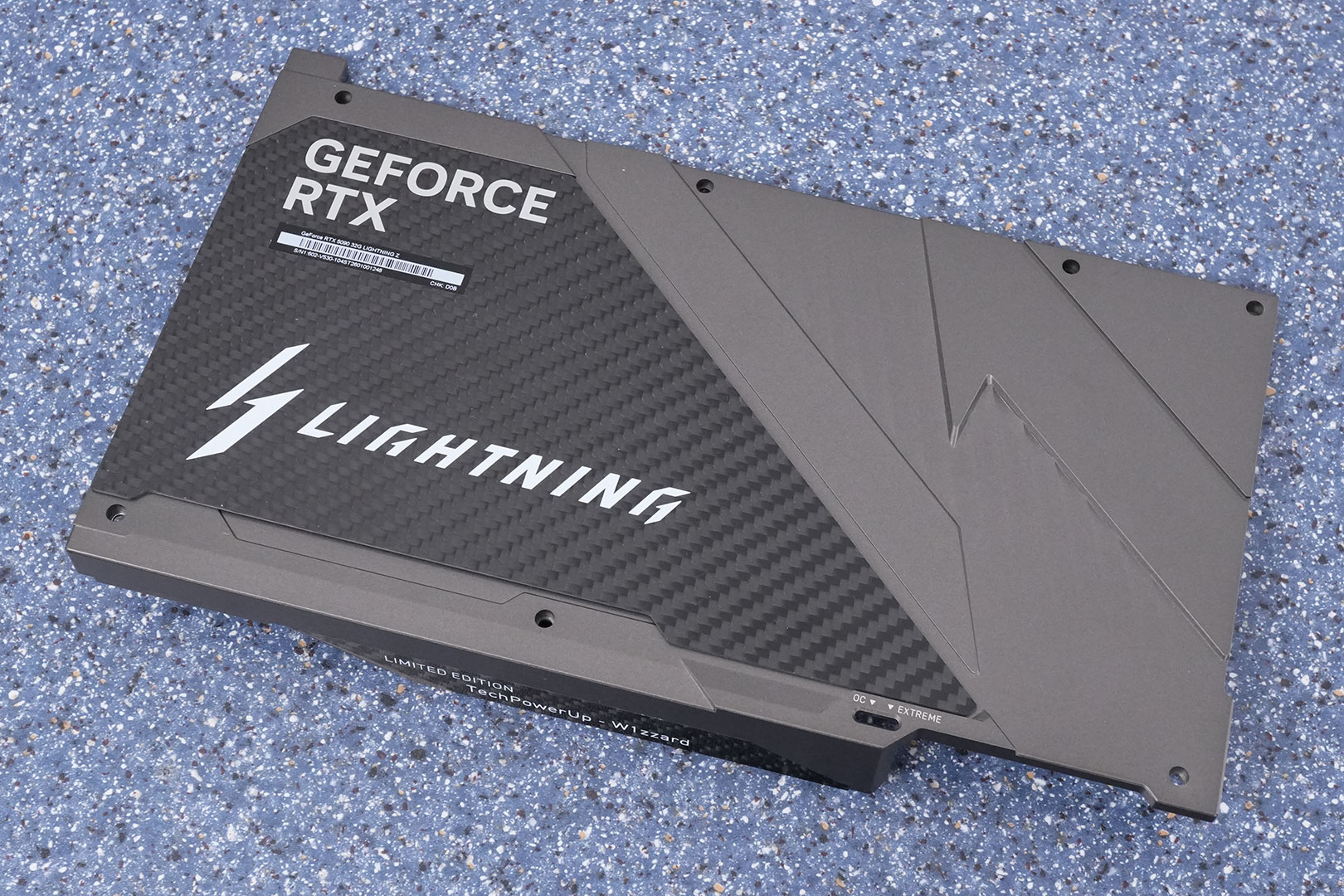
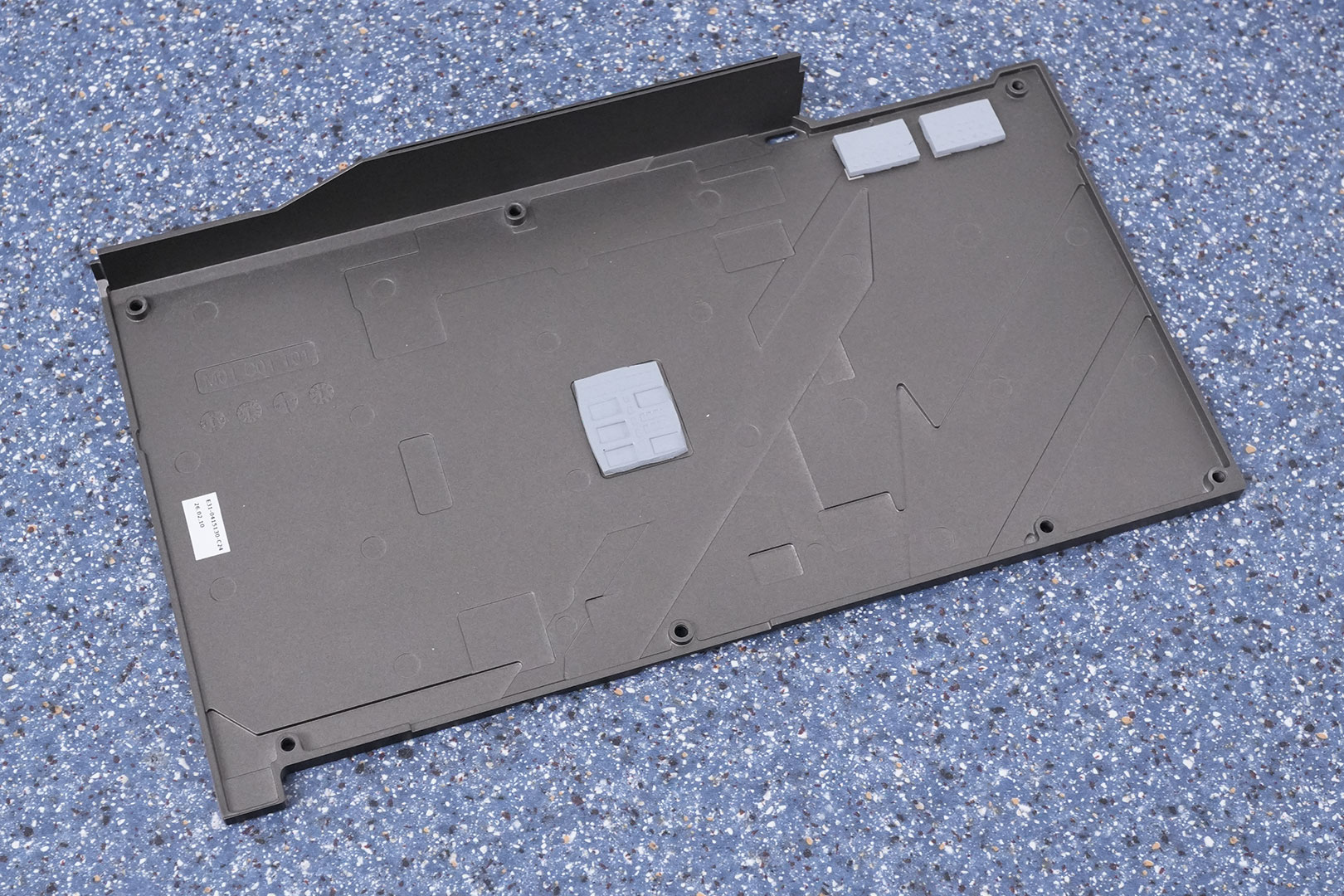
The metal and carbon fiber backplate protects the card against damage during installation and handling.
Nov 14th, 2026 19:37 CST
change timezone
Latest GPU Drivers
New Forum Posts
- WarpCoreBench scores! (34)
- Planning for Prolonged High Prices and Maintaining What You Already Have (65)
- 9070 GRE 3.9ghz validation reached. (11)
- Honestly, do you care about GTA VI? (20)
- AI generated images... (226)
- What is in your fleet, size and contents? (28)
- X79 and/or rampage IV OC'ing thread for those of us still left.... (2452)
- Can you guess Which game it is? (317)
- What can the FX 8320 do today? Here is the answer. (43)
- Ryzen 7 8700G OC (8)
Popular Reviews
- AMD Zen 6 Technical Deep Dive
- ASUS ROG Strix B850-I Gaming Wi-Fi7 W Review
- Corsair HX1000i Shift Crystal Review
- Upcoming Hardware Launches 2027 (Updated Nov 2026)
- Montech King 95 3D PRO Review
- NZXT C1200 Platinum Review
- NZXT H7 RGB+ Review
- NZXT H5 Review
- Phantom Blade Zero Performance Benchmark Review - 35 GPUs Tested
- AMD Ryzen 7 9800X3D Review - The Best Gaming Processor
TPU on YouTube
Controversial News Posts
- NVIDIA Co-Founder and CEO Jensen Huang Officially Resigns (406)
- OpenAI CEO Argues Home PCs Waste the World's Limited DRAM Supply (152)
- NVIDIA Launches Investigation Into Jensen Huang's Relationship With Suspected Chinese Spy (136)
- Intel "Raptor Lake Next" 16-Core and 20-Core CPUs Surface (130)
- Legendary Game Studio BioWare Shuts Down Following EA Layoffs (104)
- Dell CEO Says the Memory Shortage Will Get Worse in 2027 (95)
- NVIDIA GeForce RTX 50-Series Scheduled for up to $500 Price Hike This Week (89)
- Modder Fits RTX 5090 With Four 8-Pin Connectors, Halving Current per Wire (80)