 17
Nioh 3 Handheld Performance Review
(17 Comments) »Introduction
Nioh, one of the most popular masocore franchises around, just got its third entry. Similar to the previous two games, Nioh 3 is all about utilizing every part of your arsenal to survive brutal encounters and tricky boss battles. Some people call it a Souls-like, but while the Nioh series share similarities with other Souls-like games, it's very much its own thing, and it's been pretty successful at it for almost a decade.Nioh 3 introduces a number of major changes to the series. For the first time ever, you've got vast, semi-open world maps instead of linear levels, making the game a tad easier than its predecessors since now you can go out into the world and grind for a bit if you bounce off a particularly difficult boss. Switching between ninja and samurai styles can now be done with the press of a button. The game has also locked specific weapons to one of the two styles and brought about a number of other smaller changes.
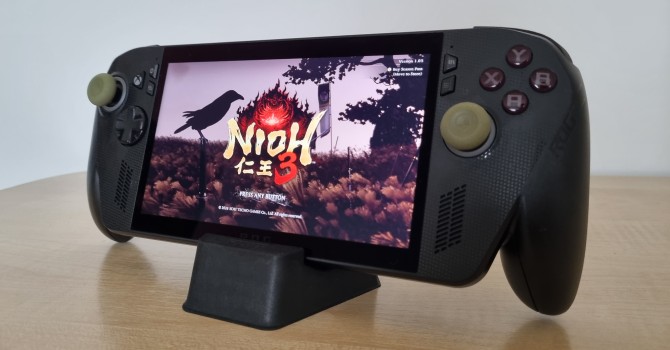
Nioh 3 is developed by Team Ninja, but unlike the previous two entries, which used a modified Team Ninja's NG3/NG3RE Engine, the latest entry is built on Koei Tecmo's Katana Engine. The engine supports a number of modern features, including automatic LOD generation, fluid simulation, and physically based materials. On the flip side, Nioh 3 doesn't include ray tracing, but it does feature all three major upscalers and supports FSR and DLSS frame generation, including DLSS multi-frame generation.
Unfortunately, Katana Engine is infamous for its poor optimization, high CPU usage, poor frame pacing, and other problems, so let's see how Nioh 3—the latest game utilizing it—fares on the Steam Deck, ASUS ROG Xbox Ally X, ASUS ROG Ally X, and an ASUS ROG Ally running SteamOS.
Screenshots
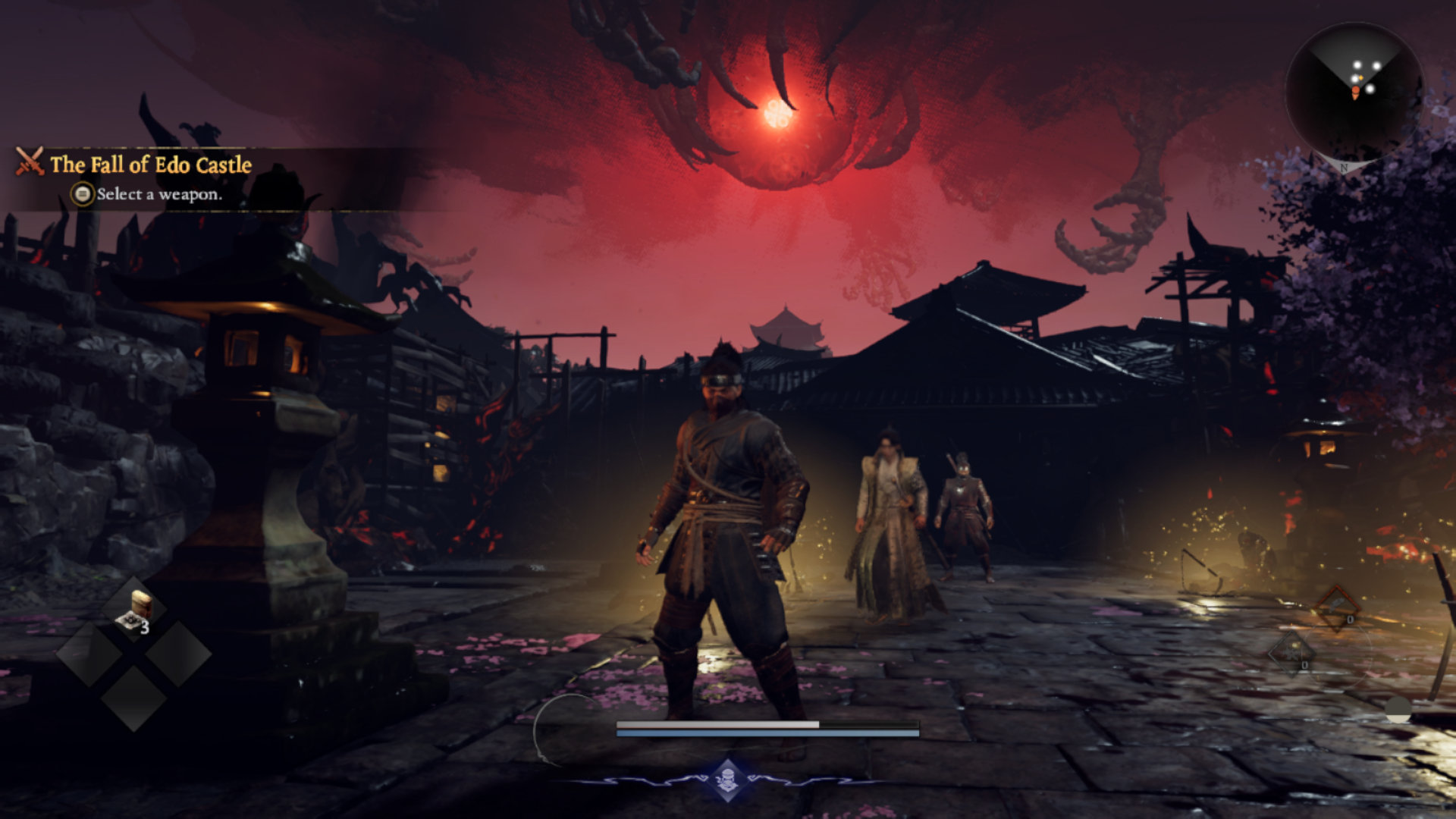
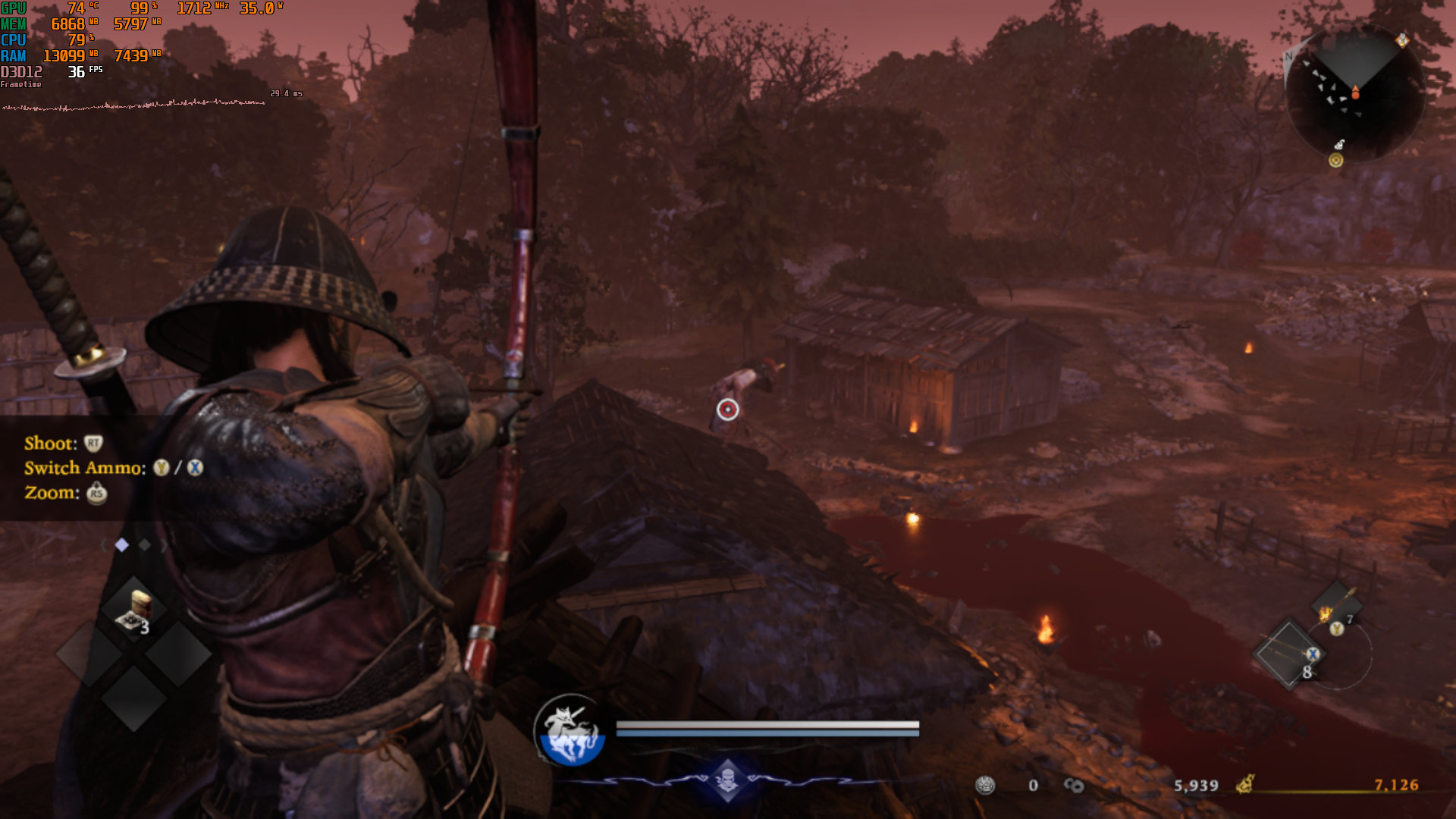
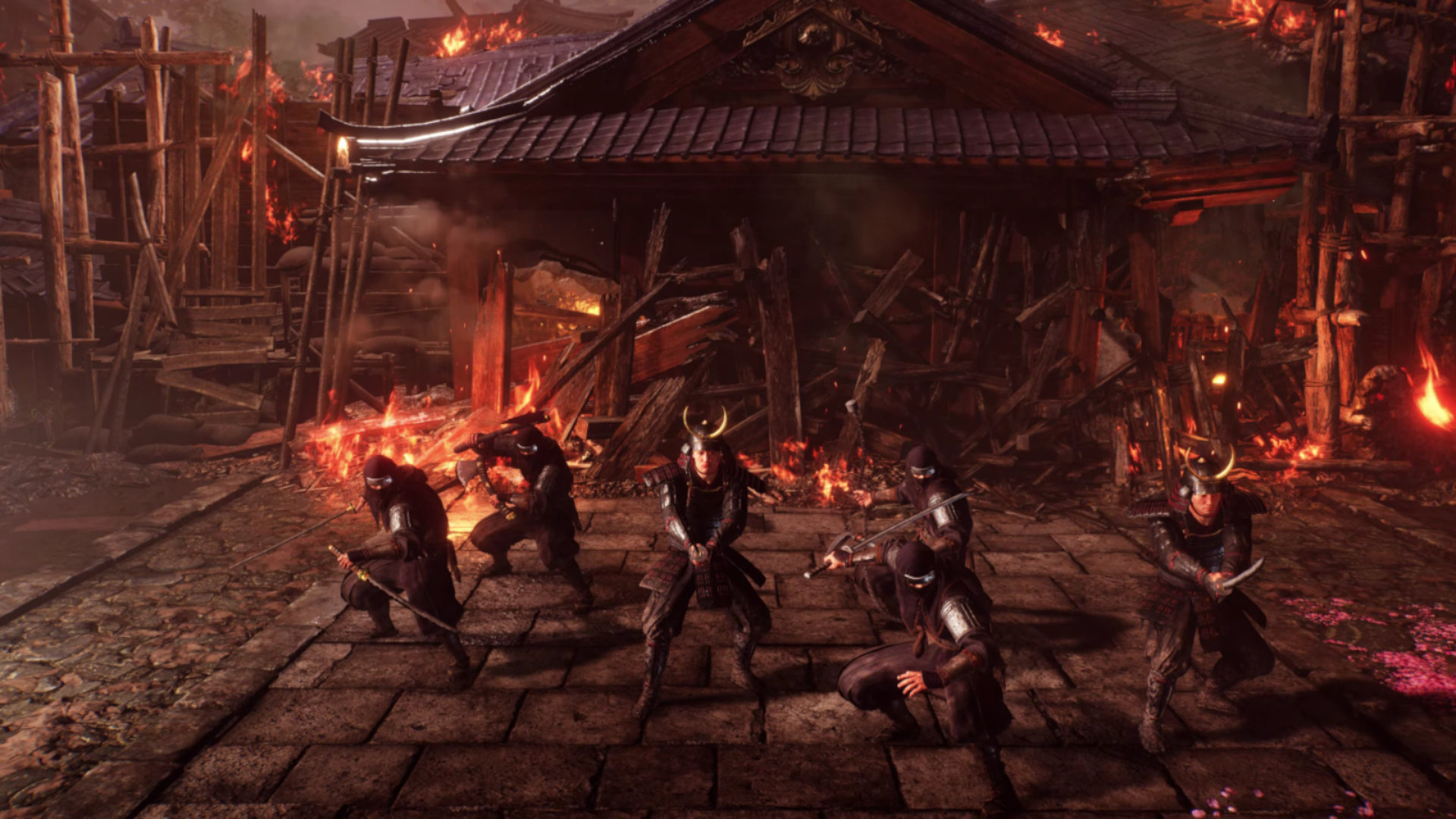
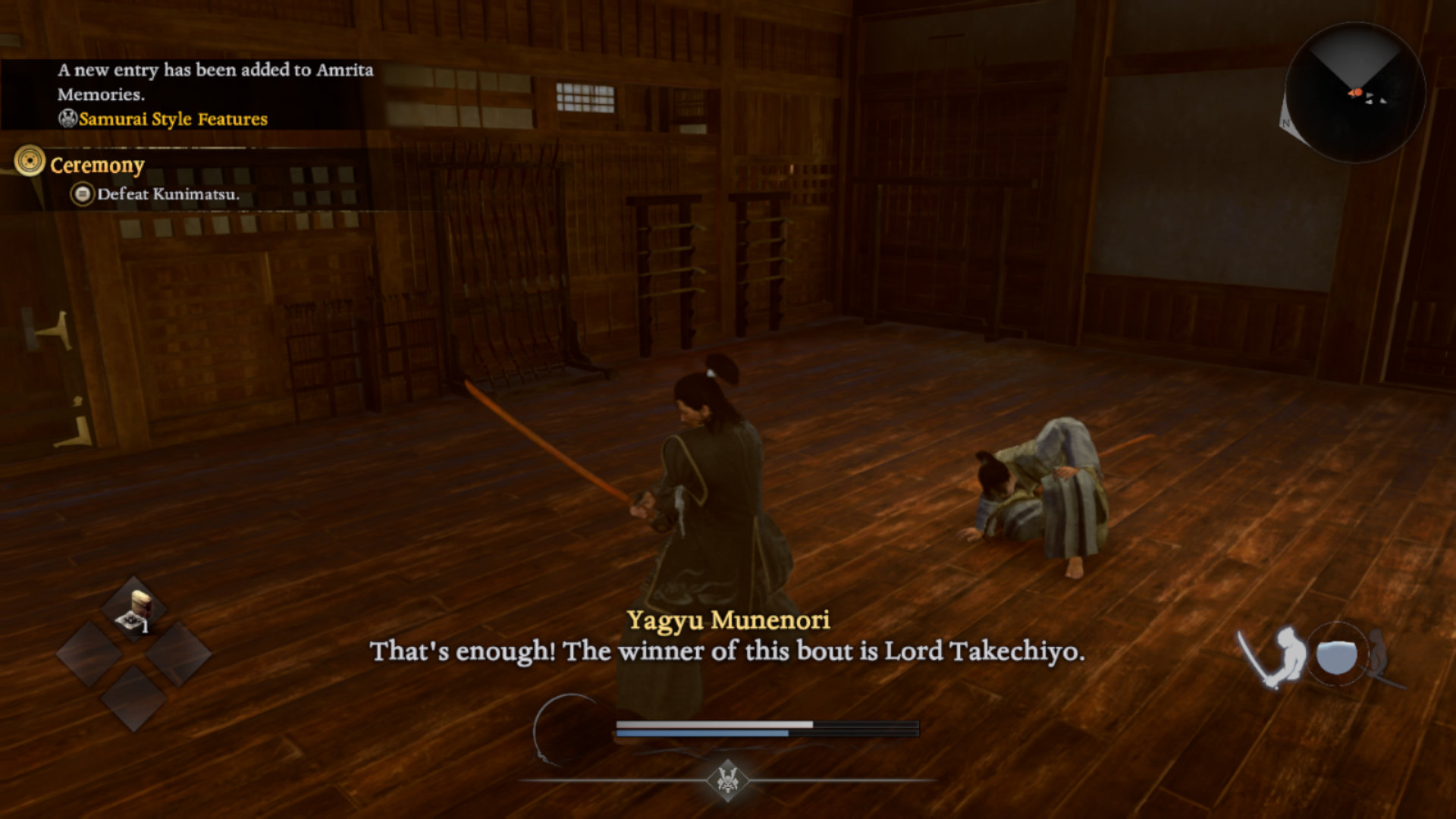
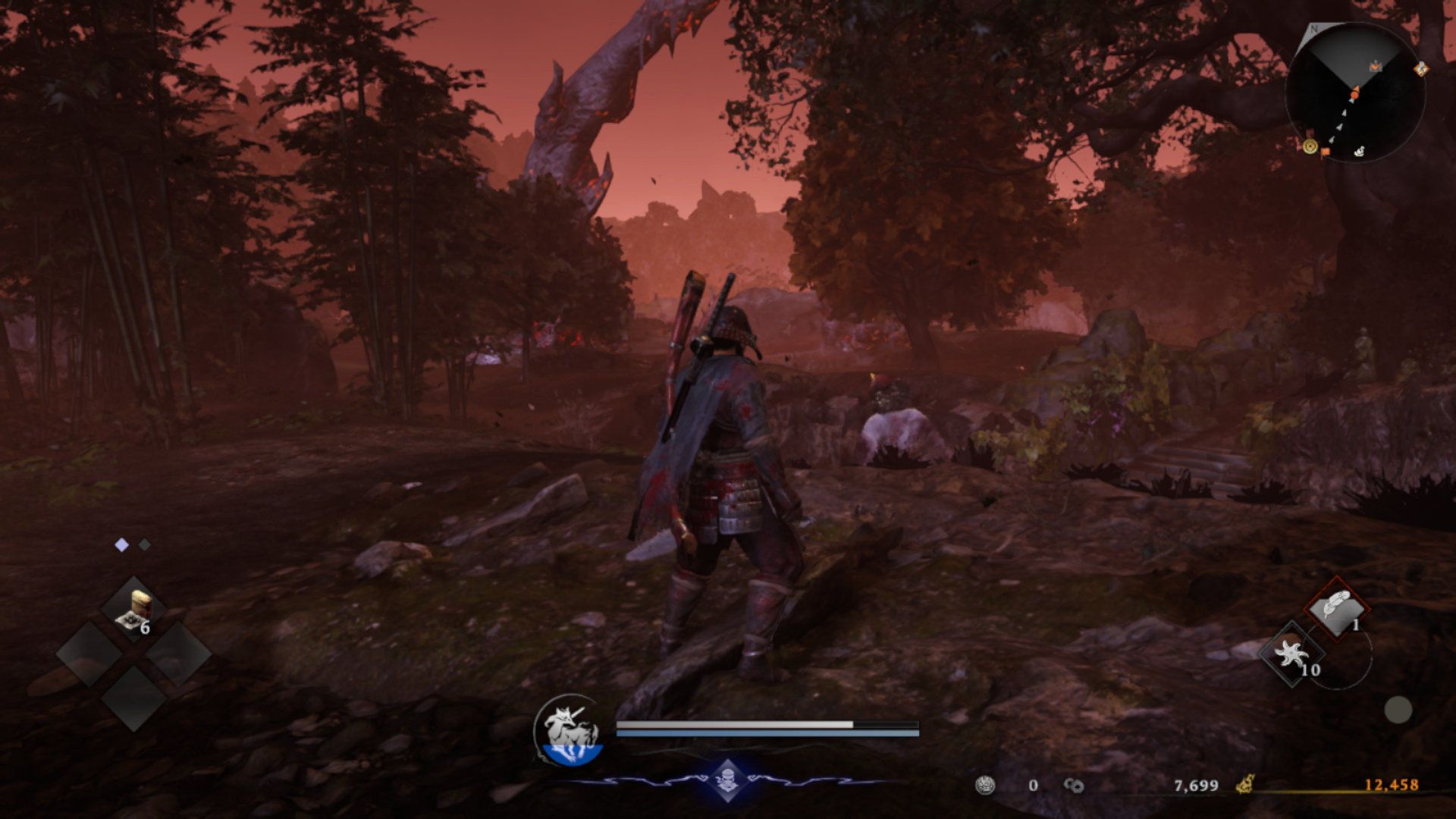
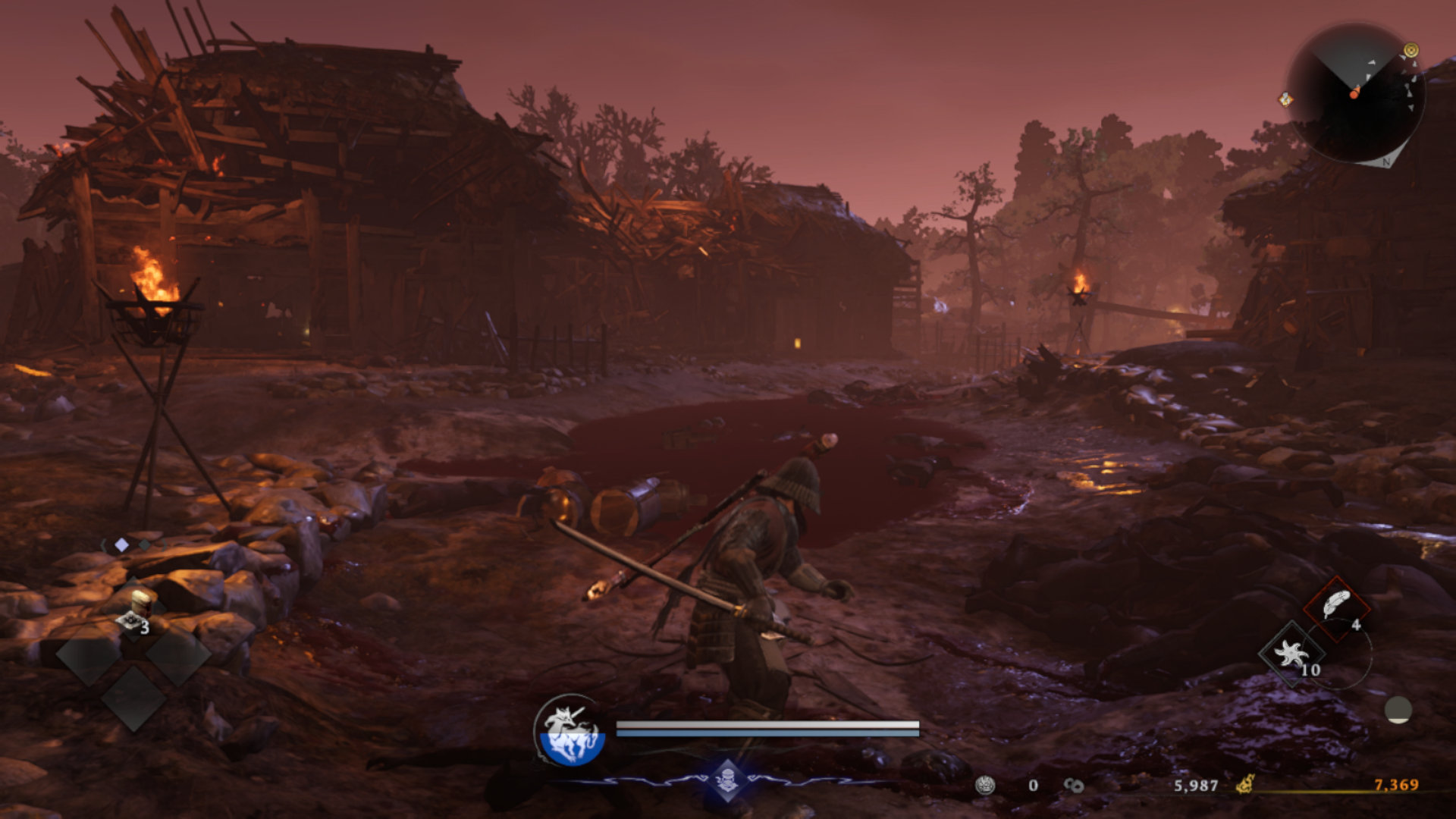
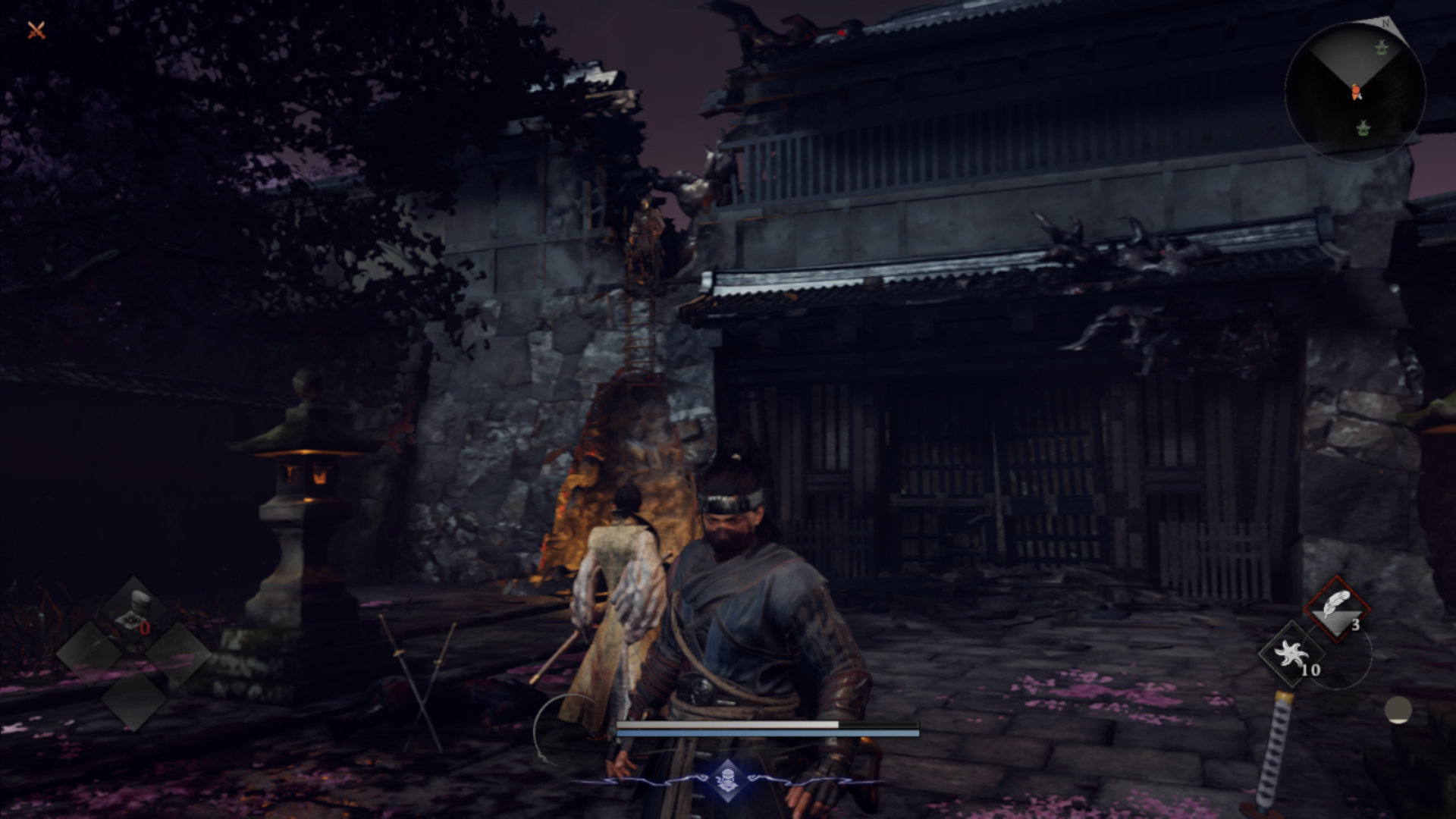
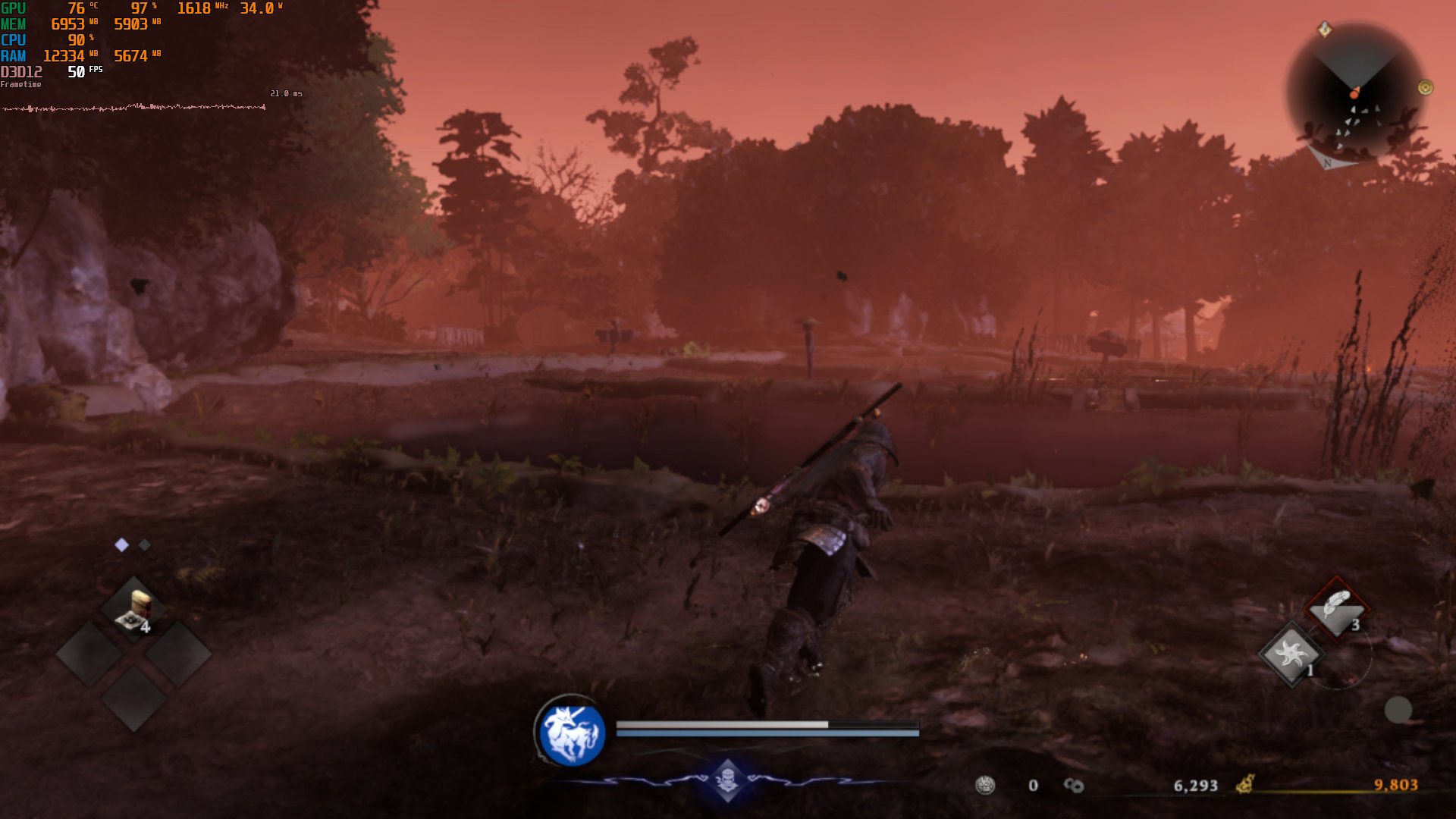
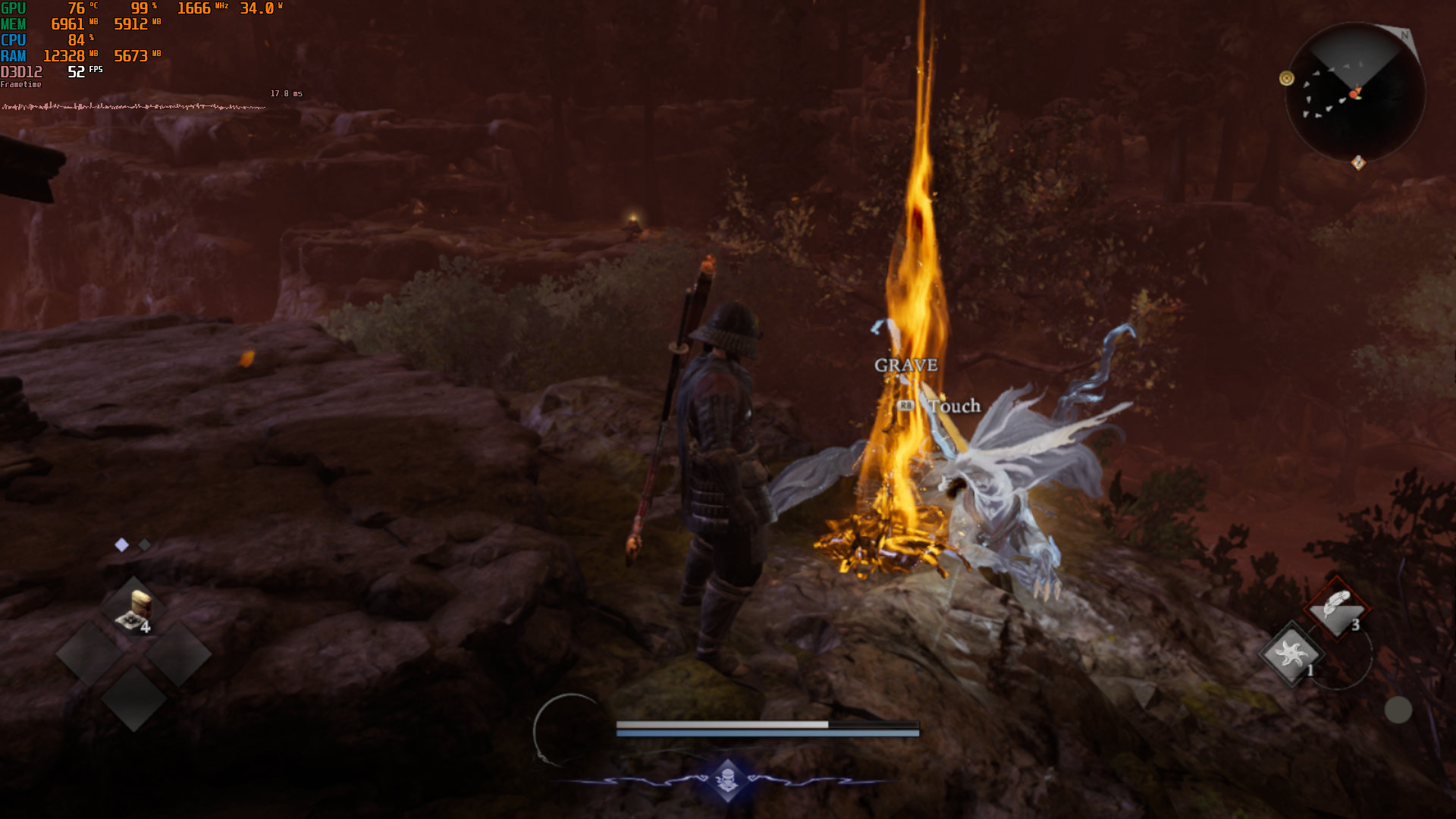
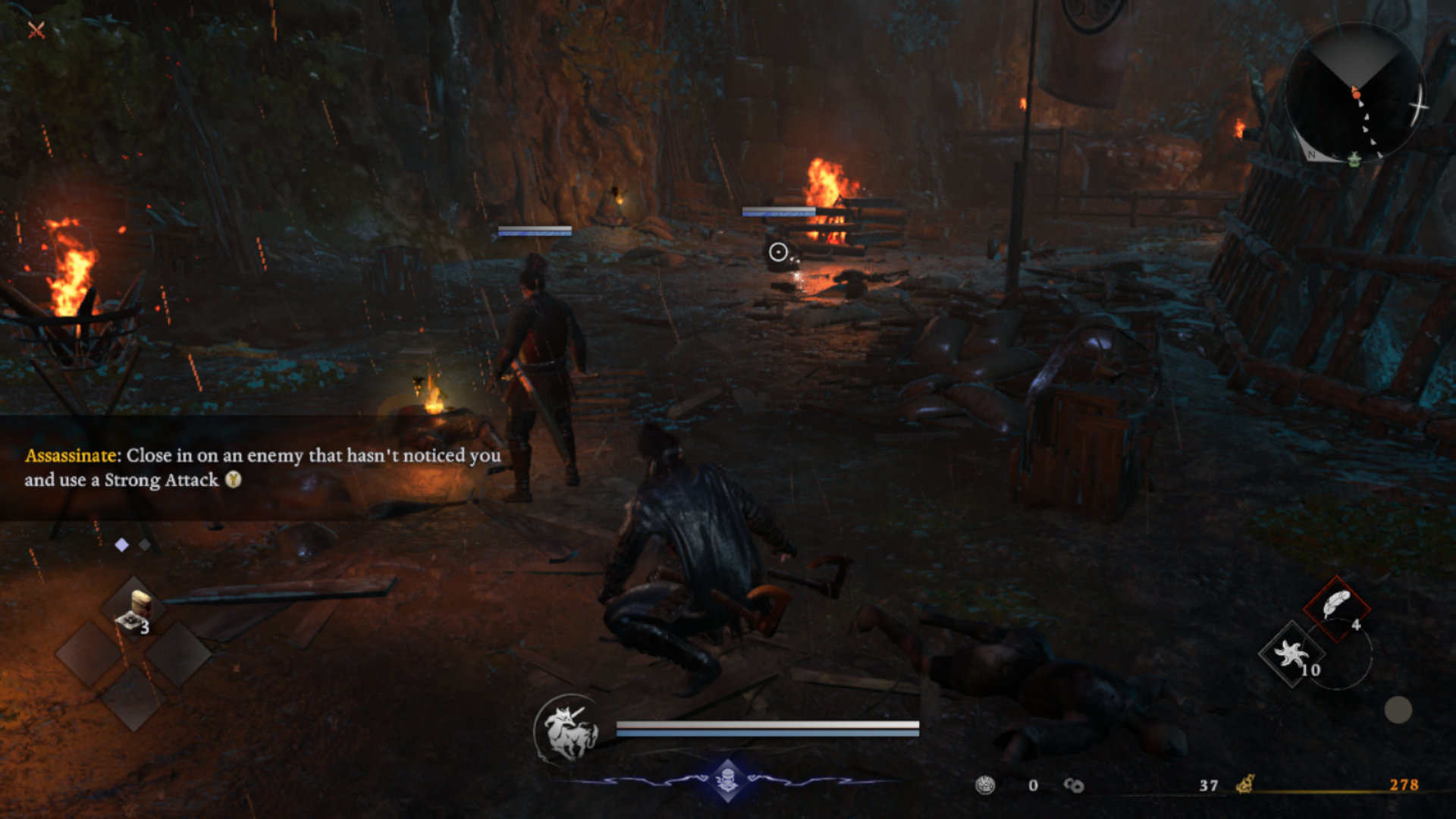
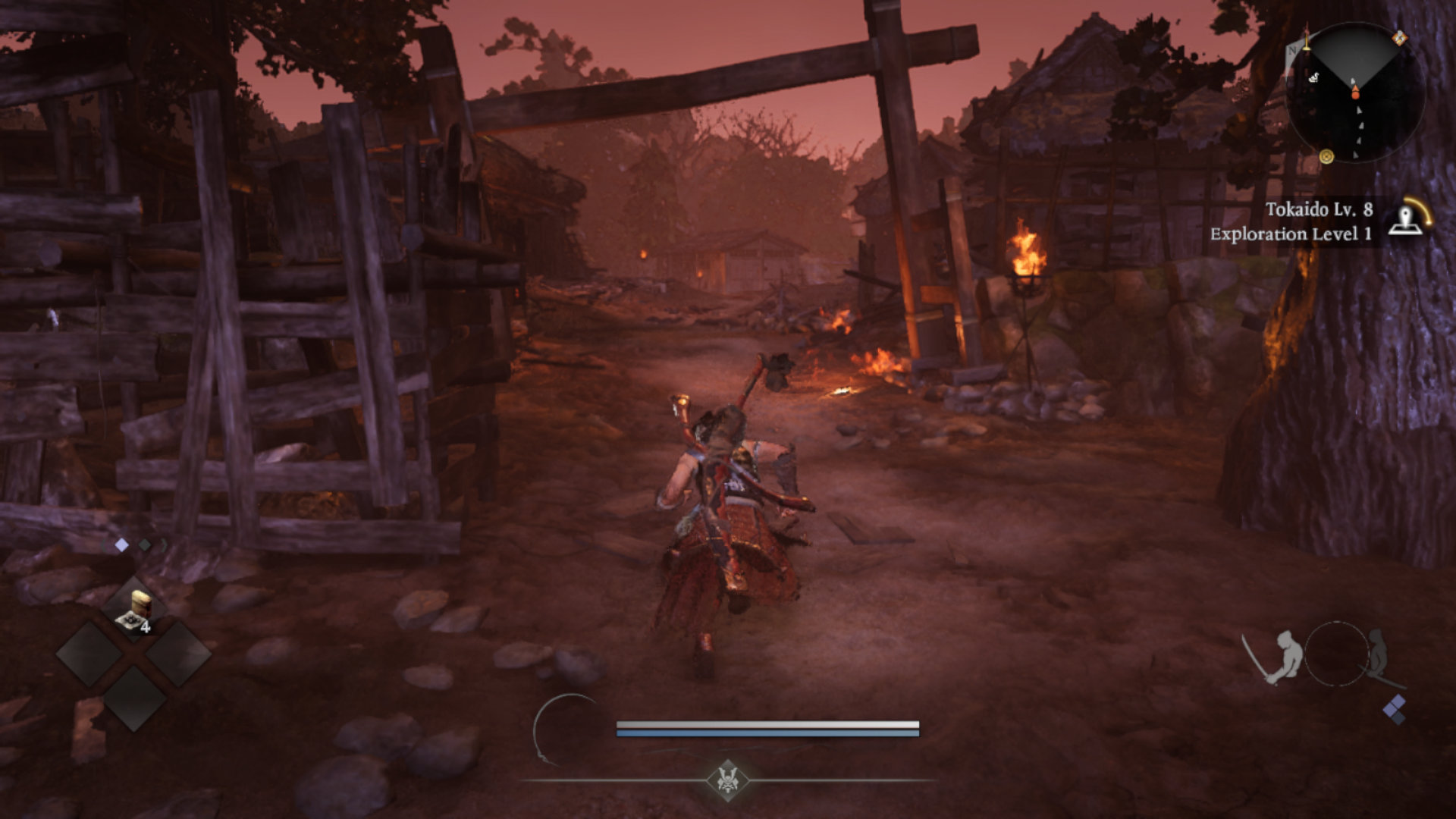
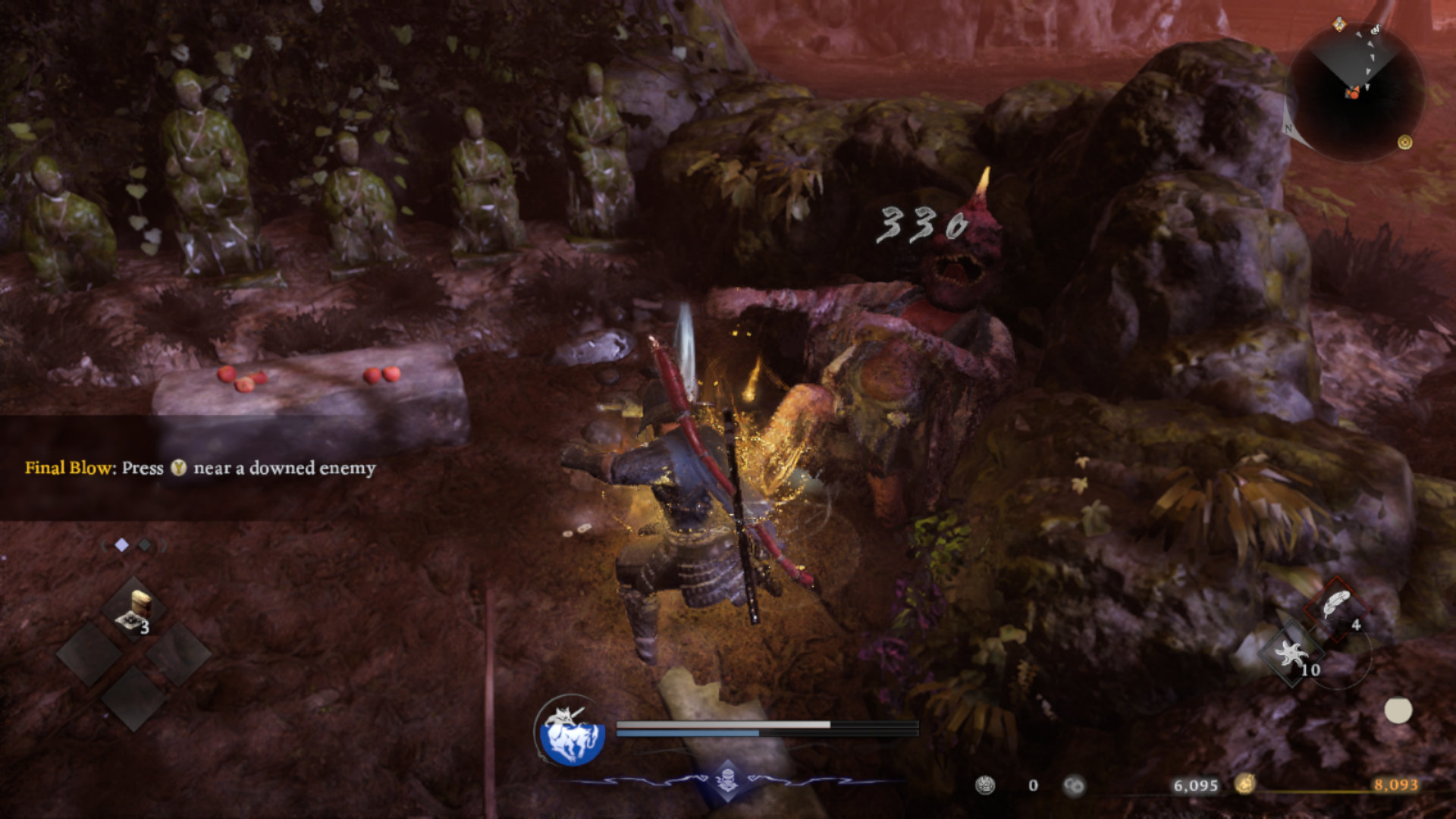
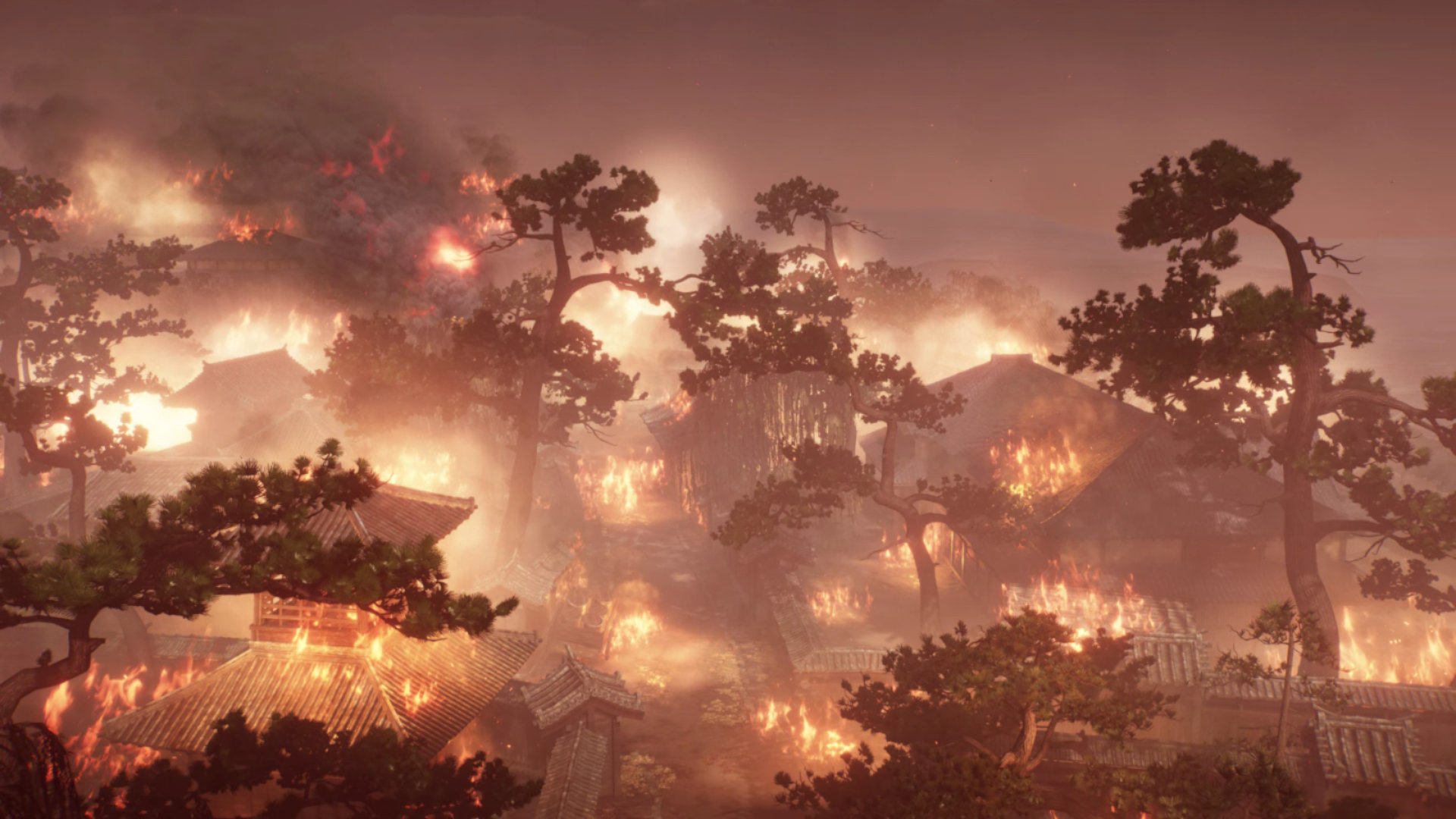
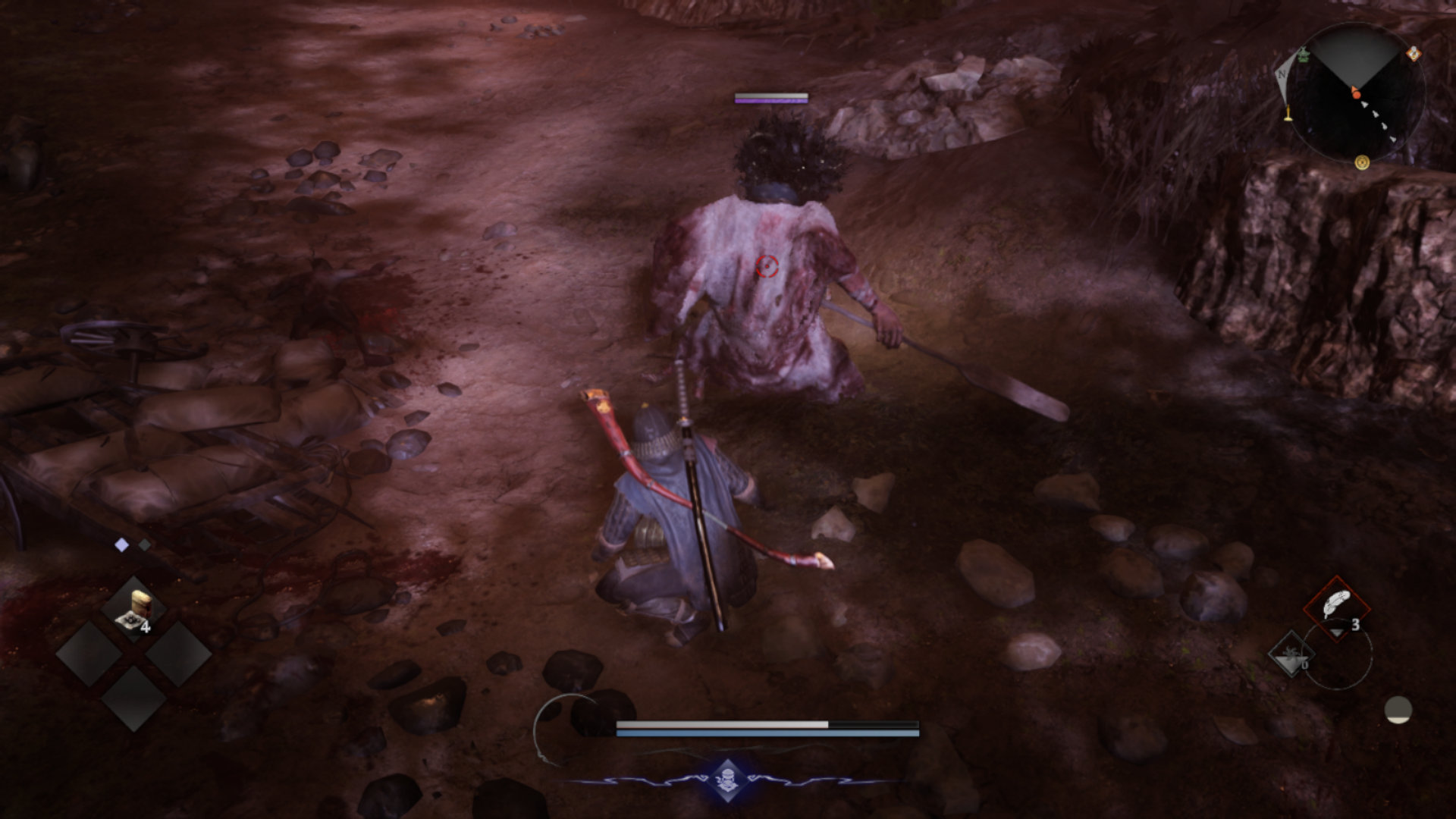
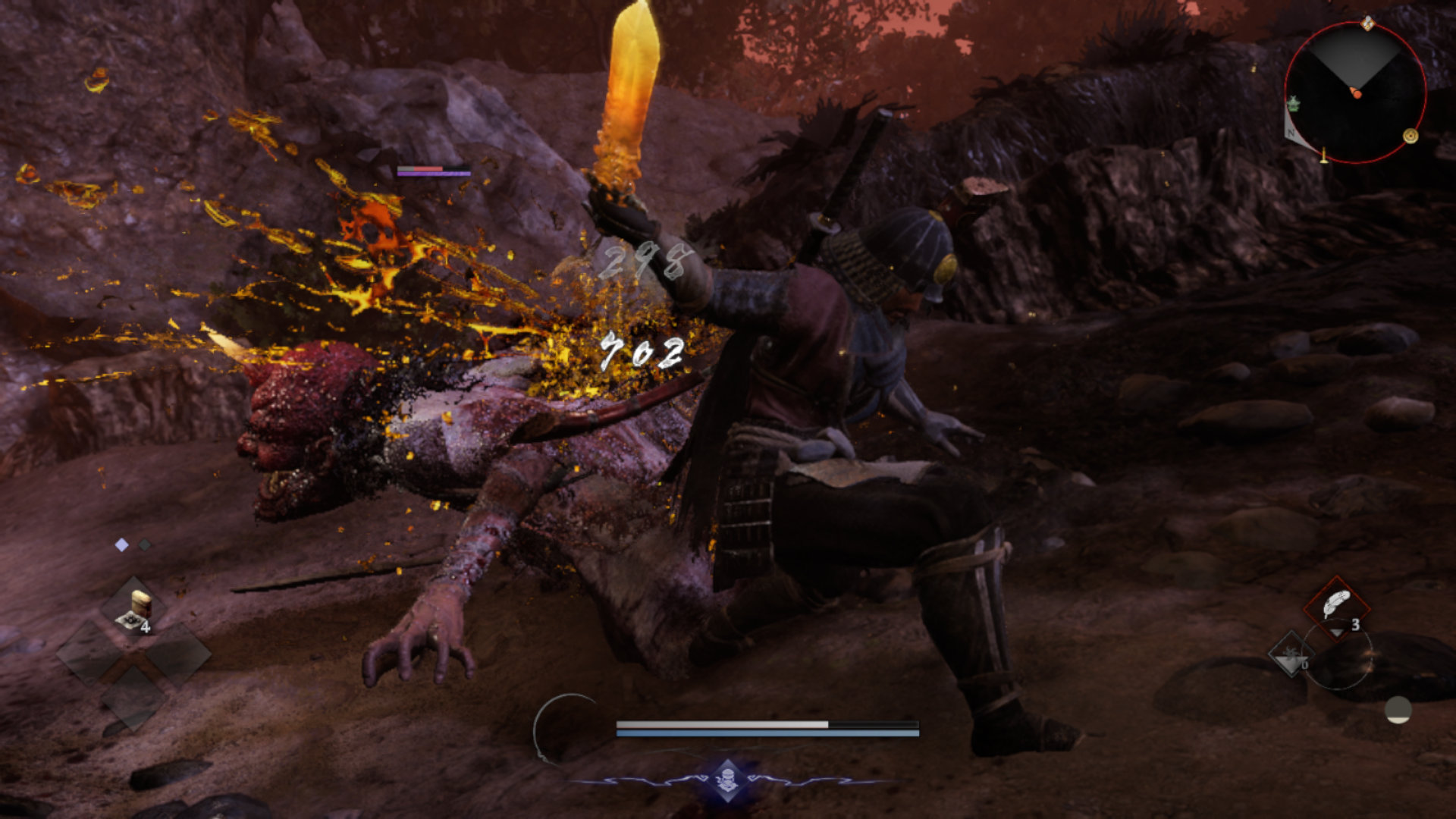
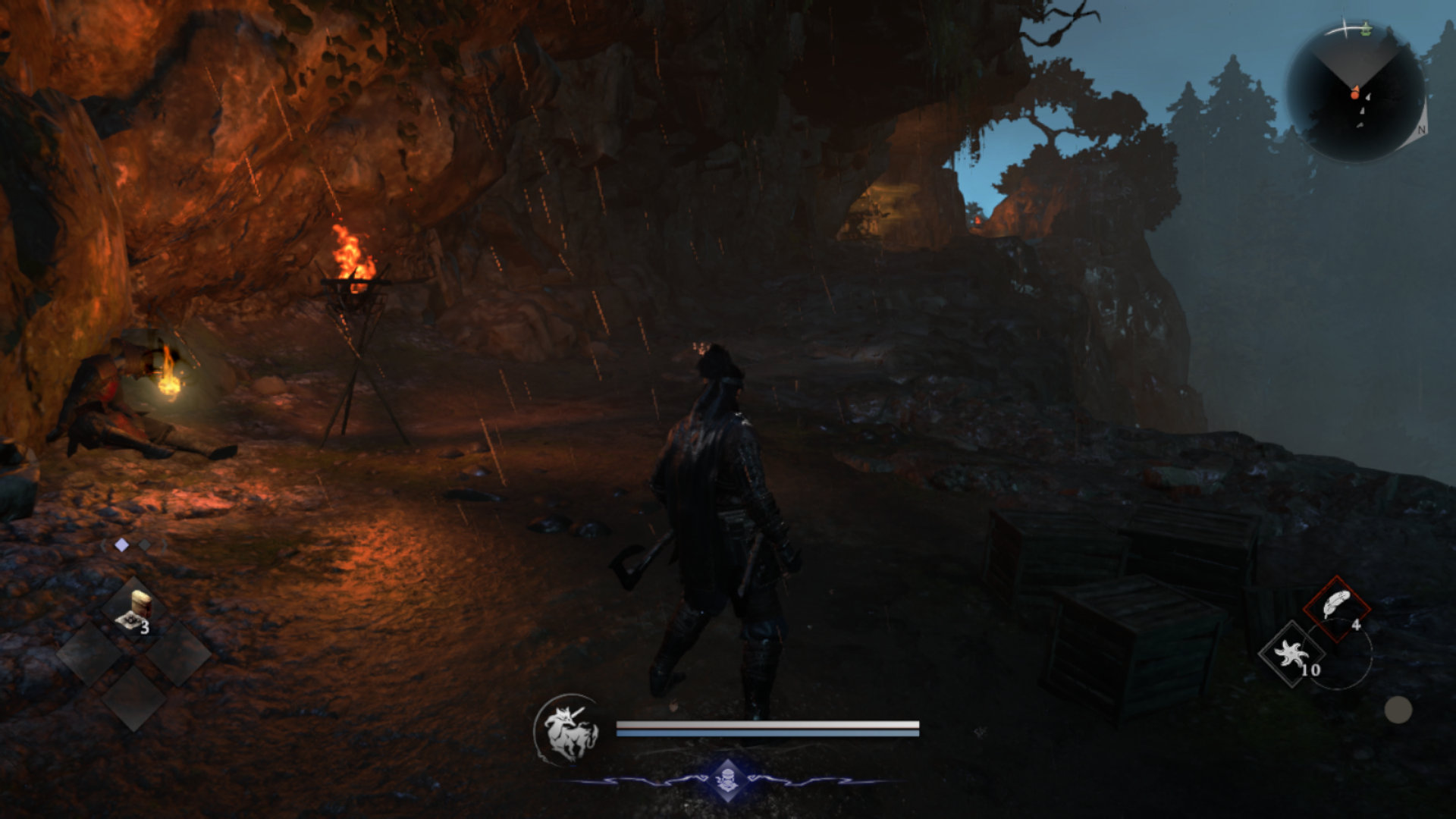
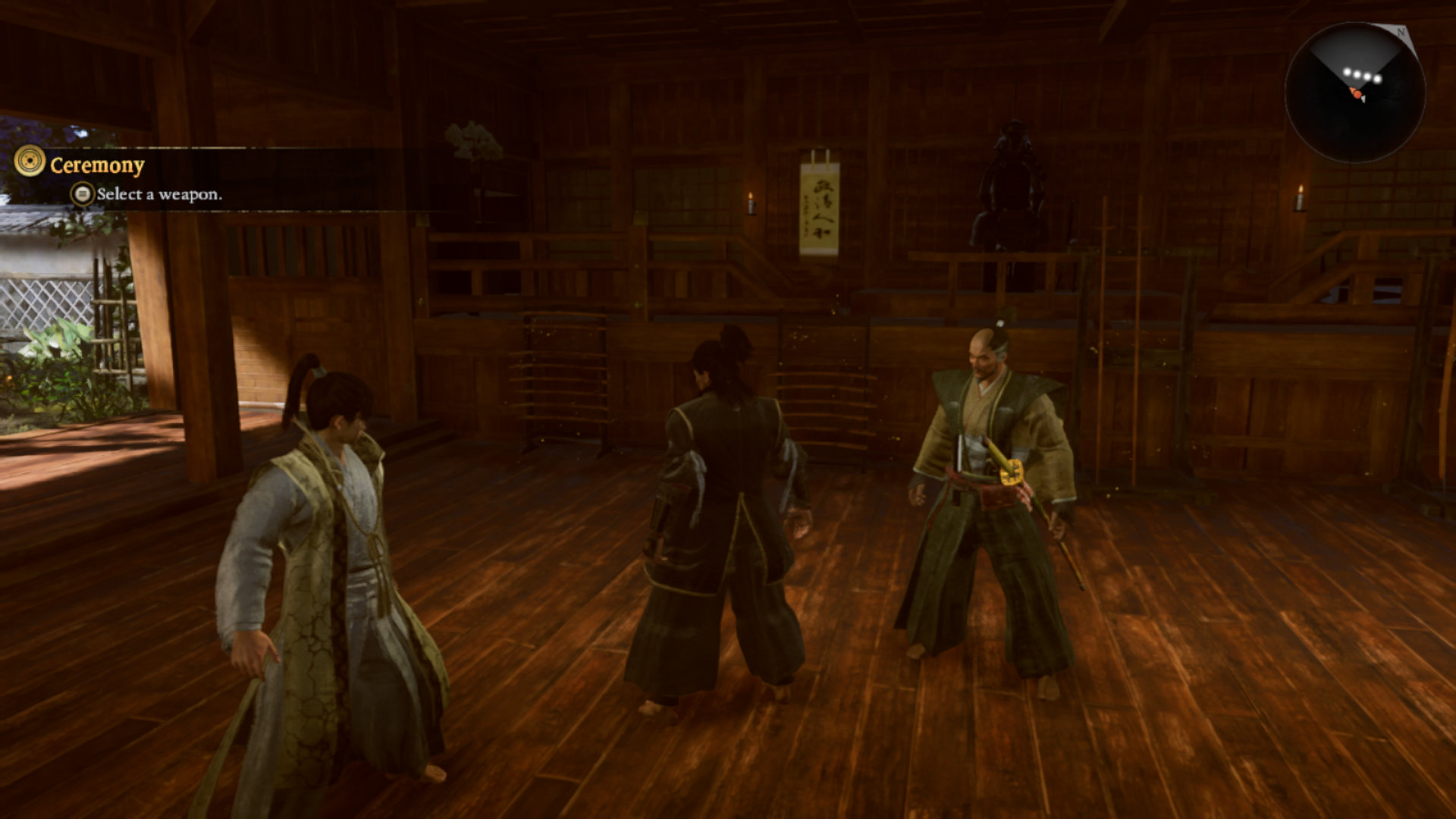
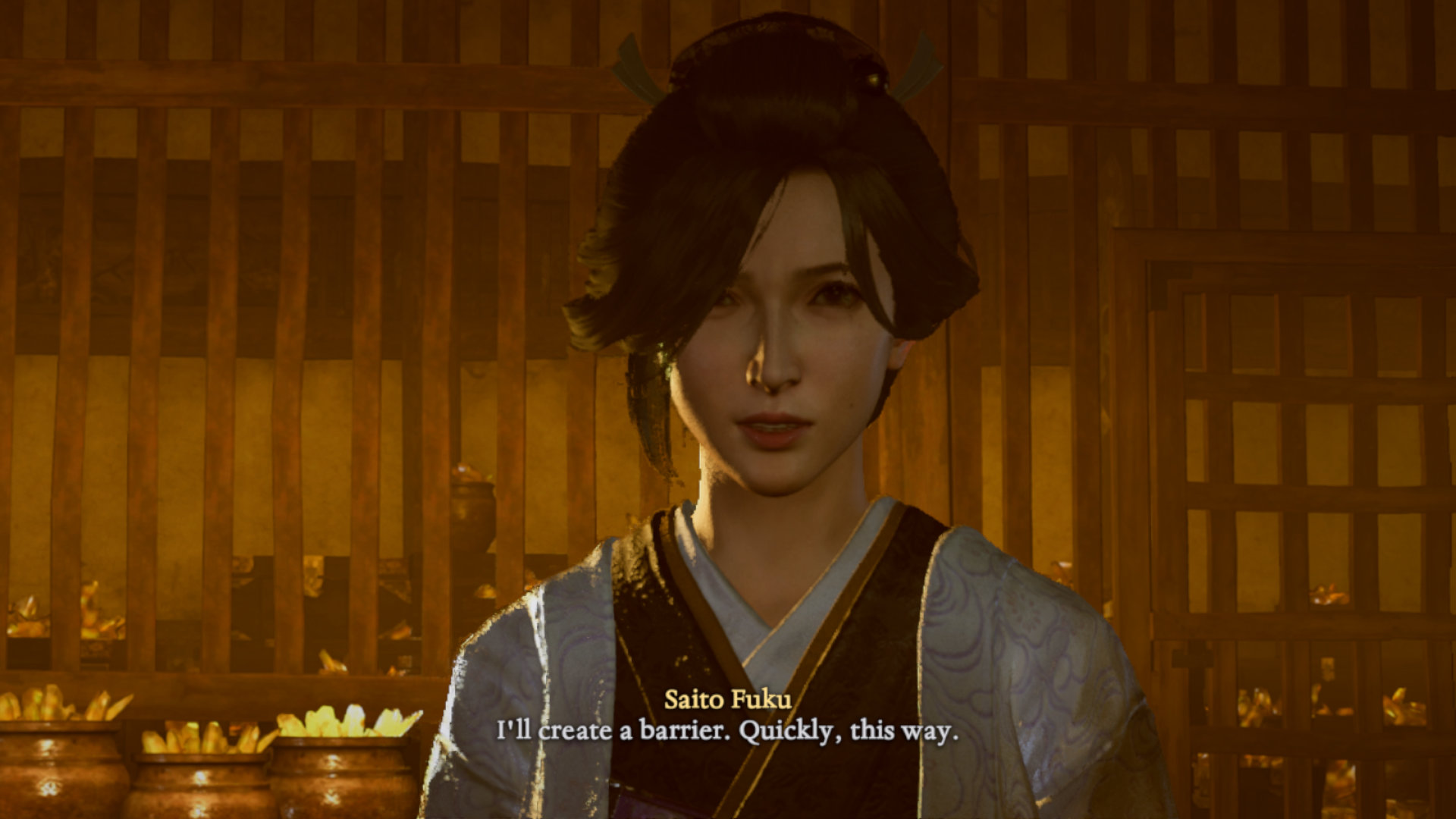
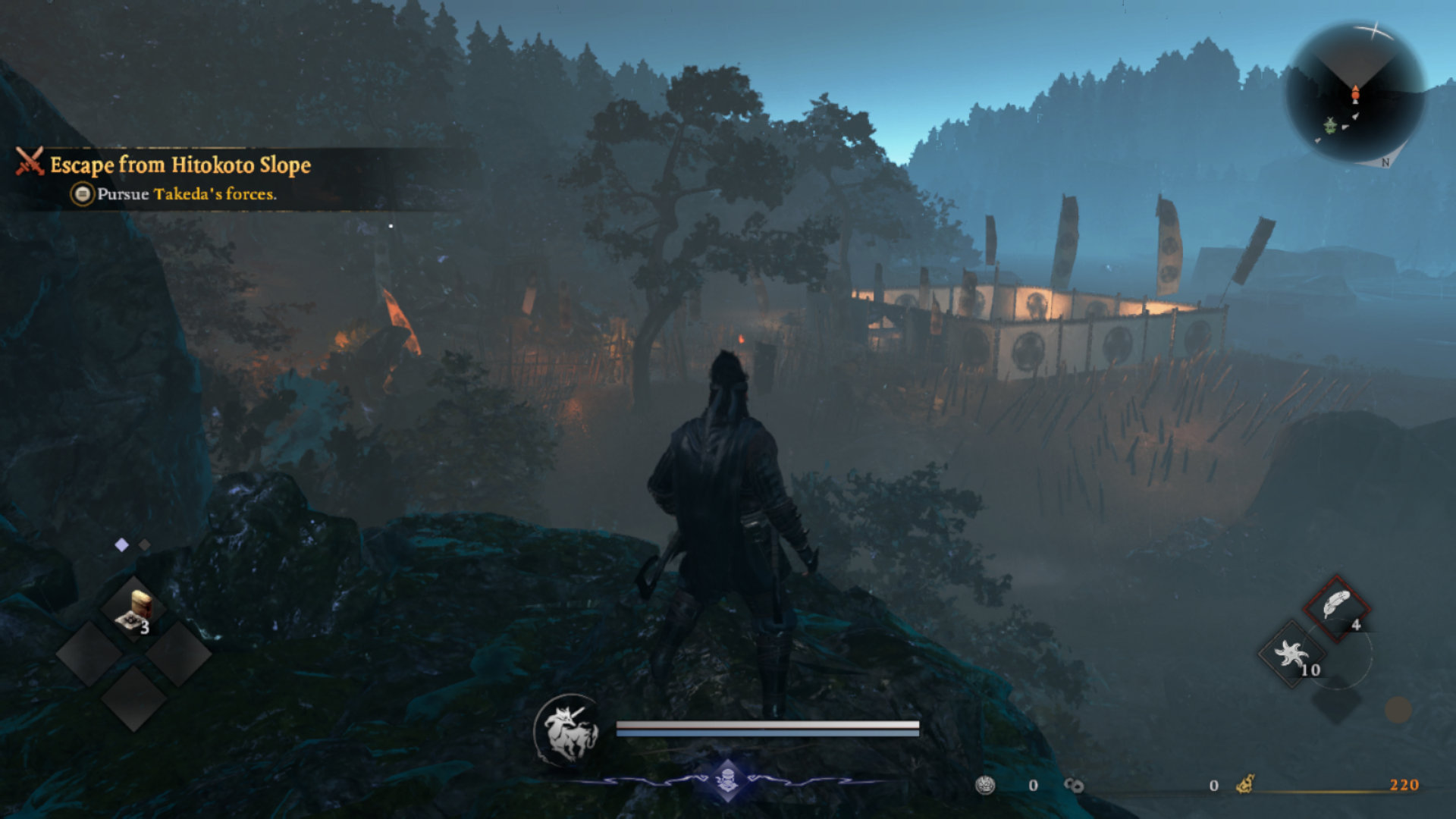
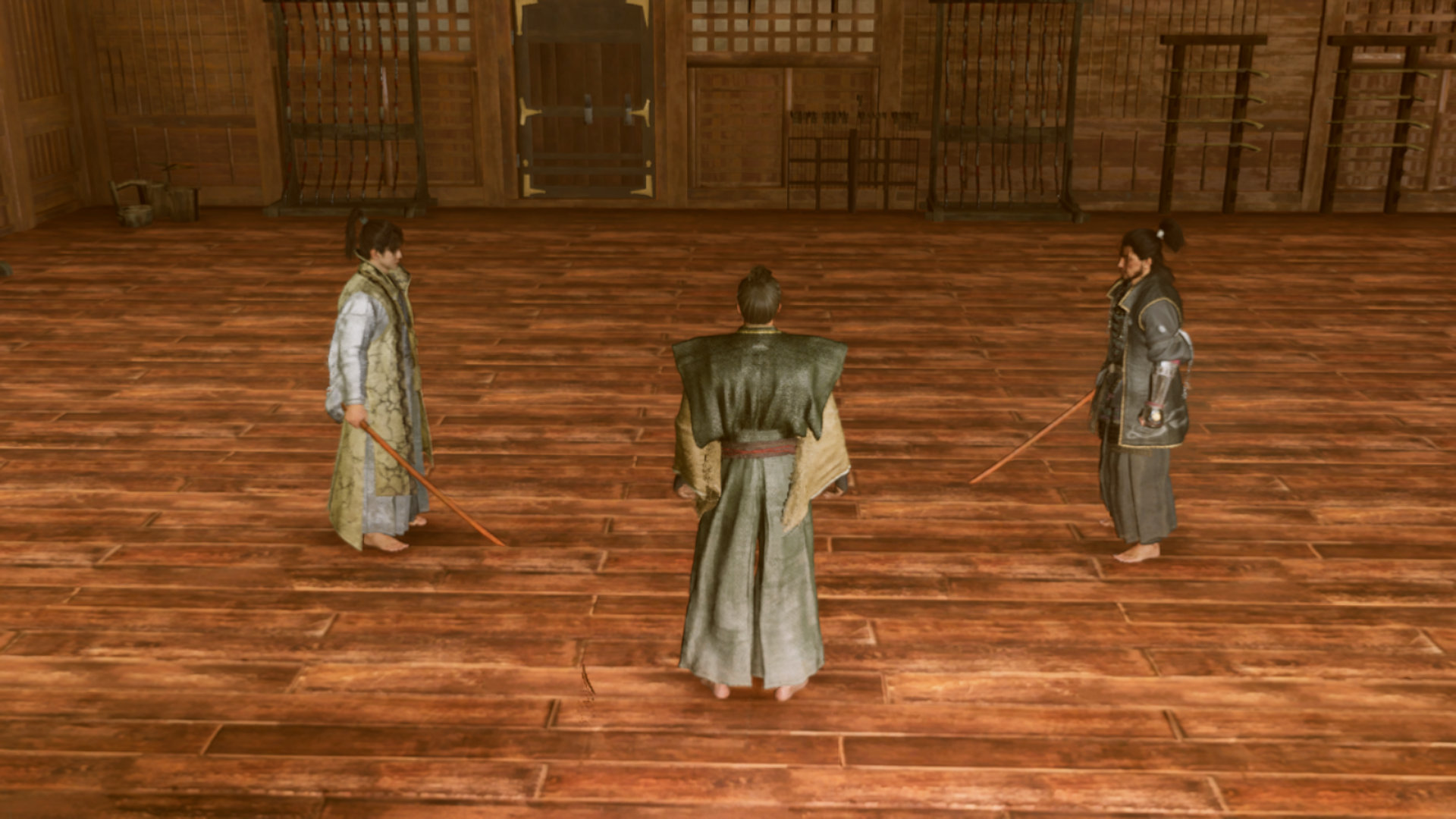
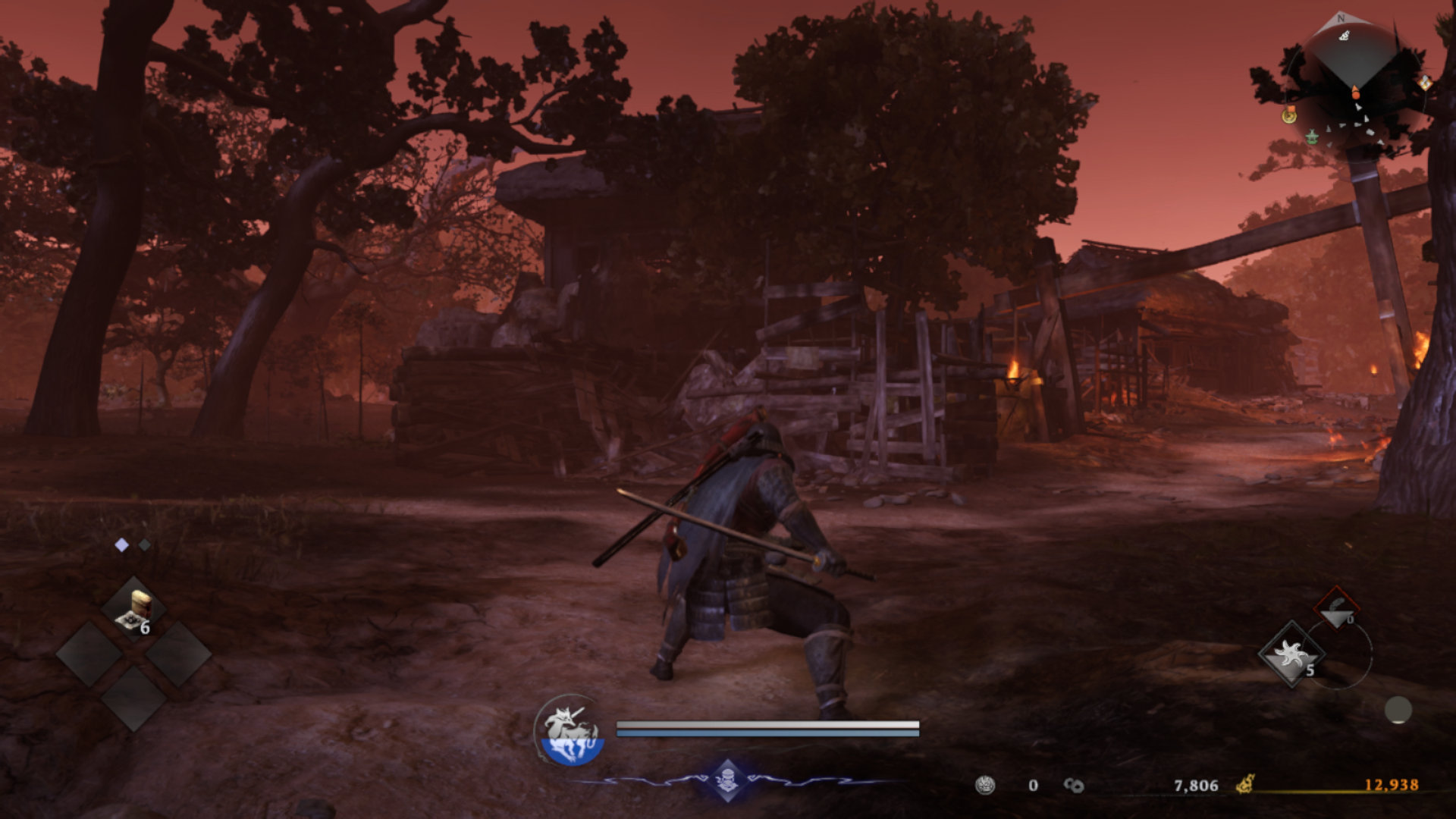
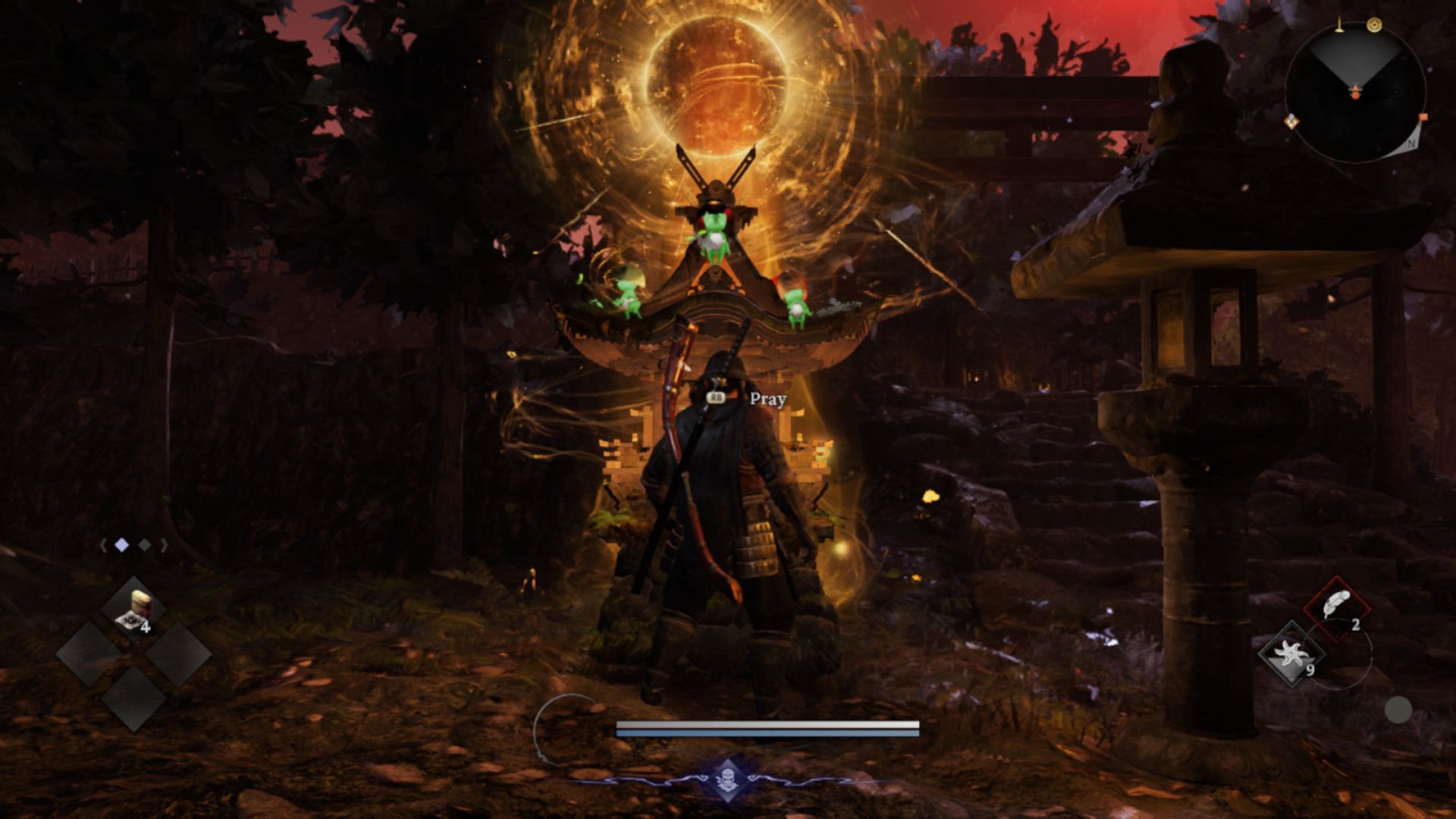
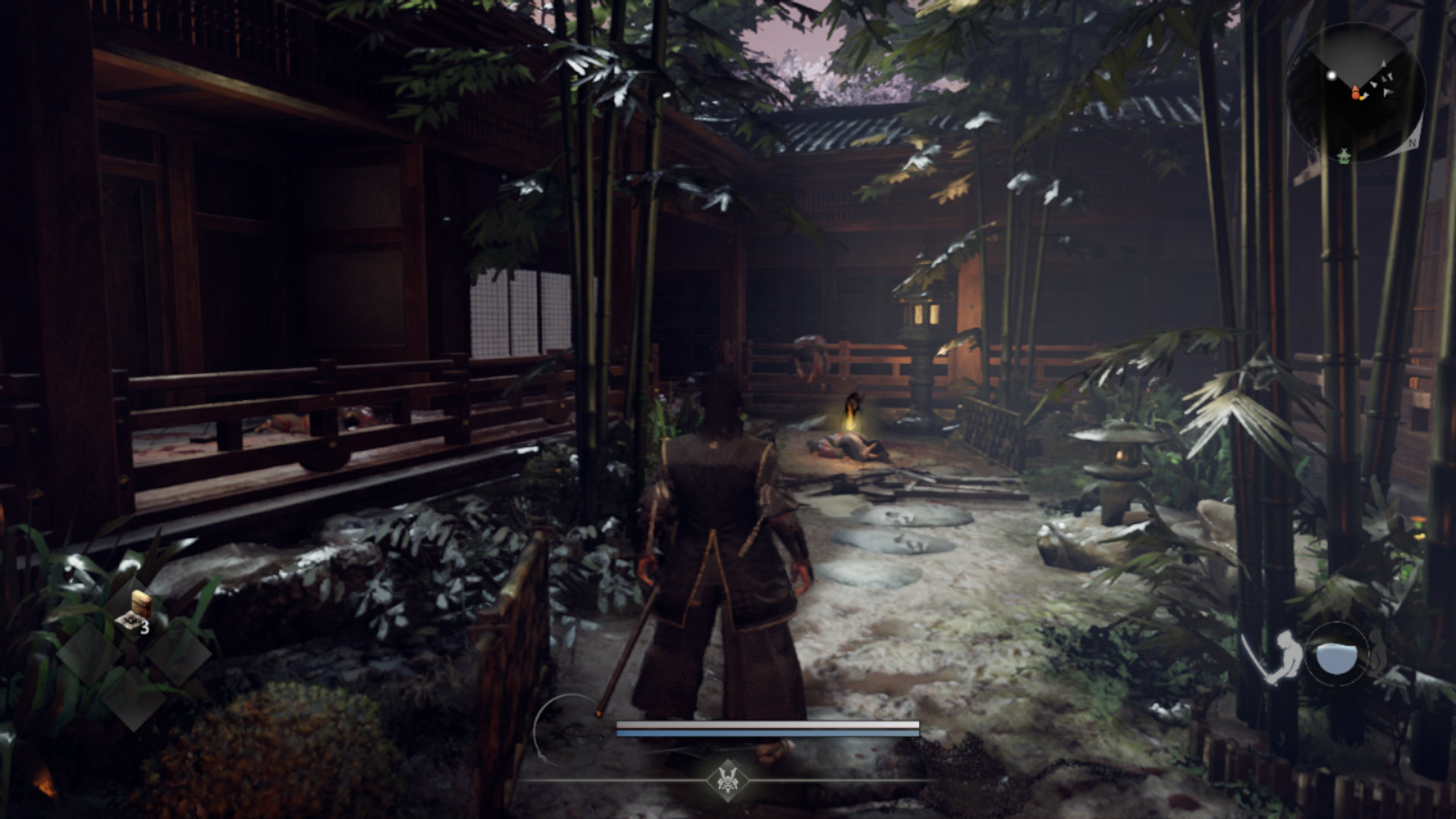
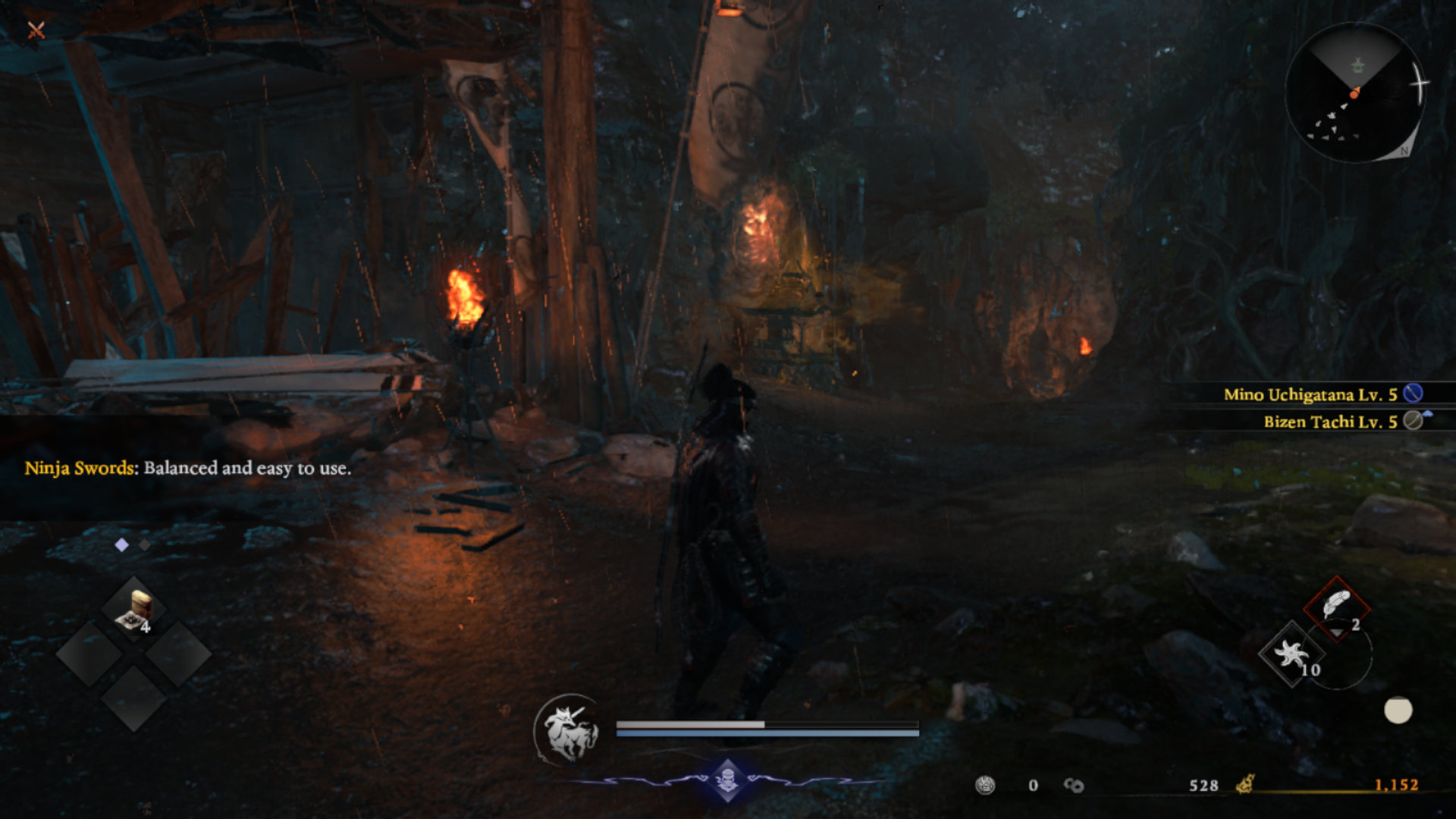
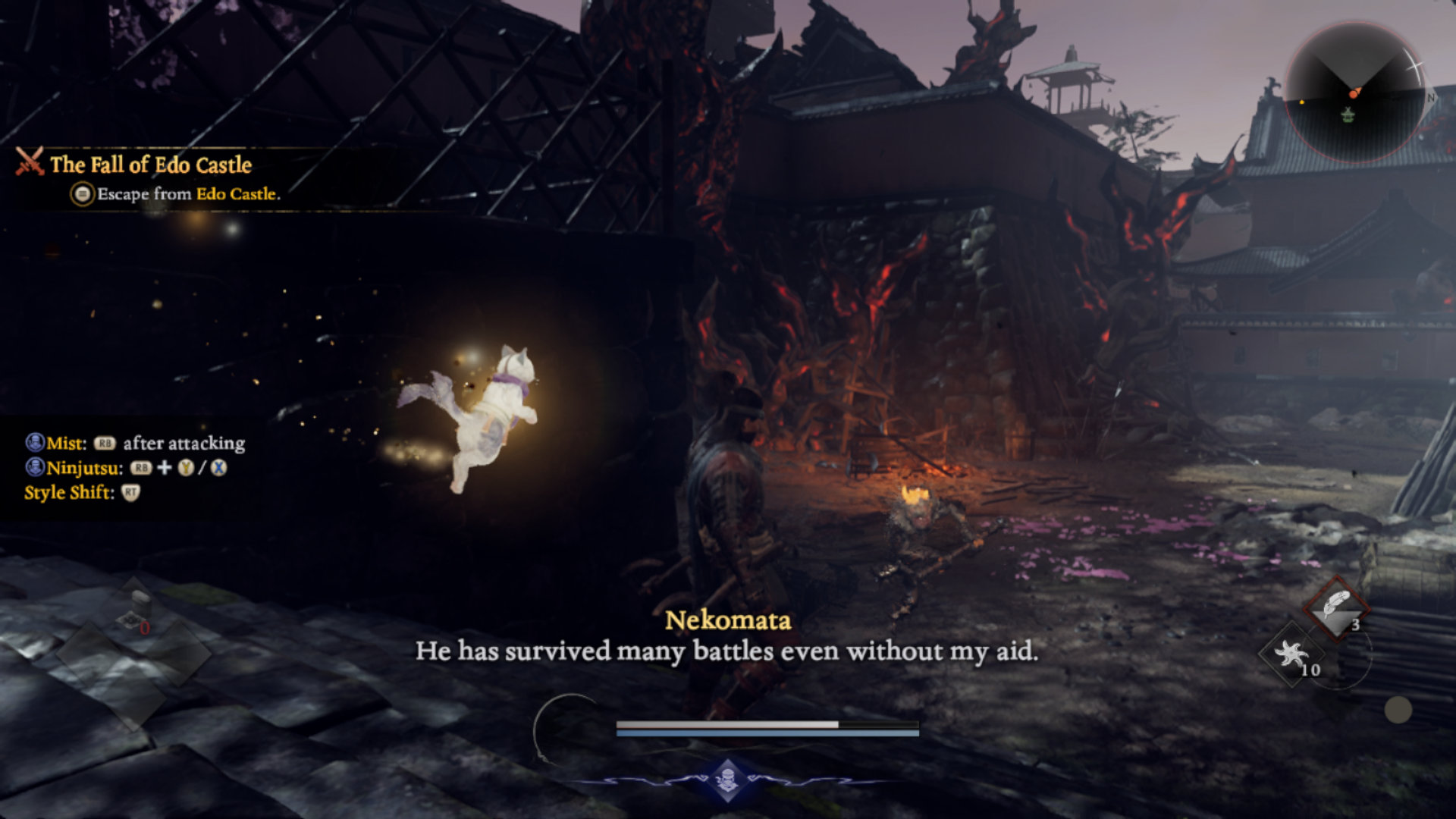
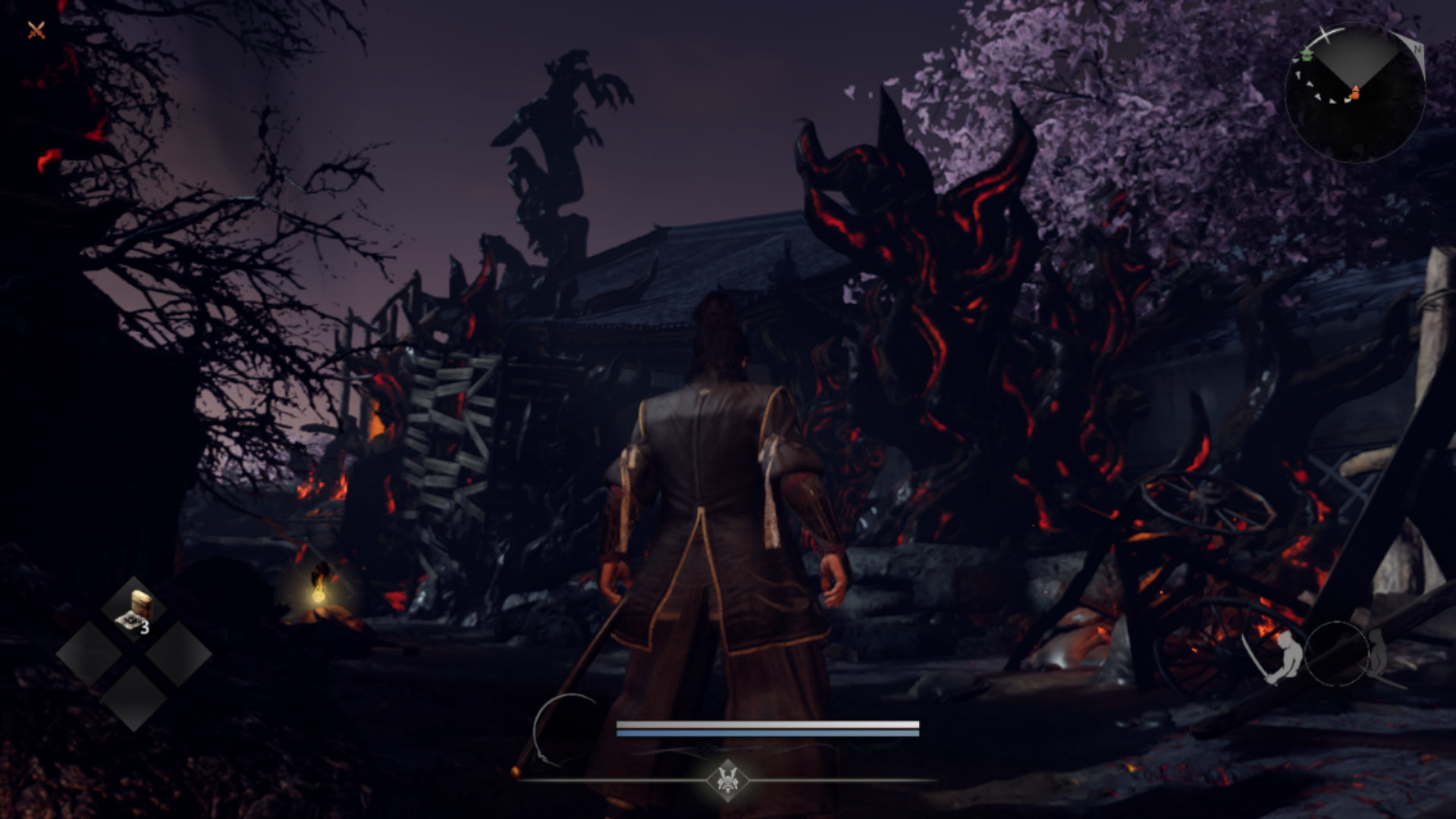
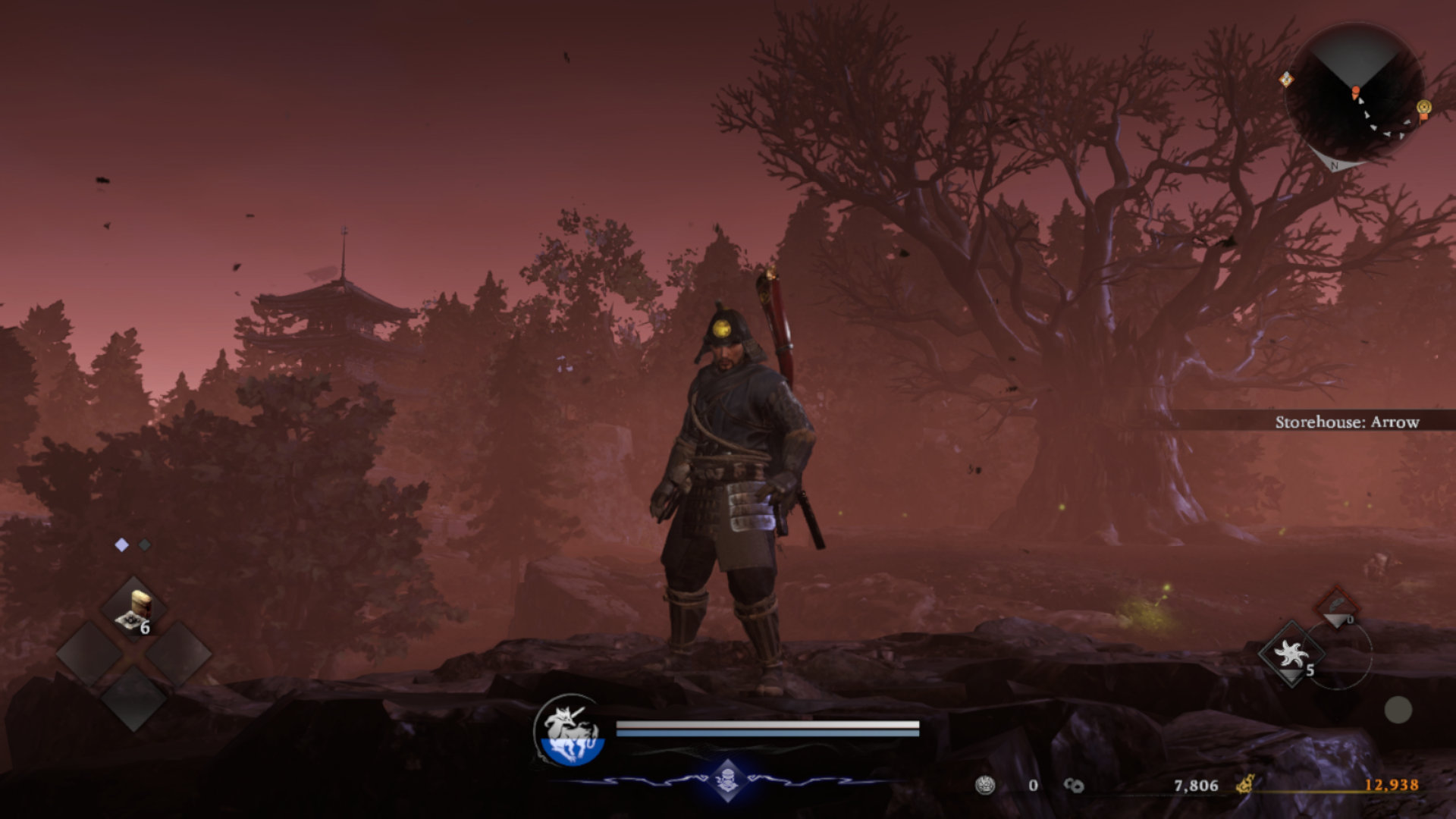
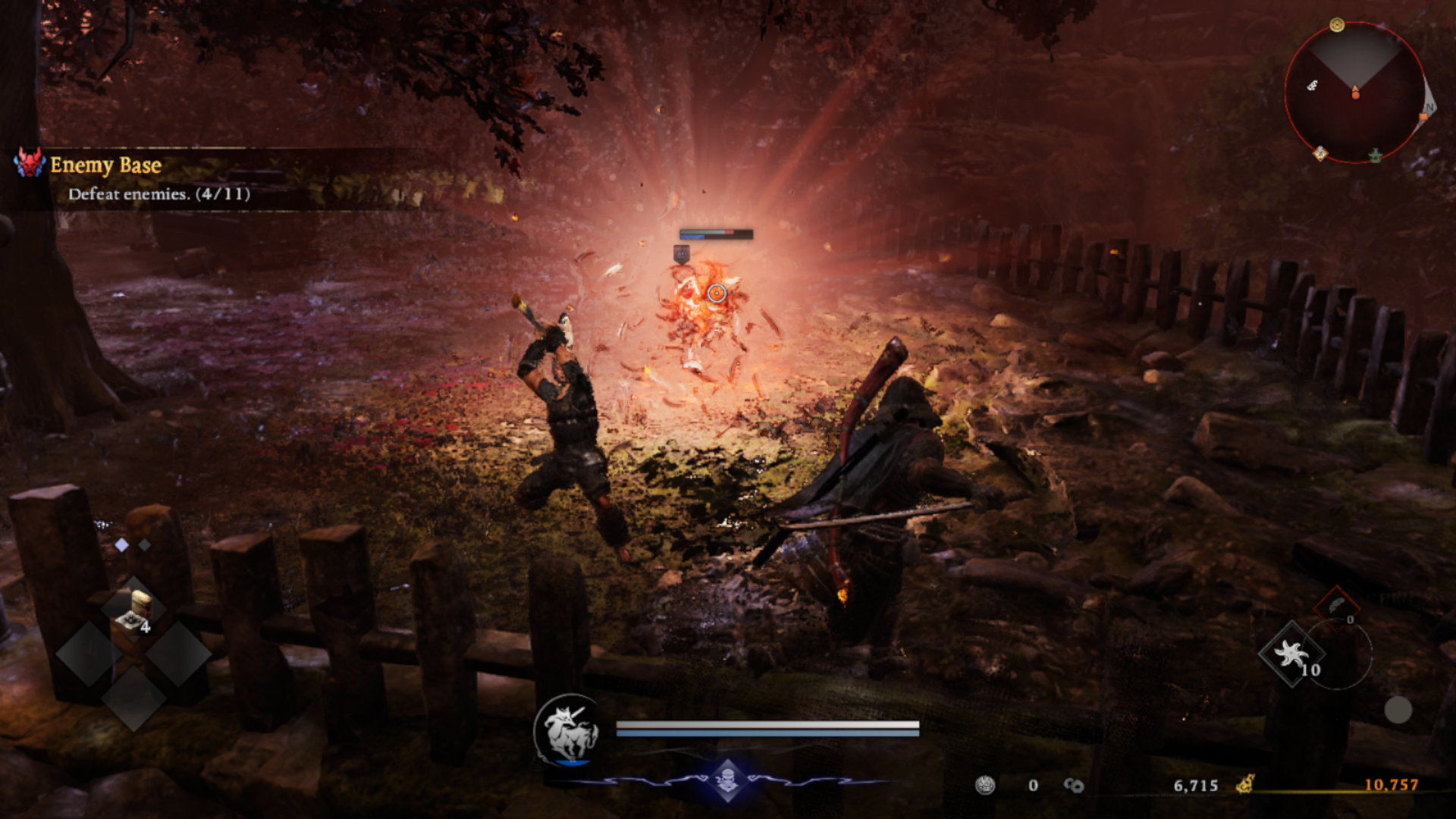
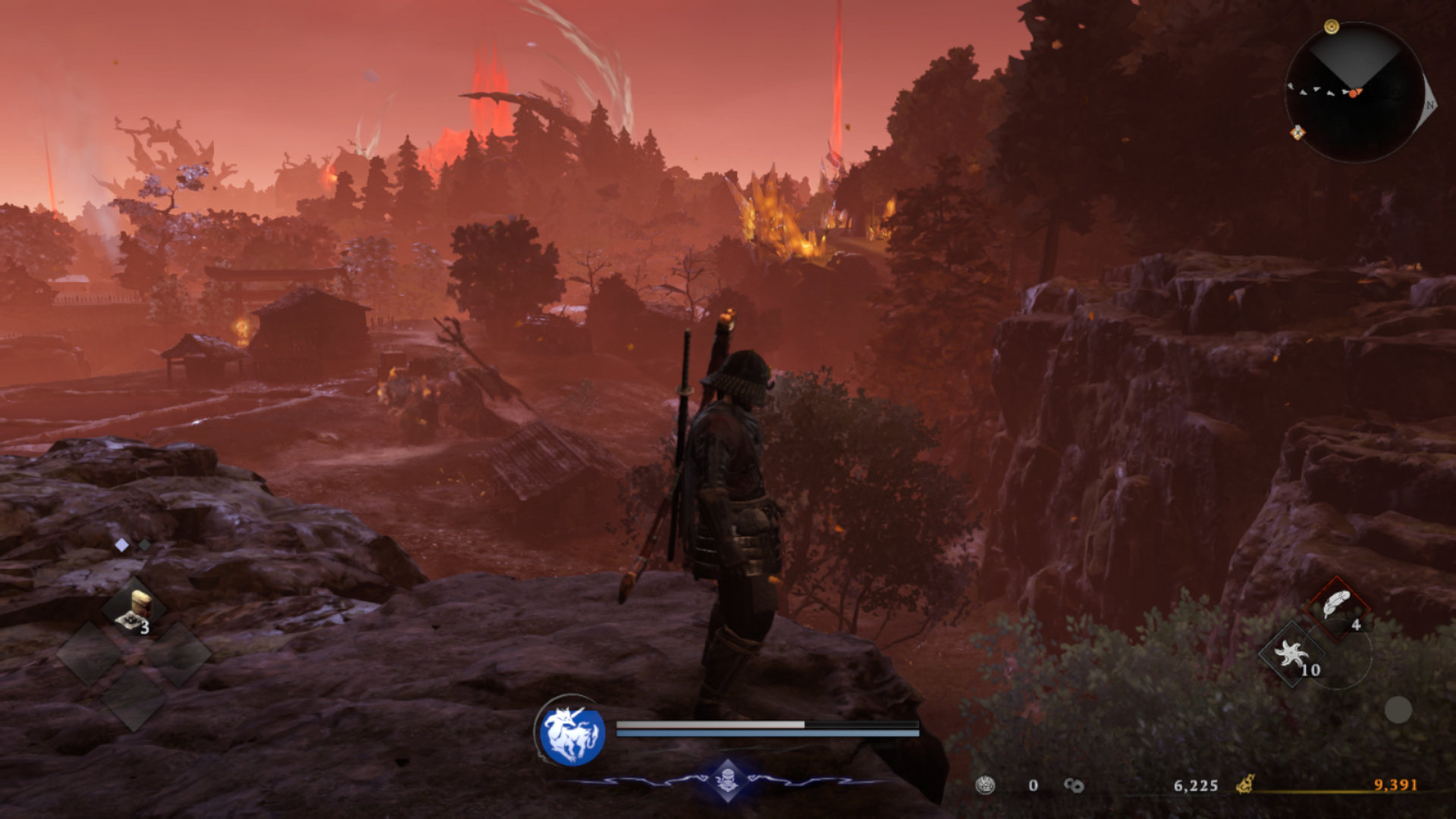
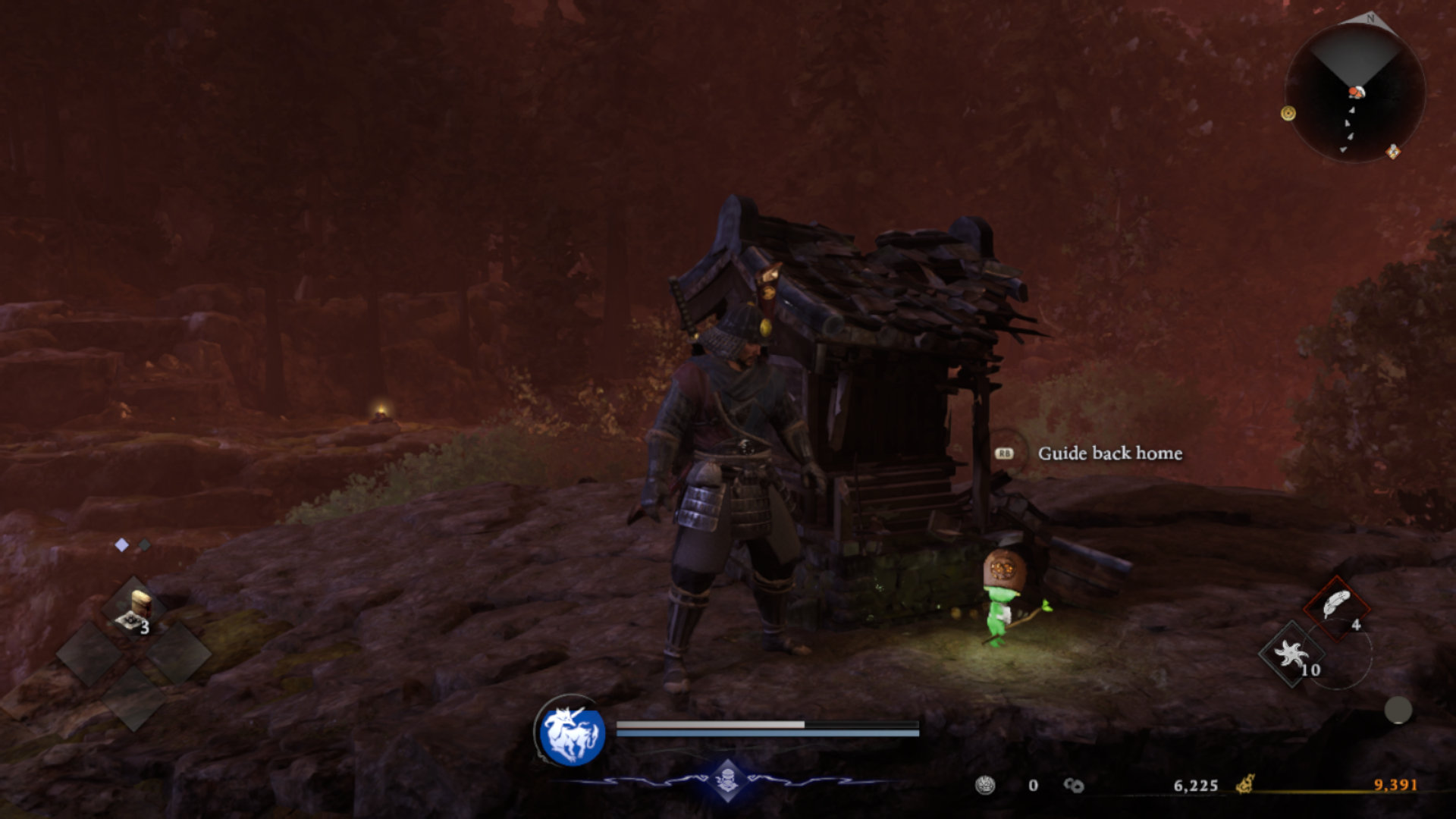
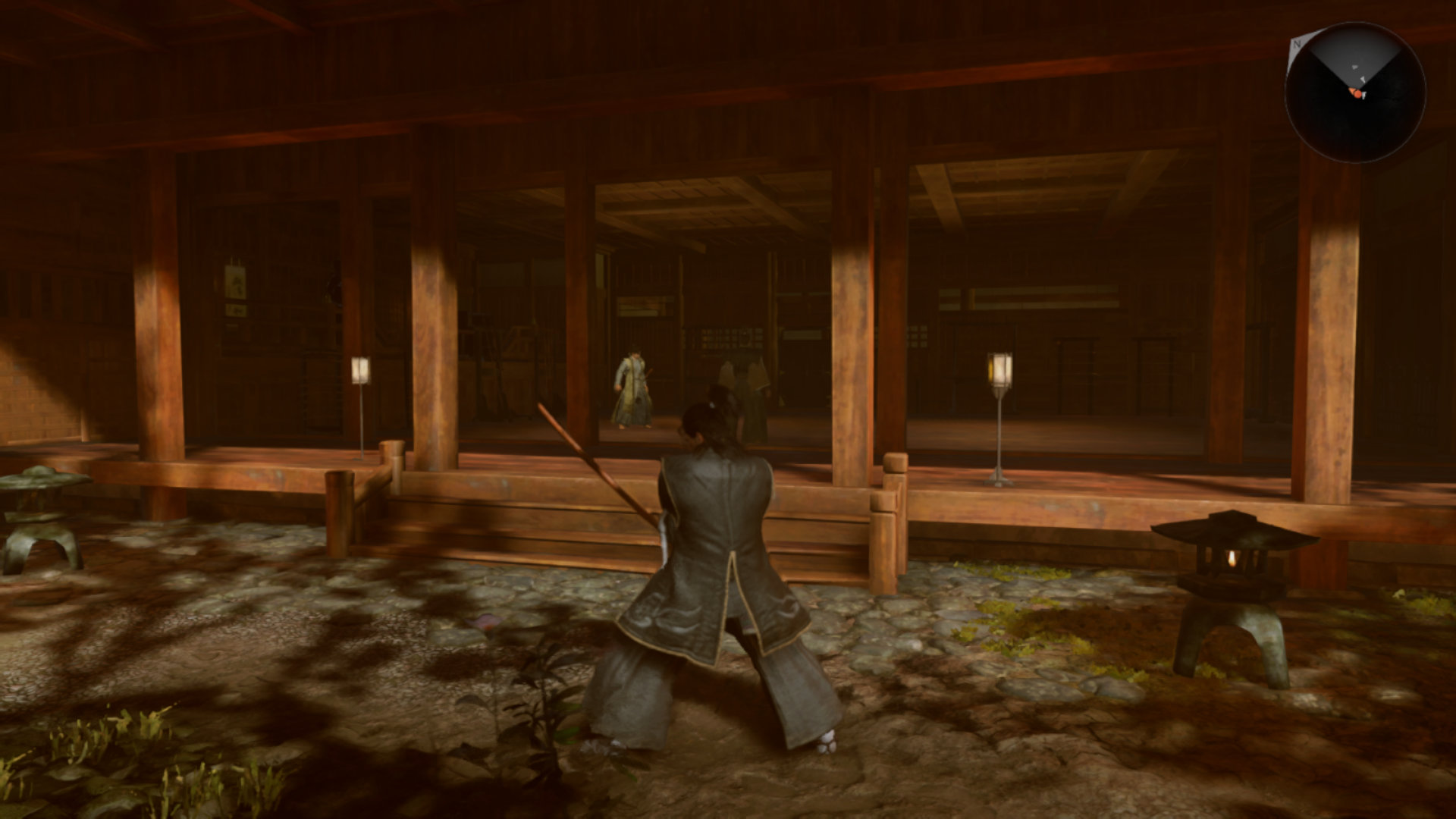
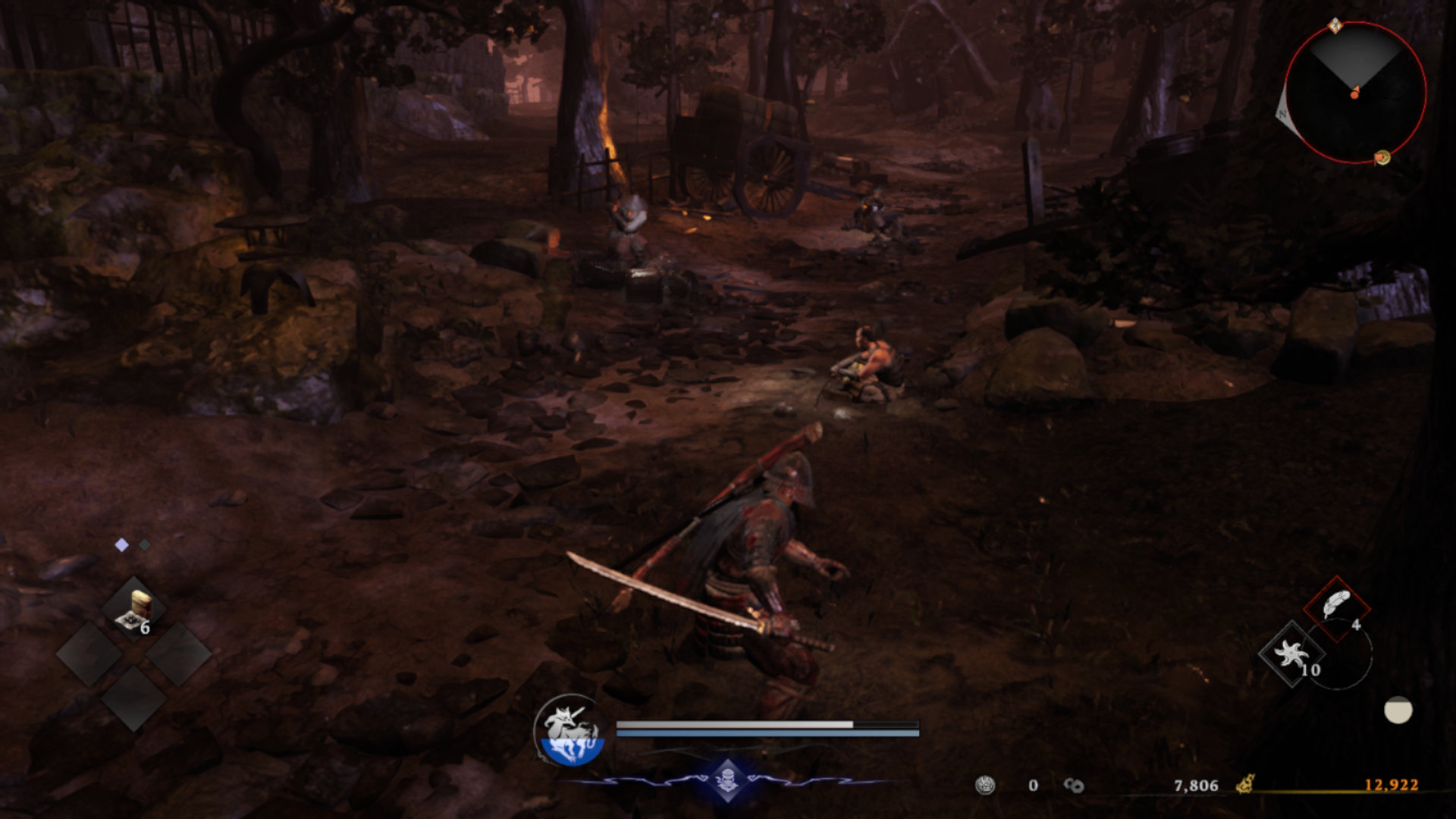
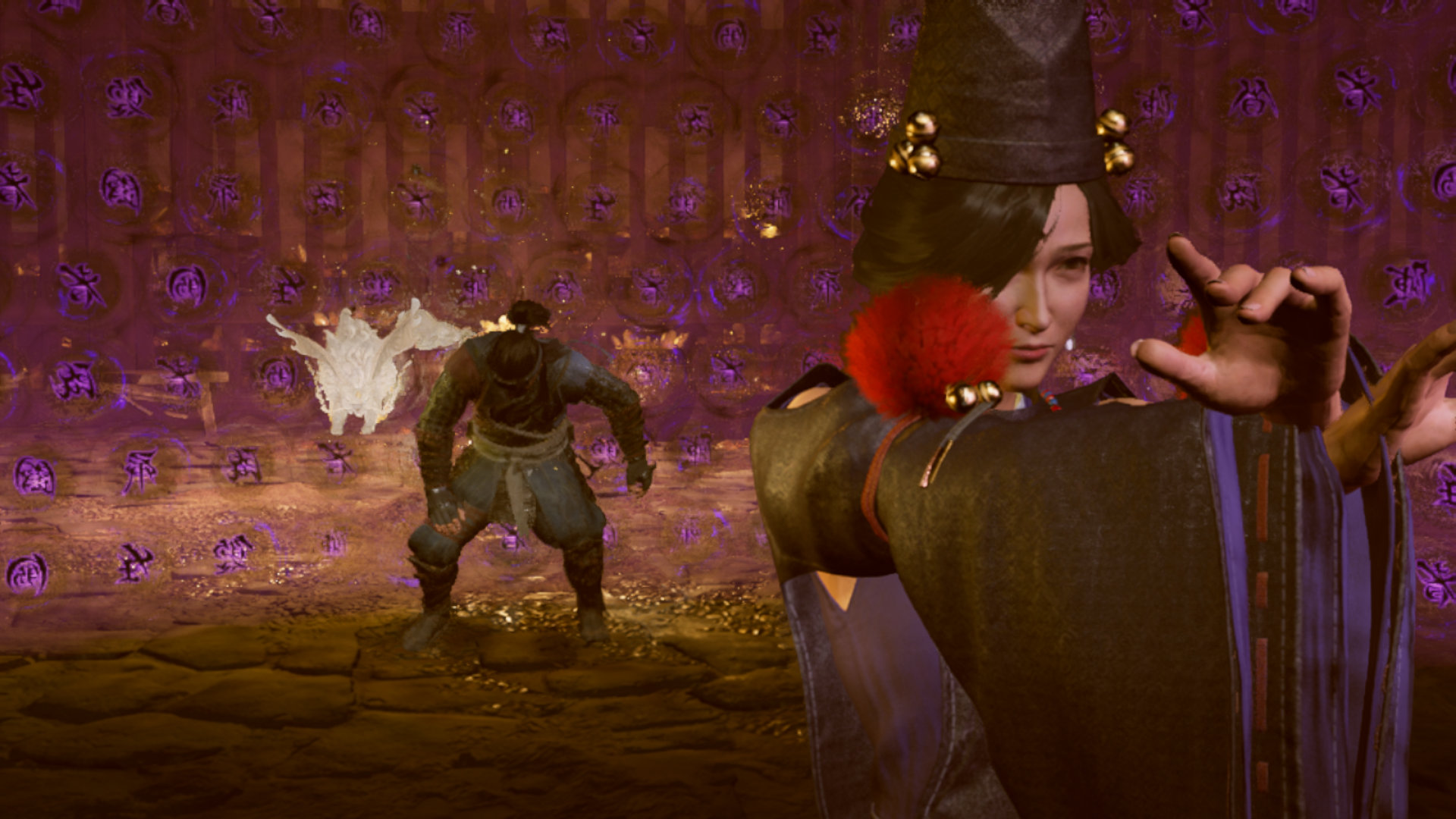
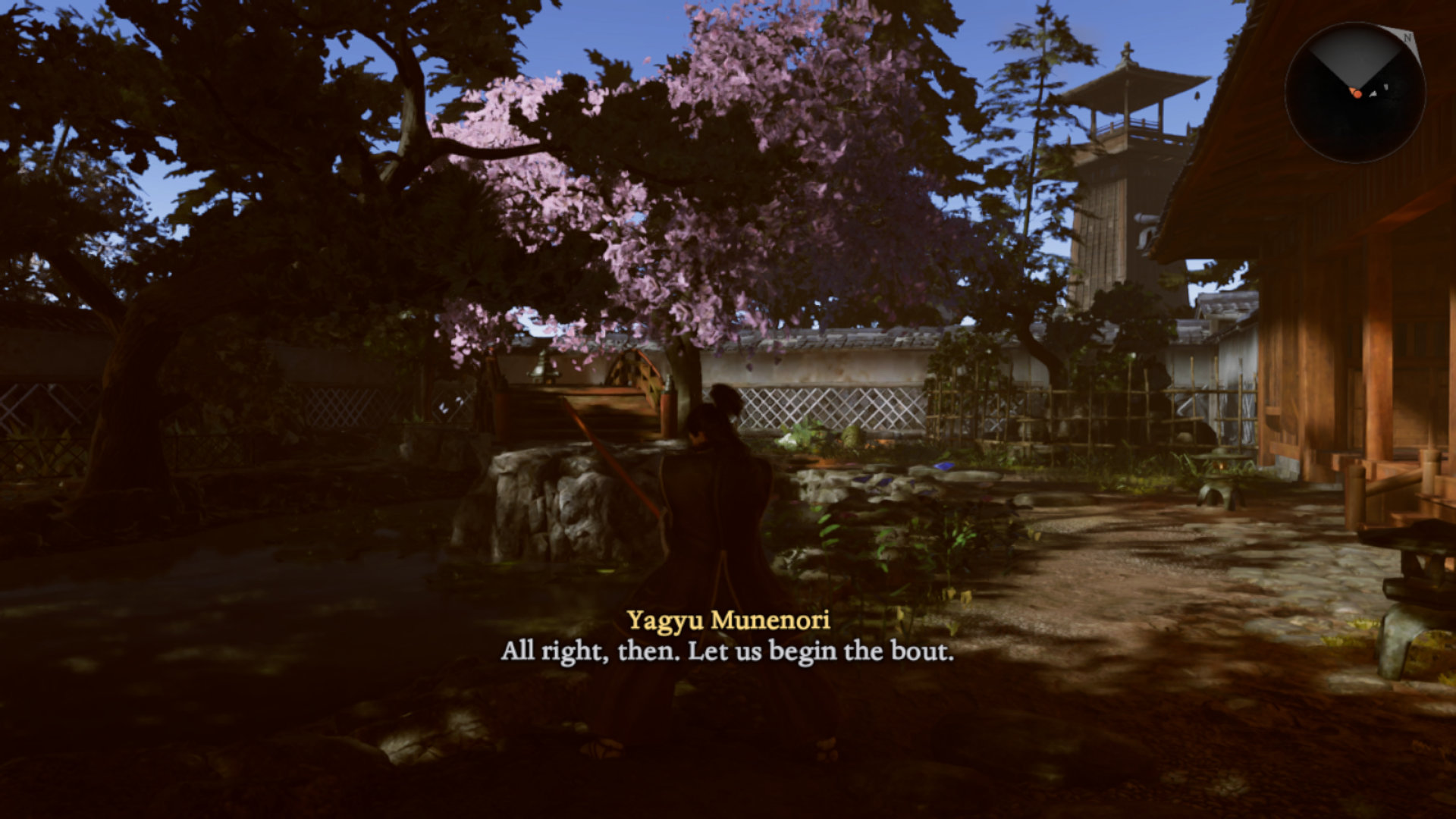
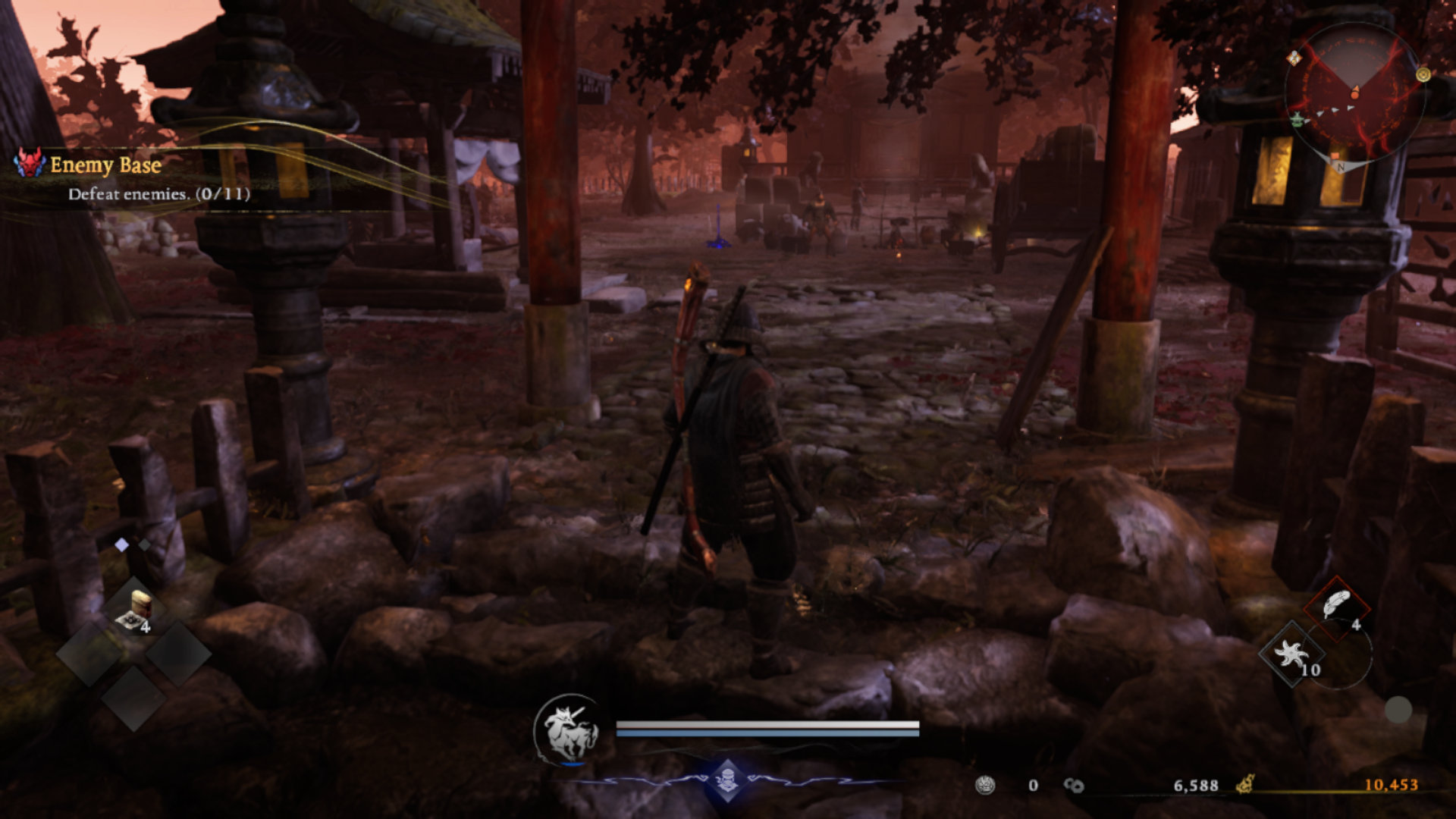
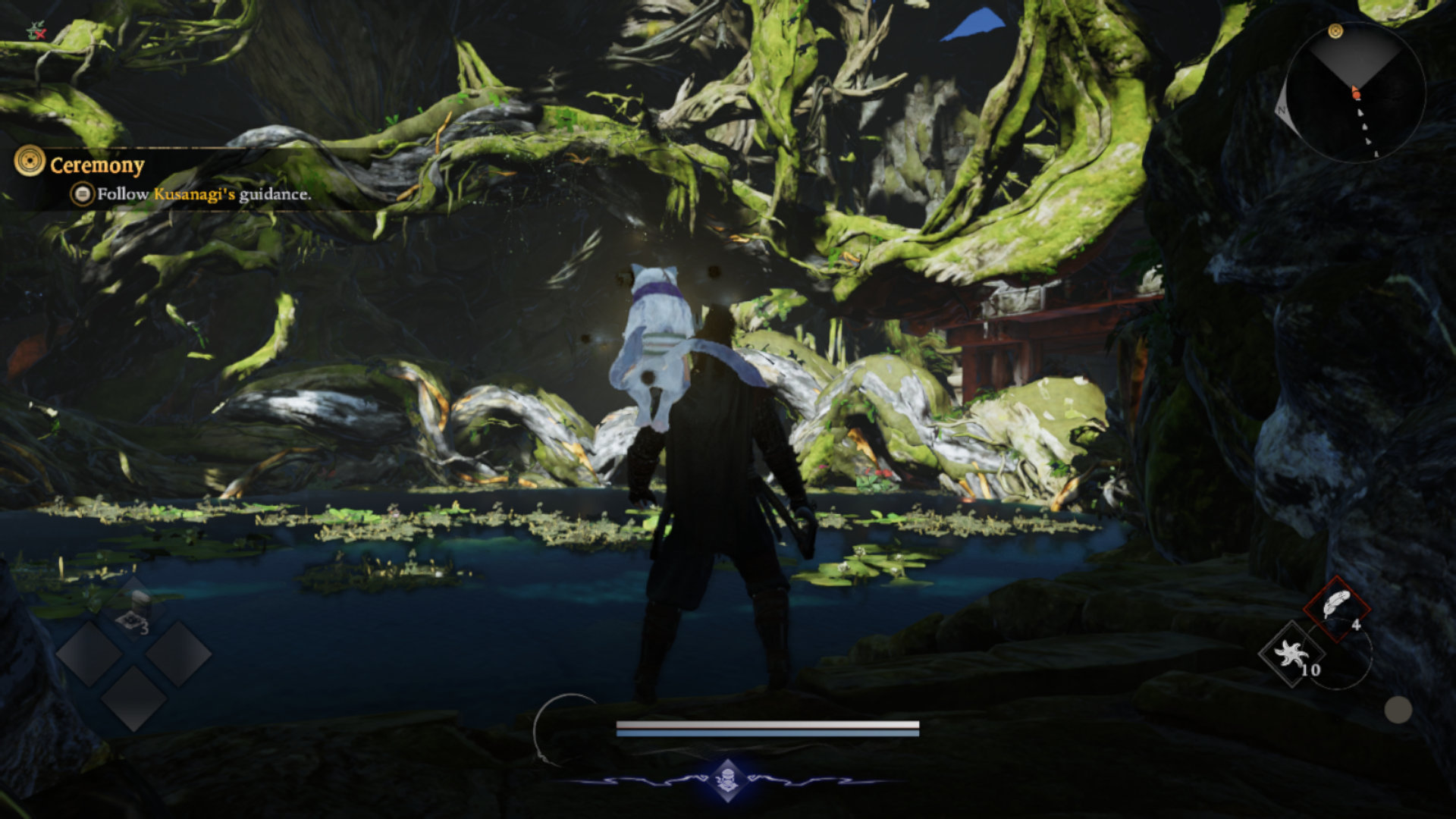
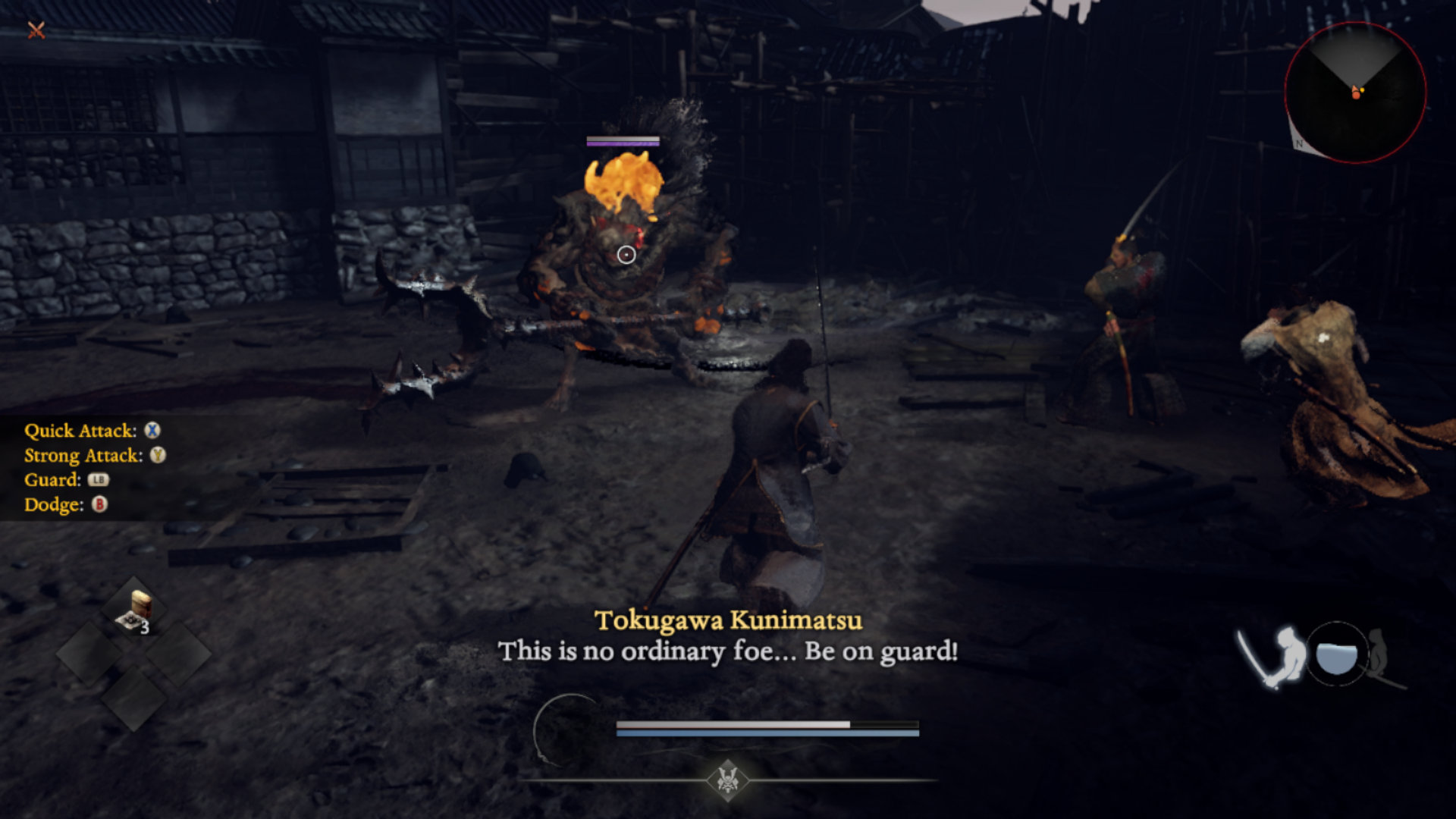
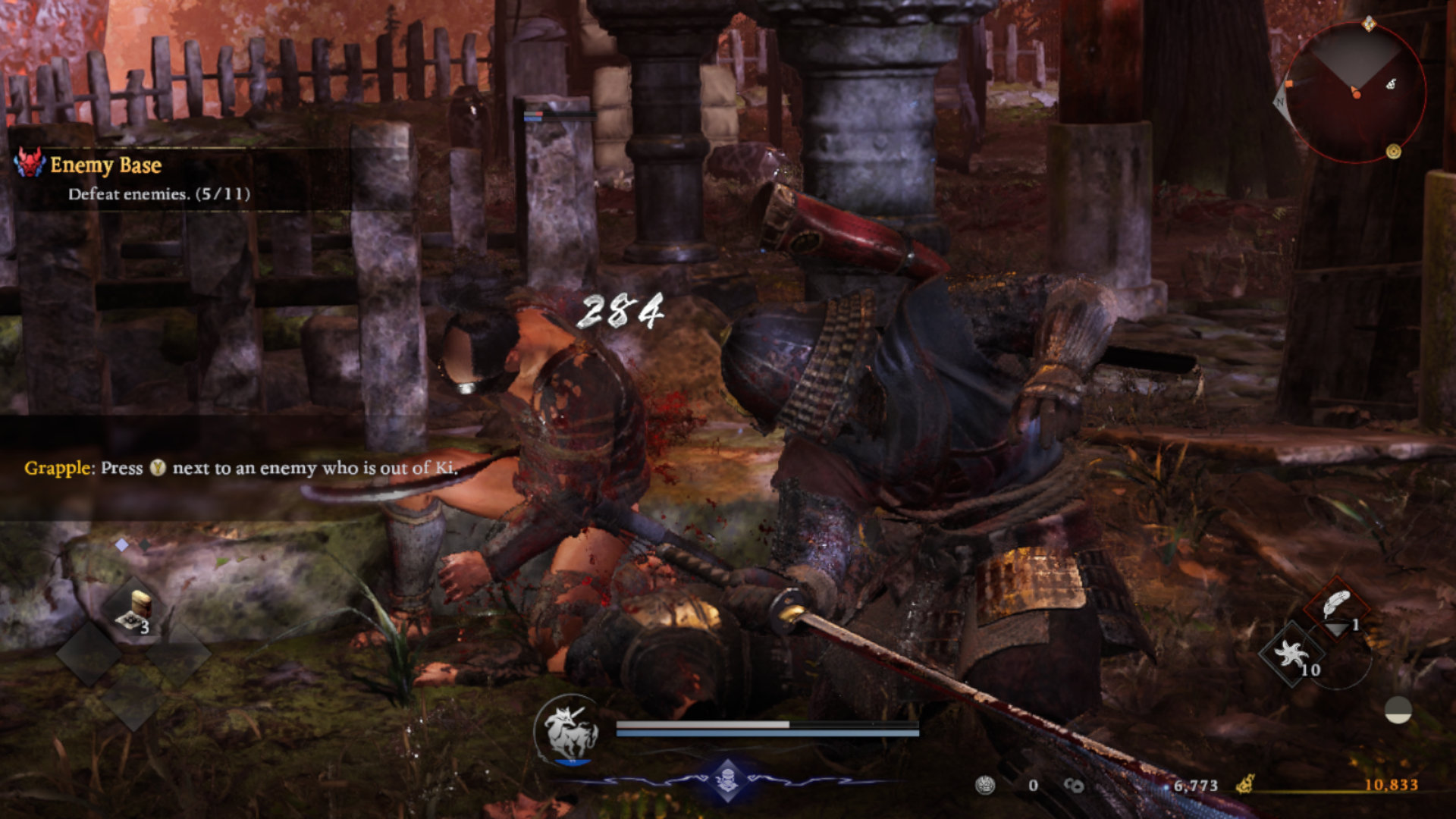
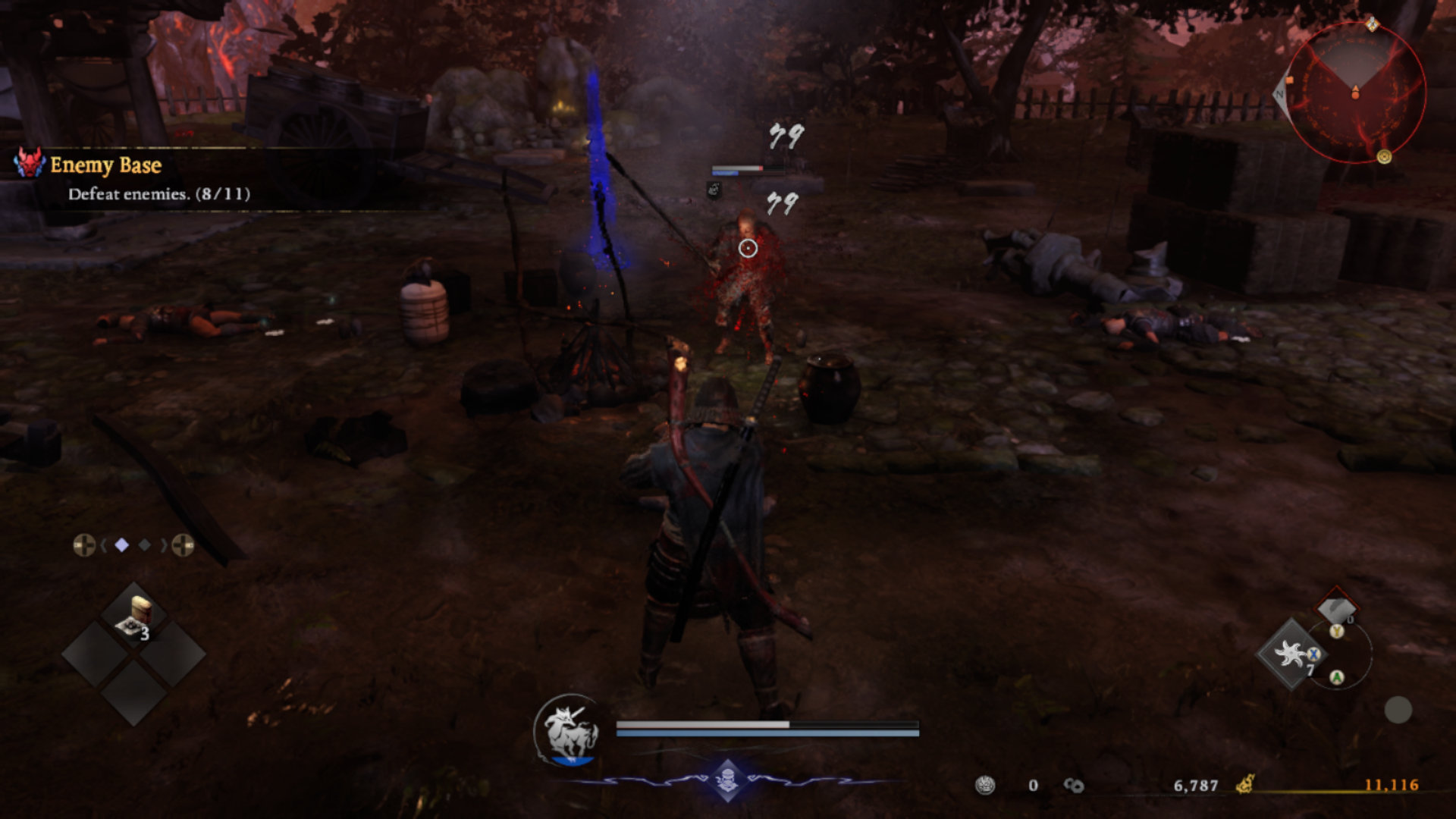
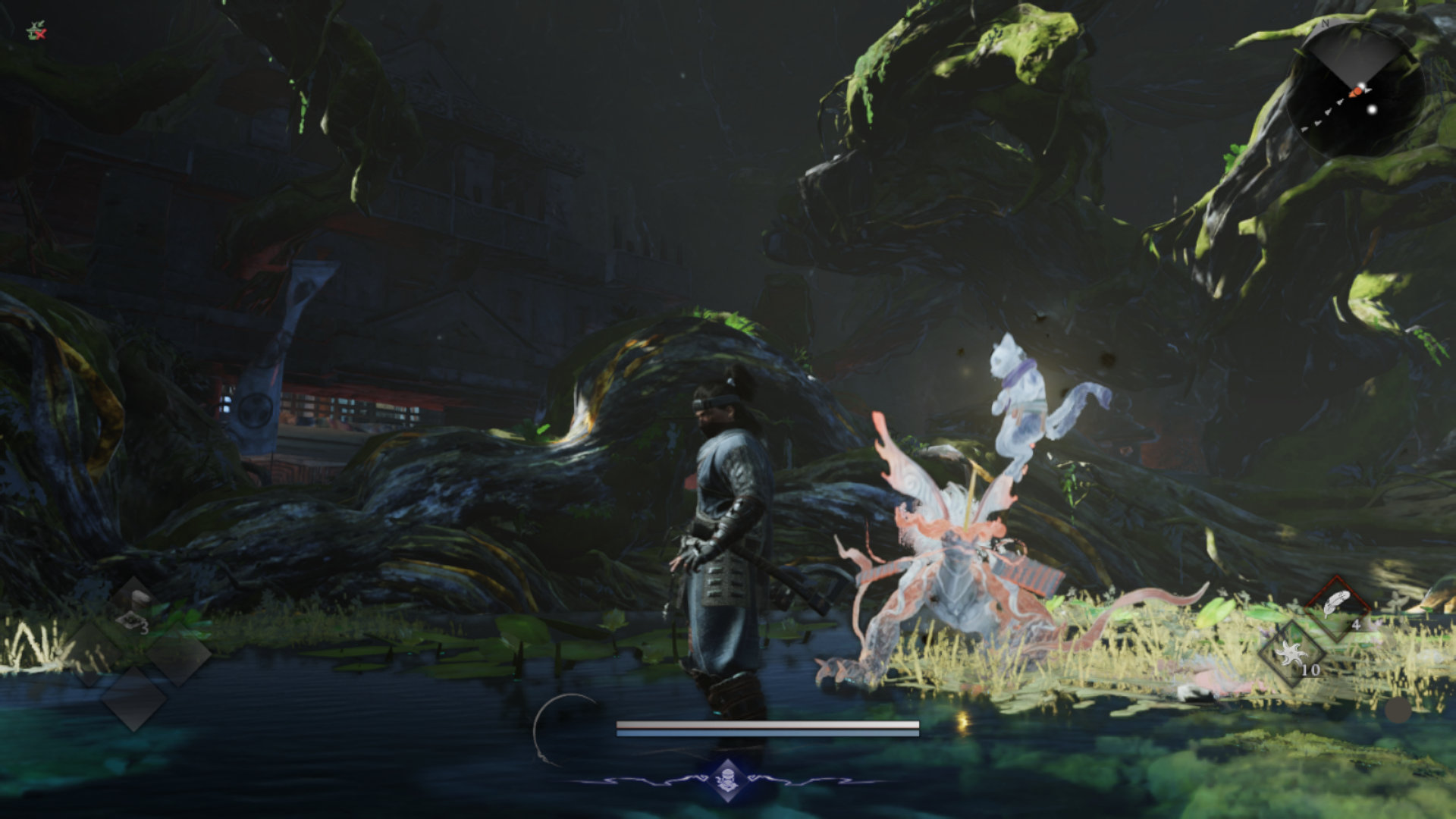
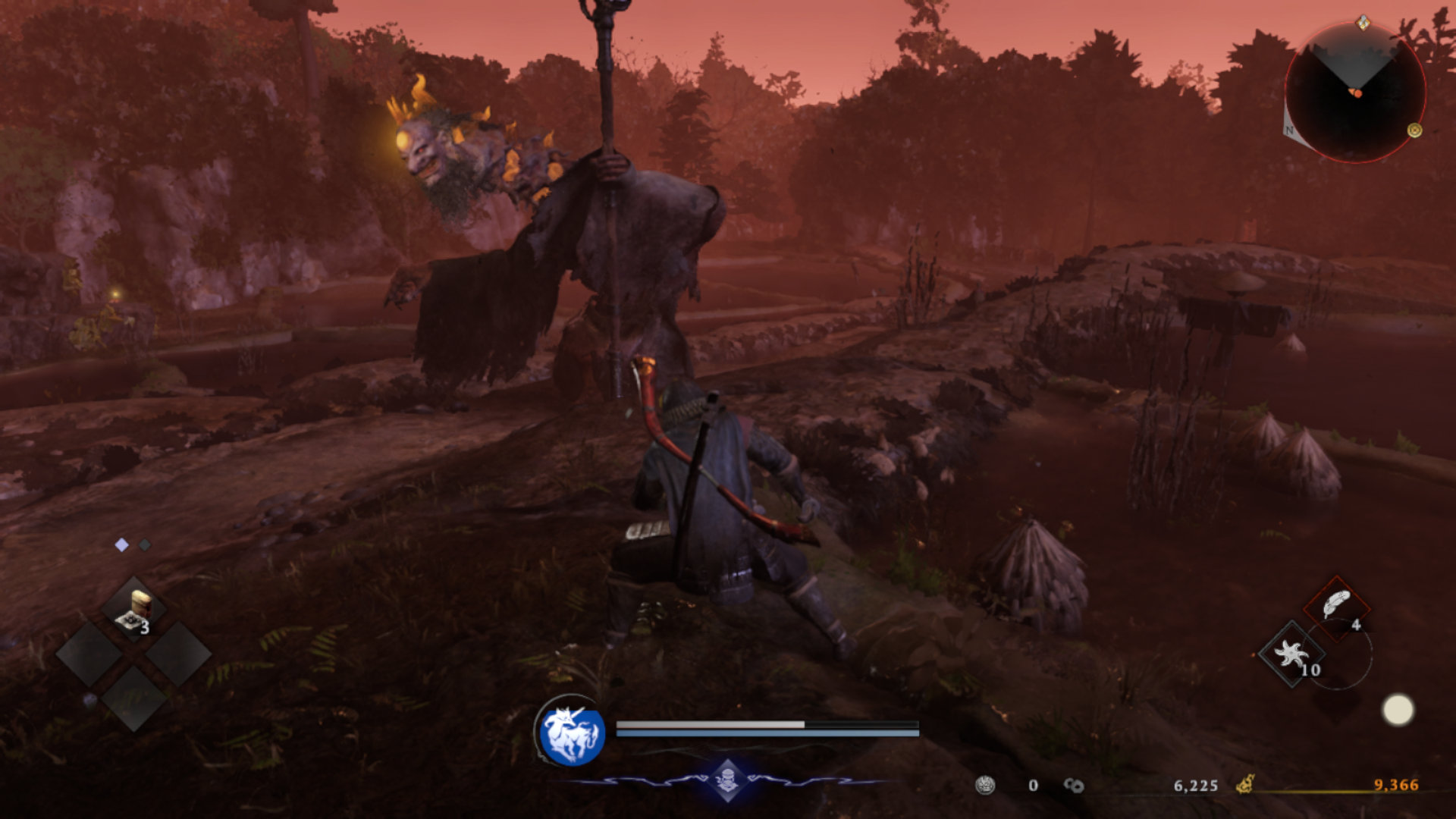
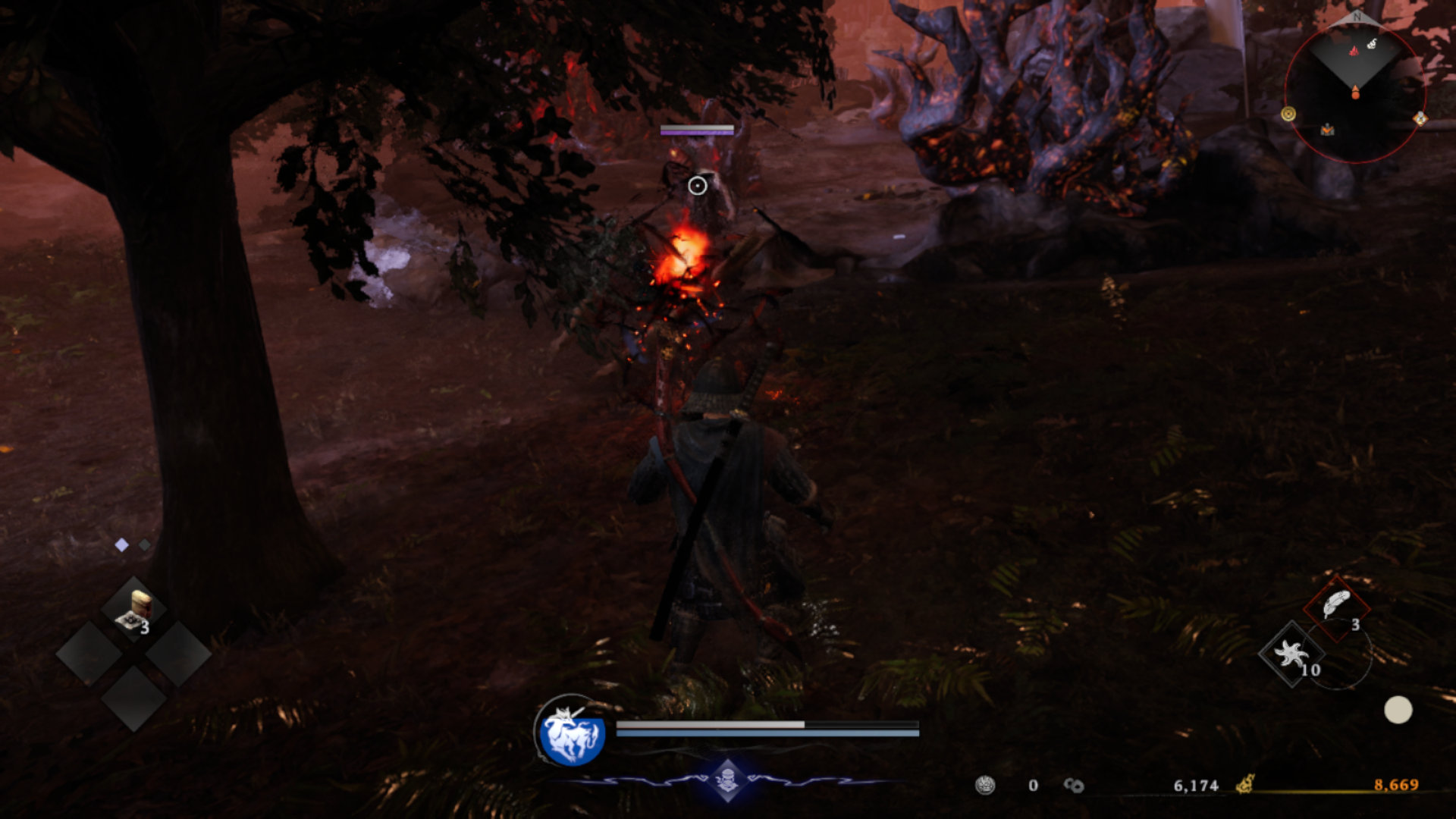
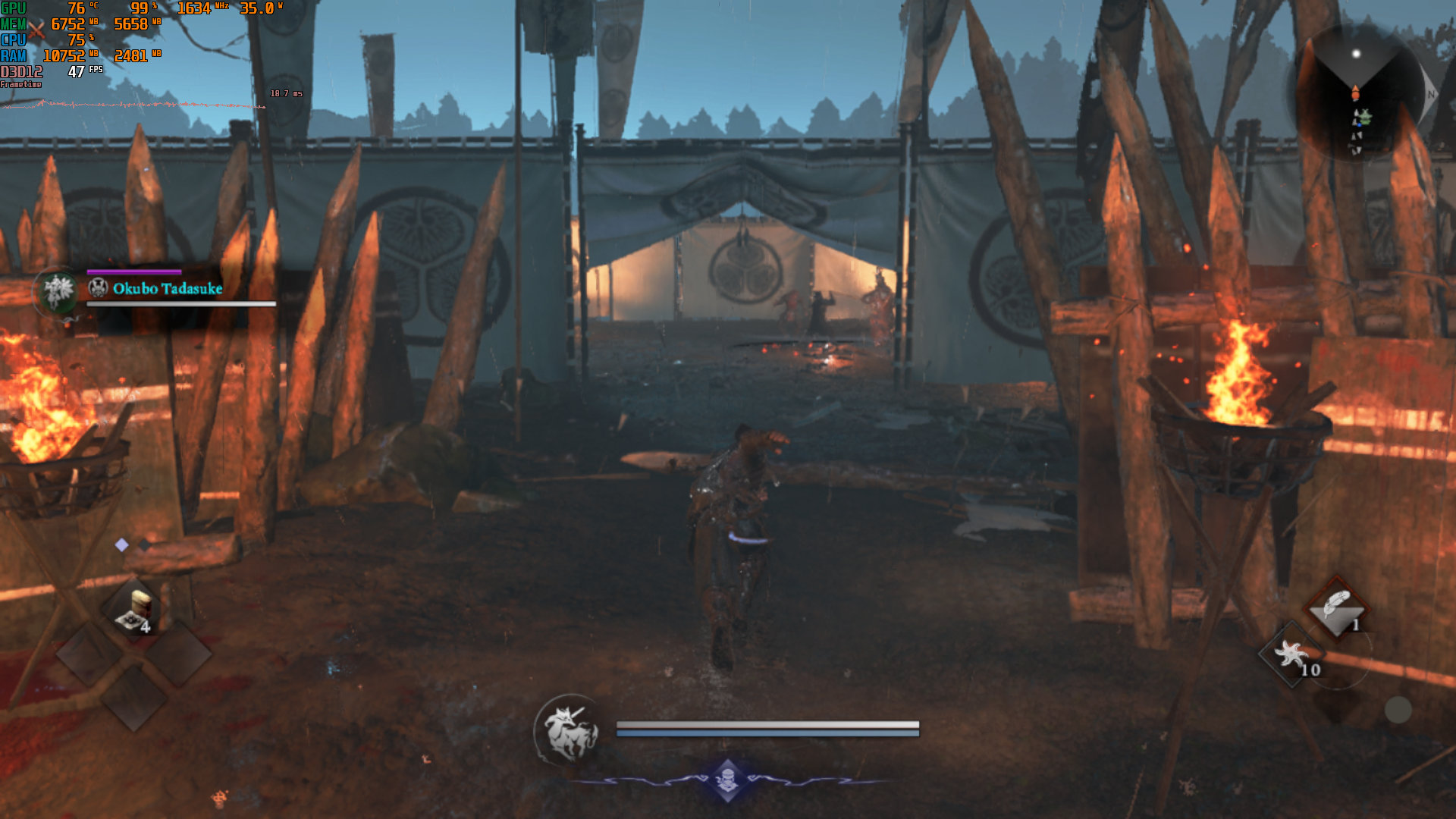
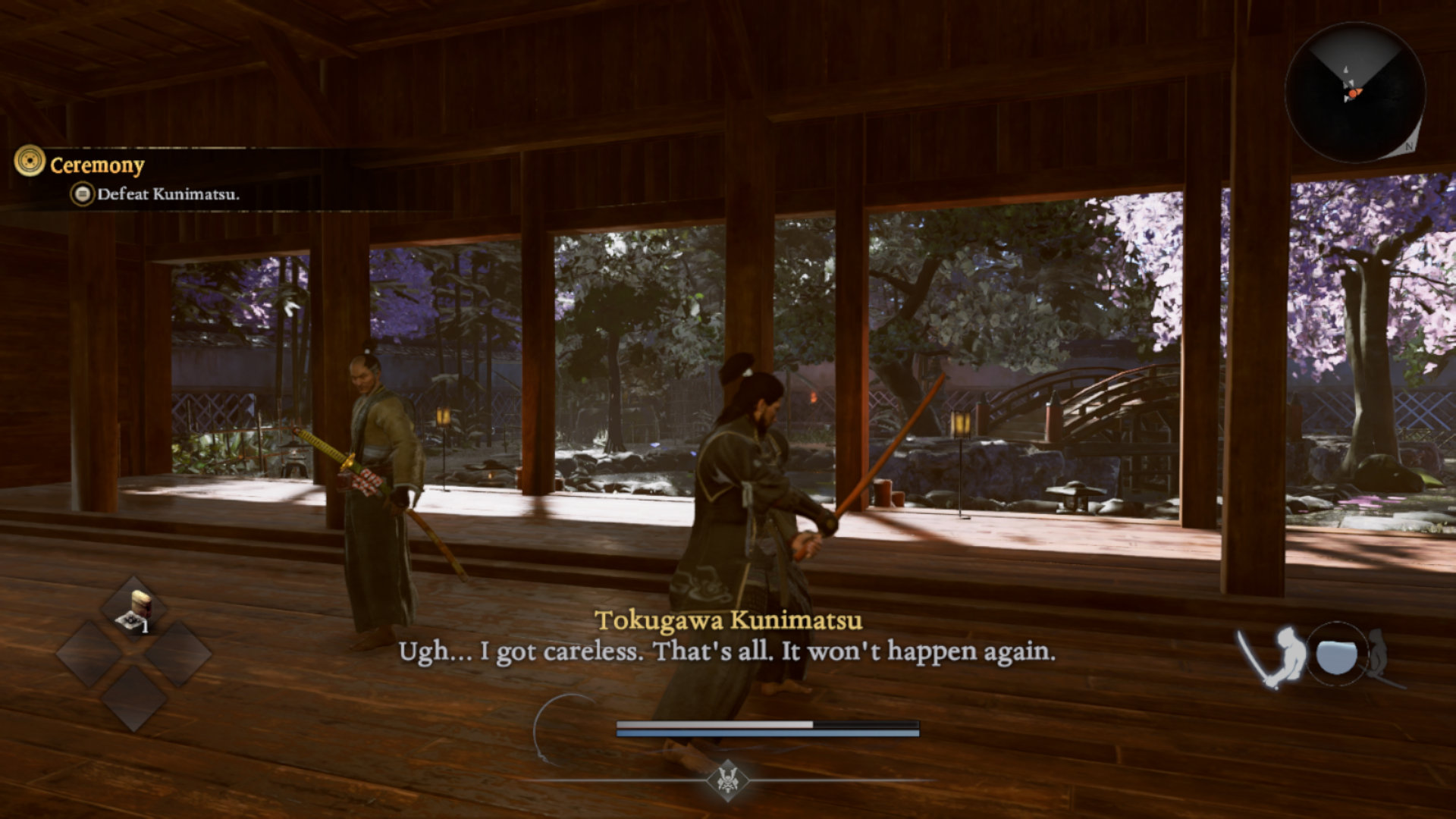
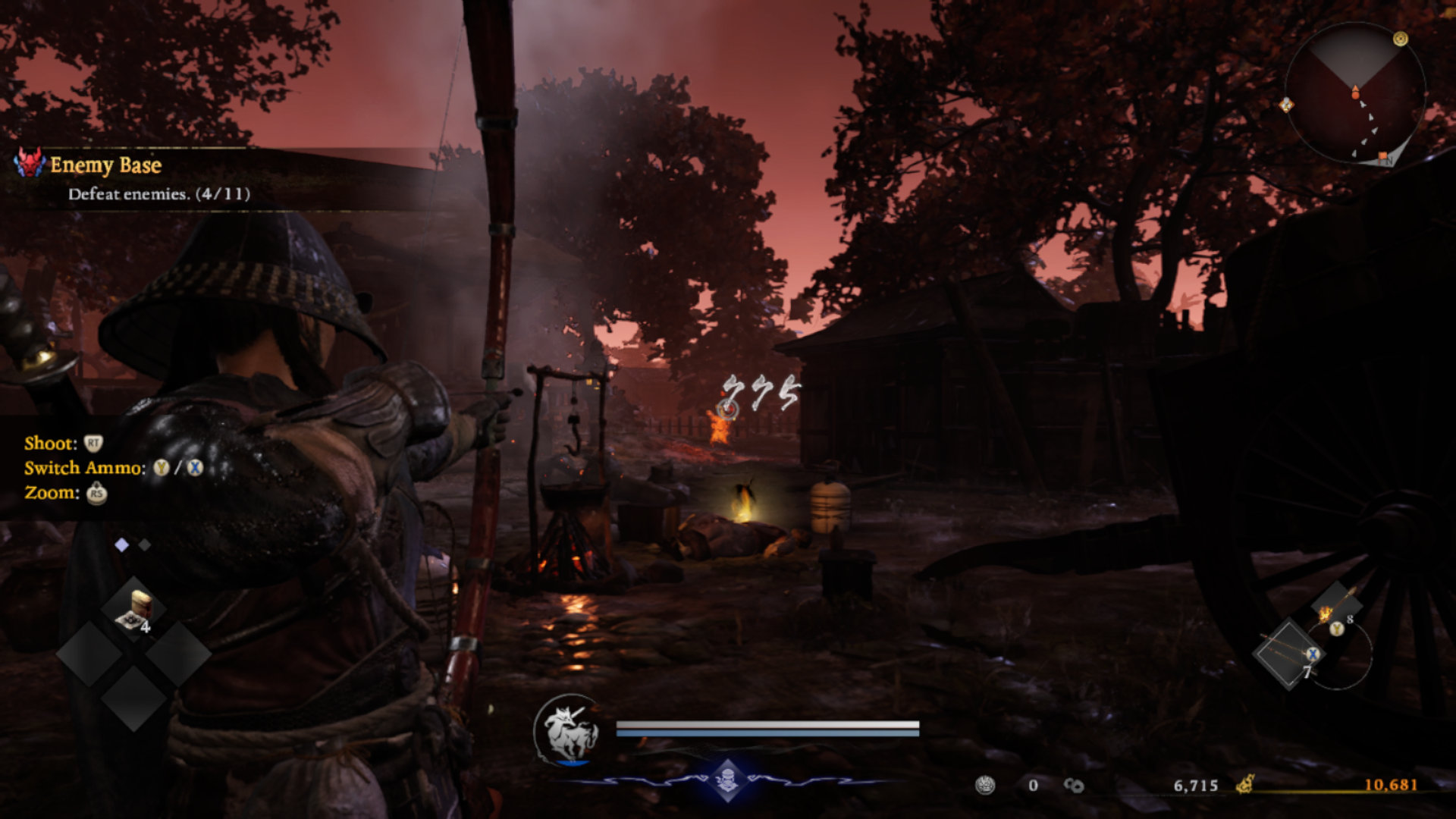
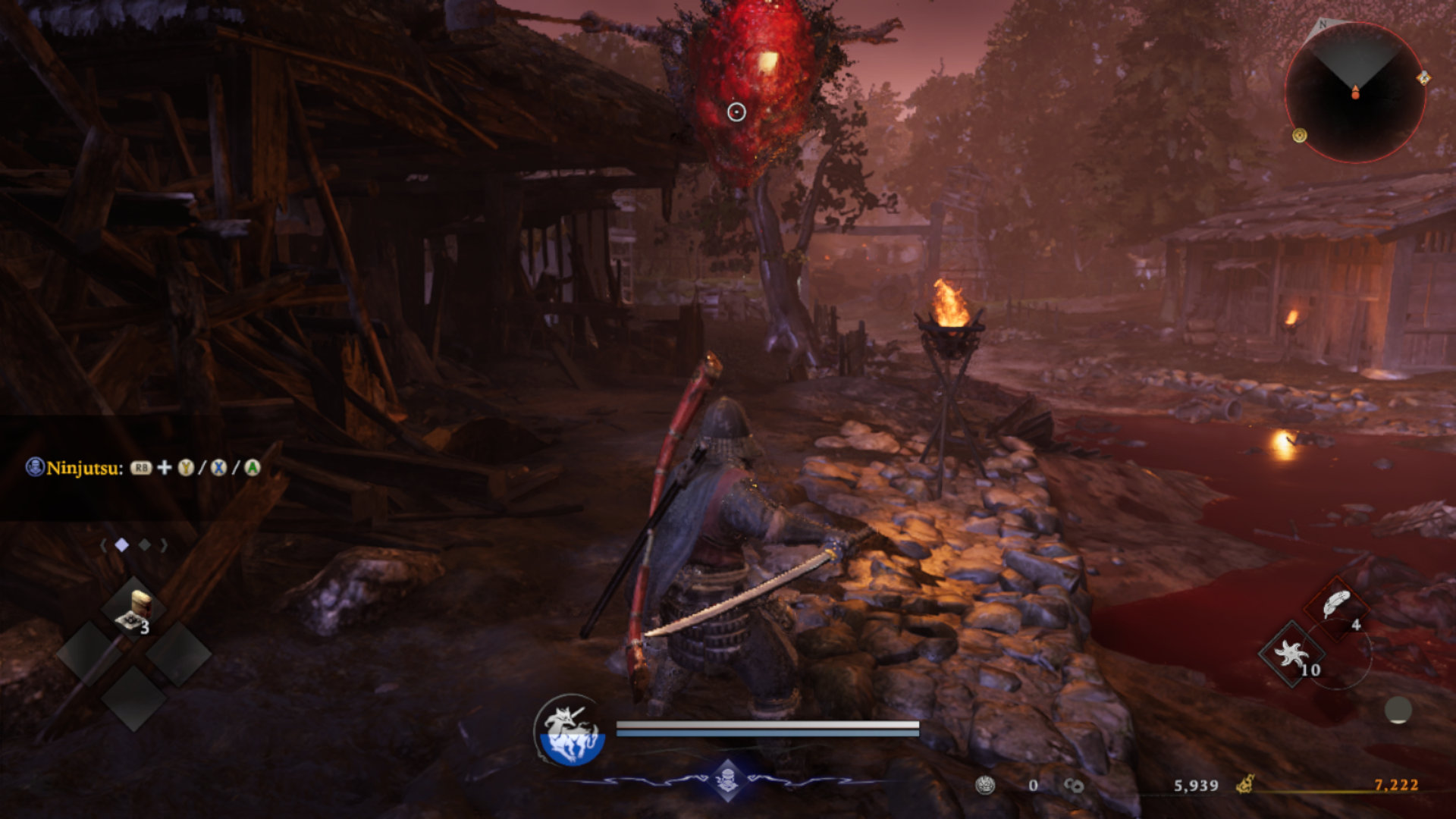
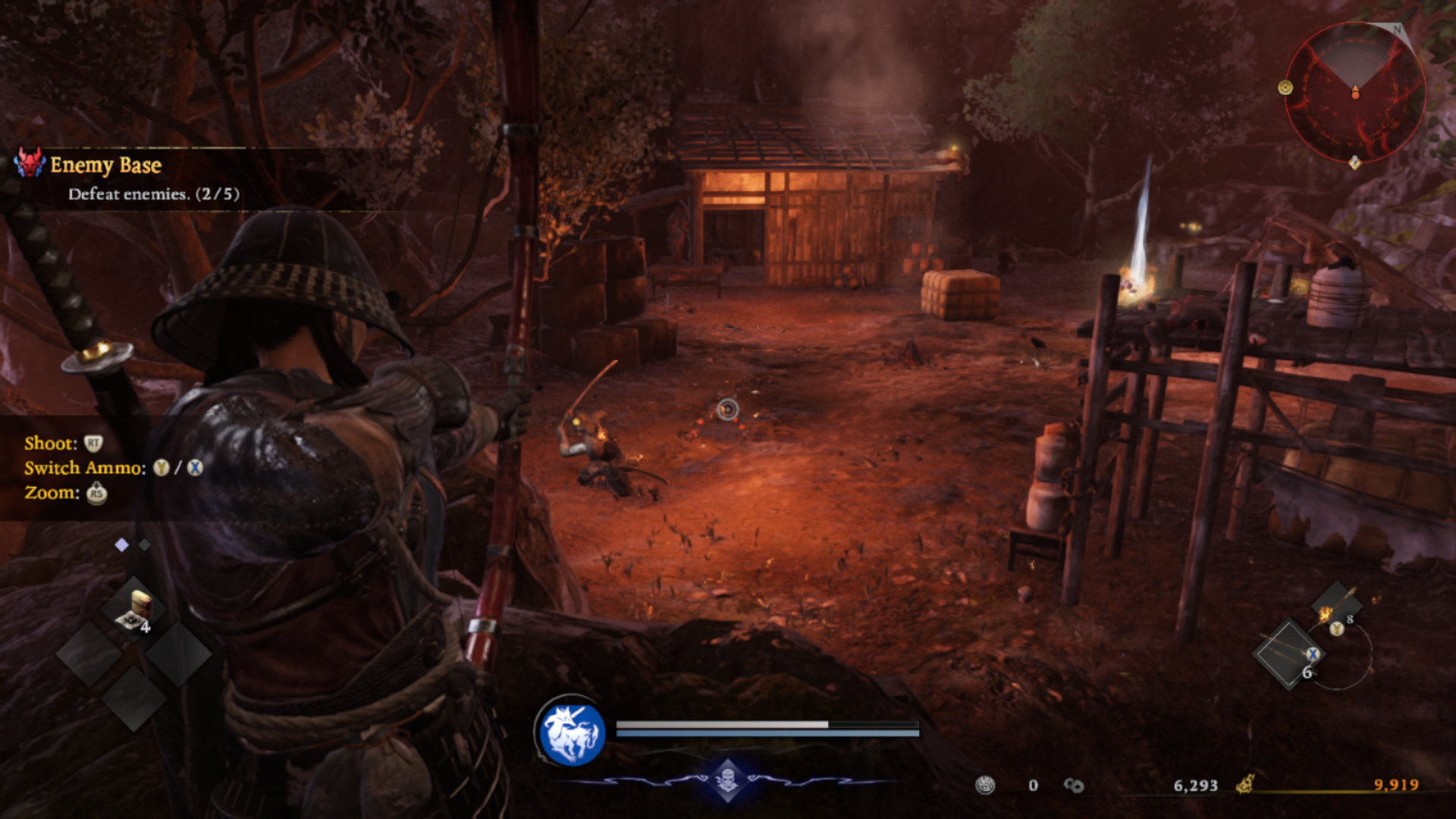
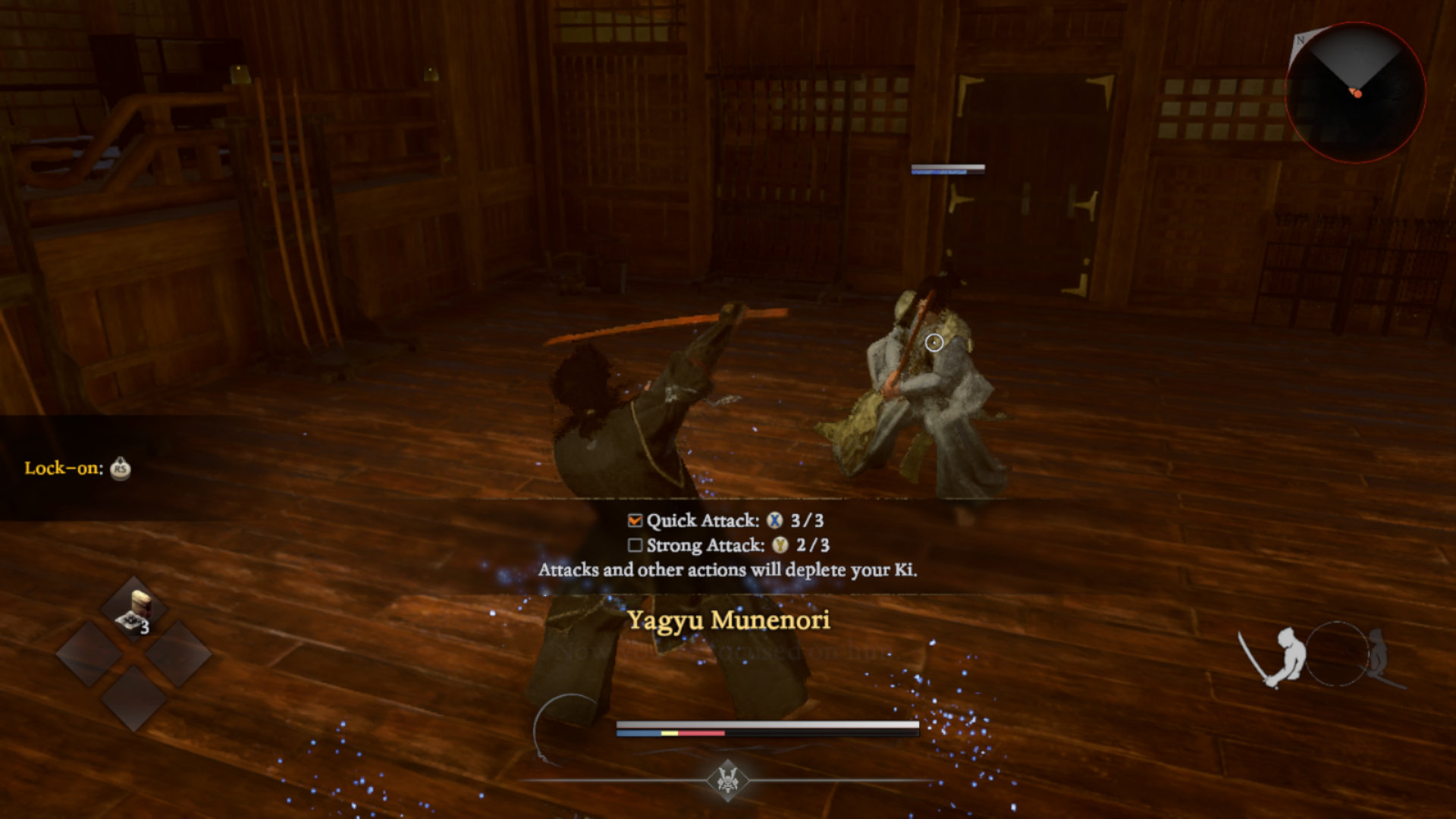
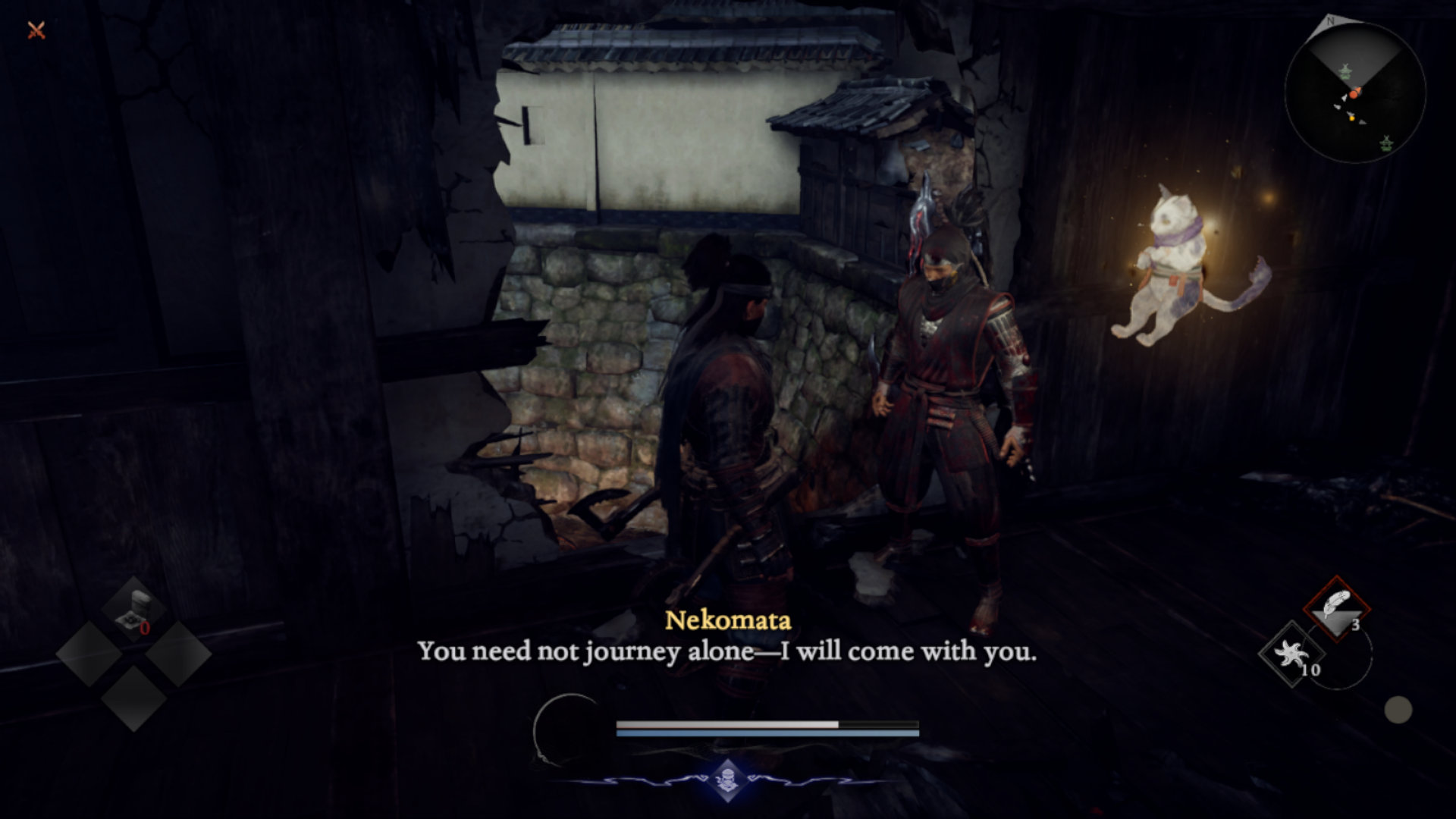
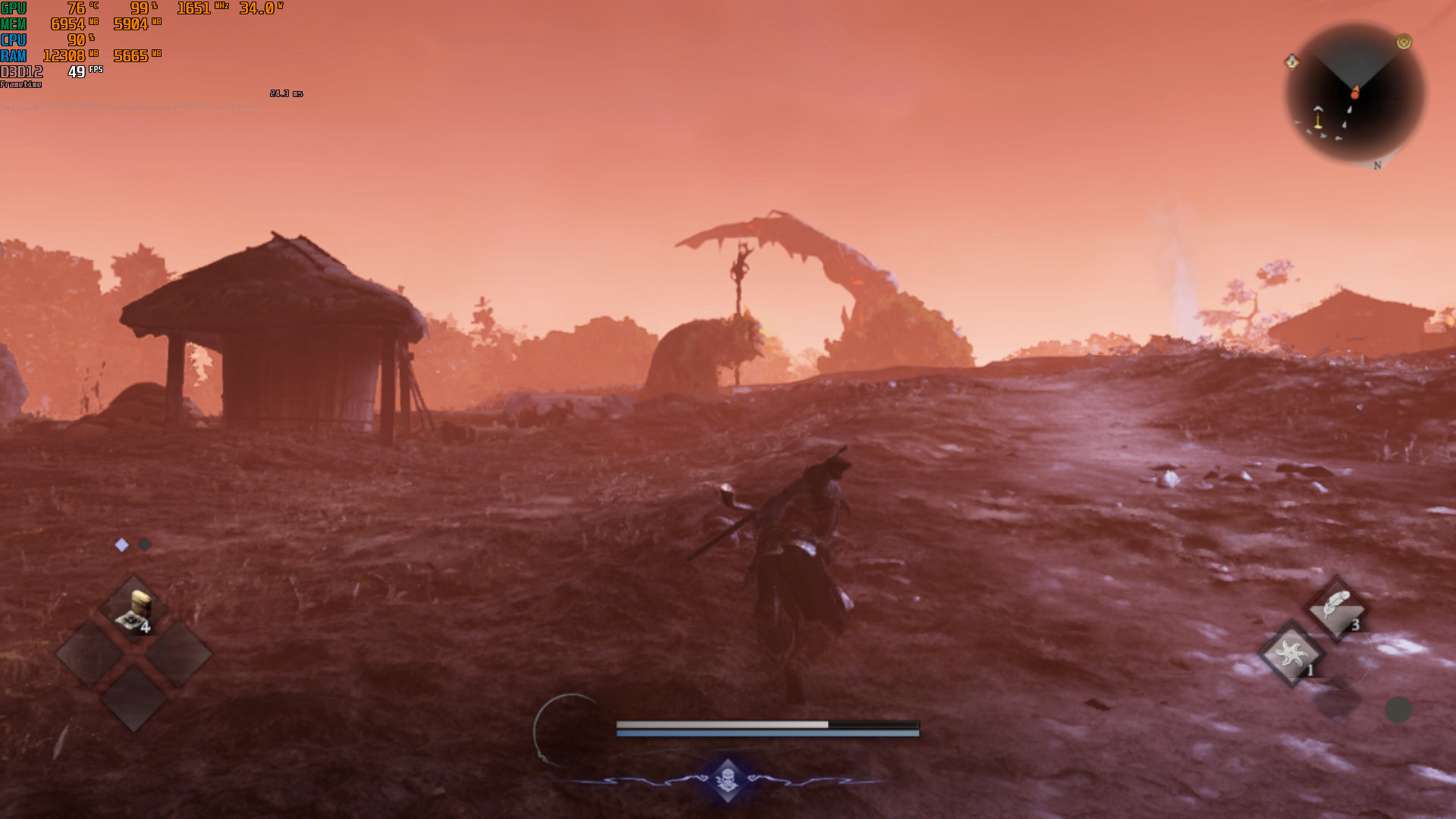
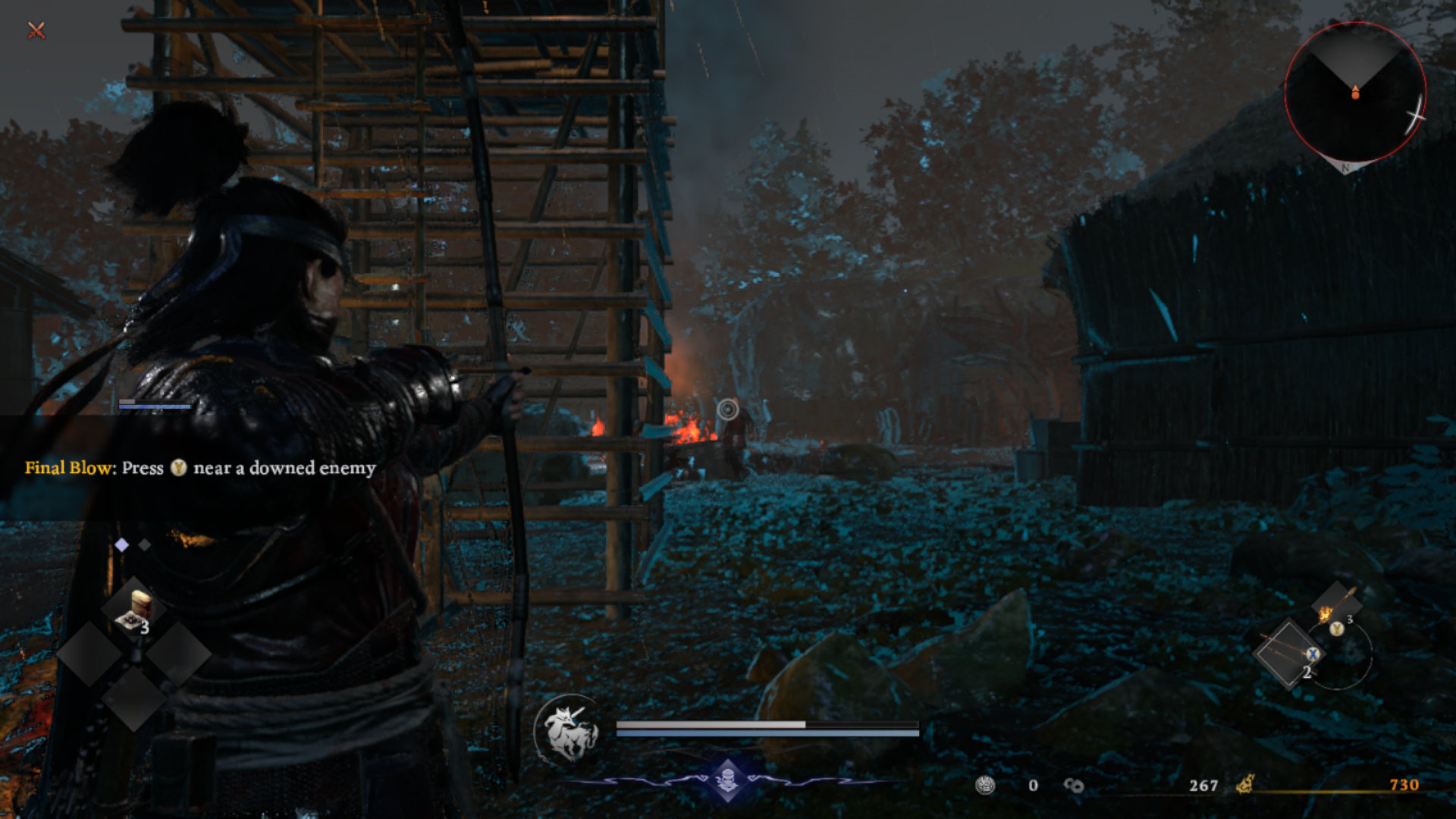
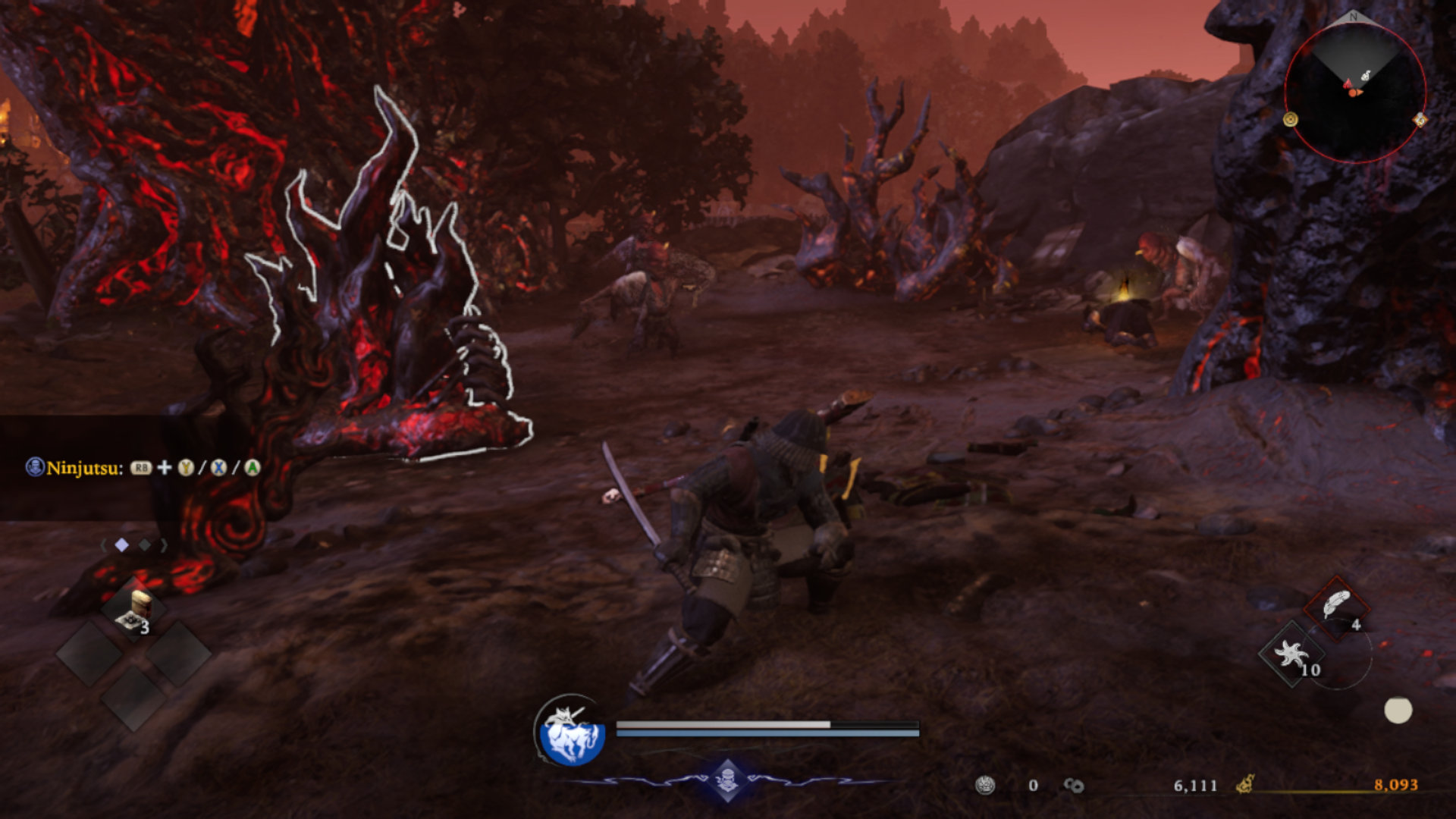
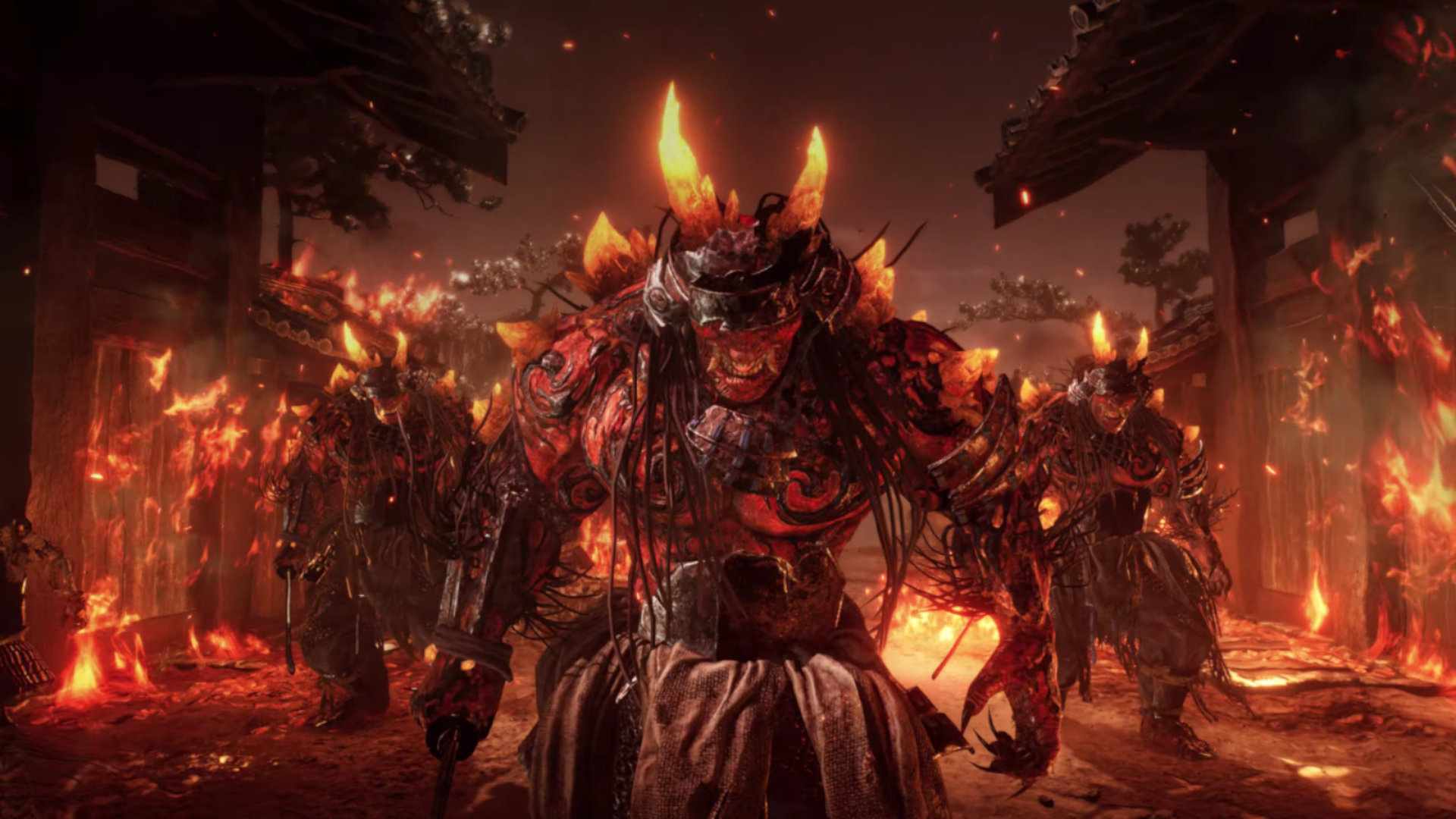
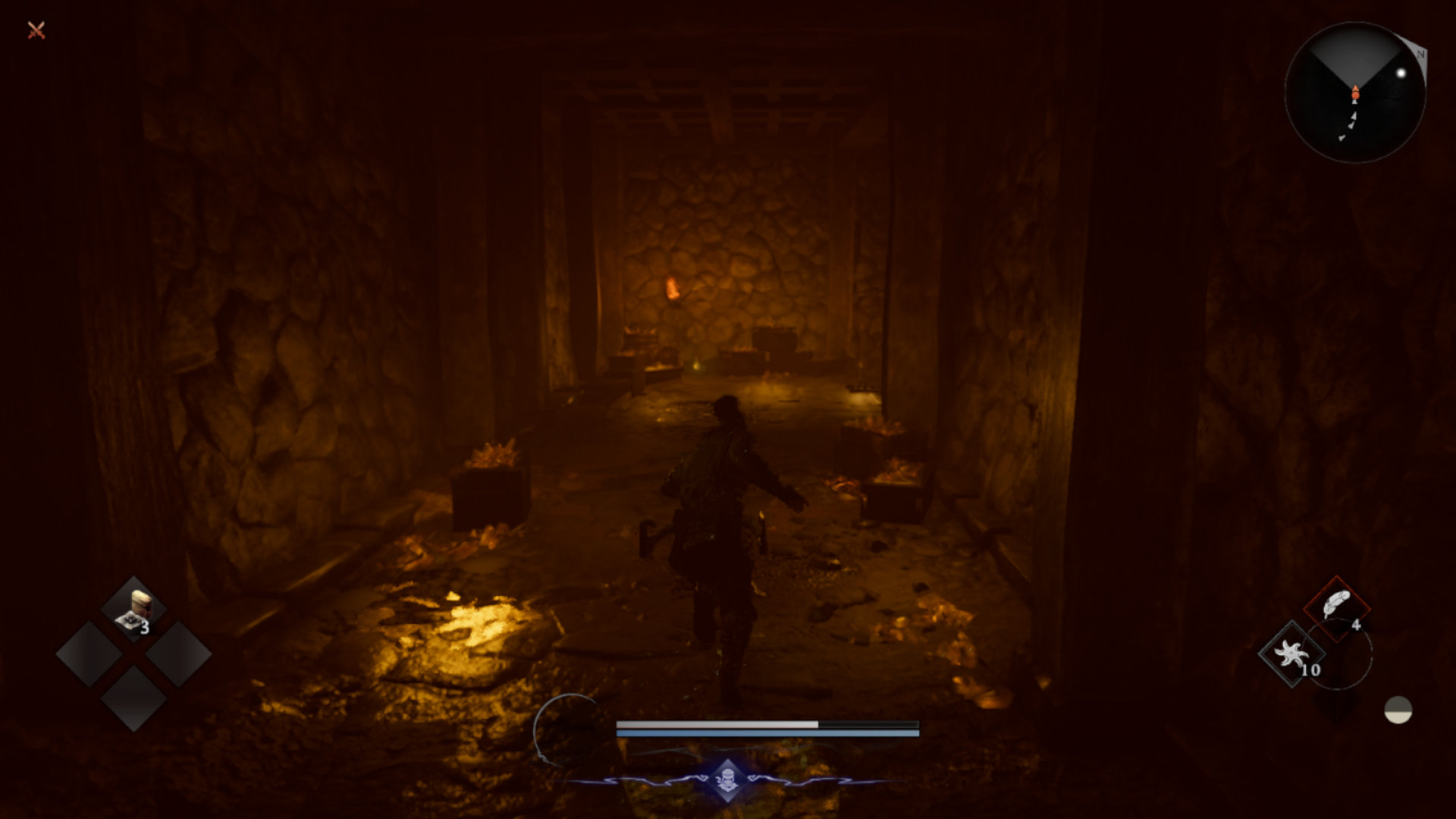
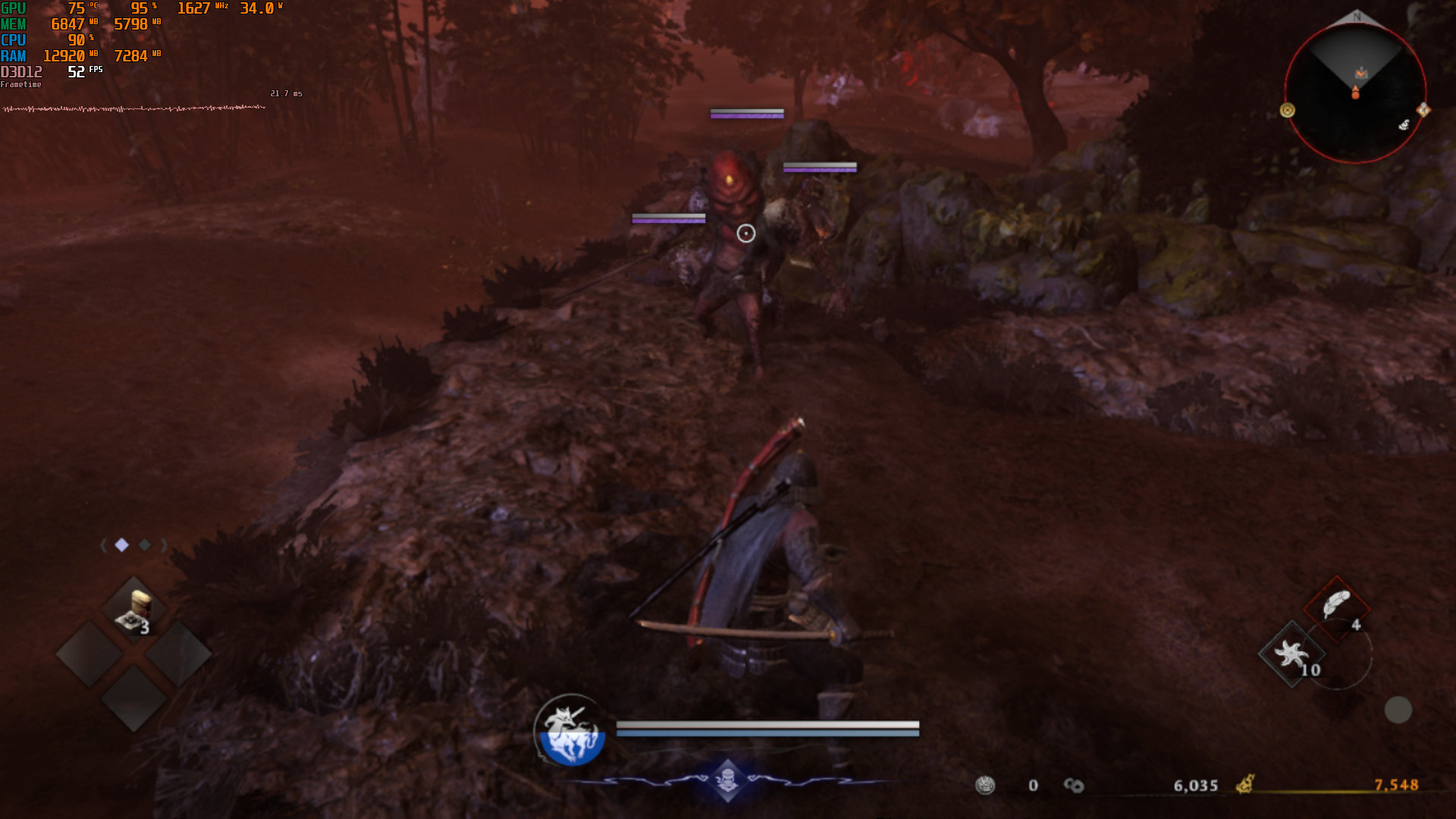
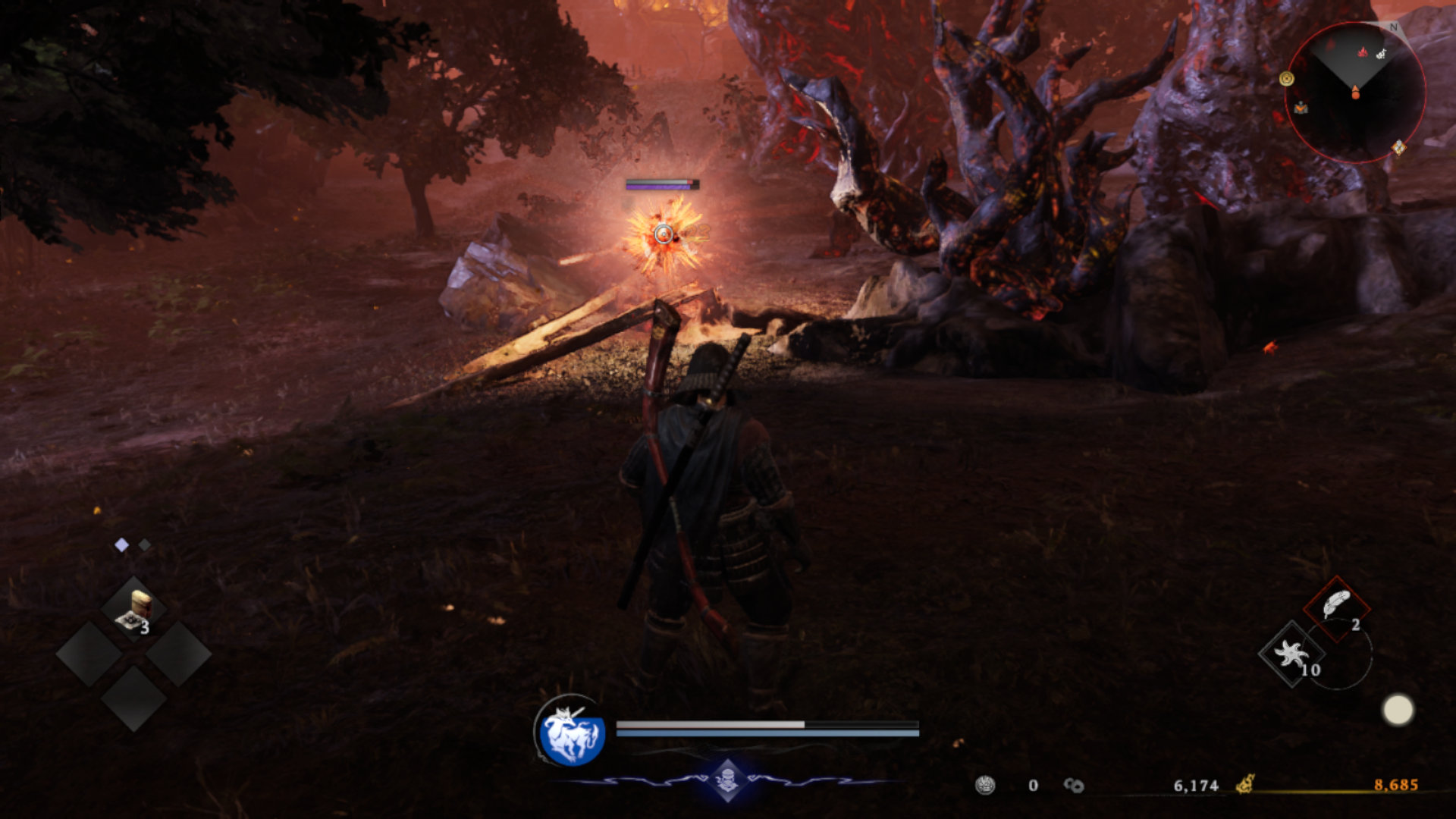
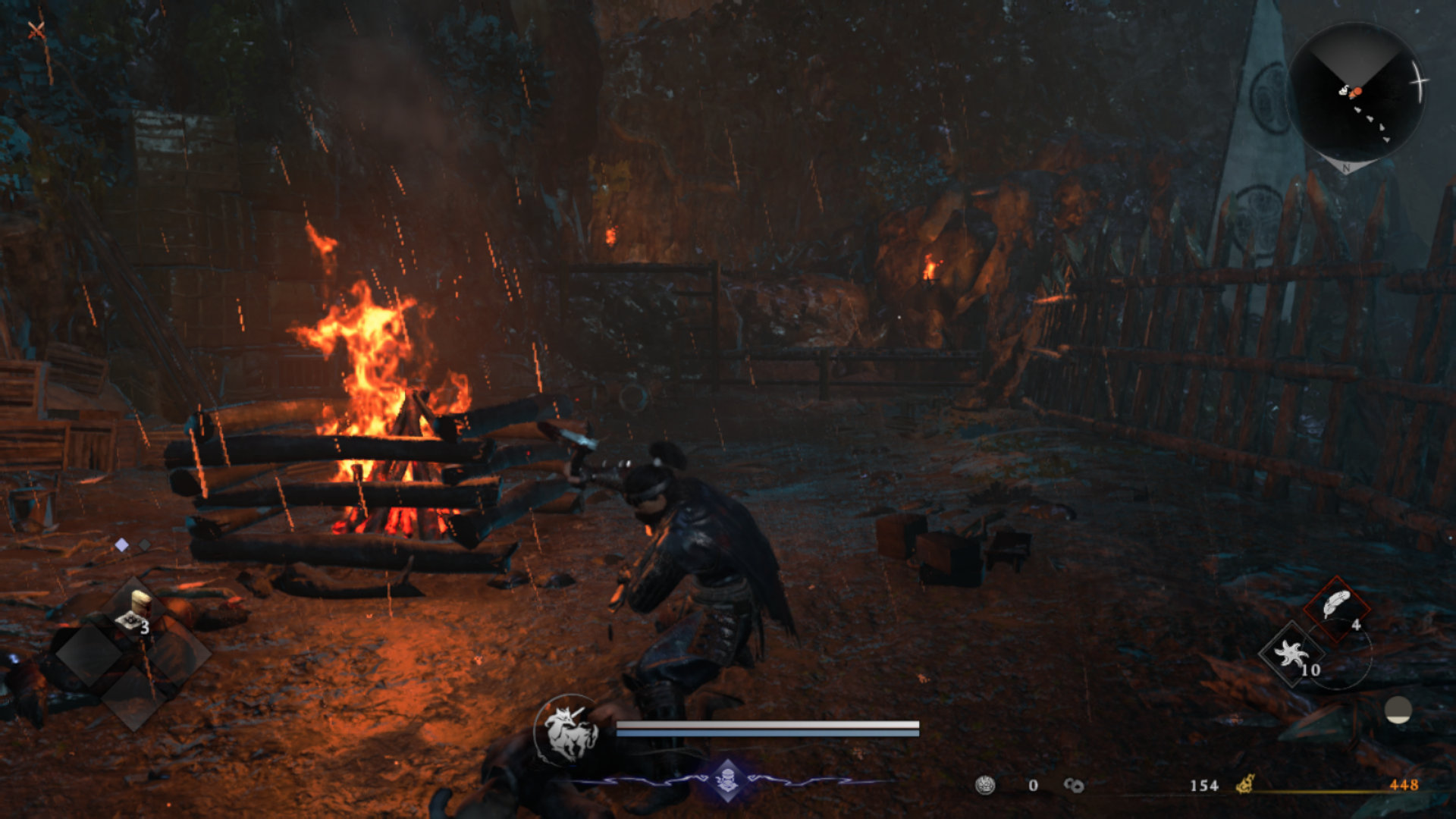
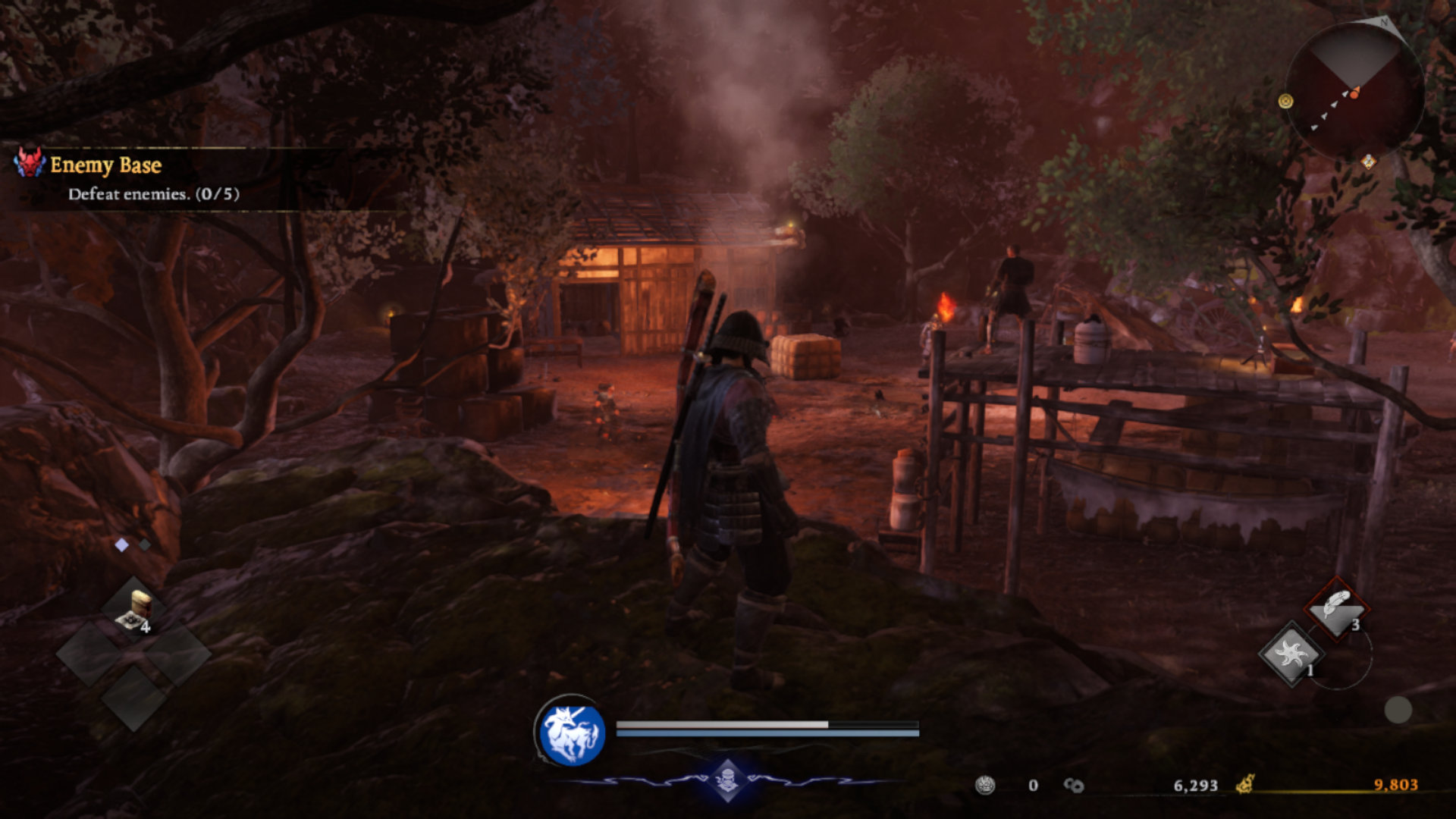
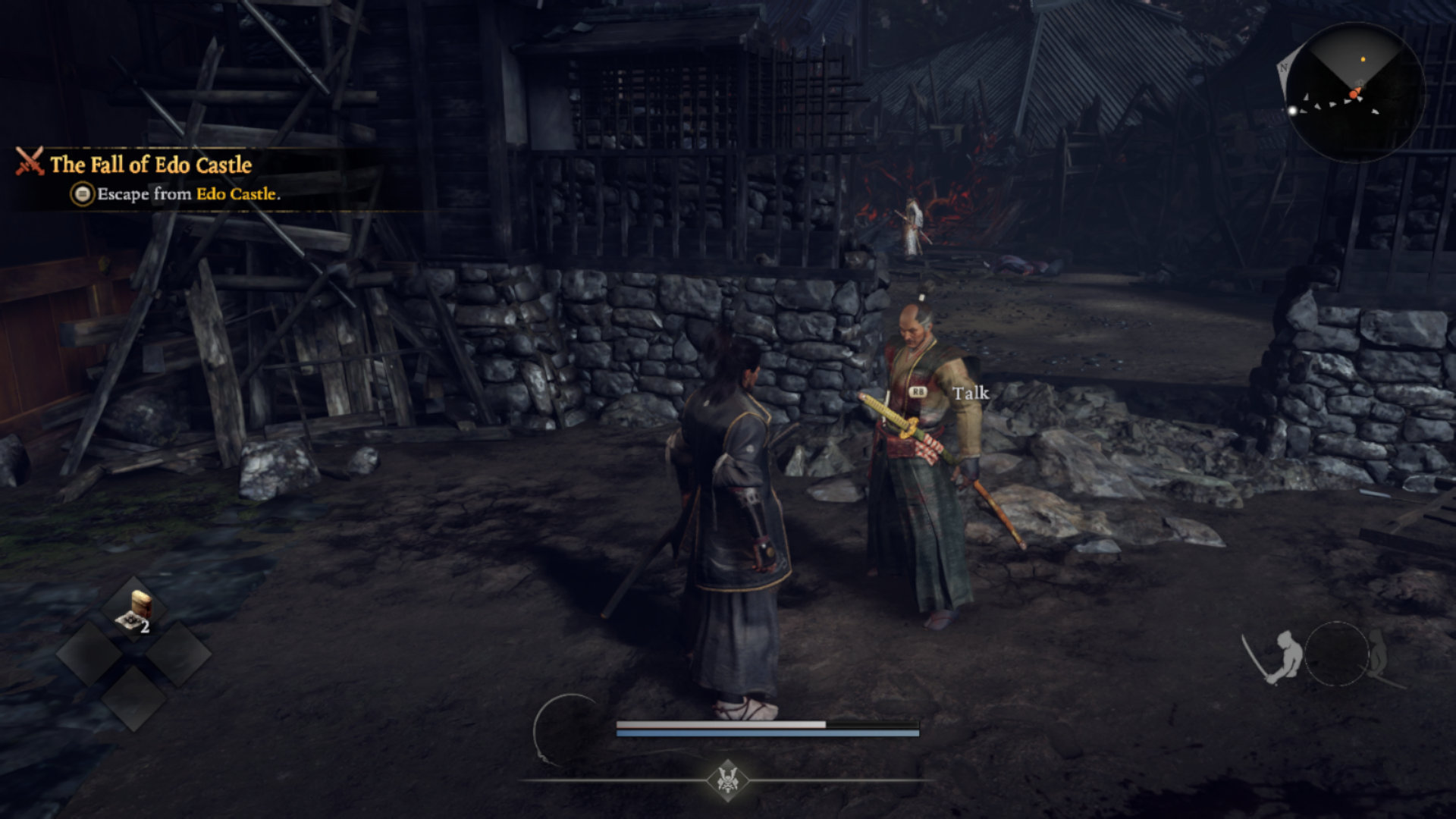
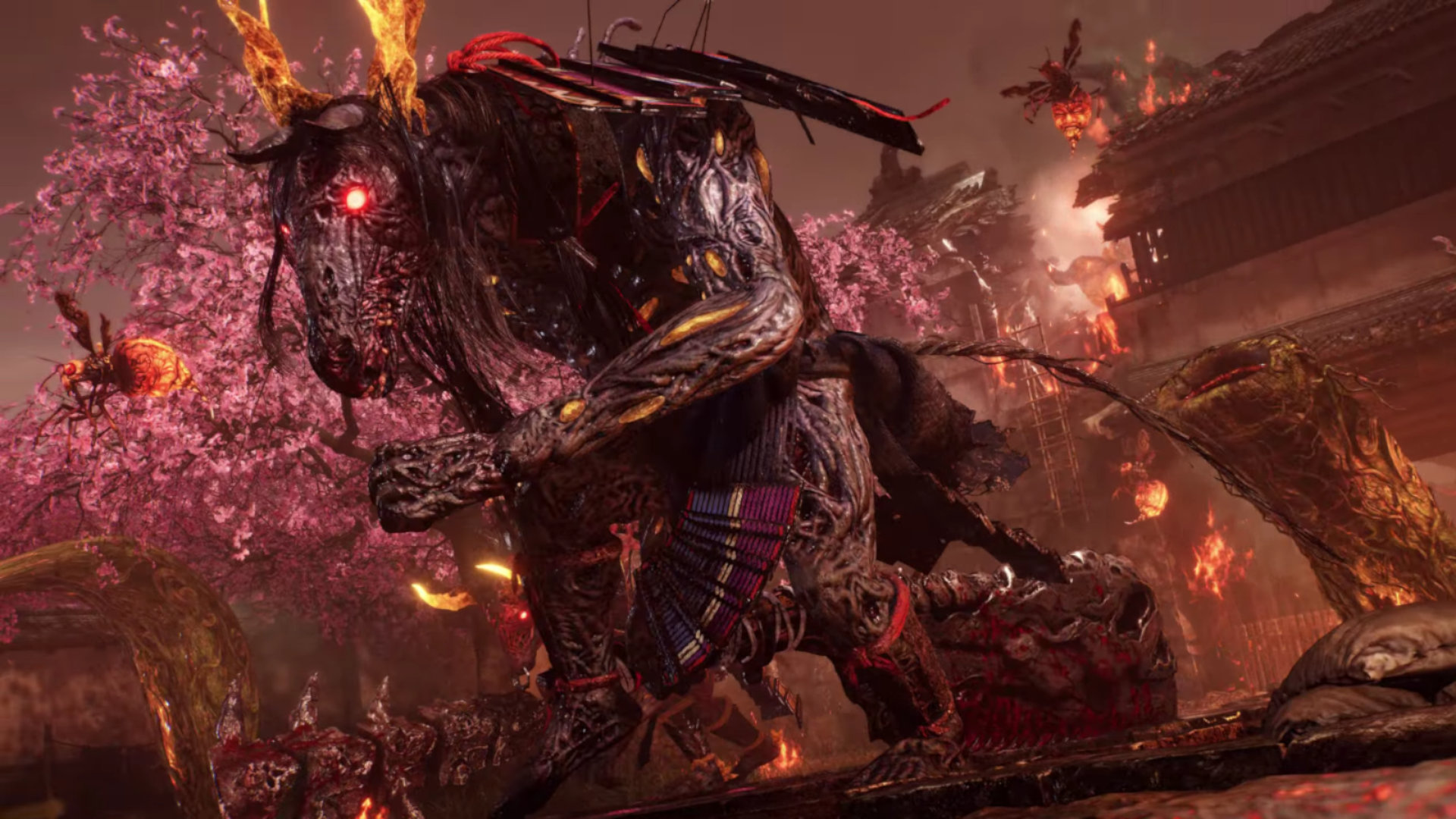
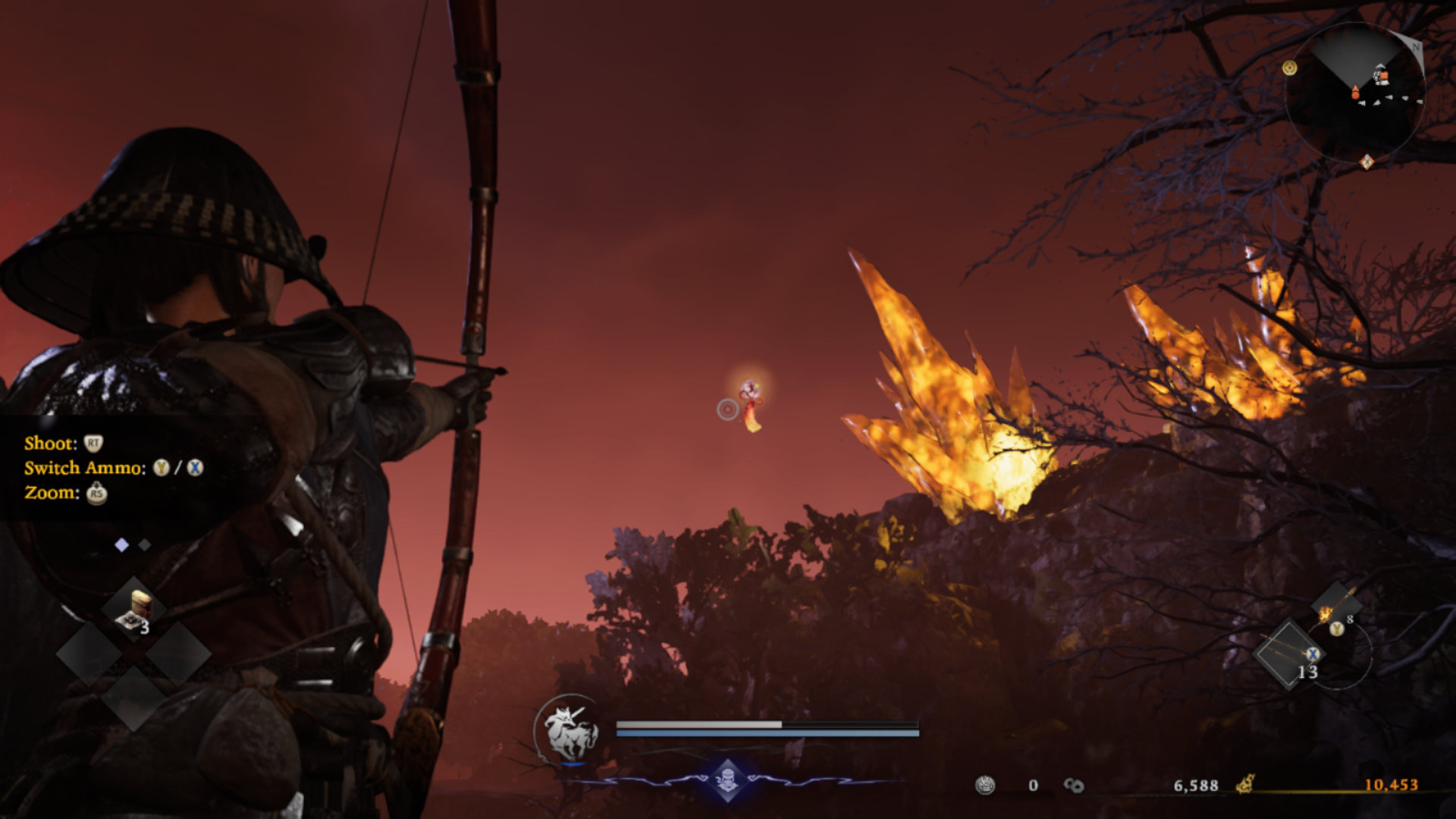
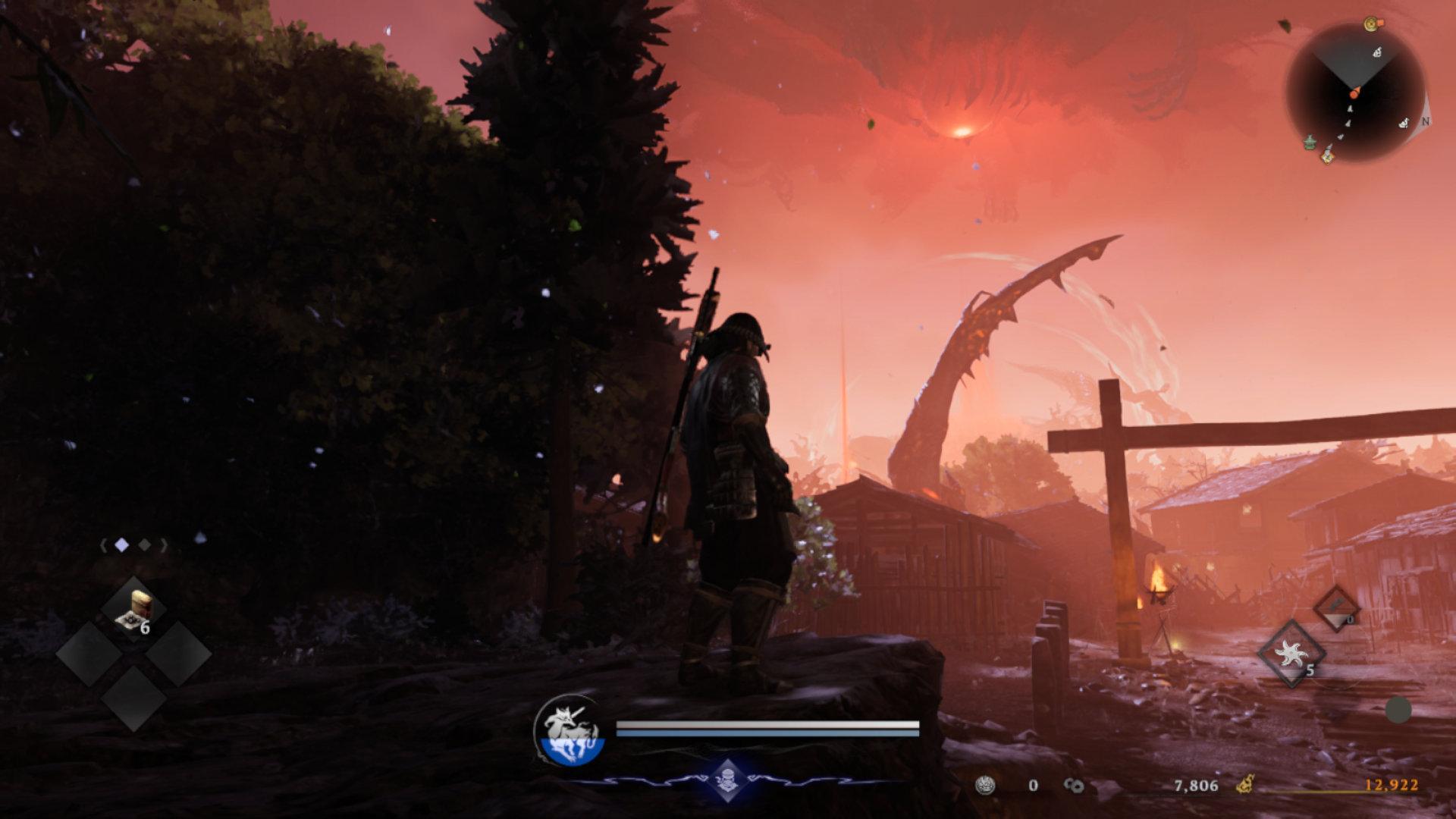
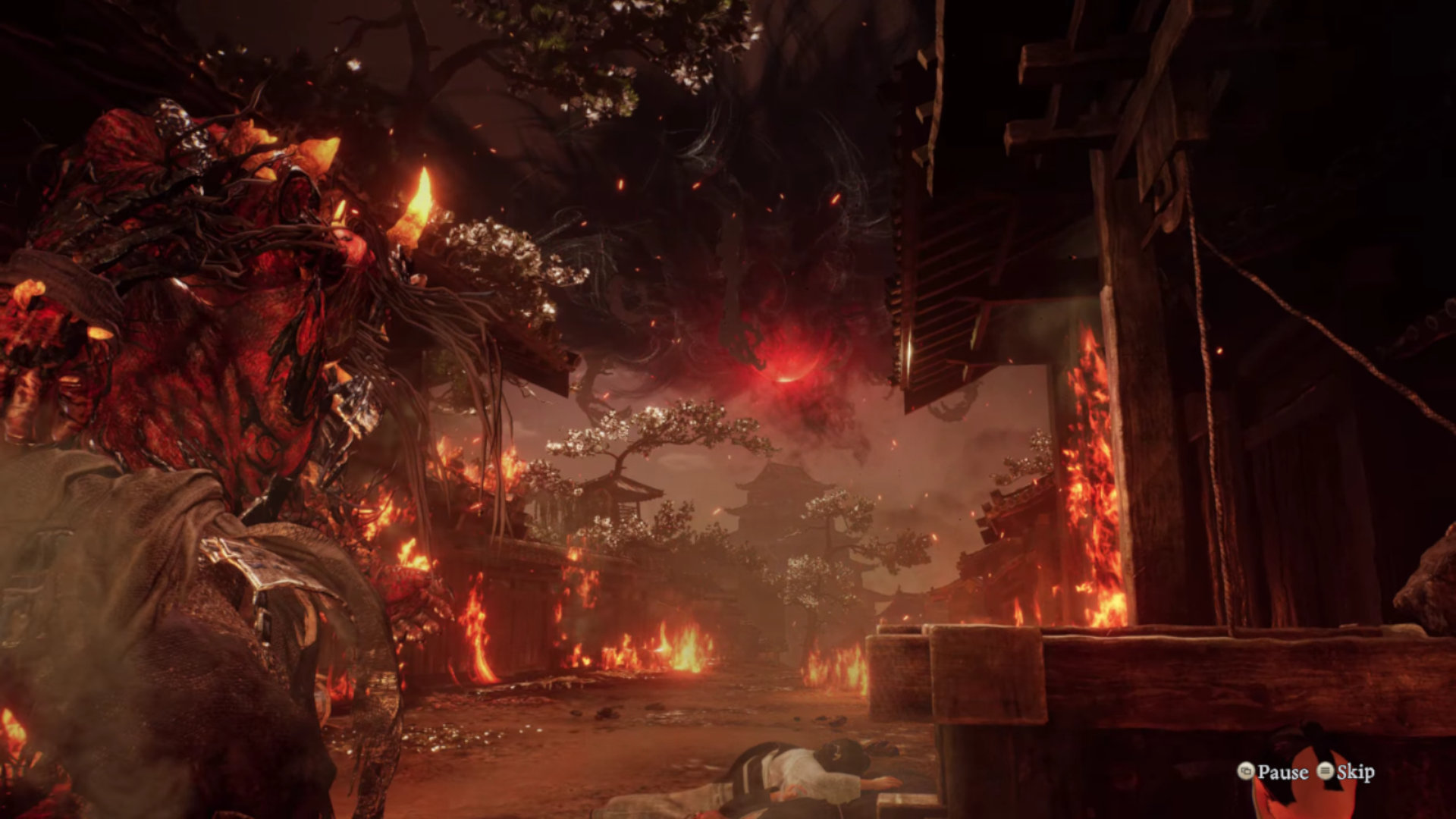
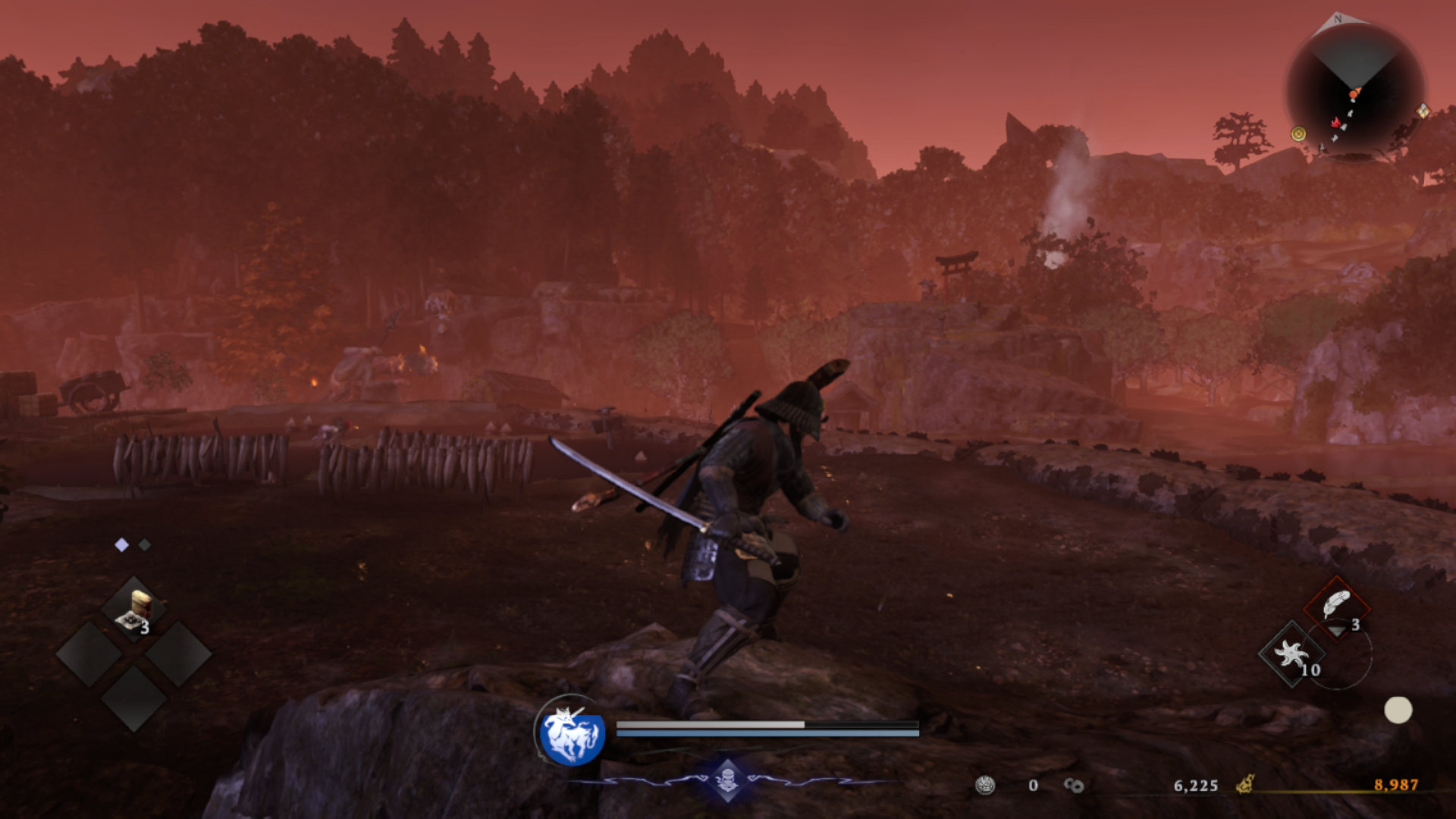
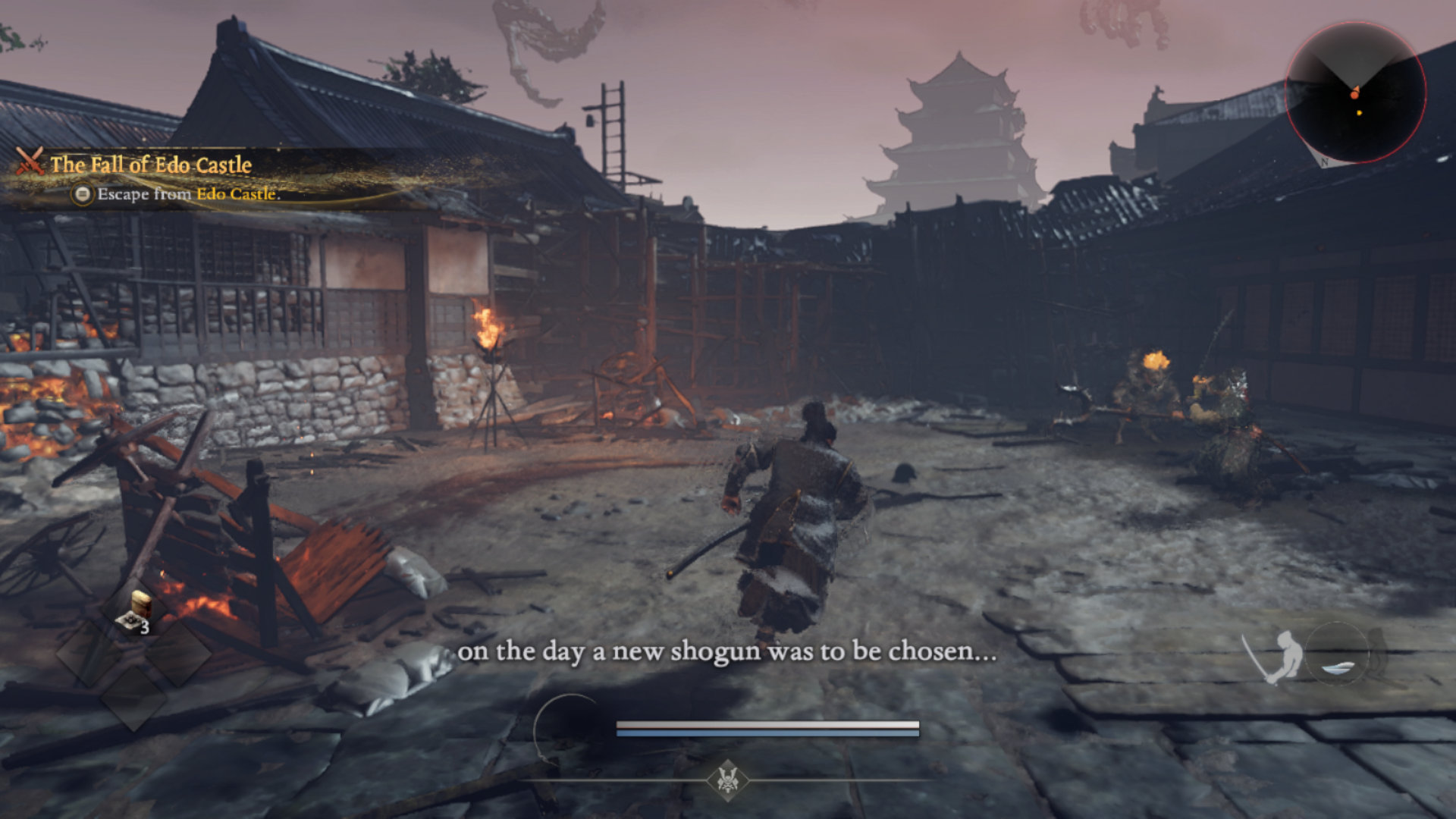
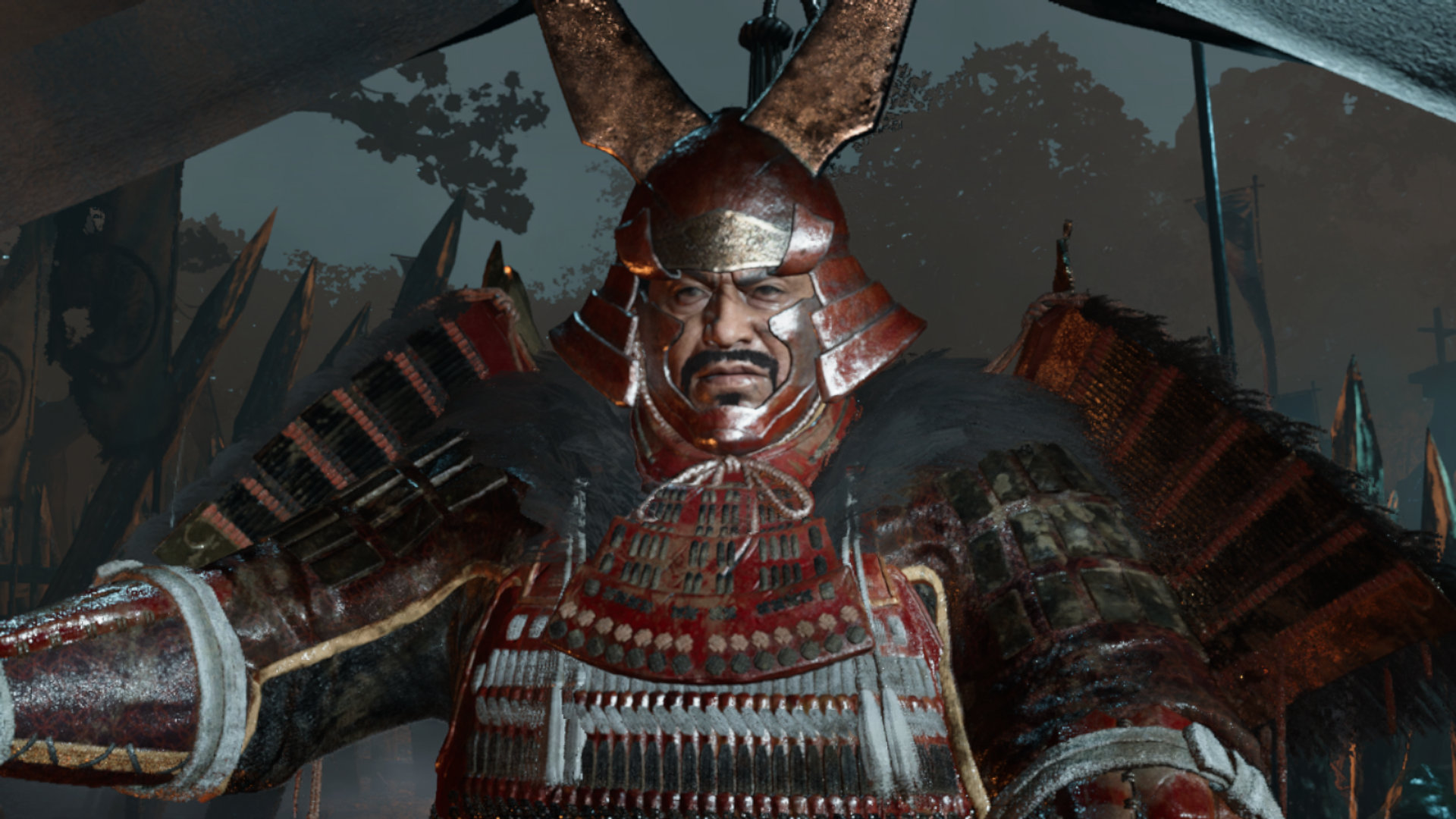
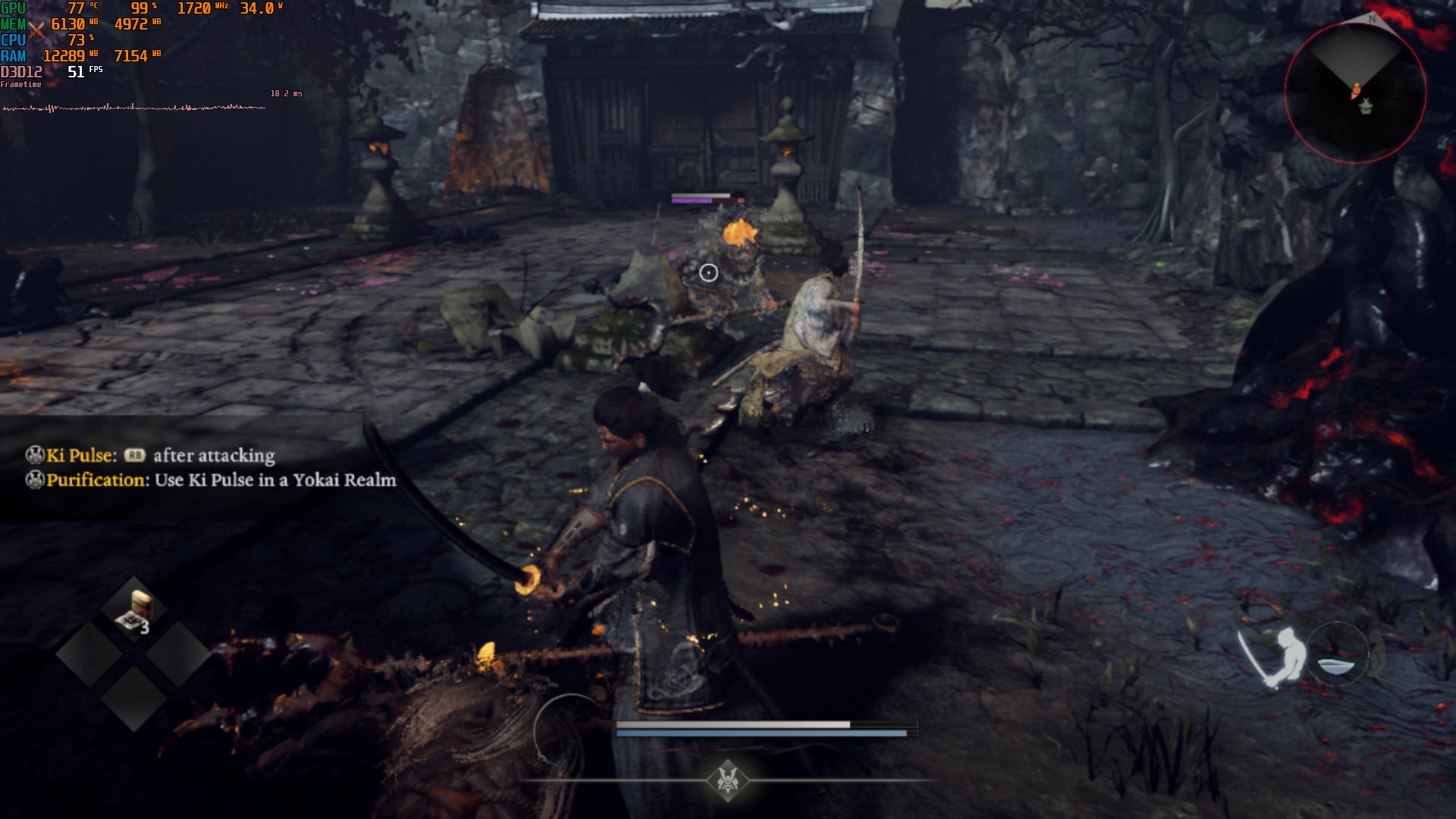
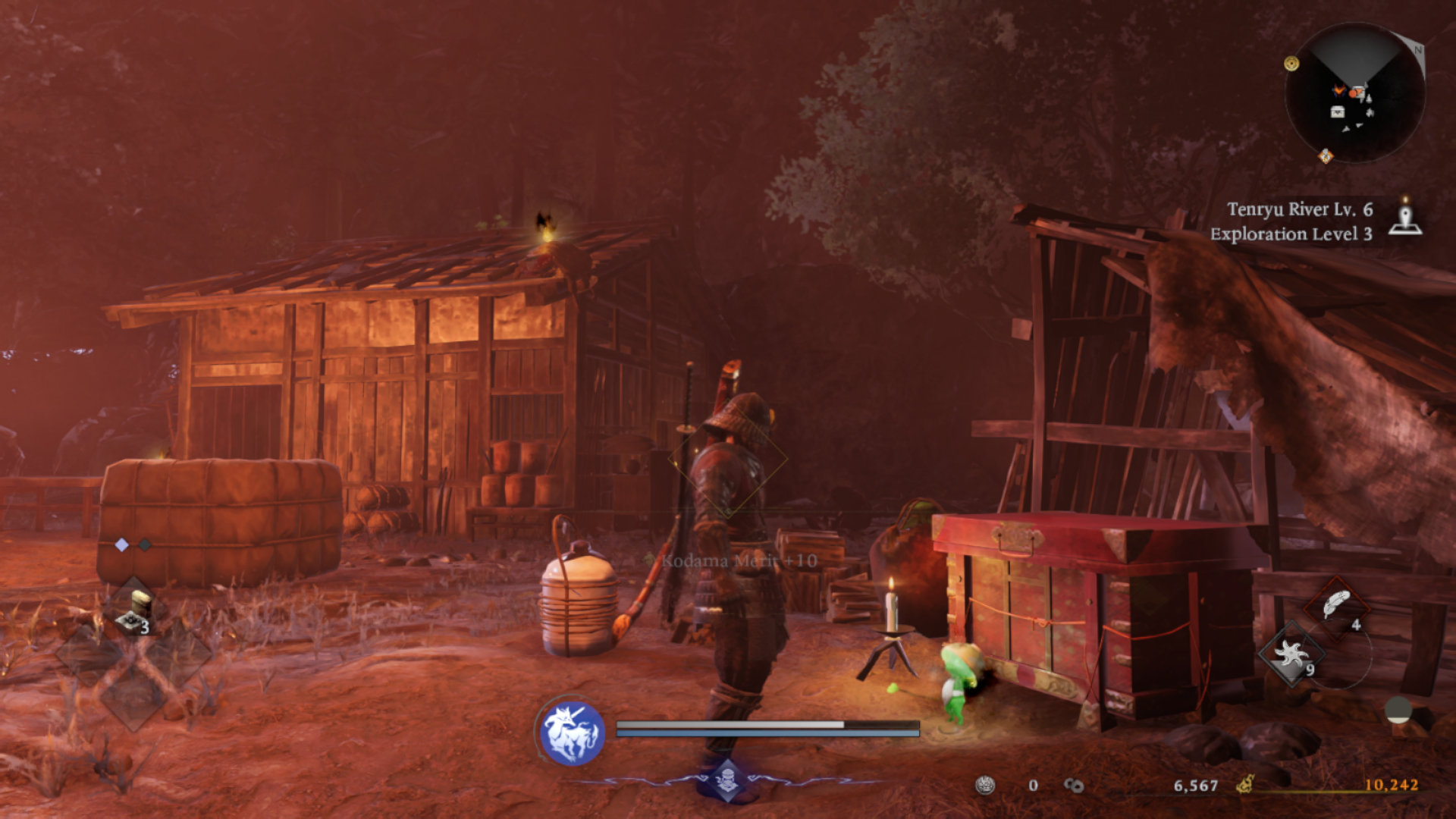
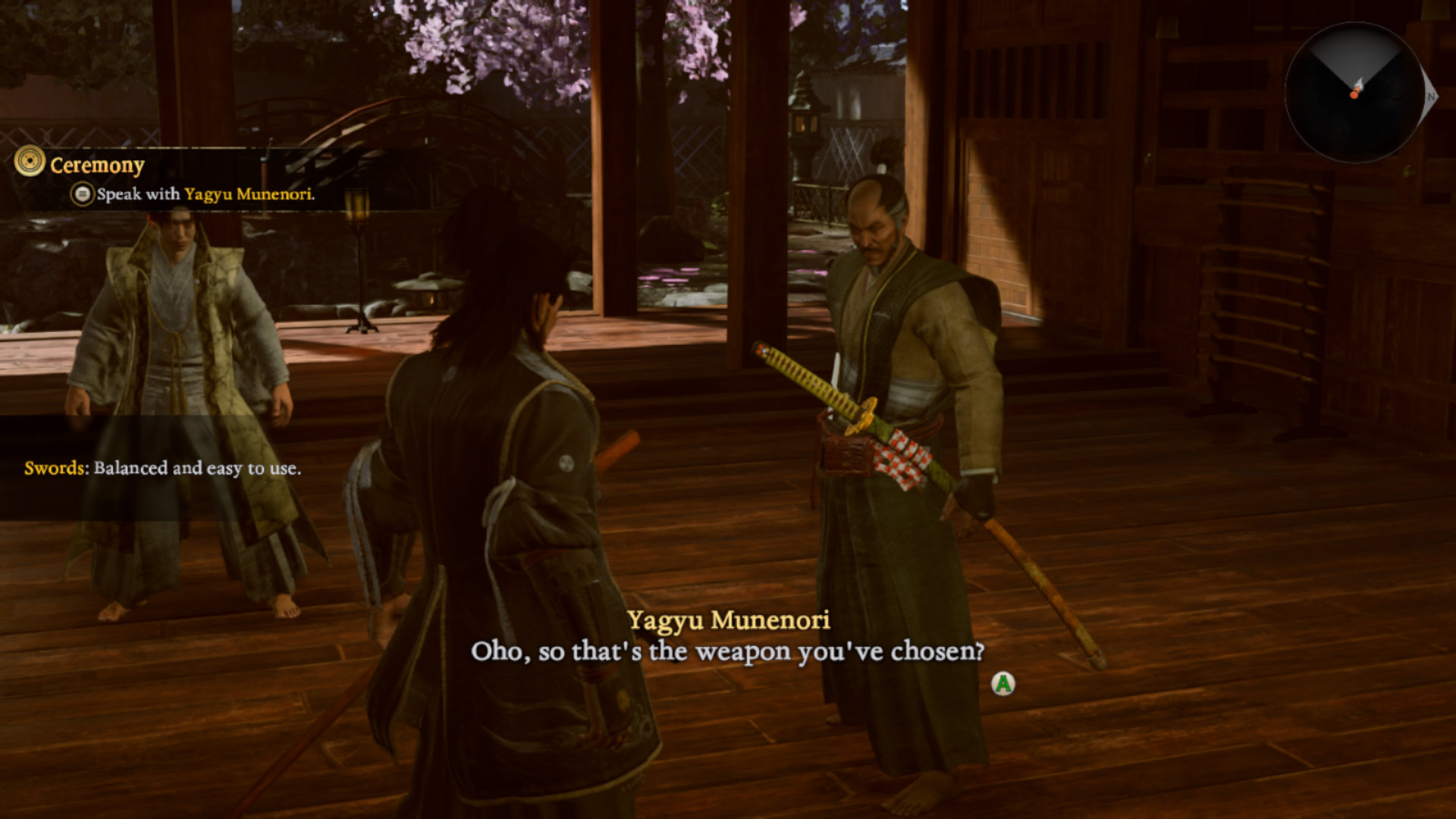
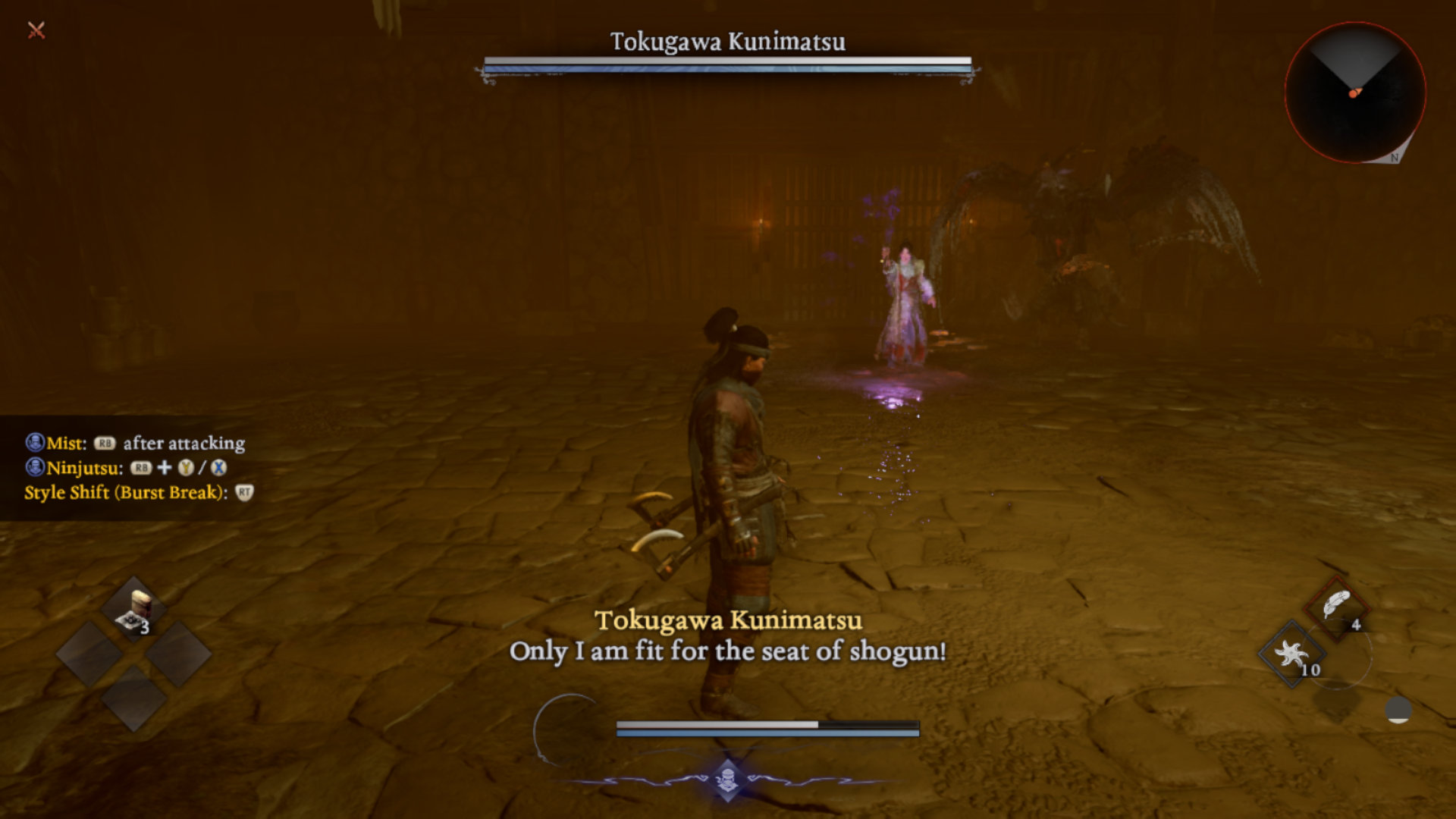
All screenshots were taken on an ASUS Xbox ROG Ally X, at 900p with our optimized settings applied and upscaling set to 50% of the native resolution. You can navigate the gallery with cursor keys.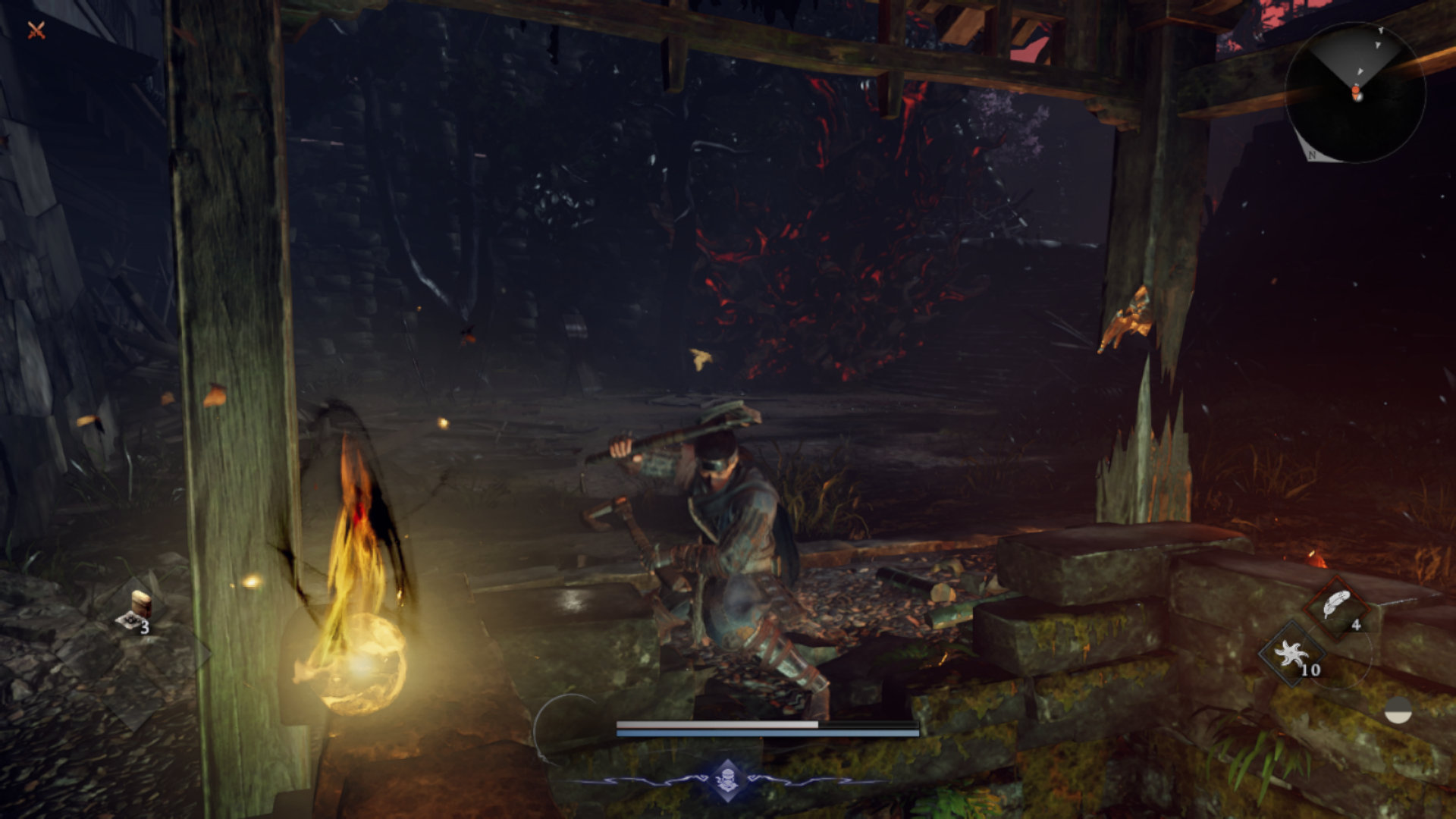
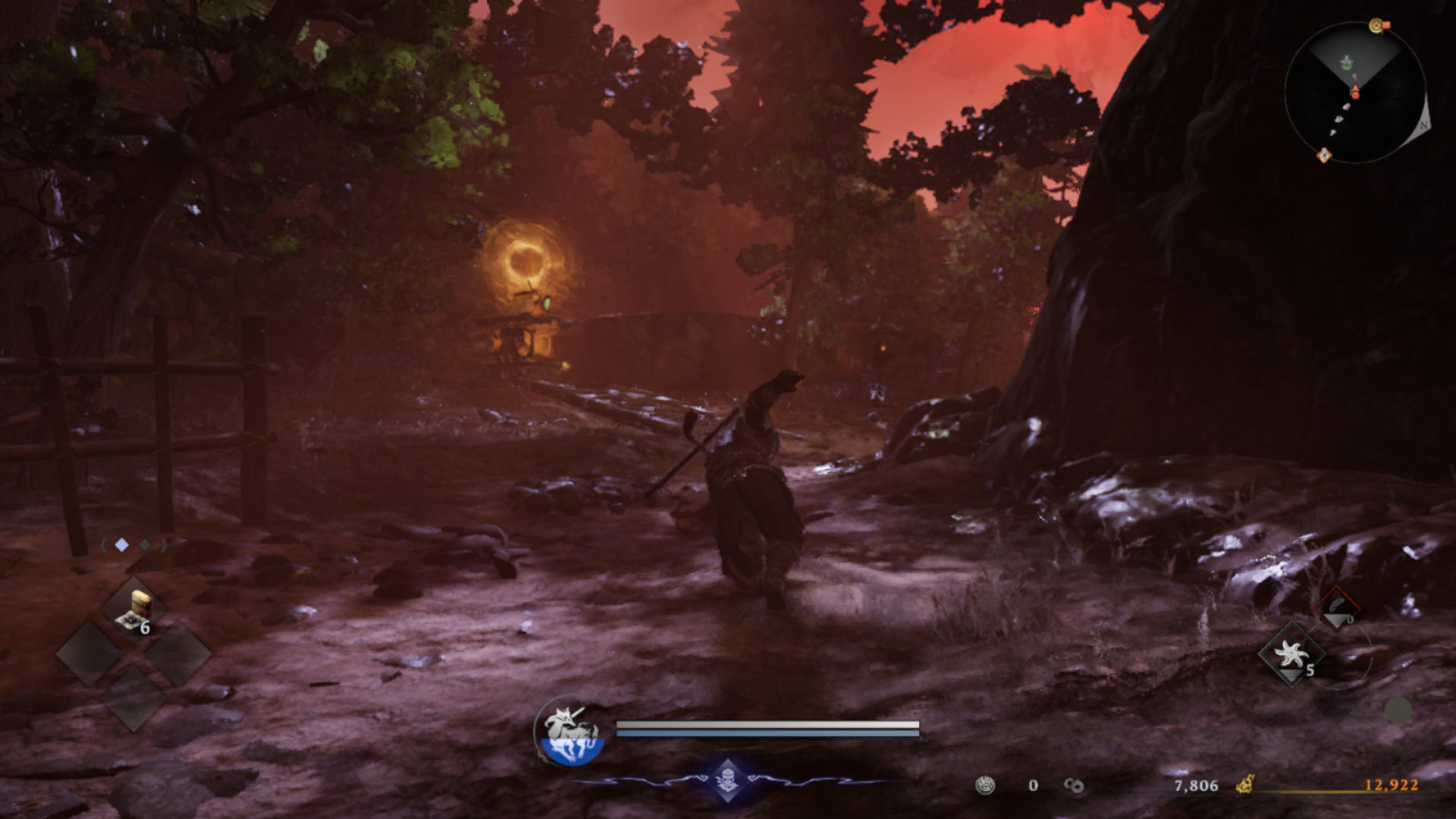

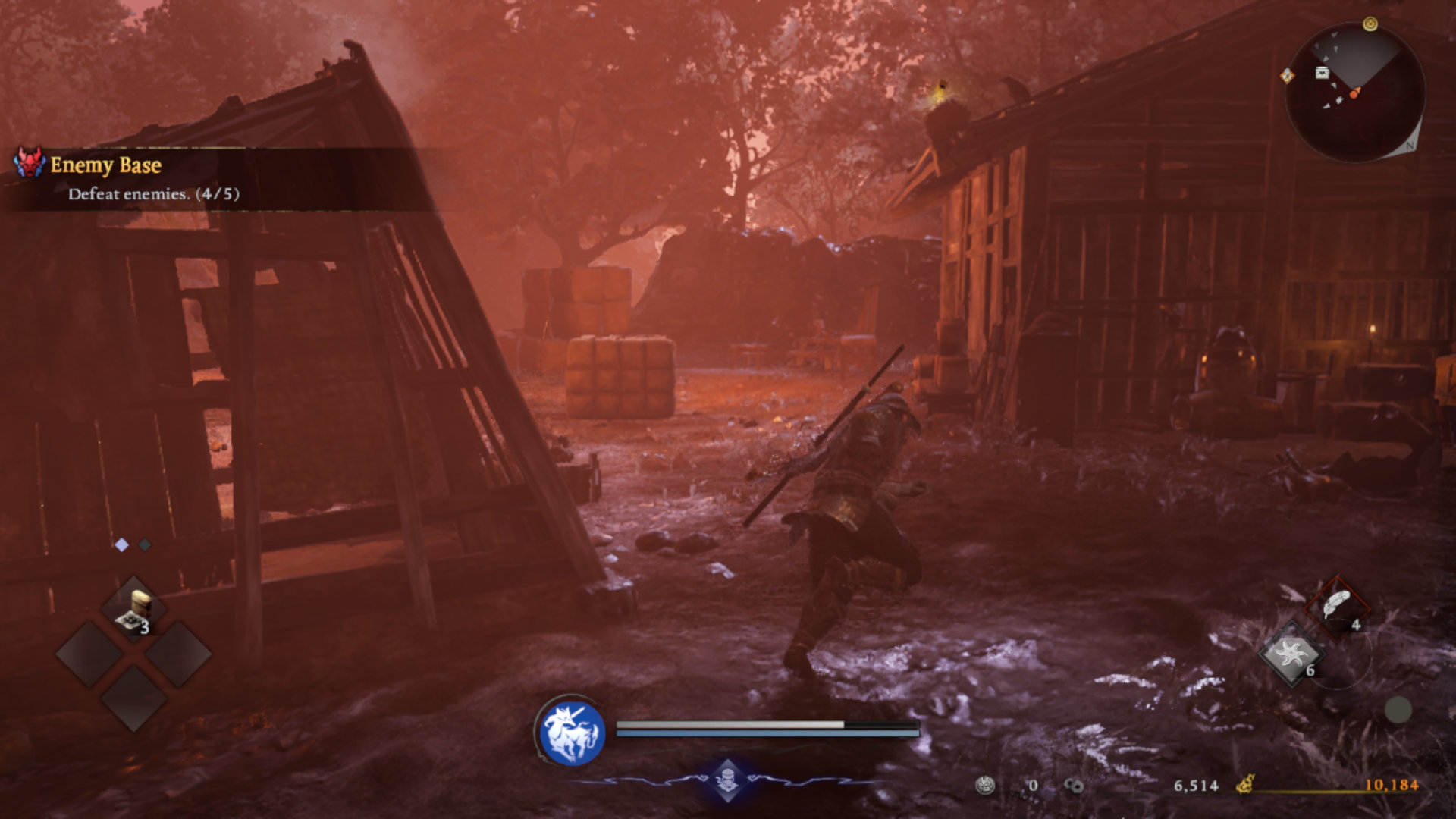
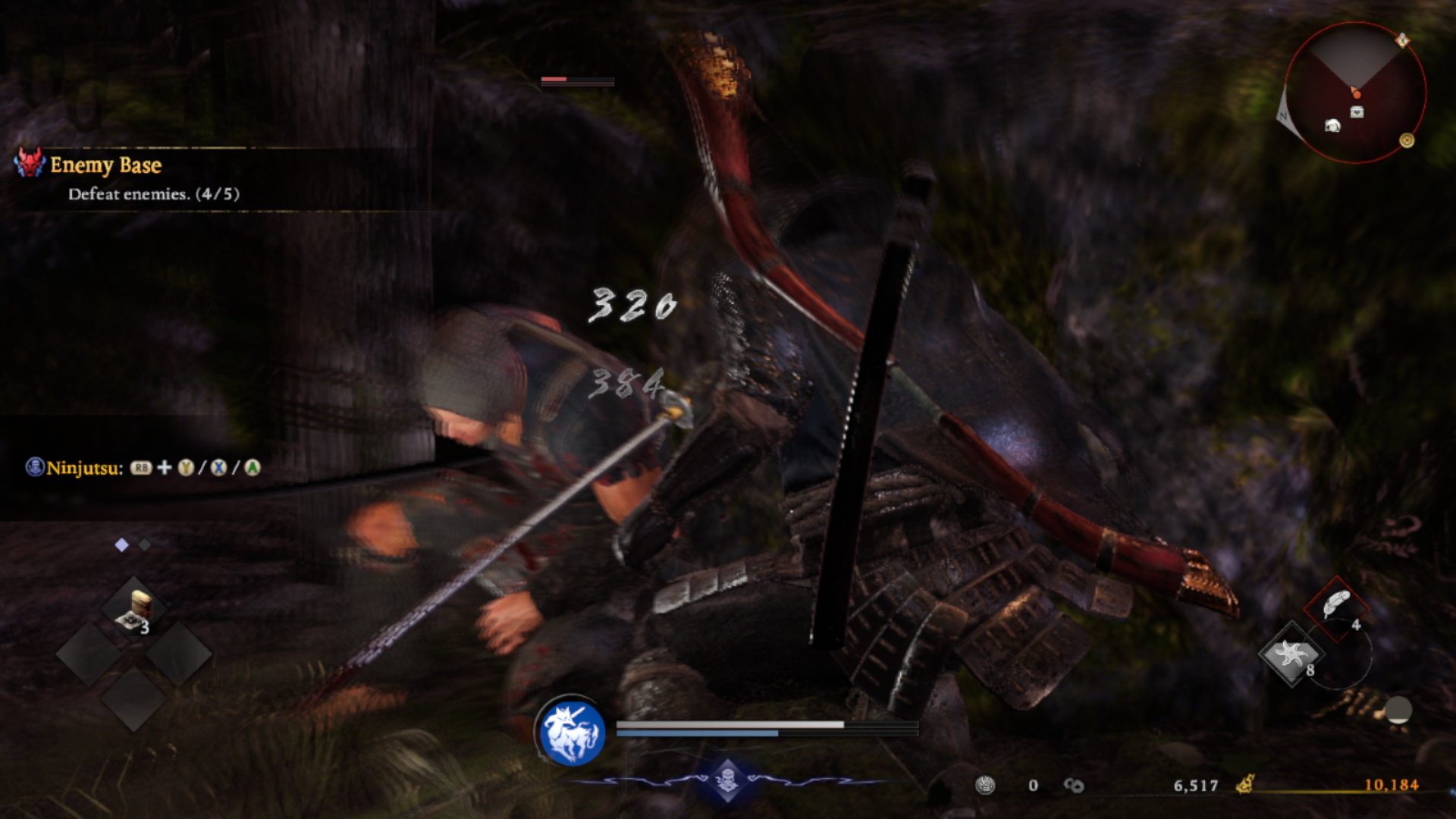
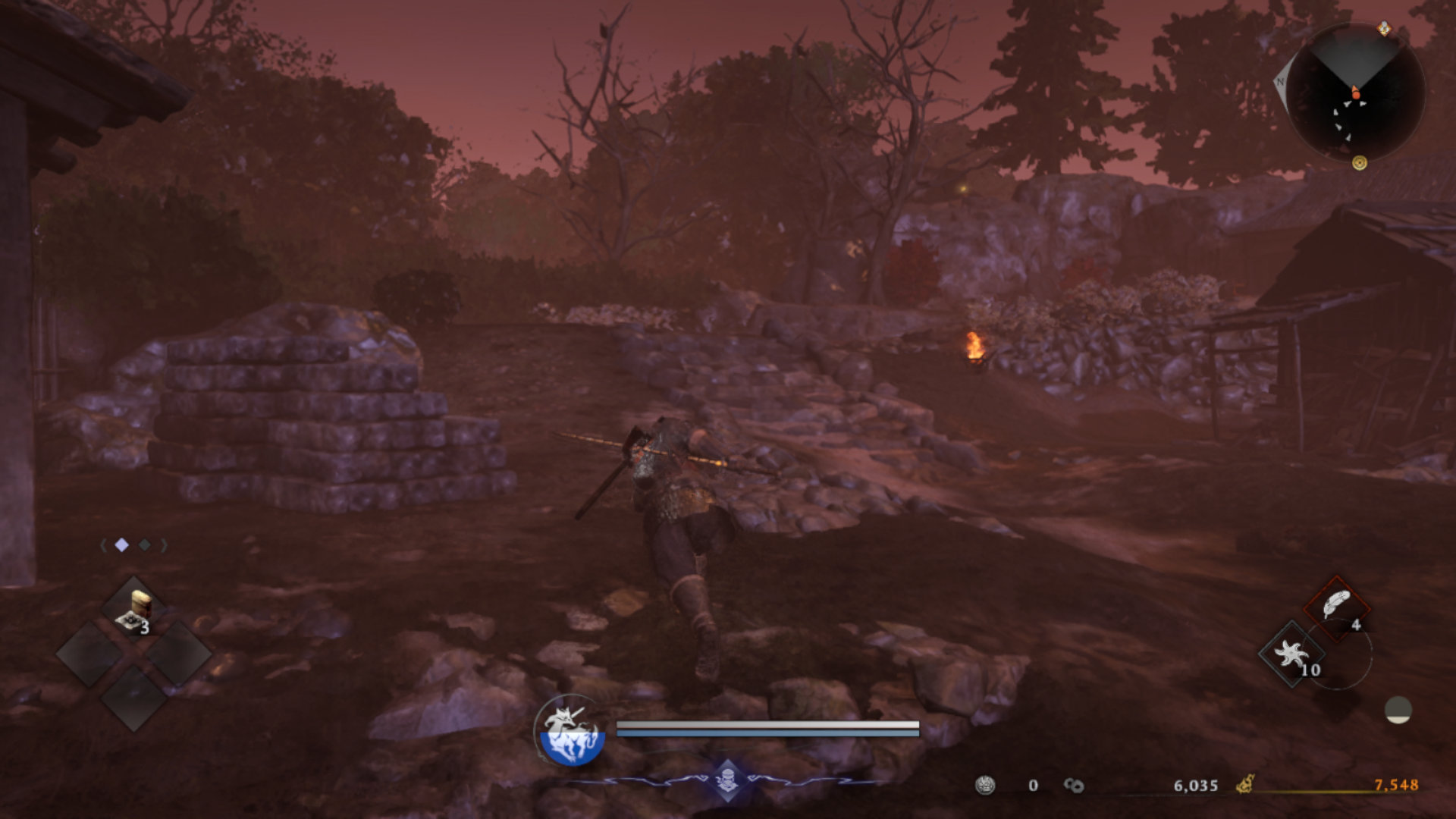




Graphics Settings
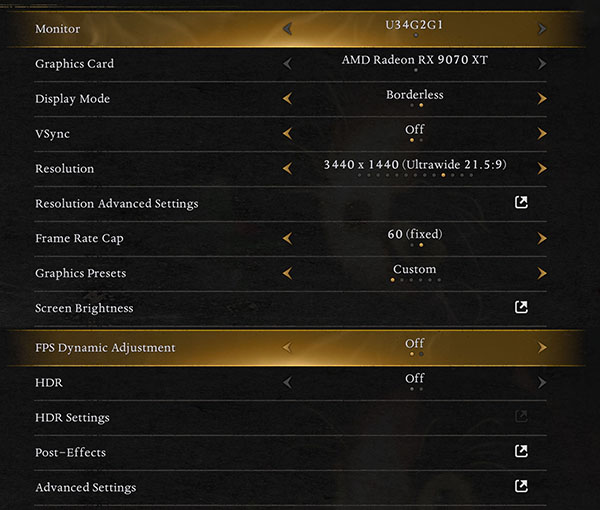
- The main visual settings menu includes options such as display mode, VSync, resolution, and so on.
- You can only select "Windowed" and "Borderless" display modes; the game doesn't include a full-screen display mode for some reason.
- You can pick between a variety of resolutions, including those not supported by your monitor.
- The game doesn't support unlocked frame rates; you can only select between three frame rate cap options: 30, 60, and 120.
- If your monitor has a refresh rate lower than 120 Hz, you can only choose between 30 and 60 frame rate caps.
- You can play the game at 240 FPS, but only with frame generation.
- The game includes five graphics presets in total: "Very Low," "Low," "Standard," "High," and "Very High."
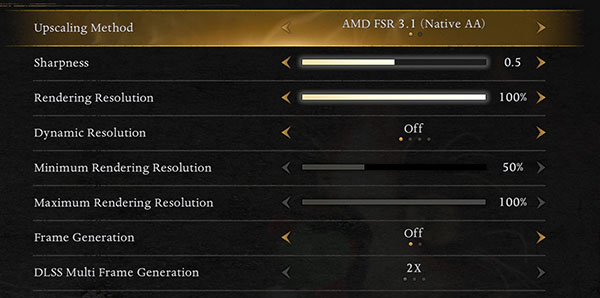
- The "Resolution Advanced Settings" submenu includes upscaling-related options.
- The game includes support for FSR 3.1 (you can enable FSR 4 via driver override), DLSS, and XeSS 2.
- Selecting any of the graphics presets also enables upscaling; you have to manually set rendering resolution to 100% to disable upscaling.
- There are no upscaling presets, you can instead adjust rendering resolution from 25% to 100% in 5% increments.
- The game includes a dynamic resolution setting (30, 45, 60, and 120 FPS); if you enable it you can freely adjust the minimum and maximum rendering resolution.
- Nioh 3 supports FSR and DLSS frame generation, along with DLSS Multi Frame Generation.
- You can mix and match upscalers and frame generation; for example, you can use XeSS upscaling along with FSR frame generation.
- Unfortunately, you cannot adjust FOV.
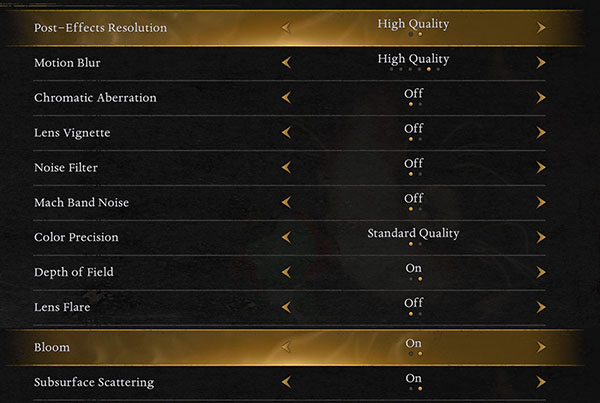
- The "Post Effects" menu allows you to adjust motion blur, chromatic aberration, and similar options.
- You can fully disable most post effects including motion blur, chromatic aberration, and depth of field.
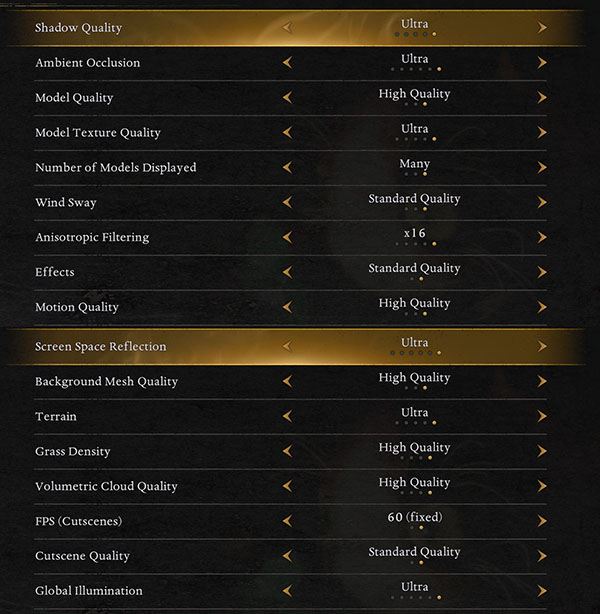
- The fourth (!) graphics options menu, "Advanced Settings," is where you can tweak options such as shadow and texture quality, LOD, and more.
- There's a plethora of settings to adjust, but most have very little effect on performance.
- The only option we found that has a noticeable effect on performance is "Global Illumination."
Our Patreon Silver Supporters can read articles in single-page format.
Nov 13th, 2026 05:46 PST
change timezone
Latest GPU Drivers
New Forum Posts
- Any other old-timers here planning to play WoW Forever? (150)
- I won't download games that are larger than 30–40 GB. (105)
- Requesting original VBIOS for Gigabyte RX 5700 XT GAMING OC 8G Rev 2.0 (Micron) (0)
- Microsoft Exchange/365 outages? (33)
- To AiO CPU Cooler users? (0)
- Home page search by category (6)
- Windows 11 General Discussion (7727)
- Slow SSD read speeds - help! (1)
- Warning for Windows 10 and 11 users running newer AMD GPU drivers (58)
- TPU's Nostalgic Hardware Club (22150)
Popular Reviews
- AMD Zen 6 Technical Deep Dive
- Corsair HX1000i Shift Crystal Review
- NZXT C1200 Platinum Review
- Upcoming Hardware Launches 2027 (Updated Nov 2026)
- Montech King 95 3D PRO Review
- NZXT H7 RGB+ Review
- NZXT H5 Review
- Phantom Blade Zero Performance Benchmark Review - 35 GPUs Tested
- XPG NIMBUS PLUS Review - Mid-range Chair With Strong Competitors
- Gigabyte Z890I Aorus Ultra Review
TPU on YouTube
Controversial News Posts
- NVIDIA Co-Founder and CEO Jensen Huang Officially Resigns (347)
- OpenAI CEO Argues Home PCs Waste the World's Limited DRAM Supply (152)
- NVIDIA Launches Investigation Into Jensen Huang's Relationship With Suspected Chinese Spy (136)
- Intel "Raptor Lake Next" 16-Core and 20-Core CPUs Surface (130)
- Legendary Game Studio BioWare Shuts Down Following EA Layoffs (104)
- Dell CEO Says the Memory Shortage Will Get Worse in 2027 (95)
- NVIDIA GeForce RTX 50-Series Scheduled for up to $500 Price Hike This Week (89)
- Modder Fits RTX 5090 With Four 8-Pin Connectors, Halving Current per Wire (80)