 2
Resident Evil Requiem Handheld Performance Review
Out-of-Box Experience »Graphics Settings
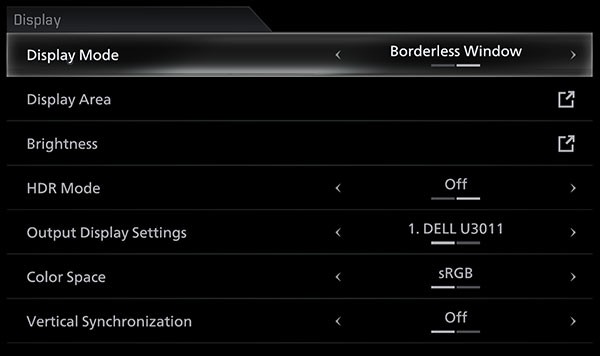
- There are two graphics settings screens, the first one deals with monitor-related settings.
- Display mode can be set to "borderless window" or "windowed," there is no real fullscreen option.
- Vertical synchronization can be toggled on or off. There is no hidden FPS cap.

- Under Shared Settings you'll find screen resolution, frame rate, motion blur, ray tracing quality, and a hair strands toggle—there's also an "Auto-configure Graphics Settings" button that detects your hardware.
- Please note that it's not possible to change most options on this screen while in-game, you have to go to the main menu to make changes.
- Motion blur can be turned off easily.
- Ray Tracing has the following levels "off," "normal," "high" and "Path Tracing." When you enable path tracing, you'll be forced to enable DLSS upscaling (DLAA is still possible, but ends up capped at 60 FPS).
- Quality Settings offers three broad presets: Graphics Quality, Upscaling Quality, and Lighting and Shadow Quality—each adjustable up to "Max" or set to "Custom" to access advanced options.
- Advanced Graphics Quality covers textures, anisotropic filtering (up to x16), antialiasing (TAA), mesh quality, screen space reflections, subsurface scattering, lens distortion, and depth of field.
- Chromatic Aberration is tied to the Lens Distortion setting rather than being a separate toggle.
- Advanced Upscaling Quality includes upscaling technology, frame generation, NVIDIA Reflex Low Latency, and NVIDIA DLSS Ray Reconstruction.
- Below that there's a pretty comprehensive list of lighting-related options.
Test Devices
We tested the press-review Steam release version of Resident Evil Requiem.- The Steam Deck LCD was running SteamOS version 3.7.19, build 20251124.1.
- Our ROG Ally X had the latest Armoury Crate version installed at the time of testing (2.1.20.0), along with BIOS 312.
- The ROG Xbox Ally X had Armoury Crate 2.1.20.0 installed along with BIOS 314.
- The ROG Ally with SteamOS was running SteamOS version 3.7.20, build 20260108.1.
| Gaming Handhelds Used for Testing | |
|---|---|
| Steam Deck LCD | SteamOS version 3.7.19 build 20251124.1 |
| ASUS ROG Ally X | Armoury Crate 2.1.20.0 BIOS 312 GPU driver version: 32.0.22029.1019 Windows 11 Home 25H2 VBS disabled |
| ASUS ROG Ally Z1E with SteamOS | SteamOS version 3.7.20 build 20260108.1 |
| ASUS ROG Xbox Ally X | Armoury Crate 2.1.20.0 BIOS 314 GPU driver version: 32.0.21025.27003 Windows 11 Home 25H2 VBS disabled |
Nov 14th, 2026 17:54 CST
change timezone
Latest GPU Drivers
New Forum Posts
- X79 and/or rampage IV OC'ing thread for those of us still left.... (2451)
- Can you guess Which game it is? (317)
- What can the FX 8320 do today? Here is the answer. (43)
- Ryzen 7 8700G OC (8)
- auto-closed by somethings by actions (2)
- [Community Benchmark] MrH OpenCL Benchmark 2.0e (Windows Only – CPU & GPU) (2)
- Show us your collections thread!! (368)
- Recent hardware you've donated? (30)
- WarpCoreBench scores! (32)
- Id thank you and just like a moment of your time, what do you think about having to recover the r36s maxes/pros is it just china 5 dollar junk card? (0)
Popular Reviews
- AMD Zen 6 Technical Deep Dive
- ASUS ROG Strix B850-I Gaming Wi-Fi7 W Review
- Corsair HX1000i Shift Crystal Review
- NZXT C1200 Platinum Review
- Upcoming Hardware Launches 2027 (Updated Nov 2026)
- Montech King 95 3D PRO Review
- NZXT H7 RGB+ Review
- NZXT H5 Review
- Phantom Blade Zero Performance Benchmark Review - 35 GPUs Tested
- XPG NIMBUS PLUS Review - Mid-range Chair With Strong Competitors
TPU on YouTube
Controversial News Posts
- NVIDIA Co-Founder and CEO Jensen Huang Officially Resigns (405)
- OpenAI CEO Argues Home PCs Waste the World's Limited DRAM Supply (152)
- NVIDIA Launches Investigation Into Jensen Huang's Relationship With Suspected Chinese Spy (136)
- Intel "Raptor Lake Next" 16-Core and 20-Core CPUs Surface (130)
- Legendary Game Studio BioWare Shuts Down Following EA Layoffs (104)
- Dell CEO Says the Memory Shortage Will Get Worse in 2027 (95)
- NVIDIA GeForce RTX 50-Series Scheduled for up to $500 Price Hike This Week (89)
- Modder Fits RTX 5090 With Four 8-Pin Connectors, Halving Current per Wire (80)