 18
Samsung Odyssey OLED G6 G60SD Review - A Matte Twist
Picture Quality, Uniformity & Viewing Angles »Controls and OSD


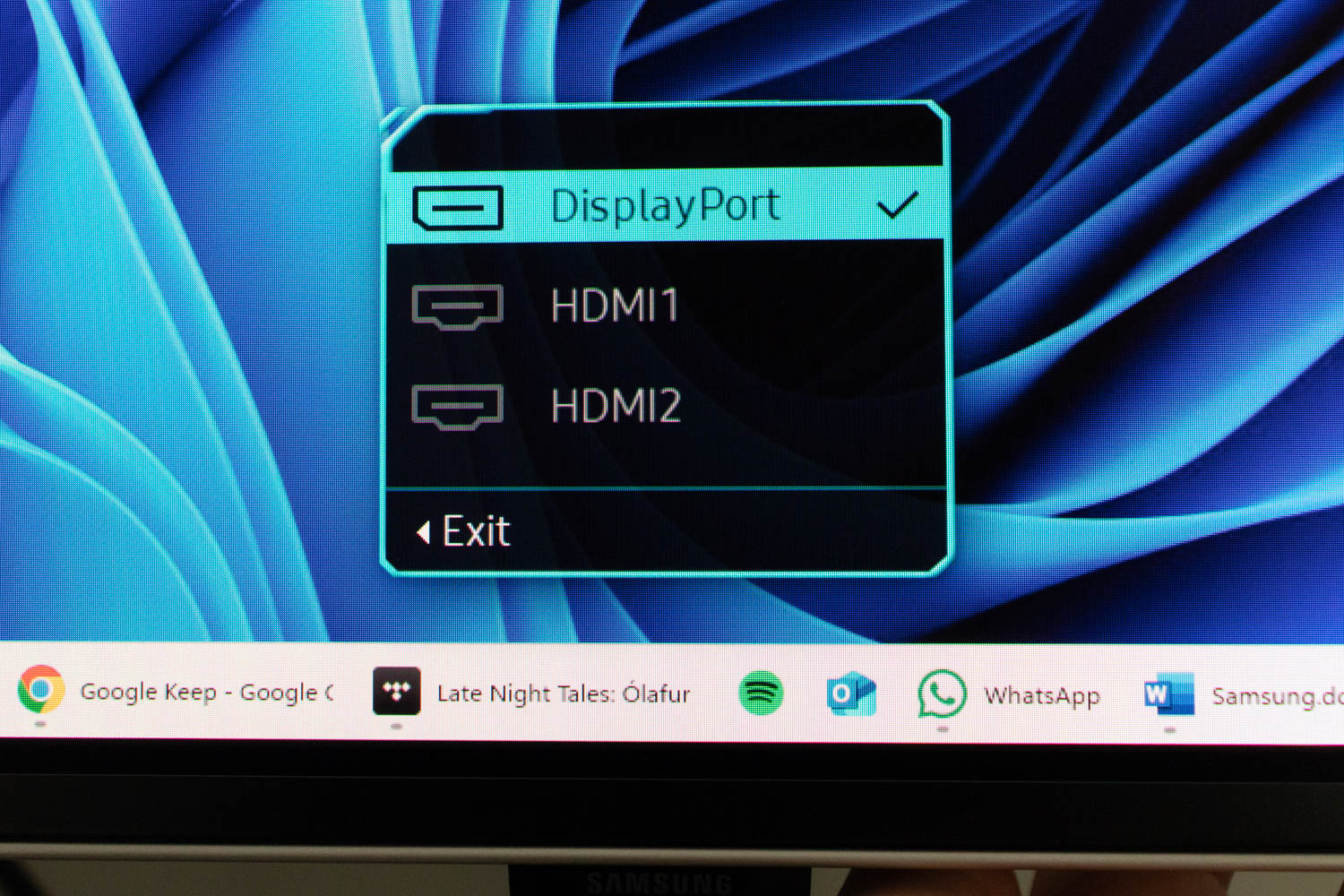


The OSD is operated via a four-way joystick located on the back of the monitor, aligned with the input connectors. Moving it in any direction provides quick access to input selection, basic adjustments such as brightness, contrast, and sharpness, as well as headphone volume control. Pressing the joystick opens a quick menu where you can access input selection, Eye Saver Mode, the full OSD menu, or turn the monitor off.
The Samsung Odyssey OLED G6 G60SD uses a familiar Samsung OSD interface. The layout is divided into several main menus, with key gaming shortcuts (Black Equalizer, Adaptive-Sync, Virtual Aim Point, CoreSync, Eye Saver Mode, Picture Mode) permanently displayed at the top.

The Game menu gathers most of the gaming-oriented features. This is where Adaptive-Sync can be enabled, and where you'll find Black Equalizer for brightening dark scenes, Virtual Aim Point (on-screen crosshair), and Infinity Core Lighting adjustments for the rear RGB effect. There are also options for screen size emulation and aspect ratio control.
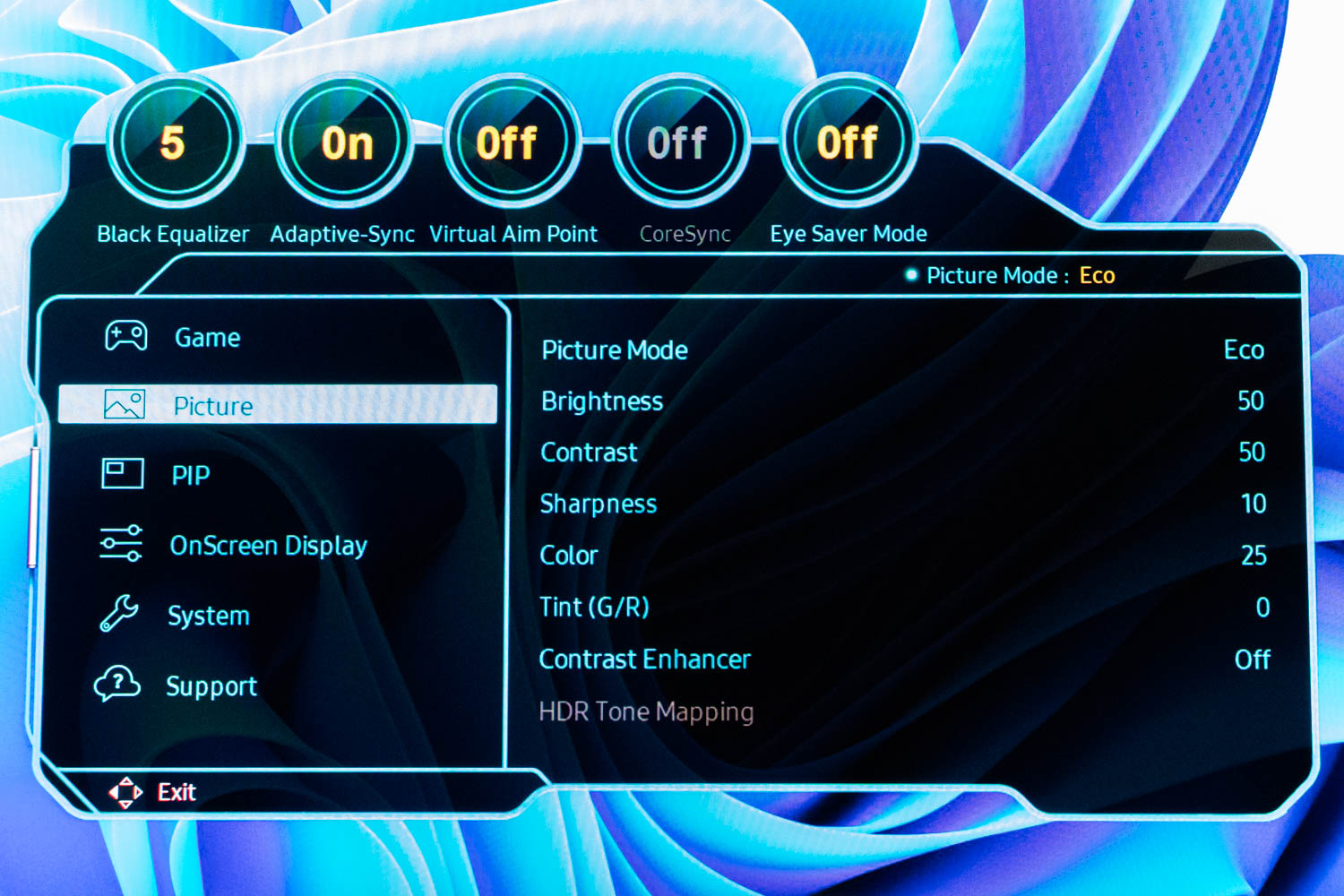
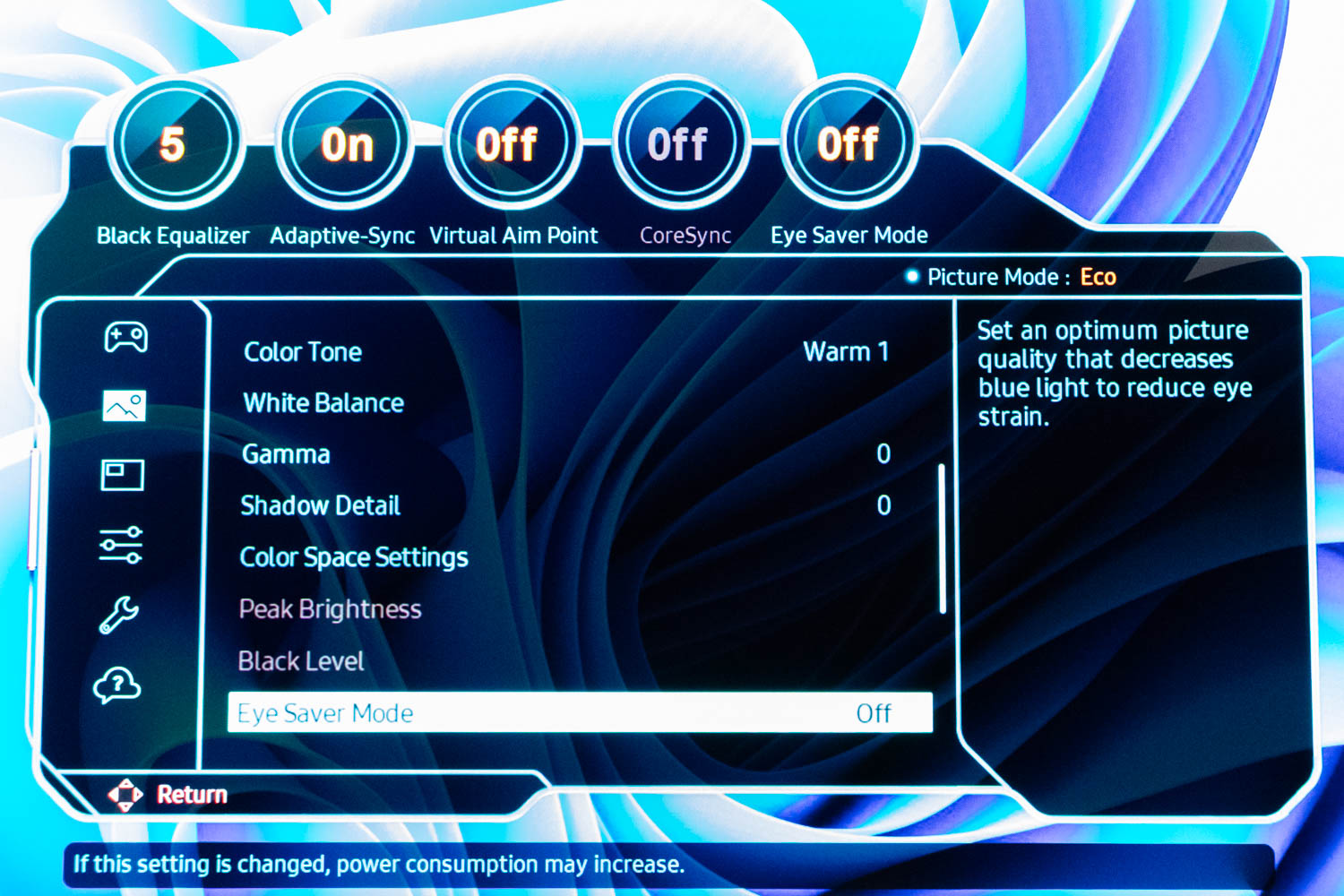
The Picture menu holds the essential image controls. Here you can switch between Picture Modes (Eco, Graphic, Entertain, Game Standard, RPG, RTS, FPS, Sports, Original, Custom), adjust brightness, contrast, and sharpness, and tweak color balance via RGB gain. You'll also find contrast enhancer toggles and HDR tone mapping settings in this section.
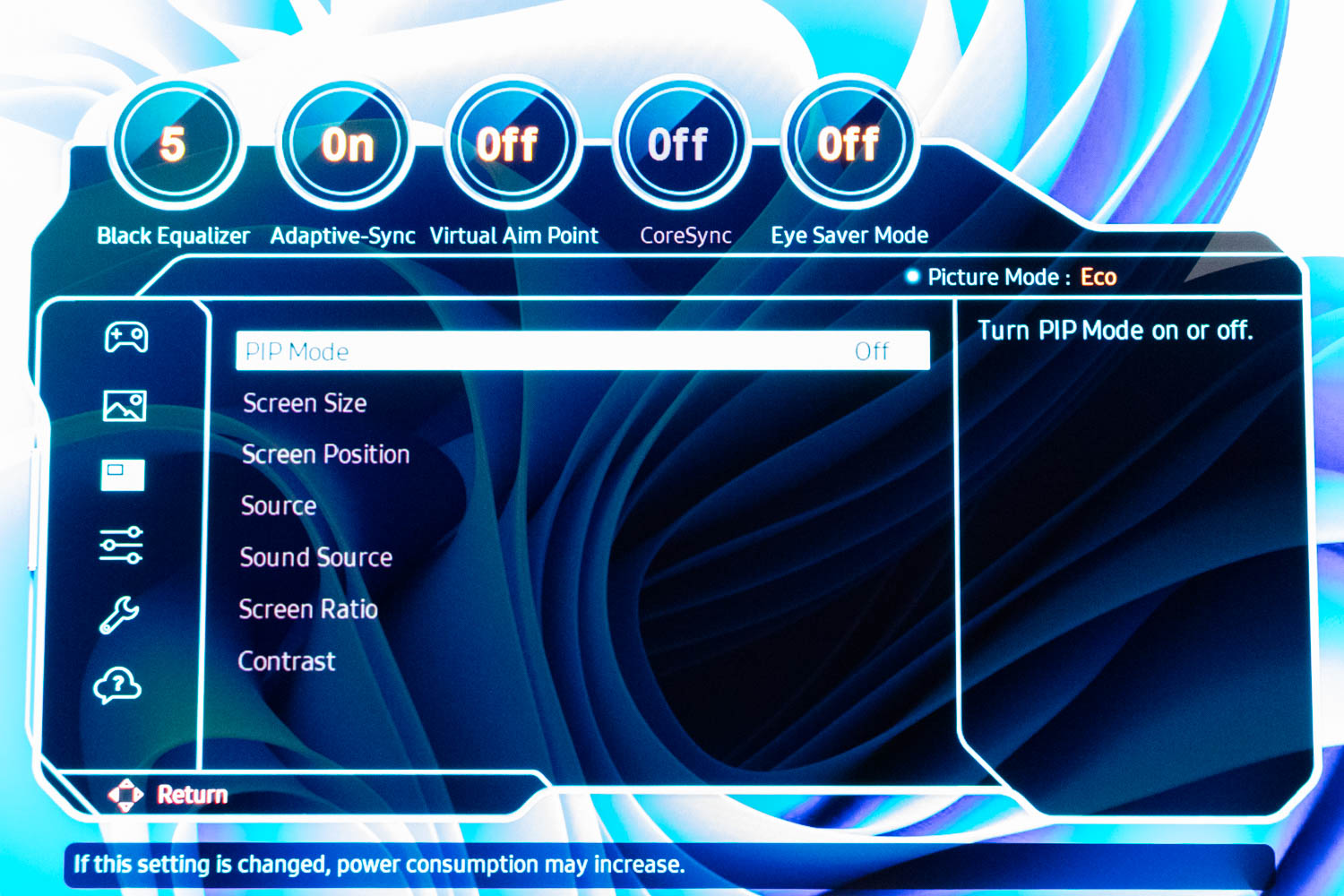
Picture-in-Picture mode is set up in the PIP menu. You can select screen size, position, input source, sound source, aspect ratio, and contrast for the secondary window. While less practical on a 27-inch panel, the feature is implemented with enough control to be potentially useful for multitasking setups.
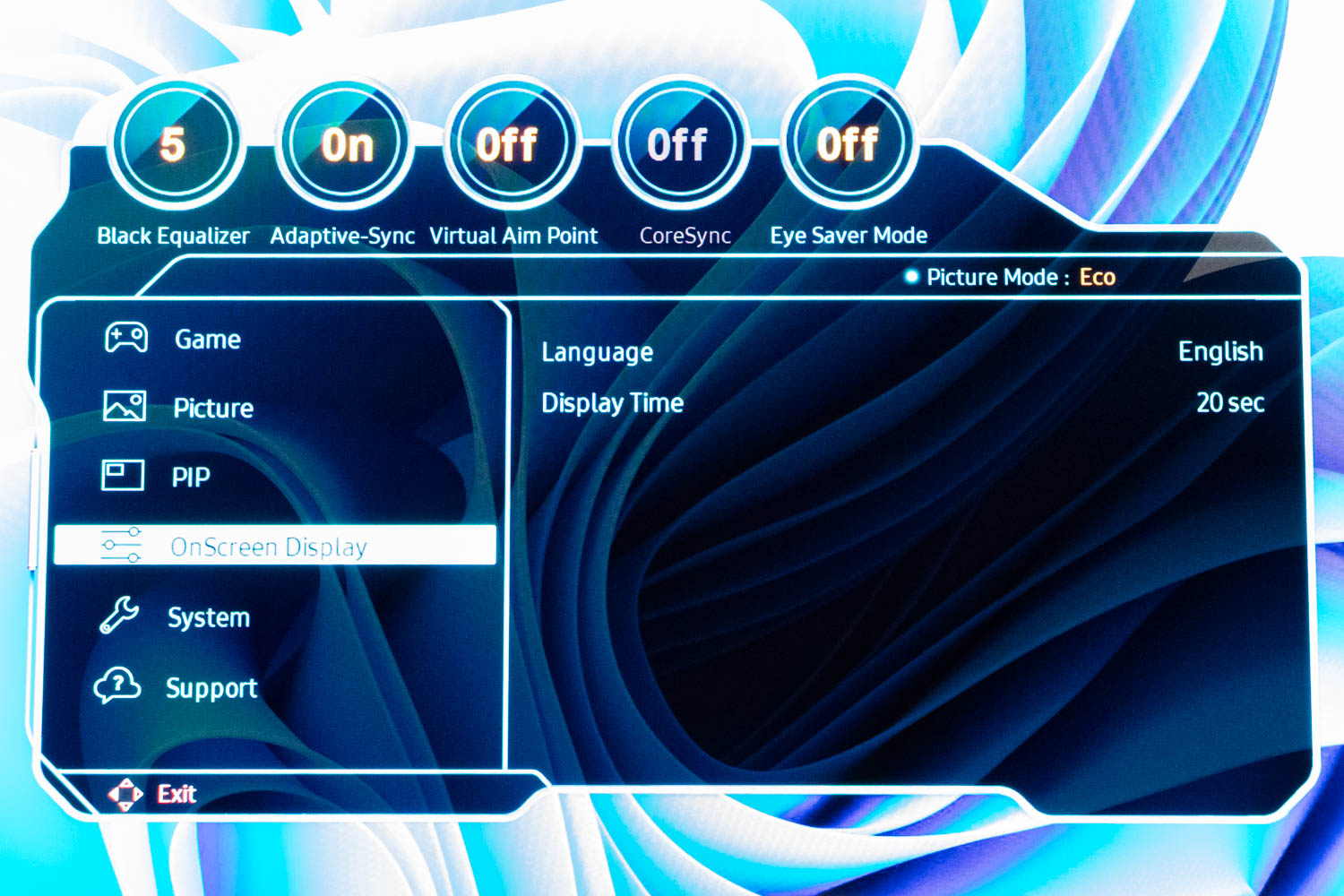
This submenu is used for managing OSD behavior. You can select the language and adjust how long the OSD remains on screen after the last input.

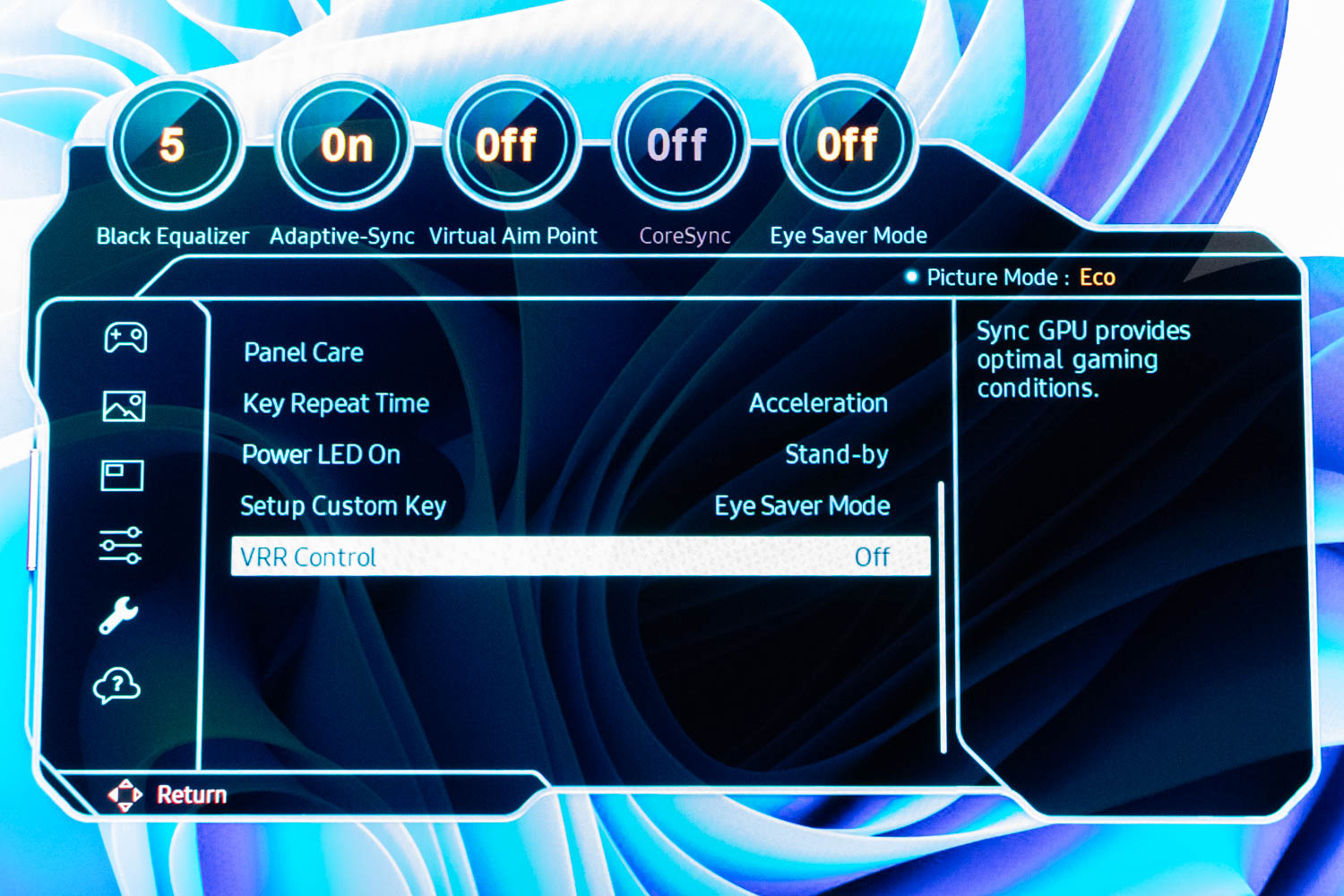
The System menu is where most functional settings reside. This includes panel care features (Samsung's equivalent to OLED burn-in prevention routines), VRR control, power LED toggle, key repeat timing, custom key assignments, standby behavior, and eye saver mode. Bandwidth-related settings such as DisplayPort version selection and automatic input switching are also found here.
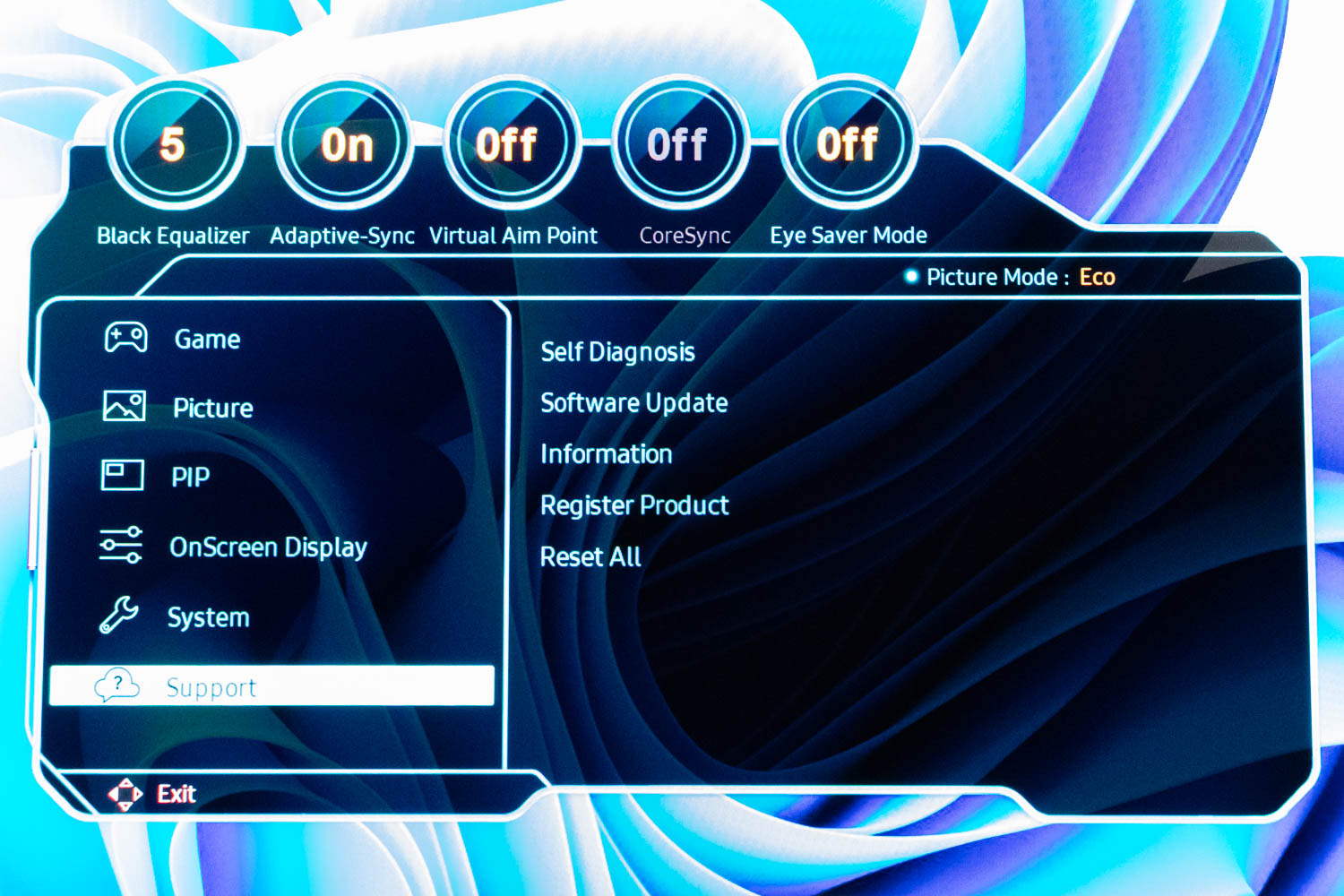
The Support menu is reserved for maintenance. You can run self-diagnostics, check software versions, update firmware (after uploading it to a USB drive and connecting it to the appropriate USB Type-A port on the rear), register the product, view system information, or reset all settings to factory defaults.
Nov 18th, 2026 16:21 PST
change timezone
Latest GPU Drivers
New Forum Posts
- Got a new laptop! What should I do with it? (5)
- Honestly, do you care about GTA VI? (147)
- Dell Workstation Owners Club (3514)
- Making a game in Godot engine (2)
- [Poll] 12V-2x6 Connector Protection: What Are You Using? (WireView / Ampinel / Equalizer / Other / Nothing) (39)
- Last game you purchased? (1406)
- Time to upgrade CPU and MOBO (34)
- Can i play GTA 6 now? (Joke) (7)
- What are you playing? (26234)
- Very unusual two gaming-pc scenarios. (12)
Popular Reviews
- Acemagic Retro X3 Review
- Upcoming Hardware Launches 2027 (Updated Nov 2026)
- AMD Zen 6 Technical Deep Dive
- Ugreen NASync DXP4800 GT Review
- Biwin Black Opal NV7400 2 TB Review
- Pulsar Office Tour & First Look at P1 Dual-Sensor Mouse
- Chieftec Iceberg PRO 360 DARK Review
- Sapphire Radeon RX 7700 XT Pure Review
- ASUS ROG Strix B850-I Gaming Wi-Fi7 W Review
- Sapphire Radeon RX 7700 XT Pulse Review
TPU on YouTube
Controversial News Posts
- NVIDIA Co-Founder and CEO Jensen Huang Officially Resigns (478)
- Report: Jensen Huang Eyes NVIDIA Comeback (194)
- Open Letter Asking NVIDIA to Reinstate Jensen Huang Passes 115,000 Signatures (184)
- OpenAI CEO Argues Home PCs Waste the World's Limited DRAM Supply (152)
- NVIDIA Launches Investigation Into Jensen Huang's Relationship With Suspected Chinese Spy (136)
- Intel "Raptor Lake Next" 16-Core and 20-Core CPUs Surface (130)
- Legendary Game Studio BioWare Shuts Down Following EA Layoffs (104)
- Dell CEO Says the Memory Shortage Will Get Worse in 2027 (95)