 60
TerraMaster F8 SSD Plus Review - Compact and Quiet
A Closer Look at TOS 6 »Initial Setup
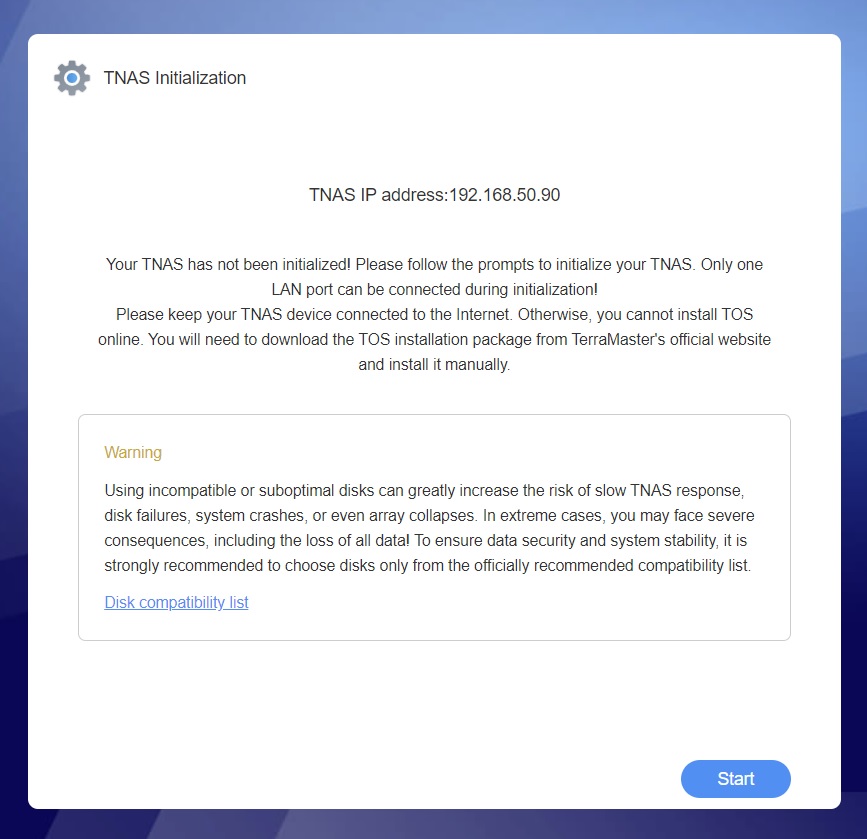
TerraMaster offers a similar setup experience to its competitors, with a wizard guiding you through the initial setup. TerraMaster also offers a Windows app for finding your NAS on the local network, but unlike Ugreen, this doesn't incorporate any kind of integrated user interface access. Instead, it opens a browser window that takes you to the TOS desktop or the file manager. The app does provide very basic system status information as well, such as CPU and memory usage, as well as the model name of your NAS, it's current OS version, update, IP address and MAC address. The first screen you're greeted by once you've connected to the web interface is the Initialization screen and things have changed quite a bit since TOS 5.1, but more on that in a second. To start the setup, you simply click on Start.
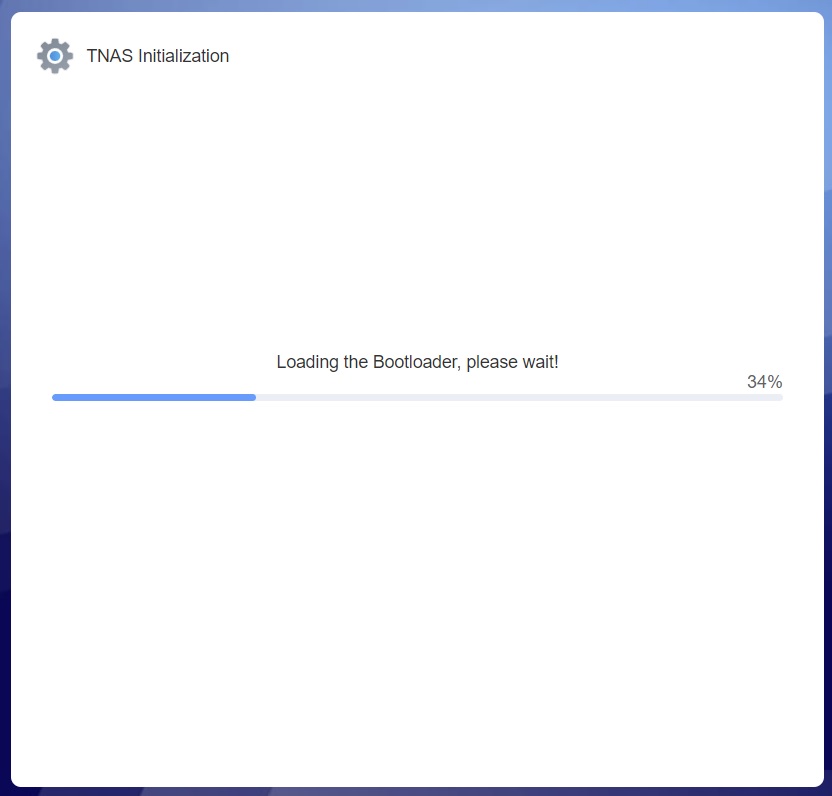
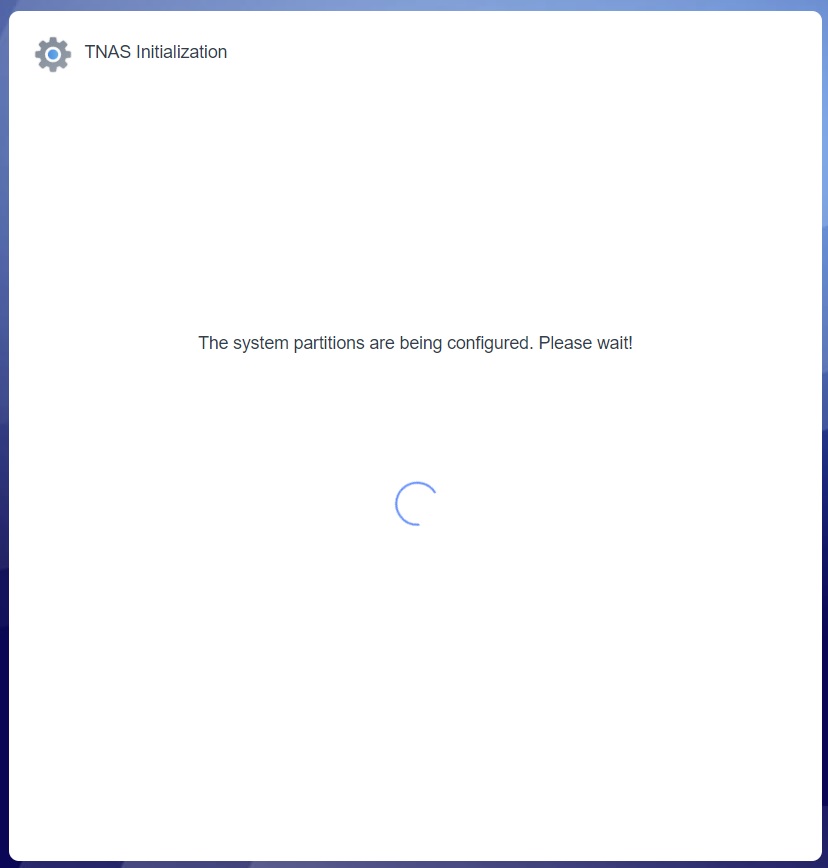
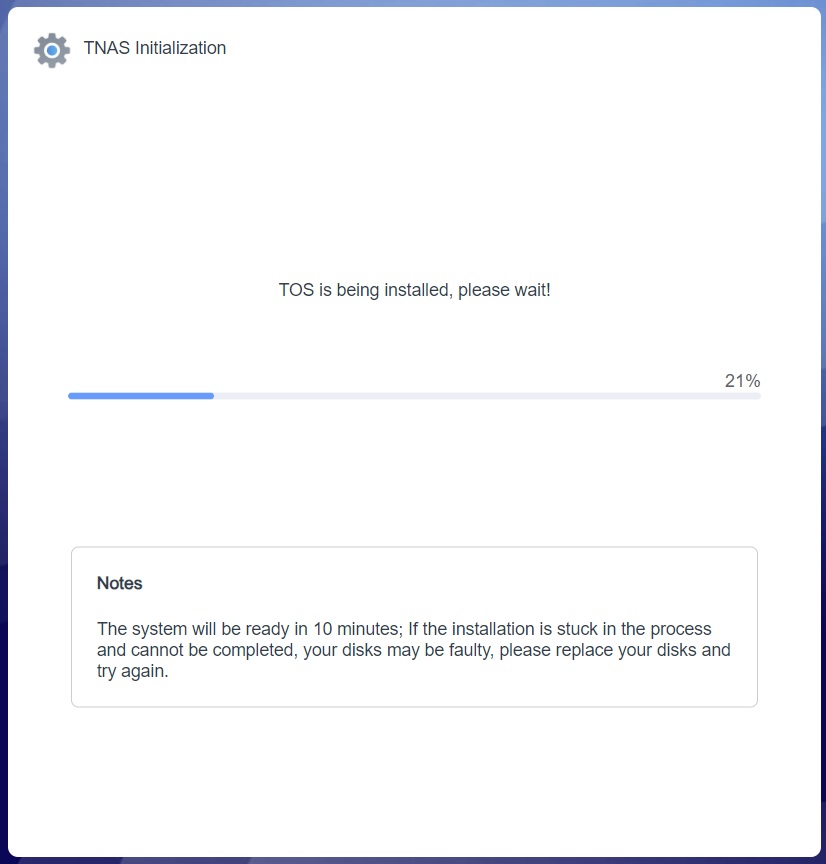
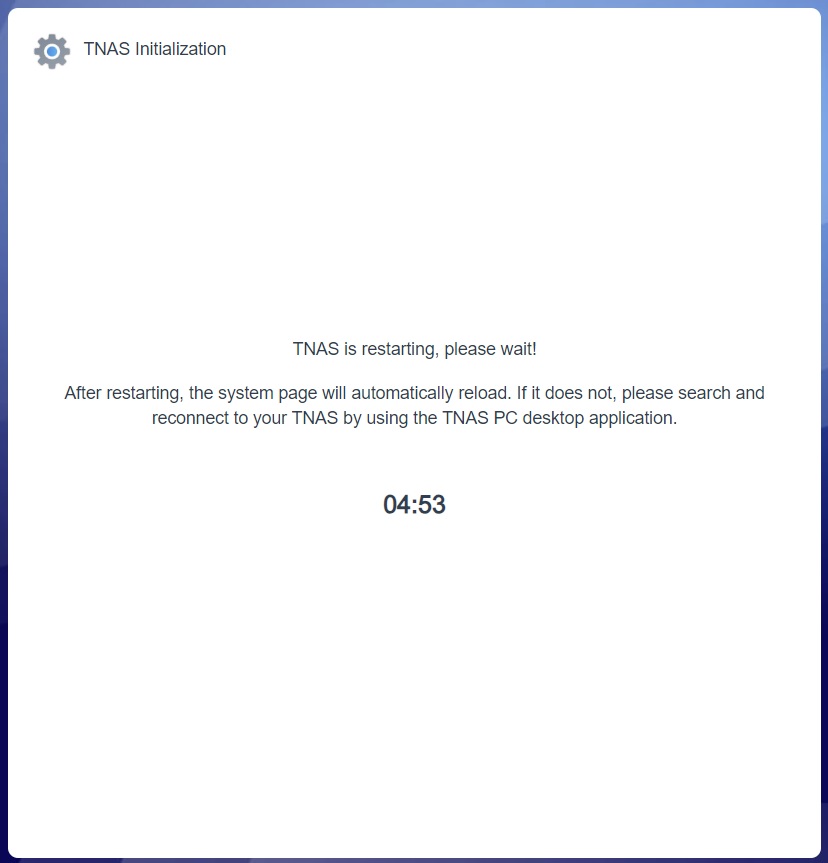
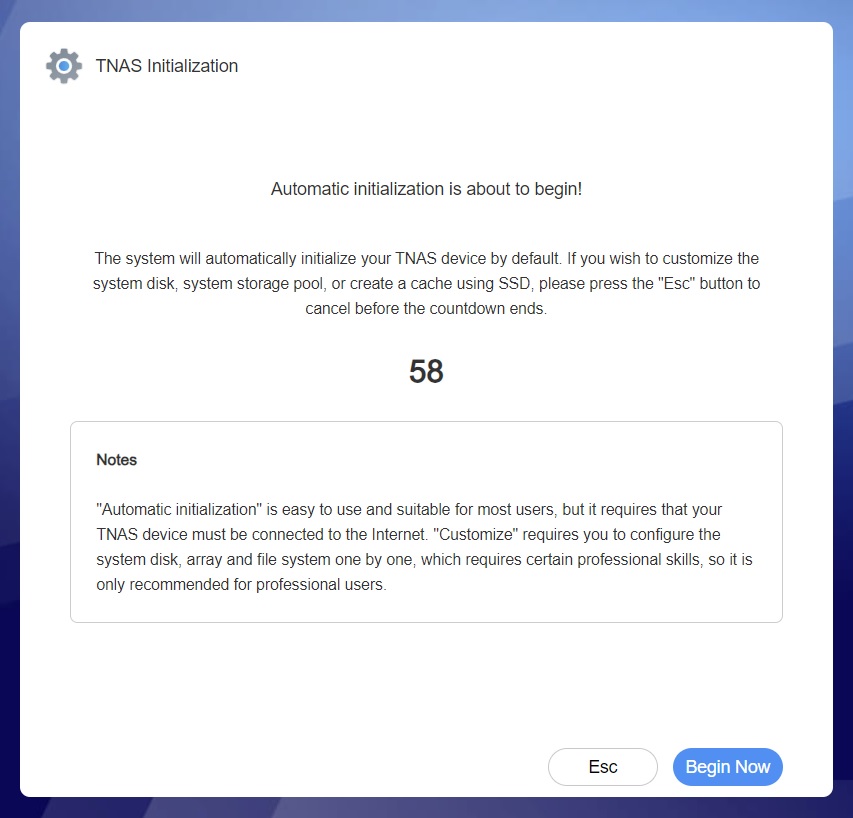
The TOS 6 setup process starts by automatically setting up the drives in the NAS and installing the OS, unless you interrupt this process by hitting the Esc key on your keyboard. This is great for less experienced users, as there's no need to do anything, as long as you're happy with the default settings. TOS6 defaults to TRAID and btrfs, which should be a sensible enough solution for most users, as maximum drive space is being made available to the user, while some redundancy is also present.
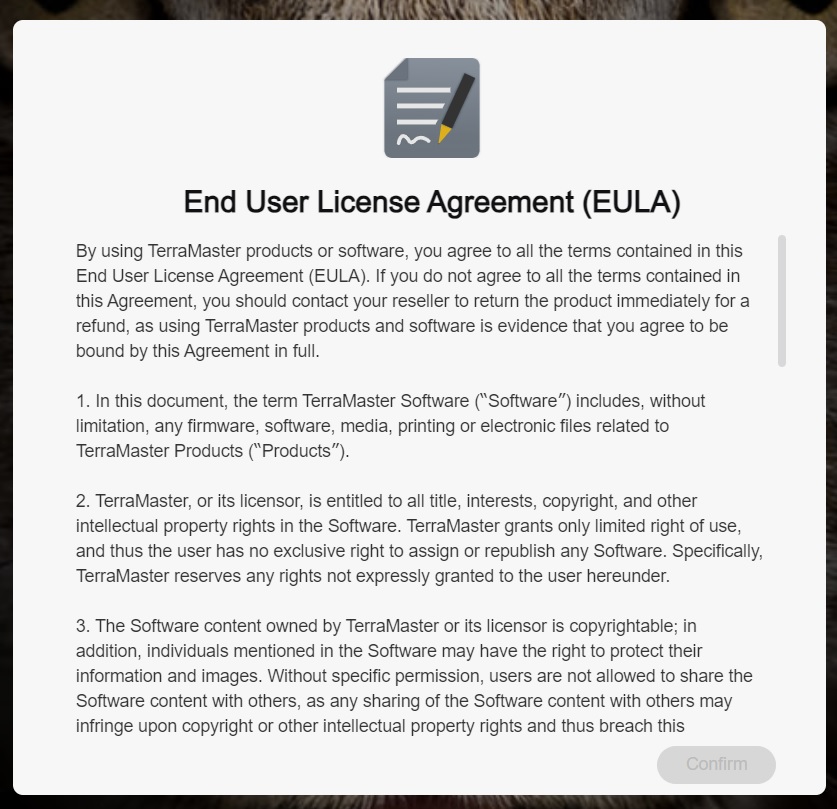
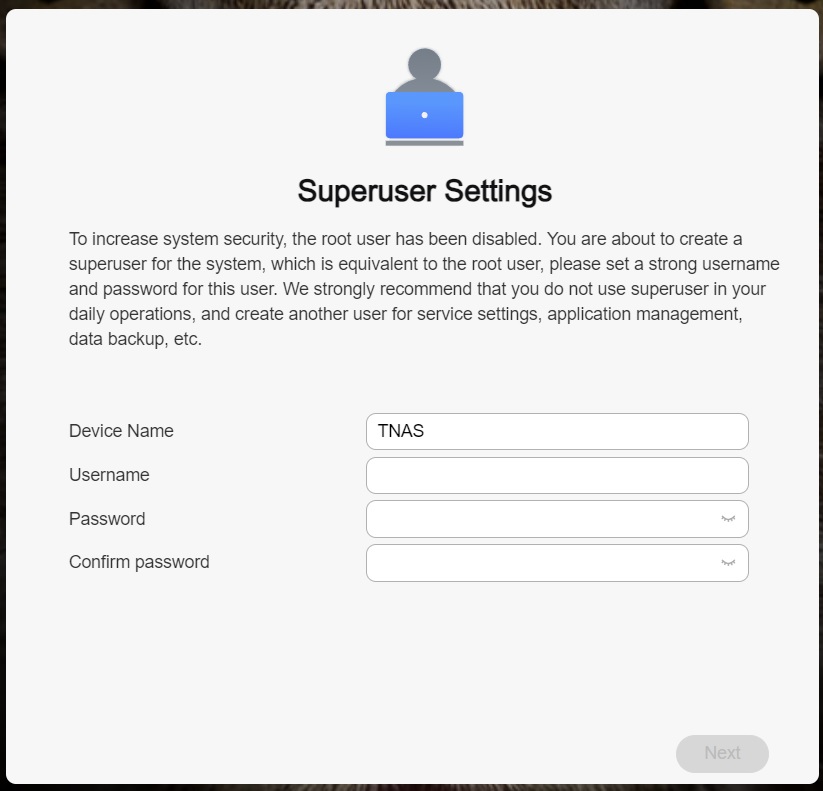
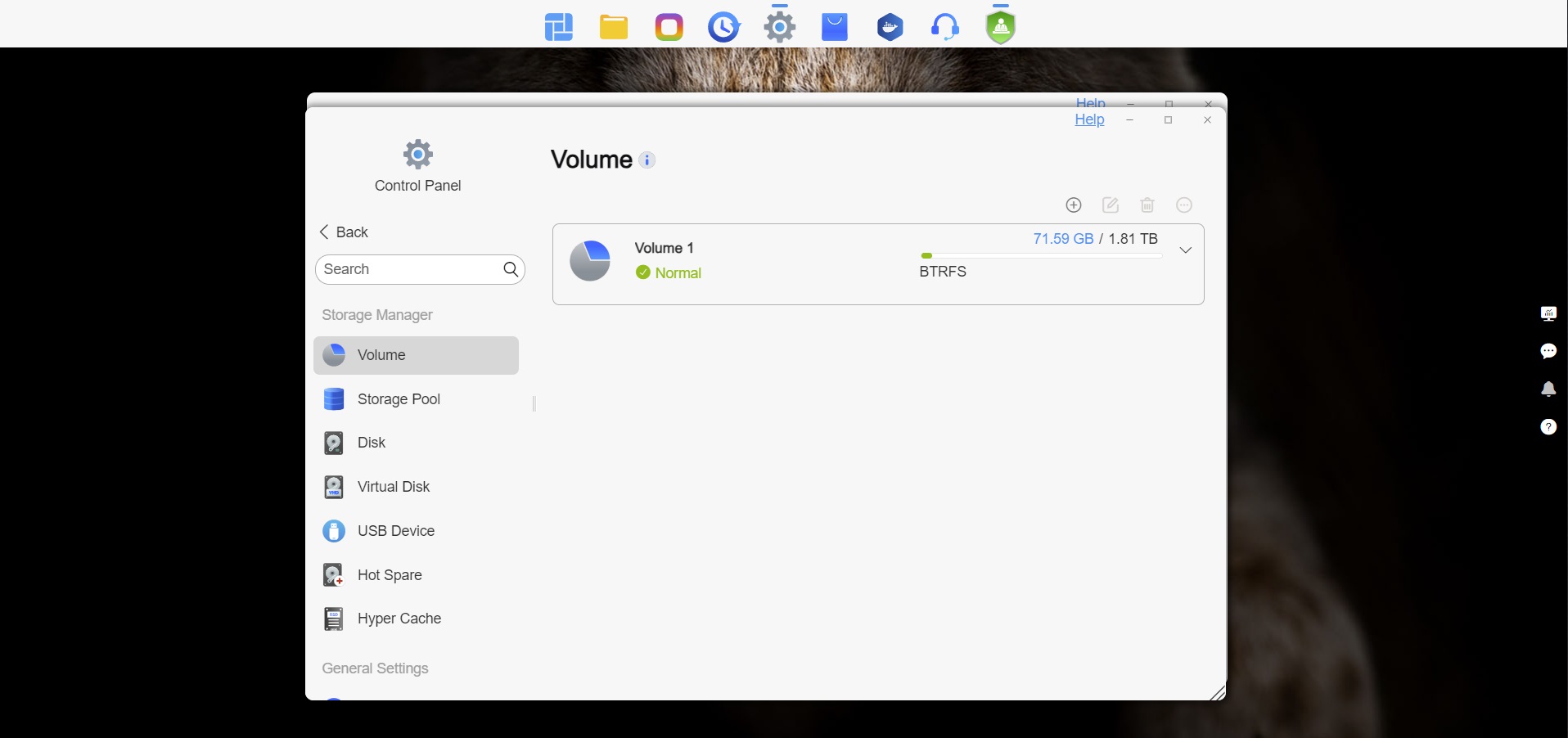
Once the NAS has rebooted, you have to accept the EULA and enter the superuser username and password. You're also given the opportunity to change the name of your NAS here. Overall it's a very straightforward setup process that then lands you at the desktop of TOS 6, which has been given something of a graphical overhaul from TOS 5.1, with the biggest change being the row of icons across the top of the display, where you'll find the most commonly used features. The background dog has now been swapped out for what should be a Lynx, despite the code name for TOS 6 being Jellyfin.
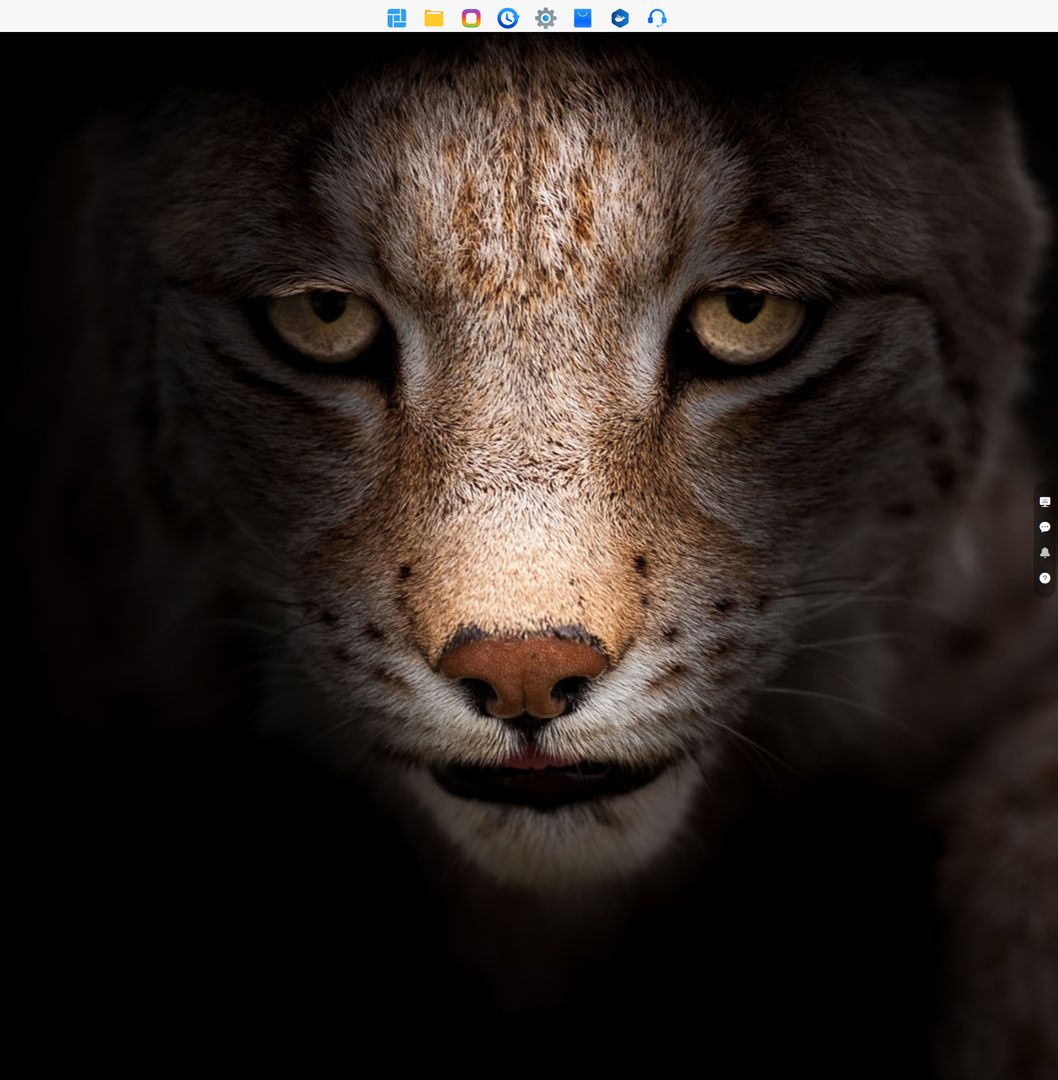
All in all, the setup process is a lot quicker with fewer steps, something that most people will likely prefer, as no-one likes to waste time on extra steps and hoops when it comes to setting up their hardware, which makes this a positive change versus TOS 5.1. Other improvements include a move to a newer Linux kernel, even if it's a small step from 5.15.59 to 6.1.58, but the 6.1 kernel isn't exactly fresh, as it was released at the end of 2022. That said, it's an LTS kernel that is supported until the end of 2026 and is still better than many of TerraMaster's competitors. We should note that just before this review was posted, TerraMaster updated to kernel 6.1.120, which is from December 2024, so it seems likely the company is updating the kernel actively, but we didn't re-run the tests.
TerraMaster has also made its root file system compatible with Ubuntu 22.04, which is meant to make it easier to use for those familiar with Ubuntu, especially on the command line side of things. Furthermore, TerraMaster claims to have improved the startup and shutdown speeds by as much as five times over TOS 5.1, improved the performance of btrfs, while making several other background improvements. You can find the full list of changes to TOS 6 over at the TerraMaster forums, as it is simply too long to add to this review.
Disk Configuration
Below is the output from the lsblk command on Linux, which shows the disk configuration. Note that TerraMaster's custom Linux OS now list things the way you'd expect it to be, unlike on TOS 5.1. In fact, all the typical Linux commands you'd expect to find, are present with in TOS 6, which is a massive improvement over TOS 5.1 for those times when you need to poke around via the command line, so a big thumbs up for those improvements.NAME MAJ:MIN RM SIZE RO TYPE MOUNTPOINTS
nbd0 43:0 0 0B 0 disk
nbd1 43:32 0 0B 0 disk
nbd2 43:64 0 0B 0 disk
nbd3 43:96 0 0B 0 disk
nbd4 43:128 0 0B 0 disk
nbd5 43:160 0 0B 0 disk
nbd6 43:192 0 0B 0 disk
nbd7 43:224 0 0B 0 disk
sdza 259:0 0 1.8T 0 disk
├─sdza1 259:6 0 285M 0 part
├─sdza2 259:8 0 7.6G 0 part
├─sdza3 259:9 0 1.9G 0 part
└─sdza4 259:10 0 1.8T 0 part
└─md0 9:0 0 5.4T 0 raid0
└─vg0-lv0 252:0 0 5.4T 0 lvm
sdzd 259:1 0 1.8T 0 disk
├─sdzd1 259:3 0 285M 0 part
├─sdzd2 259:4 0 7.6G 0 part
│ └─md9 9:9 0 7.6G 0 raid1 /
├─sdzd3 259:5 0 1.9G 0 part
│ └─md8 9:8 0 1.9G 0 raid1 [SWAP]
└─sdzd4 259:7 0 1.8T 0 part
└─md0 9:0 0 5.4T 0 raid0
└─vg0-lv0 252:0 0 5.4T 0 lvm
sdzb 259:2 0 931.5G 0 disk
├─sdzb1 259:11 0 285M 0 part
├─sdzb2 259:12 0 7.6G 0 part
├─sdzb3 259:13 0 1.9G 0 part
└─sdzb4 259:14 0 921.5G 0 part
└─md0 9:0 0 5.4T 0 raid0
└─vg0-lv0 252:0 0 5.4T 0 lvm
sdzc 259:15 0 931.5G 0 disk
├─sdzc1 259:16 0 285M 0 part
├─sdzc2 259:17 0 7.6G 0 part
│ └─md9 9:9 0 7.6G 0 raid1 /
├─sdzc3 259:18 0 1.9G 0 part
│ └─md8 9:8 0 1.9G 0 raid1 [SWAP]
└─sdzc4 259:19 0 921.5G 0 part
└─md0 9:0 0 5.4T 0 raid0
└─vg0-lv0 252:0 0 5.4T 0 lvm
nbd8 43:256 0 0B 0 disk
nbd9 43:288 0 0B 0 disk
nbd10 43:320 0 0B 0 disk
nbd11 43:352 0 0B 0 disk
nbd12 43:384 0 0B 0 disk
nbd13 43:416 0 0B 0 disk
nbd14 43:448 0 0B 0 disk
nbd15 43:480 0 0B 0 disk
Nov 14th, 2026 01:50 CST
change timezone
Latest GPU Drivers
New Forum Posts
- Tell me about your favourite graphics card (36)
- Requesting original VBIOS for Gigabyte RX 5700 XT GAMING OC 8G Rev 2.0 (Micron) (1)
- What are you playing? (26216)
- no "PhysX" workable (9)
- AI generated images... (224)
- Crimson Desert (31)
- RenoDX HDR - how to view the differnce Before&After in game? (0)
- Displayport DP80 3M (10ft) cable that can achieve 80gbps stable? (5)
- I'll flash a ASUS ROG Strix RX480 O8G in Cause of Code 43, as a Newbie (1)
- Opinion on Monitor Replacement (6)
Popular Reviews
- AMD Zen 6 Technical Deep Dive
- Corsair HX1000i Shift Crystal Review
- NZXT C1200 Platinum Review
- ASUS ROG Strix B850-I Gaming Wi-Fi7 W Review
- Upcoming Hardware Launches 2027 (Updated Nov 2026)
- Montech King 95 3D PRO Review
- NZXT H7 RGB+ Review
- NZXT H5 Review
- Phantom Blade Zero Performance Benchmark Review - 35 GPUs Tested
- XPG NIMBUS PLUS Review - Mid-range Chair With Strong Competitors
TPU on YouTube
Controversial News Posts
- NVIDIA Co-Founder and CEO Jensen Huang Officially Resigns (381)
- OpenAI CEO Argues Home PCs Waste the World's Limited DRAM Supply (152)
- NVIDIA Launches Investigation Into Jensen Huang's Relationship With Suspected Chinese Spy (136)
- Intel "Raptor Lake Next" 16-Core and 20-Core CPUs Surface (130)
- Legendary Game Studio BioWare Shuts Down Following EA Layoffs (104)
- Dell CEO Says the Memory Shortage Will Get Worse in 2027 (95)
- NVIDIA GeForce RTX 50-Series Scheduled for up to $500 Price Hike This Week (89)
- Modder Fits RTX 5090 With Four 8-Pin Connectors, Halving Current per Wire (80)