 11
QNAP TS-432X Review - Arm Based NAS
Test Setup & Methodology »A Quick Look at QTS 5.2.x
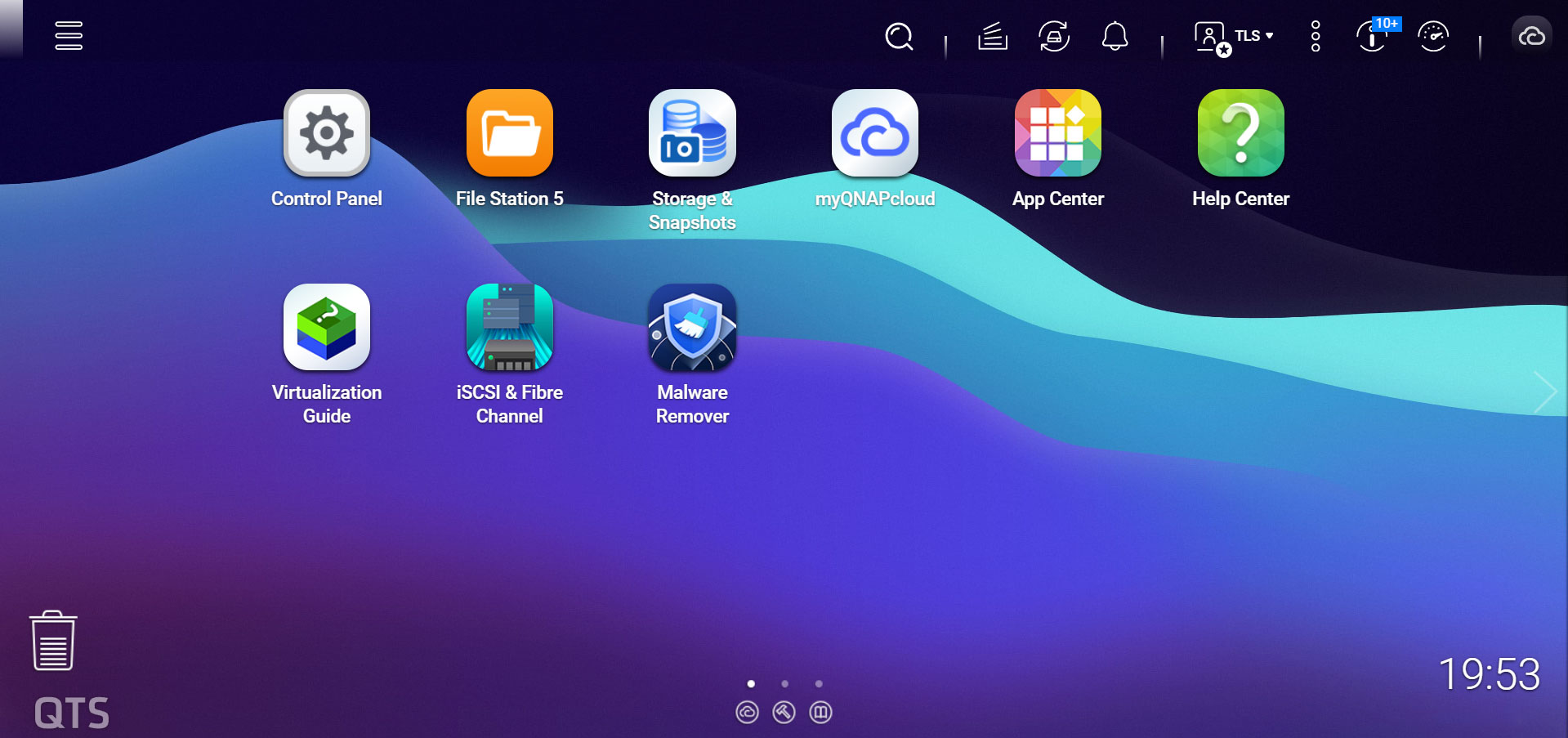

Once you've gotten past the login screens, you're greeted by the desktop, which by default has nine icons on it, as well as several menu buttons spread out around its periphery. Clicking on the "hamburger" menu button on the left, brings up all the software that's on the default desktop, alongside what QNAP thinks are key features that you'll want quick access to. To be honest, the whole desktop user interface on a NAS is somewhat counterintuitive, but it has become the norm in the market. Everything feels a tad cluttered, especially with icons on the top right and bottom center that all serve some kind of functionality. TOS 5.2.x also supports three desktops for icons, if you have a lot of applications installed on your NAS. The row of icons at the top right are in order: Search, Background Tasks, External Device, Alert (notifications), an Admin menu—where you can change the user settings, the language, desktop preferences and more, plus restart or shut down the NAS and log out—a More button—which hides the help, customer services, T&C's and About etc.—Notice board which displays different alerts than Alerts, Dashboard—which slides out a dashboard with various system statuses—and finally myQNAPcloud. The bottom center icons takes you to various QNAP websites for help with different services or to tutorials or the QNAP forums. Maybe not the most logical layout, but it's not too hard to figure out how it all works.
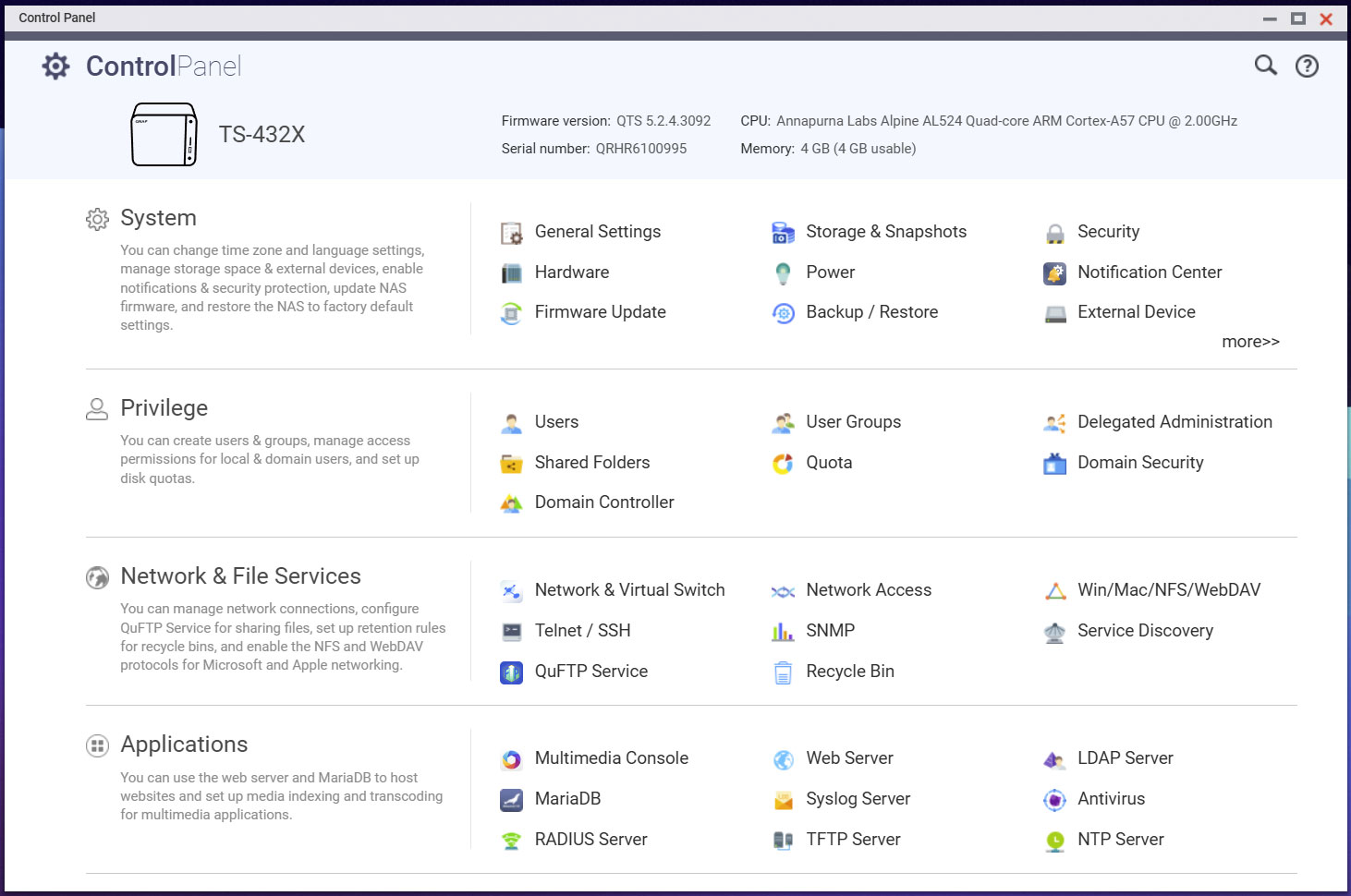
This brings us to the control panel, where you will most likely spend a fair amount of time during the setup of your QNAP NAS, since this is where you will be changing and configuring settings, adding users and user groups and handling general administration of your NAS. We're not going to go through all the settings here, but let's just say that there isn't much that's missing. QNAP has at least divided up the control panel in four sections, System, Privilege, Network & File Services and Applications. The middle two are likely to be the ones you'll spend most time in, as the System part is pretty much a set and forget the first time you use the NAS, even though firmware updates can be done from here, but you'll get a notification when one is available regardless. Under Privilege is where you set up user accounts and user groups, shared folders and user quotas. For more advanced configurations, this is also where you configure domain specific features. Under Network & File Services you can configure the network interfaces and the virtual switch, configure various file sharing services such as SMB, AFP, NFS and WebDAV, as well as configure the recycle bin, that can retain deleted files, just in case. Under Applications you can configure things like the web server, databases and the antivirus options, among other things.

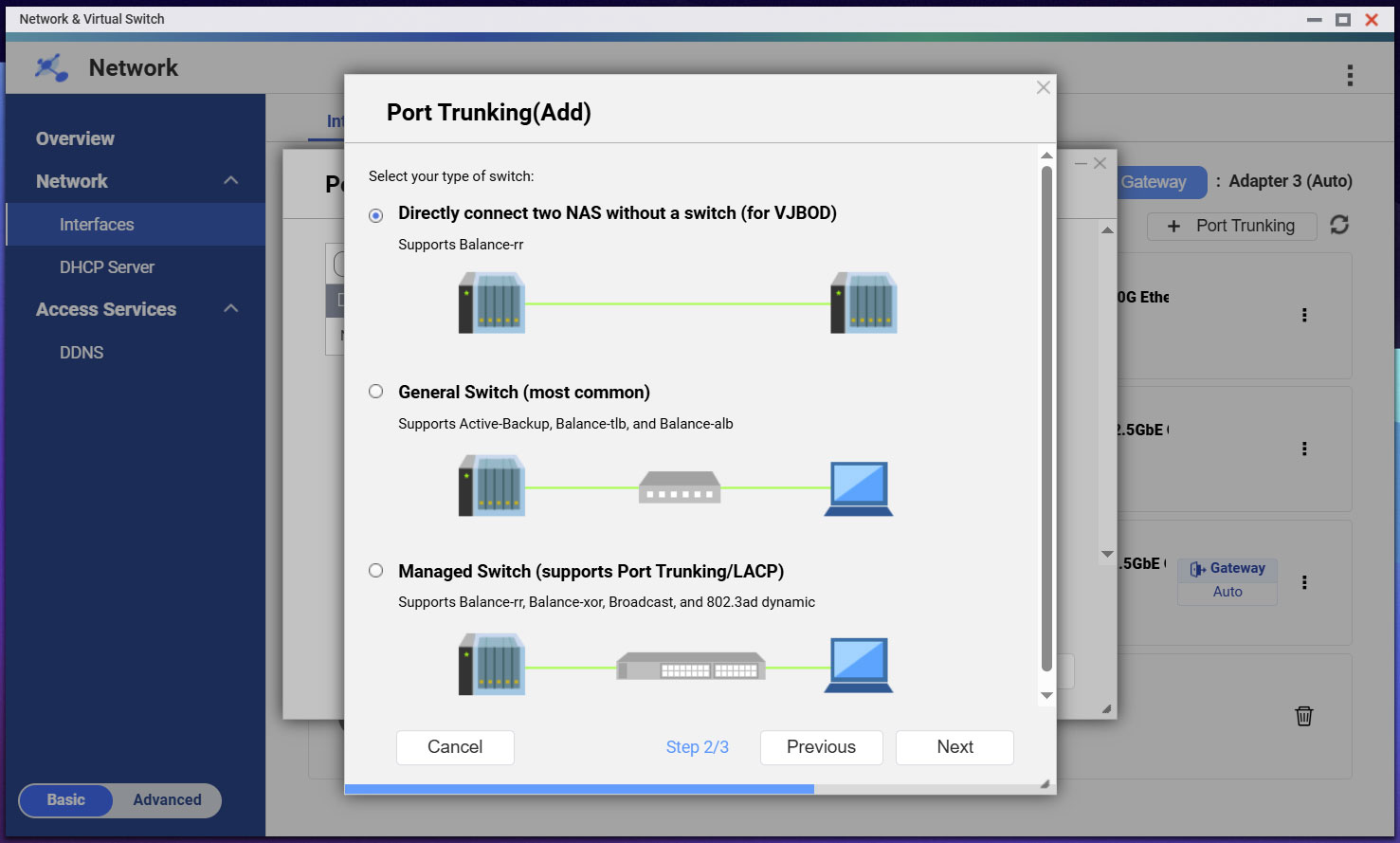
QNAP's virtual switch interface is a feature that stands out versus the competition we've had a look at, as it allows for easy management of the network interfaces and this is where you also configure things like bonding and trunking. QNAP even has an option for NAS to NAS direct connection without the need for a switch, a feature that could be really handy for those that keep their older NAS as a backup for their newer NAS, as the older NAS would no longer be on the main network. VLAN's are also supported for each of the ports and the NAS can also be set up to act as your DHCP server if you prefer to move that away from your router. As you might've spotted, there's a fourth, missing network interface, and that was the Aquantia card used for testing, in other words, add-in cards are also manageable through this interface.

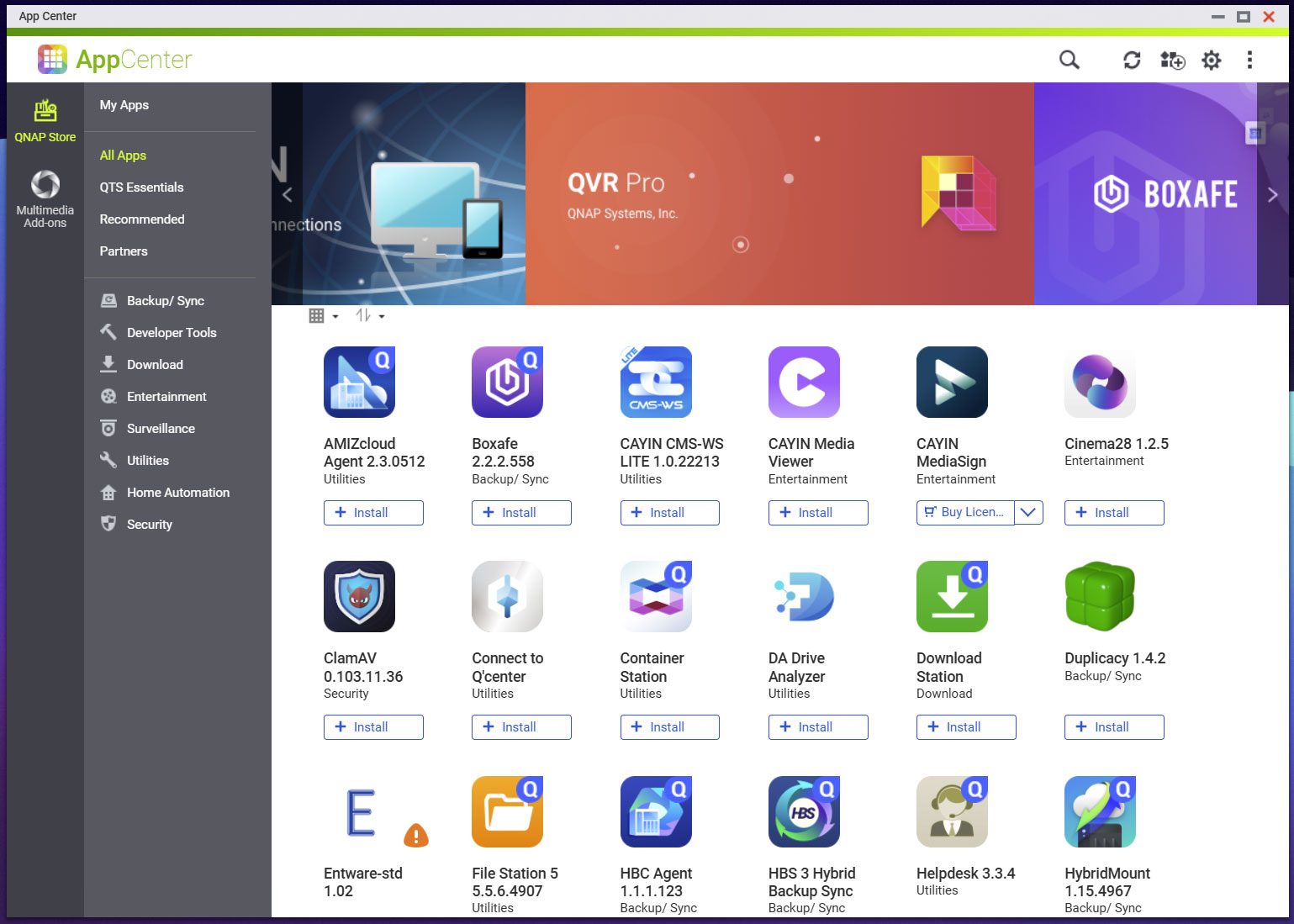
The file station is another piece of software that you'll most likely spend some time in if you get a QNAP NAS, as this is where you can easily manage data on the NAS, create data snapshots and easily create new shared folders, or give a user access to additional folders. Then we have the all important AppCenter, this is where you install new apps that you might want to use on your NAS. Let's just say that QNAP has an extensive library of native apps. However, do note that its Arm based models—like the TS-432X—don't have access to the same amount of apps as their x64 based models, due to some software not running on the Arm based SoCs. In addition to the official apps, there are also several hundred third party apps that can be installed.

QNAP also has a very extensive resource monitor that covers every aspect of the NAS. However, one thing you can't do is kill running services, which is a bit annoying if you have a misbehaving app, but it's the only minor complaint we have. QNAP also has several options for configuring the fan speed, although we ran it using the normal mode during our testing, there's also a quiet and a performance mode. Alternatively, you can set a temperature target or even manually set the fan speed. The lowest possible fan speed appears to be 660 rpm, but it didn't seem to make much of a difference in overall noise level from the TS-432X, due to the mechanical drives causing more noise than the fan in this specific case.
Overall, QTS 5.2.x is a feature packed OS, and we haven't even gone into features such as iSCSI, HybridMount—which allows you to mount a remote device or a cloud service as a local storage device—or any of the PVR features that you can use your QNAP NAS for. As already noted, QNAP has too many features in some ways, which can make their products a tad confusing to use, as you need to try to figure what you need and what you don't need. If you're just after a simple NAS for backing up your data to, or maybe to stream some content from, QNAP might be a bit too much. However, we also see the appeal of being able to do a lot more than this with your NA, and it's clear that QNAP has a certain following just because of all the available software features, but we almost wish they had an "easy" mode for those that don't need all the bells and whistles from the get-go. We do have to give QNAP some stick here though, the company is still stuck on Linux kernel 4.2.8, as we've already mentioned, which is an issue that QNAP has had for a long time, due to how much its QTS OS has grown. As such, QNAP has to backport a lot of software. That was a problem over a decade ago, when yours truly worked briefly for the company, and it appears to continue to haunt the company and will most likely do so for some years to come. This is really where QNAP needs to put a lot of their resources, to bring up to date underpinnings to their OS.
Nov 14th, 2026 00:34 CST
change timezone
Latest GPU Drivers
New Forum Posts
- Requesting original VBIOS for Gigabyte RX 5700 XT GAMING OC 8G Rev 2.0 (Micron) (1)
- Tell me about your favourite graphics card (35)
- What are you playing? (26216)
- no "PhysX" workable (9)
- AI generated images... (224)
- Crimson Desert (31)
- RenoDX HDR - how to view the differnce Before&After in game? (0)
- Displayport DP80 3M (10ft) cable that can achieve 80gbps stable? (5)
- I'll flash a ASUS ROG Strix RX480 O8G in Cause of Code 43, as a Newbie (1)
- Opinion on Monitor Replacement (6)
Popular Reviews
- AMD Zen 6 Technical Deep Dive
- Corsair HX1000i Shift Crystal Review
- NZXT C1200 Platinum Review
- Upcoming Hardware Launches 2027 (Updated Nov 2026)
- ASUS ROG Strix B850-I Gaming Wi-Fi7 W Review
- Montech King 95 3D PRO Review
- NZXT H7 RGB+ Review
- NZXT H5 Review
- Phantom Blade Zero Performance Benchmark Review - 35 GPUs Tested
- XPG NIMBUS PLUS Review - Mid-range Chair With Strong Competitors
TPU on YouTube
Controversial News Posts
- NVIDIA Co-Founder and CEO Jensen Huang Officially Resigns (380)
- OpenAI CEO Argues Home PCs Waste the World's Limited DRAM Supply (152)
- NVIDIA Launches Investigation Into Jensen Huang's Relationship With Suspected Chinese Spy (136)
- Intel "Raptor Lake Next" 16-Core and 20-Core CPUs Surface (130)
- Legendary Game Studio BioWare Shuts Down Following EA Layoffs (104)
- Dell CEO Says the Memory Shortage Will Get Worse in 2027 (95)
- NVIDIA GeForce RTX 50-Series Scheduled for up to $500 Price Hike This Week (89)
- Modder Fits RTX 5090 With Four 8-Pin Connectors, Halving Current per Wire (80)