 20
TerraMaster F4-424 Max Review - The fastest NAS we've tested so far
Storage Pool & Volumes »Initial Setup
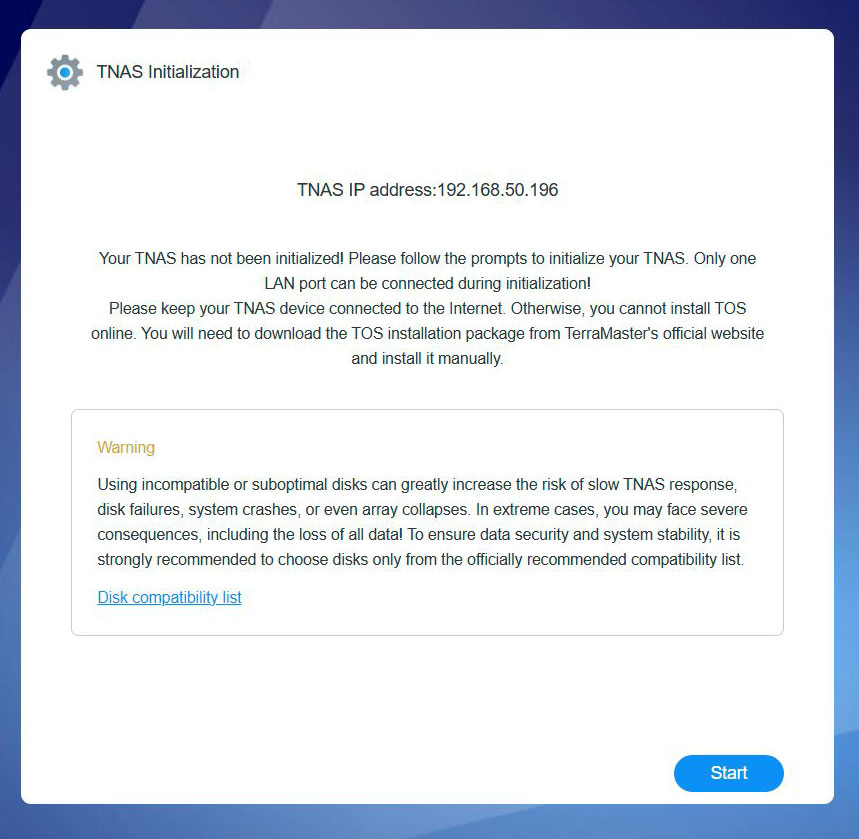
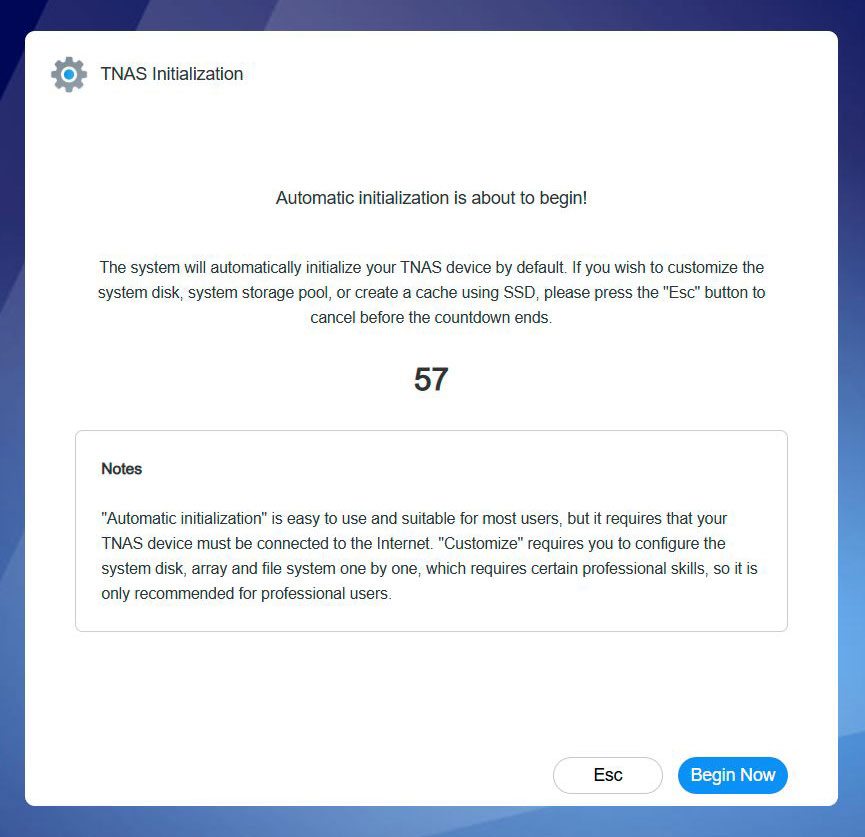

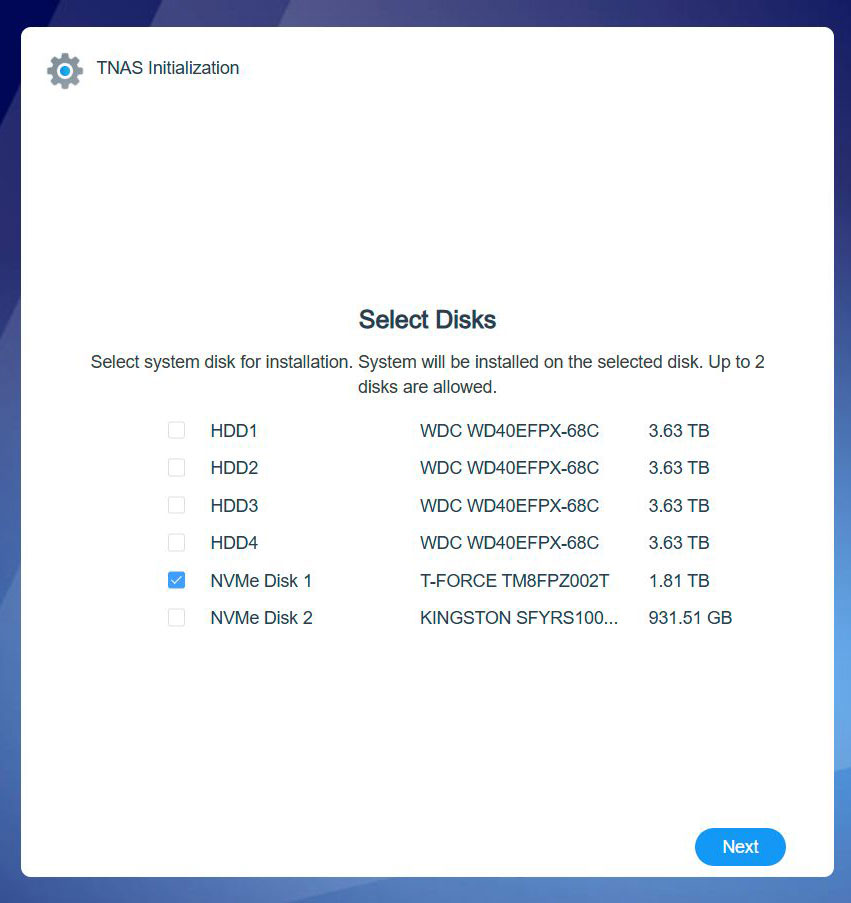
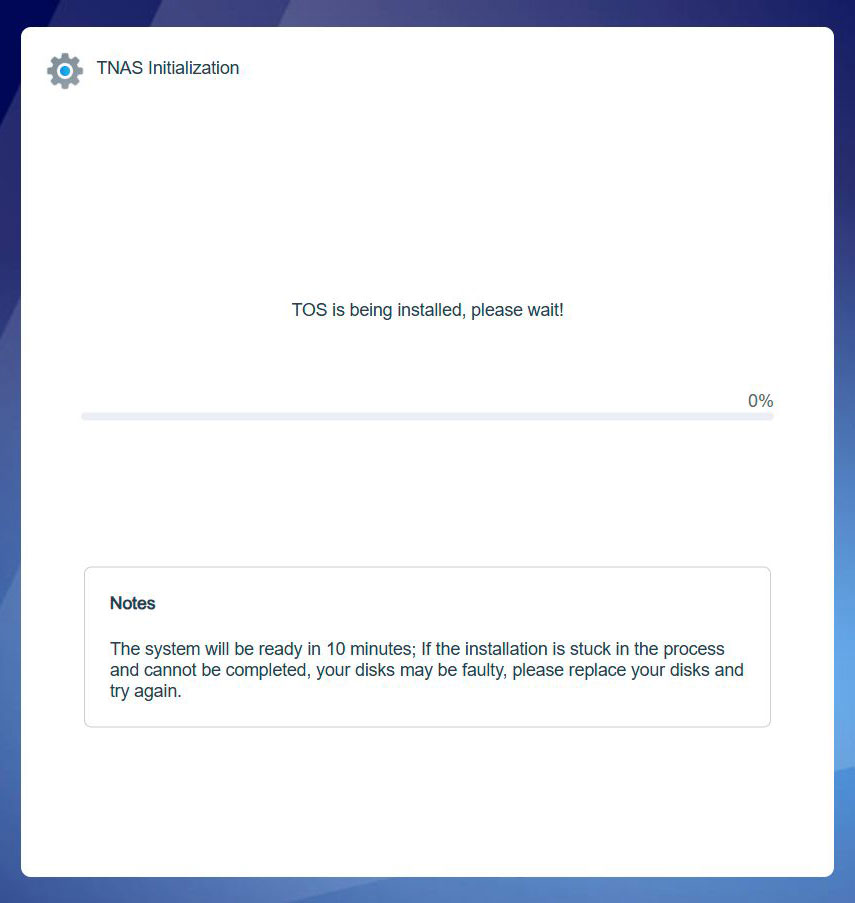
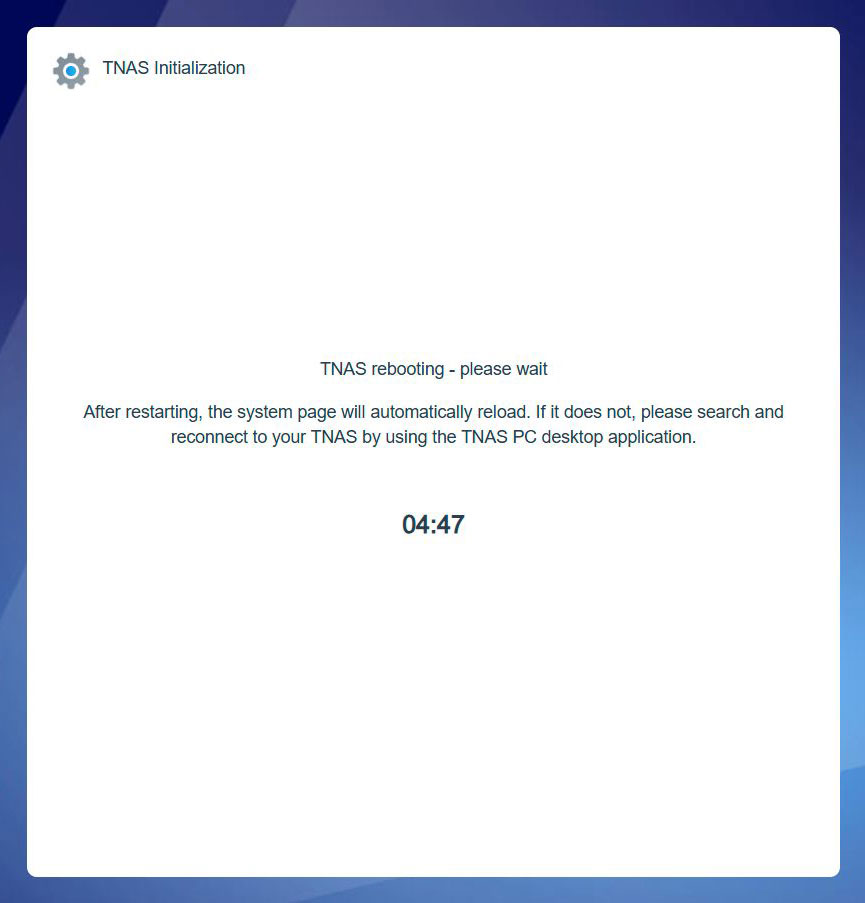
Compared to the F8 SSD, the setup of the F4-424 Max differed slightly, as we got the opportunity to choose which drive we wanted to install the OS on. We picked one of the SSDs, to minimize wait times when rebooting the system, and for the general performance perks of running software on a SSD vs a HDD. This might not matter most of the time when you're using a NAS, but when you update the OS and reboot your NAS, this could save you a significant amount of time. Plus, besides the performance advantages of not running mixed workloads, it clears up some space on the mechanical drives that you can use for storing more data, instead of having the OS partition sitting there. Yes, it would be a small additional cost, but perhaps you have a spare M.2 drive sitting around from a previous system upgrade, as you should be fine with a 128 to 256 GB drive for the OS install.
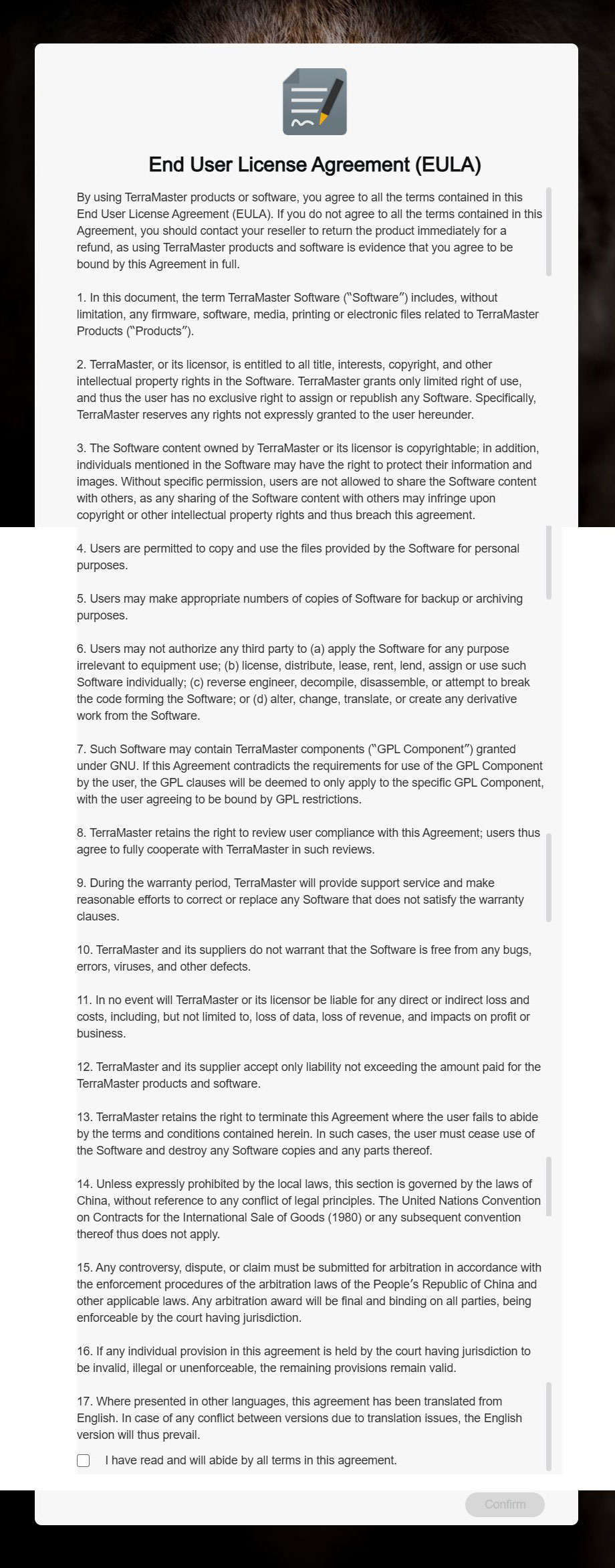
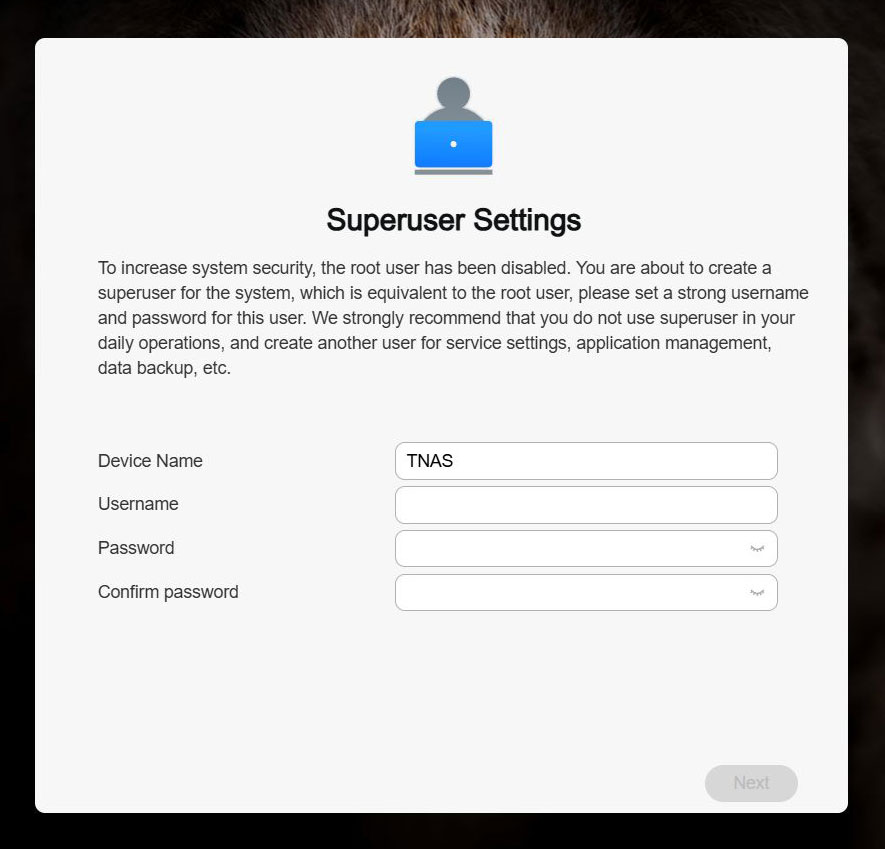
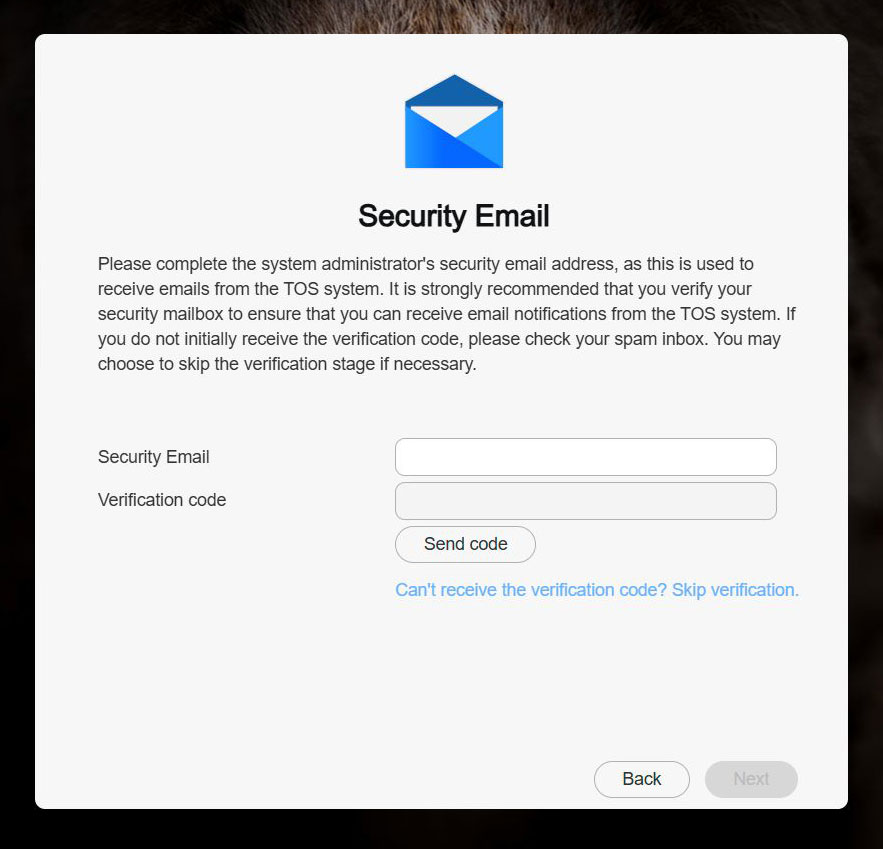
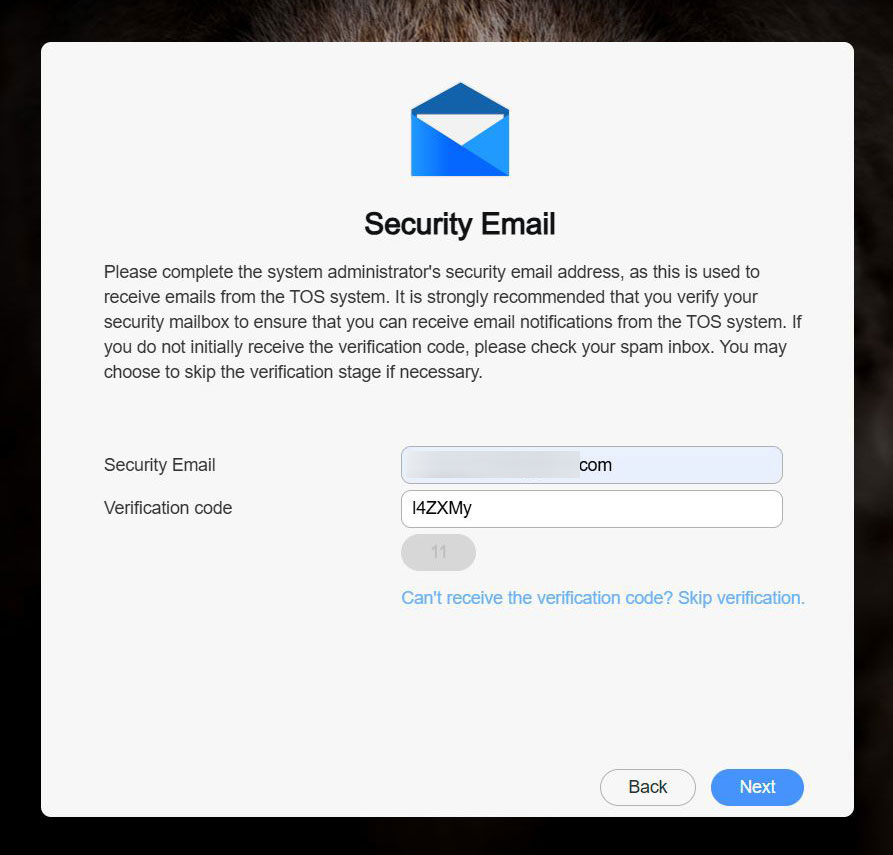
Once the NAS has rebooted, you have to accept the EULA and enter the superuser username and password. You're also given the opportunity to change the name of your NAS here. Overall it's a very straightforward setup process that then lands you at the desktop of TOS 6, and now you're ready to set up your storage pool and volume. One step we forgot to mention in the F8 SSD Plus review is that you also need to enter the administrator email address, as a means of account recovery, which could be handy in the rare case you forget your admin password.
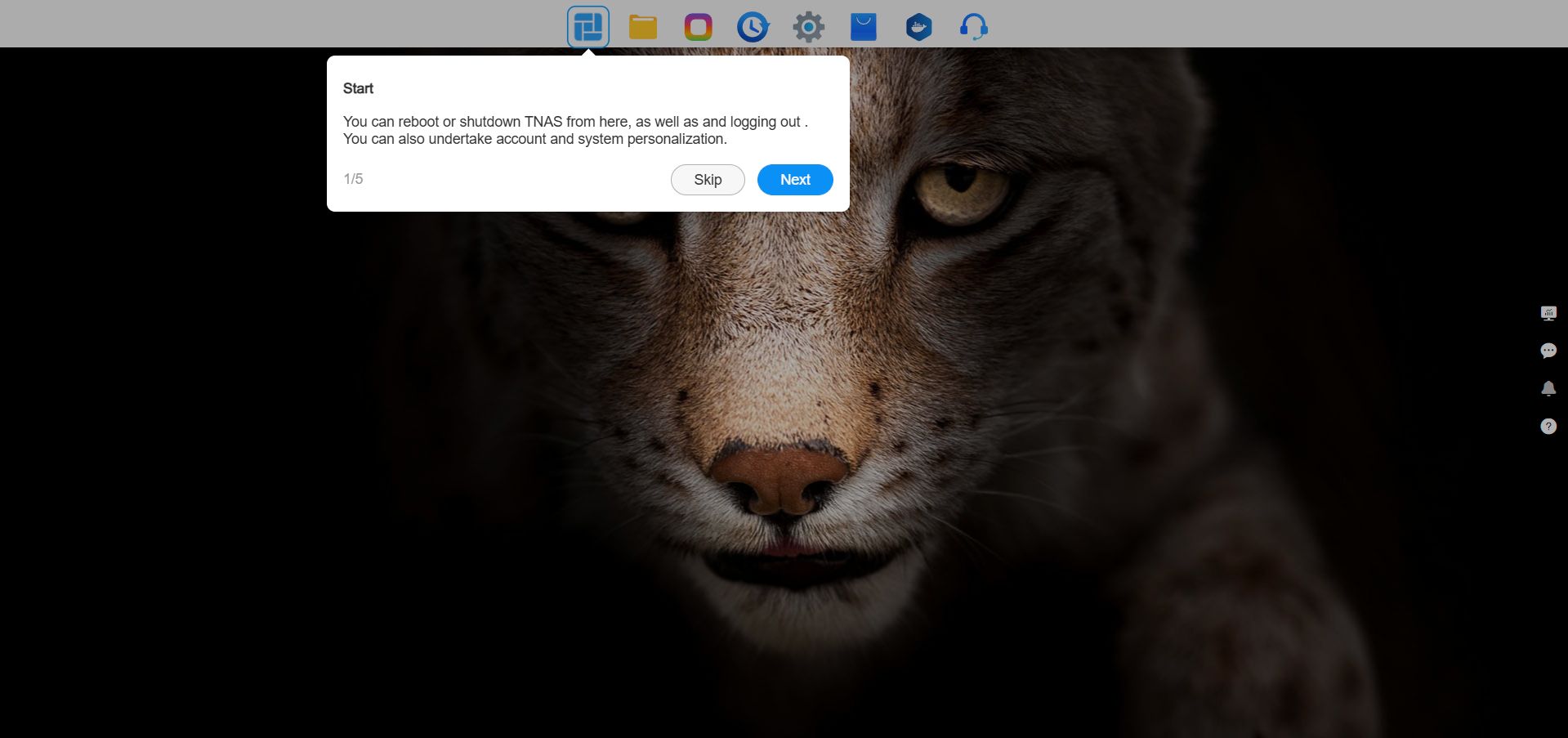
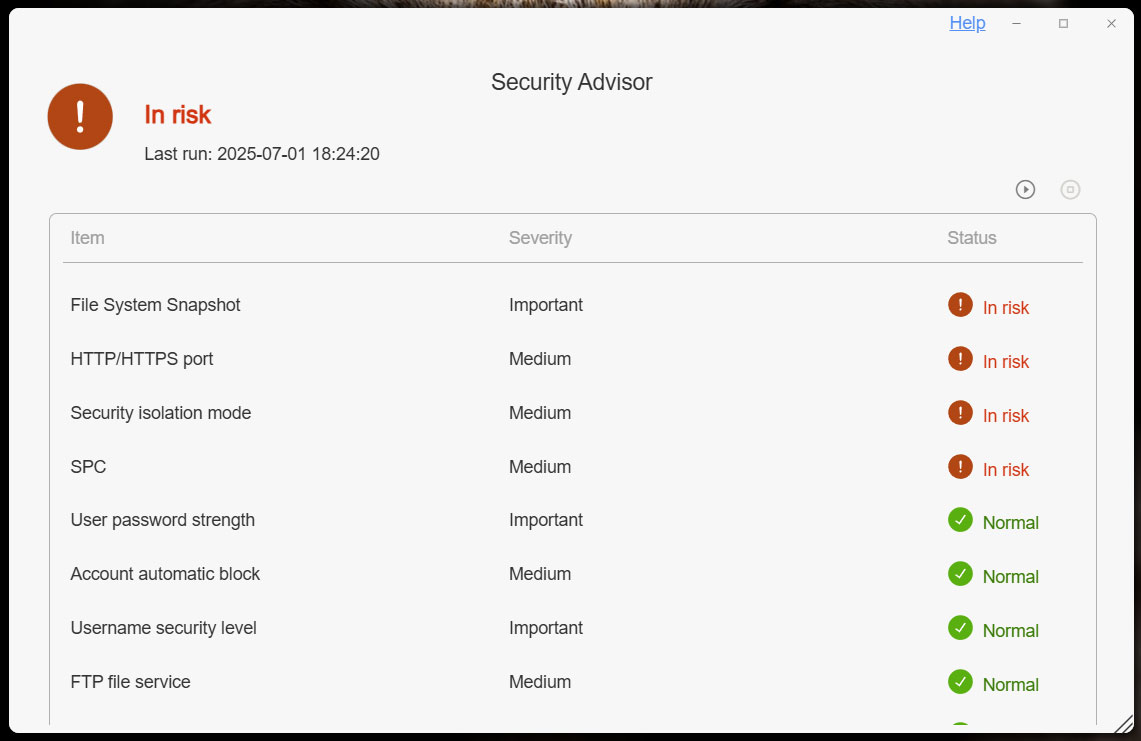
Once you've reached the TOS 6 desktop, you have to click through a quick help wizard that points out the most commonly used features and once you've gotten through that, it's time to panic. Or at least that's what all the warnings that the security advisor throws in your face. Most of these can be ignored as a home user, as for example, you'll most likely be on a private network at home, so HTTPS encryption isn't likely to be something you'll be able to configure. Things like file system snapshot is something you could once you've configured your drives, which makes it a bit of odd warning this early on in the setup process. The other two warnings are for a couple of security features that you may or may not want to enable.
TerraMaster has moved from TOS 6.0.610 to TOS 6.0.694 since the F8 SSD Plus review. Although this might seem like a small step, this meant a move from Linux kernel 6.1.58 to 6.1.120 and there has been three versions of the OS between the two reviews, showing that TerraMaster is actively addressing both bugs and security issues, as well as adding some new features. However, we did run into a glitch that most people would never really run into; the SMB file service would disable itself after we deleted the volume and storage pool when changing RAID mode. The odd thing here is that it didn't happen consistently, but it happened enough times to be annoying, as all of a sudden the NAS wouldn't be reachable from Windows. The first time this happened, it took us a while to figure out what had happened, since SMB is normally turned on automatically as soon as a new volume has been created. As you don't tend to change the RAID mode on a regular basis, this isn't a huge issue though, but more of an annoyance.
For a more detailed look at TOS 6, please read the "A Closer Look at TOS 6" in the TerraMaster F8 Plus SSD review, as there has been no major changes to how the OS works since then. Apart from the Linux kernel update mentioned earlier and besides improving fan control, most of the updates have been various bug fixes.
Nov 14th, 2026 01:30 CST
change timezone
Latest GPU Drivers
New Forum Posts
- Tell me about your favourite graphics card (36)
- Requesting original VBIOS for Gigabyte RX 5700 XT GAMING OC 8G Rev 2.0 (Micron) (1)
- What are you playing? (26216)
- no "PhysX" workable (9)
- AI generated images... (224)
- Crimson Desert (31)
- RenoDX HDR - how to view the differnce Before&After in game? (0)
- Displayport DP80 3M (10ft) cable that can achieve 80gbps stable? (5)
- I'll flash a ASUS ROG Strix RX480 O8G in Cause of Code 43, as a Newbie (1)
- Opinion on Monitor Replacement (6)
Popular Reviews
- AMD Zen 6 Technical Deep Dive
- Corsair HX1000i Shift Crystal Review
- NZXT C1200 Platinum Review
- ASUS ROG Strix B850-I Gaming Wi-Fi7 W Review
- Upcoming Hardware Launches 2027 (Updated Nov 2026)
- Montech King 95 3D PRO Review
- NZXT H7 RGB+ Review
- NZXT H5 Review
- Phantom Blade Zero Performance Benchmark Review - 35 GPUs Tested
- XPG NIMBUS PLUS Review - Mid-range Chair With Strong Competitors
TPU on YouTube
Controversial News Posts
- NVIDIA Co-Founder and CEO Jensen Huang Officially Resigns (381)
- OpenAI CEO Argues Home PCs Waste the World's Limited DRAM Supply (152)
- NVIDIA Launches Investigation Into Jensen Huang's Relationship With Suspected Chinese Spy (136)
- Intel "Raptor Lake Next" 16-Core and 20-Core CPUs Surface (130)
- Legendary Game Studio BioWare Shuts Down Following EA Layoffs (104)
- Dell CEO Says the Memory Shortage Will Get Worse in 2027 (95)
- NVIDIA GeForce RTX 50-Series Scheduled for up to $500 Price Hike This Week (89)
- Modder Fits RTX 5090 With Four 8-Pin Connectors, Halving Current per Wire (80)