 4
Halo: Campaign Evolved Handheld Performance Review
Out-of-Box Experience »Graphics Settings
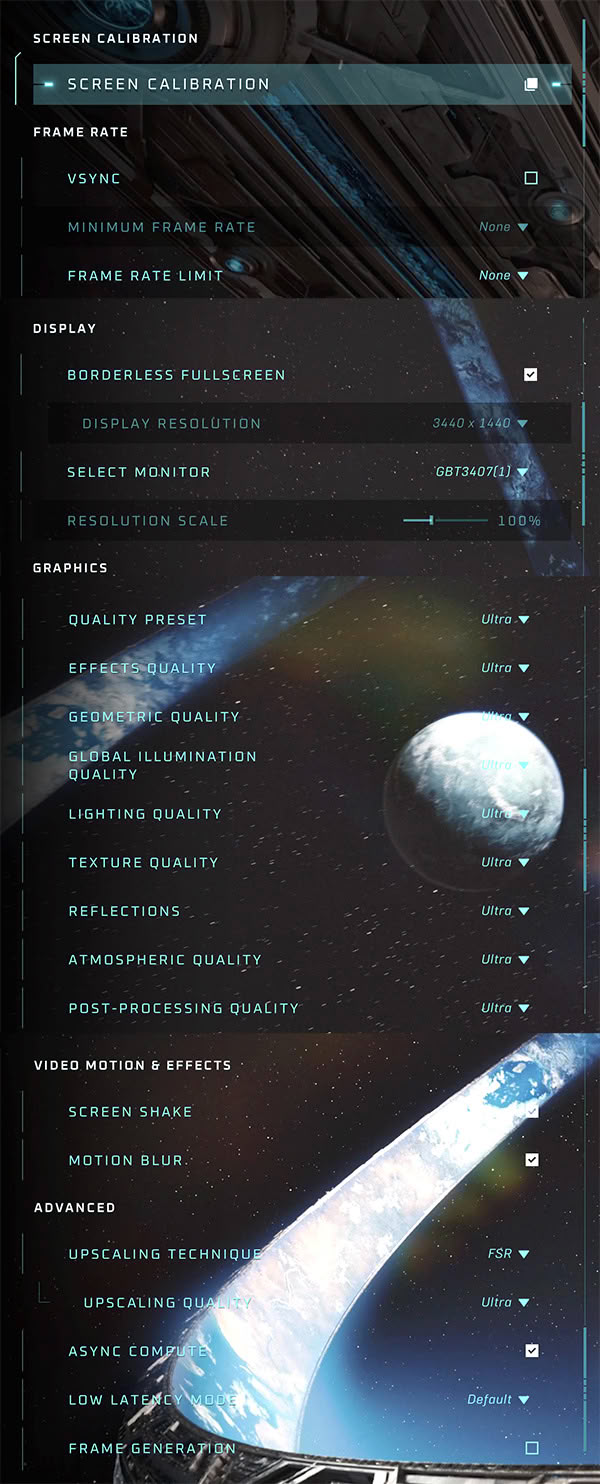
- The graphics options are opened with F1 on the keyboard, or the Menu/Options button on a controller.
- The game only supports borderless fullscreen and windowed modes, which means you have to change resolution in Windows prior to launching the game if you don't want to play at your monitor's/handheld's native resolution.
- A Field of View slider lives in the Gameplay settings. The default is quite narrow, especially on handhelds. We increased it to 95, which feels like the sweet spot on 16:9 displays.
- Cutscenes are locked to 30 FPS, no matter your hardware or frame rate settings, which feels dated on a high-refresh display.
- Motion blur can be toggled off in the options, but frustratingly it stays active during cutscenes regardless. Unfortunately, there's no way to disable some effects such as chromatic aberration.
- Upscaling covers NVIDIA DLSS, AMD FSR and Intel XeSS, alongside the engine's own TSR and a Native (100% render) mode. DLSS uses the latest 4th-generation transformer model on RTX 20-series and newer; AMD cards get FSR 3 across the board, with FSR 4 kicking in automatically on RDNA 4 (Radeon RX 9000). Remember that XeSS is only present in the Steam version.
- The Upscaling Quality slider uses generic names—Low, Medium, High, Ultra and Native—instead of each vendor's usual labels. For DLSS that means "Ultra" is really Quality (67% render scale), "High" is Balanced (59%), "Medium" is Performance (50%) and "Low" is Ultra Performance (33%); the same render resolutions apply to FSR and XeSS, while TSR handles scaling on its own. It sidesteps per-vendor confusion, but it's non-standard and takes a moment to map.
- Frame Generation is available for all three vendors, but only once the matching upscaler (DLSS, FSR or XeSS) is enabled—it can't be combined with TSR/native TAA. There's no multiplier selection either; it's locked to 2x, with no multi-frame generation on offer, although you can override this limitation in Intel Graphics Software if you own an Intel GPU or an Intel-powered handheld. Low-latency modes are supported too—NVIDIA Reflex, AMD Anti-Lag and Intel XeLL.
Ultra-wide 21:9 aspect ratios are supported. - The game requires a Microsoft/Xbox account sign-in, even on Steam.
- A single Quality Preset drop-down sets everything at once—on desktop the four levels are Low, Medium, High and Ultra. PC Handhelds unlock an extra "Very Low" preset below Low, which is inexplicably hidden on desktop—there's no good reason to lock it away, since it would help owners of older desktop GPUs just as much. On the flip side, if you own a handheld PC the maximum level of quality you can select is "Medium," with higher levels (High and Ultra) being unavailable.
- Each of the eight individual quality groups can also be tuned manually—Effects, Geometric, Global Illumination, Lighting, Texture, Reflections, Atmospheric and Post-processing—with the same Low/Medium/High/Ultra options.
- The remake relies on Unreal Engine 5's Lumen for global illumination and Nanite for geometry. Lumen is always on and there is no separate "RT Off" switch like in many other games—the ray-traced lighting instead scales with the Global Illumination, Lighting and Reflections settings.
Test Devices
We tested the early access Steam version of Halo: Campaign Evolved.- The Steam Deck LCD was running SteamOS version 3.8.16, build 20260716.1.
- Our ROG Xbox Ally X had Armoury Crate 2.2.13.0 installed along with BIOS 317.
- The ROG Ally X had the latest Armoury Crate version installed at the time of testing (2.2.13.0), along with BIOS 312.
- The MSI Claw 8 AI+ A2VM had MSI Center M 2.0.2605.1501 installed along with BIOS E1T52IMS.112.
- The MSI Claw 8 EX AI+ CG3EM had MSI Center M 2.0.2606.3001 installed along with BIOS E1T52IMS.105.
| Gaming Handhelds Used for Testing | |
|---|---|
| Steam Deck LCD | SteamOS version 3.8.16 build 20260716.1 |
| ASUS ROG Xbox Ally X | Armoury Crate 2.2.13.0 BIOS 317 GPU driver version: 32.0.31019.2002 Windows 11 Home 25H2 VBS disabled |
| ASUS ROG Ally X | Armoury Crate 2.2.13.0 BIOS 312 GPU driver version: 32.0.31007.6002 Windows 11 Home 25H2 VBS disabled |
| Claw 8 AI+ A2VM | MSI Center M 2.0.2606.2501 BIOS E1T52IMS.112 GPU driver version: 32.0.101.8864 Windows 11 Home 25H2 VBS disabled |
| Claw 8 AI+ EX CG3EM | MSI Center M 2.0.2606.3001 BIOS E1T52IMS.105 GPU driver version: 32.0.101.8864 Windows 11 Home 25H2 VBS disabled |
Nov 11th, 2026 18:44 CST
change timezone
New Forum Posts
- Samsung 870 EVO - Beware, certain batches prone to failure! (1487)
- Request - revert LFC behaviour to old patch. (0)
- GeekMagic Ultra Smart WiFi Weather Station (4)
- When you could finally run Crysis maxed out? (44)
- WarpCoreBench scores! (14)
- Warning for Windows 10 and 11 users running newer AMD GPU drivers (49)
- Bought MAX-P495 - Which model? (29)
- DTS DCH Driver for Realtek HDA [DTS:X APO4 + DTS Interactive] (2809)
- Rare GPUs / Unreleased GPUs (2271)
- Windows new update 26H2 - Throttlestop (10)
Popular Reviews
- AMD Zen 6 Technical Deep Dive
- Upcoming Hardware Launches 2027 (Updated Nov 2026)
- XPG NIMBUS PLUS Review - Mid-range Chair With Strong Competitors
- NZXT H7 RGB+ Review
- NZXT H5 Review
- NZXT C1200 Platinum Review
- Phantom Blade Zero Performance Benchmark Review - 35 GPUs Tested
- Montech King 95 3D PRO Review
- Gigabyte Z890I Aorus Ultra Review
- INNOCN 45C1R Review - Two QHD Screens, Zero Bezels
TPU on YouTube
Controversial News Posts
- OpenAI CEO Argues Home PCs Waste the World's Limited DRAM Supply (152)
- NVIDIA Launches Investigation Into Jensen Huang's Relationship With Suspected Chinese Spy (136)
- Intel "Raptor Lake Next" 16-Core and 20-Core CPUs Surface (130)
- Legendary Game Studio BioWare Shuts Down Following EA Layoffs (104)
- Dell CEO Says the Memory Shortage Will Get Worse in 2027 (95)
- NVIDIA GeForce RTX 50-Series Scheduled for up to $500 Price Hike This Week (89)
- AMD Radeon Owners Can Now Run Nearly Every DLSS Feature Through Fan-Made Mod (80)
- Modder Fits RTX 5090 With Four 8-Pin Connectors, Halving Current per Wire (80)