 17
Nioh 3 Handheld Performance Review
Out-of-Box Experience »Graphics Settings
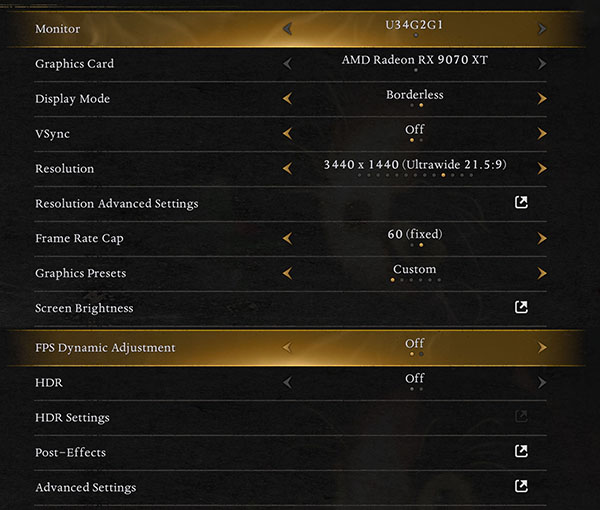
- The main visual settings menu includes options such as display mode, VSync, resolution, and so on.
- You can only select "Windowed" and "Borderless" display modes; the game doesn't include a full-screen display mode for some reason.
- You can pick between a variety of resolutions, including those not supported by your monitor.
- The game doesn't support unlocked frame rates; you can only select between three frame rate cap options: 30, 60, and 120.
- If your monitor has a refresh rate lower than 120 Hz, you can only choose between 30 and 60 frame rate caps.
- You can play the game at 240 FPS, but only with frame generation.
- The game includes five graphics presets in total: "Very Low," "Low," "Standard," "High," and "Very High."
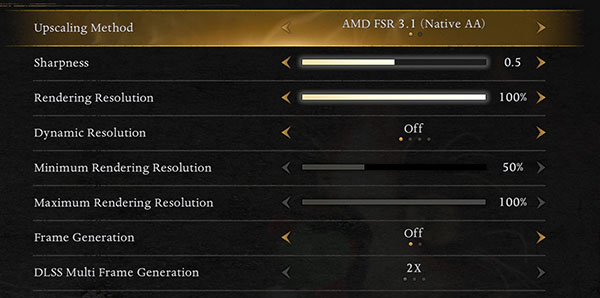
- The "Resolution Advanced Settings" submenu includes upscaling-related options.
- The game includes support for FSR 3.1 (you can enable FSR 4 via driver override), DLSS, and XeSS 2.
- Selecting any of the graphics presets also enables upscaling; you have to manually set rendering resolution to 100% to disable upscaling.
- There are no upscaling presets, you can instead adjust rendering resolution from 25% to 100% in 5% increments.
- The game includes a dynamic resolution setting (30, 45, 60, and 120 FPS); if you enable it you can freely adjust the minimum and maximum rendering resolution.
- Nioh 3 supports FSR and DLSS frame generation, along with DLSS Multi Frame Generation.
- You can mix and match upscalers and frame generation; for example, you can use XeSS upscaling along with FSR frame generation.
- Unfortunately, you cannot adjust FOV.
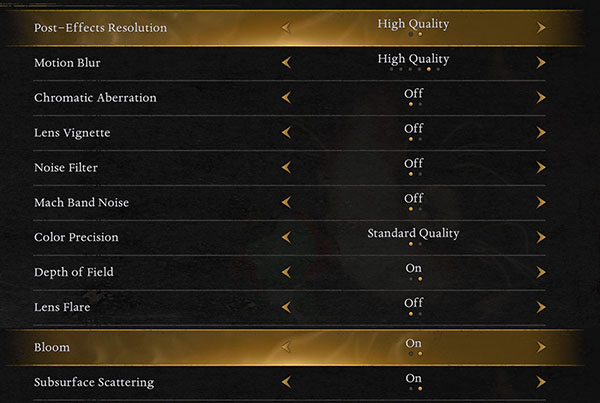
- The "Post Effects" menu allows you to adjust motion blur, chromatic aberration, and similar options.
- You can fully disable most post effects including motion blur, chromatic aberration, and depth of field.
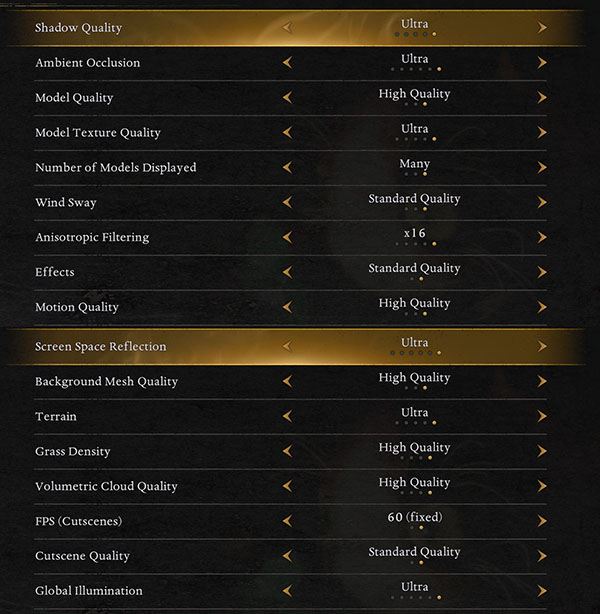
- The fourth (!) graphics options menu, "Advanced Settings," is where you can tweak options such as shadow and texture quality, LOD, and more.
- There's a plethora of settings to adjust, but most have very little effect on performance.
- The only option we found that has a noticeable effect on performance is "Global Illumination."
Test Devices
We tested the public Steam release of Nioh 3.- The Steam Deck LCD was running SteamOS version 3.7.19, build 20251124.1.
- Our ROG Ally X had the latest Armoury Crate version installed at the time of testing (2.1.20.0), along with BIOS 312.
- The ROG Xbox Ally X had Armoury Crate 2.1.20.0 installed along with BIOS 314.
- The ROG Ally with SteamOS was running SteamOS version 3.7.20, build 20260108.1.
| Gaming Handhelds Used for Testing | |
|---|---|
| Steam Deck LCD | SteamOS version 3.7.19 build 20251124.1 |
| ASUS ROG Ally X | Armoury Crate 2.1.20.0 BIOS 312 GPU driver version: 32.0.22029.1019 Windows 11 Home 25H2 VBS disabled |
| ASUS ROG Ally Z1E with SteamOS | SteamOS version 3.7.20 build 20260108.1 |
| ASUS ROG Xbox Ally X | Armoury Crate 2.1.20.0 BIOS 314 GPU driver version: 32.0.21025.27003 Windows 11 Home 25H2 VBS disabled |
Nov 13th, 2026 06:47 PST
change timezone
Latest GPU Drivers
New Forum Posts
- Microsoft Exchange/365 outages? (34)
- I won't download games that are larger than 30–40 GB. (106)
- Any other old-timers here planning to play WoW Forever? (150)
- Requesting original VBIOS for Gigabyte RX 5700 XT GAMING OC 8G Rev 2.0 (Micron) (0)
- To AiO CPU Cooler users? (0)
- Home page search by category (6)
- Windows 11 General Discussion (7727)
- Slow SSD read speeds - help! (1)
- Warning for Windows 10 and 11 users running newer AMD GPU drivers (58)
- TPU's Nostalgic Hardware Club (22150)
Popular Reviews
- AMD Zen 6 Technical Deep Dive
- Corsair HX1000i Shift Crystal Review
- NZXT C1200 Platinum Review
- Upcoming Hardware Launches 2027 (Updated Nov 2026)
- Montech King 95 3D PRO Review
- NZXT H7 RGB+ Review
- NZXT H5 Review
- Phantom Blade Zero Performance Benchmark Review - 35 GPUs Tested
- XPG NIMBUS PLUS Review - Mid-range Chair With Strong Competitors
- Gigabyte Z890I Aorus Ultra Review
TPU on YouTube
Controversial News Posts
- NVIDIA Co-Founder and CEO Jensen Huang Officially Resigns (350)
- OpenAI CEO Argues Home PCs Waste the World's Limited DRAM Supply (152)
- NVIDIA Launches Investigation Into Jensen Huang's Relationship With Suspected Chinese Spy (136)
- Intel "Raptor Lake Next" 16-Core and 20-Core CPUs Surface (130)
- Legendary Game Studio BioWare Shuts Down Following EA Layoffs (104)
- Dell CEO Says the Memory Shortage Will Get Worse in 2027 (95)
- NVIDIA GeForce RTX 50-Series Scheduled for up to $500 Price Hike This Week (89)
- Modder Fits RTX 5090 With Four 8-Pin Connectors, Halving Current per Wire (80)