Tuesday, May 12th 2026

Microsoft's Windows 11 UI Is About to Get Much More Responsive
Microsoft is updating the native Windows user interface to create more responsive Windows 11 UI elements through the Windows K2 initiative. The company is transitioning its core Windows 11 elements from third-party frameworks to the Windows-native WinUI 3. In a recent GitHub post by Microsoft engineer Beth Pan, it's clear that Microsoft is making changes even within the WinUI 3 framework itself, demonstrating significant improvements in application launches. The company is using File Explorer and Notepad as benchmarks for performance improvements, as these core apps require much better responsiveness. With the latest set of patches arriving soon, File Explorer will have much less background work to do before launching, meaning that the launch should feel nearly instant.
For example, the latest WinUI 3 patches enable 41% fewer allocations, 63% fewer transient allocations, 45% fewer function calls, and 25% less time spent in the WinUI code powering the framework. This means that the upcoming File Explorer patch should feel noticeably faster with the updated framework, delivering on a promise to make the Windows 11 user interface a much smoother experience. As these changes are expected to be integrated into the WinAppSDK 2.x soon, we should see them arrive in the operating system in the coming weeks. Some changes are still too risky to implement in such a large piece of software, so users will need to wait a bit longer in case the testing encounters issues.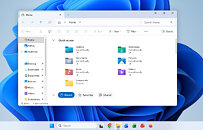 Currently, Windows 11 is a mix of legacy Microsoft frameworks for the user interface. This jumble of UIs has led to a lot of inconsistency, with daily operations encountering non-uniform interfaces carried over from the Windows 7 era. This mix includes web-based WebView2, React, and others. Microsoft plans to transition its entire user experience to the desktop-only WinUI 3 framework, which will reduce application latency, improve user experience, and make it feel noticeably smoother. All of this fine-tuning is being done alongside the "Low Latency Profile," which boosts the CPU frequency to its maximum state for 1-3 seconds to open applications faster and make the OS feel much smoother overall.
Sources:
Microsoft on GitHub, via Windows Central
For example, the latest WinUI 3 patches enable 41% fewer allocations, 63% fewer transient allocations, 45% fewer function calls, and 25% less time spent in the WinUI code powering the framework. This means that the upcoming File Explorer patch should feel noticeably faster with the updated framework, delivering on a promise to make the Windows 11 user interface a much smoother experience. As these changes are expected to be integrated into the WinAppSDK 2.x soon, we should see them arrive in the operating system in the coming weeks. Some changes are still too risky to implement in such a large piece of software, so users will need to wait a bit longer in case the testing encounters issues.

98 Comments on Microsoft's Windows 11 UI Is About to Get Much More Responsive
By the time 10 was good enough for me to switch to it, within 18 months 11 was announced.This.
I have to install two third party UI overlays to make 11 usable.
Even 8.1 wasnt this bad, that only need startisback.
I fear the new GUI components coded today won't have the detail and elegance of the Win32 ones. I was reading earlier that File Properties is due for a makeover. What travesty one can only wonder. We pick up our phones for mobile UI; it is uncalled for on the desktop.If people find it useful, I accept that. But, beyond that, as a design principle, Notepad should not do too much.
Microsoft’s Notepad is truly something that is exactly as it should be. Yes. It turns out Redmond actually *can* do it when it wants to. Not everything they do is fundamentally nonsensical. By the way, has anyone noticed in the new Xbox app that—in order to hide third-party libraries—you first have to click on the specific third-party provider to open a submenu where the toggle switch is located? So much for the topic of nonsense. 😎 Since I’ve now uninstalled the Xbox app myself ("Gaming Services" is all you need to play Microsoft games!), I unfortunately can't share a nice little screenshot of it with you.
Cheers,
Fred.
I think the nonsense started with 8 and its gorgeous tiles :-)
Who besides all of the people in the know working IT could have known that?
CatPenguin!Cheers,
Fred.
I installed from 22H2 upto 26H1 custom or official windows 11 and all of them were slow and buggy. Honestly worse than my w8.1 PC i had prior, and it was 4C/4T 8gb...
At the end i decided to give windows 10 a try and its been 10 times better, mind you still worse than the linux i had before..
They are lucky some games refuse to support linux, the moment they do i reckon windows user base will be halved.
Linux lacks desktop applications that most of the world uses and what is available is of poor quality and poorly supported. Linux is also too fragmented to attract interest of commercial developers and the fragmentation confuses non-technical people; and it still has too many hardware issues. Linux has basic and profound limitations stemming from its very design and philosophy that will prevent it from ever becoming a dominant desktop OS. It'll always remain a niche. Even if Windows disappeared from the surface of Earth, people would rather switch to Mac or just use mobile devices. The Macbook Neo is apparently flying off the shelves by the millions and Apple can't make enough of them fast enough.
Conversely, Microsoft could make Linux irrelevant as a desktop OS overnight, if they were really inclined to fix Windows and deliver an OS that people have been wanting. But it ain't gonna happen, I'm afraid. We're gonna get some little fixes, some may even be meaningful, but the overall picture will remain more or less the same: telemetry, ads and nags, AI slop and forced integration of MS Services is not likely to ever go away. But it will remain the dominant OS.
Honestly, it's an embarrassment that a multi billion dollar software company like MS doesn't know how to write a basic text editor.
All this news about MS all of a sudden making windows more "responsive", yeah sure. And as if that is the only issue with their software.
I'll believe the quality is going up it when I see it, but I'm not holding my hopes up.
I recently happily switched to Linux for all my own devices at home, so I might experience some performance improvements at my Windows work machine at some point. Who knows, ten years from now they might have actually improved things. Or maybe they'll be beaten down by a competitor with a better product at that point, I mean they've been ripe for that treatment for decades now.
There are many times I wish life were as simple as 95/98 was, mostly cause I got to experience it.
But back to your point - if it's just a notepad like it was in Me/XP days, then it should also work as fast as back then. There is no justification for it to be slower.
And if extra features are not necessary in a simple notepad, then 99% of new features that microsoft already implemented are pointless. I'll give a well-deserved 1% to F5 for inserting date/time (I used it at least a couple of times).
And while you have line/col in the status bar - having line numbers next to the actual line is wa-a-a-ay more convenient and doesn't take that much effort to add (at least as an available option). We've been doing this for decades. It's all been solved before. They can even ask their Copilot to scan their Github and find a few examples they can get "inspiration" from.
My point is, if notepad is already slow and sluggish then at least I want it to be a tradeoff for some useful features, and not just another Copilot button.
Regards,
Fred.
If it were sluggish, no extra feature would justify that sluggishness. One of Notepad's primary expectations is instant opening. It is an engineering failure if it does not.
@HLB I am curious on how you fix windows 11 installation to be fast, because i tried everything i could and it just didnt work.
Happy Father's Day,
Fred.
You can get pretty good results using various utilities on already installed Windows 11, if you just want to make Windows 11 feel faster, but it will take some effort and some time and your mileage will vary. This will not be a 60 seconds fix. Also, keep in mind that this may improve Windows 11 to some degree but you can't expect Linux-like GUI responsiveness, there is only so much you can do with Windows 11 UI.
Start with burning the Windows ISO to a flash drive using Rufus. It has options to disable some WIndows annoyances right there which will make the installation itself quicker and less annoying.
Disable unwanted Explorer extensions and context menu items with ShellExView and ShellMenuView from NirSoft. You only disable them so if you disable something by accident you can just go back and re-enable it. You can't really break anything at this step. This can make big difference in Explorer stability too. Also, enable full classic contextual menus, the "new" Windows 11 contextual menu is laggy garbage. You can do this with Chris Titus Utility, StartAllBack or WinaeroTweaker, read on. Tip: whenever installing software on Windows always do a custom install and see if there are any unnecessary contextual menus or Explorer extensions being installed and uncheck them, most of the time you don't need them and they will just bloat Explorer.
Disable unwanted system services using the built-in Services utility. Again, you just disable stuff here, so you can go back and re-enable if something stops working. I can't tell you exactly what to disable, this depends on your hardware and what software and Windows features you want to use. There is a lot crap running there for no good reason taking up resources. You might wanna look up a guide to Windows Services or just do this by trial and error. You can't really break anything at this step either.
Then, replace the Explorer UI and the Start Menu. My fav is StartAllBackbut it costs something like $5 for three licenses. It makes huge difference if you swap the UI for Windows 10 or 7 UI. It gets rid of the Start Menu lag and the delay when you open Explorer windows. But it replaces the default Windows 11 UI. So if you happen to like it, that would be a problem. StartAllBack also lets you customize the taskbar, move it around, etc. This is reversible too, simply change the settings in StartAllBack or uninstall StartAllBack and everything will revert to vanilla Windows 11.
Another area worth looking at is Windows power settings. You'd need to lookup some tutorials too or just enable the High Performance power plan, but your PC will run hotter and use more power. This helps with games and apps more than with Explorer UI.
Also consider these, they will make Windows less annoying, less intrusive but may also contribute to improving the responsiveness.
O&O ShutUp10++ to disable telemetry, ads, privacy intrusions and annoyances. This one is safe to use too, you can simply go back and re-enable features if something breaks.
O&O AppBusterto remove unwanted software. However, it can't remove some software and some is only disabled for the user. You can mess things up here if you remove software and you need to reinstall it later and that may be be PITA, but you can't break Windows.
Chris Titus Utility - this one is very good, but you really need to watch his videos on YT to learn how to use it. It does too much to cover it here.
Autorunsfrom Sysinternals/Microsoft is another utility that lets you disable and/or remove unwanted stuff but this one is risky, one wrong checkbox and you may end up with unbootable PC. So I can't recommend this unless you know what you're doing.
Finally, for the final tweaks WinaeroTweaker. It lets you customize Windows in many ways, disable Copilot, etc. It's pretty safe as you can undo some tweaks, but still use it with caution.
This is a lot at first, I know. You can start simply with StartAllBack and see how that improves the UI. StartAllBack in itself can make a big difference. It also has a few tweaks and lets you enable full classic contextual menus too.
There are other tools but these are the ones I used.
Another thing people don't really talk about is their own bloat. Due to the amount of RAM we're all rocking these days people don't disable startup items. I see most people running each game launcher, voicemod, Discord, Synapse/LGHub, and every RGB software under the sun 24/7 along with allowing browser background running. It's not necessary, turn it all off.
Windows 11 Insider Release Preview Build 26100.8514/26200.8514
KB5089573 Windows 11 25H2 / 24H2 [Manual Download] as an Optional Update – May 2026
Deskmodder (de)
Regards,
Fred